
TIN MODEL EXPORT DXF Contours All Format Data
- Slides: 28
TIN MODEL EXPORT DXF Contours All Format Data Gridded XYZ Data Along a Planned Line 11/1/2021 2006 HYPACK® Training Seminar 1
TIN MODEL EXPORT DXF Contours PROJECT: SAMPLE SOLID FILL 11/1/2021 2006 HYPACK® Training Seminar 2
Exporting DXF Contours from TIN MODEL The DXF Format routine exports several different DXF entities. – – 2 D Contour 3 D Tin – 3 D Contour All DXF output information is written in real world coordinates. The primary output is 2 D Contours. – – Note: 11/1/2021 Display them in HYPACK®. Plot them in HYPLOT. Display them in SURVEY. Import them into your CAD/GIS package. 3 D files only appear in three dimensions when you load them to a CAD program. In HYPACK®, they are viewed from above and appear only 2 -dimensional. 2006 HYPACK® Training Seminar 3
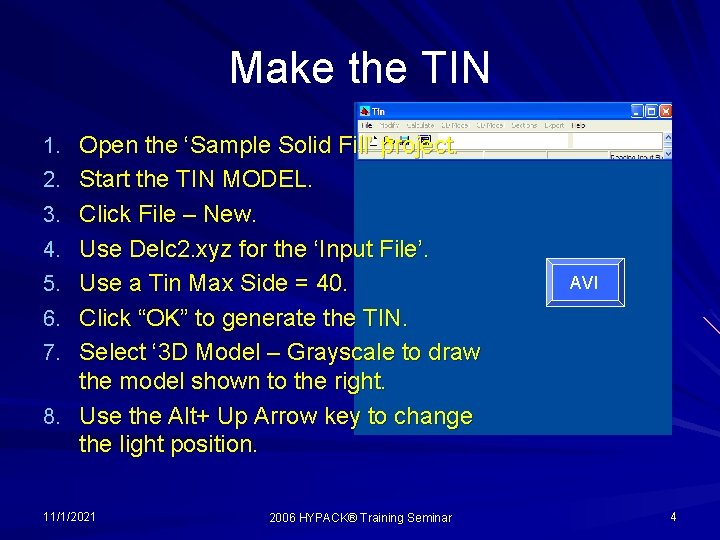
Make the TIN 1. Open the ‘Sample Solid Fill’ project. 2. Start the TIN MODEL. 3. Click File – New. 4. Use Delc 2. xyz for the ‘Input File’. 5. Use a Tin Max Side = 40. AVI 6. Click “OK” to generate the TIN. 7. Select ‘ 3 D Model – Grayscale to draw the model shown to the right. 8. Use the Alt+ Up Arrow key to change the light position. 11/1/2021 2006 HYPACK® Training Seminar 4
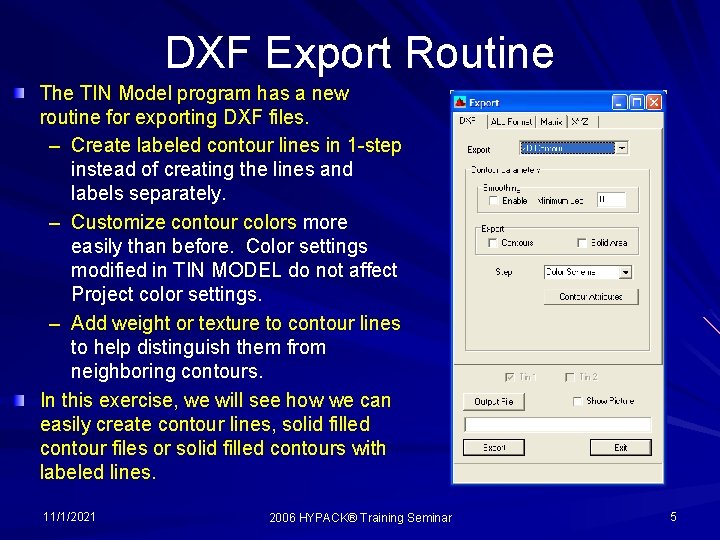
DXF Export Routine The TIN Model program has a new routine for exporting DXF files. – Create labeled contour lines in 1 -step instead of creating the lines and labels separately. – Customize contour colors more easily than before. Color settings modified in TIN MODEL do not affect Project color settings. – Add weight or texture to contour lines to help distinguish them from neighboring contours. In this exercise, we will see how we can easily create contour lines, solid filled contour files or solid filled contours with labeled lines. 11/1/2021 2006 HYPACK® Training Seminar 5
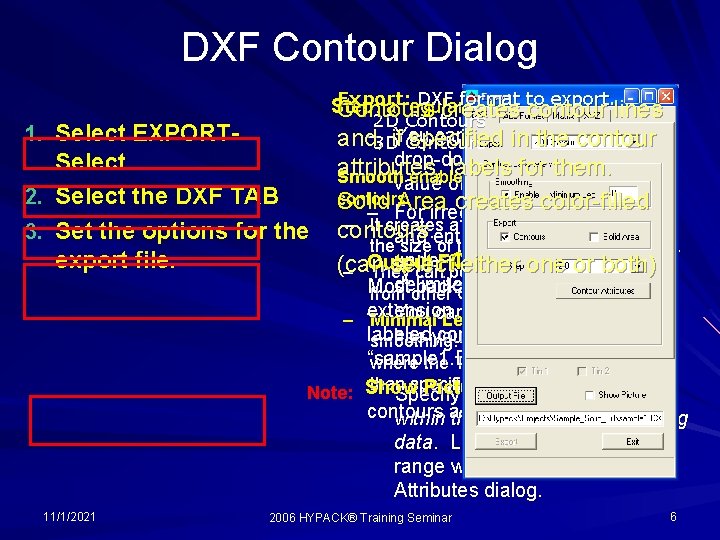
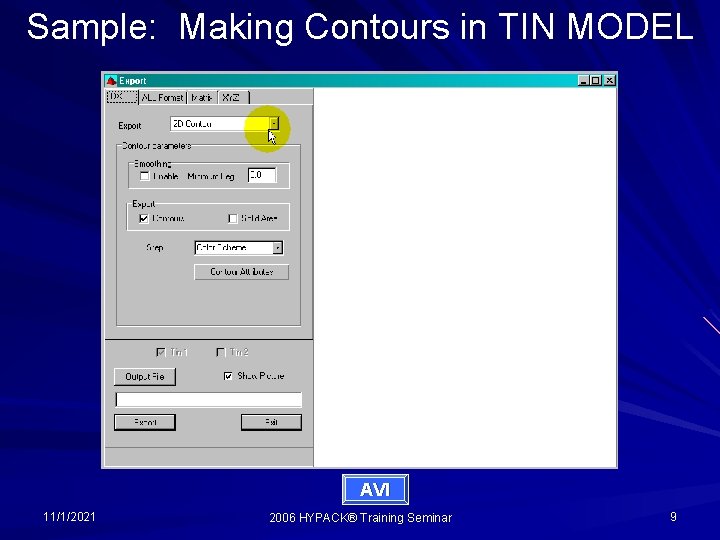
DXF Contour Dialog Export: DXF format tointerval. export. Step : a regular contour Contours creates contour lines 2 D Contours 1. Select EXPORT– 3 Dif. You can select value from the and, specified in athe contour Contours drop-down menu or type in a Select. attributes, labels for them. Smooth enables you to create smoothed value of your own. 2. Select the DXF TAB contours. Solid Area creates color-filled – For irregular steps, click [Other] – It creates a DXF file about ten times 3. Set the options for the contours. and enter your contour levels the size of the non-smoothed contours. under. File: Custom Levels. both) (Space export file. Output filename. (can select either – Output They can be plottedone from or HYPLOT or delimited. ) Most packages require the DXF from other CAD packages. will first create –Minimal You can also specify a fileofthat – extension. Leg. We limits the amount labeled contour lines. levels. Enter has your contour smoothing. Smoothing will not occur “sample 1. DXF” to name file. where the TIN Model leg is the shorter than specified here. Picture: to display Note: Show Specify only Select levels that occur contours build. within as thethey range of your sounding data. Levels outside the data range will disable the Contour Attributes dialog. 11/1/2021 2006 HYPACK® Training Seminar 6
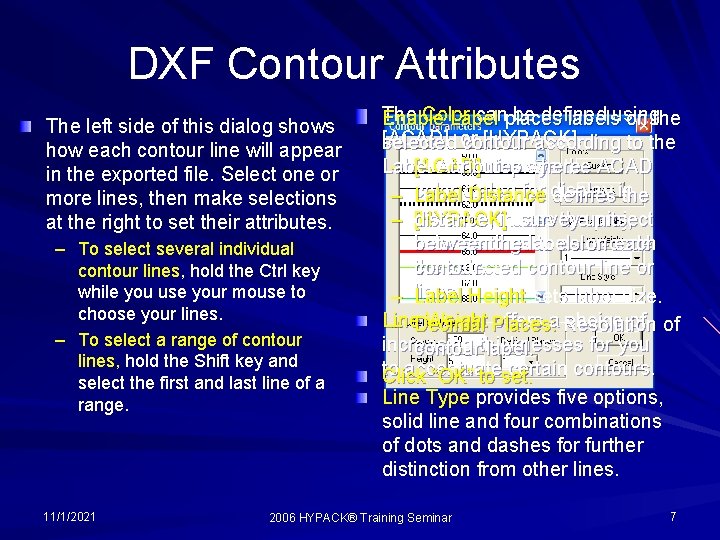
DXF Contour Attributes The left side of this dialog shows how each contour line will appear in the exported file. Select one or more lines, then make selections at the right to set their attributes. – To select several individual contour lines, hold the Ctrl key while you use your mouse to choose your lines. – To select a range of contour lines, hold the Shift key and select the first and last line of a range. 11/1/2021 The Color canplaces be defined Enable Label labelsusing on the [ACAD] [HYPACK]. selected or contour according to the Label Attributes where: – [ACAD] displays the ACAD for display – color Labeldialog Distance defines in the survey – distance, [HYPACK]inuses theunits, project between the labels on each color settings to color-code contour. the selected contour line or – lines. Label Height sets label size. Line Weight Places: offers a Resolution choice of of – Decimal increasing for you contourthicknesses label. to accentuate certain contours. Click “OK” to set. Line Type provides five options, solid line and four combinations of dots and dashes for further distinction from other lines. 2006 HYPACK® Training Seminar 7
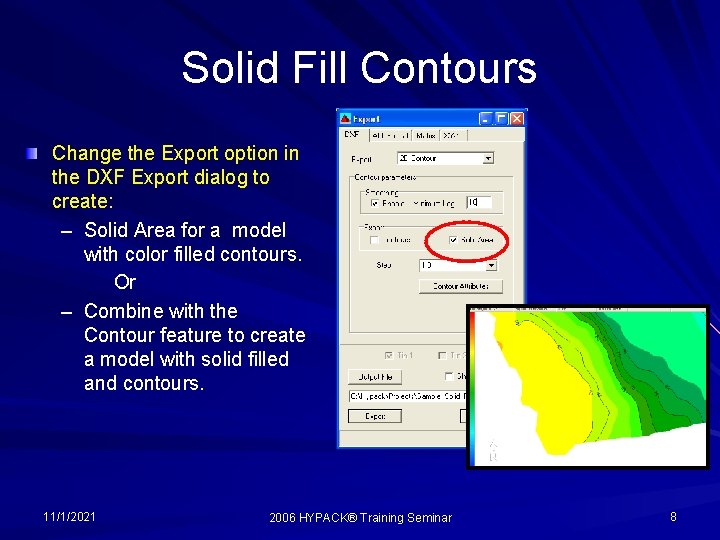
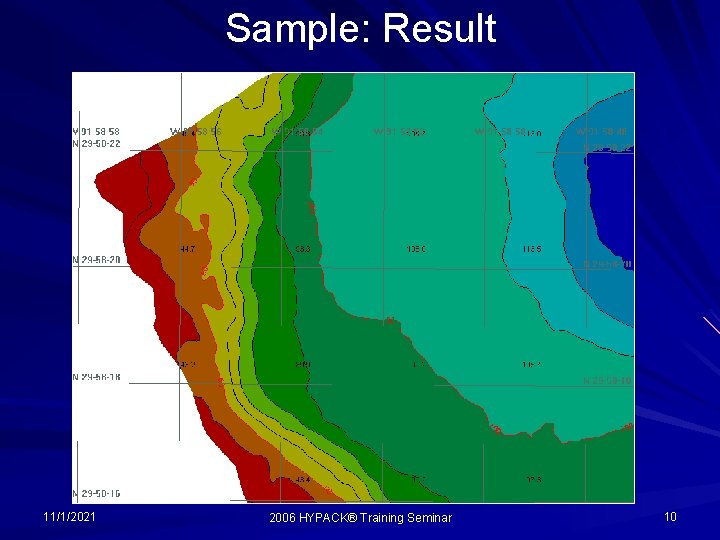
Solid Fill Contours Change the Export option in the DXF Export dialog to create: – Solid Area for a model with color filled contours. Or – Combine with the Contour feature to create a model with solid filled and contours. 11/1/2021 2006 HYPACK® Training Seminar 8
Sample: Making Contours in TIN MODEL AVI 11/1/2021 2006 HYPACK® Training Seminar 9
Sample: Result 11/1/2021 2006 HYPACK® Training Seminar 10
TIN MODEL EXPORT Exporting Sections in ALL Format PROJECT: SAMPLE TIN MODEL 11/1/2021 2006 HYPACK® Training Seminar 11
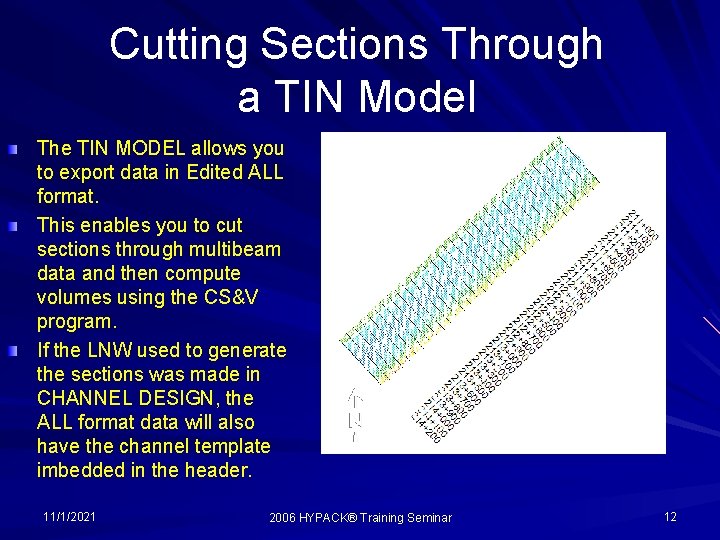
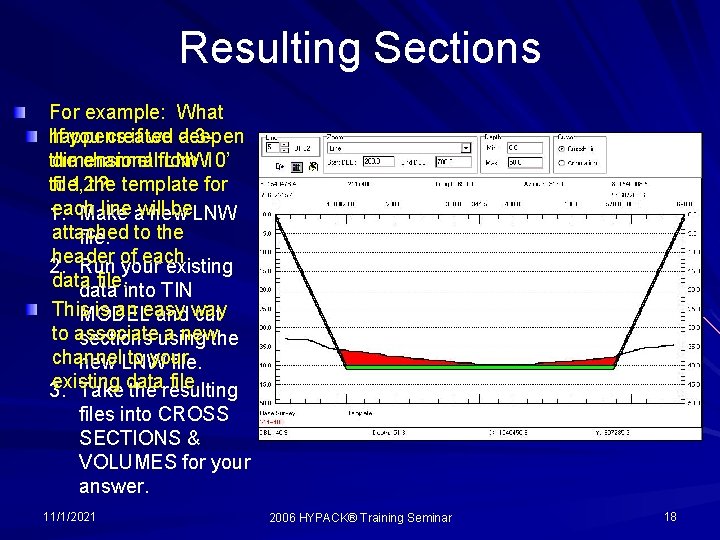
Cutting Sections Through a TIN Model The TIN MODEL allows you to export data in Edited ALL format. This enables you to cut sections through multibeam data and then compute volumes using the CS&V program. If the LNW used to generate the sections was made in CHANNEL DESIGN, the ALL format data will also have the channel template imbedded in the header. 11/1/2021 2006 HYPACK® Training Seminar 12
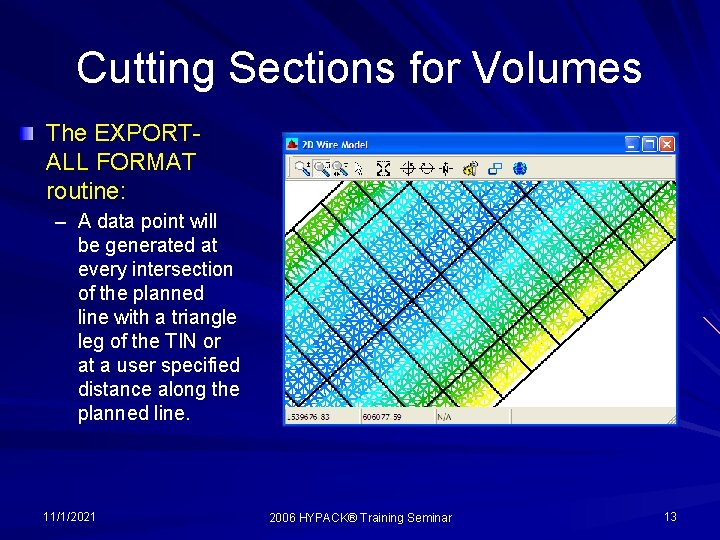
Cutting Sections for Volumes The EXPORTALL FORMAT routine: – A data point will be generated at every intersection of the planned line with a triangle leg of the TIN or at a user specified distance along the planned line. 11/1/2021 2006 HYPACK® Training Seminar 13
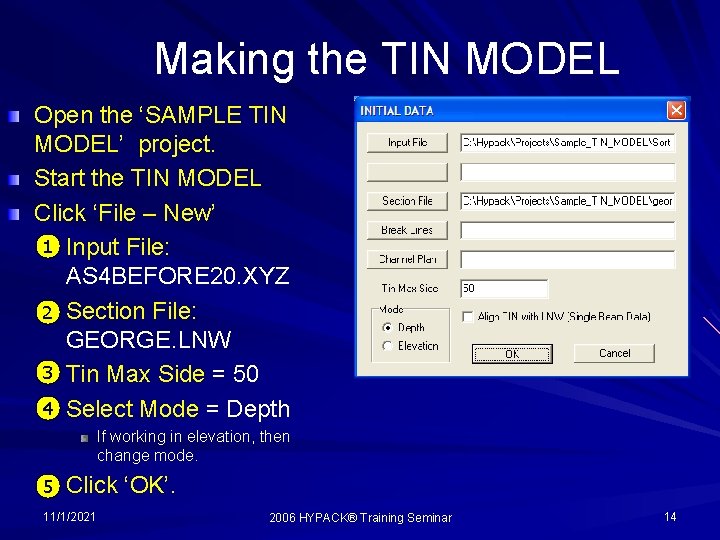
Making the TIN MODEL Open the ‘SAMPLE TIN MODEL’ project. Start the TIN MODEL Click ‘File – New’ 1 – Input File: AS 4 BEFORE 20. XYZ – Section File: 2 GEORGE. LNW 3 – Tin Max Side = 50 4 – Select Mode = Depth If working in elevation, then change mode. 5 – Click ‘OK’. 11/1/2021 2006 HYPACK® Training Seminar 14
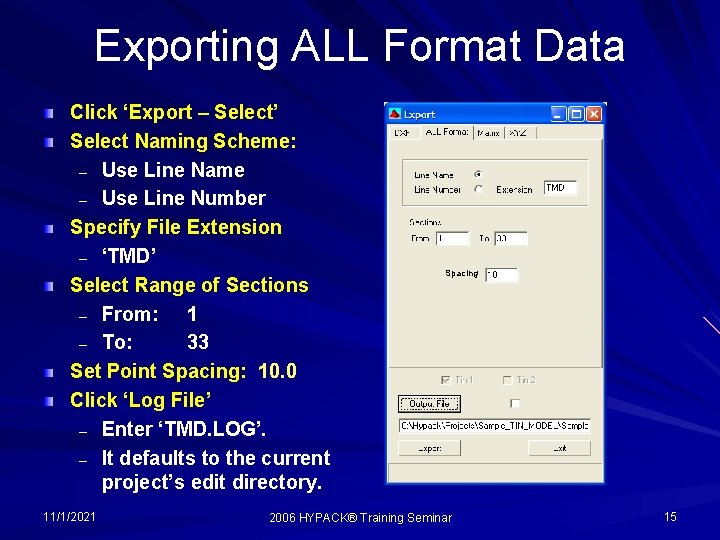
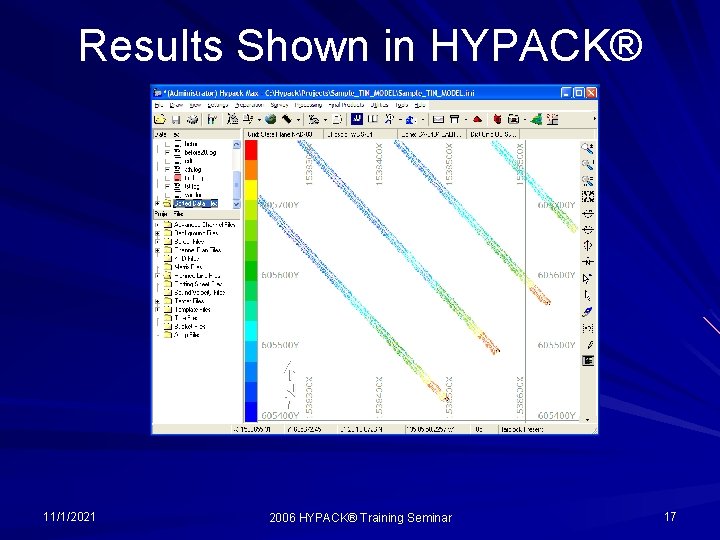
Exporting ALL Format Data Click ‘Export – Select’ Select Naming Scheme: – Use Line Name – Use Line Number Specify File Extension – ‘TMD’ Select Range of Sections – From: 1 – To: 33 Set Point Spacing: 10. 0 Click ‘Log File’ – Enter ‘TMD. LOG’. – It defaults to the current project’s edit directory. 11/1/2021 Spacing 2006 HYPACK® Training Seminar 15
Sample Session AVI 11/1/2021 2006 HYPACK® Training Seminar 16
Results Shown in HYPACK® 11/1/2021 2006 HYPACK® Training Seminar 17
Resulting Sections For example: What happens If you created if we deepen a 3 dimensional LNW 10’ the channel from to file, 12’? the template for each line awill be. LNW 1. Make new attached file. to the header each 2. Run of your existing data file. data into TIN This is an easy MODEL and way cut to associate a newthe sections using channel to your new LNW file. existing file. 3. Take data the resulting files into CROSS SECTIONS & VOLUMES for your answer. 11/1/2021 2006 HYPACK® Training Seminar 18
TIN MODEL EXPORT Gridded XYZ Data PROJECT: SAMPLE MONEPTS 11/1/2021 2006 HYPACK® Training Seminar 19
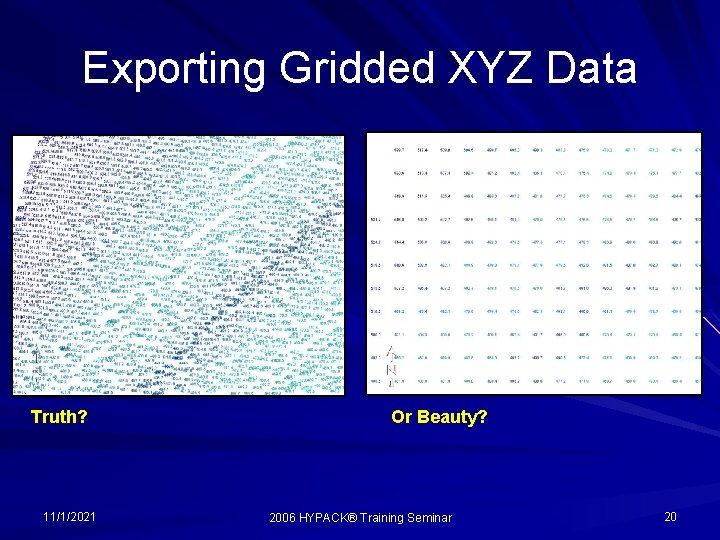
Exporting Gridded XYZ Data Truth? 11/1/2021 Or Beauty? 2006 HYPACK® Training Seminar 20
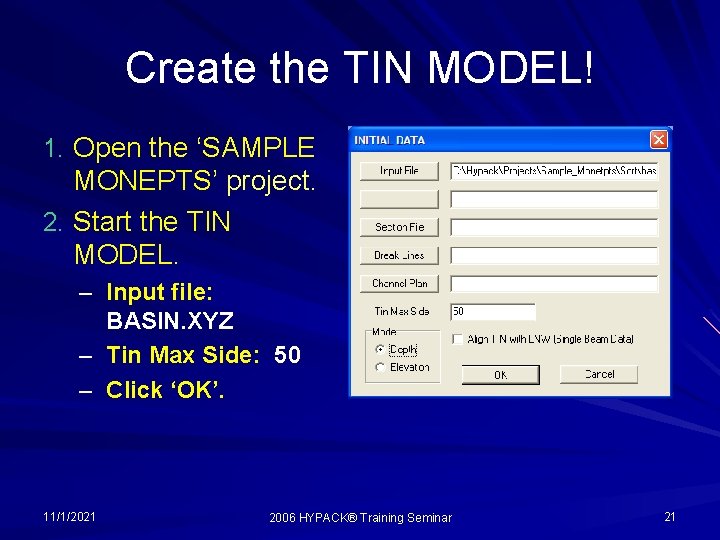
Create the TIN MODEL! 1. Open the ‘SAMPLE MONEPTS’ project. 2. Start the TIN MODEL. – Input file: BASIN. XYZ – Tin Max Side: 50 – Click ‘OK’. 11/1/2021 2006 HYPACK® Training Seminar 21
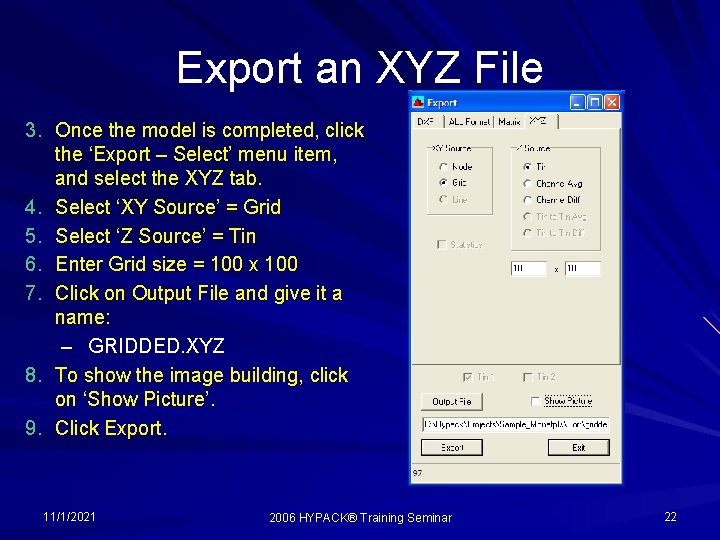
Export an XYZ File 3. Once the model is completed, click the ‘Export – Select’ menu item, and select the XYZ tab. 4. Select ‘XY Source’ = Grid 5. Select ‘Z Source’ = Tin 6. Enter Grid size = 100 x 100 7. Click on Output File and give it a name: – GRIDDED. XYZ 8. To show the image building, click on ‘Show Picture’. 9. Click Export. 11/1/2021 2006 HYPACK® Training Seminar 22
Sample: XYZ Output from TIN MODEL AVI 11/1/2021 2006 HYPACK® Training Seminar 23
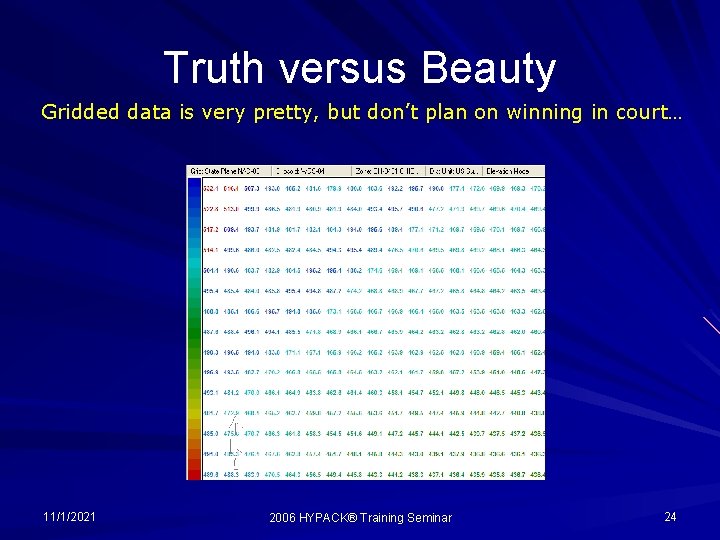
Truth versus Beauty Gridded data is very pretty, but don’t plan on winning in court… 11/1/2021 2006 HYPACK® Training Seminar 24
TIN MODEL EXPORT XYZ Output along a Planned Line PROJECT: SAMPLE SOLID FILL 11/1/2021 2006 HYPACK® Training Seminar 25
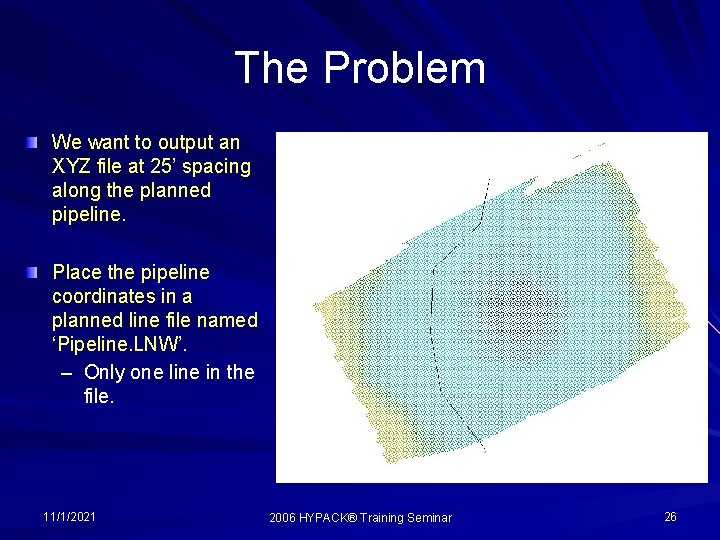
The Problem We want to output an XYZ file at 25’ spacing along the planned pipeline. Place the pipeline coordinates in a planned line file named ‘Pipeline. LNW’. – Only one line in the file. 11/1/2021 2006 HYPACK® Training Seminar 26
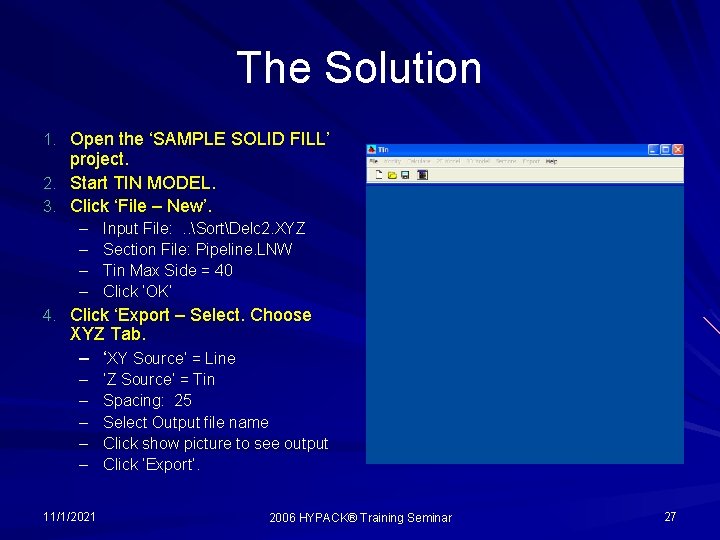
The Solution 1. Open the ‘SAMPLE SOLID FILL’ project. 2. Start TIN MODEL. 3. Click ‘File – New’. – – Input File: . . SortDelc 2. XYZ Section File: Pipeline. LNW Tin Max Side = 40 Click ‘OK’ AVI 4. Click ‘Export – Select. Choose XYZ Tab. – ‘XY Source’ = Line – – – 11/1/2021 ‘Z Source’ = Tin Spacing: 25 Select Output file name Click show picture to see output Click ‘Export’. 2006 HYPACK® Training Seminar 27
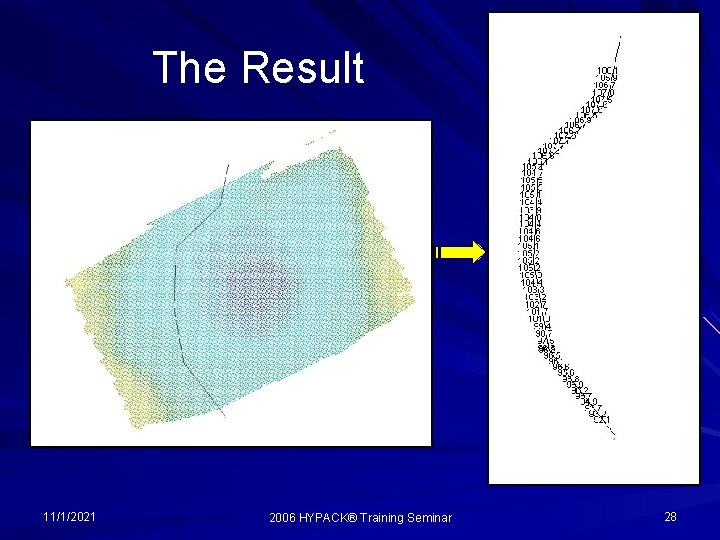
The Result 11/1/2021 2006 HYPACK® Training Seminar 28