
Time Sheet Reminder For the UNIX based OSes
Time Sheet Reminder For the UNIX based OSes: Mac OS X Linux Solaris
Simple Solution Use the OS’s cron to start up the command
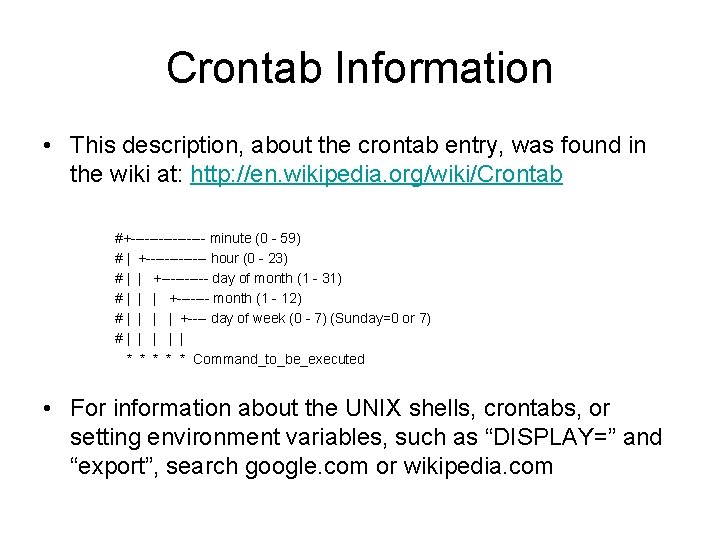
Crontab Information • This description, about the crontab entry, was found in the wiki at: http: //en. wikipedia. org/wiki/Crontab #+-------- minute (0 - 59) # | +------- hour (0 - 23) # | | +----- day of month (1 - 31) # | | | +------- month (1 - 12) # | | | | +---- day of week (0 - 7) (Sunday=0 or 7) # | | | | | * * * Command_to_be_executed • For information about the UNIX shells, crontabs, or setting environment variables, such as “DISPLAY=” and “export”, search google. com or wikipedia. com
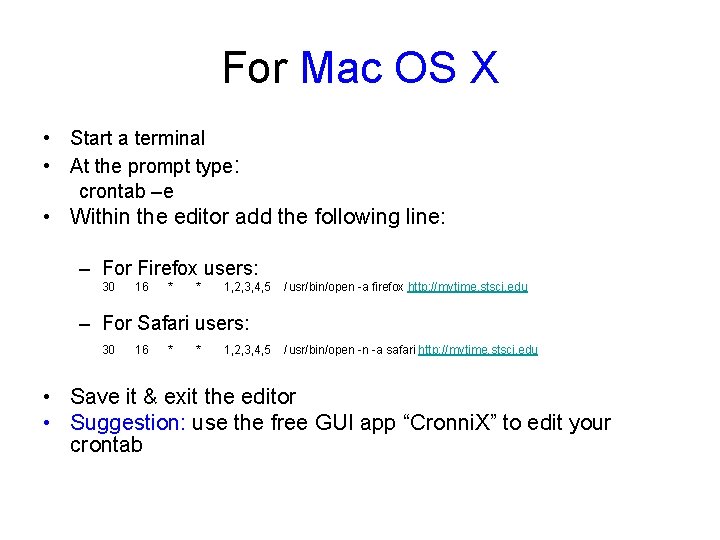
For Mac OS X • Start a terminal • At the prompt type: crontab –e • Within the editor add the following line: – For Firefox users: 30 16 * * 1, 2, 3, 4, 5 / usr/bin/open -a firefox http: //mytime. stsci. edu – For Safari users: 30 16 * * 1, 2, 3, 4, 5 / usr/bin/open -n -a safari http: //mytime. stsci. edu • Save it & exit the editor • Suggestion: use the free GUI app “Cronni. X” to edit your crontab
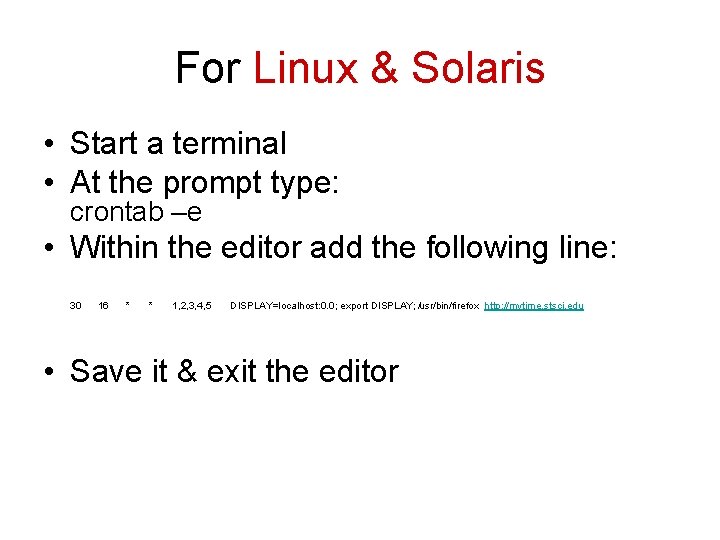
For Linux & Solaris • Start a terminal • At the prompt type: crontab –e • Within the editor add the following line: 30 16 * * 1, 2, 3, 4, 5 DISPLAY=localhost: 0. 0; export DISPLAY; /usr/bin/firefox http: //mytime. stsci. edu • Save it & exit the editor
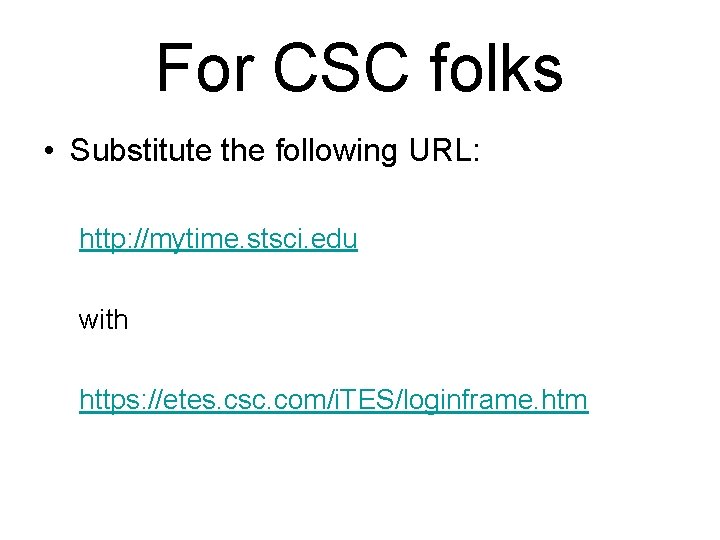
For CSC folks • Substitute the following URL: http: //mytime. stsci. edu with https: //etes. csc. com/i. TES/loginframe. htm
Thanks for their assistance: • • • Josh Greenberg (JHU P&A System Administrator) Andrew Spina (ST APT developer) Patrick Mc. Cauley (ST APT developer) Rob Hawkins (ST PCG developer) Sara Anderson (ST DPAS developer)
- Slides: 7