
Time Attendance Identifying and editing missing punches You
- Slides: 19
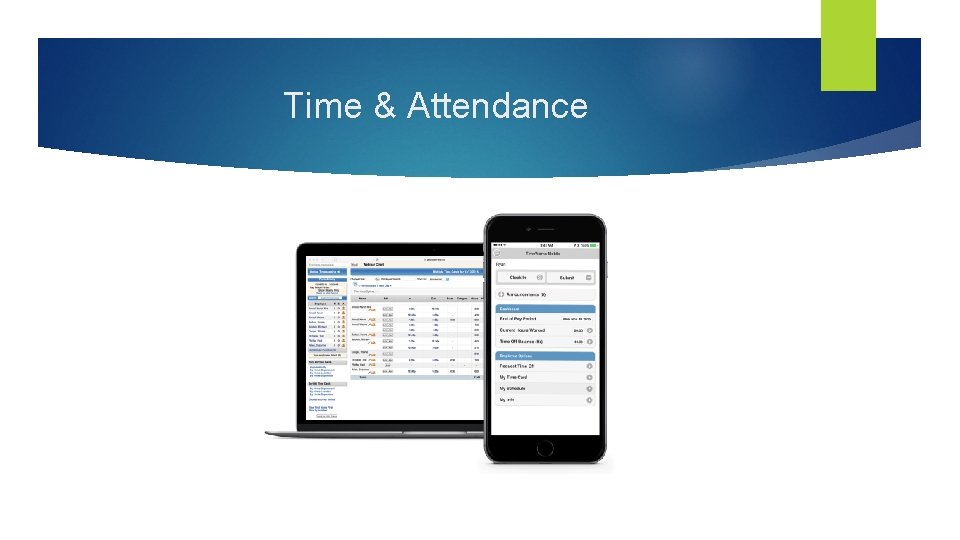
Time & Attendance
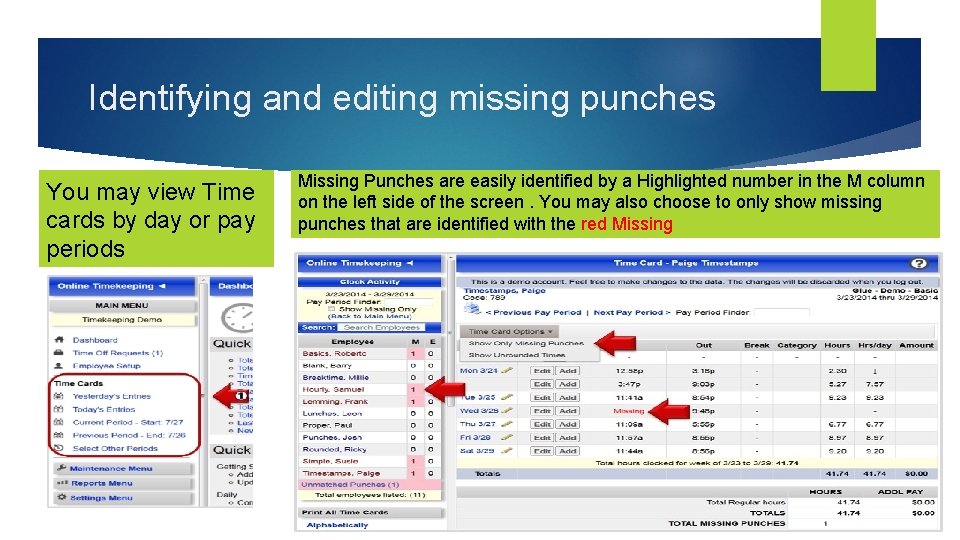
Identifying and editing missing punches You may view Time cards by day or pay periods Missing Punches are easily identified by a Highlighted number in the M column on the left side of the screen. You may also choose to only show missing punches that are identified with the red Missing
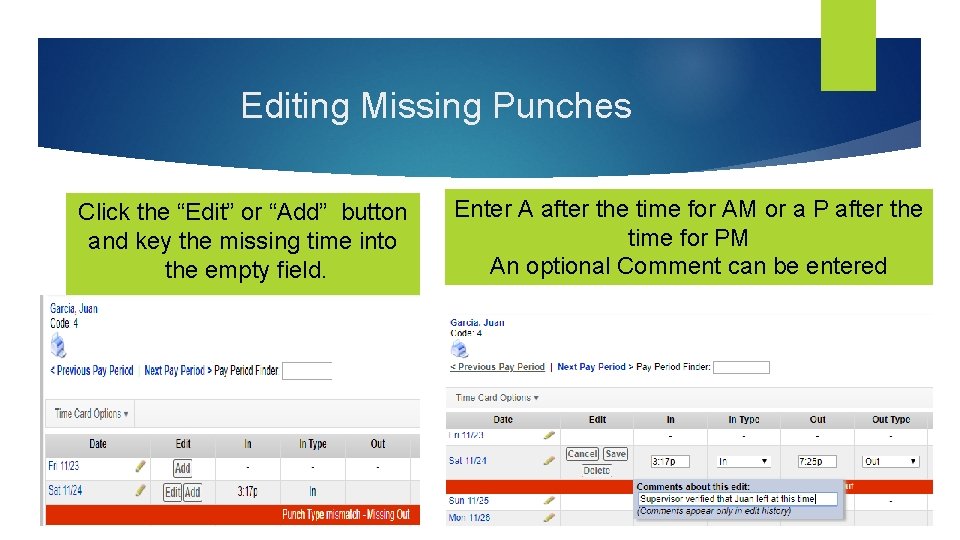
Editing Missing Punches Click the “Edit” or “Add” button and key the missing time into the empty field. Enter A after the time for AM or a P after the time for PM An optional Comment can be entered
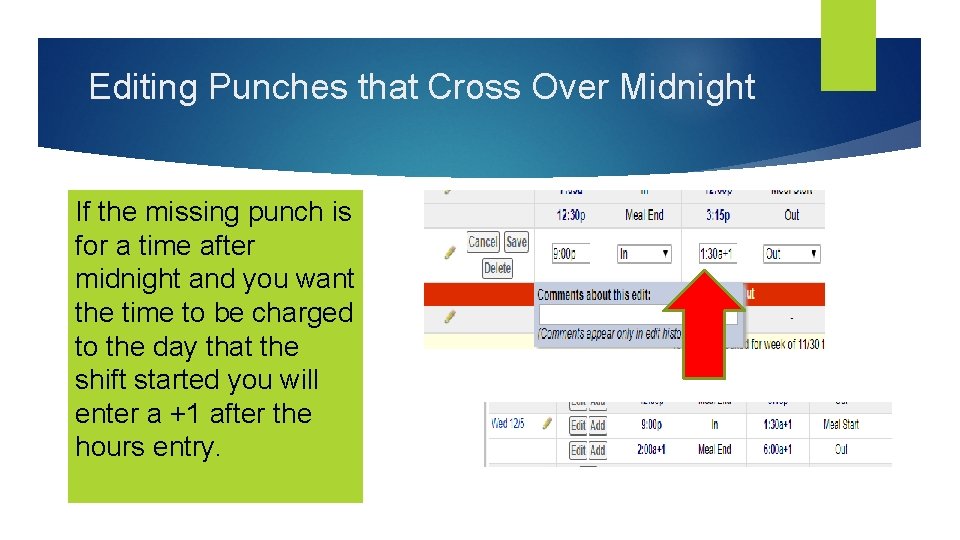
Editing Punches that Cross Over Midnight If the missing punch is for a time after midnight and you want the time to be charged to the day that the shift started you will enter a +1 after the hours entry.
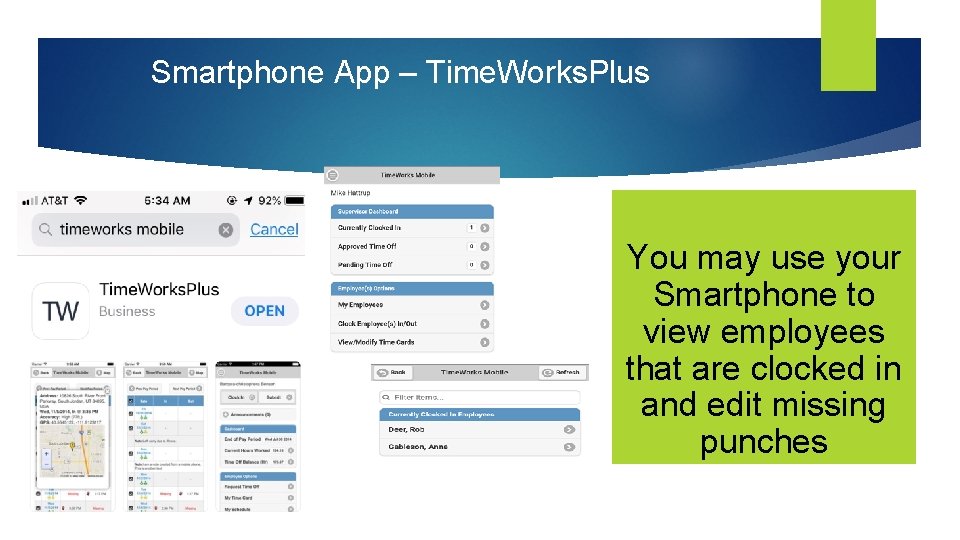
Smartphone App – Time. Works. Plus You may use your Smartphone to view employees that are clocked in and edit missing punches
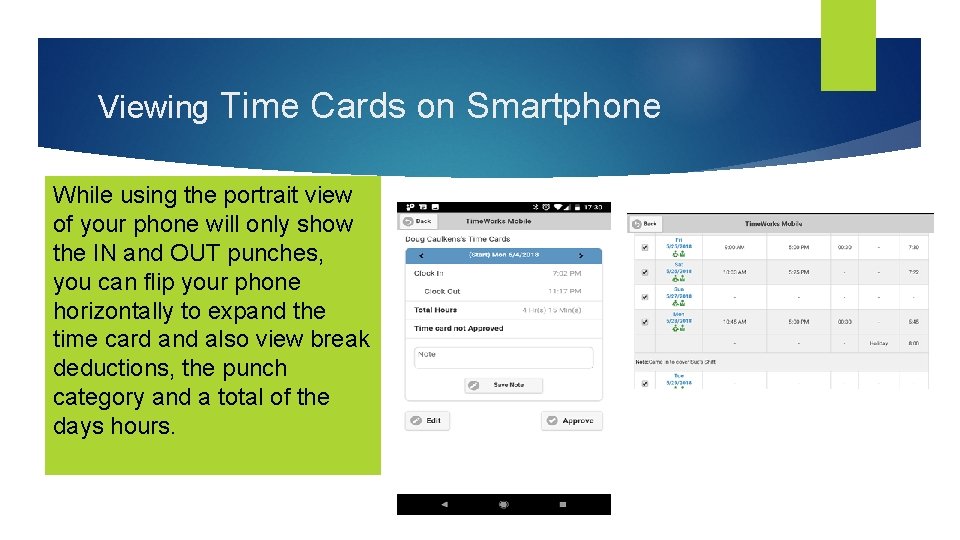
Viewing Time Cards on Smartphone While using the portrait view of your phone will only show the IN and OUT punches, you can flip your phone horizontally to expand the time card and also view break deductions, the punch category and a total of the days hours.
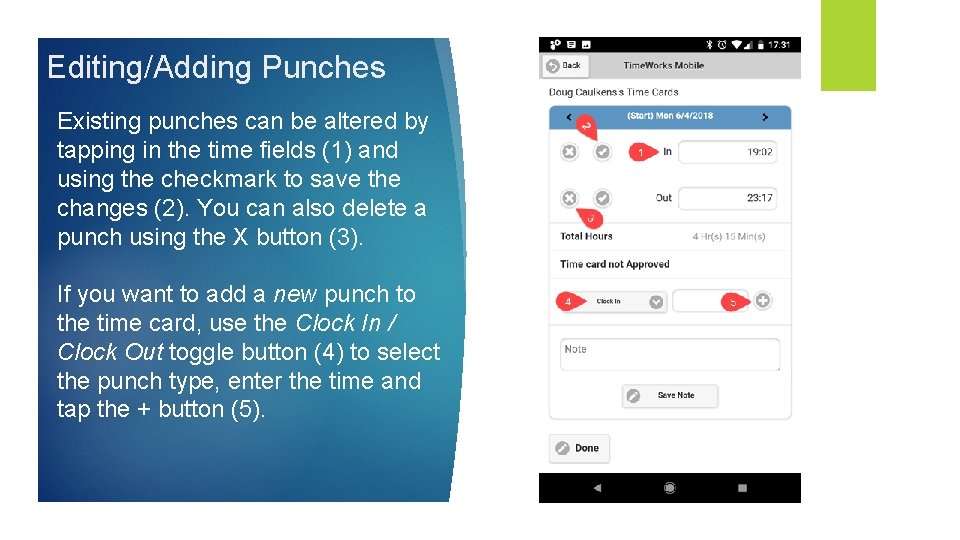
Editing/Adding Punches Existing punches can be altered by tapping in the time fields (1) and using the checkmark to save the changes (2). You can also delete a punch using the X button (3). If you want to add a new punch to the time card, use the Clock In / Clock Out toggle button (4) to select the punch type, enter the time and tap the + button (5).
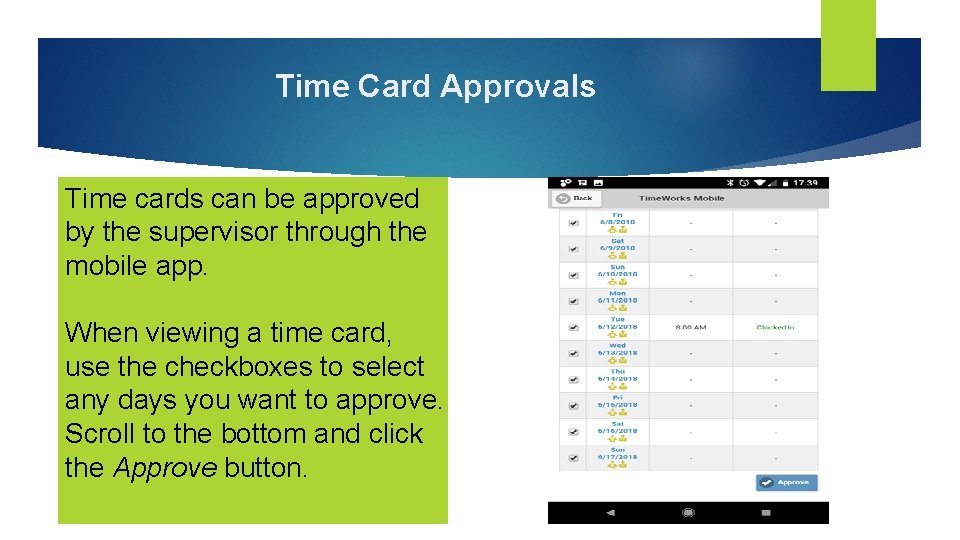
Time Card Approvals Time cards can be approved by the supervisor through the mobile app. When viewing a time card, use the checkboxes to select any days you want to approve. Scroll to the bottom and click the Approve button.
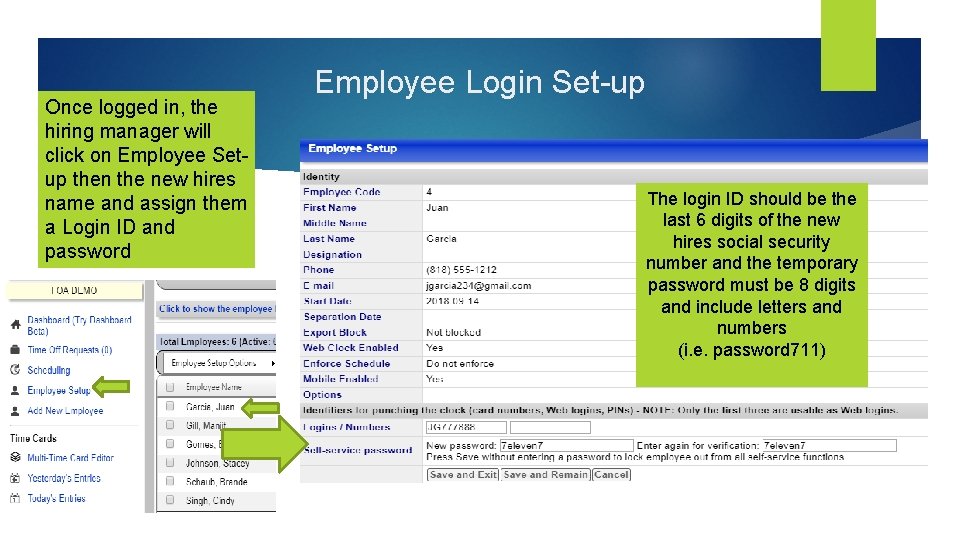
Once logged in, the hiring manager will click on Employee Setup then the new hires name and assign them a Login ID and password Employee Login Set-up The login ID should be the last 6 digits of the new hires social security number and the temporary password must be 8 digits and include letters and numbers (i. e. password 711)
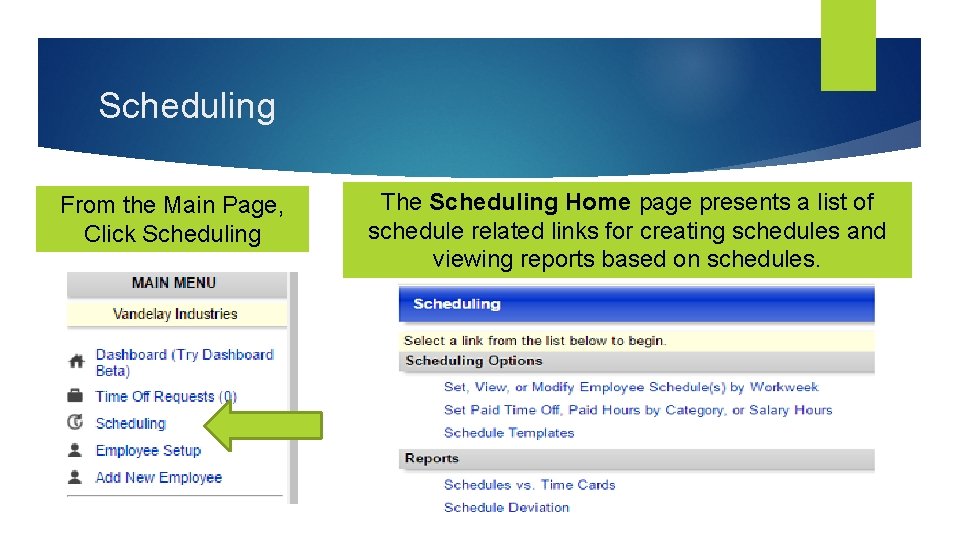
Scheduling From the Main Page, Click Scheduling The Scheduling Home page presents a list of schedule related links for creating schedules and viewing reports based on schedules.
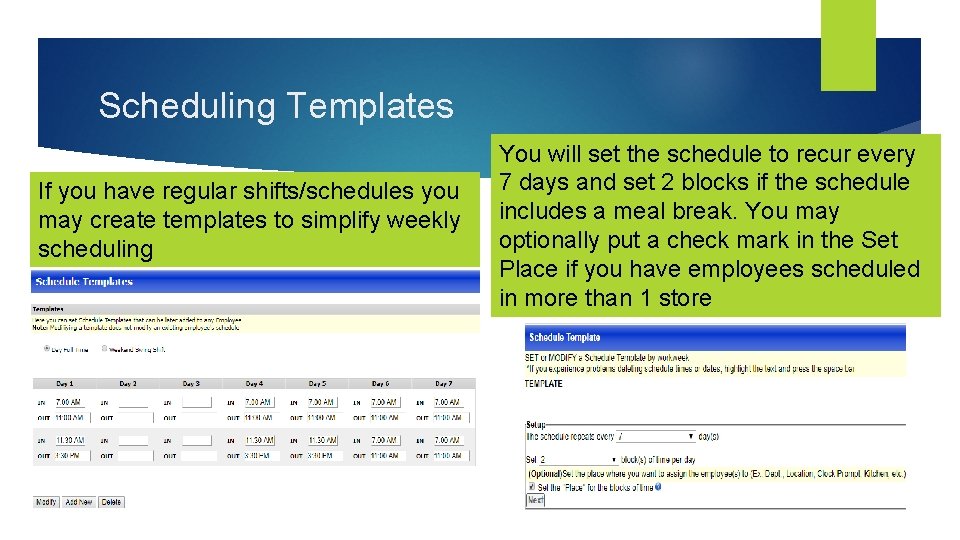
Scheduling Templates If you have regular shifts/schedules you may create templates to simplify weekly scheduling You will set the schedule to recur every 7 days and set 2 blocks if the schedule includes a meal break. You may optionally put a check mark in the Set Place if you have employees scheduled in more than 1 store
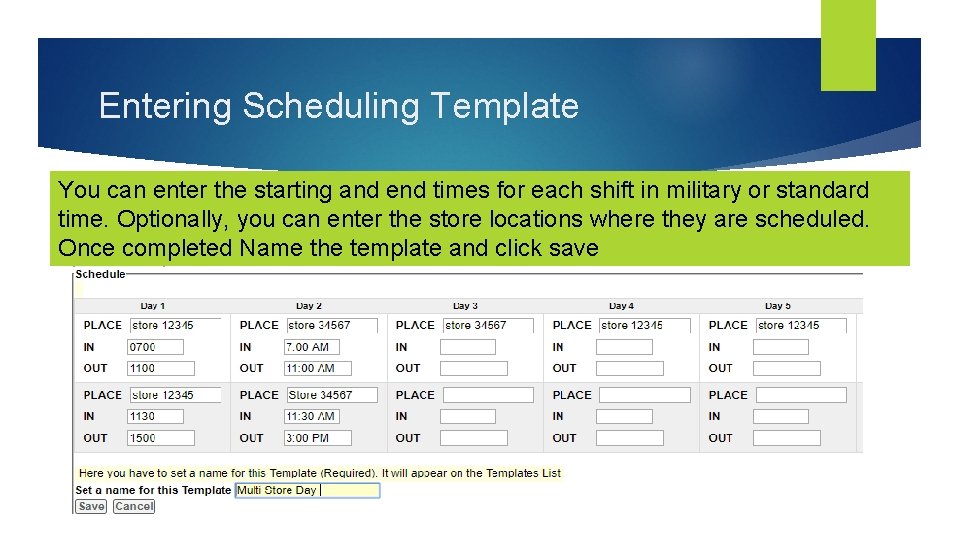
Entering Scheduling Template You can enter the starting and end times for each shift in military or standard time. Optionally, you can enter the store locations where they are scheduled. Once completed Name the template and click save
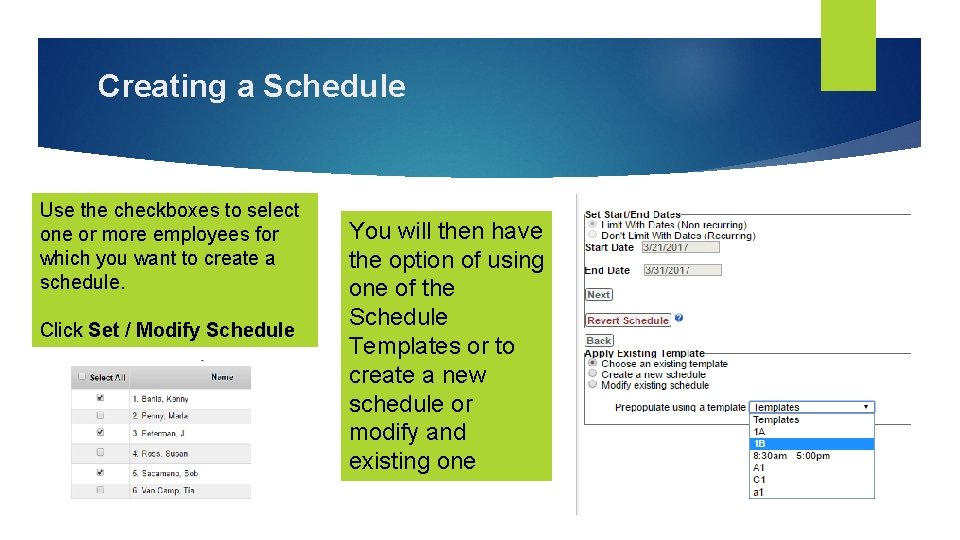
Creating a Schedule Use the checkboxes to select one or more employees for which you want to create a schedule. Click Set / Modify Schedule You will then have the option of using one of the Schedule Templates or to create a new schedule or modify and existing one
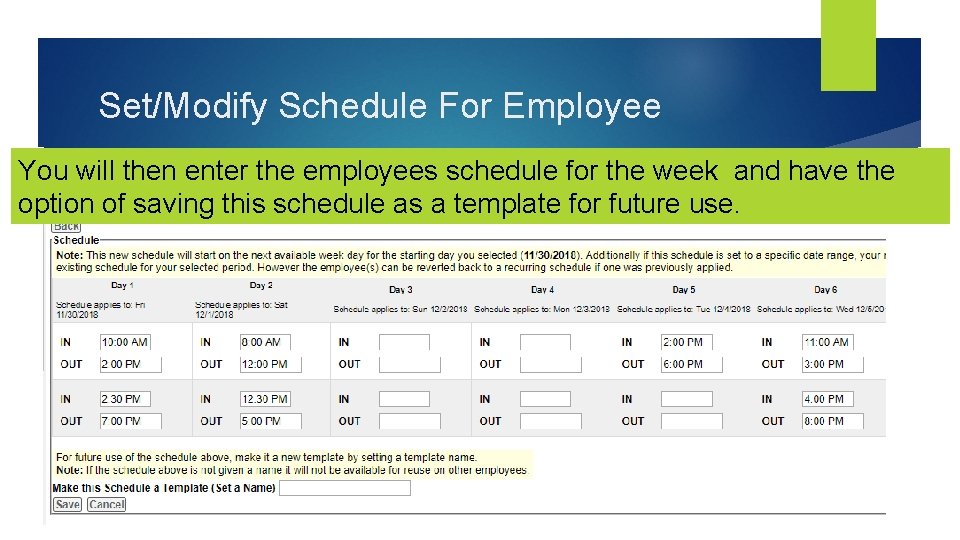
Set/Modify Schedule For Employee You will then enter the employees schedule for the week and have the option of saving this schedule as a template for future use.
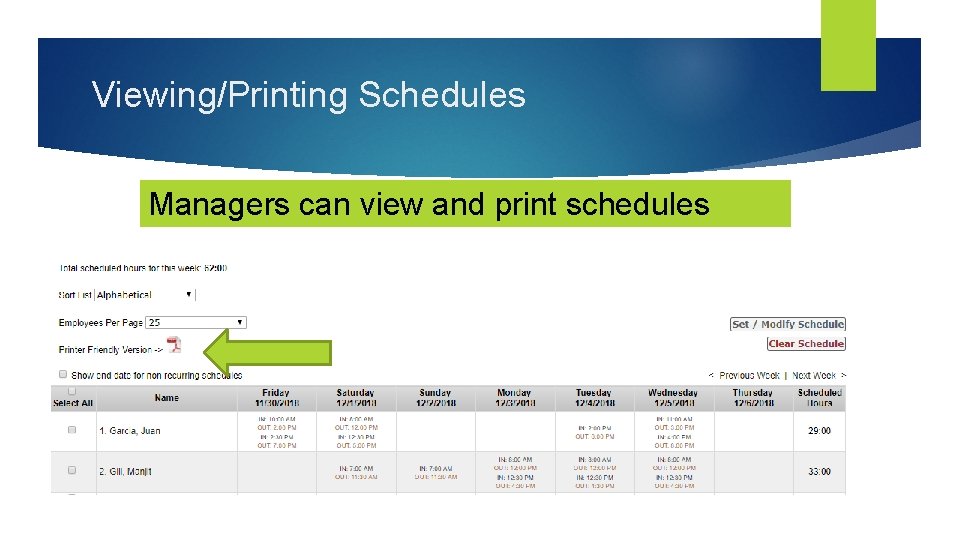
Viewing/Printing Schedules Managers can view and print schedules
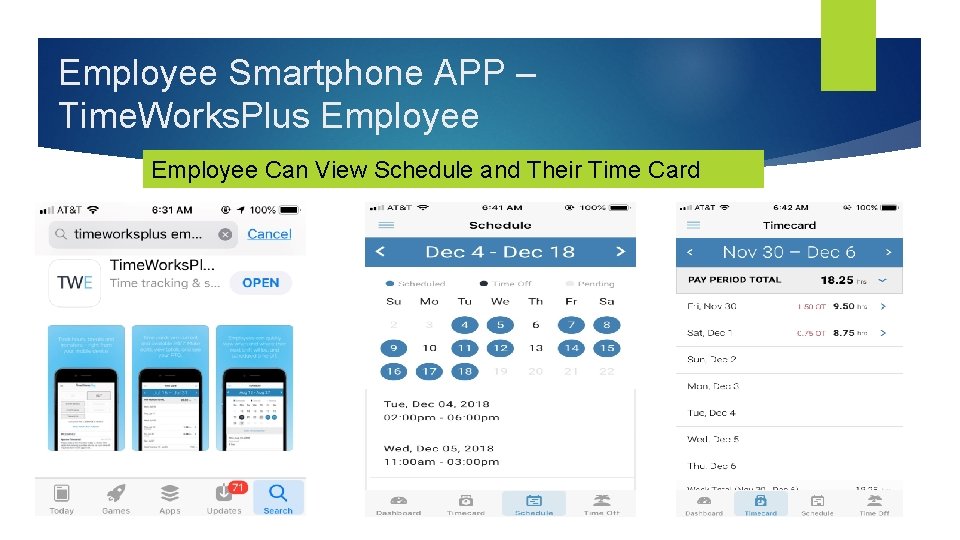
Employee Smartphone APP – Time. Works. Plus Employee Can View Schedule and Their Time Card
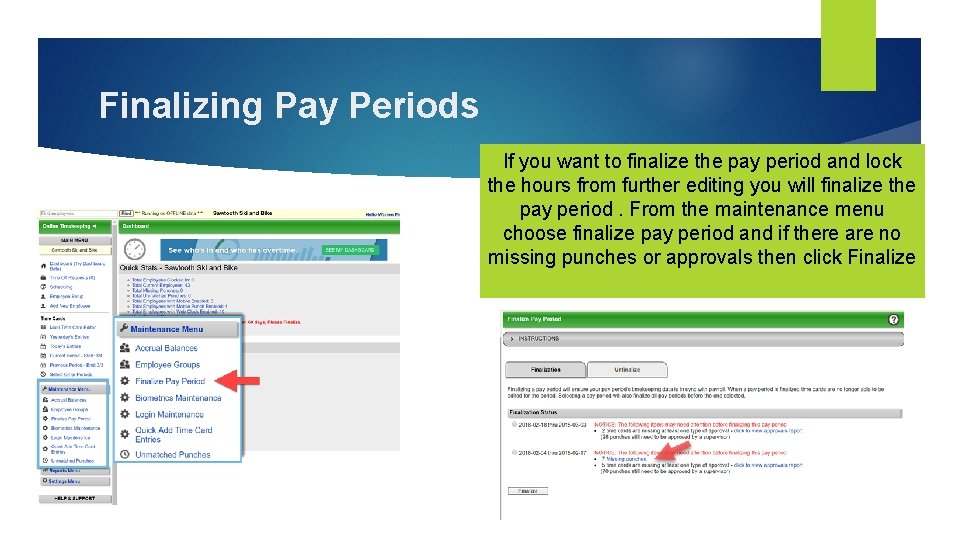
Finalizing Pay Periods If you want to finalize the pay period and lock the hours from further editing you will finalize the pay period. From the maintenance menu choose finalize pay period and if there are no missing punches or approvals then click Finalize
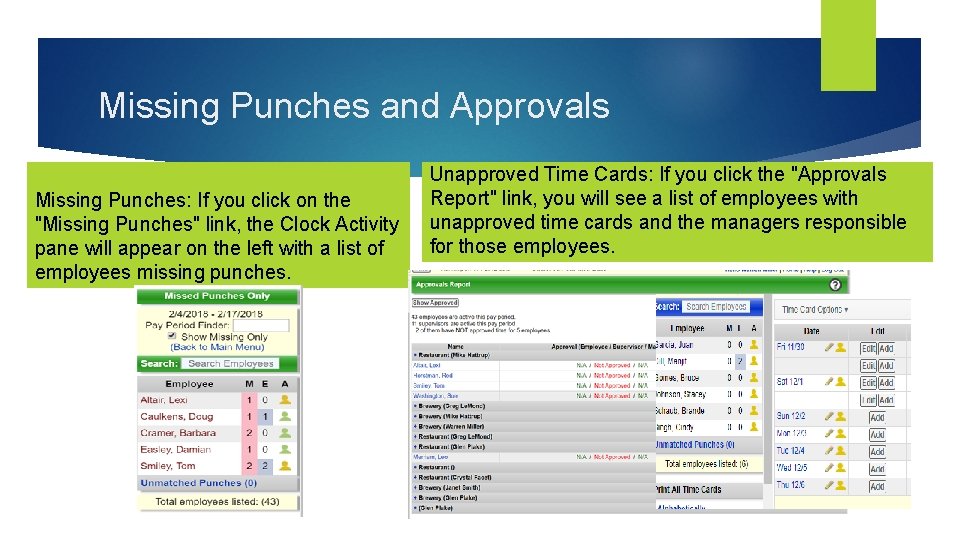
Missing Punches and Approvals Missing Punches: If you click on the "Missing Punches" link, the Clock Activity pane will appear on the left with a list of employees missing punches. Unapproved Time Cards: If you click the "Approvals Report" link, you will see a list of employees with unapproved time cards and the managers responsible for those employees.
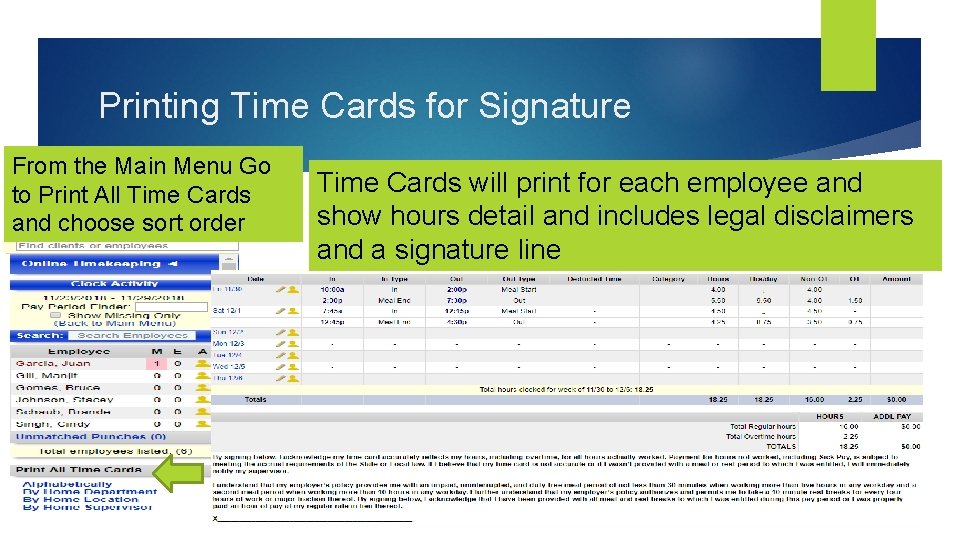
Printing Time Cards for Signature From the Main Menu Go to Print All Time Cards and choose sort order Time Cards will print for each employee and show hours detail and includes legal disclaimers and a signature line