
Time Attendance How to Create a Manual Timesheet

- Slides: 8
Time & Attendance How to Create a Manual Timesheet and Submit for Approval
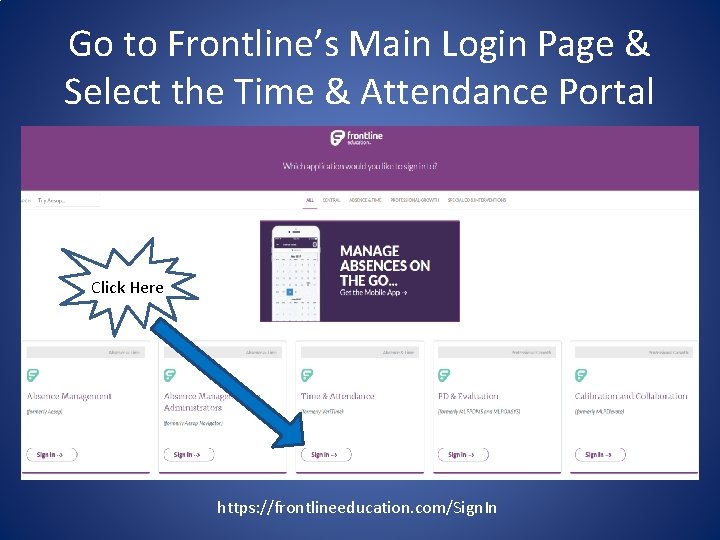
Go to Frontline’s Main Login Page & Select the Time & Attendance Portal Click Here https: //frontlineeducation. com/Sign. In
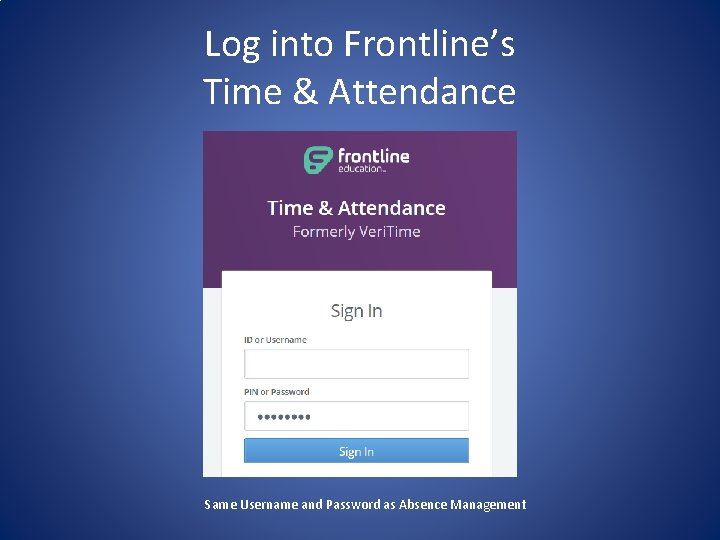
Log into Frontline’s Time & Attendance Same Username and Password as Absence Management
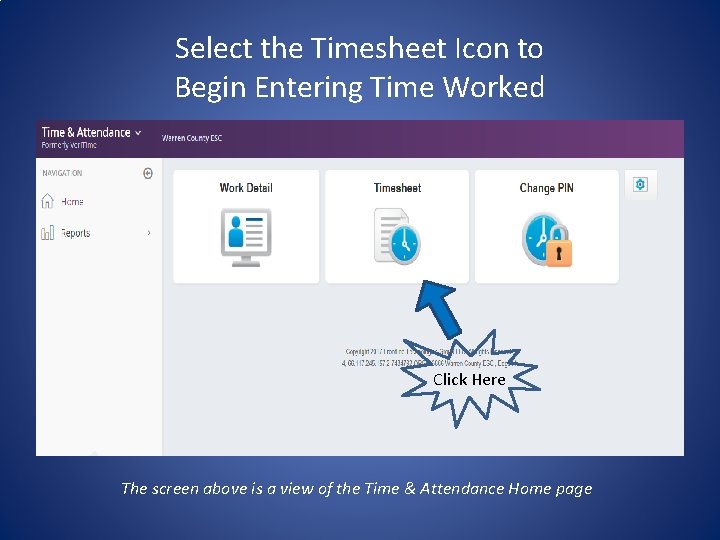
Select the Timesheet Icon to Begin Entering Time Worked Click Here The screen above is a view of the Time & Attendance Home page
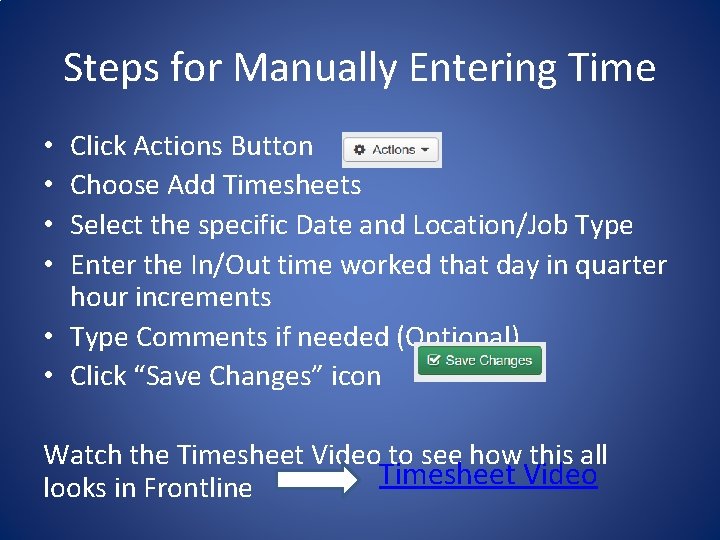
Steps for Manually Entering Time Click Actions Button Choose Add Timesheets Select the specific Date and Location/Job Type Enter the In/Out time worked that day in quarter hour increments • Type Comments if needed (Optional) • Click “Save Changes” icon • • Watch the Timesheet Video to see how this all Timesheet Video looks in Frontline
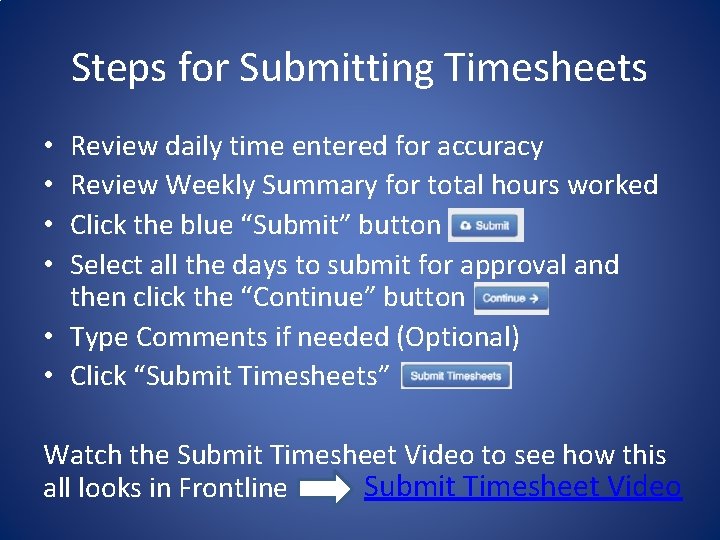
Steps for Submitting Timesheets Review daily time entered for accuracy Review Weekly Summary for total hours worked Click the blue “Submit” button Select all the days to submit for approval and then click the “Continue” button • Type Comments if needed (Optional) • Click “Submit Timesheets” • • Watch the Submit Timesheet Video to see how this all looks in Frontline 0 Submit Timesheet Video
QUESTIONS ?
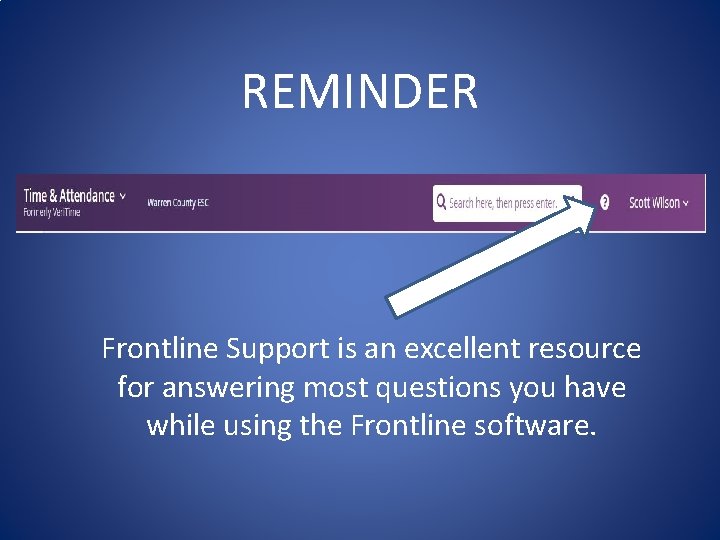
REMINDER Frontline Support is an excellent resource for answering most questions you have while using the Frontline software.