
TI Calculator Creating a Scatterplot Step 1 Enter
- Slides: 4
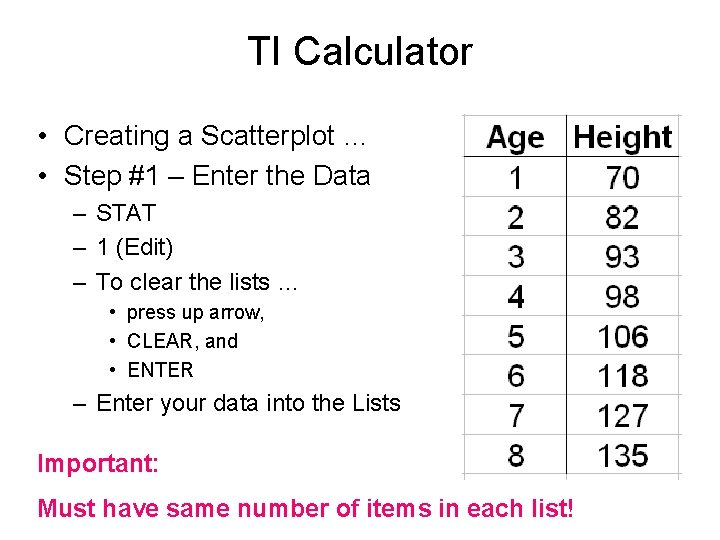
TI Calculator • Creating a Scatterplot … • Step #1 – Enter the Data – STAT – 1 (Edit) – To clear the lists … • press up arrow, • CLEAR, and • ENTER – Enter your data into the Lists Important: Must have same number of items in each list!
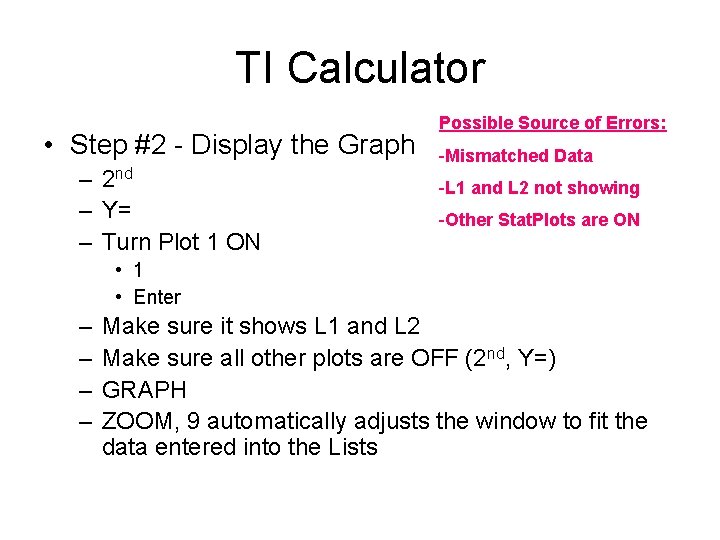
TI Calculator • Step #2 - Display the Graph – 2 nd – Y= – Turn Plot 1 ON Possible Source of Errors: -Mismatched Data -L 1 and L 2 not showing -Other Stat. Plots are ON • 1 • Enter – – Make sure it shows L 1 and L 2 Make sure all other plots are OFF (2 nd, Y=) GRAPH ZOOM, 9 automatically adjusts the window to fit the data entered into the Lists
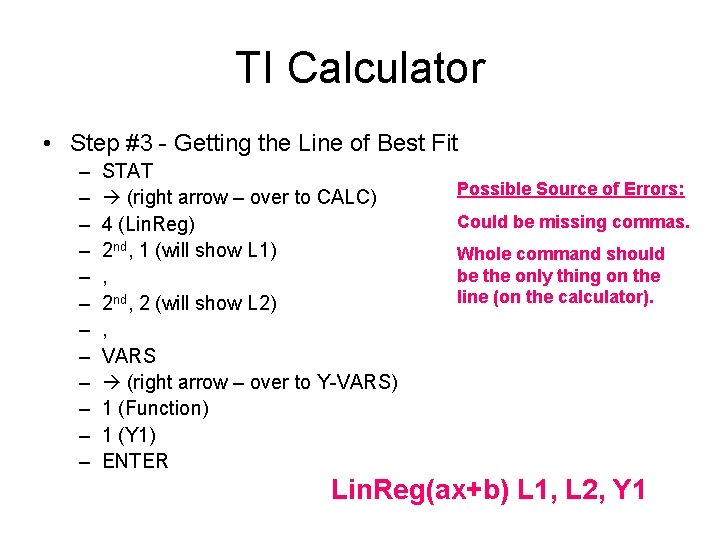
TI Calculator • Step #3 - Getting the Line of Best Fit – – – STAT (right arrow – over to CALC) 4 (Lin. Reg) 2 nd, 1 (will show L 1) , 2 nd, 2 (will show L 2) , VARS (right arrow – over to Y-VARS) 1 (Function) 1 (Y 1) ENTER Possible Source of Errors: Could be missing commas. Whole command should be the only thing on the line (on the calculator). Lin. Reg(ax+b) L 1, L 2, Y 1
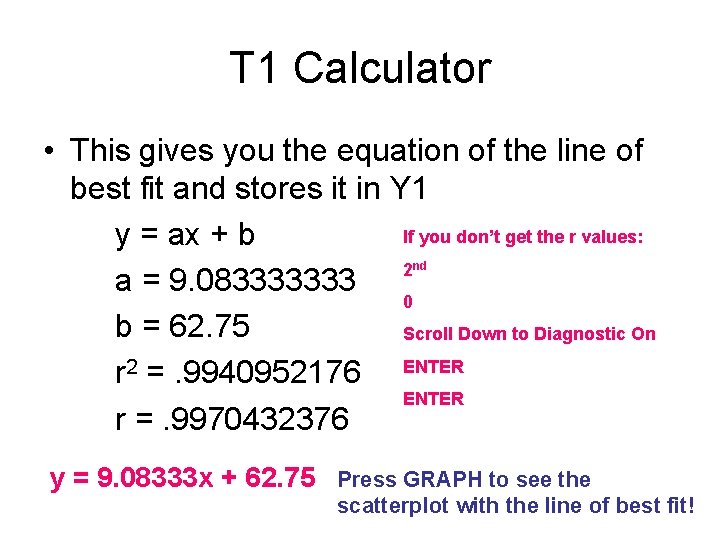
T 1 Calculator • This gives you the equation of the line of best fit and stores it in Y 1 If you don’t get the r values: y = ax + b 2 a = 9. 083333333 0 b = 62. 75 Scroll Down to Diagnostic On r 2 =. 9940952176 ENTER r =. 9970432376 nd y = 9. 08333 x + 62. 75 Press GRAPH to see the scatterplot with the line of best fit!