
Three Methods to Incorporate ILoil Maps into your

- Slides: 45
Three Methods to Incorporate ILoil Maps into your Documents and Graphics Programs Bryan G. Huff
The Three Methods: l Control + Print Screen l Copy/Paste l. jpg file retrieval from Internet temporary files directory
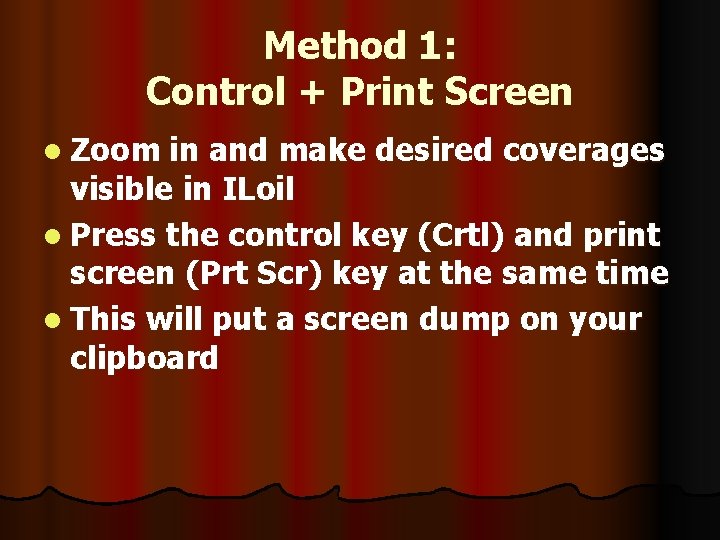
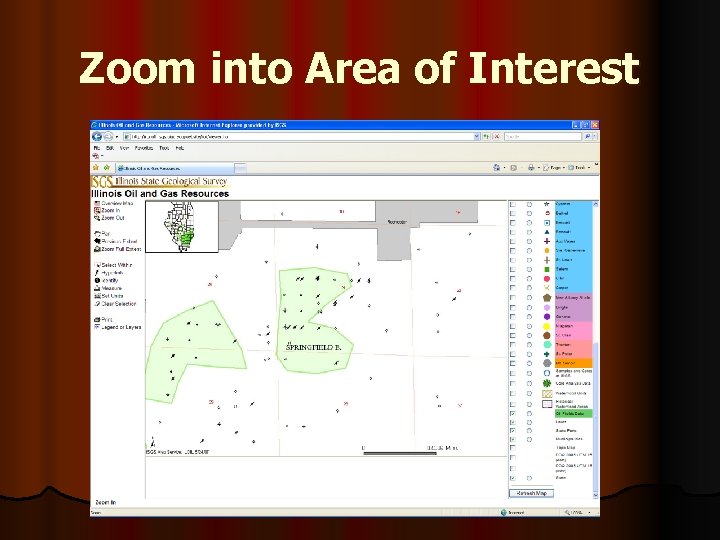
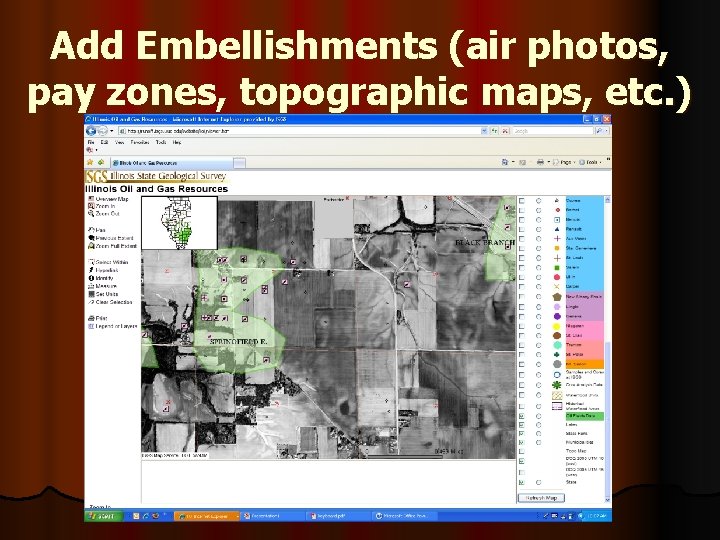
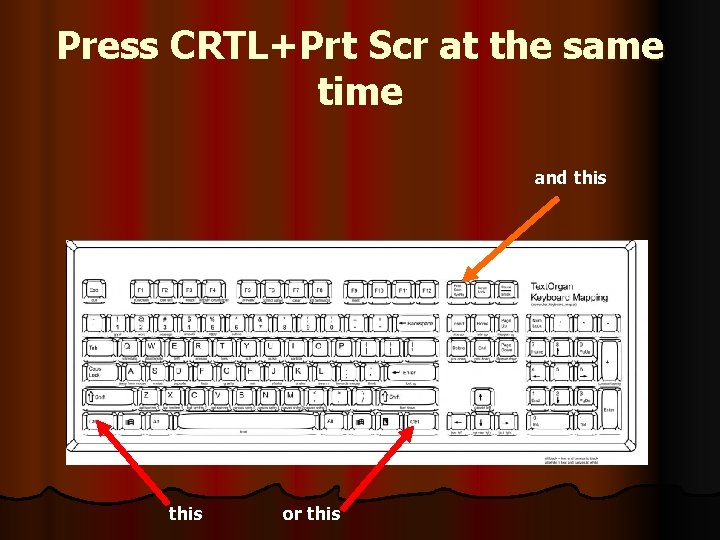
Method 1: Control + Print Screen l Zoom in and make desired coverages visible in ILoil l Press the control key (Crtl) and print screen (Prt Scr) key at the same time l This will put a screen dump on your clipboard
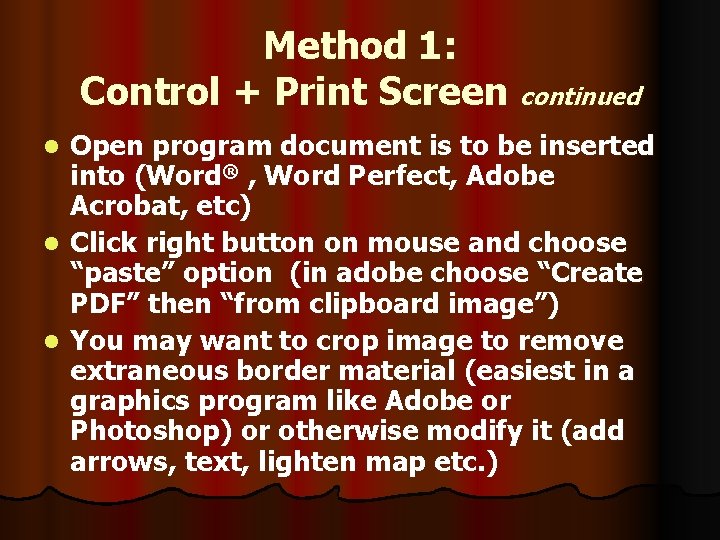
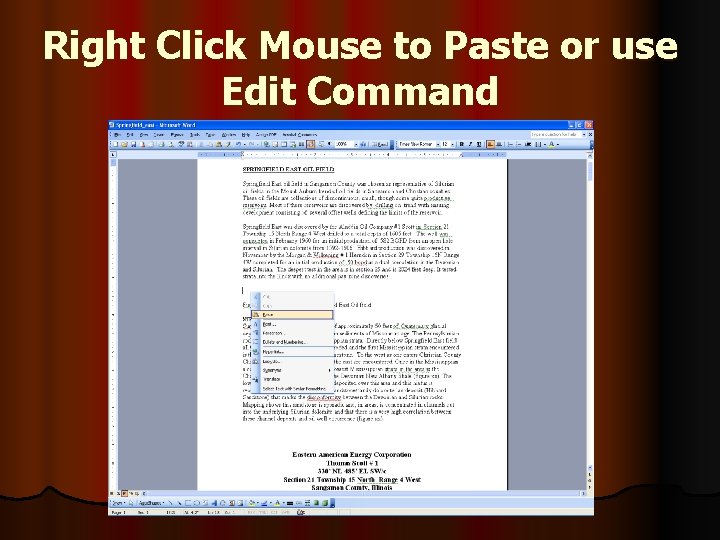
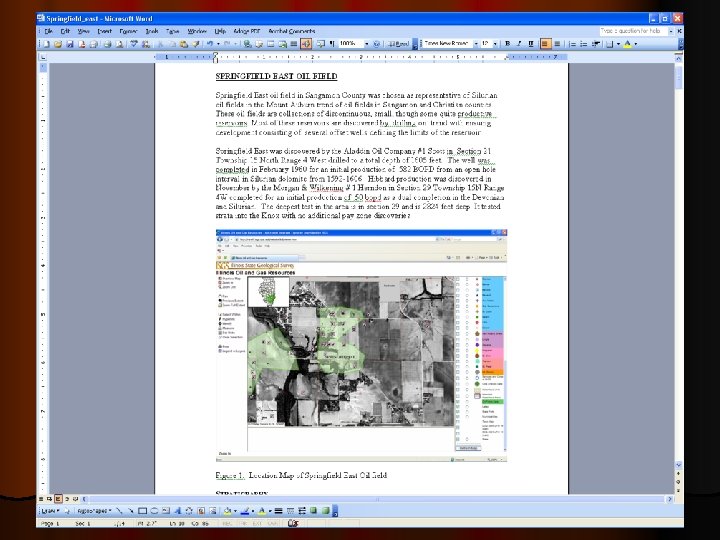
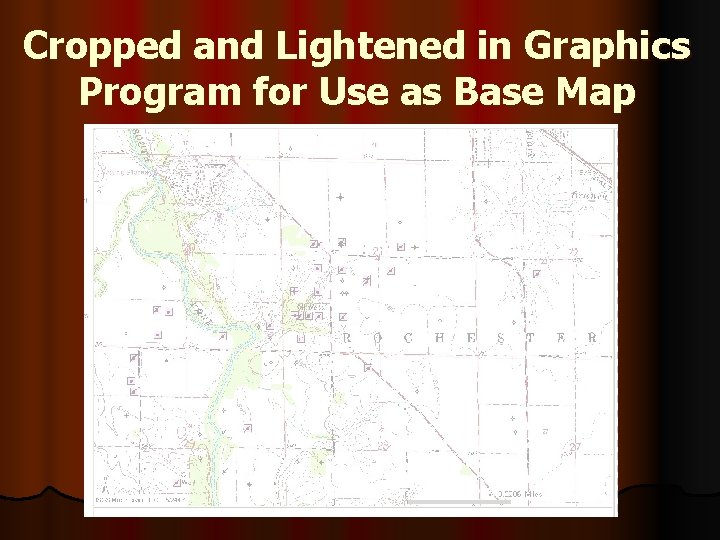
Method 1: Control + Print Screen continued Open program document is to be inserted into (Word® , Word Perfect, Adobe Acrobat, etc) l Click right button on mouse and choose “paste” option (in adobe choose “Create PDF” then “from clipboard image”) l You may want to crop image to remove extraneous border material (easiest in a graphics program like Adobe or Photoshop) or otherwise modify it (add arrows, text, lighten map etc. ) l
Zoom into Area of Interest
Add Embellishments (air photos, pay zones, topographic maps, etc. )
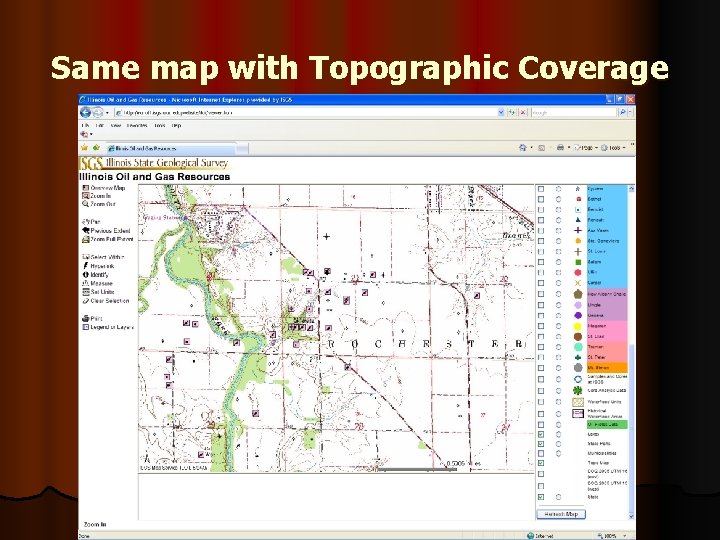
Same map with Topographic Coverage
Press CRTL+Prt Scr at the same time and this or this
Right Click Mouse to Paste or use Edit Command
Cropped and Lightened in Graphics Program for Use as Base Map
Advantages/Disadvantages Quick and easy This method works for majority of programs: Word Perfect, Word® , Adobe etc. l In Adobe select “Create PDF” then “From Clipboard” l Size can be adjusted to document l Brightness/contrast can be adjusted to be background for your own maps in graphics programs l l l Picks up entire screen dump- has legend l May need to crop image
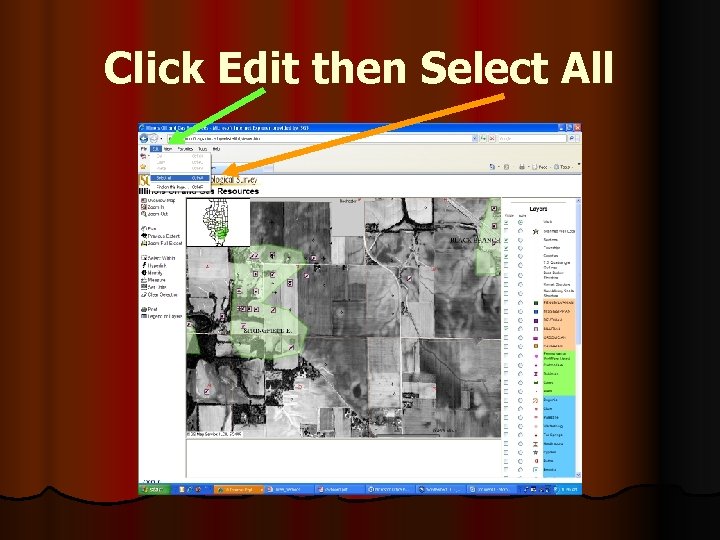
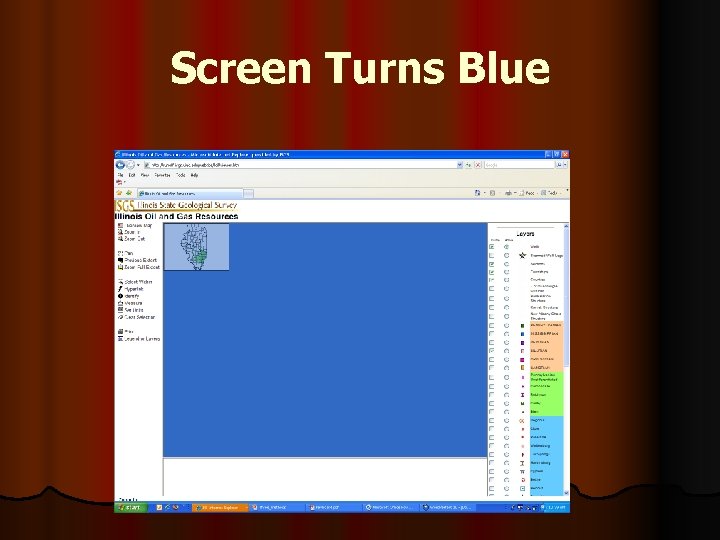
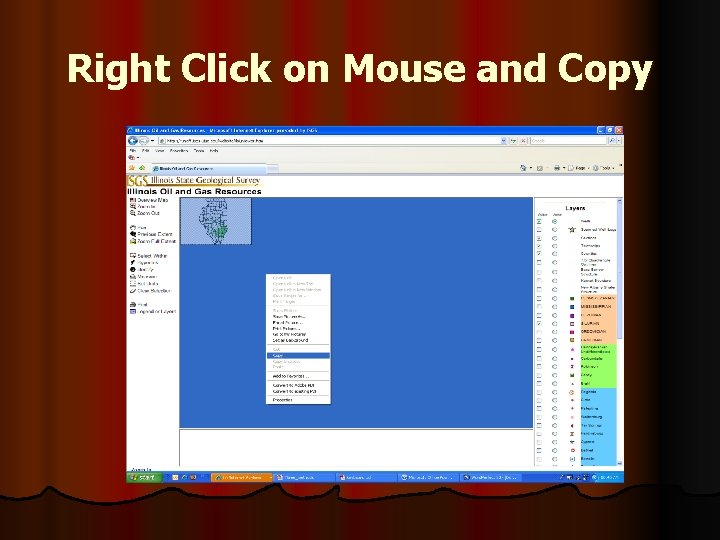
Method Two: Copy/Paste l Zoom in and make desired coverages visible in Iloil l Click Edit l Click Select All (Screen will go blue) l Right click on mouse in blue l Choose copy l Places an image of the map on your clipboard
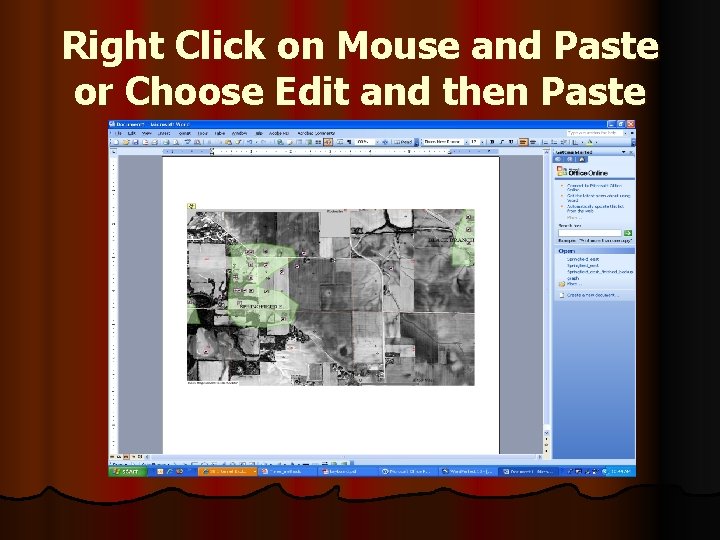
Method Two Copy/Paste continued l Open program document is to be inserted into (Word® works best with this method) l This method does not work well, if at all, in Word Perfect or Adobe Applications! l Click right button on mouse and choose “paste” option
Click Edit then Select All
Screen Turns Blue
Right Click on Mouse and Copy
l Open program document is to be inserted into (Word® works best. Using Word® picture editor map can be annotated) l This method does not work in Word Perfect or Adobe applications! l Click right button on mouse and choose “paste” option
Right Click on Mouse and Paste or Choose Edit and then Paste
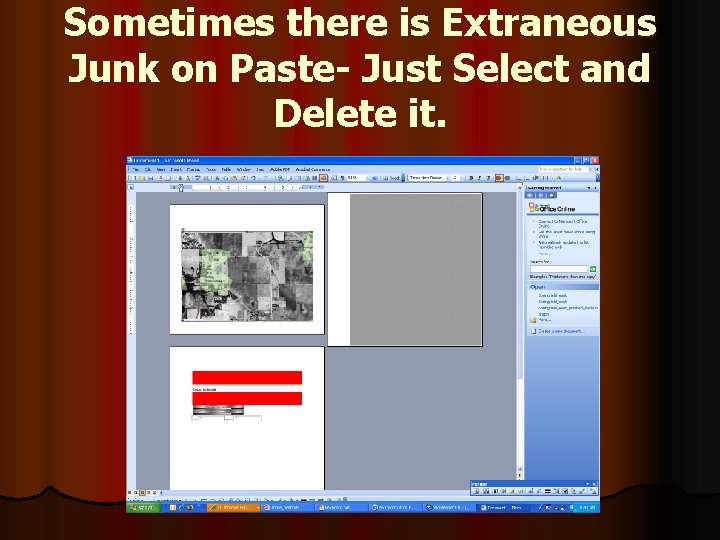
Sometimes there is Extraneous Junk on Paste- Just Select and Delete it.
Advantages l l l l Quick and easy Copies the map only Size can be adjusted to document Brightness/contrast can be adjusted to be background for your own maps in graphics programs
Disadvantages l Copies map only (no legend) l Sometimes it picks up extraneous junk that is easily deleted l This method does not work in Word Perfect or Adobe applications!
Method Three: . jpg File Retrieval from Internet Temporary Files Directory
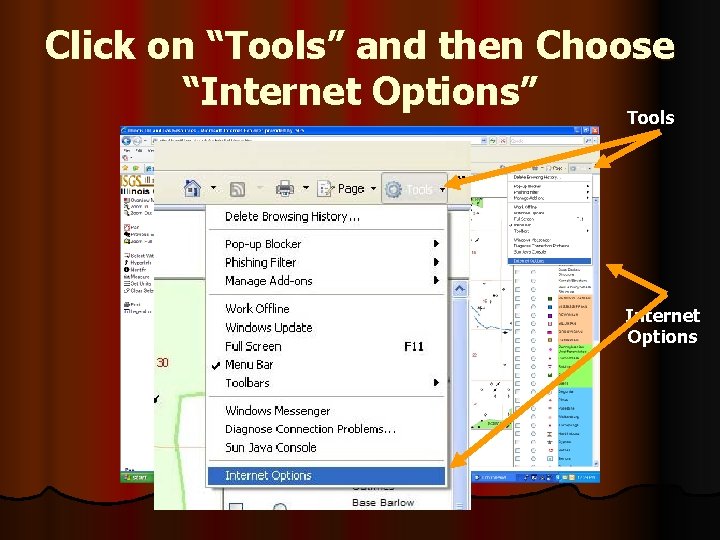
Click on “Tools” and then Choose “Internet Options” Tools Internet Options
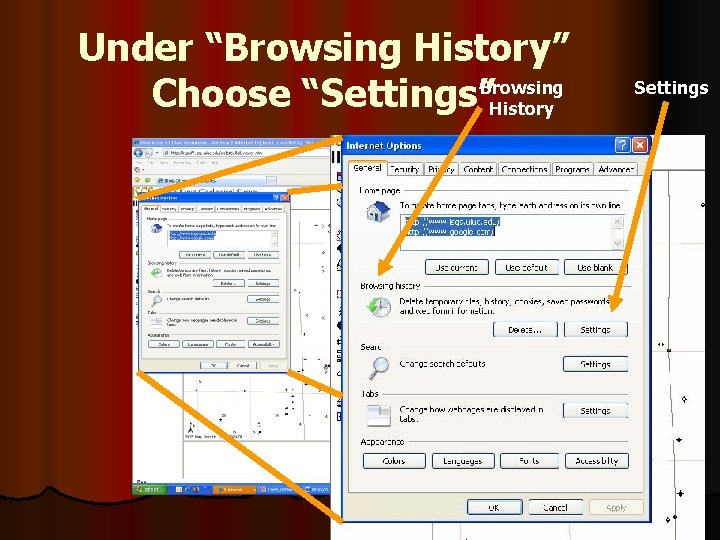
Under “Browsing History” Choose “Settings”Browsing History Settings
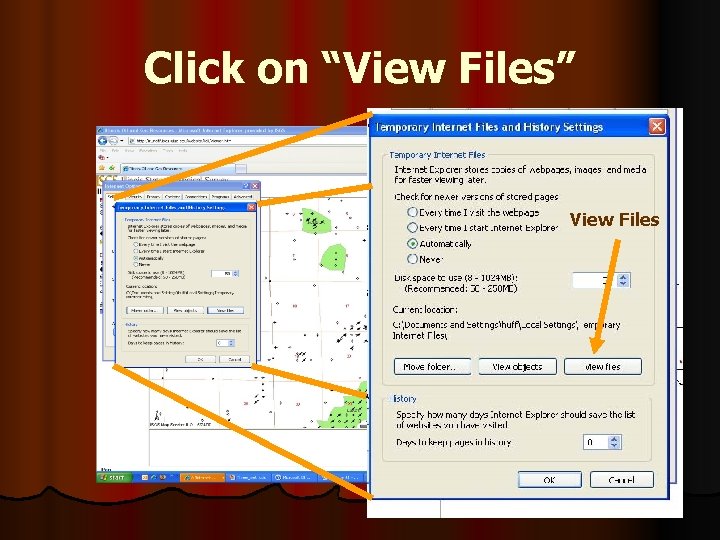
Click on “View Files” View Files
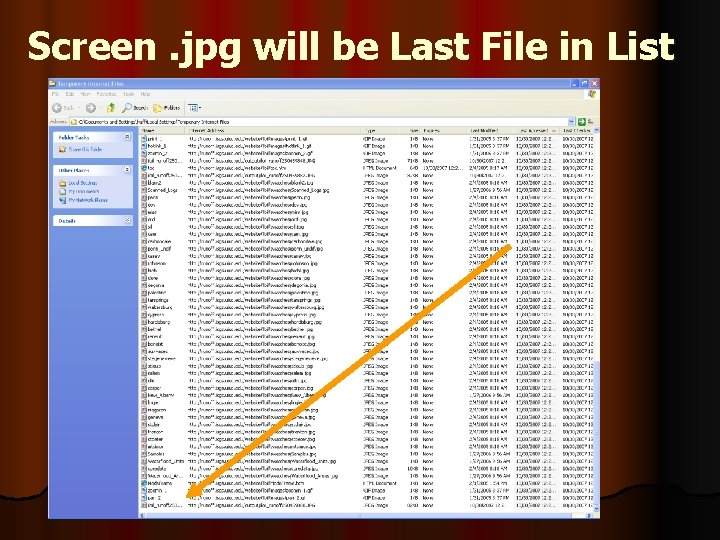
Screen. jpg will be Last File in List
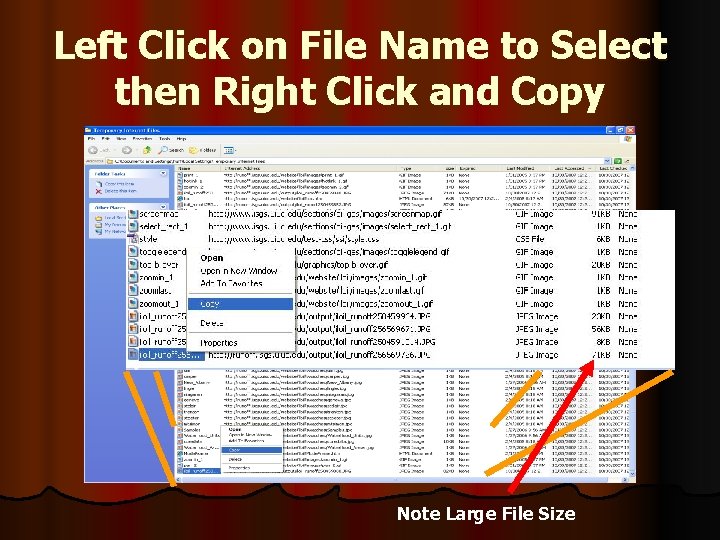
Left Click on File Name to Select then Right Click and Copy Note Large File Size
This file can be Pasted Directly into Word® or Graphics programs such as Corel. Draw.
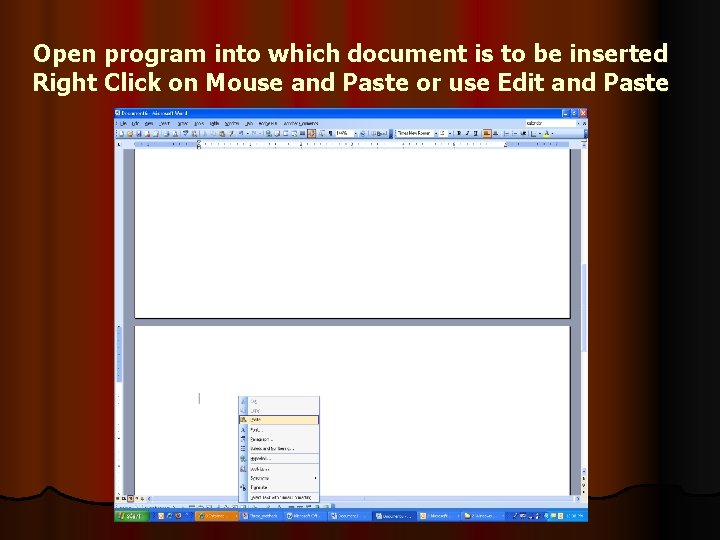
Open program into which document is to be inserted Right Click on Mouse and Paste or use Edit and Paste
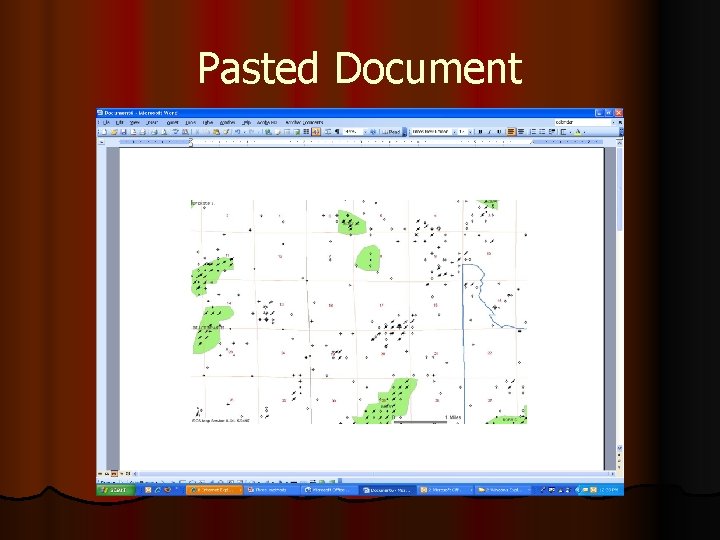
Pasted Document
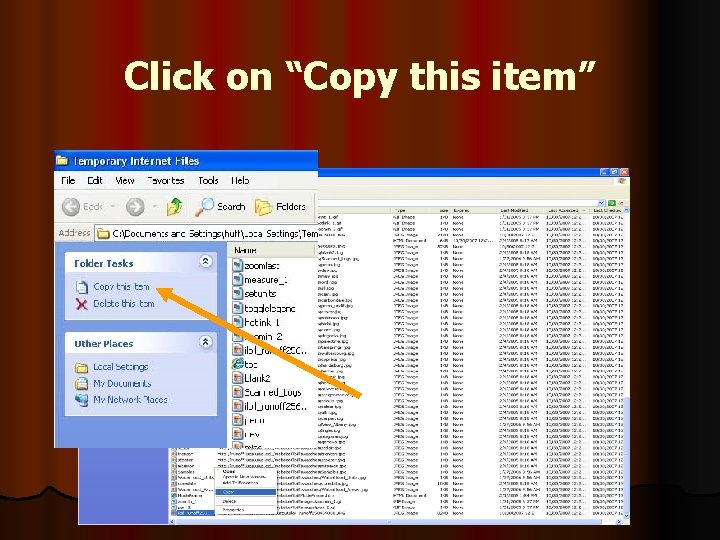
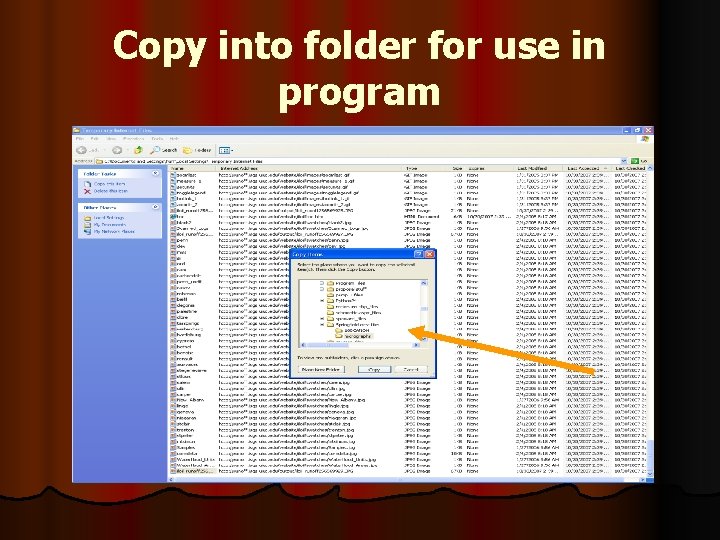
For use in other programs the jpg file needs to be copied to a new file using the “Folder Tasks” tab in the upper left corner and “copy file” command.
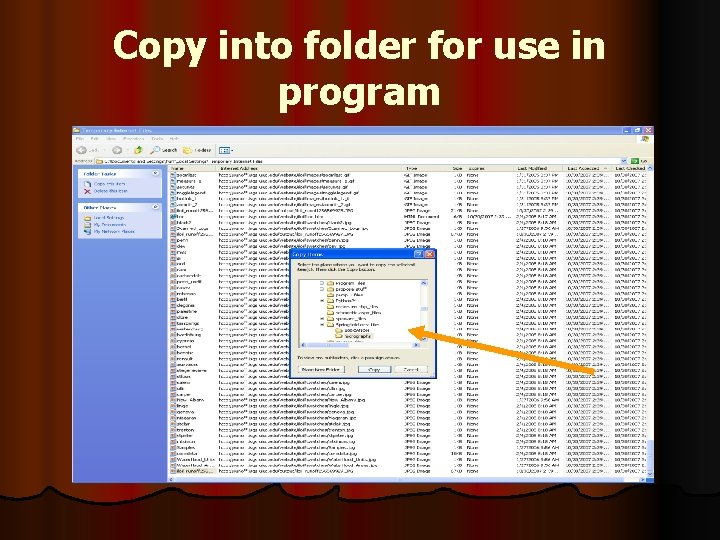
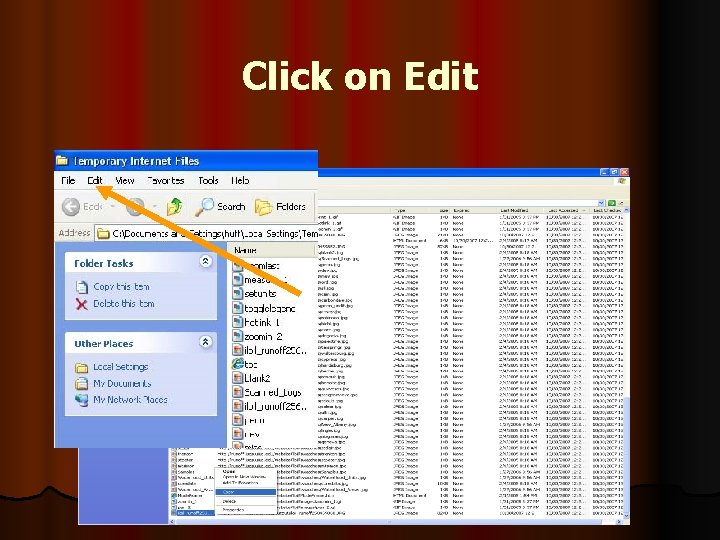
You can also use the “Edit” and “Copy to Folder” command in the upper tool bar. The file can then be pasted into any programs as a standard. jpg file
Click on “Copy this item”
Copy into folder for use in program
Click on Edit
Copy into folder for use in program
Can be used in most programs by using the Insert>picture>from file>filename commands Will also open directly into many programs that use. jpg files
Advantages/Disadvantages l Can be used in almost every application l Prints map only l Somewhat circuitous and labor intensive l Prints map only
Method 1 Ctrl + Prt Scr Quick and easy l This method works for majority of programs: Word Perfect, Word, Adobe etc. l Size can be adjusted to document l Brightness/contrast can be adjusted to be background for your own maps l l Picks up entire screen dump- has legend l May need to crop image
Method 2: Copy/Paste l l l Quick and easy Copies the map only –an advantage to some Size can be adjusted to document Brightness/contrast can be adjusted to be a background for your own maps Size can be adjusted to document Brightness/contrast can be adjusted to be background for your own maps
Method 2: Copy/Paste continued l Copies map only (no legend) l Sometimes it picks up extraneous junk that is easily deleted l This method does not work in Word Perfect or Adobe applications!
Method 3: . jpg File Retrieval Can be used in most programs by using the Insert>picture>from file>filename commands. Will also open directly into many programs that use. jpg files l Size can be adjusted to document l Brightness/contrast can be adjusted to be a background for your own maps l l Copies map only l l Somewhat circuitous and labor intensive Prints map only
Questions? Contact your Illinois State Geological Survey Oil and Gas Section email: huff@isgs. uiuc. edu
End of Slide Show