
This webinar is being recorded Phones are muted
• • This webinar is being recorded. Phones are muted on entry. Please type your questions in the chat box at anytime. A copy of the presentation will be posted on Postal. Pro in the Webinars section.
PCC Advisory Committee Education How to Set Up and Host a Webinar with Web. Ex May 29, 2019
Agenda • Tips for a Successful Webinar Event • Benefits of Hosting a Webinar • Setting up a Web. Ex to facilitate a Webinar
Web. Ex Options Which ones can the PCCs use? Postal is setting it up – use the Web. Ex thru your Outlook. Industry is setting it up – Join. me or Go. To. Webinar / Go. To. Meeting
Best Practices to Host a Webinar Assign a designee or host Have one person advance slides Mute Entry and Exit Tone Have a housekeeping slide No back-to-back meetings Record the session Confirm speakers Use chat box for questions Give a few weeks notice to speakers Have someone capture Q&As (if possible) Dry run Send recording and Power. Point afterward
What can a PCC use a Web. Ex for? You can use a Web. Ex for many of your PCC events, such as: • Board Meetings • Committee Meetings • Training/Seminars
Web. Ex Benefits External Speakers – No Travel Costs! • External speakers can be anywhere • No expenses for the PCC = no costs for members to attend • Easily plan multiple evens on multiple subjects
Web. Ex Benefits Multiple Options for Attendees • A Web. Ex doesn’t mean that everyone needs to attend remotely • PCCs can offer “Hybrid” events • Some members access remotely • Other members gather in conference room to share Web. Ex • Allows members to network
Outlook – Cisco Web. Ex • Web. Ex is a collaborative platform for your day-to-day business communication needs. • Some of the features of this tool allows you to: • • Engage your participants by sharing a Power. Point presentation • Showing website navigation • Adding poll questions • Using a white board Meetings can be scheduled on-demand for Web or Audio Conference for up to 250 attendees without special set-up or procedures. • Meetings over 250 you will need an Operator Assisted Large Web. Ex meeting – please contact: http: //cio. blueshare. usps. gov/sites/HCISHQ/Web. Ex. Conf/Site. Pages/Home. aspx
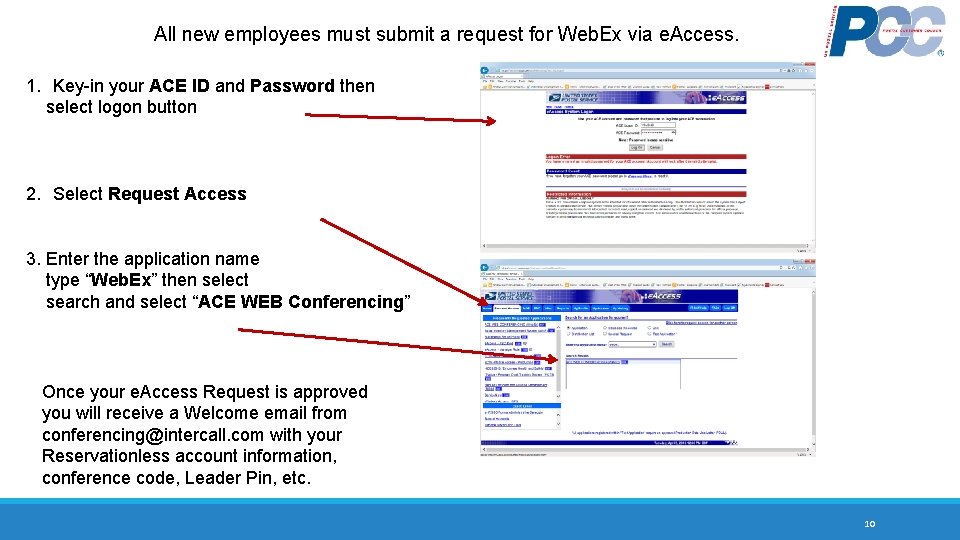
All new employees must submit a request for Web. Ex via e. Access. 1. Key-in your ACE ID and Password then select logon button 2. Select Request Access 3. Enter the application name type “Web. Ex” then select search and select “ACE WEB Conferencing” Once your e. Access Request is approved you will receive a Welcome email from conferencing@intercall. com with your Reservationless account information, conference code, Leader Pin, etc. 10
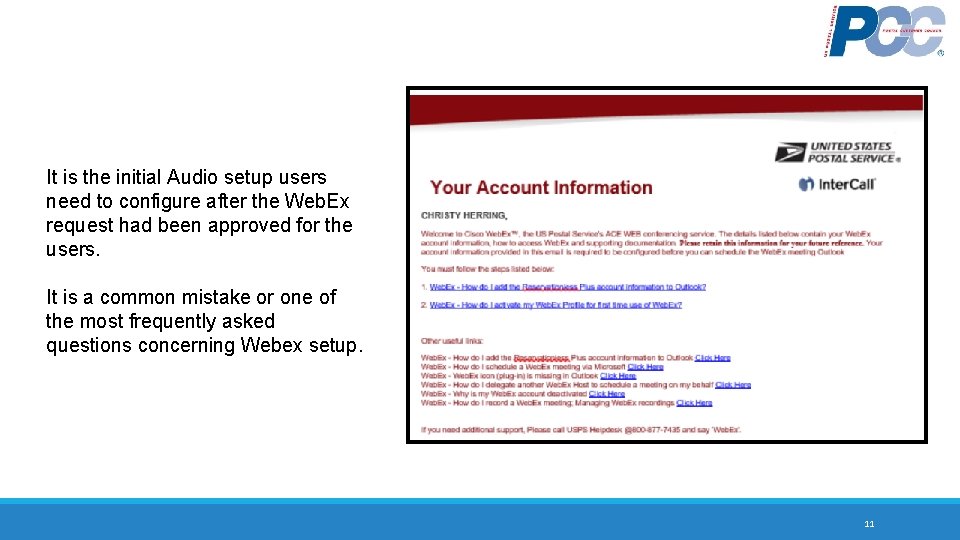
COMMONLY USED FEATURES It is the initial Audio setup users need to configure after the Web. Ex request had been approved for the users. It is a common mistake or one of the most frequently asked questions concerning Webex setup. 11
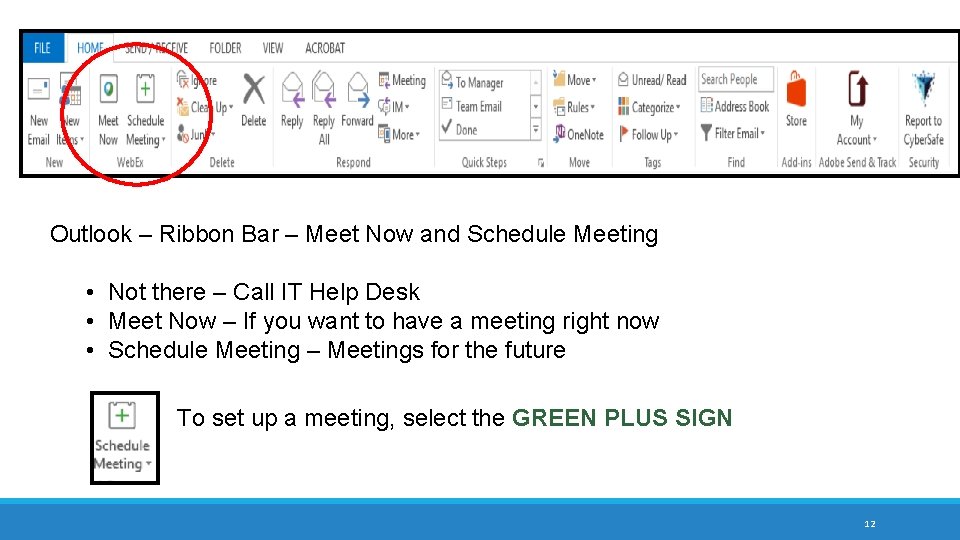
Outlook – Ribbon Bar – Meet Now and Schedule Meeting • Not there – Call IT Help Desk • Meet Now – If you want to have a meeting right now • Schedule Meeting – Meetings for the future To set up a meeting, select the GREEN PLUS SIGN 12
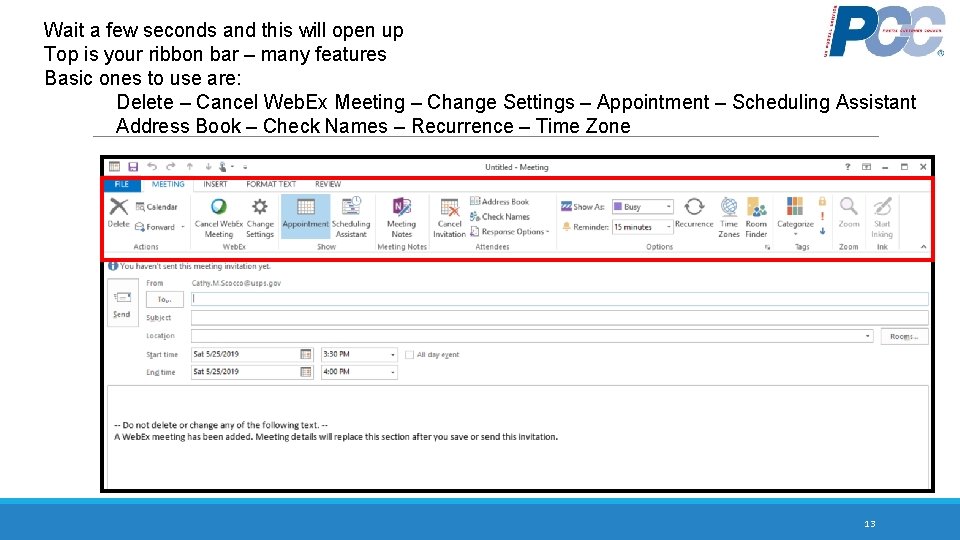
SETUP WEBEX ACCOUNT(con’t) Wait a few seconds and this will open up Top is your ribbon bar – many features Basic ones to use are: Delete – Cancel Web. Ex Meeting – Change Settings – Appointment – Scheduling Assistant Address Book – Check Names – Recurrence – Time Zone 13
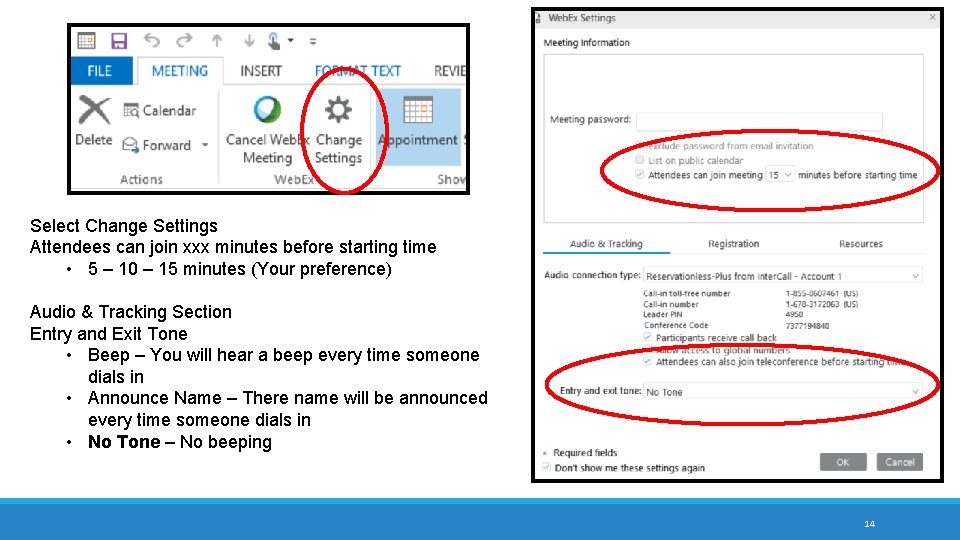
Select Change Settings Attendees can join xxx minutes before starting time • 5 – 10 – 15 minutes (Your preference) Audio & Tracking Section Entry and Exit Tone • Beep – You will hear a beep every time someone dials in • Announce Name – There name will be announced every time someone dials in • No Tone – No beeping 14
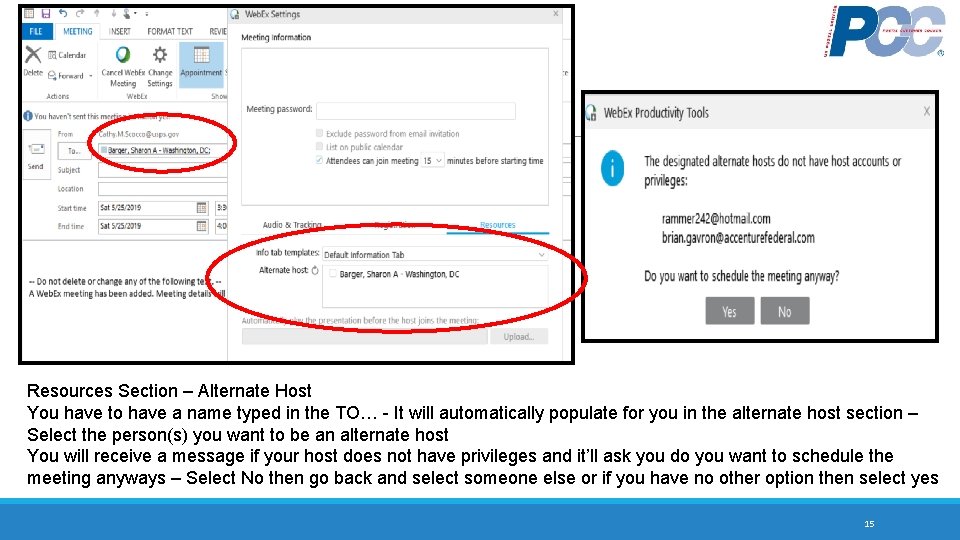
SCHEDULE AND MANAGE MEETINGS Resources Section – Alternate Host You have to have a name typed in the TO… - It will automatically populate for you in the alternate host section – Select the person(s) you want to be an alternate host You will receive a message if your host does not have privileges and it’ll ask you do you want to schedule the meeting anyways – Select No then go back and select someone else or if you have no other option then select yes 15
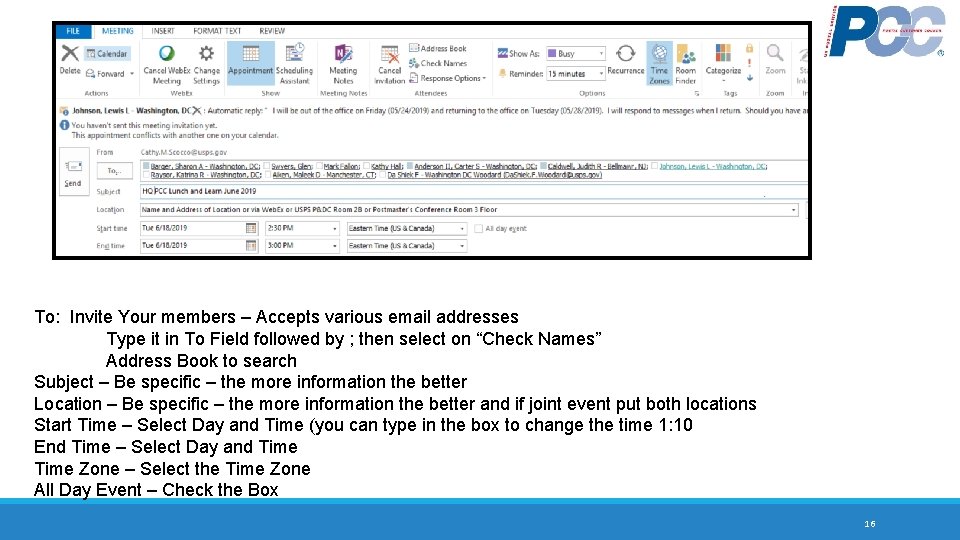
SCHEDULE AND MANAGE MEETINGS To: Invite Your members – Accepts various email addresses Type it in To Field followed by ; then select on “Check Names” Address Book to search Subject – Be specific – the more information the better Location – Be specific – the more information the better and if joint event put both locations Start Time – Select Day and Time (you can type in the box to change the time 1: 10 End Time – Select Day and Time Zone – Select the Time Zone All Day Event – Check the Box 16
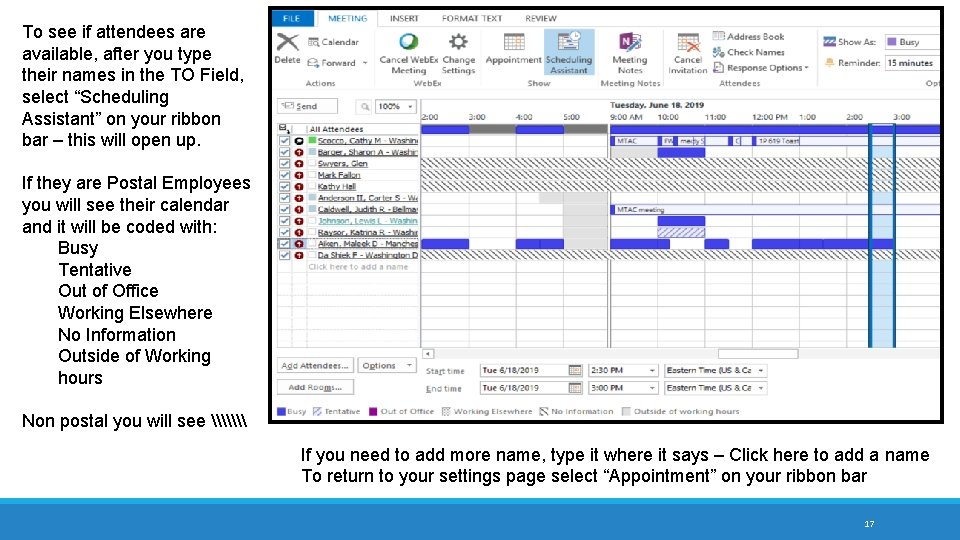
To see if attendees are available, after you type their names in the TO Field, select “Scheduling Assistant” on your ribbon bar – this will open up. SCHEDULE AND MANAGE MEETINGS If they are Postal Employees you will see their calendar and it will be coded with: Busy Tentative Out of Office Working Elsewhere No Information Outside of Working hours Non postal you will see \\\ If you need to add more name, type it where it says – Click here to add a name To return to your settings page select “Appointment” on your ribbon bar 17
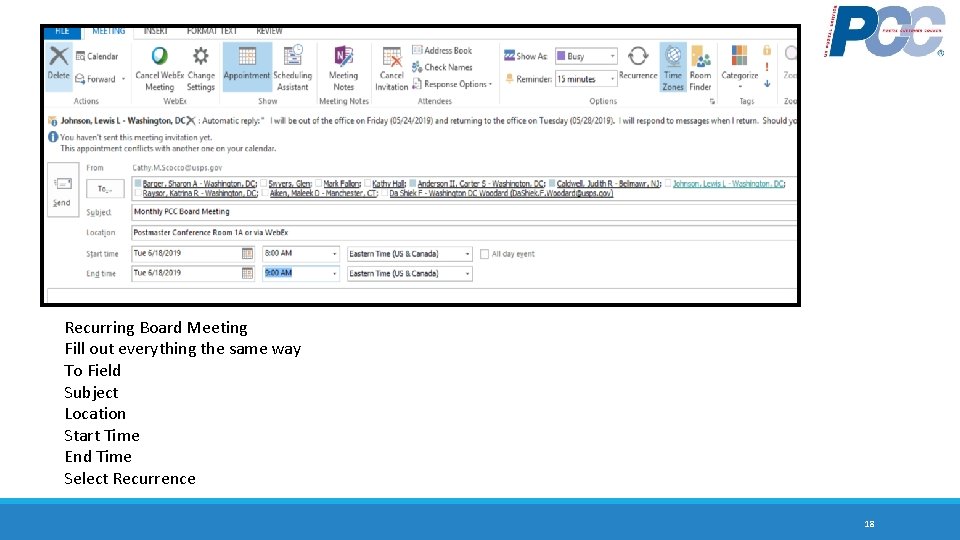
SCHEDULE AND MANAGE MEETINGS Recurring Board Meeting Fill out everything the same way To Field Subject Location Start Time End Time Select Recurrence 18
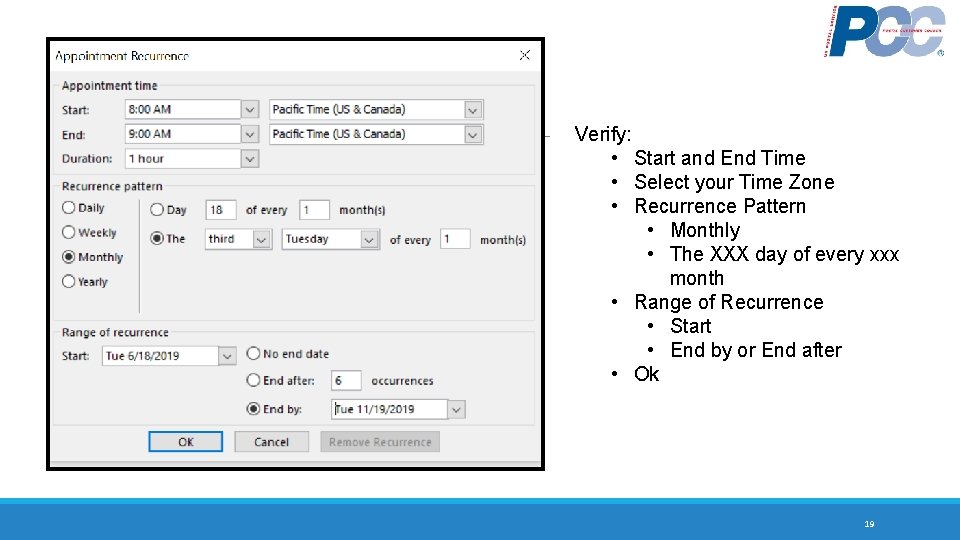
SCHEDULE AND MANAGE MEETINGS Verify: • Start and End Time • Select your Time Zone • Recurrence Pattern • Monthly • The XXX day of every xxx month • Range of Recurrence • Start • End by or End after • Ok 19
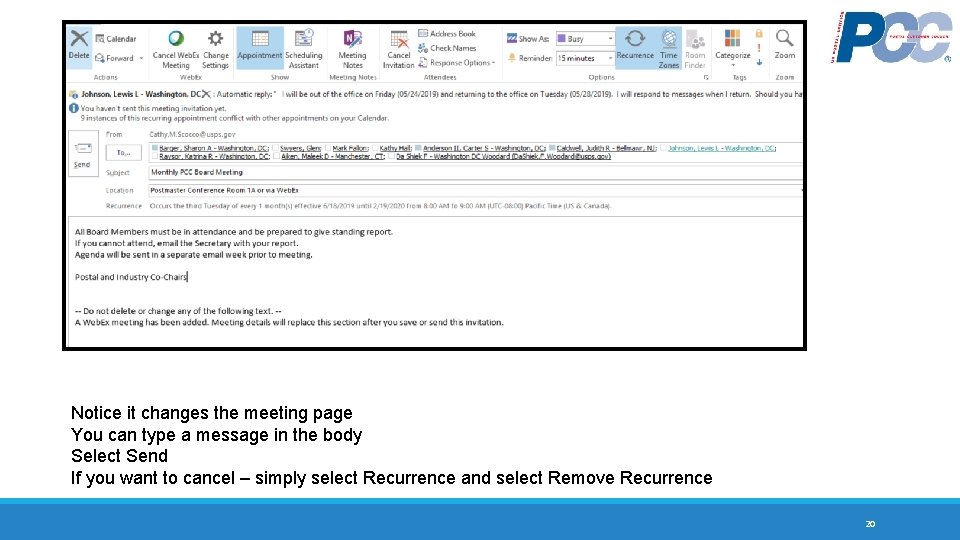
Notice it changes the meeting page You can type a message in the body Select Send If you want to cancel – simply select Recurrence and select Remove Recurrence 20
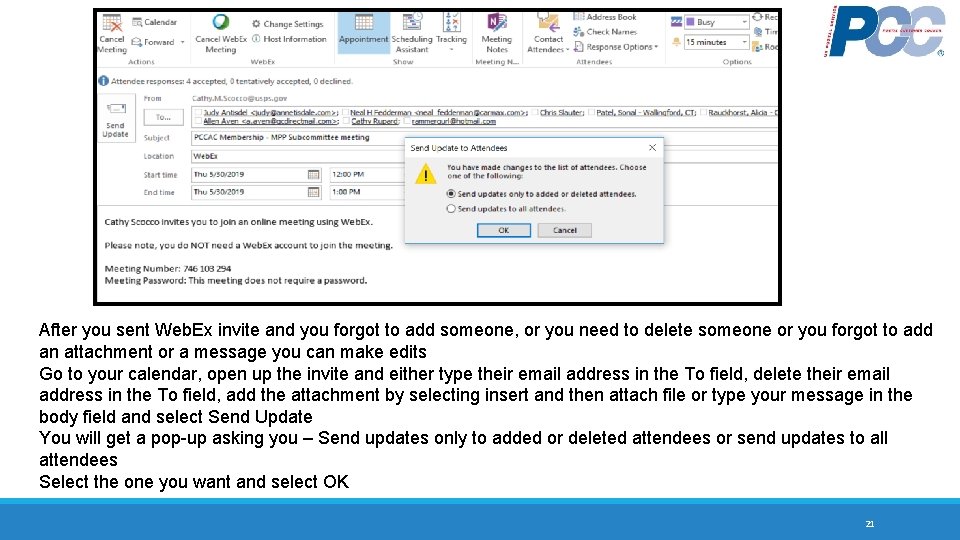
After you sent Web. Ex invite and you forgot to add someone, or you need to delete someone or you forgot to add an attachment or a message you can make edits Go to your calendar, open up the invite and either type their email address in the To field, delete their email address in the To field, add the attachment by selecting insert and then attach file or type your message in the body field and select Send Update You will get a pop-up asking you – Send updates only to added or deleted attendees or send updates to all attendees Select the one you want and select OK 21
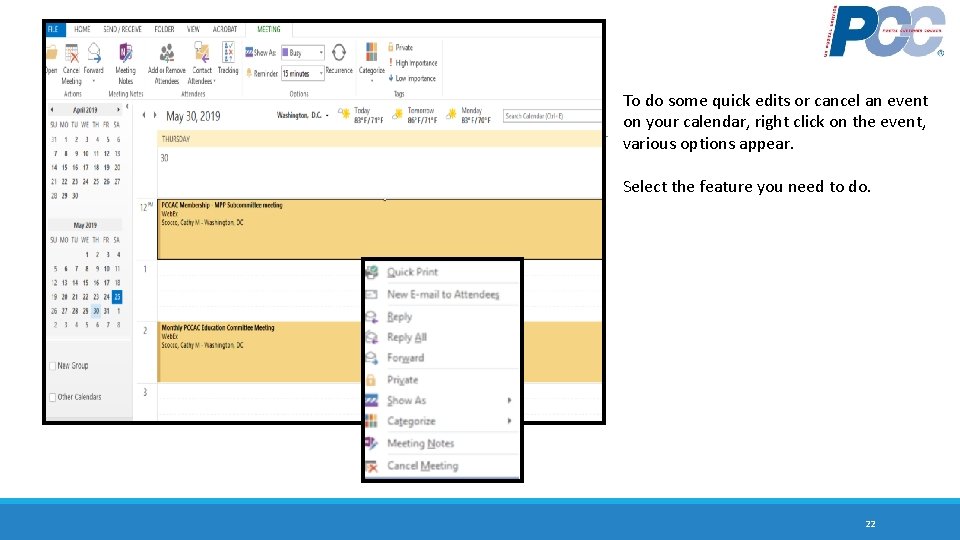
SCHEDULE AND MANAGE MEETINGS To do some quick edits or cancel an event on your calendar, right click on the event, various options appear. Select the feature you need to do. 22
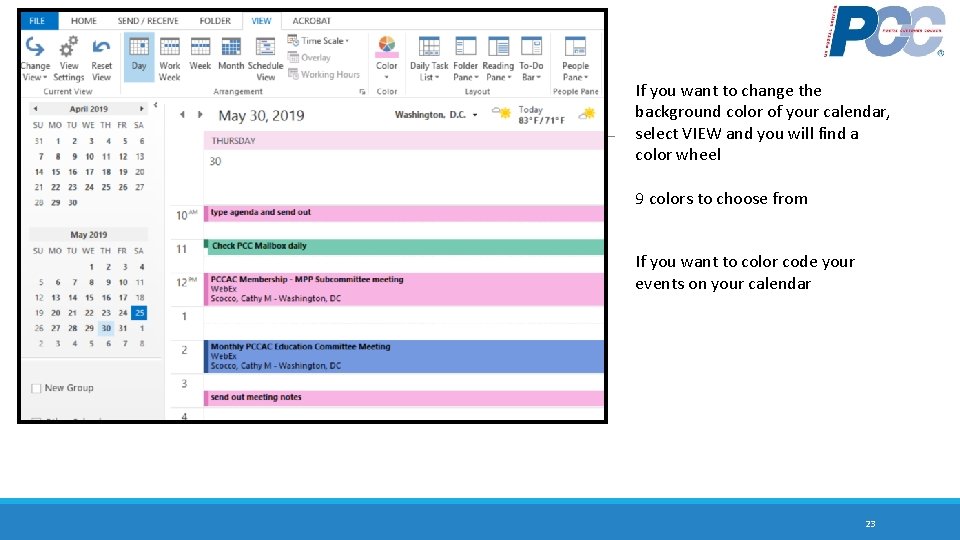
SCHEDULE AND MANAGE MEETINGS If you want to change the background color of your calendar, select VIEW and you will find a color wheel 9 colors to choose from If you want to color code your events on your calendar 23
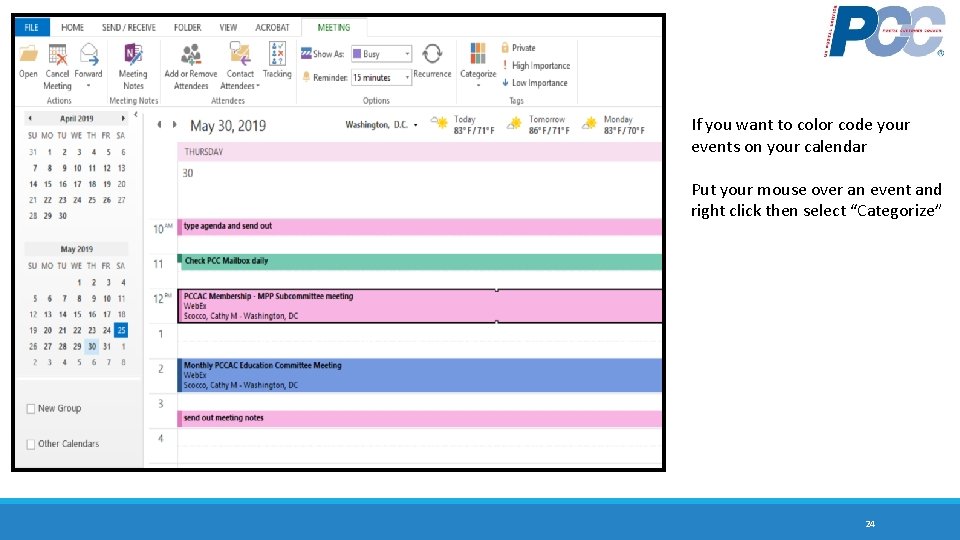
SCHEDULE AND MANAGE MEETINGS If you want to color code your events on your calendar Put your mouse over an event and right click then select “Categorize” 24
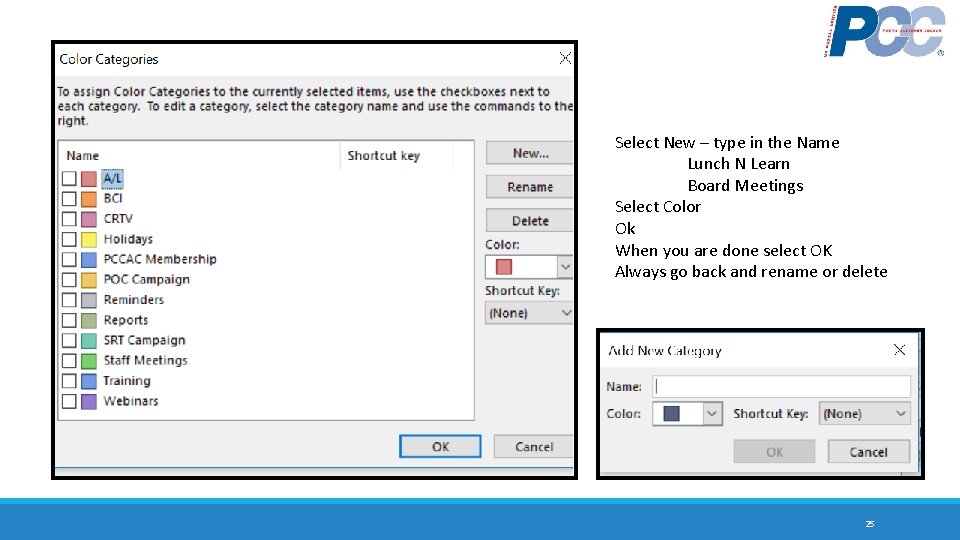
SCHEDULE AND MANAGE MEETINGS Select New – type in the Name Lunch N Learn Board Meetings Select Color Ok When you are done select OK Always go back and rename or delete 25
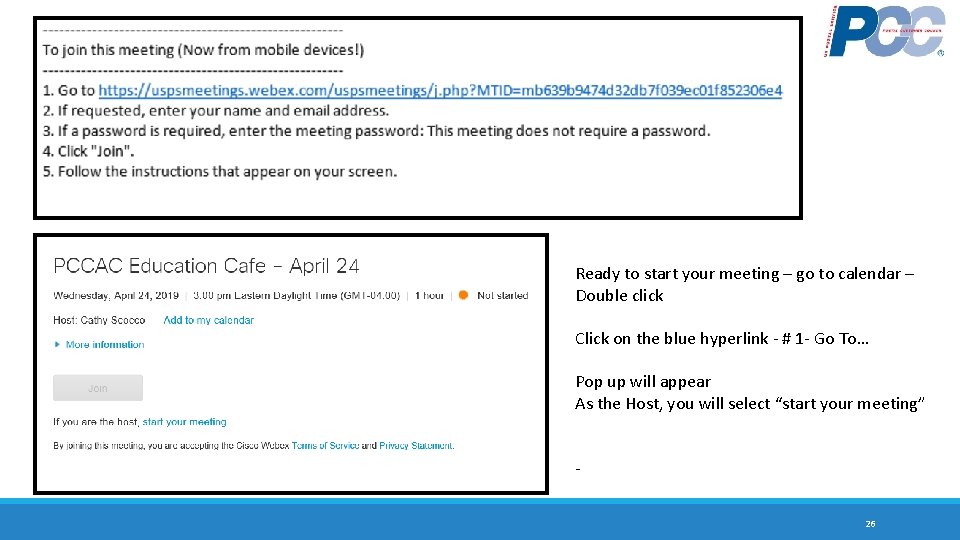
SCHEDULE AND MANAGE MEETINGS Ready to start your meeting – go to calendar – Double click Click on the blue hyperlink - # 1 - Go To… Pop up will appear As the Host, you will select “start your meeting” - 26
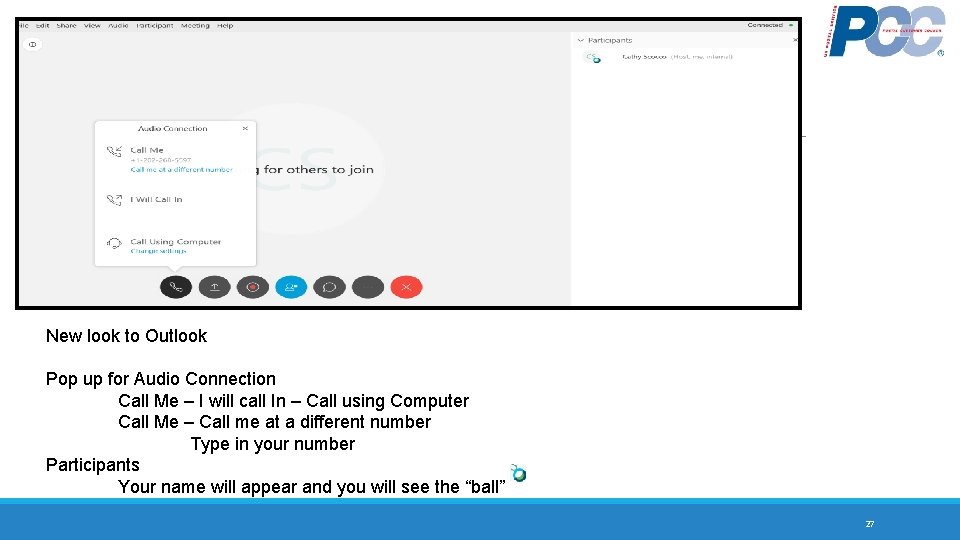
SCHEDULE AND MANAGE MEETINGS New look to Outlook Pop up for Audio Connection Call Me – I will call In – Call using Computer Call Me – Call me at a different number Type in your number Participants Your name will appear and you will see the “ball” 27
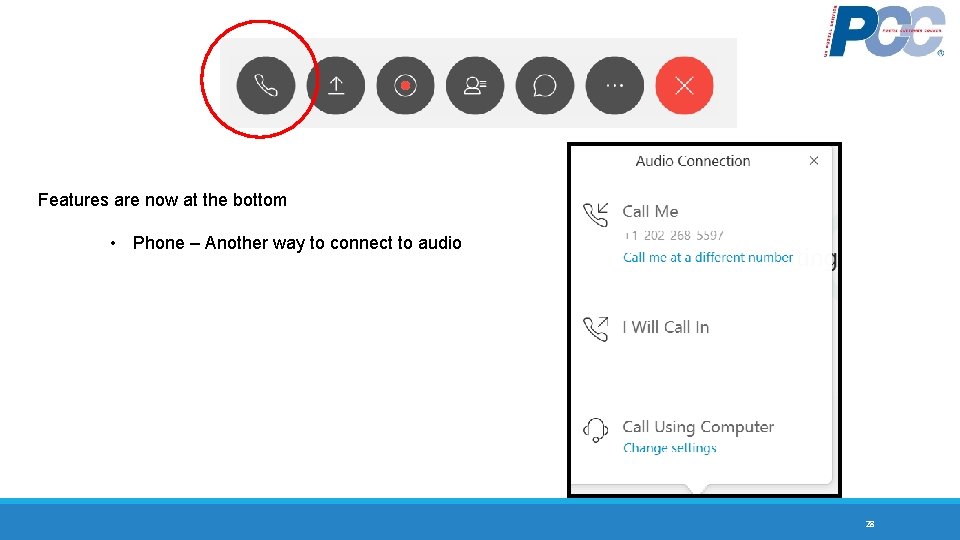
SCHEDULE AND MANAGE MEETINGS Features are now at the bottom • Phone – Another way to connect to audio 28
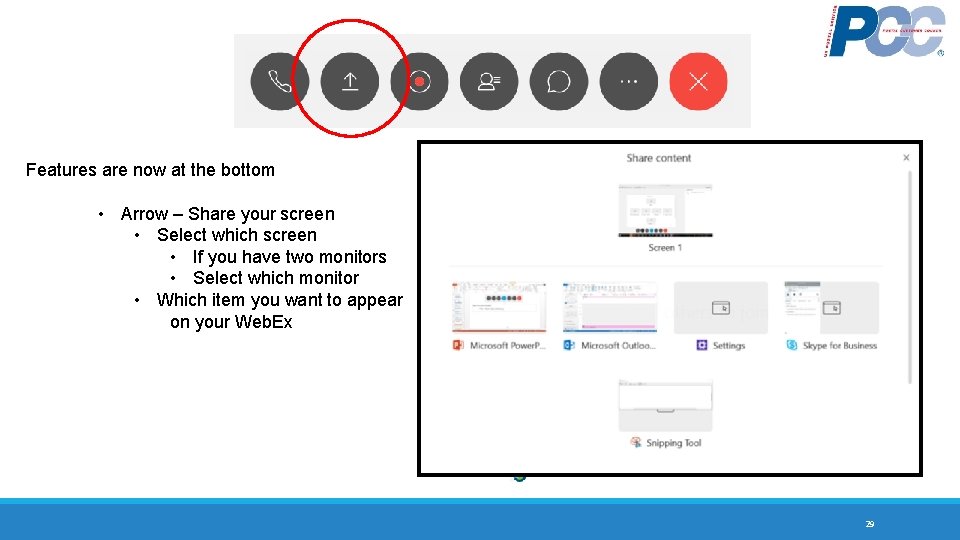
SCHEDULE AND MANAGE MEETINGS Features are now at the bottom • Arrow – Share your screen • Select which screen • If you have two monitors • Select which monitor • Which item you want to appear on your Web. Ex 29
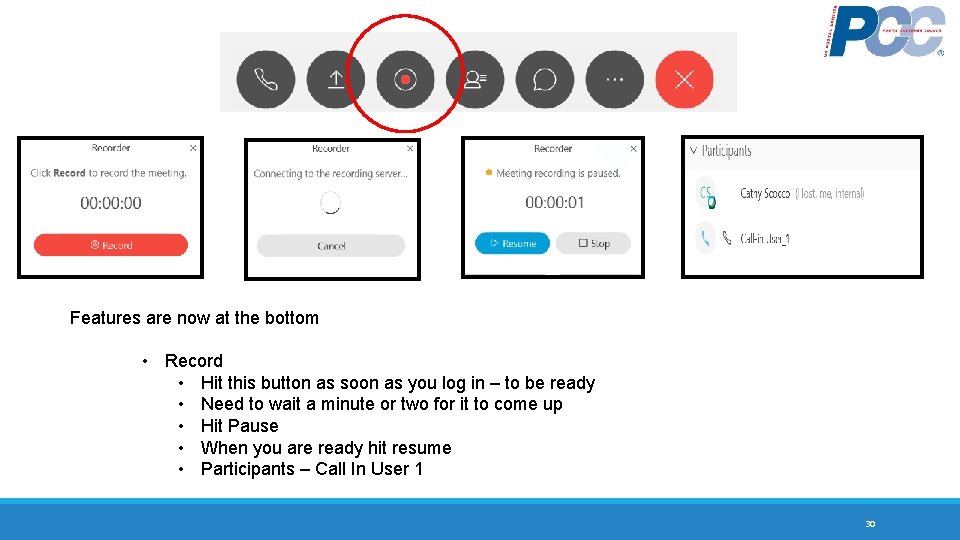
SCHEDULE AND MANAGE MEETINGS Features are now at the bottom • Record • Hit this button as soon as you log in – to be ready • Need to wait a minute or two for it to come up • Hit Pause • When you are ready hit resume • Participants – Call In User 1 30
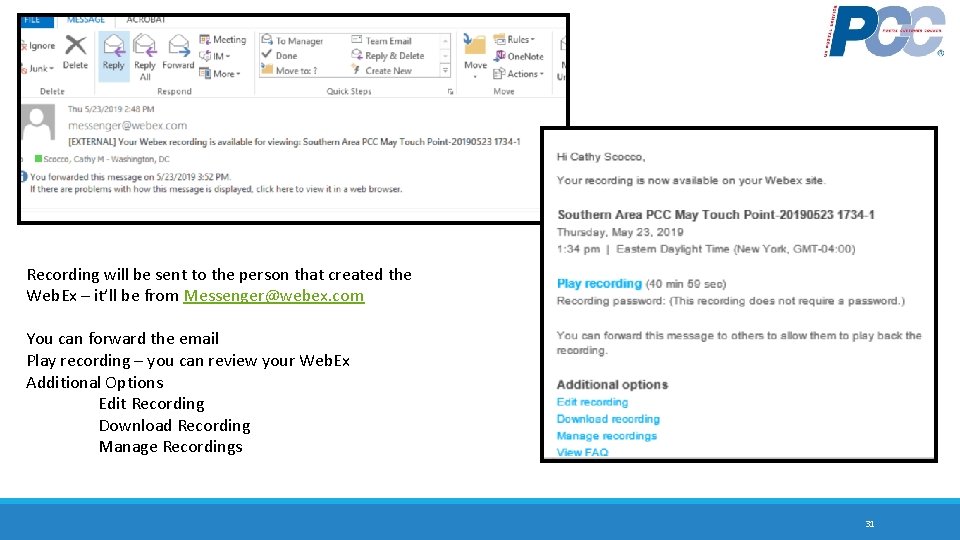
SCHEDULE AND MANAGE MEETINGS Recording will be sent to the person that created the Web. Ex – it’ll be from Messenger@webex. com You can forward the email Play recording – you can review your Web. Ex Additional Options Edit Recording Download Recording Manage Recordings 31
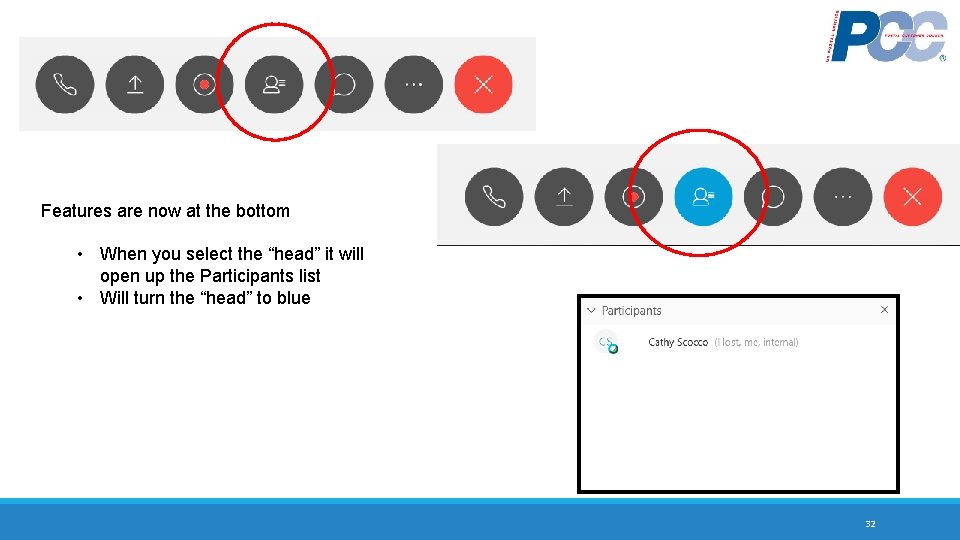
SCHEDULE AND MANAGE MEETINGS Features are now at the bottom • When you select the “head” it will open up the Participants list • Will turn the “head” to blue 32
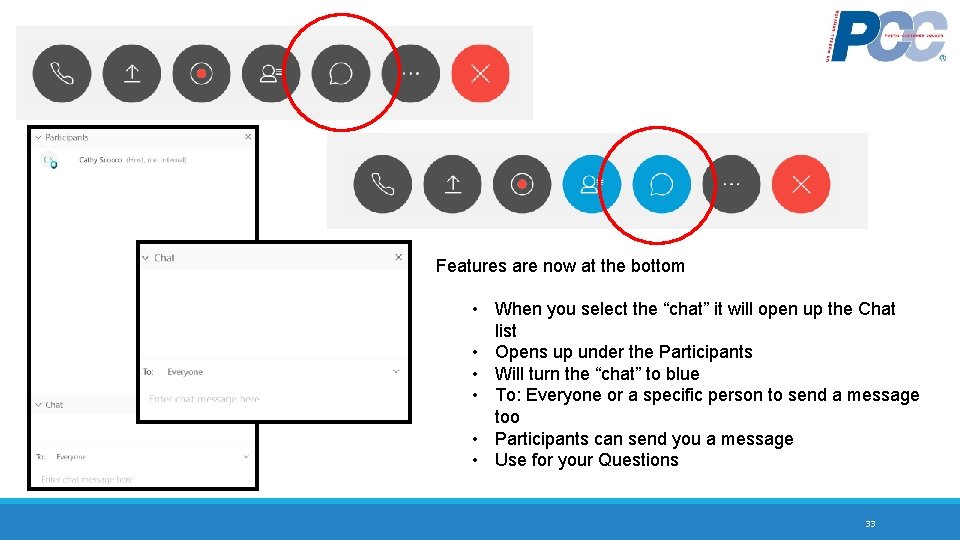
SCHEDULE AND MANAGE MEETINGS Features are now at the bottom • When you select the “chat” it will open up the Chat list • Opens up under the Participants • Will turn the “chat” to blue • To: Everyone or a specific person to send a message too • Participants can send you a message • Use for your Questions 33
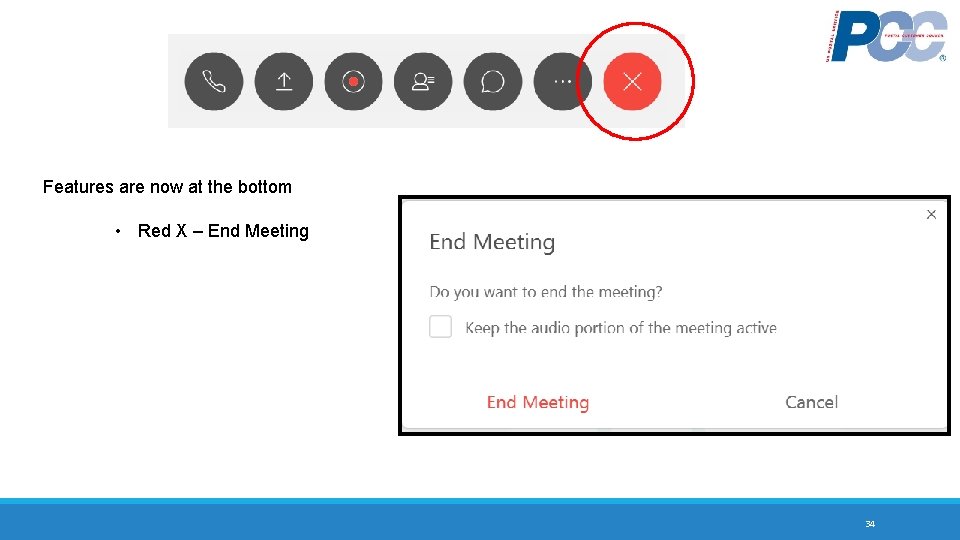
SCHEDULE AND MANAGE MEETINGS Features are now at the bottom • Red X – End Meeting 34
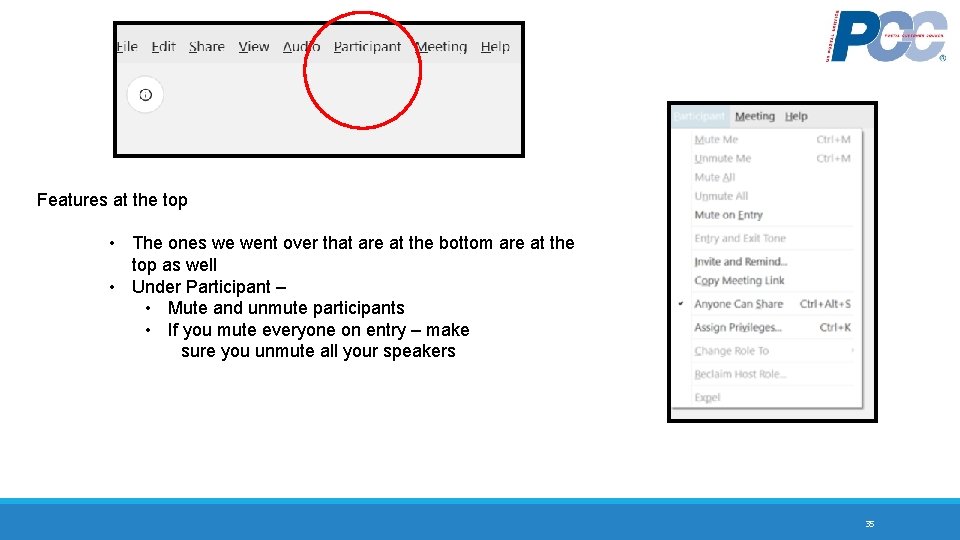
SCHEDULE AND MANAGE MEETINGS Features at the top • The ones we went over that are at the bottom are at the top as well • Under Participant – • Mute and unmute participants • If you mute everyone on entry – make sure you unmute all your speakers 35
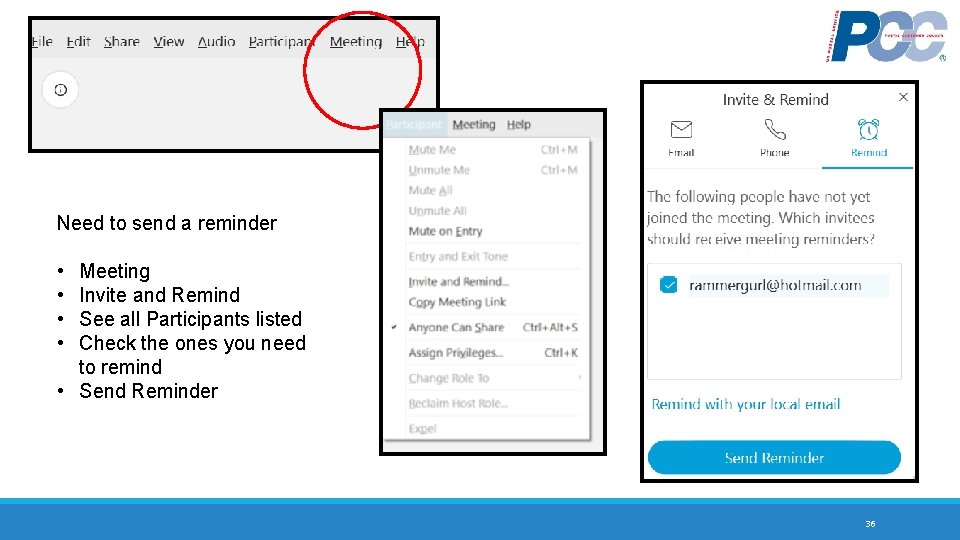
COMMONLY USED FEATURES Need to send a reminder • • Meeting Invite and Remind See all Participants listed Check the ones you need to remind • Send Reminder 36
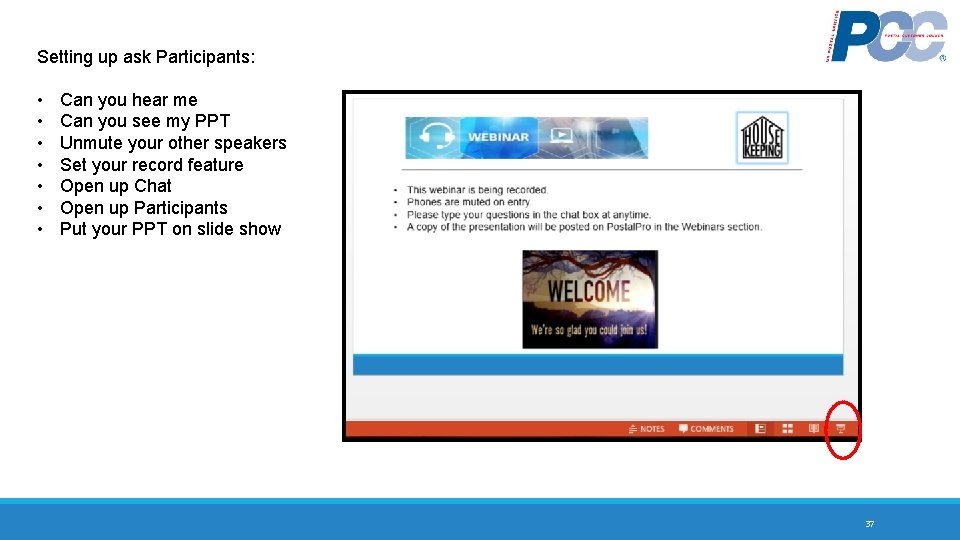
SCHEDULE AND MANAGE MEETINGS Setting up ask Participants: • • Can you hear me Can you see my PPT Unmute your other speakers Set your record feature Open up Chat Open up Participants Put your PPT on slide show 37
SUPPORT For any Web. Ex technical issues and questions please call for 24 X 7 support. • 800. 508. 8758 • 706. 634. 4551 For teleconferencing questions, please dial: • 800. 374. 2441 • 706. 645. 8600 For any other inquiries please contact your dedicated account team at USPSteam@intercall. com https: //meet. westuc. com/Web. Ex. Support Web. Ex has more options. Teleconferencing=Web. Ex audio/presentation sharing. Web. Ex/Video=sharing video of each other through laptop camera or webcam. Telepresence + Web. Ex = Video Conferencing using VCS VCT Consigner Service adding Web. Ex. 38
Questions/Answers

Thank You for ALL that you do!
- Slides: 40