
This presentation demonstrates how to create hyperlinks within
- Slides: 14
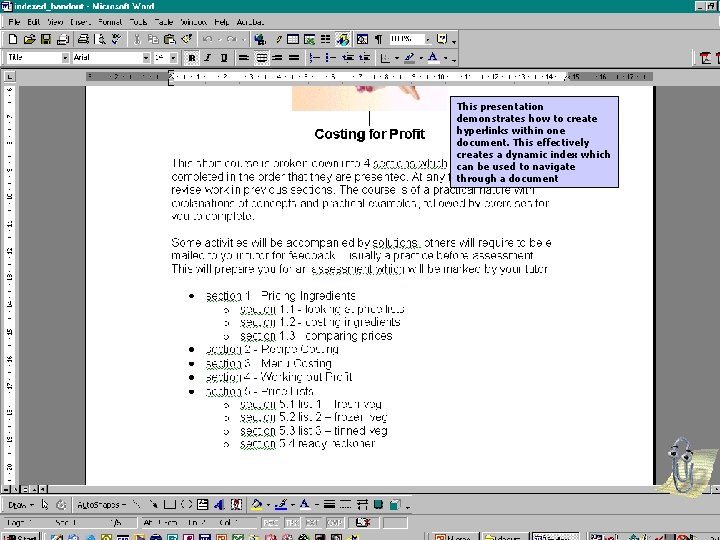
This presentation demonstrates how to create hyperlinks within one document. This effectively creates a dynamic index which can be used to navigate through a document
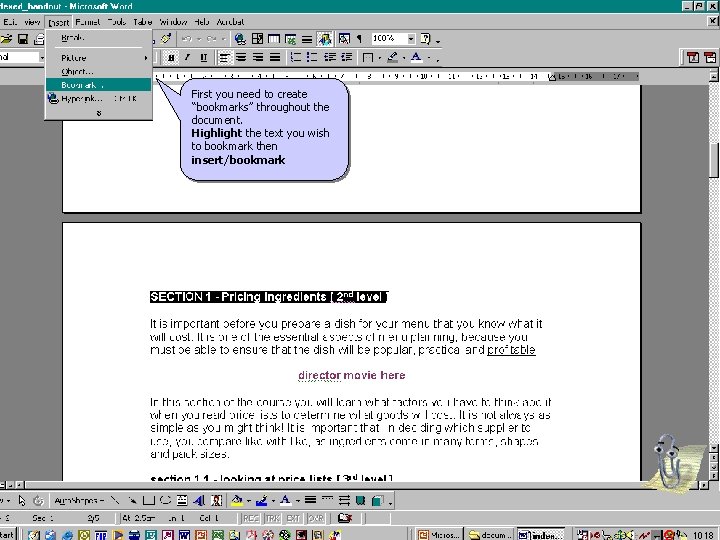
First you need to create “bookmarks” throughout the document. Highlight the text you wish to bookmark then insert/bookmark
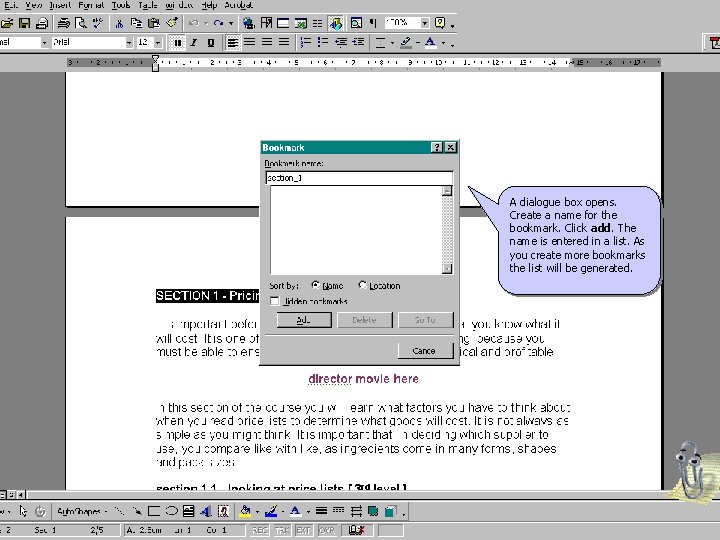
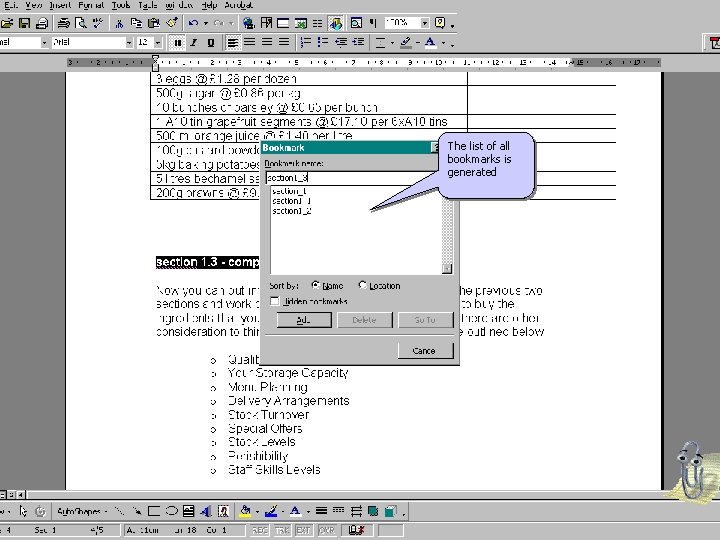
A dialogue box opens. Create a name for the bookmark. Click add. The name is entered in a list. As you create more bookmarks the list will be generated.
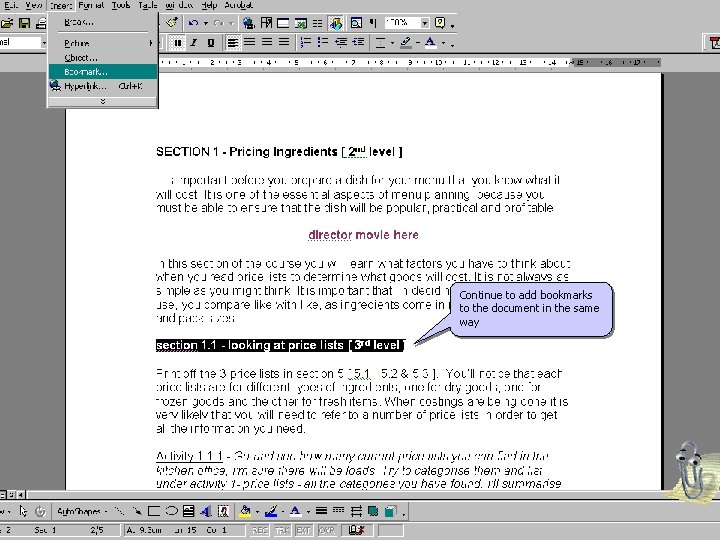
Continue to add bookmarks to the document in the same way
The list of all bookmarks is generated
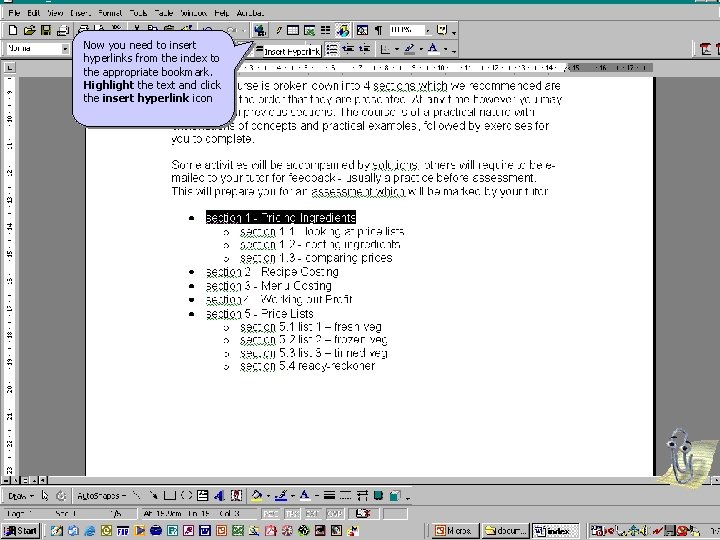
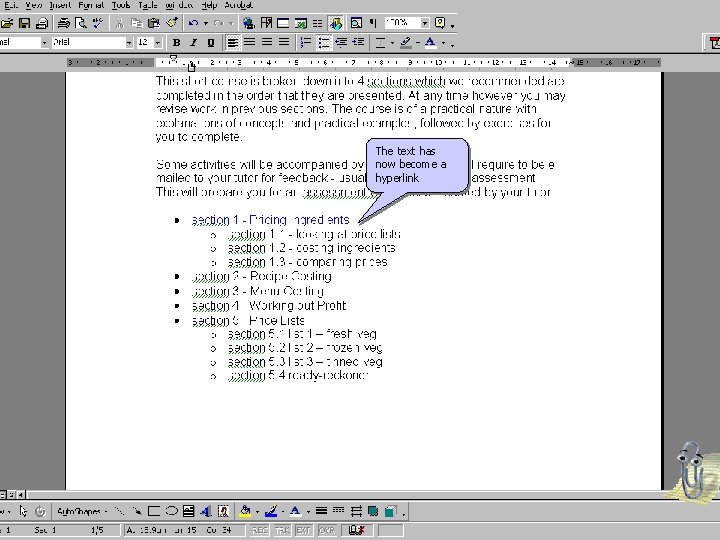
Now you need to insert hyperlinks from the index to the appropriate bookmark. Highlight the text and click the insert hyperlink icon
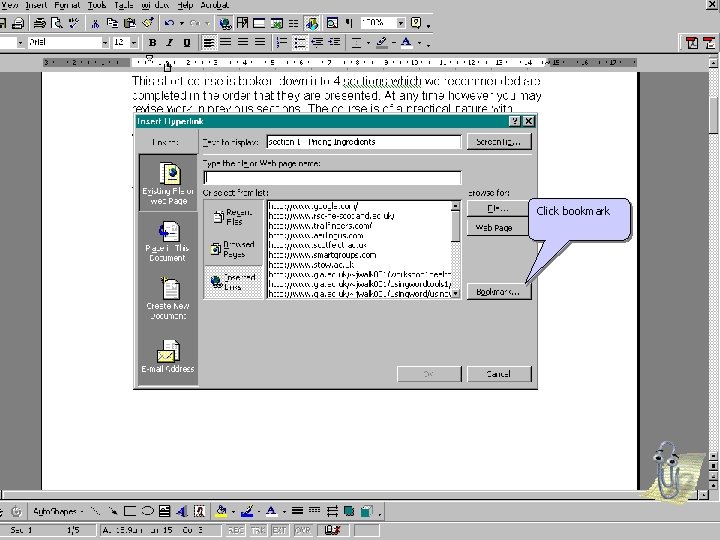
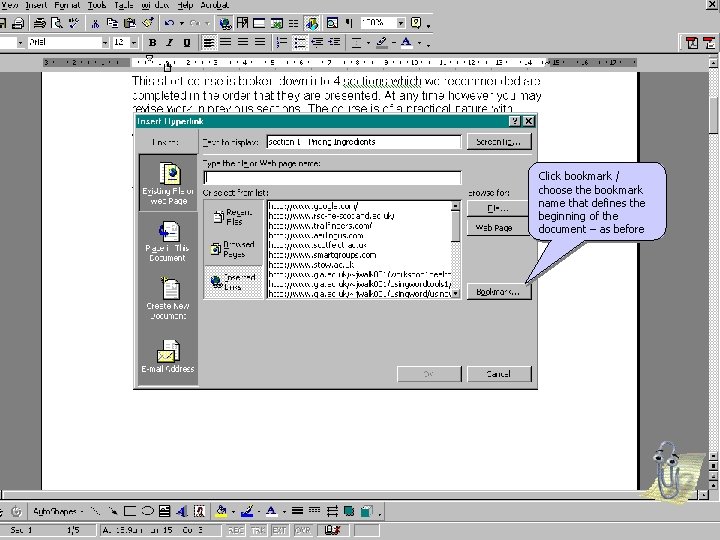
Click bookmark
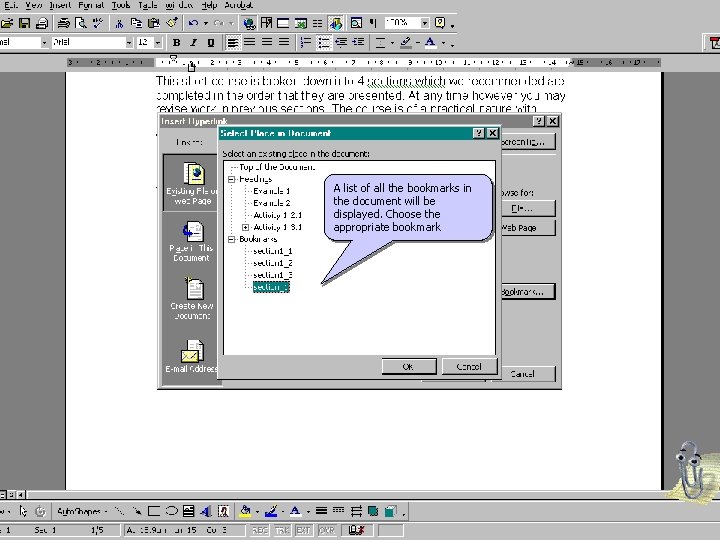
A list of all the bookmarks in the document will be displayed. Choose the appropriate bookmark
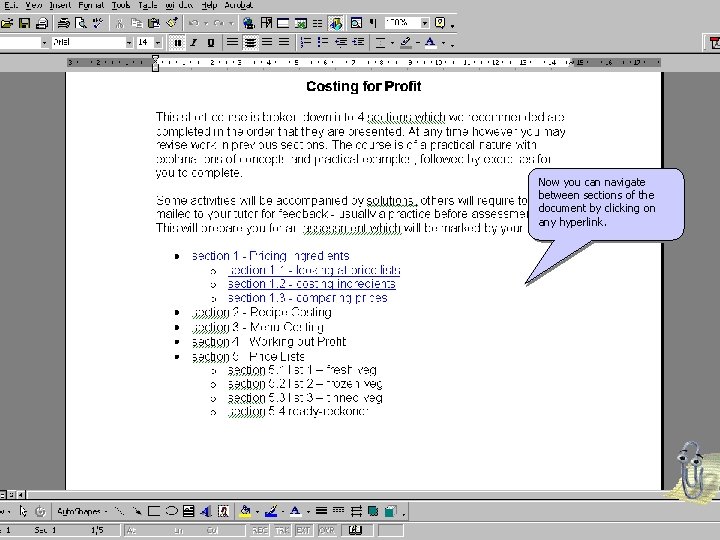
The text has now become a hyperlink
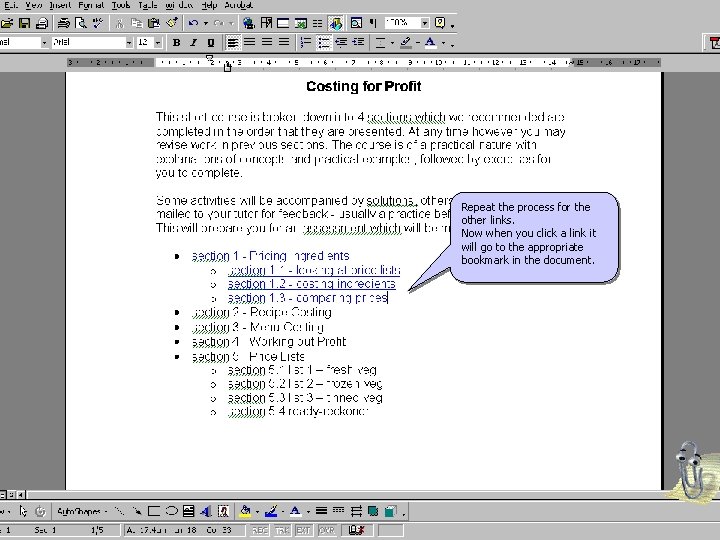
Repeat the process for the other links. Now when you click a link it will go to the appropriate bookmark in the document.
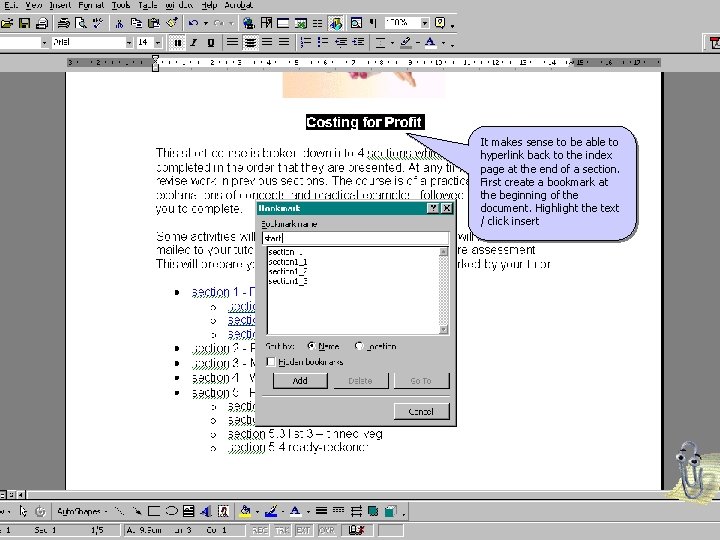
It makes sense to be able to hyperlink back to the index page at the end of a section. First create a bookmark at the beginning of the document. Highlight the text / click insert
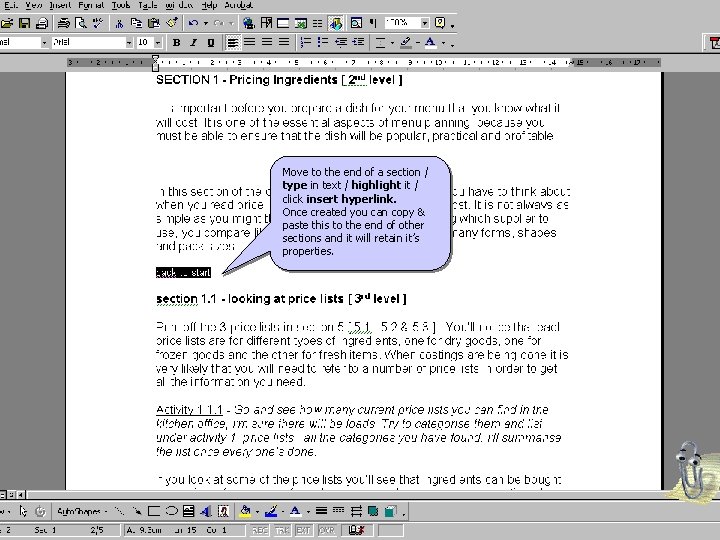
Move to the end of a section / type in text / highlight it / click insert hyperlink. Once created you can copy & paste this to the end of other sections and it will retain it’s properties.
Click bookmark / choose the bookmark name that defines the beginning of the document – as before
Now you can navigate between sections of the document by clicking on any hyperlink.