
This is part 2 of TREx training for
- Slides: 18
This is part 2 of TREx training for ESCs Copyright 2007 Texas Education Agency 1
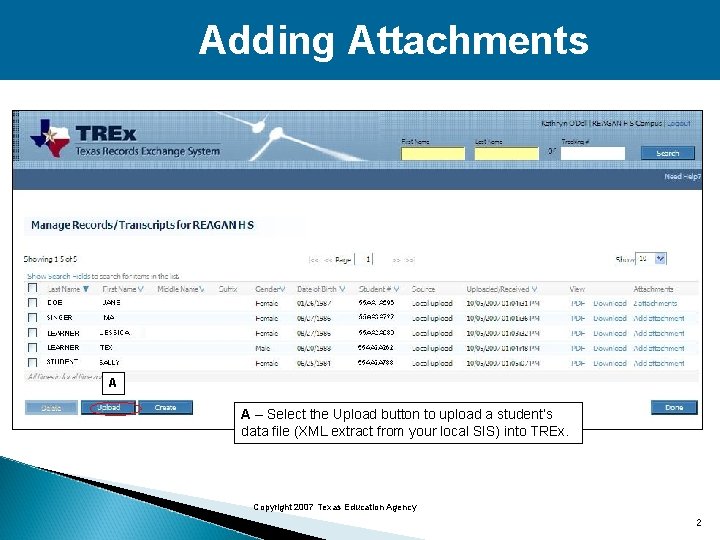
Adding Attachments A A – Select the Upload button to upload a student’s data file (XML extract from your local SIS) into TREx. Copyright 2007 Texas Education Agency 2
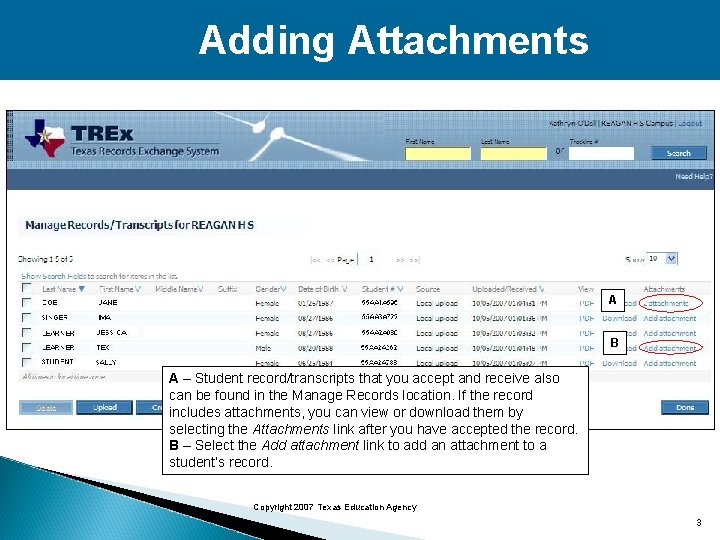
Adding Attachments A B A – Student record/transcripts that you accept and receive also can be found in the Manage Records location. If the record includes attachments, you can view or download them by selecting the Attachments link after you have accepted the record. B – Select the Add attachment link to add an attachment to a student’s record. Copyright 2007 Texas Education Agency 3
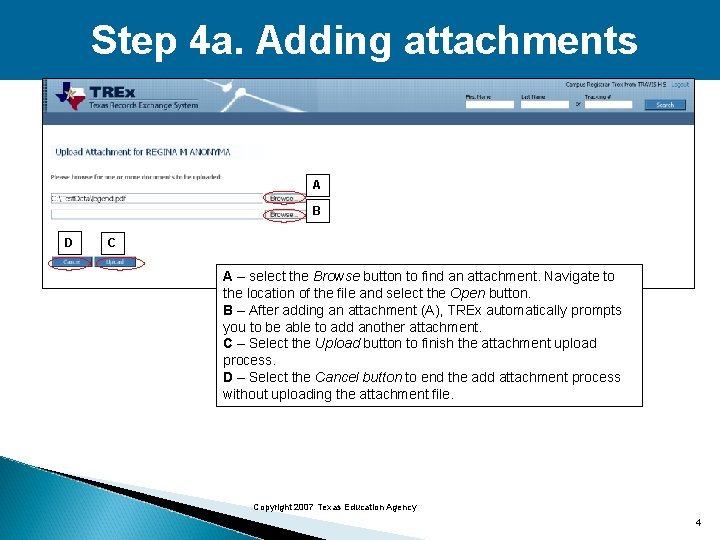
Step 4 a. Adding attachments A B D C A – select the Browse button to find an attachment. Navigate to the location of the file and select the Open button. B – After adding an attachment (A), TREx automatically prompts you to be able to add another attachment. C – Select the Upload button to finish the attachment upload process. D – Select the Cancel button to end the add attachment process without uploading the attachment file. Copyright 2007 Texas Education Agency 4
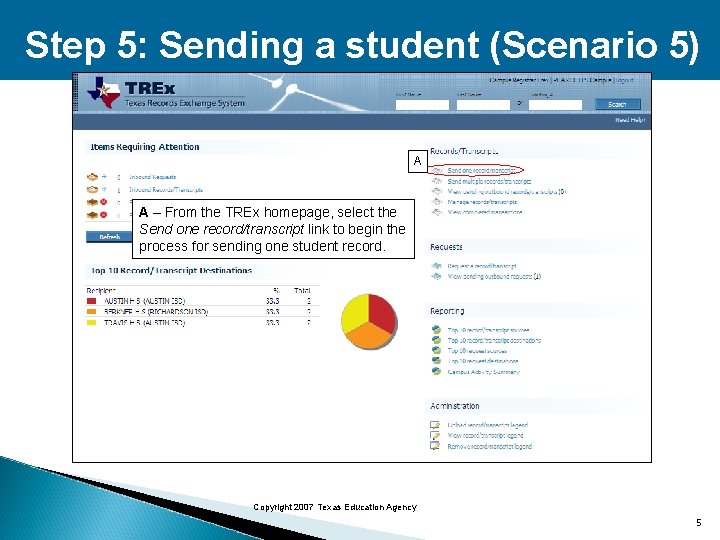
Step 5: Sending a student (Scenario 5) A A – From the TREx homepage, select the Send one record/transcript link to begin the process for sending one student record. Copyright 2007 Texas Education Agency 5
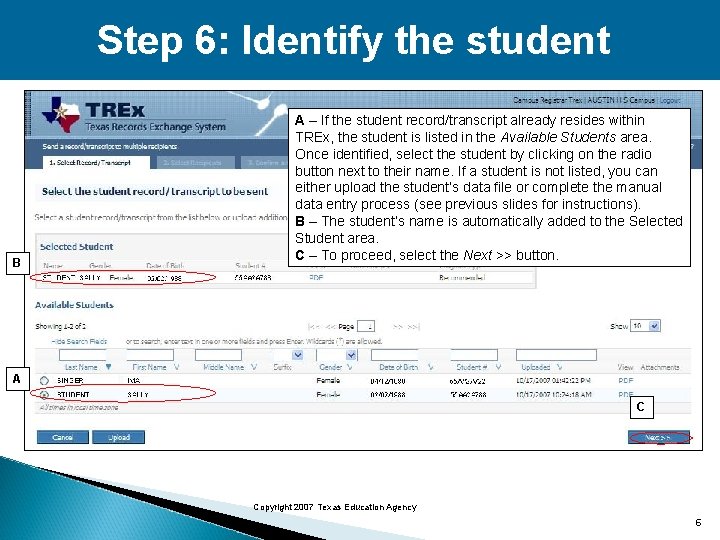
Step 6: Identify the student B A – If the student record/transcript already resides within TREx, the student is listed in the Available Students area. Once identified, select the student by clicking on the radio button next to their name. If a student is not listed, you can either upload the student’s data file or complete the manual data entry process (see previous slides for instructions). B – The student’s name is automatically added to the Selected Student area. C – To proceed, select the Next >> button. A C Copyright 2007 Texas Education Agency 6
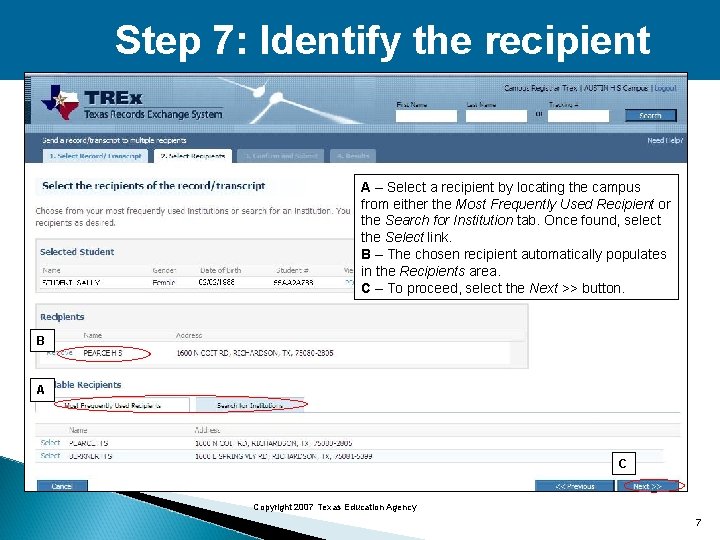
Step 7: Identify the recipient A – Select a recipient by locating the campus from either the Most Frequently Used Recipient or the Search for Institution tab. Once found, select the Select link. B – The chosen recipient automatically populates in the Recipients area. C – To proceed, select the Next >> button. B A C Copyright 2007 Texas Education Agency 7
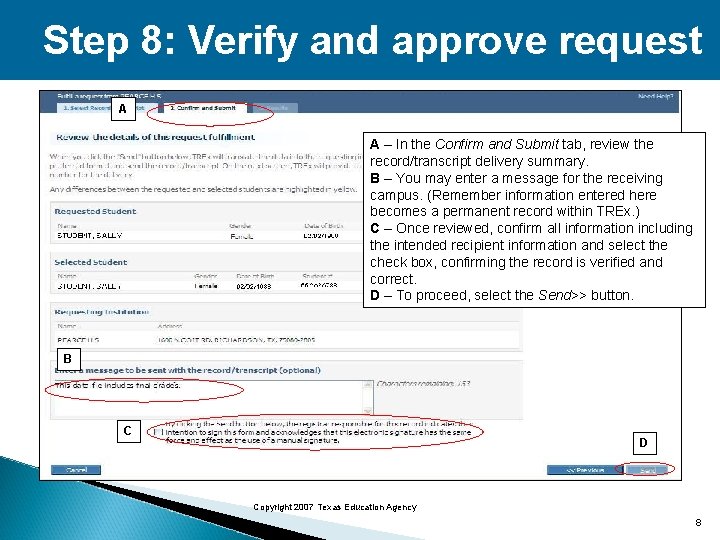
Step 8: Verify and approve request A A – In the Confirm and Submit tab, review the record/transcript delivery summary. B – You may enter a message for the receiving campus. (Remember information entered here becomes a permanent record within TREx. ) C – Once reviewed, confirm all information including the intended recipient information and select the check box, confirming the record is verified and correct. D – To proceed, select the Send>> button. B C D Copyright 2007 Texas Education Agency 8
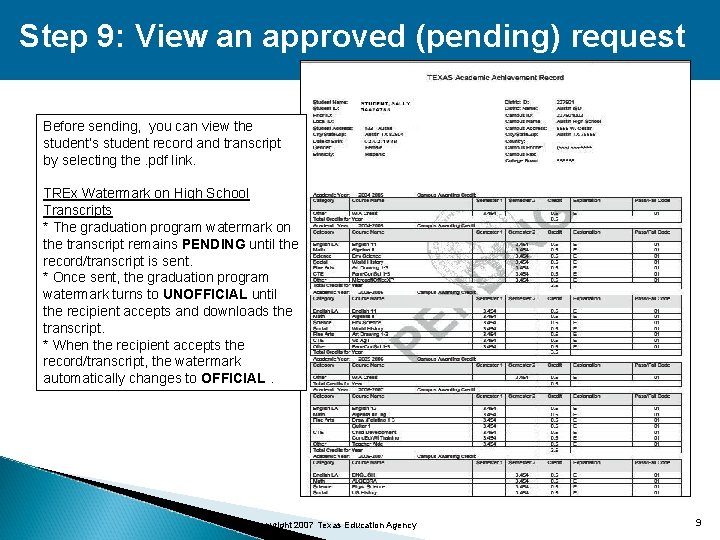
Step 9: View an approved (pending) request Before sending, you can view the student’s student record and transcript by selecting the. pdf link. TREx Watermark on High School Transcripts * The graduation program watermark on the transcript remains PENDING until the record/transcript is sent. * Once sent, the graduation program watermark turns to UNOFFICIAL until the recipient accepts and downloads the transcript. * When the recipient accepts the record/transcript, the watermark automatically changes to OFFICIAL. Copyright 2007 Texas Education Agency 9
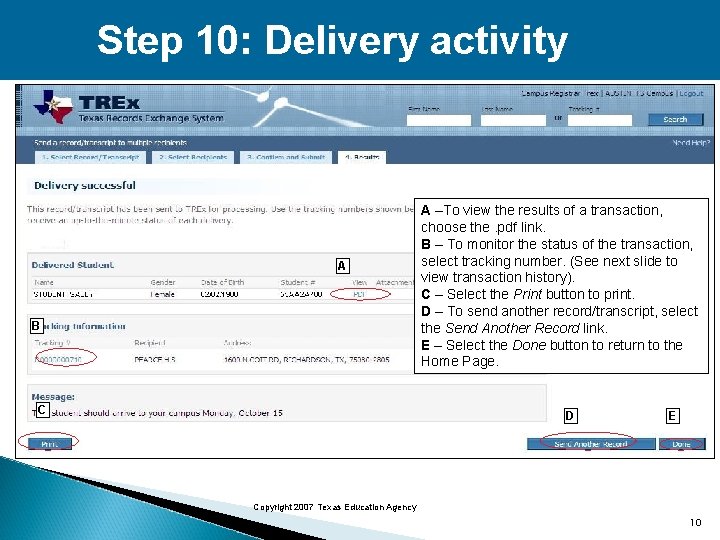
Step 10: Delivery activity A B C A –To view the results of a transaction, choose the. pdf link. B – To monitor the status of the transaction, select tracking number. (See next slide to view transaction history). C – Select the Print button to print. D – To send another record/transcript, select the Send Another Record link. E – Select the Done button to return to the Home Page. D E Copyright 2007 Texas Education Agency 10
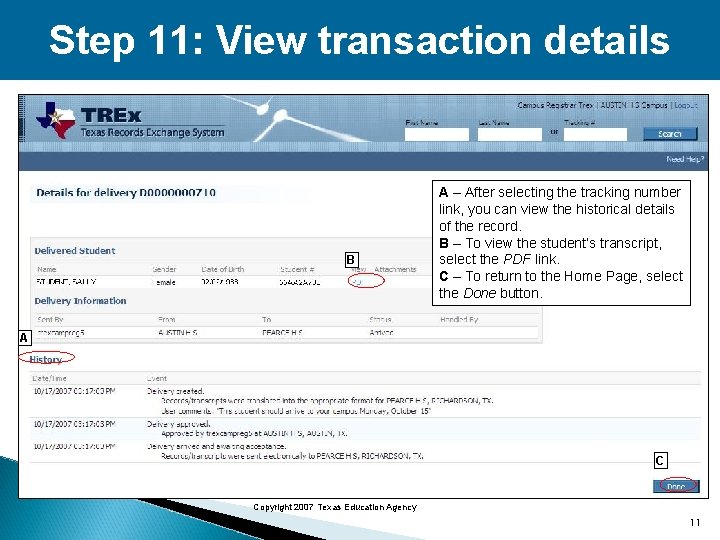
Step 11: View transaction details B A – After selecting the tracking number link, you can view the historical details of the record. B – To view the student’s transcript, select the PDF link. C – To return to the Home Page, select the Done button. A C Copyright 2007 Texas Education Agency 11
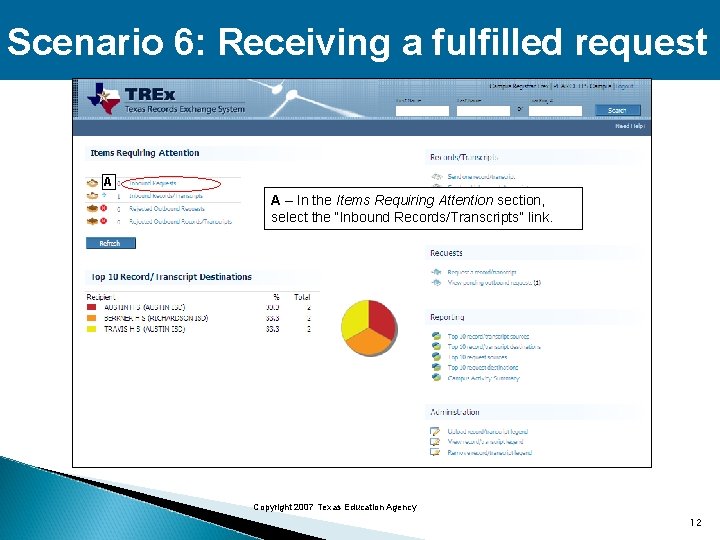
Scenario 6: Receiving a fulfilled request A A – In the Items Requiring Attention section, select the “Inbound Records/Transcripts” link. Copyright 2007 Texas Education Agency 12
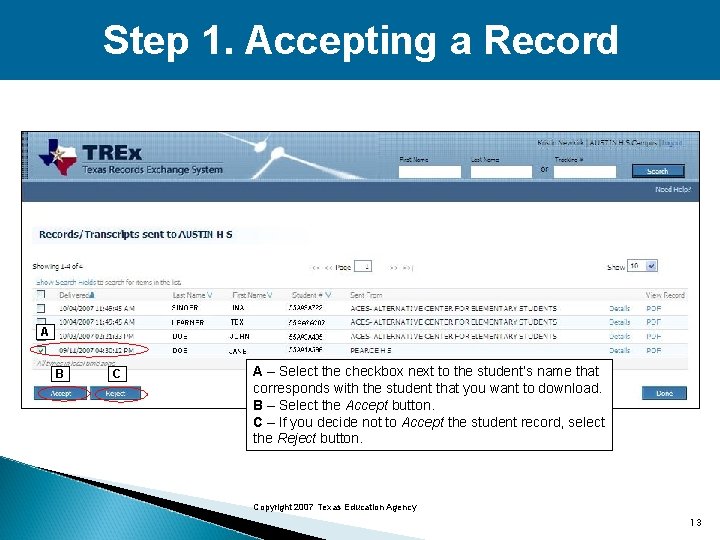
Step 1. Accepting a Record A B C A – Select the checkbox next to the student’s name that corresponds with the student that you want to download. B – Select the Accept button. C – If you decide not to Accept the student record, select the Reject button. Copyright 2007 Texas Education Agency 13
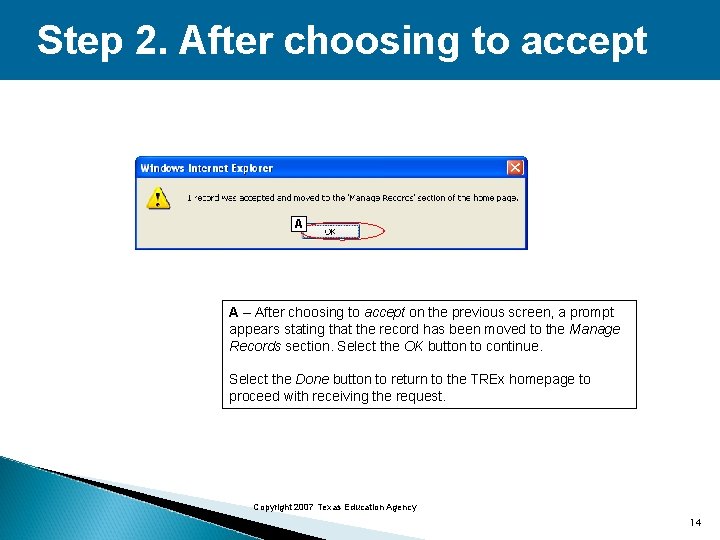
Step 2. After choosing to accept A A – After choosing to accept on the previous screen, a prompt appears stating that the record has been moved to the Manage Records section. Select the OK button to continue. Select the Done button to return to the TREx homepage to proceed with receiving the request. Copyright 2007 Texas Education Agency 14
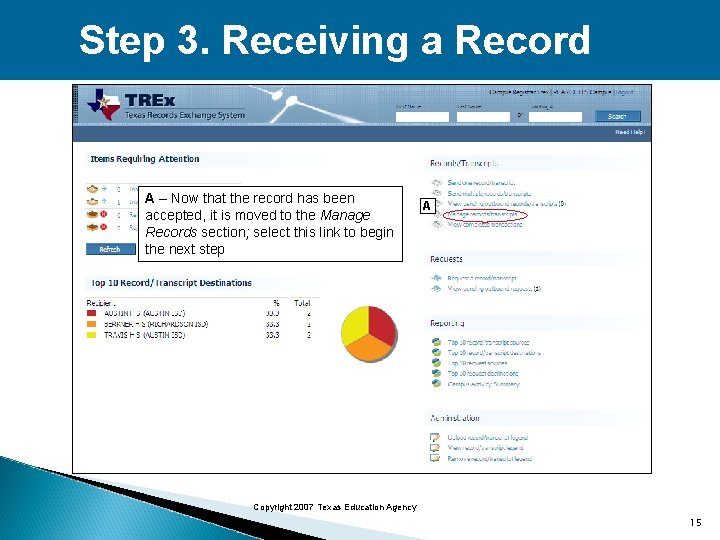
Step 3. Receiving a Record A – Now that the record has been accepted, it is moved to the Manage Records section; select this link to begin the next step A Copyright 2007 Texas Education Agency 15
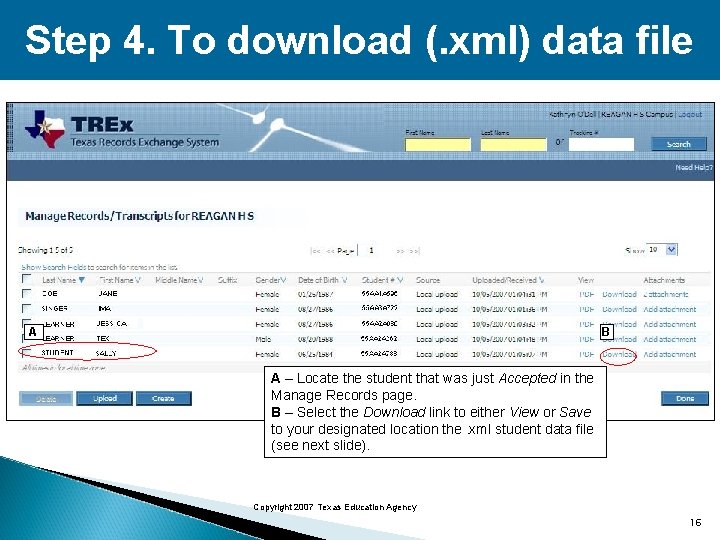
Step 4. To download (. xml) data file A B A – Locate the student that was just Accepted in the Manage Records page. B – Select the Download link to either View or Save to your designated location the. xml student data file (see next slide). Copyright 2007 Texas Education Agency 16
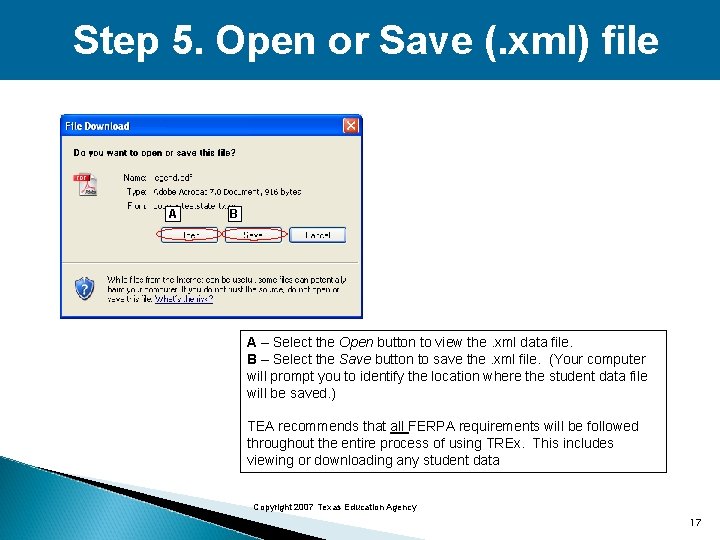
Step 5. Open or Save (. xml) file A B A – Select the Open button to view the. xml data file. B – Select the Save button to save the. xml file. (Your computer will prompt you to identify the location where the student data file will be saved. ) TEA recommends that all FERPA requirements will be followed throughout the entire process of using TREx. This includes viewing or downloading any student data Copyright 2007 Texas Education Agency 17
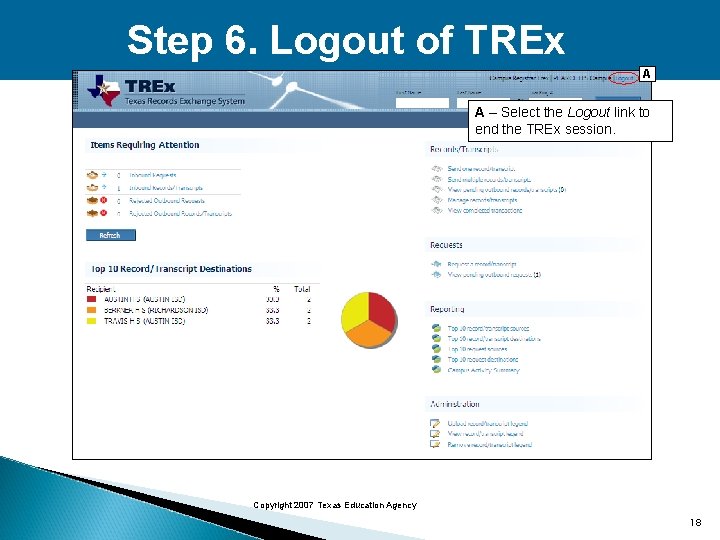
Step 6. Logout of TREx A A – Select the Logout link to end the TREx session. Copyright 2007 Texas Education Agency 18