
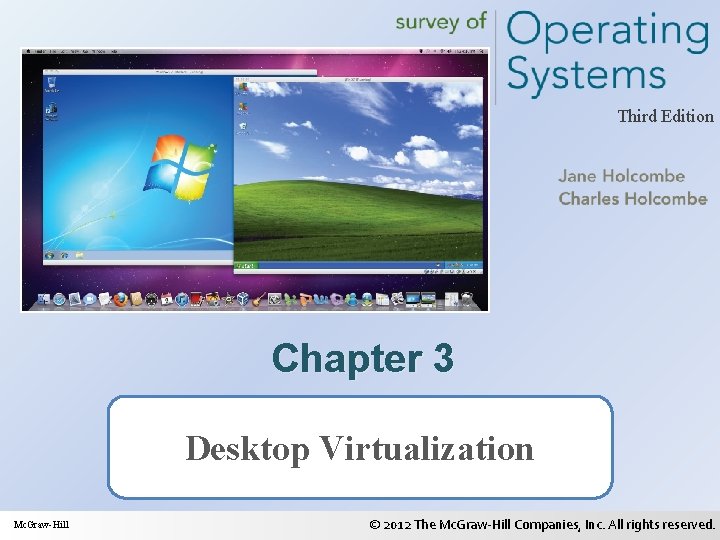
Third Edition Chapter 3 Desktop Virtualization Mc GrawHill
- Slides: 48
Third Edition Chapter 3 Desktop Virtualization Mc. Graw-Hill © 2012 The Mc. Graw-Hill Companies, Inc. All rights reserved.
Learning Objectives • Explain the evolution of desktop virtualization and understand the common features of today’s desktop virtualization products • Select and implement a desktop virtualization option on a Windows Vista or Windows 7 desktop • Describe desktop virtualization options for a Mac OS X desktop 2 © 2012 The Mc. Graw-Hill Companies, Inc. All rights reserved.
Virtualization Overview • Ubiquity of Virtualization – Virtual world – Storage virtualization – Network virtualization – Server virtualization – Desktop virtualization – Virtual machine – Application virtualization 3 © 2012 The Mc. Graw-Hill Companies, Inc. All rights reserved.
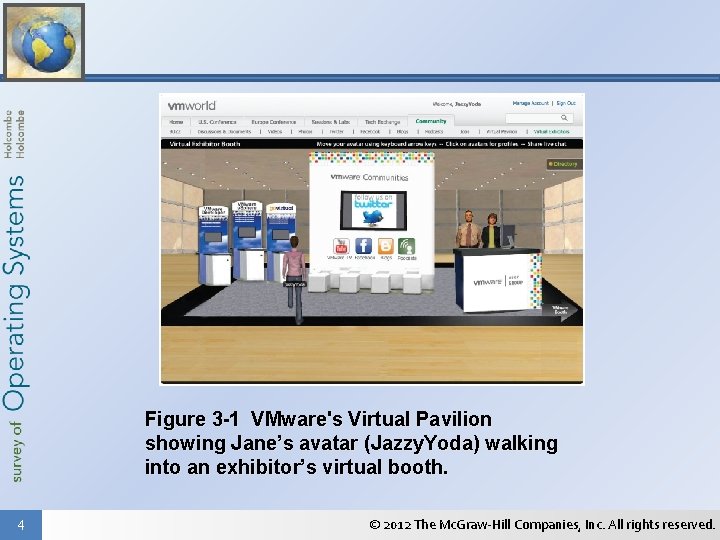
Figure 3 -1 VMware's Virtual Pavilion showing Jane’s avatar (Jazzy. Yoda) walking into an exhibitor’s virtual booth. 4 © 2012 The Mc. Graw-Hill Companies, Inc. All rights reserved.
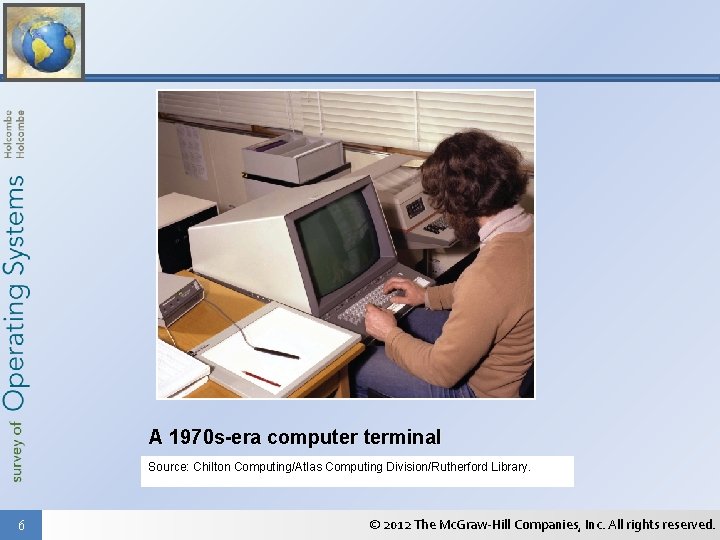
Virtualization Overview • Your (Great? ) Grandfather’s Virtual Machine – Dumb terminal – Terminal services – Terminal client 5 © 2012 The Mc. Graw-Hill Companies, Inc. All rights reserved.
A 1970 s-era computer terminal Source: Chilton Computing/Atlas Computing Division/Rutherford Library. 6 © 2012 The Mc. Graw-Hill Companies, Inc. All rights reserved.
Virtualization Overview • Today’s Virtual Desktops – Server-based virtual desktop • Thin client connects to a server • Client works in the server-hosted environment • Most of processing done at server • Virtual desktop infrastructure (VDI) 7 © 2012 The Mc. Graw-Hill Companies, Inc. All rights reserved.
Virtualization Overview • Today’s Virtual Desktops (cont. ) – Desktop-based Desktops • Virtual desktop on local computer • User can switch between host OS and guest OS • Processing done locally 8 © 2012 The Mc. Graw-Hill Companies, Inc. All rights reserved.
Virtualization Overview • Hypervisor/Virtual Machine Monitor (VMM) – Type I • Bare-metal hypervisor • Runs directly on a computer without a host OS • First appeared on servers – Type II • Requires a host OS 9 © 2012 The Mc. Graw-Hill Companies, Inc. All rights reserved.
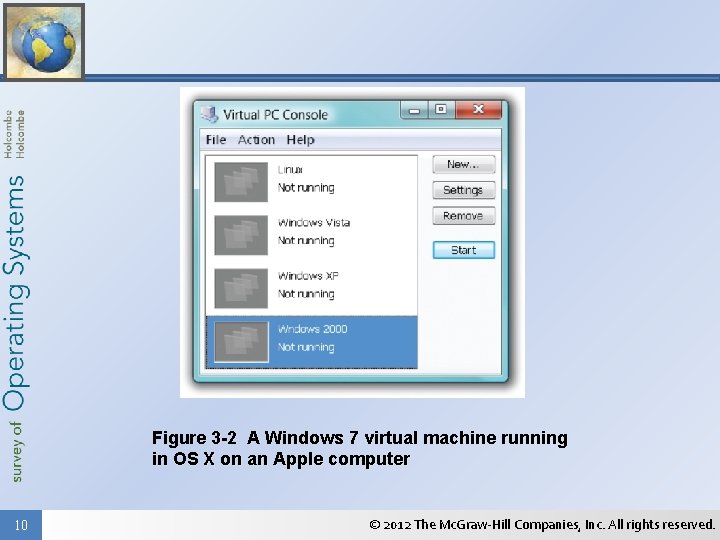
Figure 3 -2 A Windows 7 virtual machine running in OS X on an Apple computer 10 © 2012 The Mc. Graw-Hill Companies, Inc. All rights reserved.
Virtualization Overview • Tasks for creating a virtual machine – Prepare the computer – Install the hypervisor – Install a virtual machine – Install the guest OS – Install guest utilities and secure guest OS – Locate and practice with host key 11 © 2012 The Mc. Graw-Hill Companies, Inc. All rights reserved.
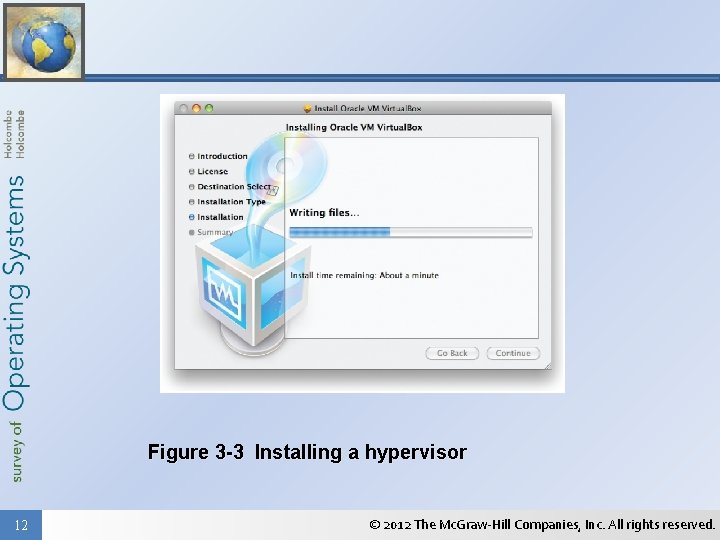
Figure 3 -3 Installing a hypervisor 12 © 2012 The Mc. Graw-Hill Companies, Inc. All rights reserved.
Virtualization Overview • Major Hypervisor Sources – Citrix – VMware – Parallels – Microsoft – Oracle 13 © 2012 The Mc. Graw-Hill Companies, Inc. All rights reserved.
Desktop VMs on Windows Desktops • Microsoft Virtual PC 2007 – Requirements • Host OS – Windows Vista Business, Enterprise, Ultimate – Windows Server 2003, Standard 32 -bit and 64 -bit – Windows XP Professional 32 -bit and 64 -bit – Windows XP Tablet PC 14 © 2012 The Mc. Graw-Hill Companies, Inc. All rights reserved.
Desktop VMs on Windows Desktops • Microsoft Virtual PC 2007 (cont. ) – Recommended • Host Hardware – X 64 or x 86 -based computer with 1 GHz processor with L 2 cache – Processor: AMD Athlon or Duron, Intel Celeron, Intel Pentium III, Intel Pentium 4, Intel Core Duo, or Intel Core 2 Duo 15 © 2012 The Mc. Graw-Hill Companies, Inc. All rights reserved.
Desktop VMs on Windows Desktops Step-by-Step 3. 01 Installing Microsoft Virtual PC 2007 16 © 2012 The Mc. Graw-Hill Companies, Inc. All rights reserved.
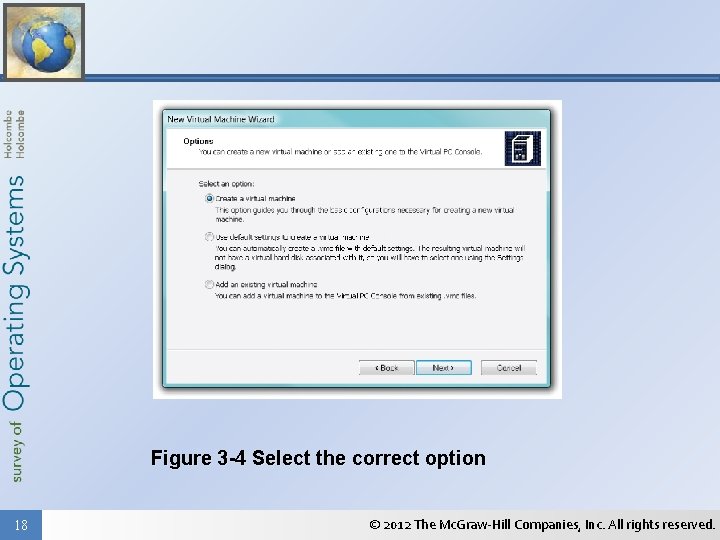
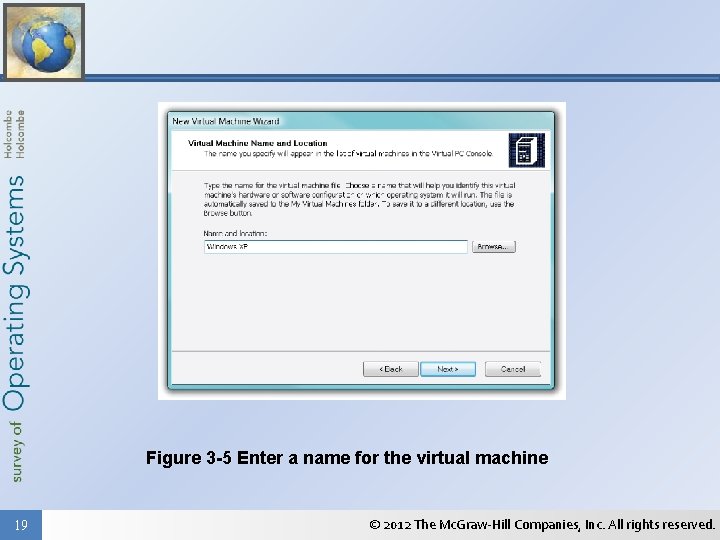
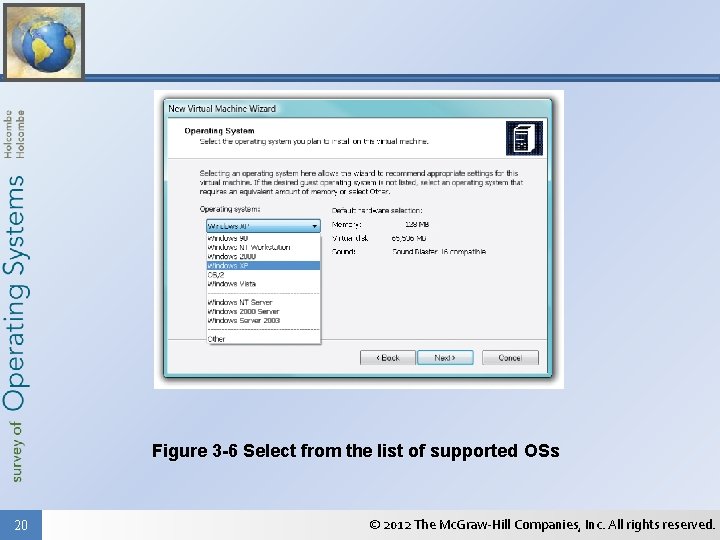
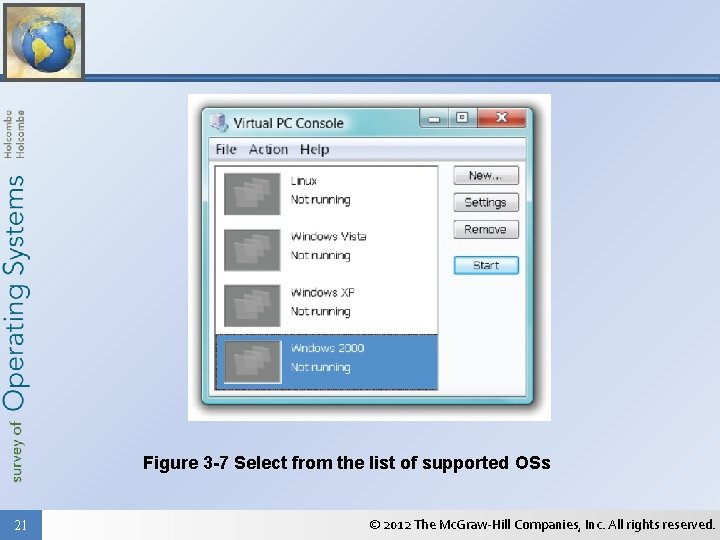
Desktop VMs on Windows Desktops • Microsoft Virtual PC 2007 (cont. ) – Creating a Virtual Machine in Virtual PC • Start Virtual PC 2007 from Start | All Programs • New Virtual Machine Wizard – Create a customized VM – Create a VM with the defaults for the client – Add a pre-existing VM – Start VM with distribution disc in drive 17 © 2012 The Mc. Graw-Hill Companies, Inc. All rights reserved.
Figure 3 -4 Select the correct option 18 © 2012 The Mc. Graw-Hill Companies, Inc. All rights reserved.
Figure 3 -5 Enter a name for the virtual machine 19 © 2012 The Mc. Graw-Hill Companies, Inc. All rights reserved.
Figure 3 -6 Select from the list of supported OSs 20 © 2012 The Mc. Graw-Hill Companies, Inc. All rights reserved.
Figure 3 -7 Select from the list of supported OSs 21 © 2012 The Mc. Graw-Hill Companies, Inc. All rights reserved.
Desktop VMs on Windows Desktops • Windows XP Mode and Windows Virtual PC – Windows XP Mode for Windows 7 • Windows Virtual PC with Windows XP preinstalled • Use to run legacy applications 22 © 2012 The Mc. Graw-Hill Companies, Inc. All rights reserved.
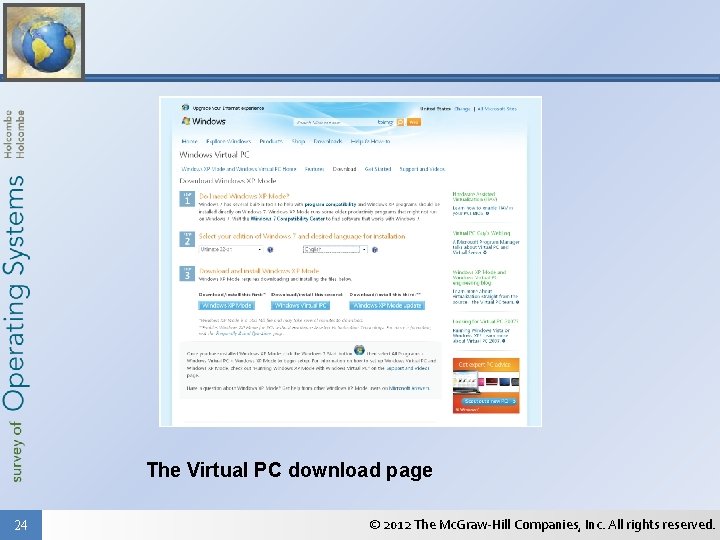
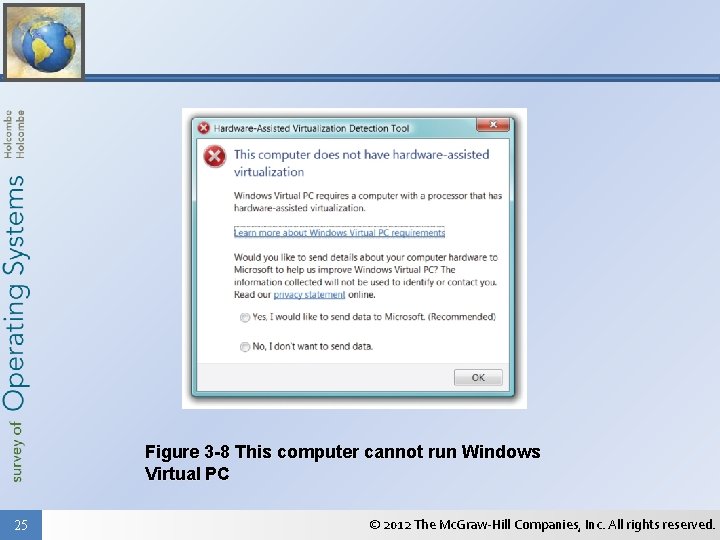
Desktop VMs on Windows Desktops • Windows Virtual PC for Windows 7 – Guest OSs • Windows Vista • Windows 2000 • Linux – Requires hardware-assisted virtualization • Use the Hardware-Assisted Virtualization Detection Tool 23 © 2012 The Mc. Graw-Hill Companies, Inc. All rights reserved.
The Virtual PC download page 24 © 2012 The Mc. Graw-Hill Companies, Inc. All rights reserved.
Figure 3 -8 This computer cannot run Windows Virtual PC 25 © 2012 The Mc. Graw-Hill Companies, Inc. All rights reserved.
Desktop VMs on Windows Desktops • VMware Player – VMware has produced VM software for 10 years+ – VMware Player is a desktop hypervisor • Available as a free trial • Three versions – 32 -bit/64 -bit for Windows hosts – 32 -bit for Linux hosts – 64 -bit for Linux hosts 26 © 2012 The Mc. Graw-Hill Companies, Inc. All rights reserved.
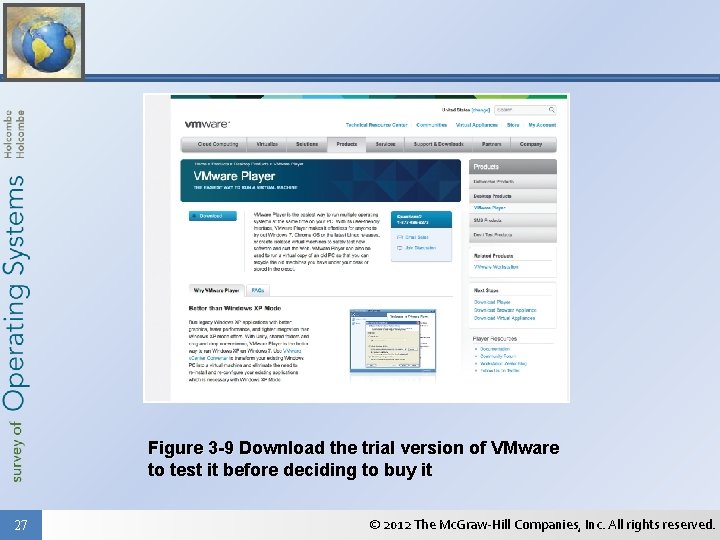
Figure 3 -9 Download the trial version of VMware to test it before deciding to buy it 27 © 2012 The Mc. Graw-Hill Companies, Inc. All rights reserved.
Desktop VMs on Windows Desktops • Oracle Virtual. Box – Host OSs • Windows • Linux • Mac OS X – Client OSs • Windows • Linux • DOS – Does not require virtualization hardware 28 © 2012 The Mc. Graw-Hill Companies, Inc. All rights reserved.
Desktop VMs on Mac OS X • Apple Boot Camp – Not really a virtualization option – Multi-boot between Mac OSX and Windows – Requirements • • • 29 Intel-based Mac OS X 10. 6 or later strongly recommended Keyboard and point device Built-in optical disk drive or compatible external drive Mac OS X installation disc © 2012 The Mc. Graw-Hill Companies, Inc. All rights reserved.
Desktop VMs on Mac OS X • Apple Boot Camp (cont. ) – Requirements • • • Intel-based Mac OS X 10. 6 or later strongly recommended Keyboard and point device Built-in optical disk drive or compatible external drive Mac OS X installation disc – Client OSs • Windows XP Home or Professional Edition with SP 2 • Windows Vista or Windows 7 Home Premium, Professional, or Ultimate 30 © 2012 The Mc. Graw-Hill Companies, Inc. All rights reserved.
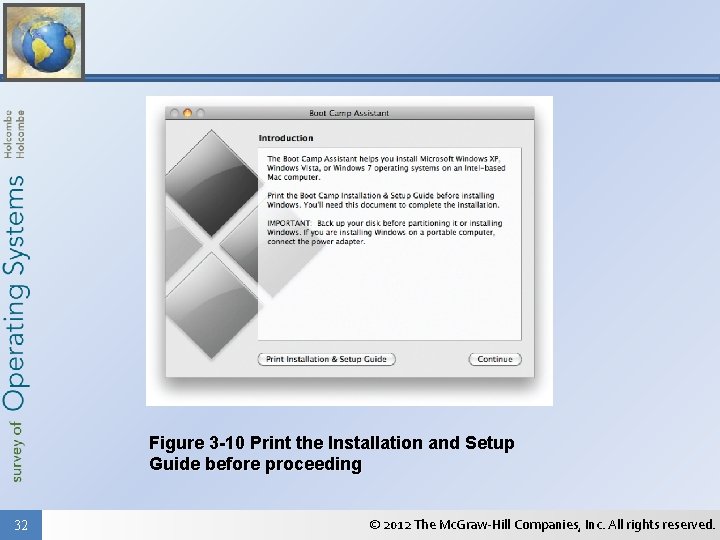
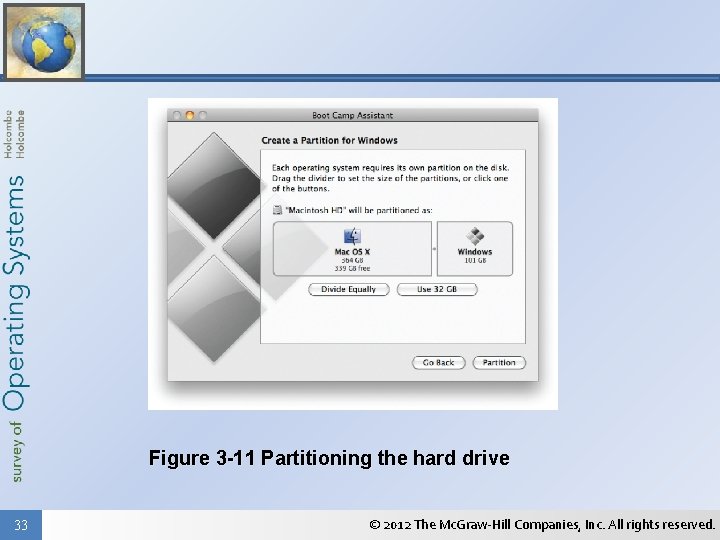
Desktop VMs on Mac OS X • Apple Boot Camp (cont. ) – Boot Camp comes with Mac OS X – Run Boot Camp Assistant • From Applications | Utilities folder • Creates a new partition for the Windows OS 31 © 2012 The Mc. Graw-Hill Companies, Inc. All rights reserved.
Figure 3 -10 Print the Installation and Setup Guide before proceeding 32 © 2012 The Mc. Graw-Hill Companies, Inc. All rights reserved.
Figure 3 -11 Partitioning the hard drive 33 © 2012 The Mc. Graw-Hill Companies, Inc. All rights reserved.
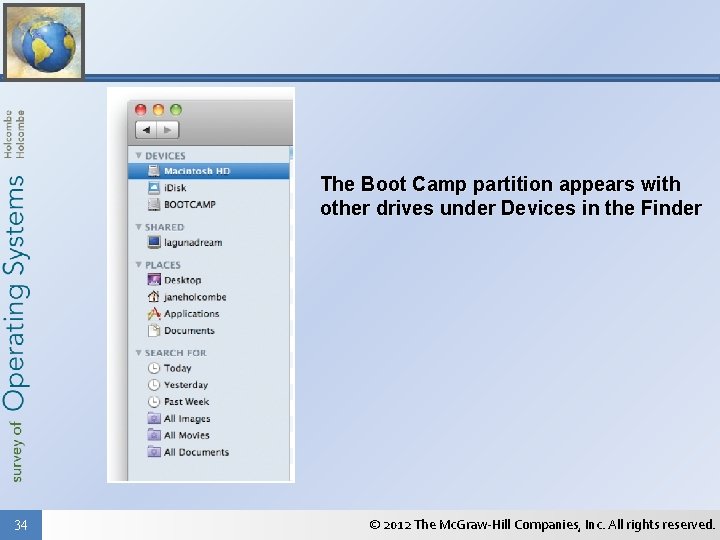
The Boot Camp partition appears with other drives under Devices in the Finder 34 © 2012 The Mc. Graw-Hill Companies, Inc. All rights reserved.
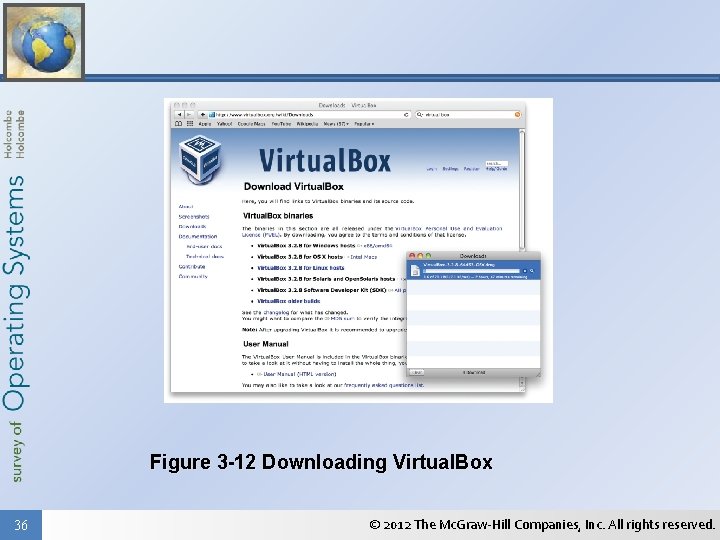
Desktop VMs on Mac OS X • Oracle Virtual Box – Guests • Windows • Linux • DOS – Hardware virtualization not required – Download disk image file – Install Virtual. Box from the disk image 35 © 2012 The Mc. Graw-Hill Companies, Inc. All rights reserved.
Figure 3 -12 Downloading Virtual. Box 36 © 2012 The Mc. Graw-Hill Companies, Inc. All rights reserved.
Step-by-Step 3. 02 Installing Oracle Virtual. Box 37 © 2012 The Mc. Graw-Hill Companies, Inc. All rights reserved.
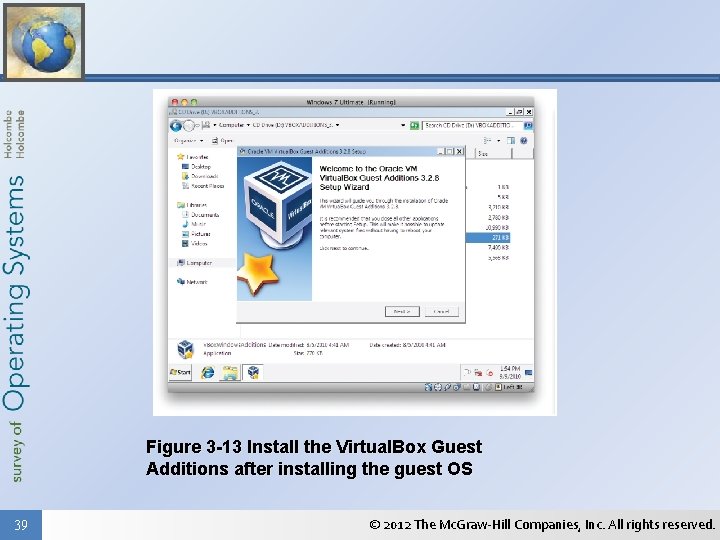
Desktop VMs on Mac OS X • Oracle Virtual Box (Continued) – Install Guest Additions after installing OS • Improves client OS appearance • Enables improved drivers for other hardware 38 © 2012 The Mc. Graw-Hill Companies, Inc. All rights reserved.
Figure 3 -13 Install the Virtual. Box Guest Additions after installing the guest OS 39 © 2012 The Mc. Graw-Hill Companies, Inc. All rights reserved.
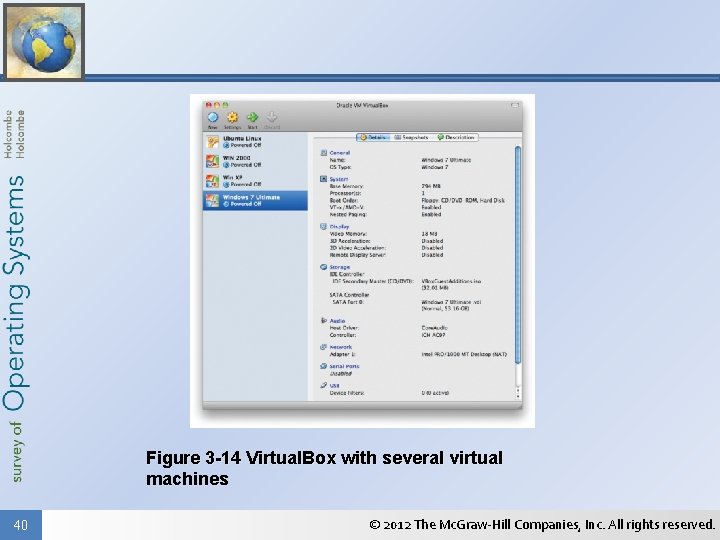
Figure 3 -14 Virtual. Box with several virtual machines 40 © 2012 The Mc. Graw-Hill Companies, Inc. All rights reserved.
Chapter 3 Summary • LO 3. 1 Virtualization – There are many types of virtualization today, such as virtual worlds, storage virtualization, network virtualization, server virtualization, and desktop virtualization—the subject of this chapter. 41 © 2012 The Mc. Graw-Hill Companies, Inc. All rights reserved.
Chapter 3 Summary – Virtualization had its roots in the dumb terminal mainframe systems of the 1960 s and the terminal service-terminal client systems of the 1990 s – Today’s virtual desktops can be hosted on network servers or on PCs. – A hypervisor, or virtual machine monitor (VMM), is the software that emulates the necessary hardware on which an operating system runs. 42 © 2012 The Mc. Graw-Hill Companies, Inc. All rights reserved.
Chapter 3 Summary – A Type I hypervisor (a “bare-metal hypervisor”) runs directly on a computer without an underlying host operating system. – A Type II hypervisor requires a host operating system. – The major sources of hypervisors are Citrix, VMware, Parallels, Microsoft, and Oracle. 43 © 2012 The Mc. Graw-Hill Companies, Inc. All rights reserved.
Chapter 3 Summary • LO 3. 2 Desktop VMs on Windows Desktops – There are both commercial and free Type II hypervisors for running Linux, DOS, or Windows on a Windows desktop computer. – Microsoft Virtual PC 2007 is free and will run on any computer running Windows XP or newer versions of Windows, and it supports Windows, Linux, and DOS guests without requiring hardware-assisted virtualization. 44 © 2012 The Mc. Graw-Hill Companies, Inc. All rights reserved.
Chapter 3 Summary – Windows XP Mode is a free hypervisor that installs on a Windows 7 host with a Windows XP guest preinstalled. It does not require hardwareassisted virtualization. – The free Windows Virtual PC requires both Windows 7 and hardware-assisted virtualization. Use the Hardware-Assisted Virtualization Detection Tool to test your computer before you download one of these solutions. 45 © 2012 The Mc. Graw-Hill Companies, Inc. All rights reserved.
Chapter 3 Summary – VMware has several commercial hypervisor products. Download and install the trial version of VMware player to temporarily test this product before buying it. – Oracle Virtual. Box is free and runs on several hosts including versions of Windows, Linux, and Mac OS X. It will run on hardware that does not support virtualization. 46 © 2012 The Mc. Graw-Hill Companies, Inc. All rights reserved.
Chapter 3 Summary • LO 3. 2 Desktop VMs on Mac OS X – You have several choices for hypervisors for Mac OS X that will run versions of Windows and Linux. – Apple Boot Camp is not actually a hypervisor so much as a dual boot option that allows you to dual -boot between Mac OS X and Windows. This gives each OS full use of the hardware, but only one can be loaded at a time. 47 © 2012 The Mc. Graw-Hill Companies, Inc. All rights reserved.
Chapter 3 Summary – Oracle Virtual. Box is a free hypervisor and will run versions of Windows, Linux, and DOS on hardware that does not support virtualization. – Parallels is a commercial hypervisor product for Apple and other hosts, mentioned, but not detailed in this chapter. 48 © 2012 The Mc. Graw-Hill Companies, Inc. All rights reserved.