
The Web Wizards Guide to XHTML by Cheryl
The Web Wizard’s Guide to XHTML by Cheryl M. Hughes Created by Cheryl M. Hughes Copyright © 2003 Pearson Education, Inc. 1
CHAPTER 2 Basic Formatting and Hypertext Links Copyright © 2003 Pearson Education, Inc. 2
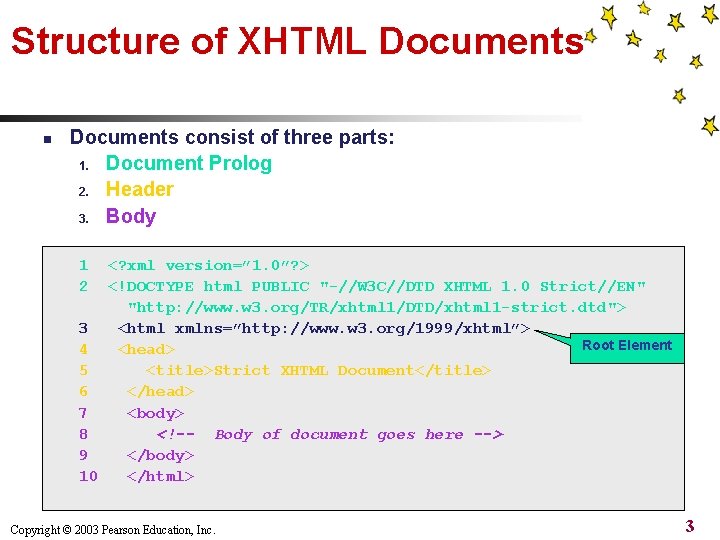
Structure of XHTML Documents n Documents consist of three parts: 1. Document Prolog 2. Header 3. Body 1 2 <? xml version=” 1. 0”? > <!DOCTYPE html PUBLIC "-//W 3 C//DTD XHTML 1. 0 Strict//EN" "http: //www. w 3. org/TR/xhtml 1/DTD/xhtml 1 -strict. dtd"> 3 <html xmlns=”http: //www. w 3. org/1999/xhtml”> Root Element 4 <head> 5 <title>Strict XHTML Document</title> 6 </head> 7 <body> 8 <!-- Body of document goes here --> 9 </body> 10 </html> Copyright © 2003 Pearson Education, Inc. 3
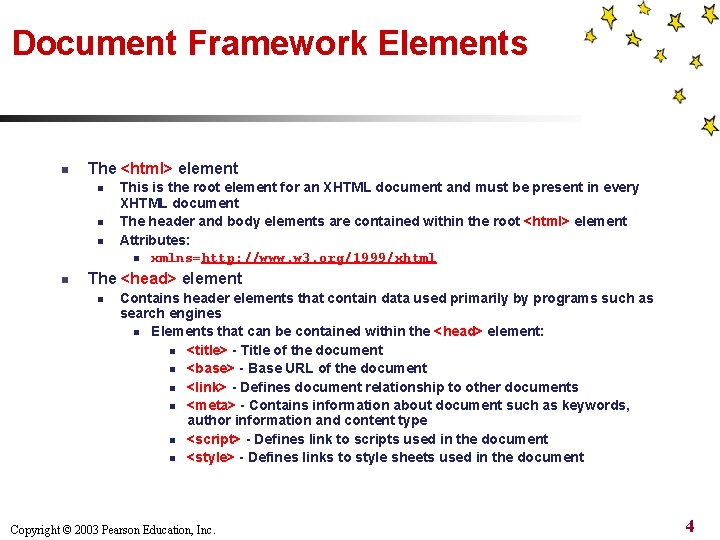
Document Framework Elements n The <html> element n n This is the root element for an XHTML document and must be present in every XHTML document The header and body elements are contained within the root <html> element Attributes: n xmlns=http: //www. w 3. org/1999/xhtml The <head> element n Contains header elements that contain data used primarily by programs such as search engines n Elements that can be contained within the <head> element: n <title> - Title of the document n <base> - Base URL of the document n <link> - Defines document relationship to other documents n <meta> - Contains information about document such as keywords, author information and content type n <script> - Defines link to scripts used in the document n <style> - Defines links to style sheets used in the document Copyright © 2003 Pearson Education, Inc. 4
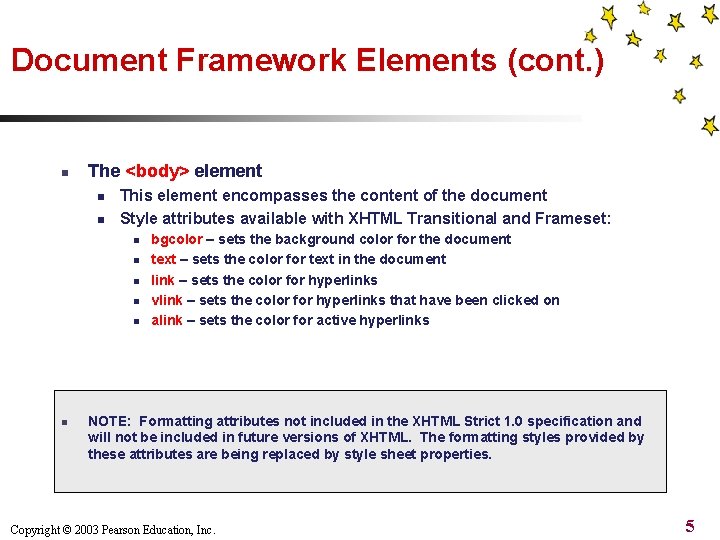
Document Framework Elements (cont. ) n The <body> element n n This element encompasses the content of the document Style attributes available with XHTML Transitional and Frameset: n n n bgcolor – sets the background color for the document text – sets the color for text in the document link – sets the color for hyperlinks vlink – sets the color for hyperlinks that have been clicked on alink – sets the color for active hyperlinks NOTE: Formatting attributes not included in the XHTML Strict 1. 0 specification and will not be included in future versions of XHTML. The formatting styles provided by these attributes are being replaced by style sheet properties. Copyright © 2003 Pearson Education, Inc. 5
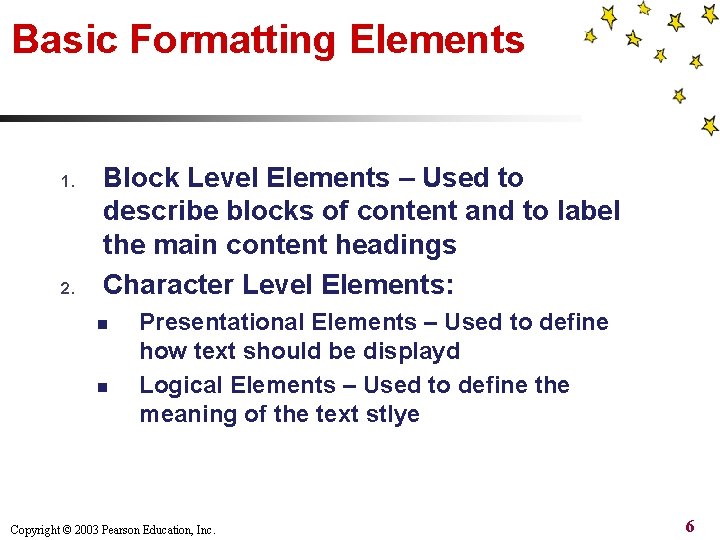
Basic Formatting Elements 1. 2. Block Level Elements – Used to describe blocks of content and to label the main content headings Character Level Elements: n n Presentational Elements – Used to define how text should be displayd Logical Elements – Used to define the meaning of the text stlye Copyright © 2003 Pearson Education, Inc. 6
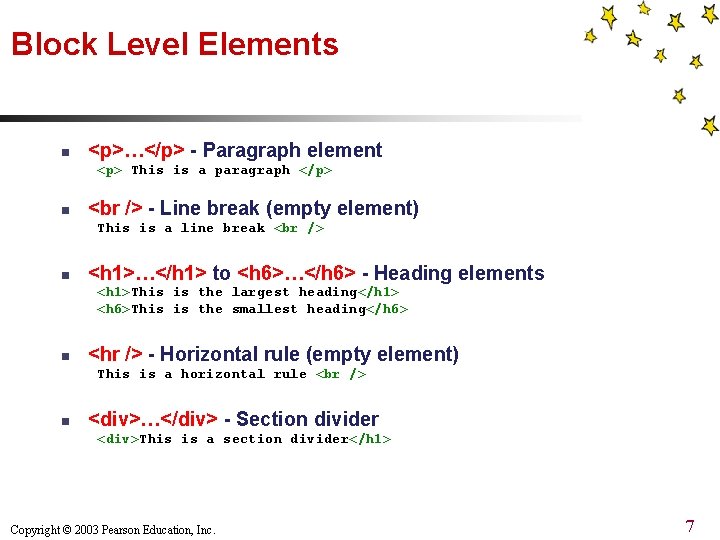
Block Level Elements n <p>…</p> - Paragraph element <p> This is a paragraph </p> n - Line break (empty element) This is a line break n <h 1>…</h 1> to <h 6>…</h 6> - Heading elements <h 1>This is the largest heading</h 1> <h 6>This is the smallest heading</h 6> n <hr /> - Horizontal rule (empty element) This is a horizontal rule n <div>…</div> - Section divider <div>This is a section divider</h 1> Copyright © 2003 Pearson Education, Inc. 7
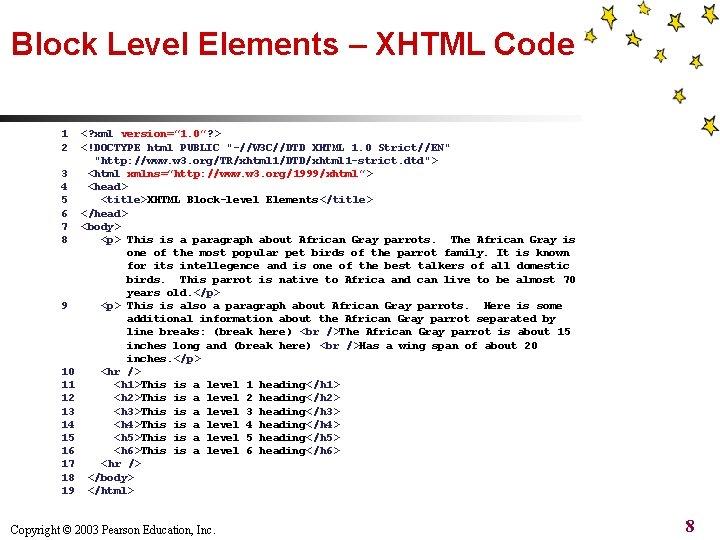
Block Level Elements – XHTML Code 1 2 3 4 5 6 7 8 9 10 11 12 13 14 15 16 17 18 19 <? xml version=” 1. 0”? > <!DOCTYPE html PUBLIC "-//W 3 C//DTD XHTML 1. 0 Strict//EN" "http: //www. w 3. org/TR/xhtml 1/DTD/xhtml 1 -strict. dtd"> <html xmlns=”http: //www. w 3. org/1999/xhtml”> <head> <title>XHTML Block-level Elements</title> </head> <body> <p> This is a paragraph about African Gray parrots. The African Gray is one of the most popular pet birds of the parrot family. It is known for its intellegence and is one of the best talkers of all domestic birds. This parrot is native to Africa and can live to be almost 70 years old. </p> <p> This is also a paragraph about African Gray parrots. Here is some additional information about the African Gray parrot separated by line breaks: (break here) The African Gray parrot is about 15 inches long and (break here) Has a wing span of about 20 inches. </p> <hr /> <h 1>This is a level 1 heading</h 1> <h 2>This is a level 2 heading</h 2> <h 3>This is a level 3 heading</h 3> <h 4>This is a level 4 heading</h 4> <h 5>This is a level 5 heading</h 5> <h 6>This is a level 6 heading</h 6> <hr /> </body> </html> Copyright © 2003 Pearson Education, Inc. 8
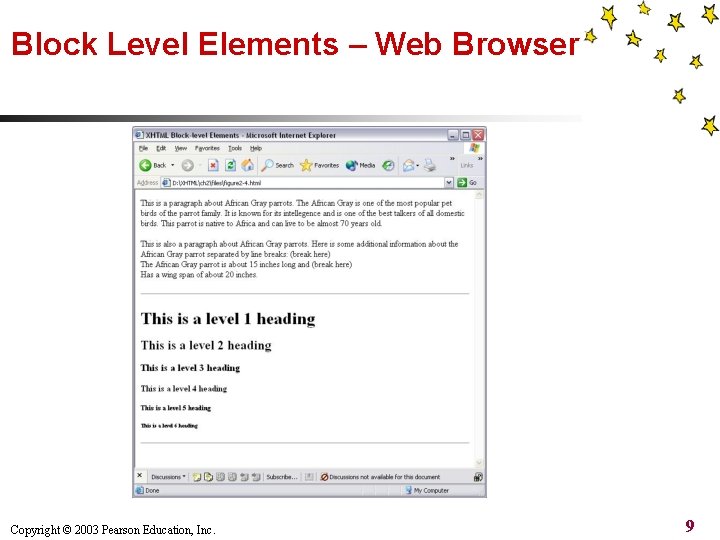
Block Level Elements – Web Browser Copyright © 2003 Pearson Education, Inc. 9
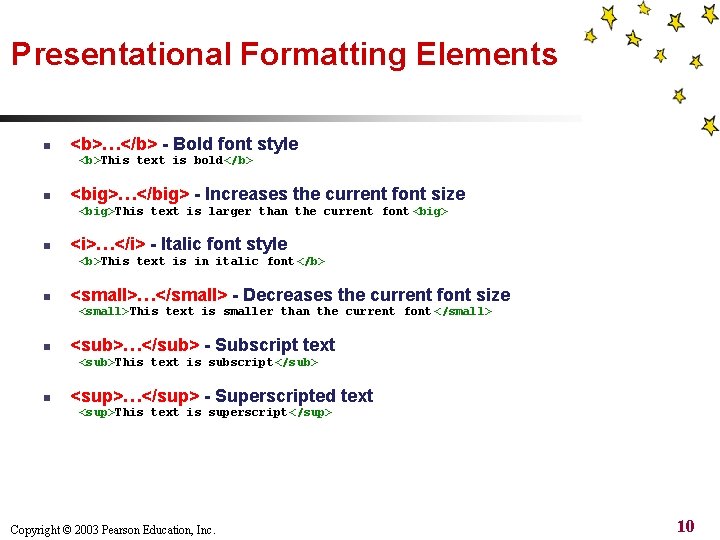
Presentational Formatting Elements n <b>…</b> - Bold font style <b>This text is bold</b> n <big>…</big> - Increases the current font size <big>This text is larger than the current font <big> n <i>…</i> - Italic font style <b>This text is in italic font </b> n <small>…</small> - Decreases the current font size <small>This text is smaller than the current font </small> n <sub>…</sub> - Subscript text <sub>This text is subscript</sub> n <sup>…</sup> - Superscripted text <sup>This text is superscript </sup> Copyright © 2003 Pearson Education, Inc. 10
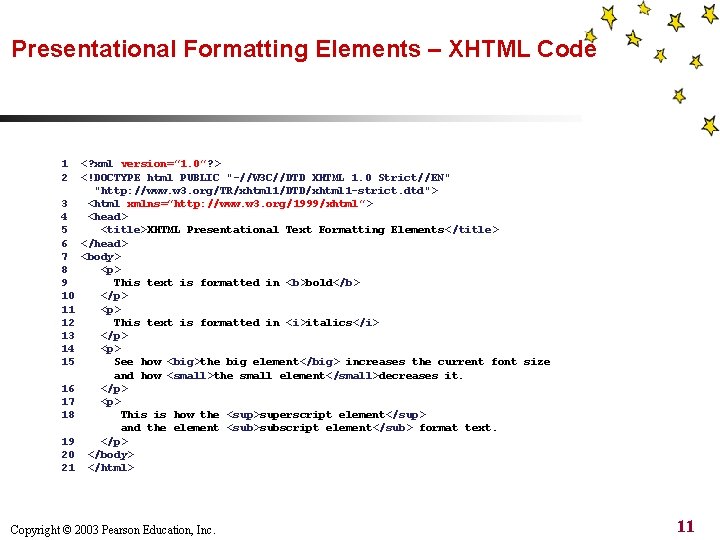
Presentational Formatting Elements – XHTML Code 1 2 3 4 5 6 7 8 9 10 11 12 13 14 15 16 17 18 19 20 21 <? xml version=” 1. 0”? > <!DOCTYPE html PUBLIC "-//W 3 C//DTD XHTML 1. 0 Strict//EN" "http: //www. w 3. org/TR/xhtml 1/DTD/xhtml 1 -strict. dtd"> <html xmlns=”http: //www. w 3. org/1999/xhtml”> <head> <title>XHTML Presentational Text Formatting Elements </title> </head> <body> <p> This text is formatted in <b>bold</b> </p> <p> This text is formatted in <i>italics</i> </p> <p> See how <big>the big element</big> increases the current font size and how <small>the small element</small>decreases it. </p> <p> This is how the <sup>superscript element</sup> and the element <sub>subscript element</sub> format text. </p> </body> </html> Copyright © 2003 Pearson Education, Inc. 11
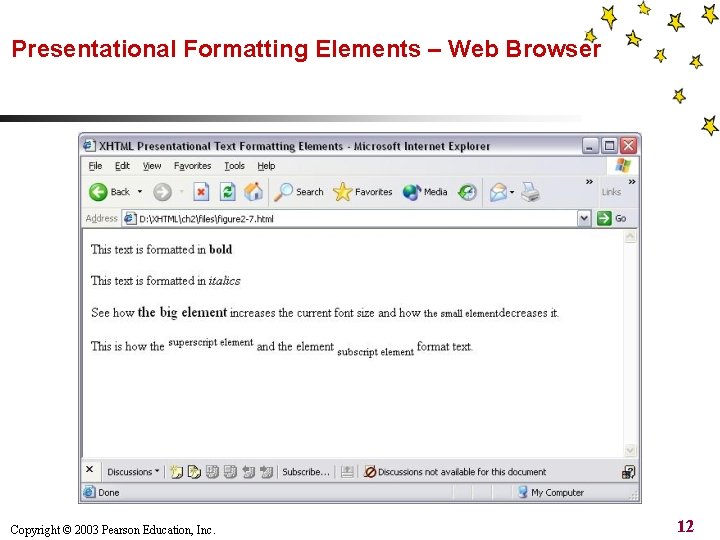
Presentational Formatting Elements – Web Browser Copyright © 2003 Pearson Education, Inc. 12
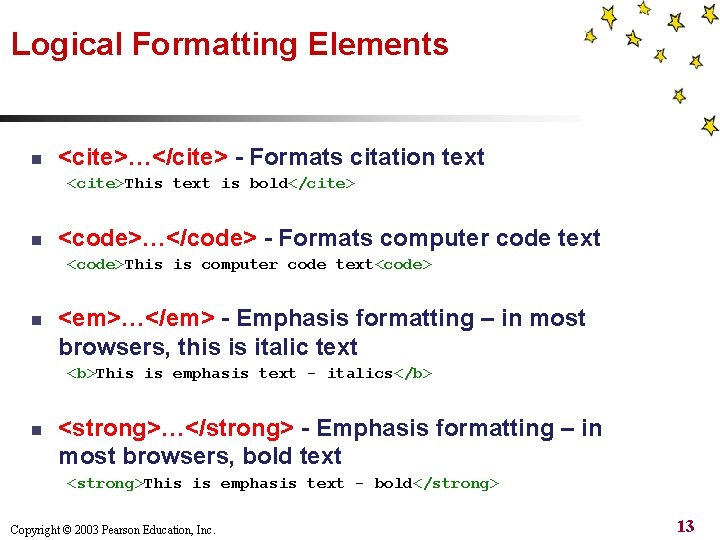
Logical Formatting Elements n <cite>…</cite> - Formats citation text <cite>This text is bold</cite> n <code>…</code> - Formats computer code text <code>This is computer code text<code> n <em>…</em> - Emphasis formatting – in most browsers, this is italic text <b>This is emphasis text - italics</b> n <strong>…</strong> - Emphasis formatting – in most browsers, bold text <strong>This is emphasis text - bold</strong> Copyright © 2003 Pearson Education, Inc. 13
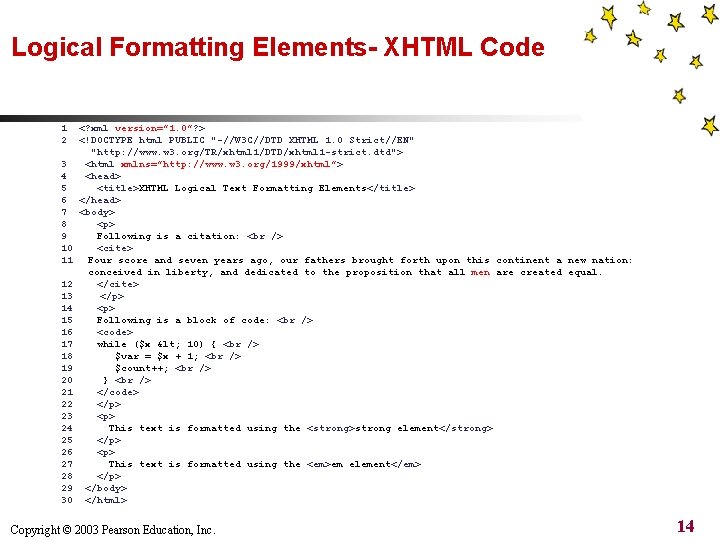
Logical Formatting Elements- XHTML Code 1 2 3 4 5 6 7 8 9 10 11 12 13 14 15 16 17 18 19 20 21 22 23 24 25 26 27 28 29 30 <? xml version=” 1. 0”? > <!DOCTYPE html PUBLIC "-//W 3 C//DTD XHTML 1. 0 Strict//EN" "http: //www. w 3. org/TR/xhtml 1/DTD/xhtml 1 -strict. dtd"> <html xmlns=”http: //www. w 3. org/1999/xhtml”> <head> <title>XHTML Logical Text Formatting Elements</title> </head> <body> <p> Following is a citation: <cite> Four score and seven years ago, our fathers brought forth upon this continent a new nation: conceived in liberty, and dedicated to the proposition that all men are created equal. </cite> </p> <p> Following is a block of code: <code> while ($x < 10) { $var = $x + 1; $count++; } </code> </p> <p> This text is formatted using the <strong>strong element</strong> </p> <p> This text is formatted using the <em>em element</em> </p> </body> </html> Copyright © 2003 Pearson Education, Inc. 14
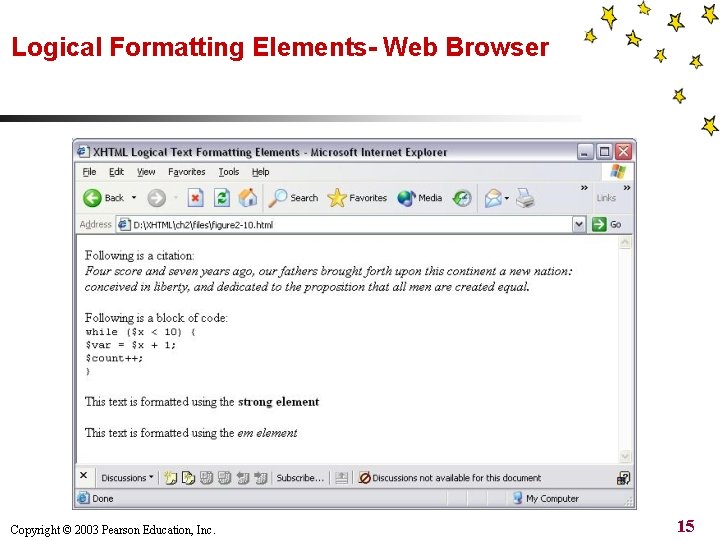
Logical Formatting Elements- Web Browser Copyright © 2003 Pearson Education, Inc. 15
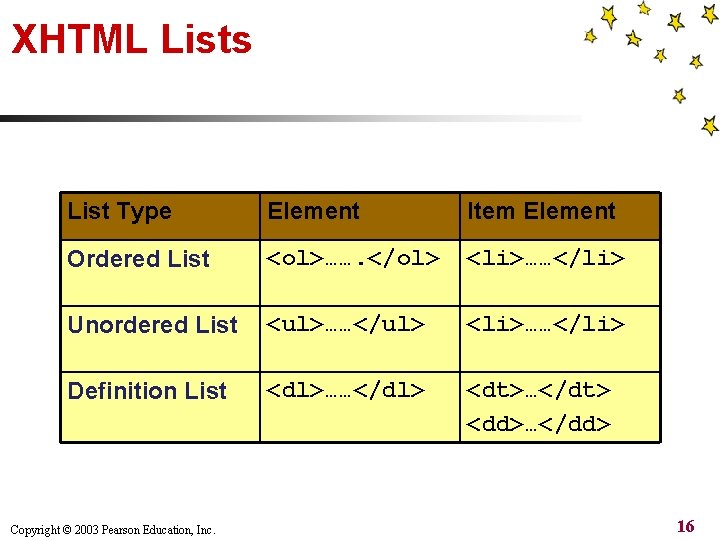
XHTML Lists List Type Element Item Element Ordered List <ol>……. </ol> <li>……</li> Unordered List <ul>……</ul> <li>……</li> Definition List <dl>……</dl> <dt>…</dt> <dd>…</dd> Copyright © 2003 Pearson Education, Inc. 16
XHML Lists – Nesting Lists n n A nested list is a list of items which is contained within another list Lists can be nested any number of times List types can be mixed when nesting. For example, an ordered list of items can be nested within an unordered list The open and close tags of the nested list must be completely contained within one item of the outer list Copyright © 2003 Pearson Education, Inc. 17
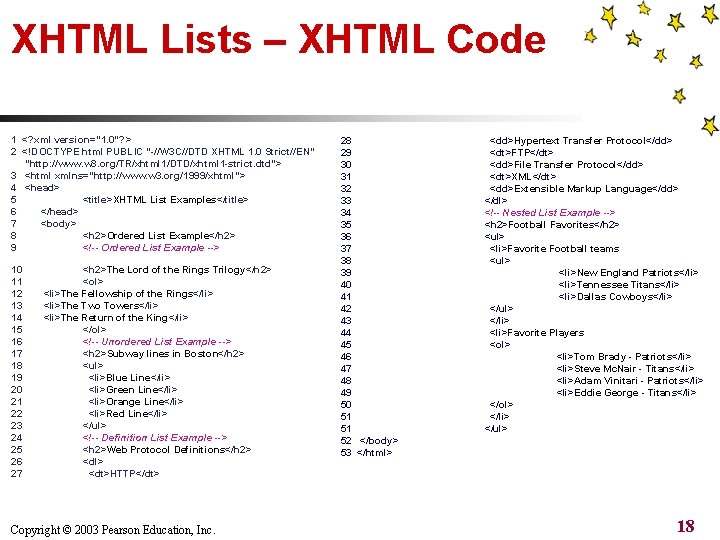
XHTML Lists – XHTML Code 1 <? xml version=” 1. 0”? > 2 <!DOCTYPE html PUBLIC "-//W 3 C//DTD XHTML 1. 0 Strict//EN" "http: //www. w 3. org/TR/xhtml 1/DTD/xhtml 1 -strict. dtd"> 3 <html xmlns=”http: //www. w 3. org/1999/xhtml”> 4 <head> 5 <title>XHTML List Examples</title> 6 </head> 7 <body> 8 <h 2>Ordered List Example</h 2> 9 <!-- Ordered List Example --> 10 11 12 13 14 15 16 17 18 19 20 21 22 23 24 25 26 27 <h 2>The Lord of the Rings Trilogy</h 2> <ol> <li>The Fellowship of the Rings</li> <li>The Two Towers</li> <li>The Return of the King</li> </ol> <!-- Unordered List Example --> <h 2>Subway lines in Boston</h 2> <ul> <li>Blue Line</li> <li>Green Line</li> <li>Orange Line</li> <li>Red Line</li> </ul> <!-- Definition List Example --> <h 2>Web Protocol Definitions</h 2> <dl> <dt>HTTP</dt> Copyright © 2003 Pearson Education, Inc. 28 29 30 31 32 33 34 35 36 37 38 39 40 41 42 43 44 45 46 47 48 49 50 51 51 52 </body> 53 </html> <dd>Hypertext Transfer Protocol</dd> <dt>FTP</dt> <dd>File Transfer Protocol</dd> <dt>XML</dt> <dd>Extensible Markup Language</dd> </dl> <!-- Nested List Example --> <h 2>Football Favorites</h 2> <ul> <li>Favorite Football teams <ul> <li>New England Patriots</li> <li>Tennessee Titans</li> <li>Dallas Cowboys</li> </ul> </li> <li>Favorite Players <ol> <li>Tom Brady - Patriots</li> <li>Steve Mc. Nair - Titans</li> <li>Adam Vinitari - Patriots</li> <li>Eddie George - Titans</li> </ol> </li> </ul> 18
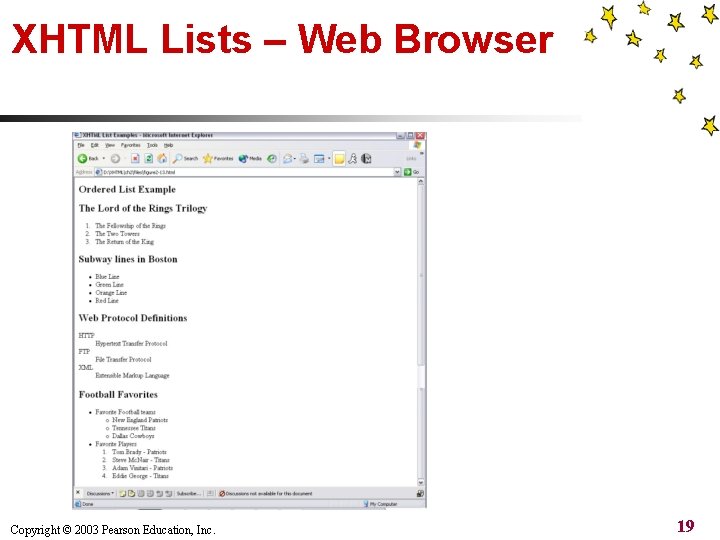
XHTML Lists – Web Browser Copyright © 2003 Pearson Education, Inc. 19
Hypertext Links in XHTML n n n Hypertext Links – An object in a Web page that will redirect the browser to another Web page or file when activated Activating a hypertext link usually occurs by the user clicking on the linked text or image The Web page or file being linked to is referred to as the target resource The target resource can refer to a different section of the same document, it can be a separate file on the same web server or it can be a separate file on a different web server Many types of files can be used as the target resource, including other XHTML files, images, audio/video files, spreadsheets, etc. Hypertext links provide for complex, cross-referenced Web sites with clickable tables of contents and menus Copyright © 2003 Pearson Education, Inc. 20
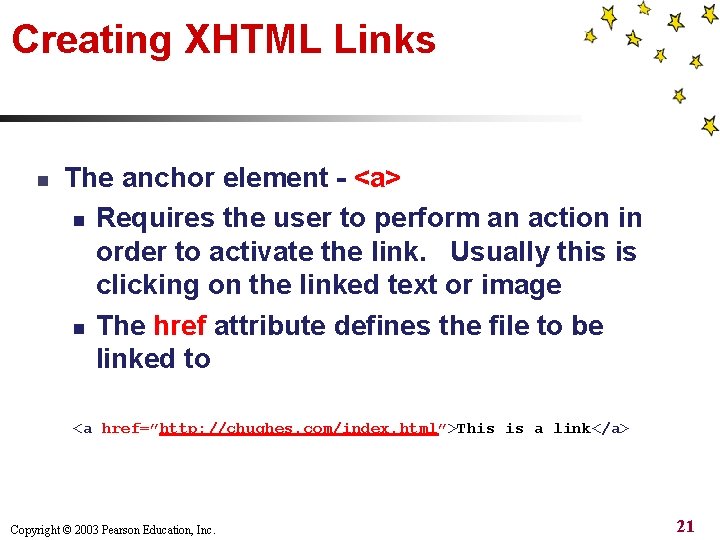
Creating XHTML Links n The anchor element - <a> n Requires the user to perform an action in order to activate the link. Usually this is clicking on the linked text or image n The href attribute defines the file to be linked to <a href=”http: //chughes. com/index. html”>This is a link</a> Copyright © 2003 Pearson Education, Inc. 21
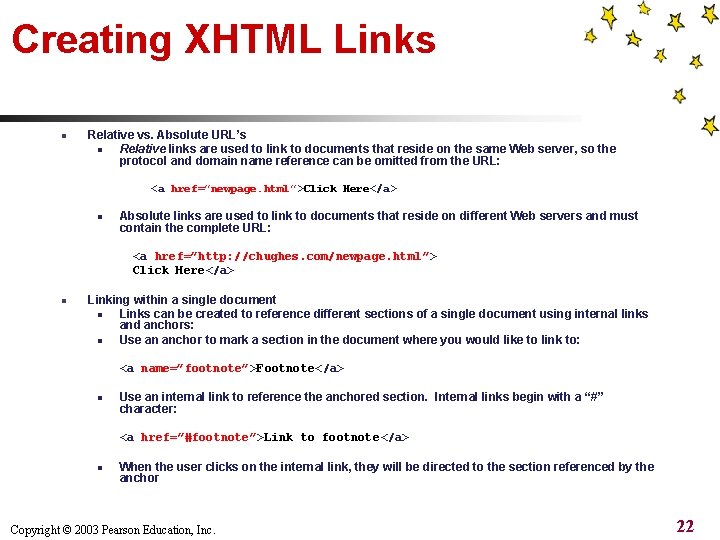
Creating XHTML Links n Relative vs. Absolute URL’s n Relative links are used to link to documents that reside on the same Web server, so the protocol and domain name reference can be omitted from the URL: <a href=”newpage. html”>Click Here</a> n Absolute links are used to link to documents that reside on different Web servers and must contain the complete URL: <a href=”http: //chughes. com/newpage. html ”> Click Here</a> n Linking within a single document n Links can be created to reference different sections of a single document using internal links and anchors: n Use an anchor to mark a section in the document where you would like to link to: <a name=”footnote”>Footnote</a> n Use an internal link to reference the anchored section. Internal links begin with a “#” character: <a href=”#footnote”>Link to footnote</a> n When the user clicks on the internal link, they will be directed to the section referenced by the anchor Copyright © 2003 Pearson Education, Inc. 22
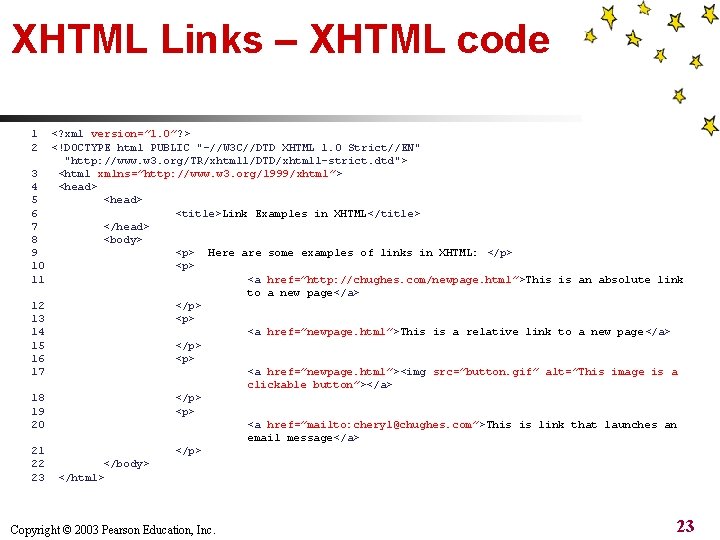
XHTML Links – XHTML code 1 2 3 4 5 6 7 8 9 10 11 12 13 14 15 16 17 18 19 20 21 22 23 <? xml version=” 1. 0”? > <!DOCTYPE html PUBLIC "-//W 3 C//DTD XHTML 1. 0 Strict//EN" "http: //www. w 3. org/TR/xhtml 1/DTD/xhtml 1 -strict. dtd"> <html xmlns=”http: //www. w 3. org/1999/xhtml”> <head> <title>Link Examples in XHTML</title> </head> <body> <p> Here are some examples of links in XHTML: </p> <a href=”http: //chughes. com/newpage. html”>This is an absolute link to a new page</a> </p> <a href=”newpage. html”>This is a relative link to a new page</a> </p> <a href=”newpage. html”><img src=”button. gif” alt=”This image is a clickable button”></a> </p> <a href=”mailto: cheryl@chughes. com”>This is link that launches an email message</a> </p> </body> </html> Copyright © 2003 Pearson Education, Inc. 23
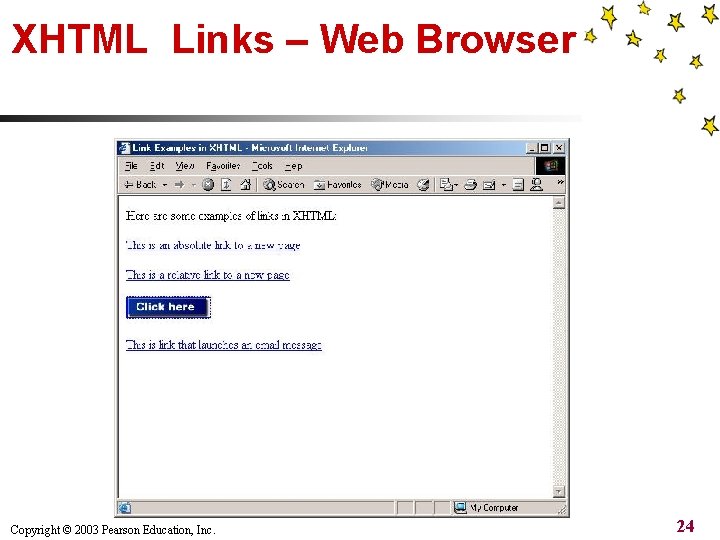
XHTML Links – Web Browser Copyright © 2003 Pearson Education, Inc. 24
- Slides: 24