
The Student Sorting Kit Checking Student Information On
- Slides: 13
The Student Sorting Kit Checking Student Information On all slides, click the mouse to go on Press Esc to end
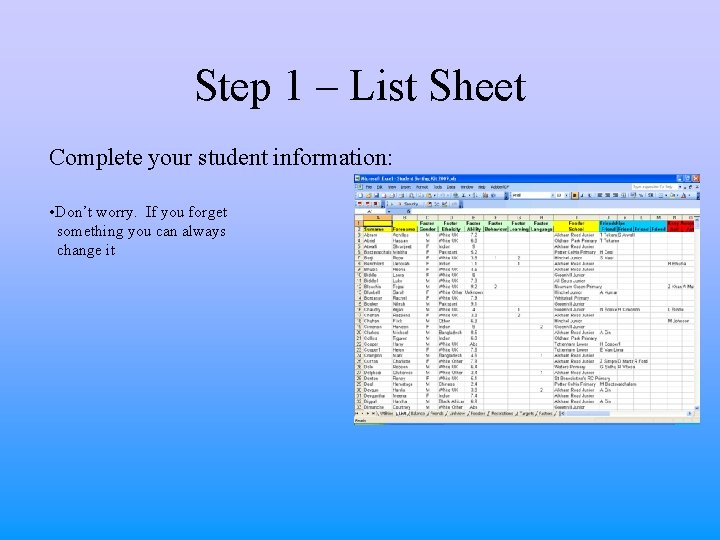
Step 1 – List Sheet Complete your student information: • Don’t worry. If you forget something you can always change it
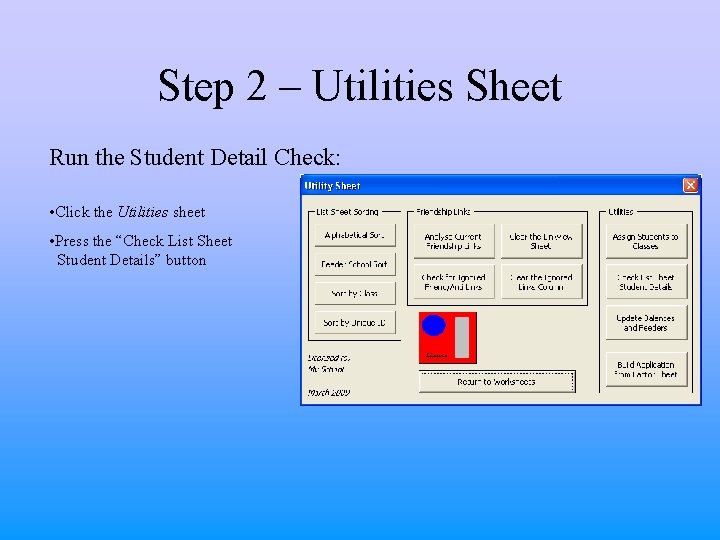
Step 2 – Utilities Sheet Run the Student Detail Check: • Click the Utilities sheet • Press the “Check List Sheet Student Details” button
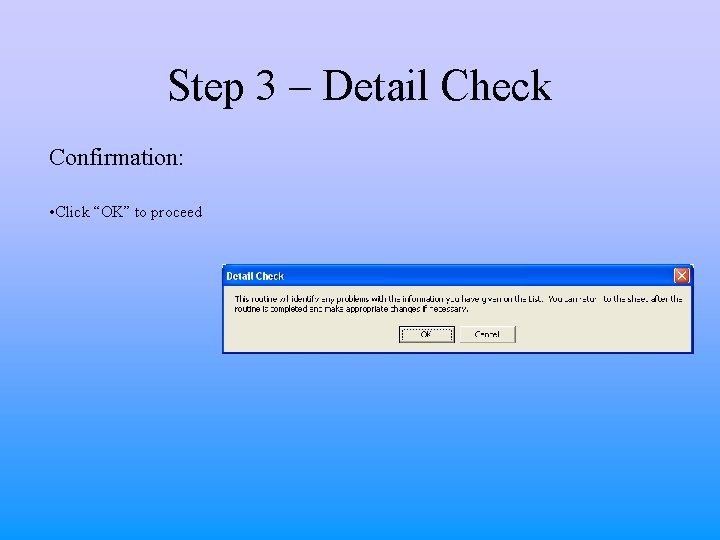
Step 3 – Detail Check Confirmation: • Click “OK” to proceed
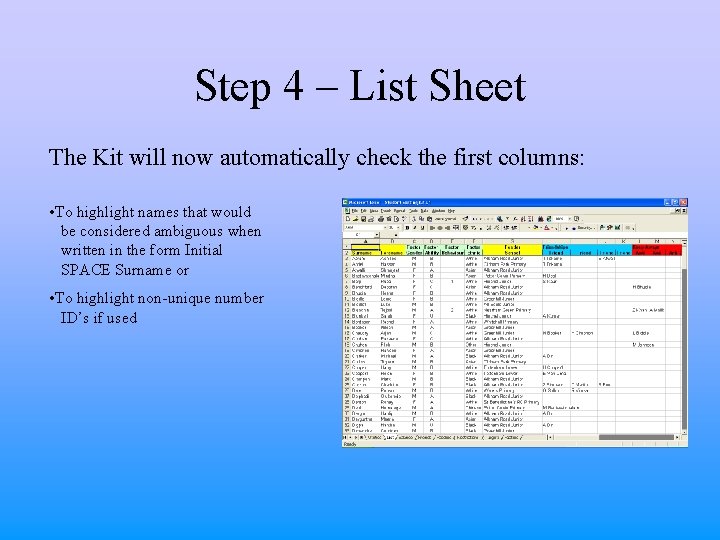
Step 4 – List Sheet The Kit will now automatically check the first columns: • To highlight names that would be considered ambiguous when written in the form Initial SPACE Surname or • To highlight non-unique number ID’s if used
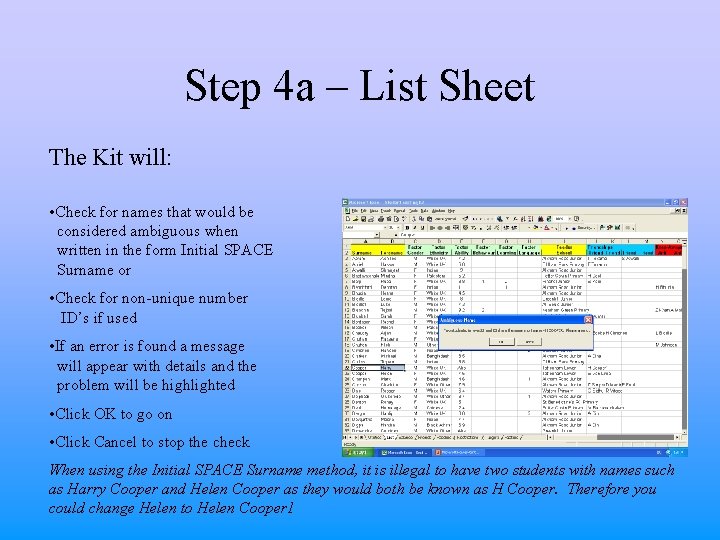
Step 4 a – List Sheet The Kit will: • Check for names that would be considered ambiguous when written in the form Initial SPACE Surname or • Check for non-unique number ID’s if used • If an error is found a message will appear with details and the problem will be highlighted • Click OK to go on • Click Cancel to stop the check When using the Initial SPACE Surname method, it is illegal to have two students with names such as Harry Cooper and Helen Cooper as they would both be known as H Cooper. Therefore you could change Helen to Helen Cooper 1
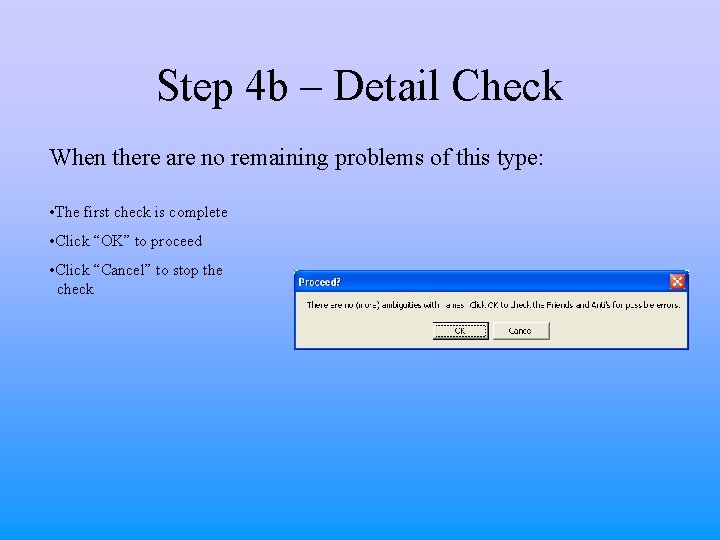
Step 4 b – Detail Check When there are no remaining problems of this type: • The first check is complete • Click “OK” to proceed • Click “Cancel” to stop the check
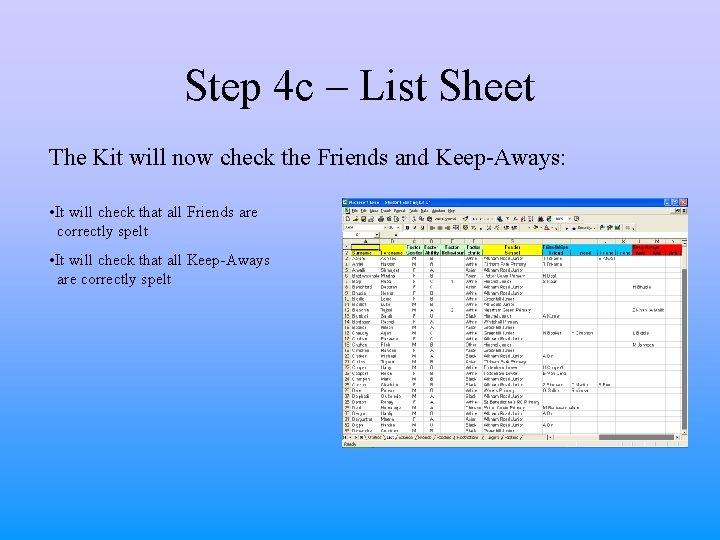
Step 4 c – List Sheet The Kit will now check the Friends and Keep-Aways: • It will check that all Friends are correctly spelt • It will check that all Keep-Aways are correctly spelt
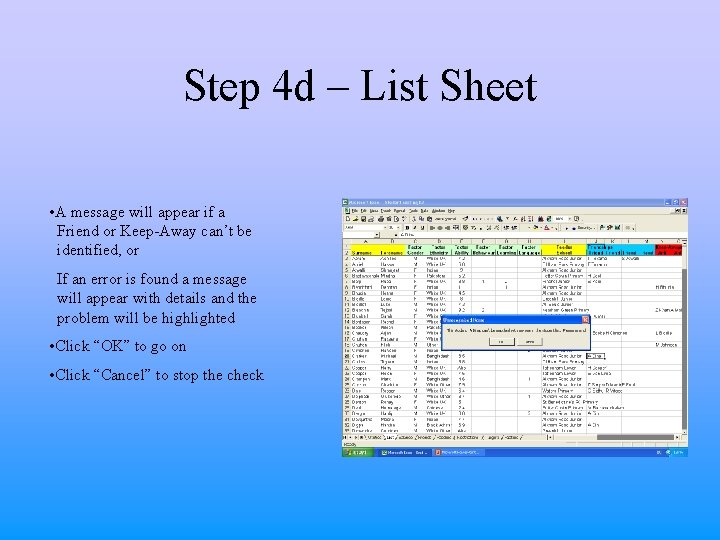
Step 4 d – List Sheet • A message will appear if a Friend or Keep-Away can’t be identified, or If an error is found a message will appear with details and the problem will be highlighted • Click “OK” to go on • Click “Cancel” to stop the check
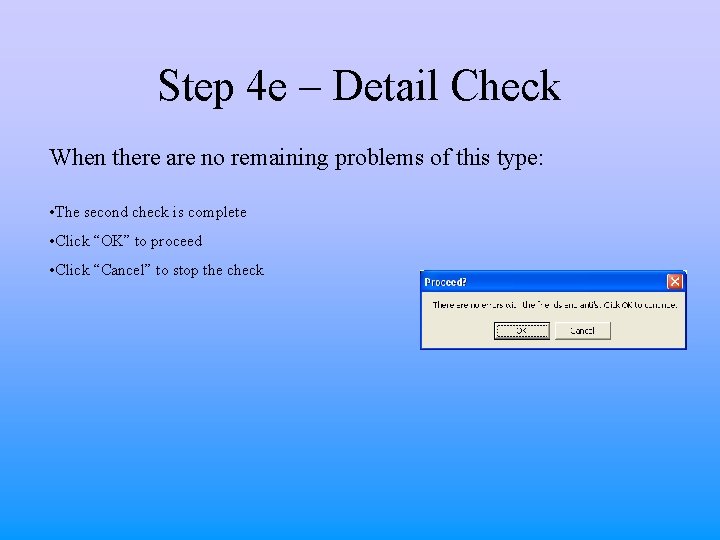
Step 4 e – Detail Check When there are no remaining problems of this type: • The second check is complete • Click “OK” to proceed • Click “Cancel” to stop the check
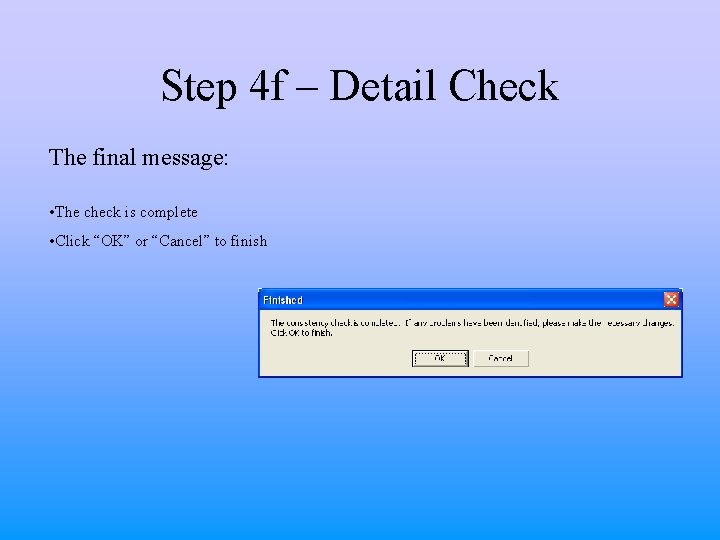
Step 4 f – Detail Check The final message: • The check is complete • Click “OK” or “Cancel” to finish
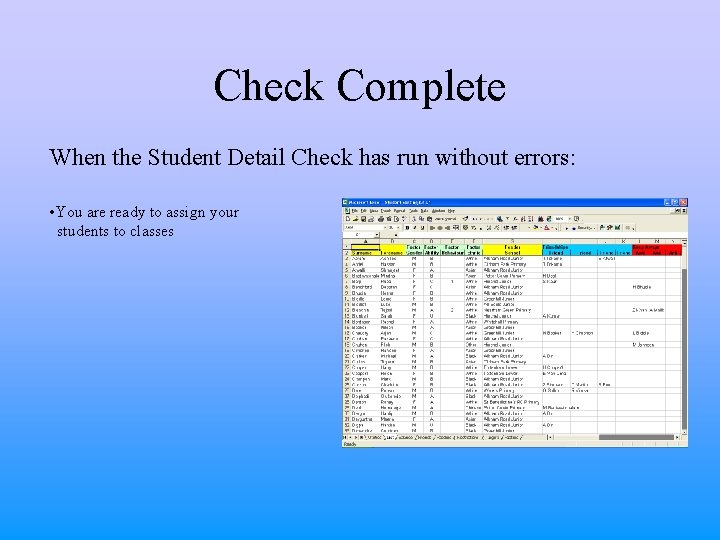
Check Complete When the Student Detail Check has run without errors: • You are ready to assign your students to classes
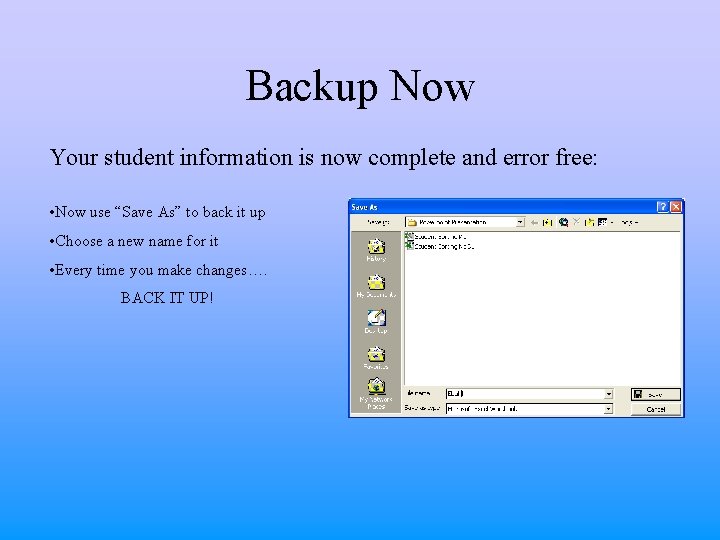
Backup Now Your student information is now complete and error free: • Now use “Save As” to back it up • Choose a new name for it • Every time you make changes…. BACK IT UP!