
The Student Sorting Kit Assigning Students to Classes
- Slides: 19
The Student Sorting Kit Assigning Students to Classes On all slides, click the mouse to go on Press Esc to end
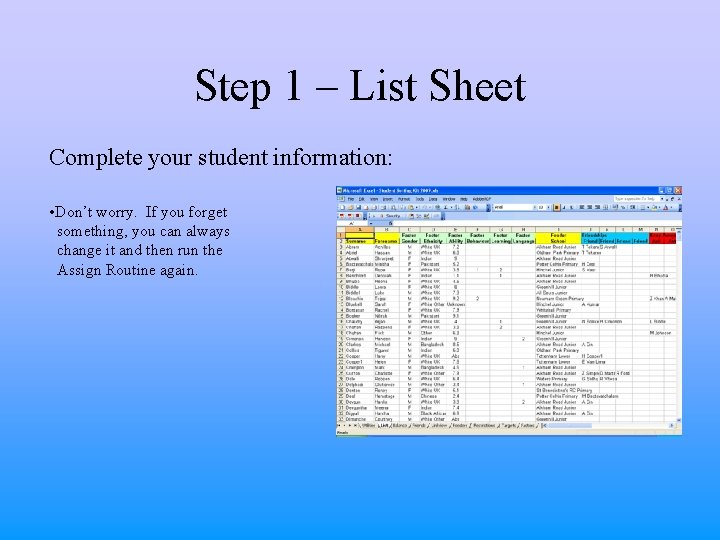
Step 1 – List Sheet Complete your student information: • Don’t worry. If you forget something, you can always change it and then run the Assign Routine again.
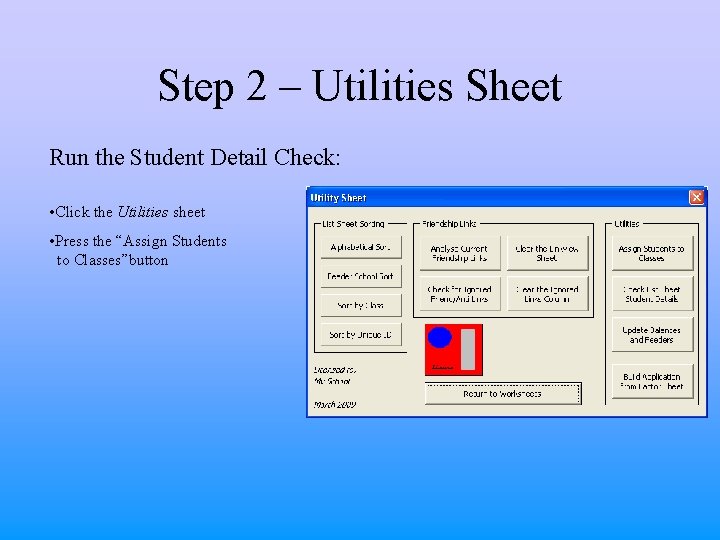
Step 2 – Utilities Sheet Run the Student Detail Check: • Click the Utilities sheet • Press the “Assign Students to Classes”button
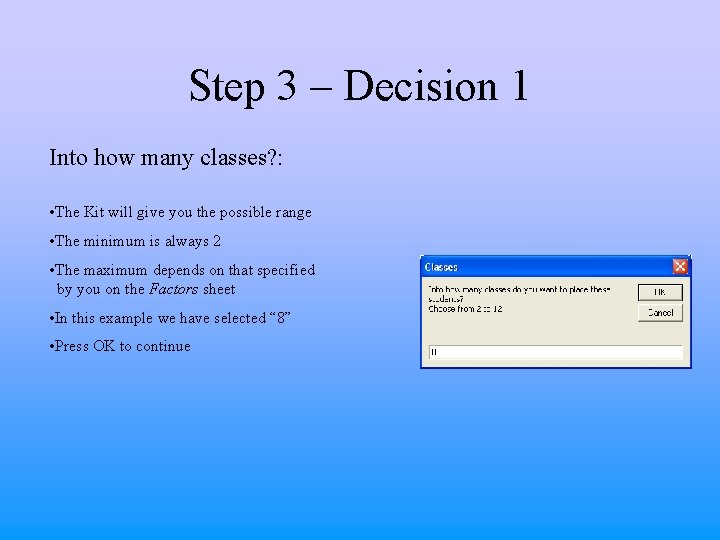
Step 3 – Decision 1 Into how many classes? : • The Kit will give you the possible range • The minimum is always 2 • The maximum depends on that specified by you on the Factors sheet • In this example we have selected “ 8” • Press OK to continue
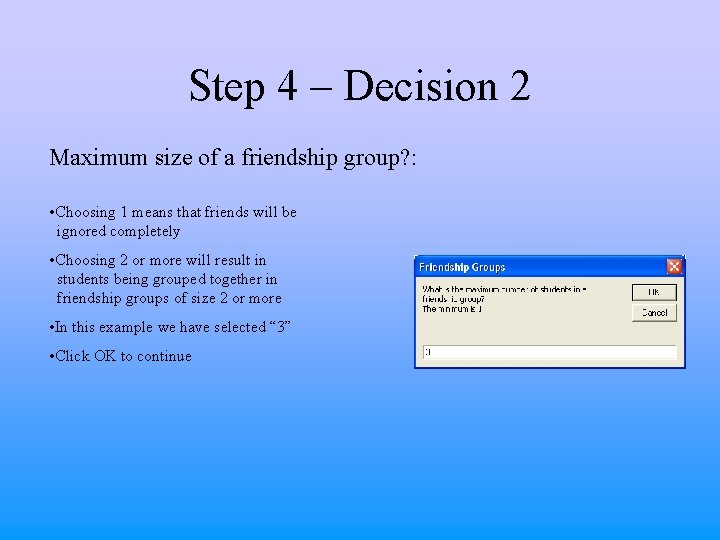
Step 4 – Decision 2 Maximum size of a friendship group? : • Choosing 1 means that friends will be ignored completely • Choosing 2 or more will result in students being grouped together in friendship groups of size 2 or more • In this example we have selected “ 3” • Click OK to continue
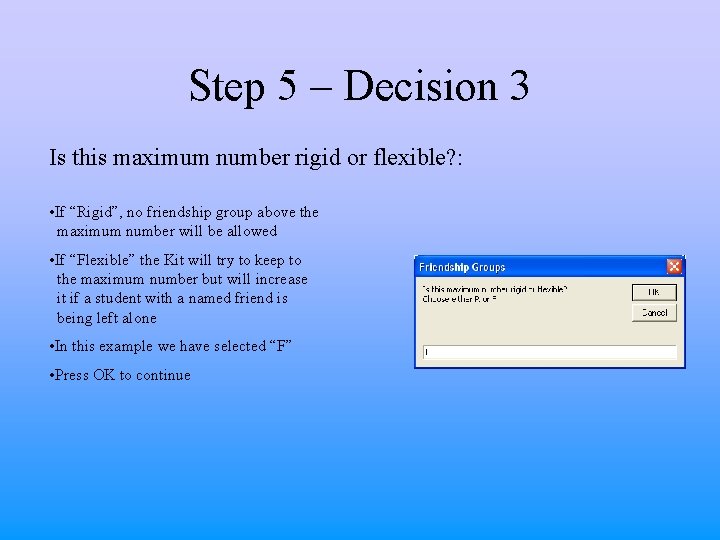
Step 5 – Decision 3 Is this maximum number rigid or flexible? : • If “Rigid”, no friendship group above the maximum number will be allowed • If “Flexible” the Kit will try to keep to the maximum number but will increase it if a student with a named friend is being left alone • In this example we have selected “F” • Press OK to continue
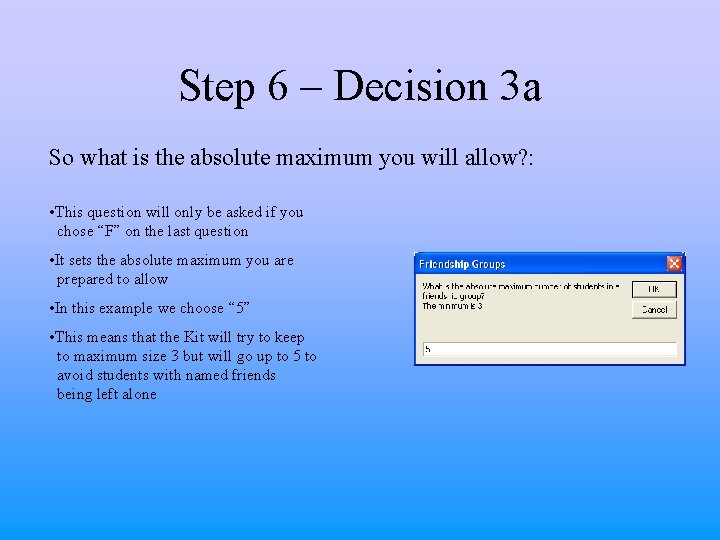
Step 6 – Decision 3 a So what is the absolute maximum you will allow? : • This question will only be asked if you chose “F” on the last question • It sets the absolute maximum you are prepared to allow • In this example we choose “ 5” • This means that the Kit will try to keep to maximum size 3 but will go up to 5 to avoid students with named friends being left alone
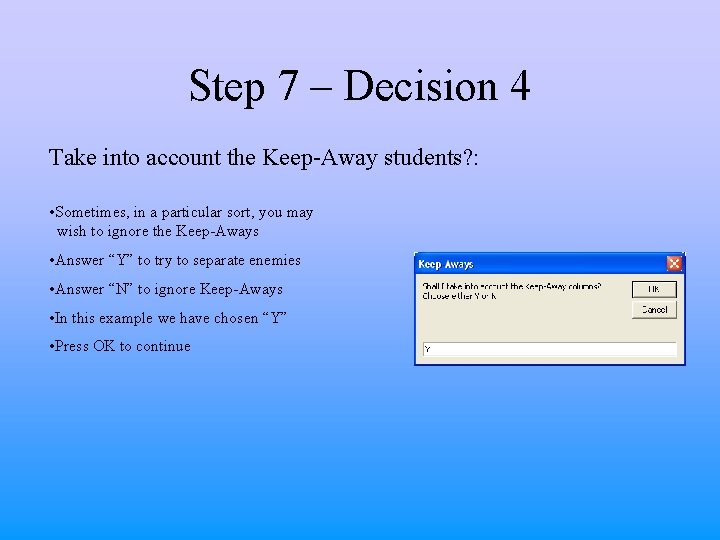
Step 7 – Decision 4 Take into account the Keep-Away students? : • Sometimes, in a particular sort, you may wish to ignore the Keep-Aways • Answer “Y” to try to separate enemies • Answer “N” to ignore Keep-Aways • In this example we have chosen “Y” • Press OK to continue
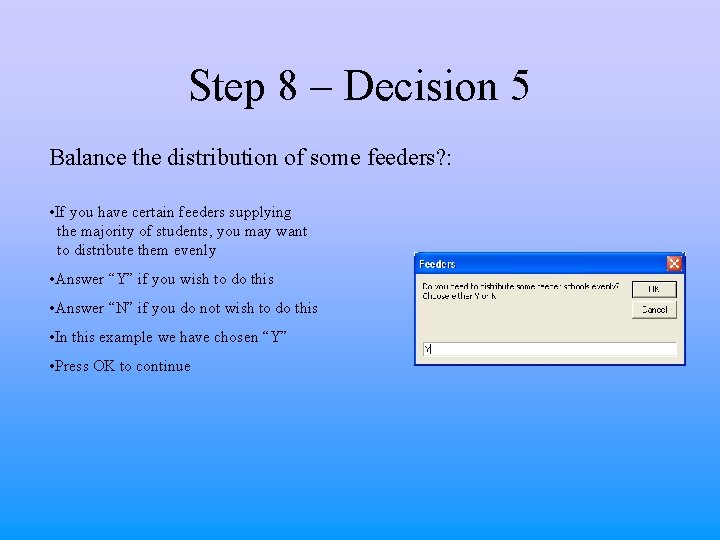
Step 8 – Decision 5 Balance the distribution of some feeders? : • If you have certain feeders supplying the majority of students, you may want to distribute them evenly • Answer “Y” if you wish to do this • Answer “N” if you do not wish to do this • In this example we have chosen “Y” • Press OK to continue
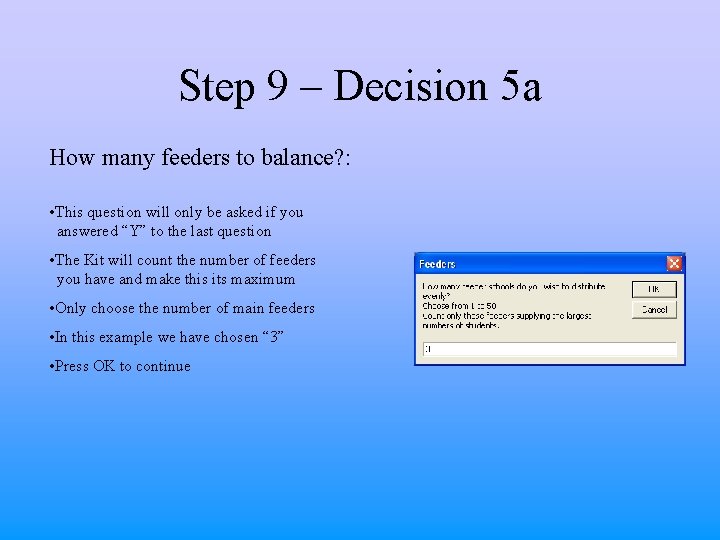
Step 9 – Decision 5 a How many feeders to balance? : • This question will only be asked if you answered “Y” to the last question • The Kit will count the number of feeders you have and make this its maximum • Only choose the number of main feeders • In this example we have chosen “ 3” • Press OK to continue
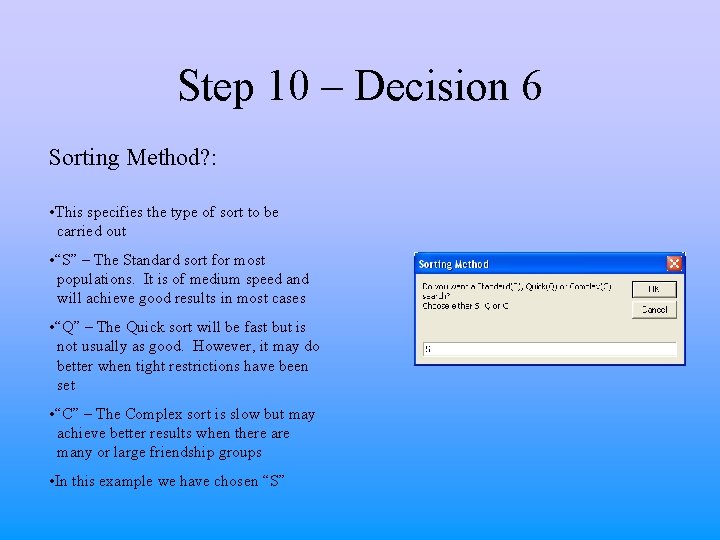
Step 10 – Decision 6 Sorting Method? : • This specifies the type of sort to be carried out • “S” – The Standard sort for most populations. It is of medium speed and will achieve good results in most cases • “Q” – The Quick sort will be fast but is not usually as good. However, it may do better when tight restrictions have been set • “C” – The Complex sort is slow but may achieve better results when there are many or large friendship groups • In this example we have chosen “S”
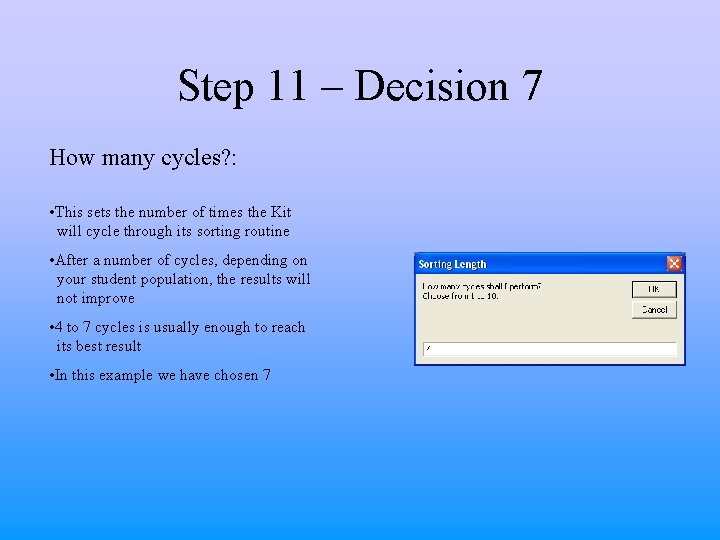
Step 11 – Decision 7 How many cycles? : • This sets the number of times the Kit will cycle through its sorting routine • After a number of cycles, depending on your student population, the results will not improve • 4 to 7 cycles is usually enough to reach its best result • In this example we have chosen 7
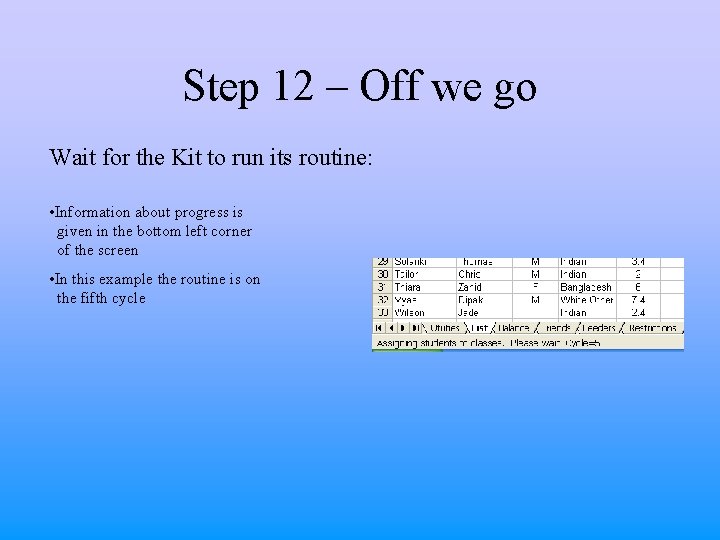
Step 12 – Off we go Wait for the Kit to run its routine: • Information about progress is given in the bottom left corner of the screen • In this example the routine is on the fifth cycle
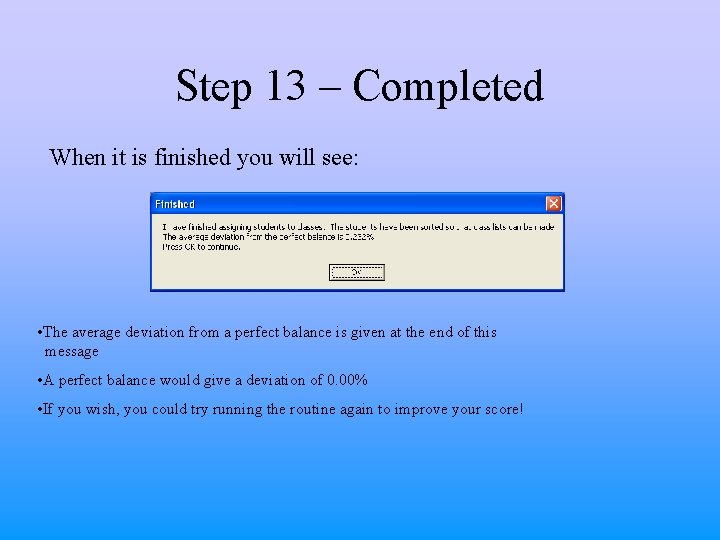
Step 13 – Completed When it is finished you will see: • The average deviation from a perfect balance is given at the end of this message • A perfect balance would give a deviation of 0. 00% • If you wish, you could try running the routine again to improve your score!
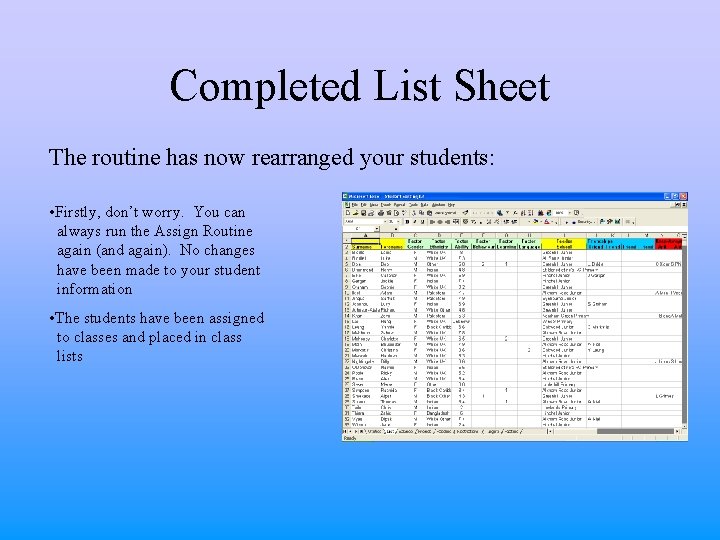
Completed List Sheet The routine has now rearranged your students: • Firstly, don’t worry. You can always run the Assign Routine again (and again). No changes have been made to your student information • The students have been assigned to classes and placed in class lists
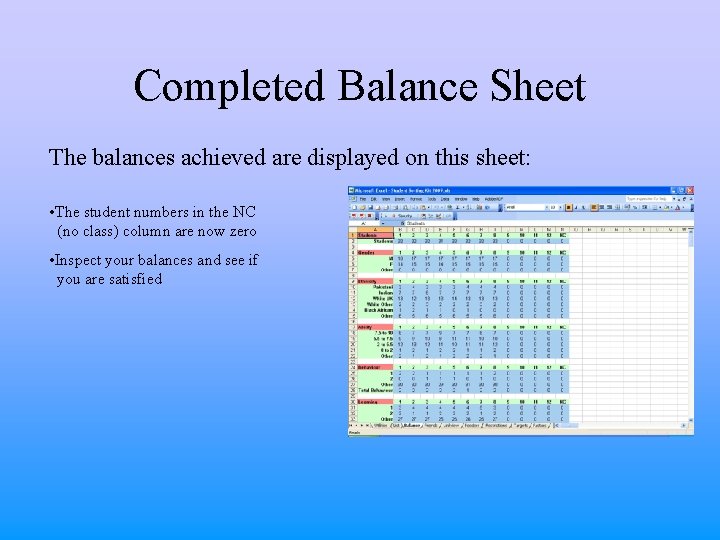
Completed Balance Sheet The balances achieved are displayed on this sheet: • The student numbers in the NC (no class) column are now zero • Inspect your balances and see if you are satisfied
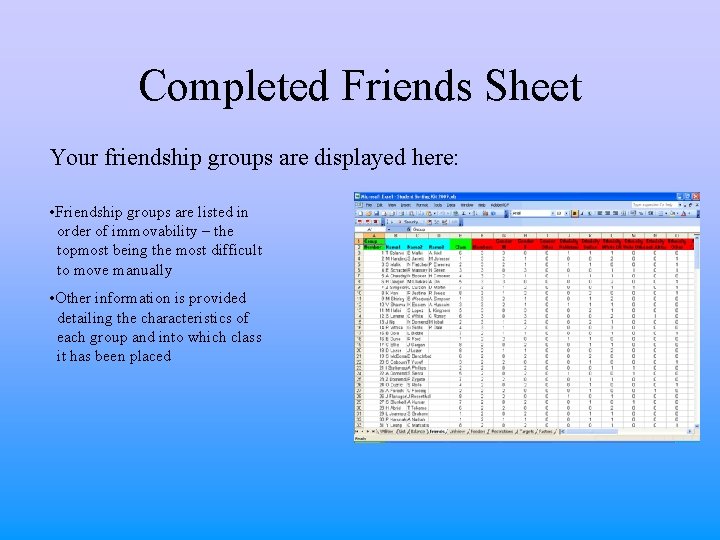
Completed Friends Sheet Your friendship groups are displayed here: • Friendship groups are listed in order of immovability – the topmost being the most difficult to move manually • Other information is provided detailing the characteristics of each group and into which class it has been placed
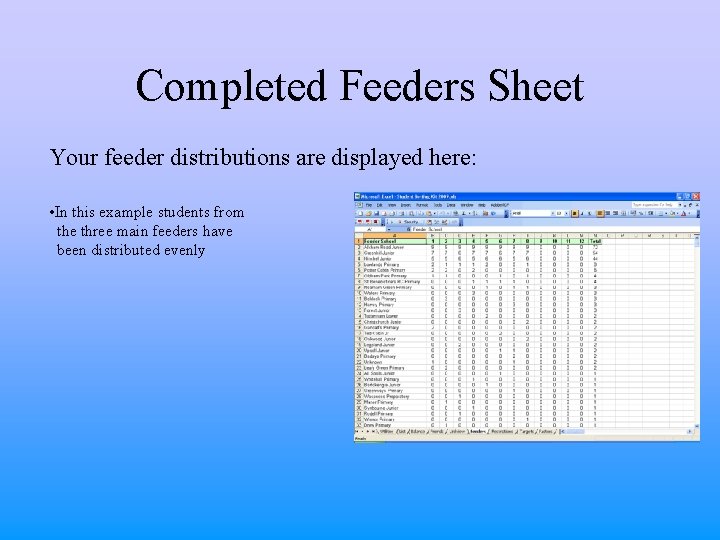
Completed Feeders Sheet Your feeder distributions are displayed here: • In this example students from the three main feeders have been distributed evenly
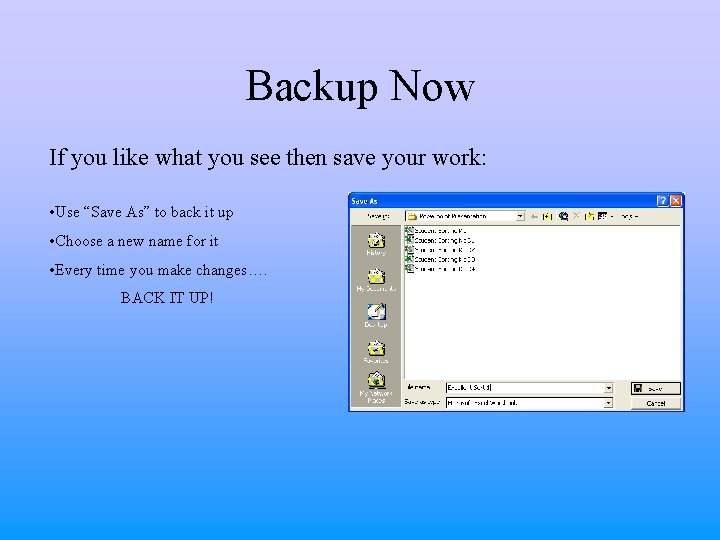
Backup Now If you like what you see then save your work: • Use “Save As” to back it up • Choose a new name for it • Every time you make changes…. BACK IT UP!