
The NEW Jacketed Pipe modeling within TRIFLEX Windows


- Slides: 11
The NEW Jacketed Pipe modeling within TRIFLEX® Windows. 1
Jacketed Pipe 2 • The NEW Jacketed Pipe modeling within TRIFLEX® Windows. • Jacket Pipe, Core Pipe: • Switch from Jacket Pipe to Core Pipe • The ability to have a Transparent Jacket Pipe • Vary the amount of Transparency. • Split Screens to view graphics and component information all on one screen. • Use of Release Elements. • View Temperature while viewing the graphics of the piping by the use of the Split Screen capability. www. piping solutions. com TRIFLEX® Windows
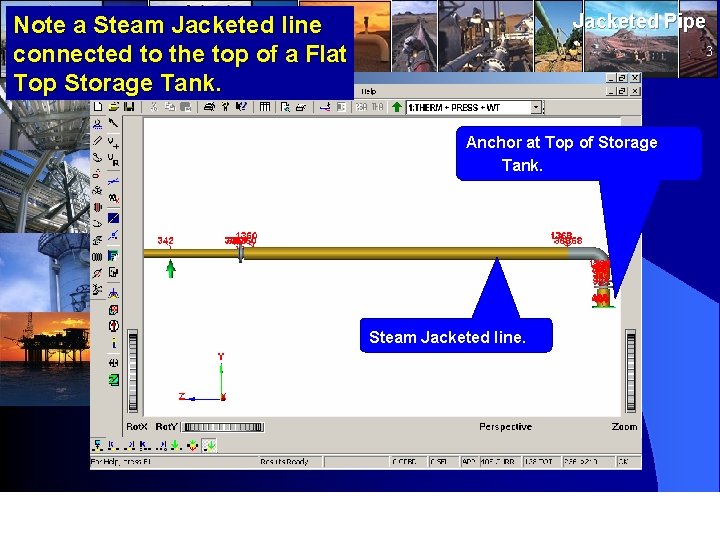
Jacketed Pipe Note a Steam Jacketed line connected to the top of a Flat Top Storage Tank. 3 Anchor at Top of Storage Tank. Steam Jacketed line. www. piping solutions. com TRIFLEX® Windows
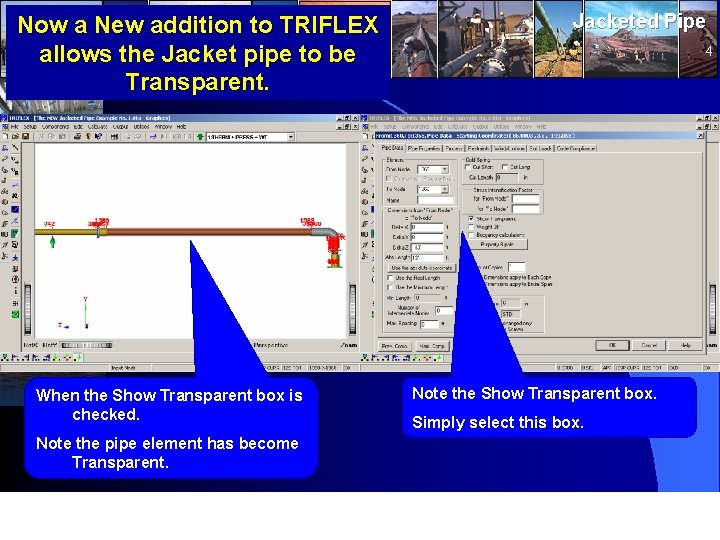
Now a New addition to TRIFLEX allows the Jacket pipe to be Transparent. When the Show Transparent box is checked. Jacketed Pipe 4 Note the Show Transparent box. Simply select this box. Note the pipe element has become Transparent. www. piping solutions. com TRIFLEX® Windows
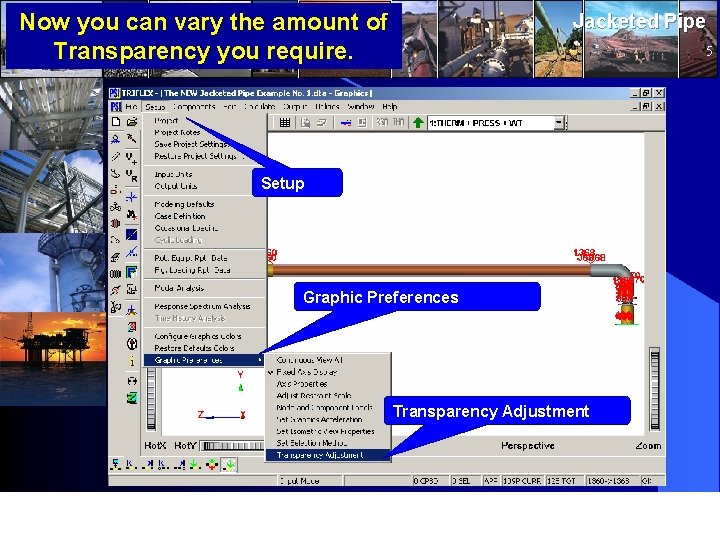
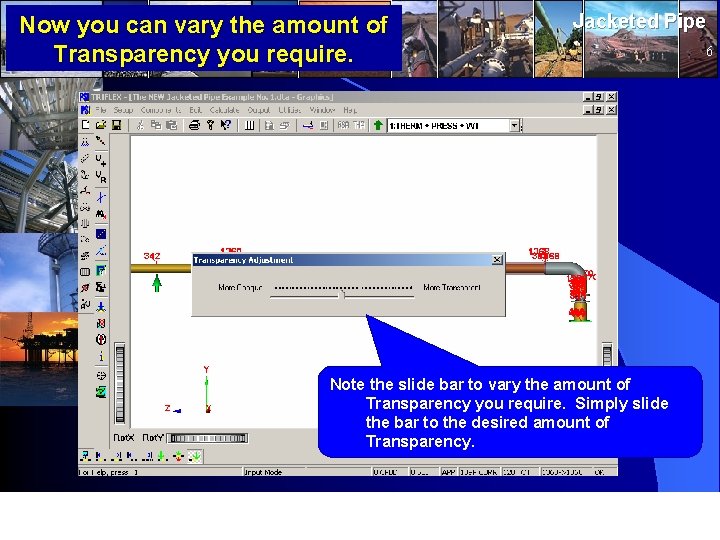
Now you can vary the amount of Transparency you require. Jacketed Pipe 5 Setup Graphic Preferences Transparency Adjustment www. piping solutions. com TRIFLEX® Windows
Now you can vary the amount of Transparency you require. Jacketed Pipe 6 Note the slide bar to vary the amount of Transparency you require. Simply slide the bar to the desired amount of Transparency. www. piping solutions. com TRIFLEX® Windows
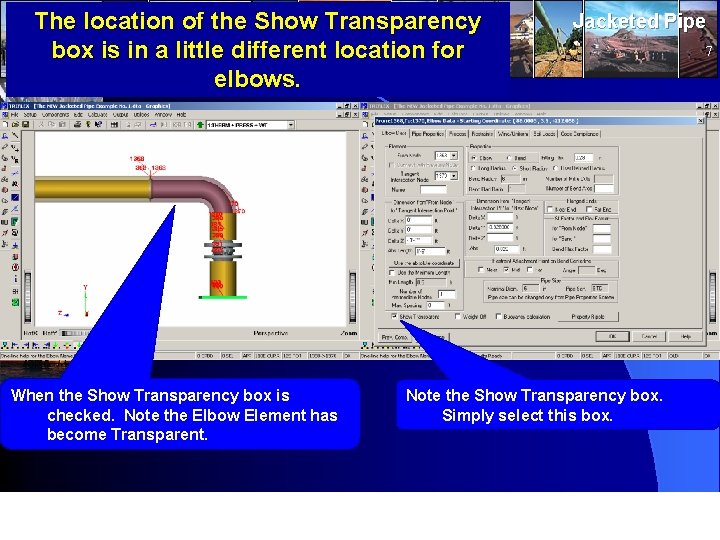
The location of the Show Transparency box is in a little different location for elbows. When the Show Transparency box is checked. Note the Elbow Element has become Transparent. www. piping solutions. com Jacketed Pipe Note the Show Transparency box. Simply select this box. TRIFLEX® Windows 7
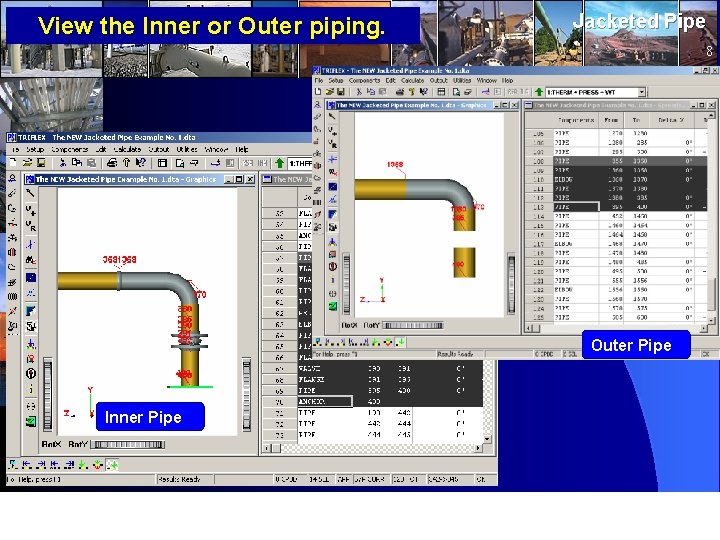
View the Inner or Outer piping. Jacketed Pipe 8 Outer Pipe Inner Pipe www. piping solutions. com TRIFLEX® Windows
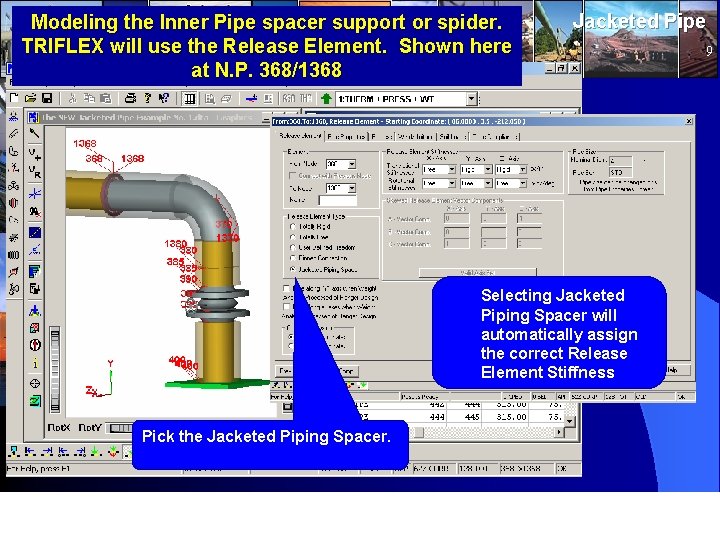
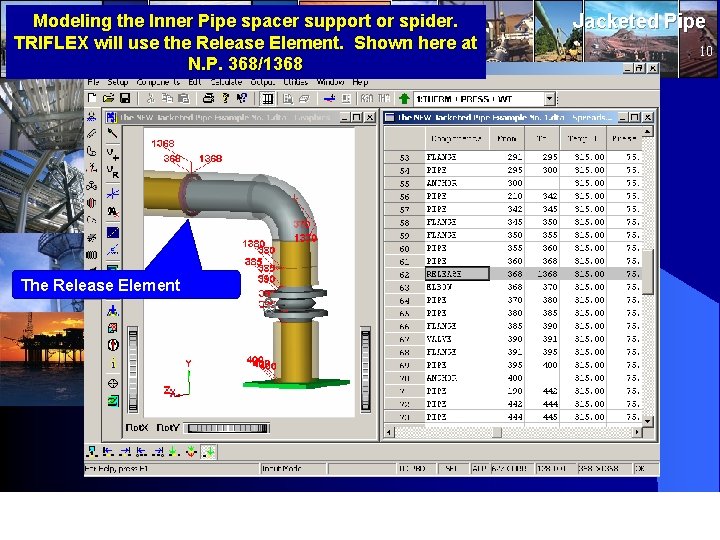
Modeling the Inner Pipe spacer support or spider. TRIFLEX will use the Release Element. Shown here at N. P. 368/1368 Jacketed Pipe Selecting Jacketed Piping Spacer will automatically assign the correct Release Element Stiffness Pick the Jacketed Piping Spacer. www. piping solutions. com TRIFLEX® Windows 9
Modeling the Inner Pipe spacer support or spider. TRIFLEX will use the Release Element. Shown here at N. P. 368/1368 Jacketed Pipe 10 The Release Element www. piping solutions. com TRIFLEX® Windows
Jacketed Pipe 11 For more details please contact: 6219 Brittmoore Road Houston, Texas 77041 -5114 U. S. A. Voice: 713 849 3366 Fax: 713 849 3654 : info@pipingsolutions. com www. piping solutions. com TRIFLEX® Windows