
The New Face of MAPICS Power Link Workspaces
- Slides: 16
The New Face of MAPICS Power Link Workspaces Tailoring XA to meet your needs David Kemp David. Kemp@cistech. net The New Face of MAPICS
Agenda for Today • • • What is a Workspace? How does it help me? Let’s create one! The New Face of MAPICS
What is a Workspace? o A Workspace is a collection of choices to display and work with information within a Power-Link object. Think “easy reports. ” o Function is an expansion of choosing preferences. You can have many sets. o Workspaces can be placed on the application cards for easy access. Just select with a double click rather than repetitively select different individual views, subsets, sorts for a display of information to perform different and regular analyses or reports The New Face of MAPICS
Uses for Workspaces – Task or Report? o Procurement Management o Expediting workspace o Close and purge workspace o Order-Based Production Management o Specific but alternate planner/exception status for MRP recommendations o Review of orders for close at month-end o PDM+ or Enterprise Product Data Management o Purchased items or manufactured components or ? The New Face of MAPICS
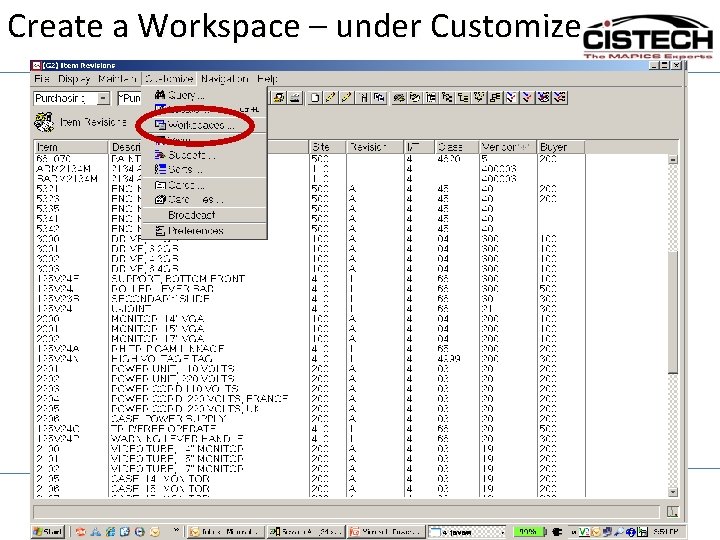
Create a Workspace – under Customize The New Face of MAPICS
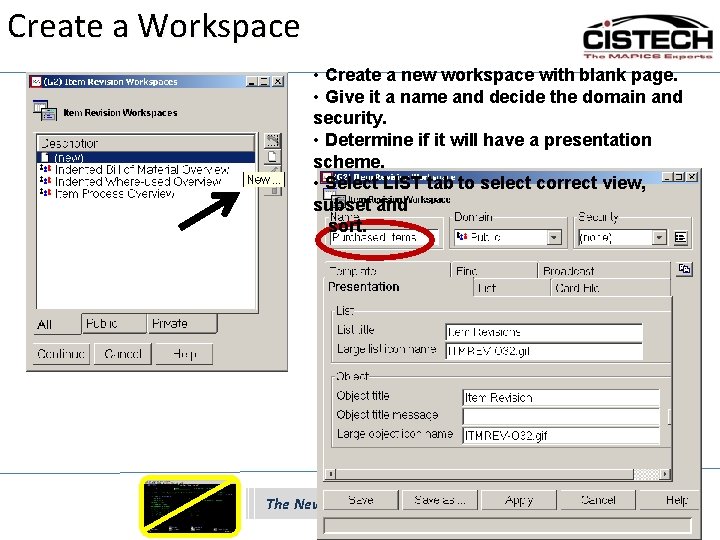
Create a Workspace • Create a new workspace with blank page. • Give it a name and decide the domain and security. • Determine if it will have a presentation scheme. • Select LIST tab to select correct view, subset and sort. The New Face of MAPICS
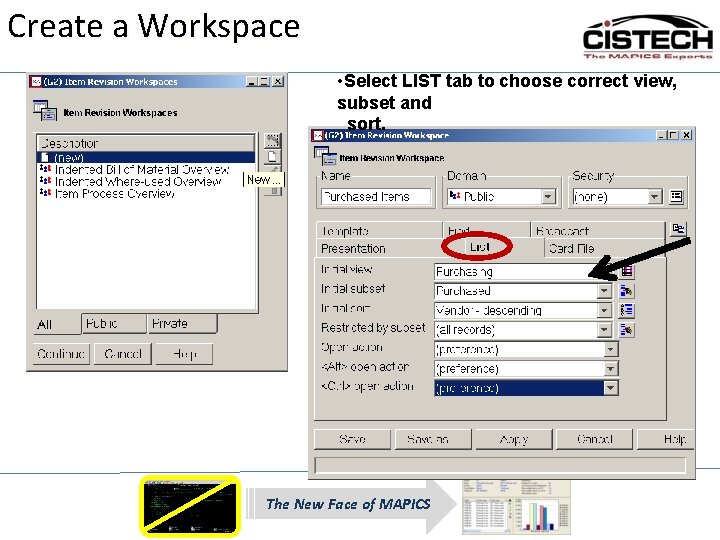
Create a Workspace • Select LIST tab to choose correct view, subset and sort. The New Face of MAPICS
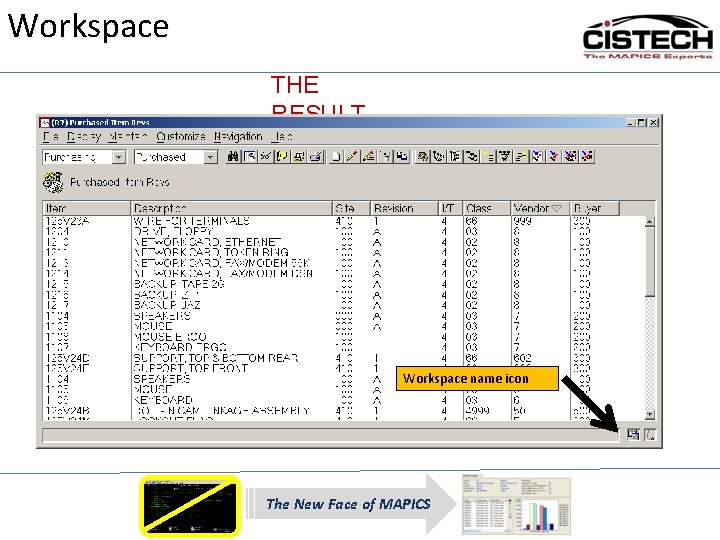
Workspace THE RESULT Workspace name icon The New Face of MAPICS
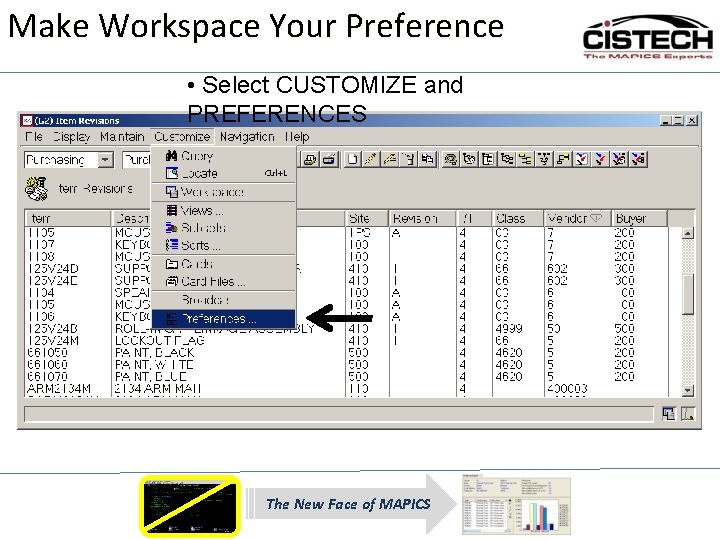
Make Workspace Your Preference • Select CUSTOMIZE and PREFERENCES The New Face of MAPICS
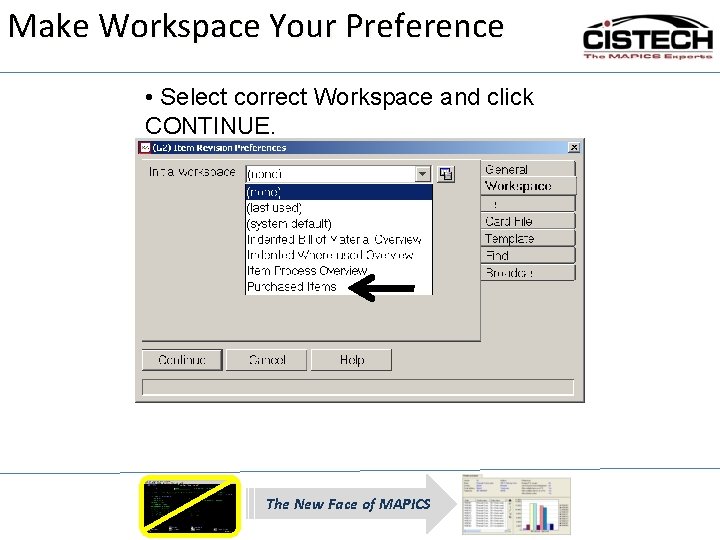
Make Workspace Your Preference • Select correct Workspace and click CONTINUE. The New Face of MAPICS
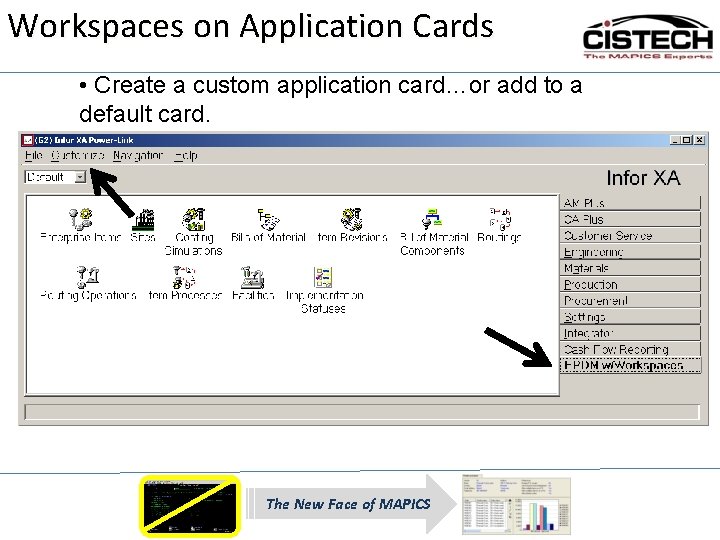
Workspaces on Application Cards • Create a custom application card…or add to a default card. • Click CUSTOMIZE and CARDS. The New Face of MAPICS
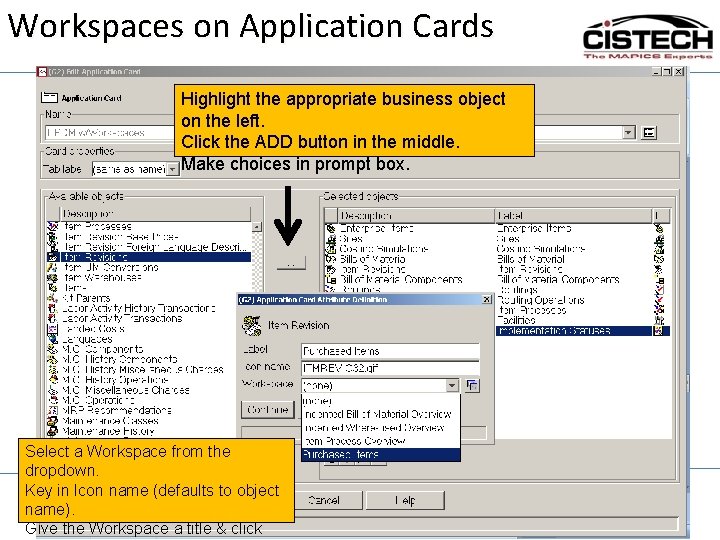
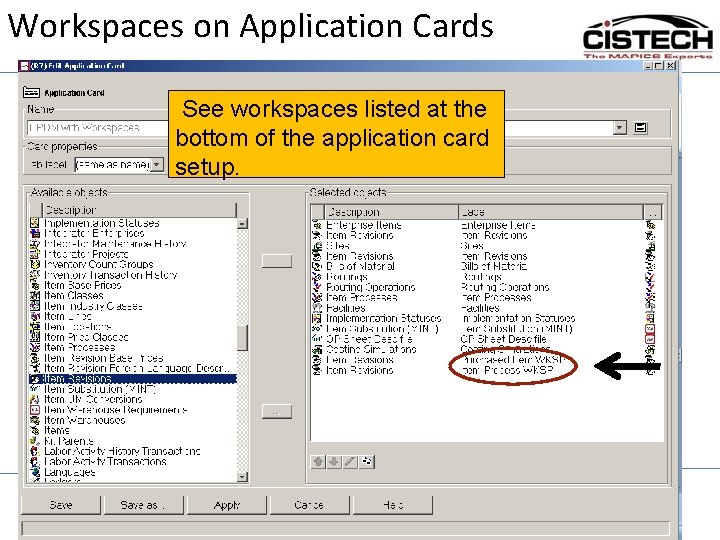
Workspaces on Application Cards Highlight the. Workspace appropriate object • Select correct andbusiness click CONTINUE. on the left. Click the ADD button in the middle. Make choices in prompt box. Select a Workspace from the dropdown. Key in Icon name (defaults to object The New Face of MAPICS name). Give the Workspace a title & click
Workspaces on Application Cards See workspaces listed at the bottom of the application card setup. The New Face of MAPICS
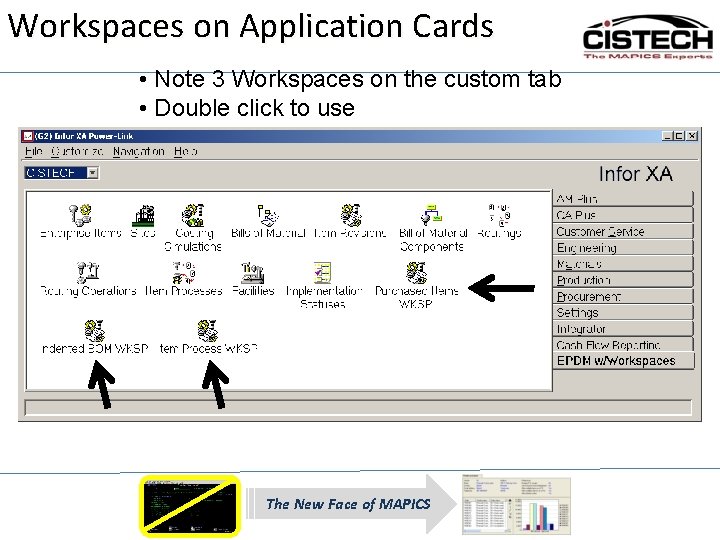
Workspaces on Application Cards • Note 3 Workspaces on the custom tab • Double click to use The New Face of MAPICS
Example Workspace A little bit in live XA… The New Face of MAPICS
Thanks for joining us today! The New Face of MAPICS