
The MATLAB Environment Desktop tools and Developing Environment



The MATLAB Environment • Desktop tools and Developing Environment • MATLAB desktop • Command line (command window) • Editor • The Mathematical Function Libraries • Common functions, Toolboxes • The Language • high-level matrix/array language • Graphics • 2 D, 3 D data visualization, image processing, animations • External Interfaces • Interaction with C/C++ and Fortran programs
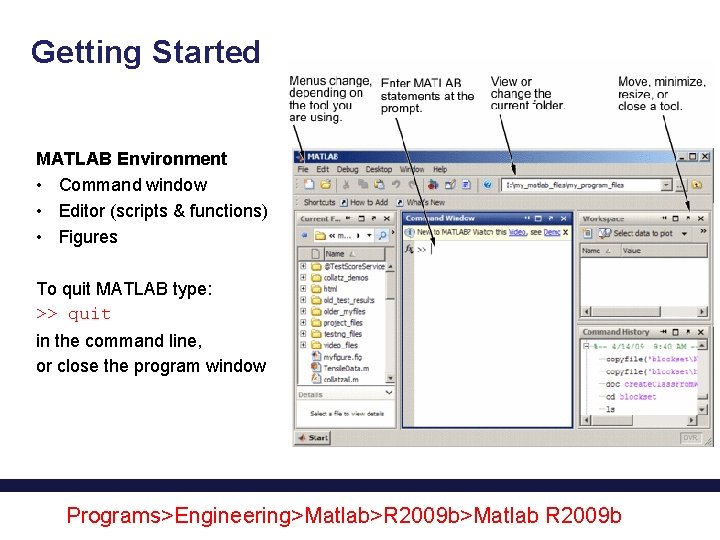
Getting Started MATLAB Environment • Command window • Editor (scripts & functions) • Figures To quit MATLAB type: >> quit in the command line, or close the program window Programs>Engineering>Matlab>R 2009 b>Matlab R 2009 b
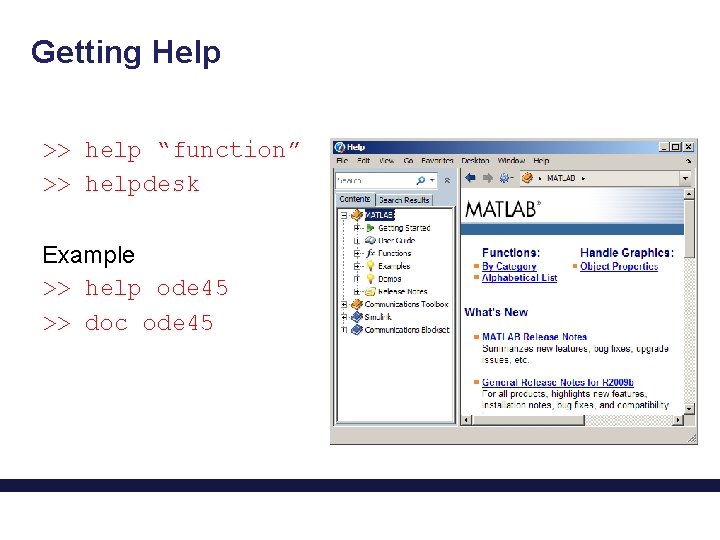
Getting Help >> help “function” >> helpdesk Example >> help ode 45 >> doc ode 45
Matrices, Vectors and Scalars in MATLAB • To input a scalar C type: C = 16 • To input a vector B type: B = [16 3 2 13] • To input a matrix A type: A = [16 3 1 12; 1 12 11 7; 9 7 7 11; 3 15 14 0]
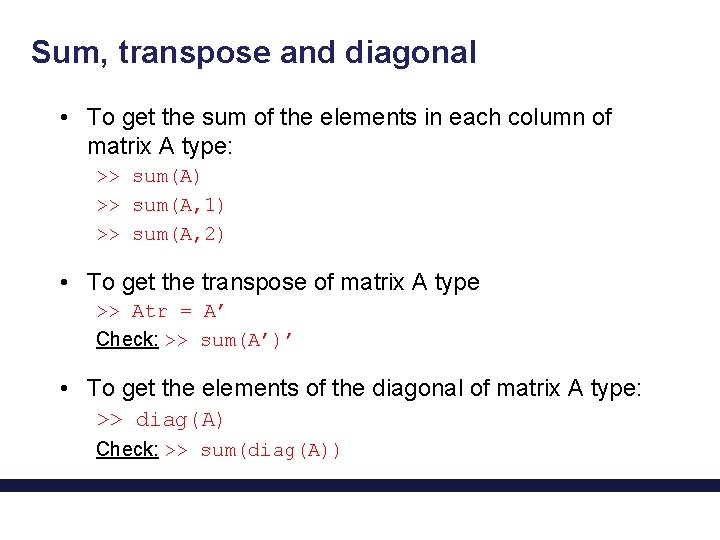
Sum, transpose and diagonal • To get the sum of the elements in each column of matrix A type: >> sum(A) >> sum(A, 1) >> sum(A, 2) • To get the transpose of matrix A type >> Atr = A’ Check: >> sum(A’)’ • To get the elements of the diagonal of matrix A type: >> diag(A) Check: >> sum(diag(A))
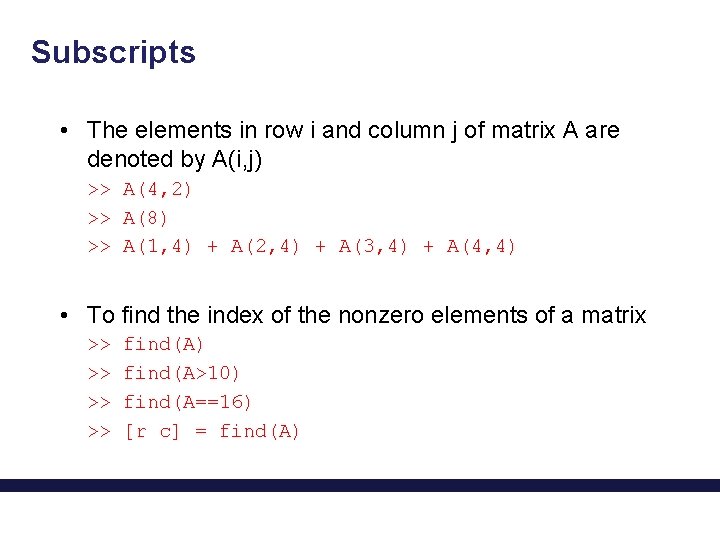
Subscripts • The elements in row i and column j of matrix A are denoted by A(i, j) >> A(4, 2) >> A(8) >> A(1, 4) + A(2, 4) + A(3, 4) + A(4, 4) • To find the index of the nonzero elements of a matrix >> >> find(A) find(A>10) find(A==16) [r c] = find(A)
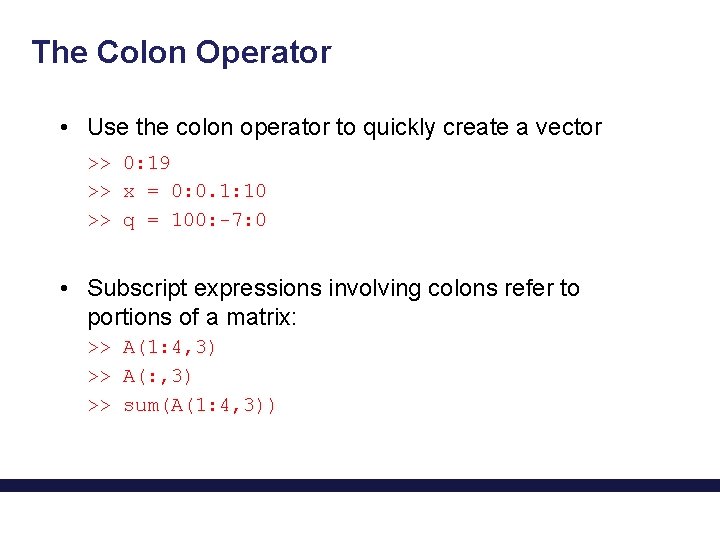
The Colon Operator • Use the colon operator to quickly create a vector >> 0: 19 >> x = 0: 0. 1: 10 >> q = 100: -7: 0 • Subscript expressions involving colons refer to portions of a matrix: >> A(1: 4, 3) >> A(: , 3) >> sum(A(1: 4, 3))
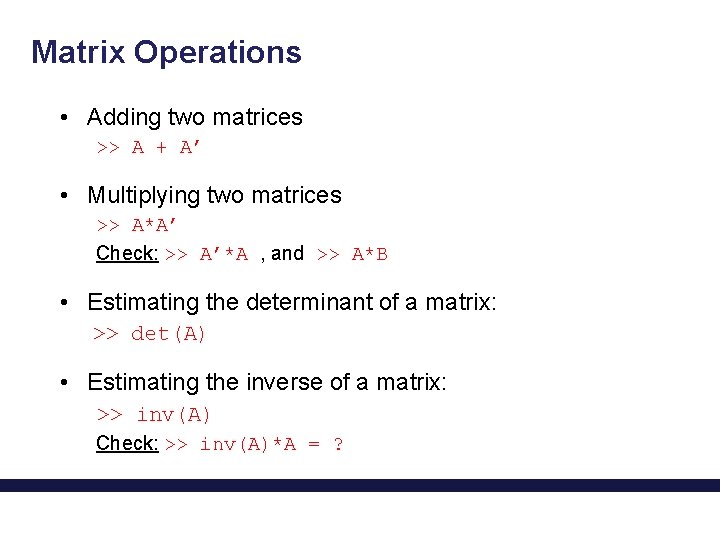
Matrix Operations • Adding two matrices >> A + A’ • Multiplying two matrices >> A*A’ Check: >> A’*A , and >> A*B • Estimating the determinant of a matrix: >> det(A) • Estimating the inverse of a matrix: >> inv(A) Check: >> inv(A)*A = ?
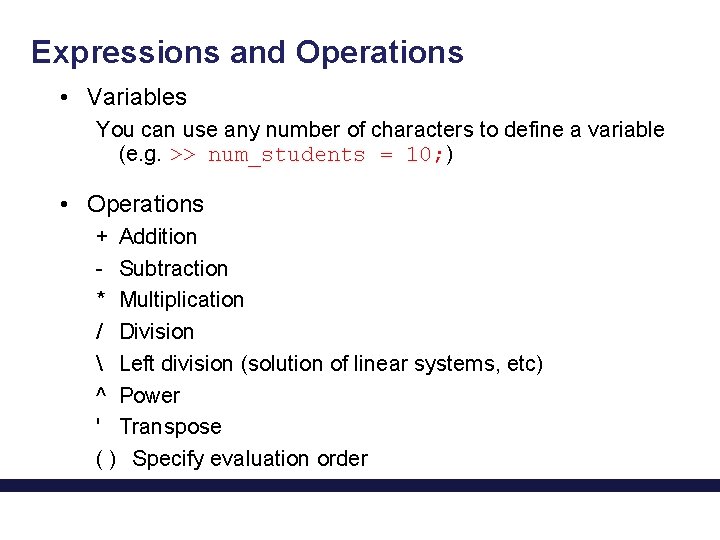
Expressions and Operations • Variables You can use any number of characters to define a variable (e. g. >> num_students = 10; ) • Operations + Addition - Subtraction * Multiplication / Division Left division (solution of linear systems, etc) ^ Power ' Transpose ( ) Specify evaluation order
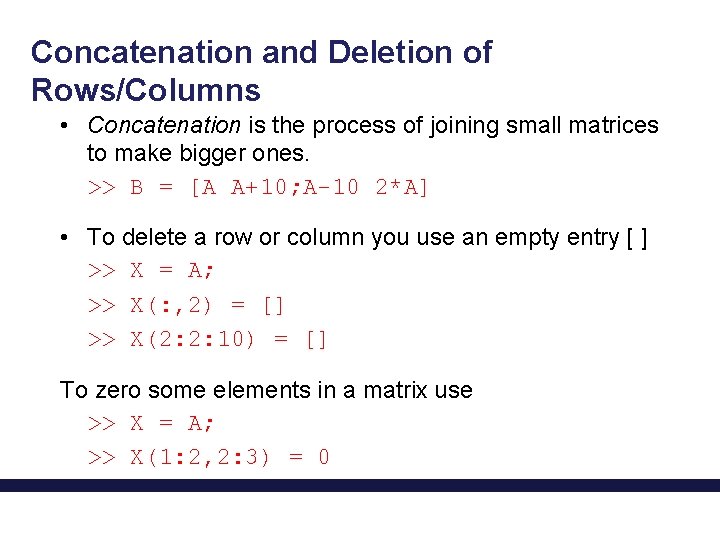
Concatenation and Deletion of Rows/Columns • Concatenation is the process of joining small matrices to make bigger ones. >> B = [A A+10; A-10 2*A] • To delete a row or column you use an empty entry [ ] >> X = A; >> X(: , 2) = [] >> X(2: 2: 10) = [] To zero some elements in a matrix use >> X = A; >> X(1: 2, 2: 3) = 0
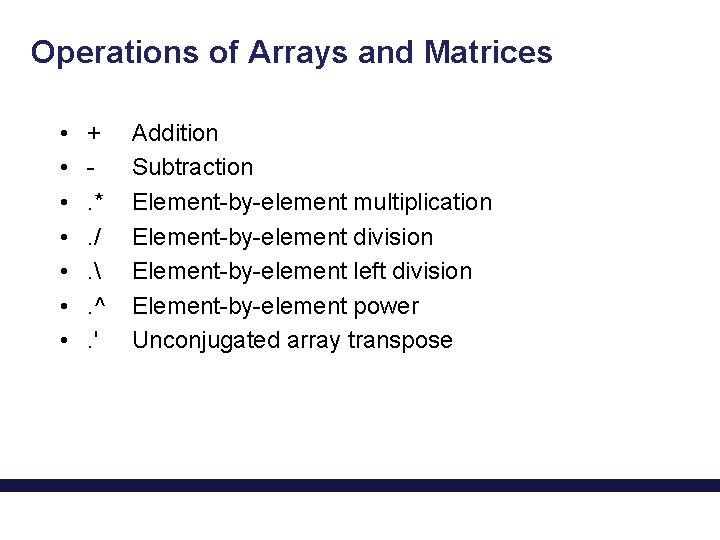
Operations of Arrays and Matrices • • +. *. /. . ^. ' Addition Subtraction Element-by-element multiplication Element-by-element division Element-by-element left division Element-by-element power Unconjugated array transpose
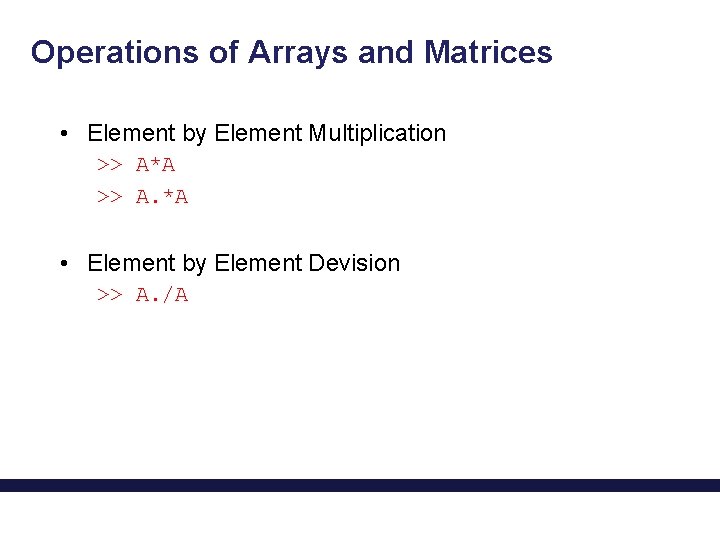
Operations of Arrays and Matrices • Element by Element Multiplication >> A*A >> A. *A • Element by Element Devision >> A. /A
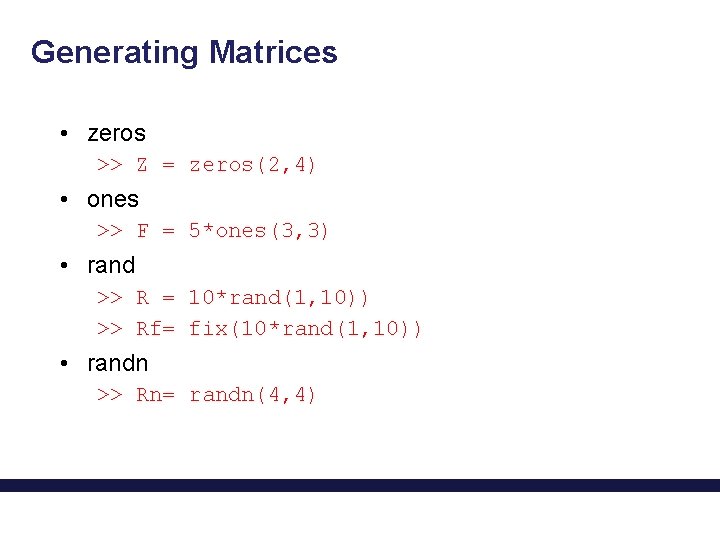
Generating Matrices • zeros >> Z = zeros(2, 4) • ones >> F = 5*ones(3, 3) • rand >> R = 10*rand(1, 10)) >> Rf= fix(10*rand(1, 10)) • randn >> Rn= randn(4, 4)
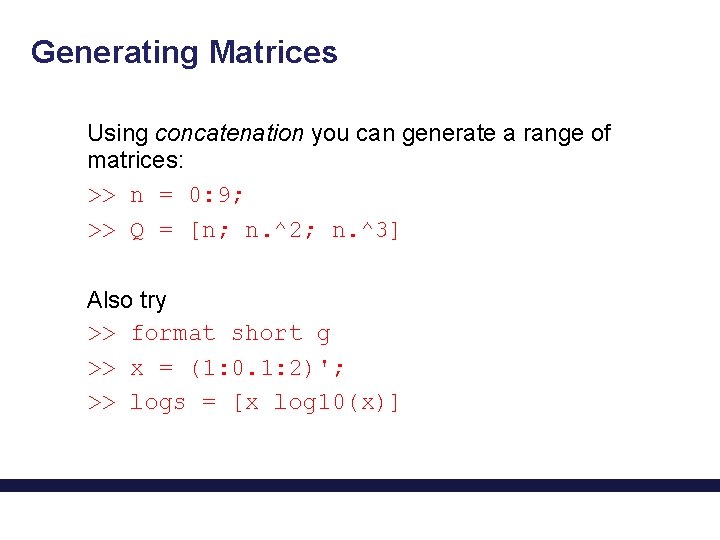
Generating Matrices Using concatenation you can generate a range of matrices: >> n = 0: 9; >> Q = [n; n. ^2; n. ^3] Also try >> format short g >> x = (1: 0. 1: 2)'; >> logs = [x log 10(x)]
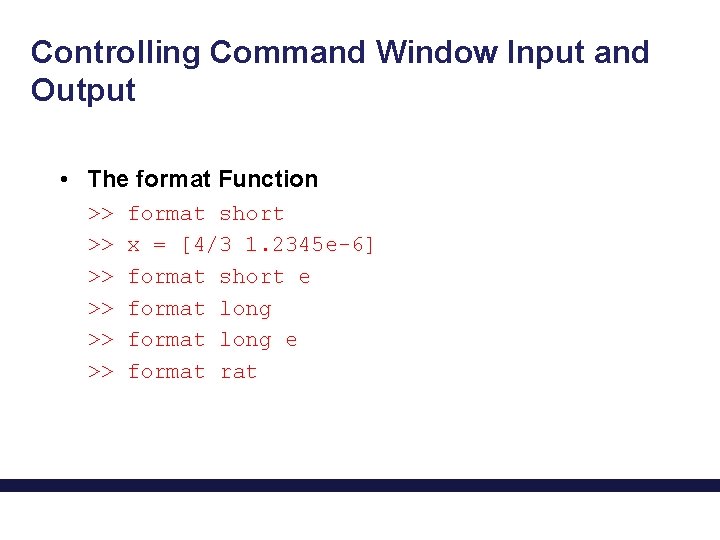
Controlling Command Window Input and Output • The format Function >> >> >> format short x = [4/3 1. 2345 e-6] format short e format long e format rat
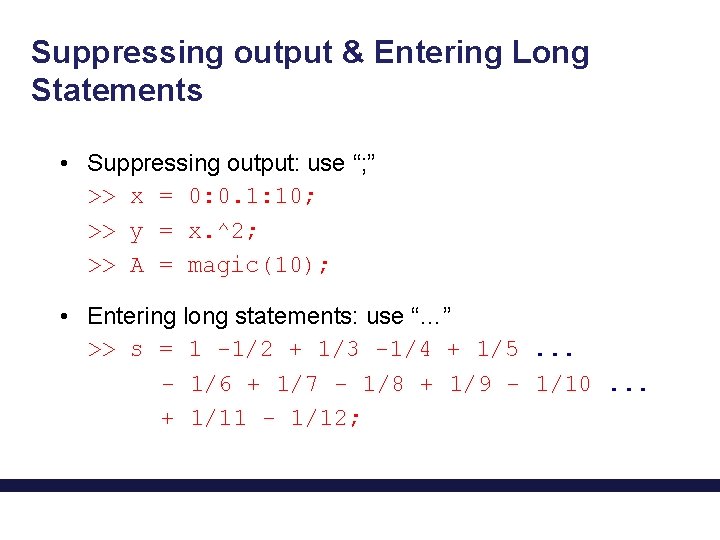
Suppressing output & Entering Long Statements • Suppressing output: use “; ” >> x = 0: 0. 1: 10; >> y = x. ^2; >> A = magic(10); • Entering long statements: use “…” >> s = 1 -1/2 + 1/3 -1/4 + 1/5. . . - 1/6 + 1/7 - 1/8 + 1/9 - 1/10. . . + 1/11 - 1/12;
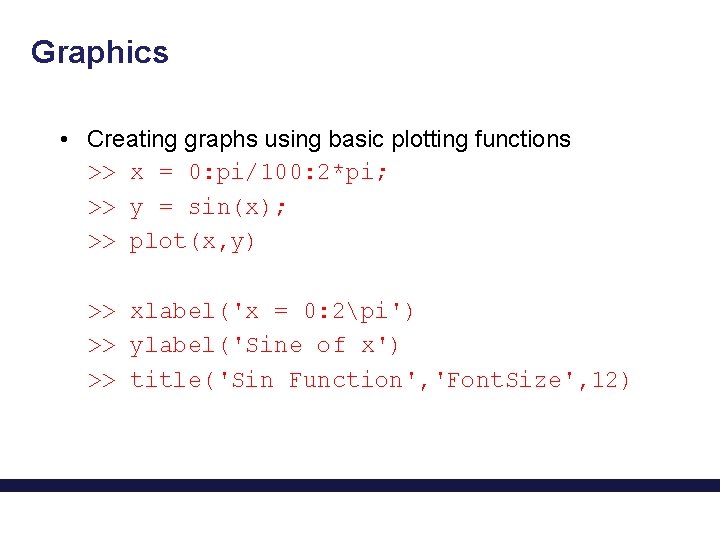
Graphics • Creating graphs using basic plotting functions >> x = 0: pi/100: 2*pi; >> y = sin(x); >> plot(x, y) >> xlabel('x = 0: 2pi') >> ylabel('Sine of x') >> title('Sin Function', 'Font. Size', 12)
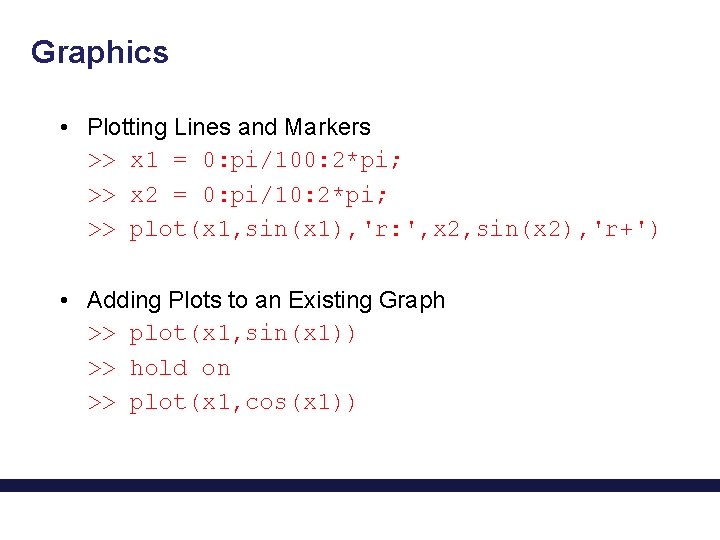
Graphics • Plotting Lines and Markers >> x 1 = 0: pi/100: 2*pi; >> x 2 = 0: pi/10: 2*pi; >> plot(x 1, sin(x 1), 'r: ', x 2, sin(x 2), 'r+') • Adding Plots to an Existing Graph >> plot(x 1, sin(x 1)) >> hold on >> plot(x 1, cos(x 1))
![Contour plots >> >> >> [x, y, z] = peaks; pcolor(x, y, z) shading](http://slidetodoc.com/presentation_image_h2/d09967550bd481abf517c7d799d913e5/image-22.jpg "Contour plots >> >> >> [x, y, z] = peaks; pcolor(x, y, z) shading")
Contour plots >> >> >> [x, y, z] = peaks; pcolor(x, y, z) shading interp hold on contour(x, y, z, 20, 'k') hold off
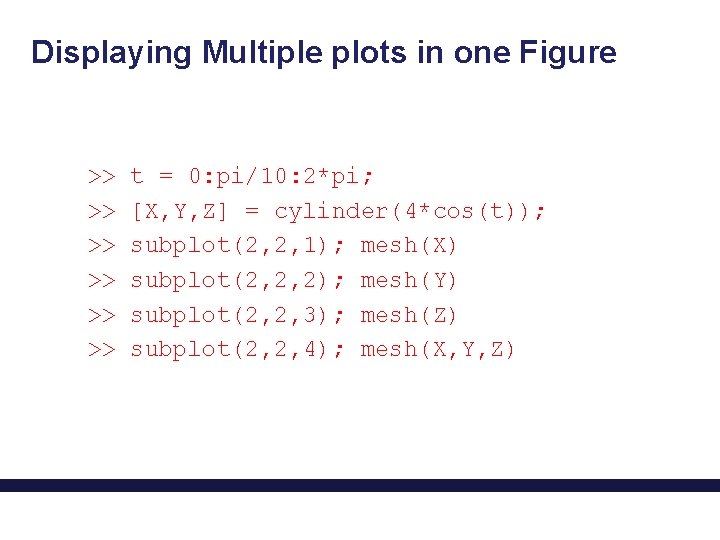
Displaying Multiple plots in one Figure >> >> >> t = 0: pi/10: 2*pi; [X, Y, Z] = cylinder(4*cos(t)); subplot(2, 2, 1); mesh(X) subplot(2, 2, 2); mesh(Y) subplot(2, 2, 3); mesh(Z) subplot(2, 2, 4); mesh(X, Y, Z)
Saving the figure • To open and edit them in matlab again • Save as file_name. fig • To send them to colleagues and discuss them • Save as file_name. pdf • To copy-paste them in MS Word • Use “Copy Figure” from the “Edit” menu (make sure the copy options in the preferences are correct)
Creating 3 D Graphics To display a function of two variables, z = f (x, y), 1. Generate X and Y matrices consisting of repeated rows and columns, respectively, over the domain of the function. 2. Use X and Y to evaluate and graph the function. The meshgrid function transforms the domain specified by a single vector or two vectors x and y into matrices X and Y for use in evaluating functions of two variables. The rows of X are copies of the vector x and the columns of Y are copies of the vector y.
Creating 3 D Graphics • Using the mesh function >> x = -8: . 5: 8; >> y = -8: . 5: 8; >> [X, Y] = meshgrid(x, y); >> R = sqrt(X. ^2 + Y. ^2) + eps; >> Z = sin(R). /R; >> mesh(X, Y, Z, 'Edge. Color', 'black') • Using the surf function >> surf(X, Y, Z) >> colormap hsv >> colorbar
Plotting Images • You can load any image using the imread command >> [X, map] = imread(‘image_name. jpg’) • Once you have an image loaded you can plot it using: >> image(X) >> colormap(map) >> axis image
Loading Files • Loading. txt, . dat files (first create a. txt or. dat file with the name pasti_room. txt or pasti_room. dat) >> load data_1. txt • Using. m files (first creat a. m file with the matlab editor in which you type matrix A) load data_1. txt D = data_1 plot(D)
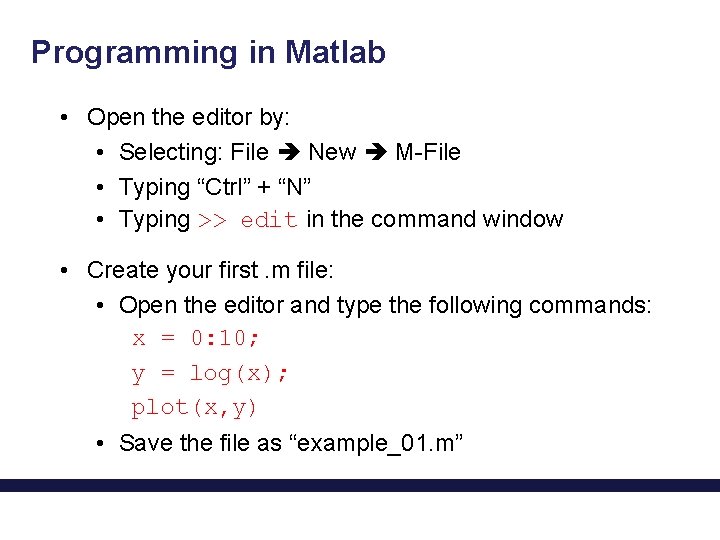
Programming in Matlab • Open the editor by: • Selecting: File New M-File • Typing “Ctrl” + “N” • Typing >> edit in the command window • Create your first. m file: • Open the editor and type the following commands: x = 0: 10; y = log(x); plot(x, y) • Save the file as “example_01. m”
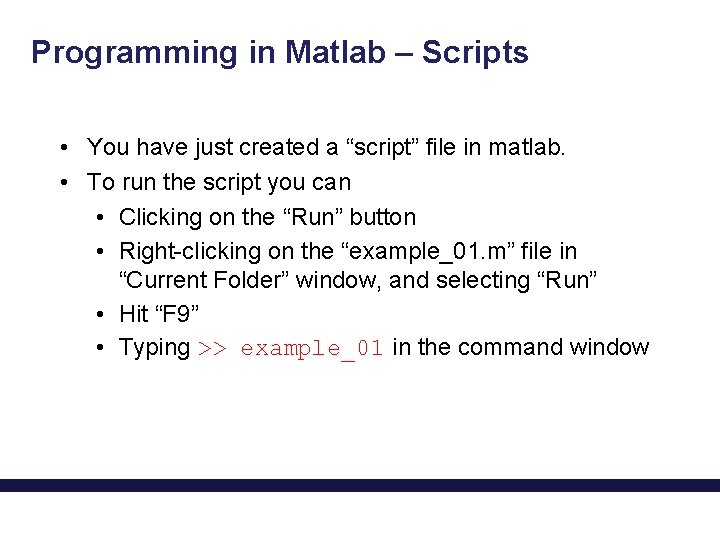
Programming in Matlab – Scripts • You have just created a “script” file in matlab. • To run the script you can • Clicking on the “Run” button • Right-clicking on the “example_01. m” file in “Current Folder” window, and selecting “Run” • Hit “F 9” • Typing >> example_01 in the command window
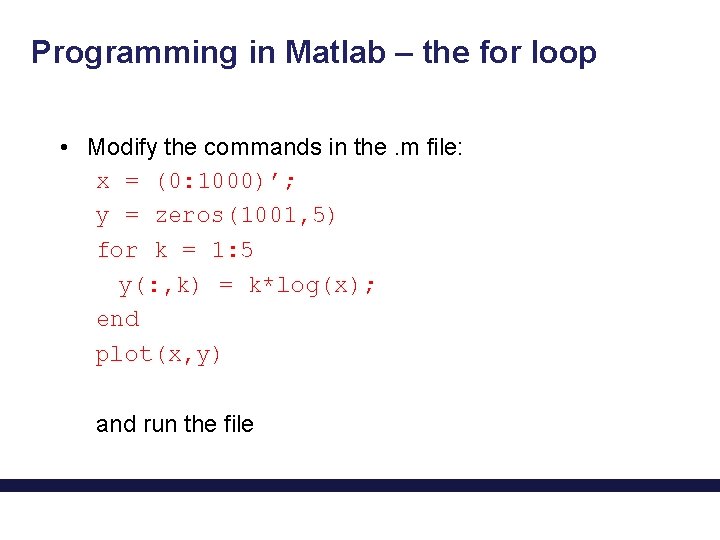
Programming in Matlab – the for loop • Modify the commands in the. m file: x = (0: 1000)’; y = zeros(1001, 5) for k = 1: 5 y(: , k) = k*log(x); end plot(x, y) and run the file
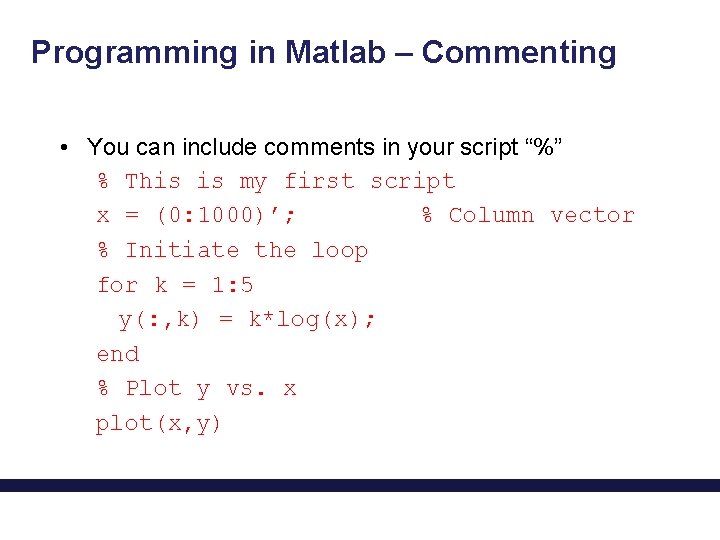
Programming in Matlab – Commenting • You can include comments in your script “%” % This is my first script x = (0: 1000)’; % Column vector % Initiate the loop for k = 1: 5 y(: , k) = k*log(x); end % Plot y vs. x plot(x, y)
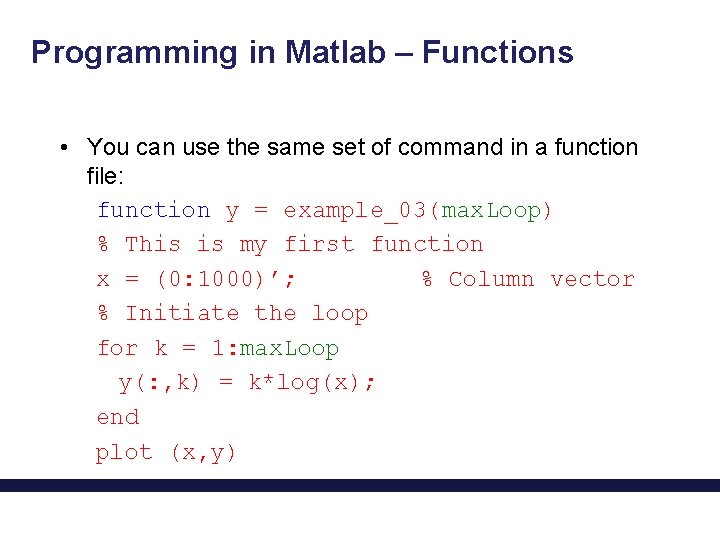
Programming in Matlab – Functions • You can use the same set of command in a function file: function y = example_03(max. Loop) % This is my first function x = (0: 1000)’; % Column vector % Initiate the loop for k = 1: max. Loop y(: , k) = k*log(x); end plot (x, y)
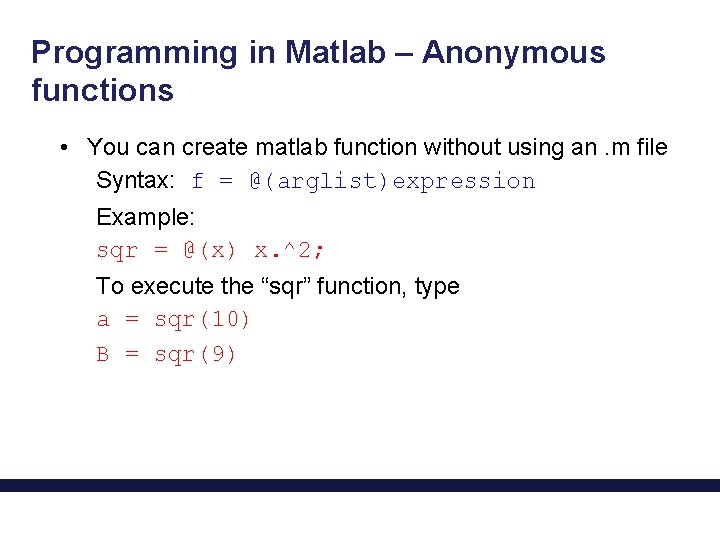
Programming in Matlab – Anonymous functions • You can create matlab function without using an. m file Syntax: f = @(arglist)expression Example: sqr = @(x) x. ^2; To execute the “sqr” function, type a = sqr(10) B = sqr(9)
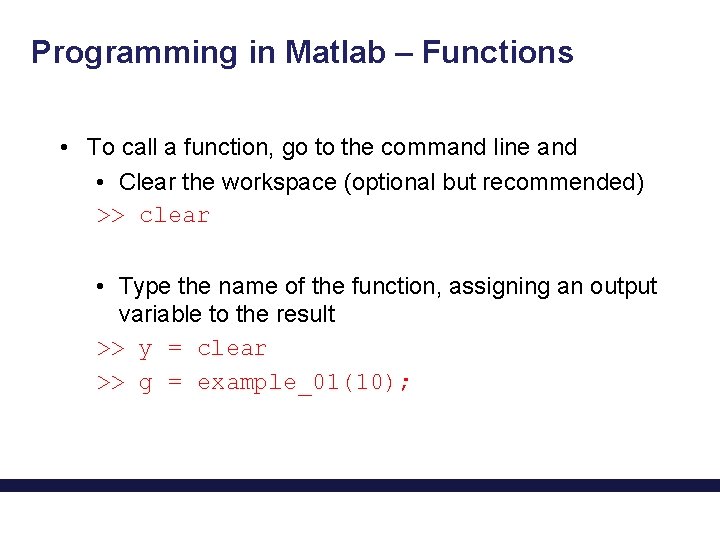
Programming in Matlab – Functions • To call a function, go to the command line and • Clear the workspace (optional but recommended) >> clear • Type the name of the function, assigning an output variable to the result >> y = clear >> g = example_01(10);
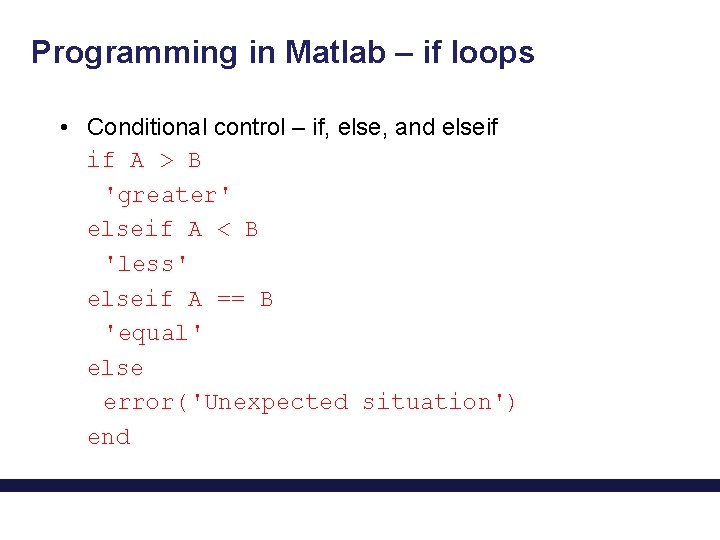
Programming in Matlab – if loops • Conditional control – if, else, and elseif if A > B 'greater' elseif A < B 'less' elseif A == B 'equal' else error('Unexpected situation') end
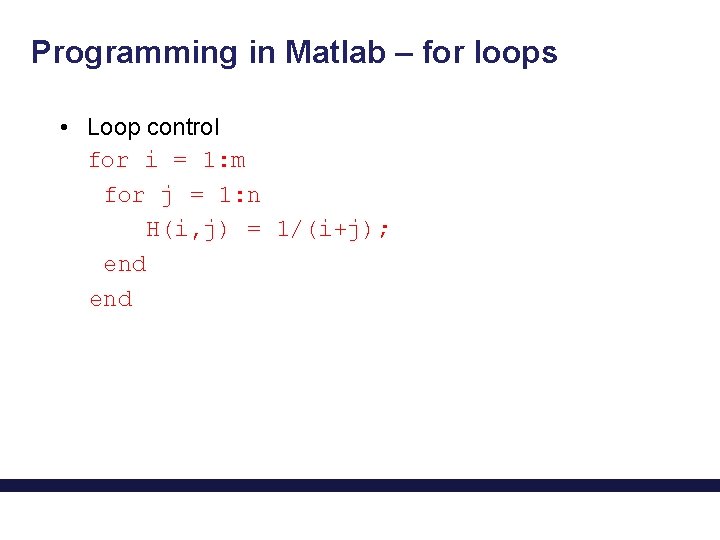
Programming in Matlab – for loops • Loop control for i = 1: m for j = 1: n H(i, j) = 1/(i+j); end
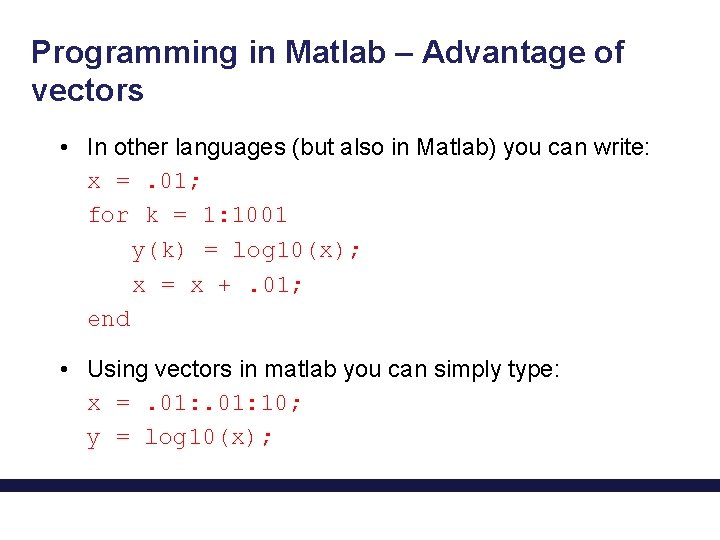
Programming in Matlab – Advantage of vectors • In other languages (but also in Matlab) you can write: x =. 01; for k = 1: 1001 y(k) = log 10(x); x = x +. 01; end • Using vectors in matlab you can simply type: x =. 01: 10; y = log 10(x);

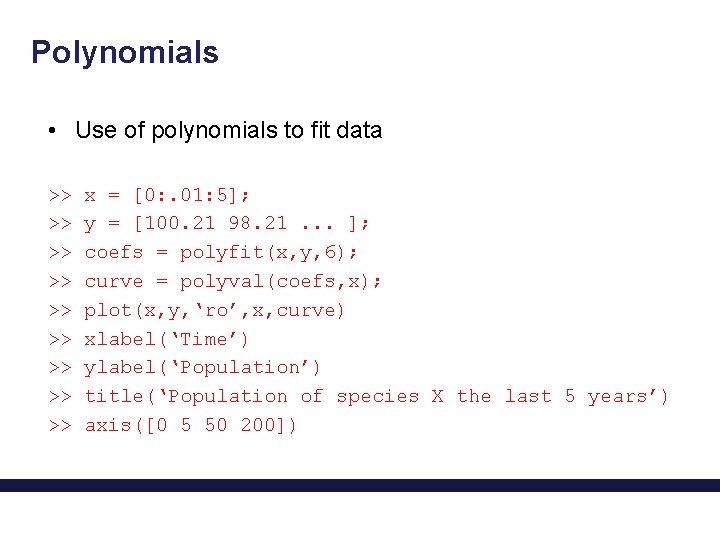
Polynomials • Use of polynomials to fit data >> >> >> x = [0: . 01: 5]; y = [100. 21 98. 21. . . ]; coefs = polyfit(x, y, 6); curve = polyval(coefs, x); plot(x, y, ‘ro’, x, curve) xlabel(‘Time’) ylabel(‘Population’) title(‘Population of species X the last 5 years’) axis([0 5 50 200])
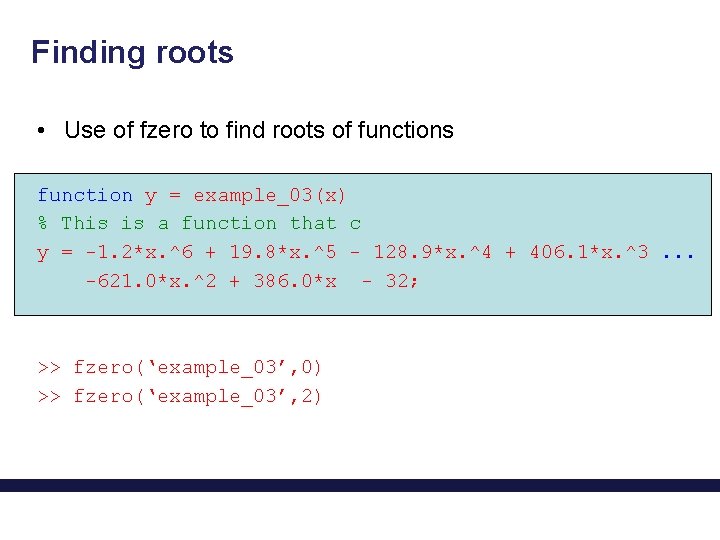
Finding roots • Use of fzero to find roots of functions function y = example_03(x) % This is a function that c y = -1. 2*x. ^6 + 19. 8*x. ^5 - 128. 9*x. ^4 + 406. 1*x. ^3. . . -621. 0*x. ^2 + 386. 0*x - 32; >> fzero(‘example_03’, 0) >> fzero(‘example_03’, 2)
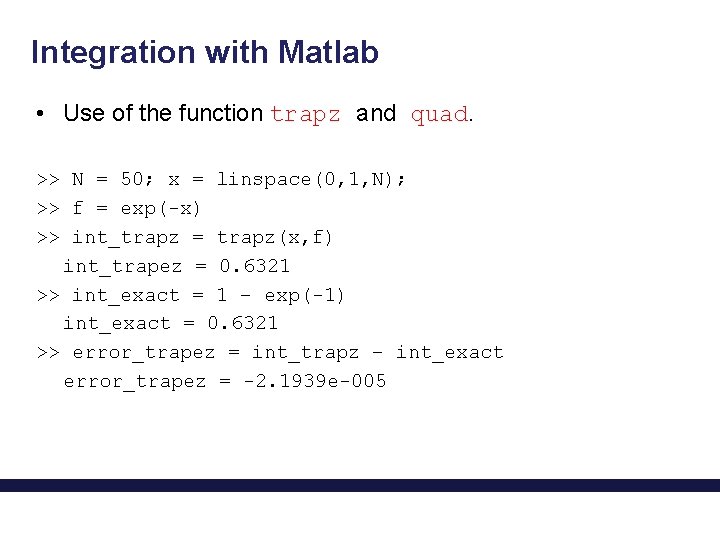
Integration with Matlab • Use of the function trapz and quad. >> N = 50; x = linspace(0, 1, N); >> f = exp(-x) >> int_trapz = trapz(x, f) int_trapez = 0. 6321 >> int_exact = 1 – exp(-1) int_exact = 0. 6321 >> error_trapez = int_trapz – int_exact error_trapez = -2. 1939 e-005
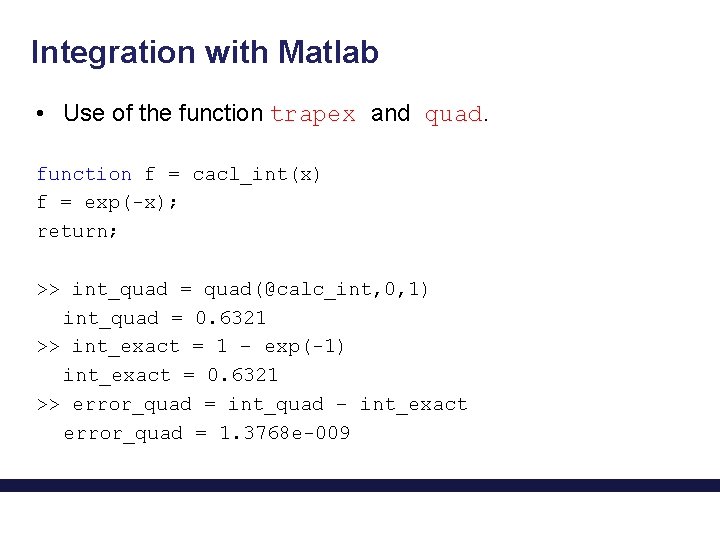
Integration with Matlab • Use of the function trapex and quad. function f = cacl_int(x) f = exp(-x); return; >> int_quad = quad(@calc_int, 0, 1) int_quad = 0. 6321 >> int_exact = 1 – exp(-1) int_exact = 0. 6321 >> error_quad = int_quad – int_exact error_quad = 1. 3768 e-009
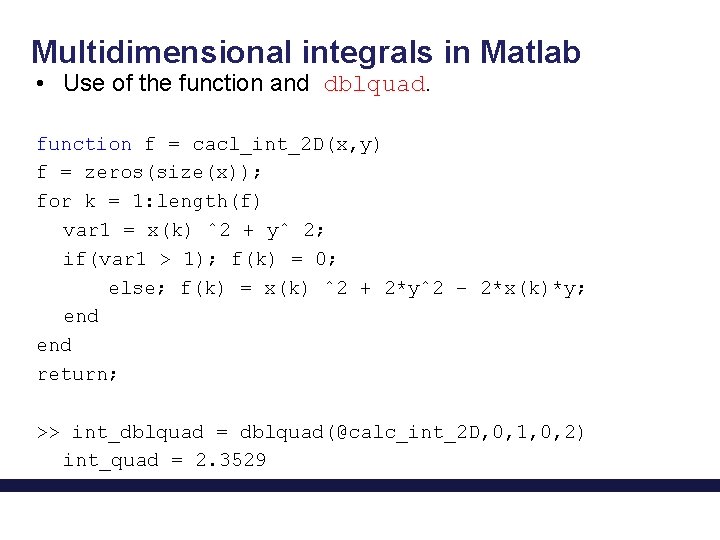
Multidimensional integrals in Matlab • Use of the function and dblquad. function f = cacl_int_2 D(x, y) f = zeros(size(x)); for k = 1: length(f) var 1 = x(k) ˆ2 + yˆ 2; if(var 1 > 1); f(k) = 0; else; f(k) = x(k) ˆ2 + 2*yˆ2 − 2*x(k)*y; end return; >> int_dblquad = dblquad(@calc_int_2 D, 0, 1, 0, 2) int_quad = 2. 3529
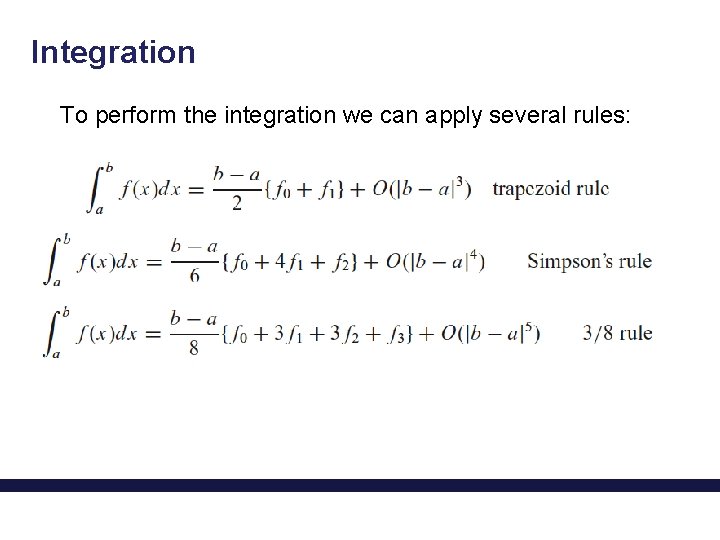
Integration To perform the integration we can apply several rules:
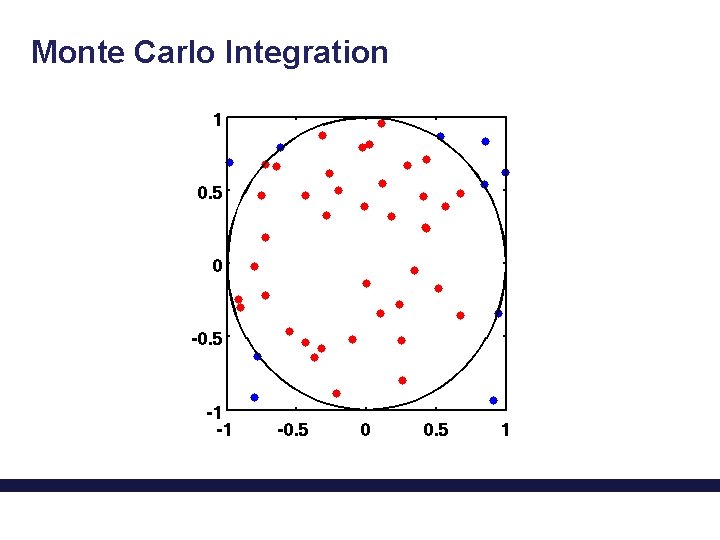
Monte Carlo Integration
- Slides: 46