
The Kronos In Touch Terminal Employee Training Copyright
![Error reading badge data • Error message number is [NGT 01 -1] • Possible](https://slidetodoc.com/presentation_image_h2/4a987540f66493f25dfd531052ea1d2d/image-30.jpg "Error reading badge data • Error message number is [NGT 01 -1] • Possible")
![Unknown home employee • Error message number is [NGT 06 -2 ({failure. Code})] •](https://slidetodoc.com/presentation_image_h2/4a987540f66493f25dfd531052ea1d2d/image-31.jpg "Unknown home employee • Error message number is [NGT 06 -2 ({failure. Code})] •")
![Punch rejected • Error message number is [NGT 04 -1 ({failure. Code})] • Possible](https://slidetodoc.com/presentation_image_h2/4a987540f66493f25dfd531052ea1d2d/image-32.jpg "Punch rejected • Error message number is [NGT 04 -1 ({failure. Code})] • Possible")
- Slides: 50
The Kronos In Touch® Terminal Employee Training © Copyright 2014 Kronos Incorporated
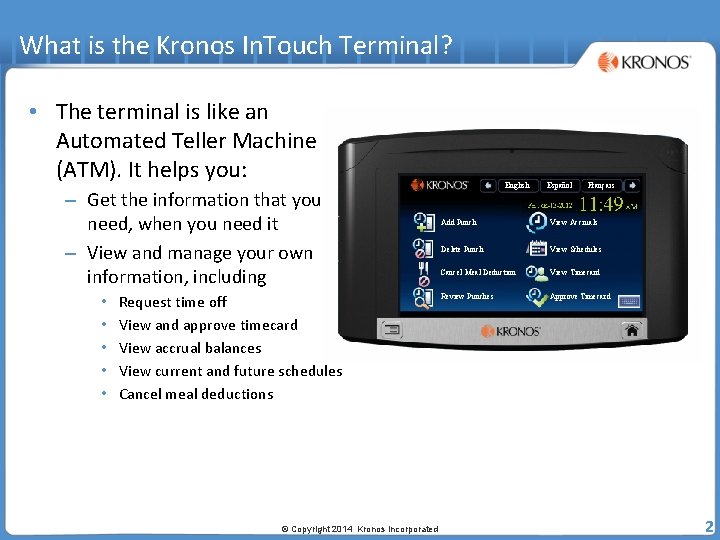
What is the Kronos In. Touch Terminal? • The terminal is like an Automated Teller Machine (ATM). It helps you: – Get the information that you need, when you need it – View and manage your own information, including • • • Request time off View and approve timecard View accrual balances View current and future schedules Cancel meal deductions © Copyright 2014 Kronos Incorporated English Español Français Add Punch View Accruals Delete Punch View Schedules Cancel Meal Deduction View Timecard Review Punches Approve Timecard 2
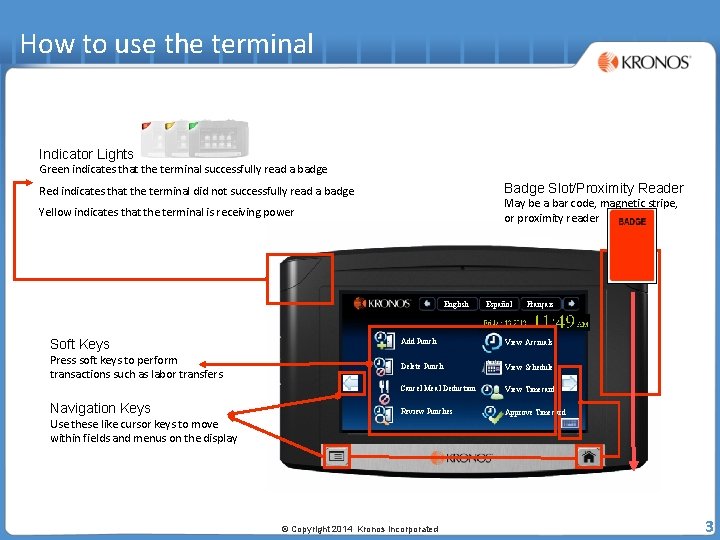
How to use the terminal Indicator Lights Green indicates that the terminal successfully read a badge Badge Slot/Proximity Reader Red indicates that the terminal did not successfully read a badge May be a bar code, magnetic stripe, or proximity reader Yellow indicates that the terminal is receiving power English Español Français Soft Keys Add Punch View Accruals Press soft keys to perform transactions such as labor transfers Delete Punch View Schedules Cancel Meal Deduction View Timecard Review Punches Approve Timecard Navigation Keys Use these like cursor keys to move within fields and menus on the display © Copyright 2014 Kronos Incorporated 3
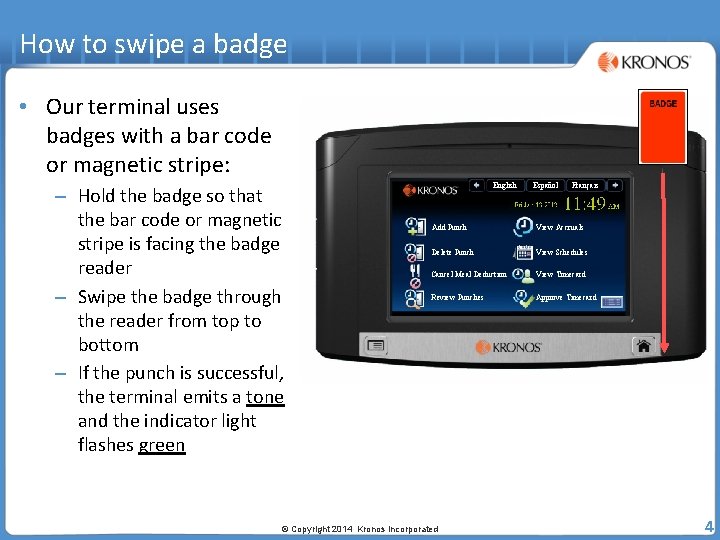
How to swipe a badge • Our terminal uses badges with a bar code or magnetic stripe: – Hold the badge so that the bar code or magnetic stripe is facing the badge reader – Swipe the badge through the reader from top to bottom – If the punch is successful, the terminal emits a tone and the indicator light flashes green English Español Français Add Punch View Accruals Delete Punch View Schedules Cancel Meal Deduction View Timecard Review Punches Approve Timecard © Copyright 2014 Kronos Incorporated 4
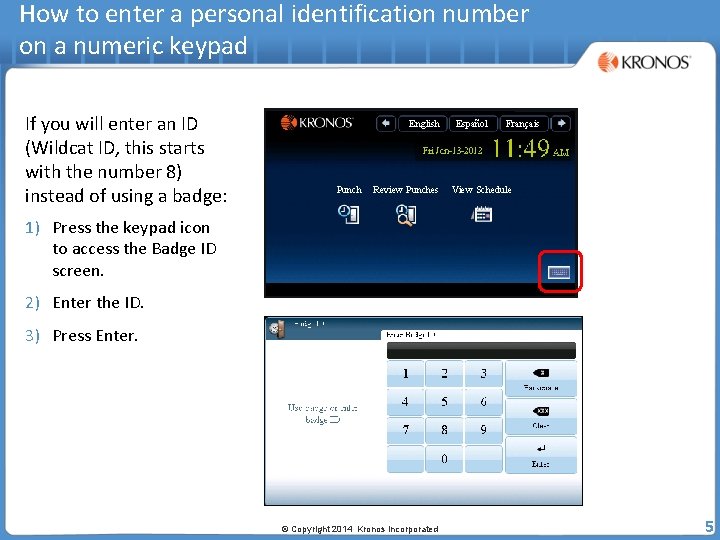
How to enter a personal identification number on a numeric keypad If you will enter an ID (Wildcat ID, this starts with the number 8) instead of using a badge: English Punch Review Punches Español Français View Schedule 1) Press the keypad icon to access the Badge ID screen. 2) Enter the ID. 3) Press Enter. © Copyright 2014 Kronos Incorporated 5
Navigating the Kronos In. Touch Terminal © Copyright 2014 Kronos Incorporated
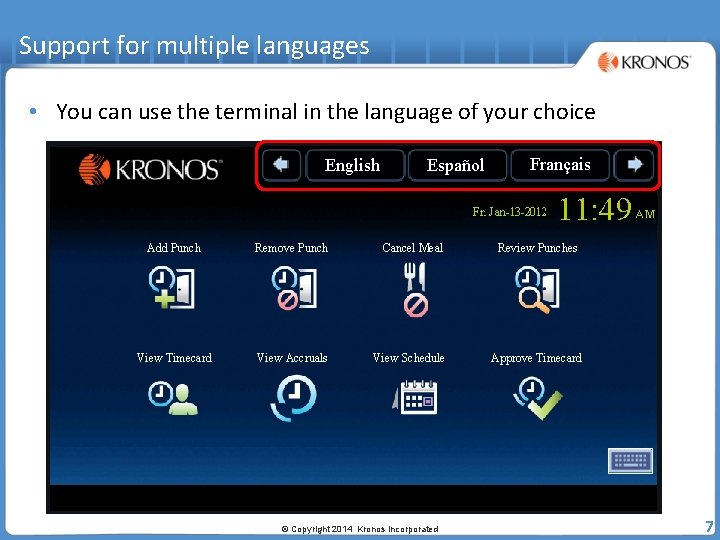
Support for multiple languages • You can use the terminal in the language of your choice English Español Add Punch Remove Punch Cancel Meal View Timecard View Accruals View Schedule © Copyright 2014 Kronos Incorporated Français Review Punches Approve Timecard 7
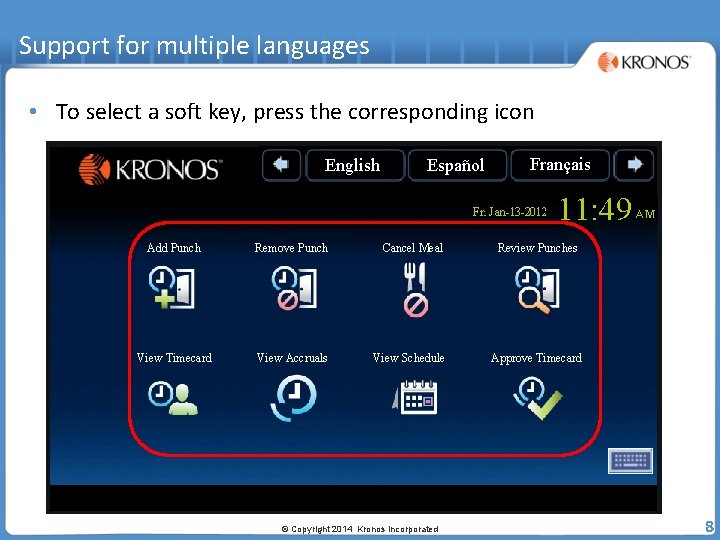
Support for multiple languages • To select a soft key, press the corresponding icon English Español Add Punch Remove Punch Cancel Meal View Timecard View Accruals View Schedule © Copyright 2014 Kronos Incorporated Français Review Punches Approve Timecard 8
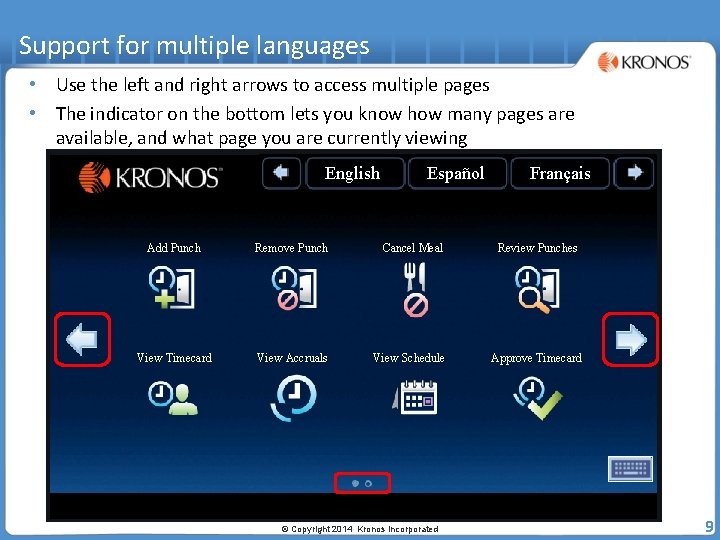
Support for multiple languages • Use the left and right arrows to access multiple pages • The indicator on the bottom lets you know how many pages are available, and what page you are currently viewing English Español Add Punch Remove Punch Cancel Meal View Timecard View Accruals View Schedule © Copyright 2014 Kronos Incorporated Français Review Punches Approve Timecard 9
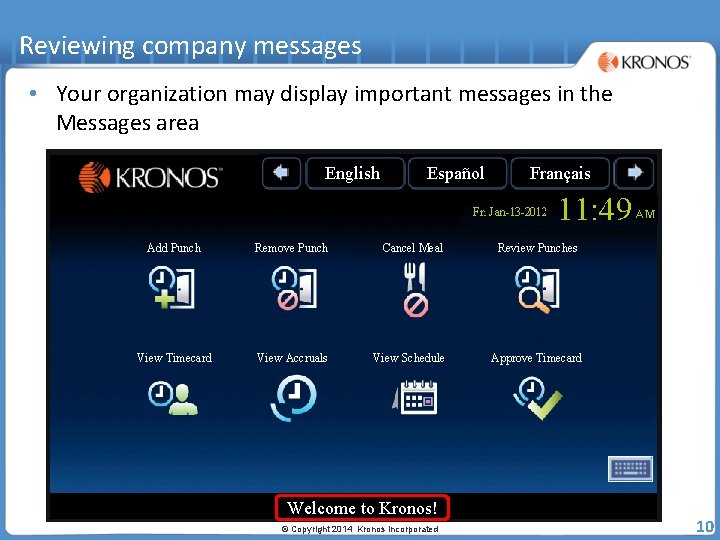
Reviewing company messages • Your organization may display important messages in the Messages area English Español Add Punch Remove Punch Cancel Meal View Timecard View Accruals View Schedule Welcome to Kronos! © Copyright 2014 Kronos Incorporated Français Review Punches Approve Timecard 10
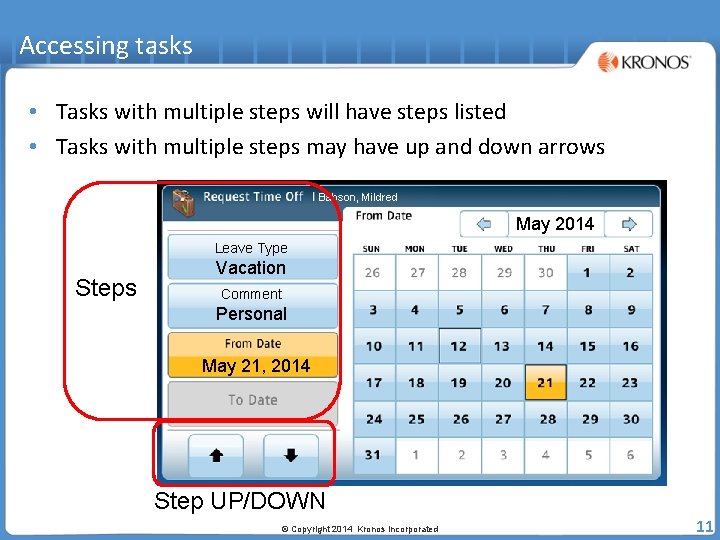
Accessing tasks • Tasks with multiple steps will have steps listed • Tasks with multiple steps may have up and down arrows Babson, Mildred May 2014 Leave Type Steps Vacation Comment Personal May 21, 2014 Step UP/DOWN © Copyright 2014 Kronos Incorporated 11
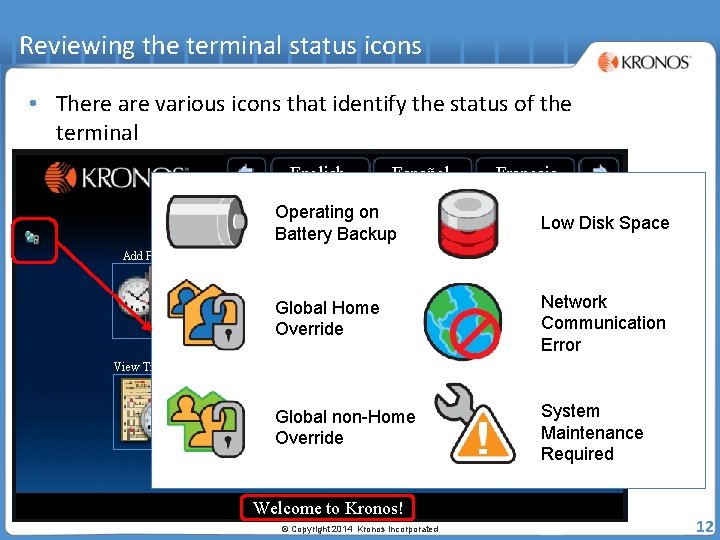
Reviewing the terminal status icons • There are various icons that identify the status of the terminal English Español Français Operating on Battery Backup Add Punch Remove Punch Cancel Meal Global Home Override View Timecard View Accruals View Schedule Global non-Home Override Welcome to Kronos! © Copyright 2014 Kronos Incorporated Low Disk Space Review Punches Network Communication Error Approve Timecard System Maintenance Required 12
Using the Soft Keys © Copyright 2014 Kronos Incorporated
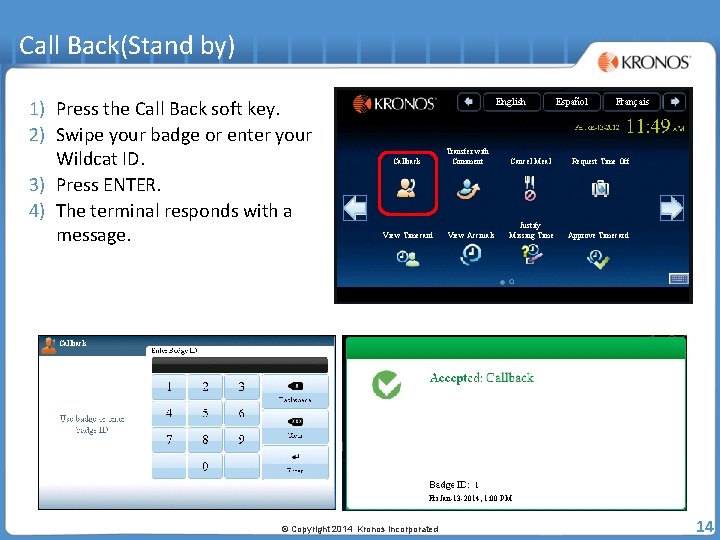
Call Back(Stand by) 1) Press the Call Back soft key. 2) Swipe your badge or enter your Wildcat ID. 3) Press ENTER. 4) The terminal responds with a message. English Callback View Timecard Español Français Transfer with Comment Cancel Meal Request Time Off View Accruals Justify Missing Time Approve Timecard Callback 1 Fri Jan-13 -2014, 1: 00 PM © Copyright 2014 Kronos Incorporated 14
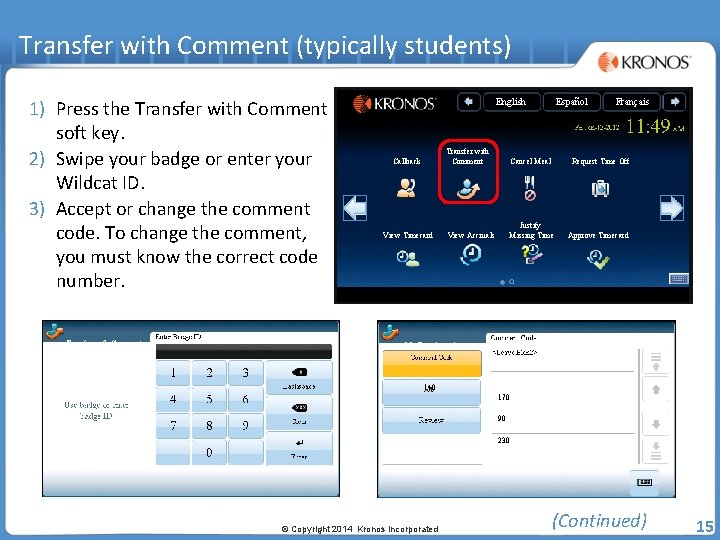
Transfer with Comment (typically students) 1) Press the Transfer with Comment soft key. 2) Swipe your badge or enter your Wildcat ID. 3) Accept or change the comment code. To change the comment, you must know the correct code number. Transfer with Comment English Callback View Timecard Español Français Transfer with Comment Cancel Meal Request Time Off View Accruals Justify Missing Time Approve Timecard Job Transfer - 1 140 170 90 230 © Copyright 2014 Kronos Incorporated (Continued) 15
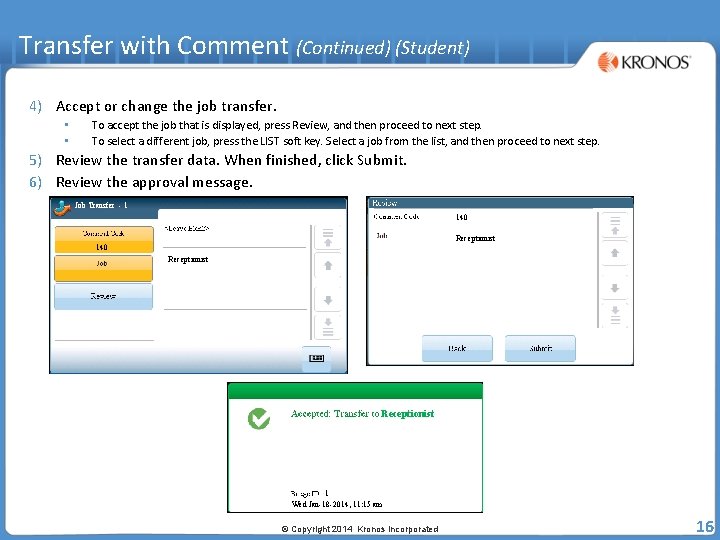
Transfer with Comment (Continued) (Student) 4) Accept or change the job transfer. • • To accept the job that is displayed, press Review, and then proceed to next step. To select a different job, press the LIST soft key. Select a job from the list, and then proceed to next step. 5) Review the transfer data. When finished, click Submit. 6) Review the approval message. Job Transfer - 1 140 Receptionist 1 Wed Jan-18 -2014, 11: 15 am © Copyright 2014 Kronos Incorporated 16
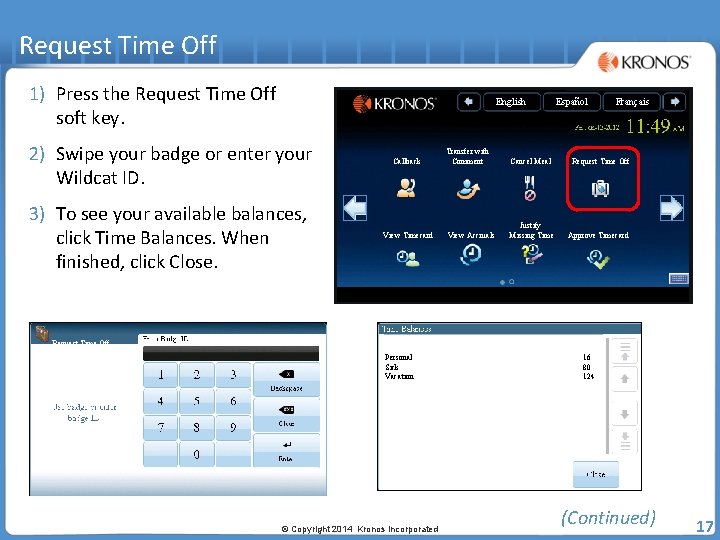
Request Time Off 1) Press the Request Time Off soft key. English 2) Swipe your badge or enter your Wildcat ID. 3) To see your available balances, click Time Balances. When finished, click Close. Callback View Timecard Español Français Transfer with Comment Cancel Meal Request Time Off View Accruals Justify Missing Time Approve Timecard Request Time Off Personal Sick Vacation © Copyright 2014 Kronos Incorporated 16 80 124 (Continued) 17
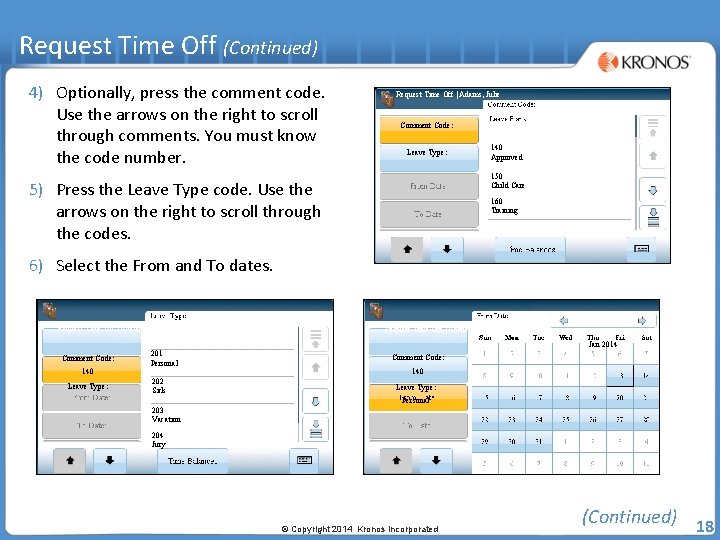
Request Time Off (Continued) 4) Optionally, press the comment code. Use the arrows on the right to scroll through comments. You must know the code number. Request Time Off | Adams, Julie Comment Code: Leave Type: 140 Approved 150 Child Care 5) Press the Leave Type code. Use the arrows on the right to scroll through the codes. 160 Training 6) Select the From and To dates. Request Time Off | Adams, Julie Jan 2014 Comment Code: Request Time Off 140 Leave Type: 201 Personal 202 Sick Comment Code: 140 Leave Type: Personal 203 Vacation 204 Jury © Copyright 2014 Kronos Incorporated (Continued) 18
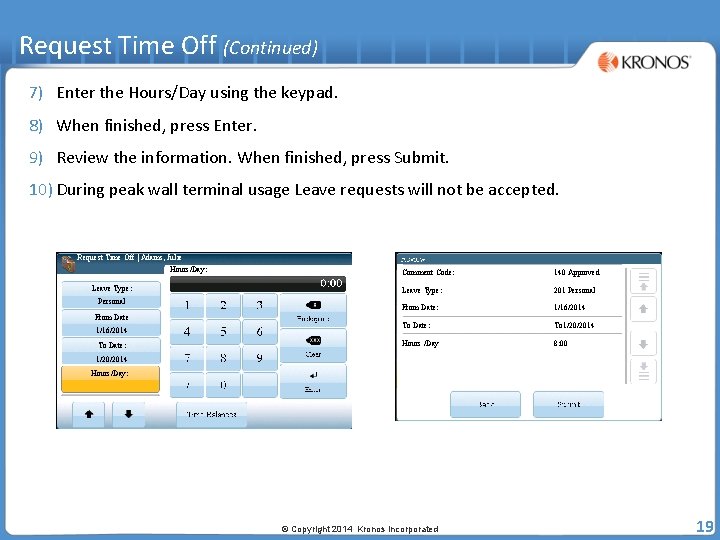
Request Time Off (Continued) 7) Enter the Hours/Day using the keypad. 8) When finished, press Enter. 9) Review the information. When finished, press Submit. 10) During peak wall terminal usage Leave requests will not be accepted. Request Time Off | Adams, Julie Hours/Day: Leave Type: Personal From Date 1/16/2014 To Date: Comment Code: 140 Approved Leave Type: 201 Personal From Date: 1/16/2014 To Date: To 1/20/2014 Hours /Day 8: 00 1/20/2014 Hours/Day: © Copyright 2014 Kronos Incorporated 19
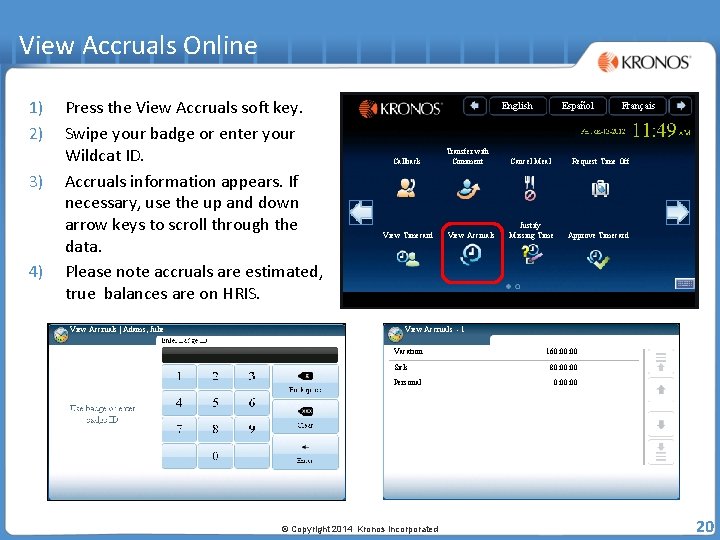
View Accruals Online 1) 2) 3) 4) Press the View Accruals soft key. Swipe your badge or enter your Wildcat ID. Accruals information appears. If necessary, use the up and down arrow keys to scroll through the data. Please note accruals are estimated, true balances are on HRIS. View Accruals | Adams, Julie English Callback View Timecard Español Français Transfer with Comment Cancel Meal Request Time Off View Accruals Justify Missing Time Approve Timecard View Accruals - 1 Vacation Sick Personal © Copyright 2014 Kronos Incorporated 160: 00 80: 00: 00 20
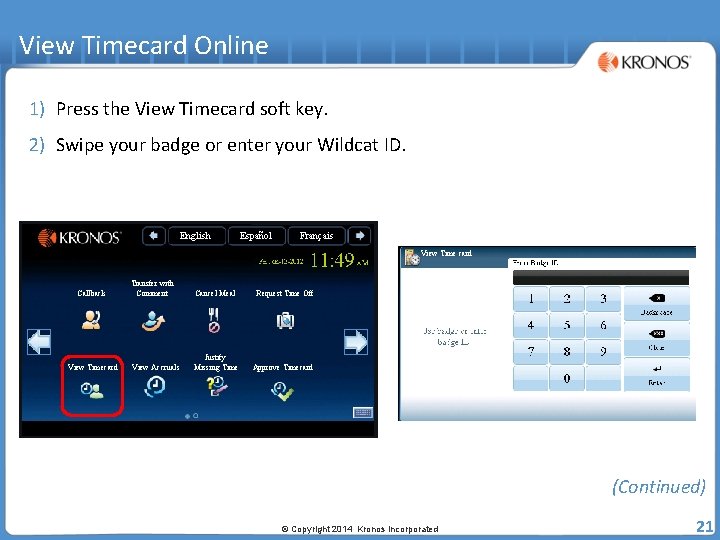
View Timecard Online 1) Press the View Timecard soft key. 2) Swipe your badge or enter your Wildcat ID. English Español Français View Time card Callback View Timecard Transfer with Comment Cancel Meal Request Time Off View Accruals Justify Missing Time Approve Timecard (Continued) © Copyright 2014 Kronos Incorporated 21
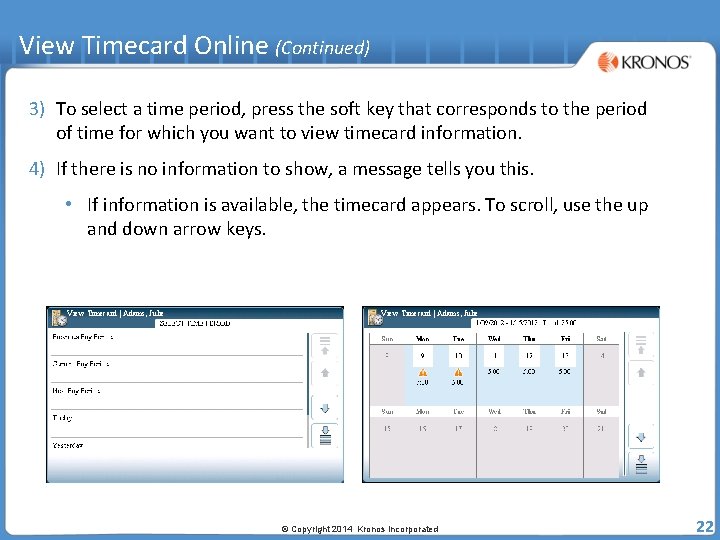
View Timecard Online (Continued) 3) To select a time period, press the soft key that corresponds to the period of time for which you want to view timecard information. 4) If there is no information to show, a message tells you this. • If information is available, the timecard appears. To scroll, use the up and down arrow keys. View Timecard | Adams, Julie © Copyright 2014 Kronos Incorporated 22
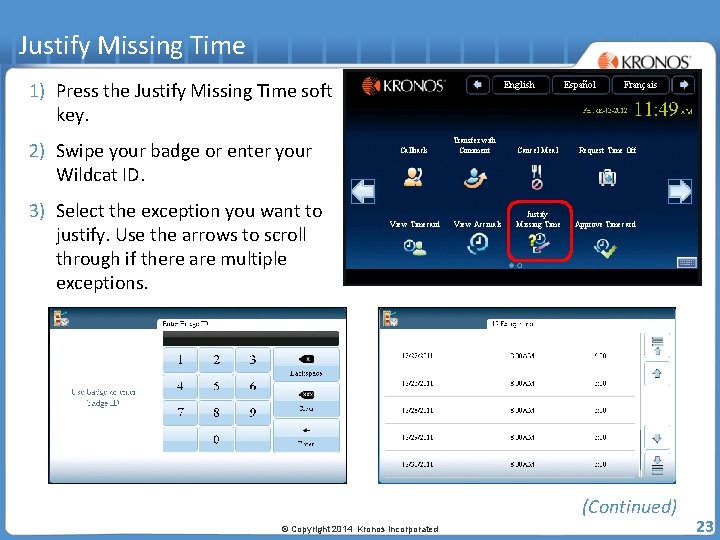
Justify Missing Time 1) Press the Justify Missing Time soft key. 2) Swipe your badge or enter your Wildcat ID. 3) Select the exception you want to justify. Use the arrows to scroll through if there are multiple exceptions. Justify Missing Time English Callback View Timecard Español Français Transfer with Comment Cancel Meal Request Time Off View Accruals Justify Missing Time Approve Timecard Justify Missing Time | Adams, Julie (Continued) © Copyright 2014 Kronos Incorporated 23
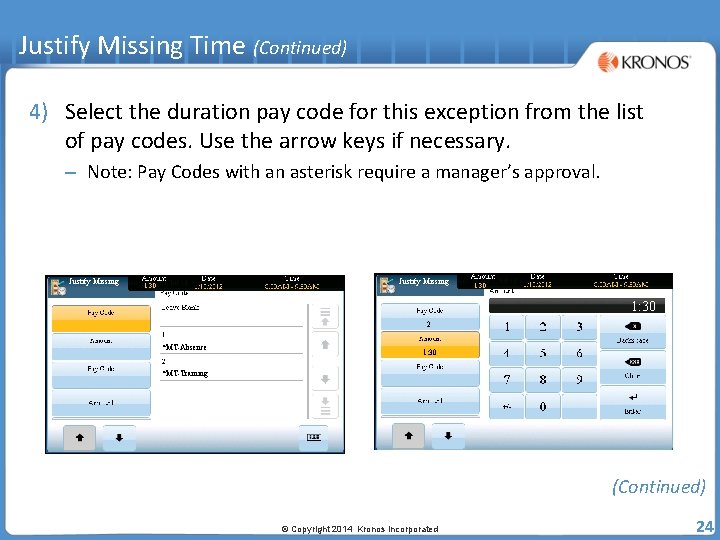
Justify Missing Time (Continued) 4) Select the duration pay code for this exception from the list of pay codes. Use the arrow keys if necessary. – Note: Pay Codes with an asterisk require a manager’s approval. Justify Missing 1: 30 2 *MT-Absence 1: 30 *MT-Training (Continued) © Copyright 2014 Kronos Incorporated 24
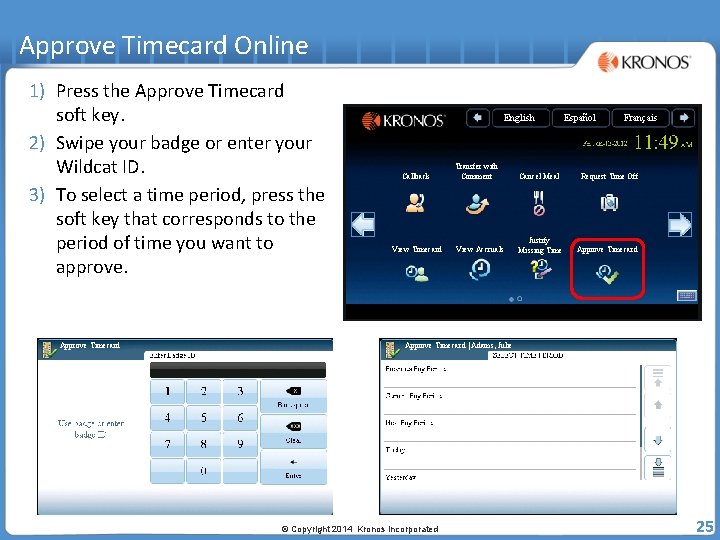
Approve Timecard Online 1) Press the Approve Timecard soft key. 2) Swipe your badge or enter your Wildcat ID. 3) To select a time period, press the soft key that corresponds to the period of time you want to approve. Approve Timecard English Callback View Timecard Español Français Transfer with Comment Cancel Meal Request Time Off View Accruals Justify Missing Time Approve Timecard | Adams, Julie © Copyright 2014 Kronos Incorporated 25
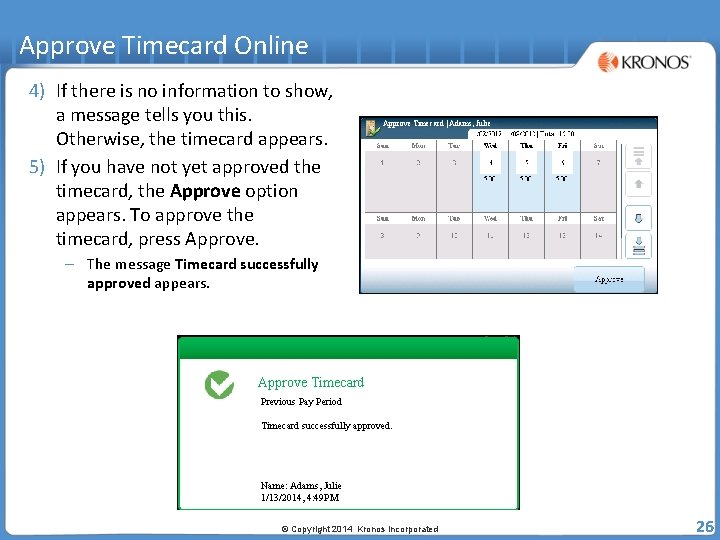
Approve Timecard Online 4) If there is no information to show, a message tells you this. Otherwise, the timecard appears. 5) If you have not yet approved the timecard, the Approve option appears. To approve the timecard, press Approve Timecard | Adams, Julie – The message Timecard successfully approved appears. Approve Timecard Previous Pay Period Timecard successfully approved. Name: Adams, Julie 1/13/2014, 4: 49 PM © Copyright 2014 Kronos Incorporated 26
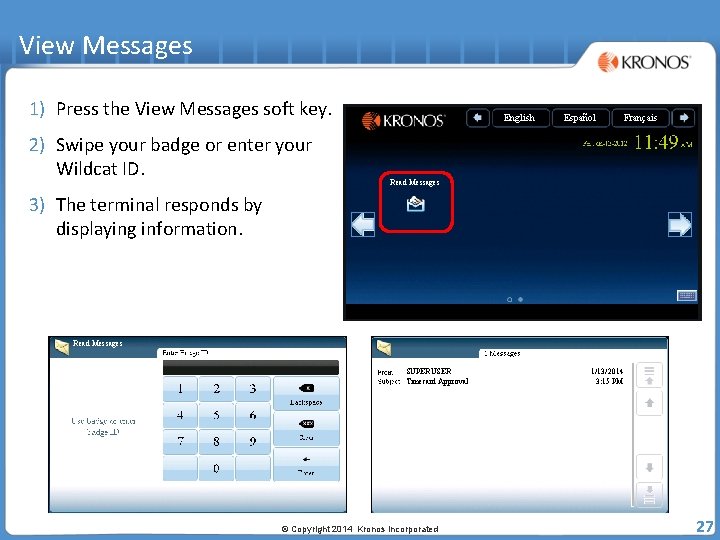
View Messages 1) Press the View Messages soft key. 2) Swipe your badge or enter your Wildcat ID. English Español Français Read Messages 3) The terminal responds by displaying information. Read Messages SUPERUSER Timecard Approval © Copyright 2014 Kronos Incorporated 1/13/2014 3: 15 PM 27
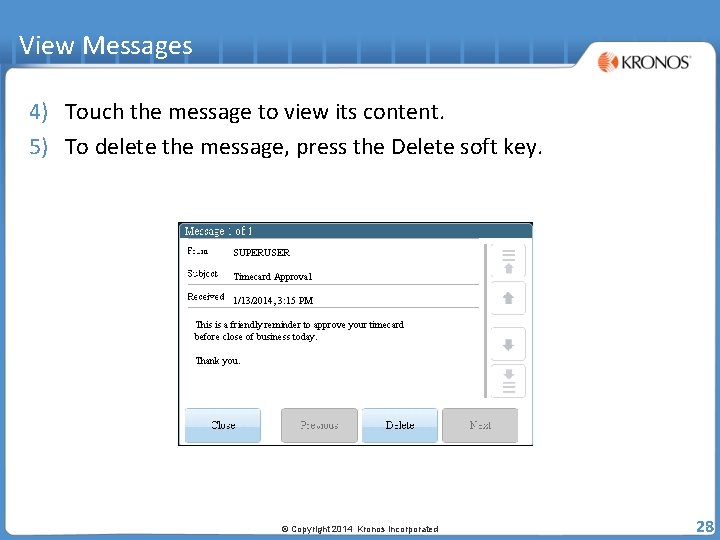
View Messages 4) Touch the message to view its content. 5) To delete the message, press the Delete soft key. SUPERUSER Timecard Approval 1/13/2014, 3: 15 PM This is a friendly reminder to approve your timecard before close of business today. Thank you. © Copyright 2014 Kronos Incorporated 28
Rejected Punches © Copyright 2014 Kronos Incorporated
Error reading badge data • Error message number is [NGT 01 -1] • Possible reasons for this error: – You may not have swiped the badge properly. Try again. – If you are swiping correctly and continue to see this error, the quality of the badge may be the problem. Contact your system administrator. © Copyright 2014 Kronos Incorporated 30
Unknown home employee • Error message number is [NGT 06 -2 ({failure. Code})] • Possible reasons for this error: – You are a new employee and your information has not been sent to the terminal yet. Contact your system administrator. Refer to the message number and the provide the failure code. – You recently replaced your badge. Your new badge number has not been sent to the terminal yet. Contact your system administrator. © Copyright 2014 Kronos Incorporated 31
Punch rejected • Error message number is [NGT 04 -1 ({failure. Code})] • Possible reasons for this error: – You entered a punch earlier than what your schedule permits (109). – You entered a punch later than what your schedule permits (110). – Your punch interpretation rule has not been sent to the terminal. Contact your system administrator (102). – Unscheduled IN punch (108). The terminal does not have a valid schedule for you; see your system administrator. Refer to the message number and the provide the failure code. © Copyright 2014 Kronos Incorporated 32
Clocking in on the Kronos website (URL) © Copyright 2014 Kronos Incorporated
Accessing the Navigator • You are required to have an established user name and password. • If your organization chooses to use Kronos authentication, you can also use the security features that are provided in the application. • Always end your work session by clicking the Sign Out link, located in the top left corner of the Navigator: – Clicking Close (x) without first logging off might leave your connection to the application open, allowing unauthorized people to view and edit information (Continued) © Copyright 2014 Kronos Incorporated 34
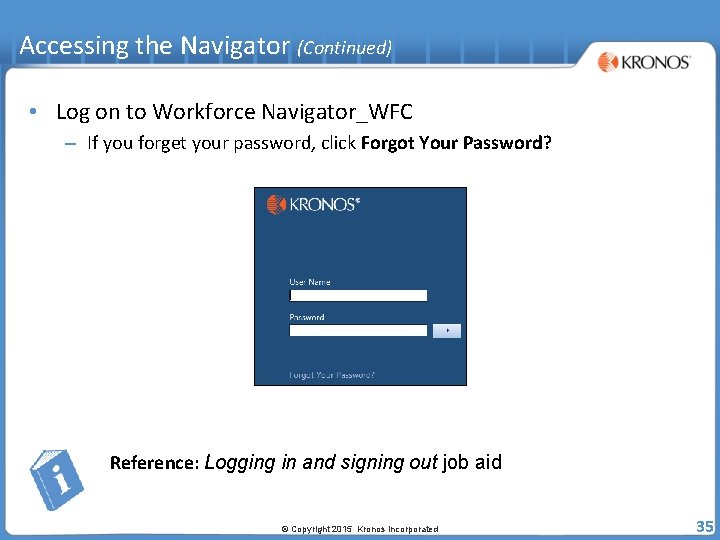
Accessing the Navigator (Continued) • Log on to Workforce Navigator_WFC – If you forget your password, click Forgot Your Password? Reference: Logging in and signing out job aid © Copyright 2015 Kronos Incorporated 35
Navigating the Navigator • What is a Navigator? – A user interface that allows you to access, view, and modify time and labor data through a web browser – Configured to reflect responsibilities and tasks for specific roles – Available workspaces, widgets, and alerts as determined by your organization Reference: Navigating the navigator job aid (Continued) © Copyright 2015 Kronos Incorporated 36
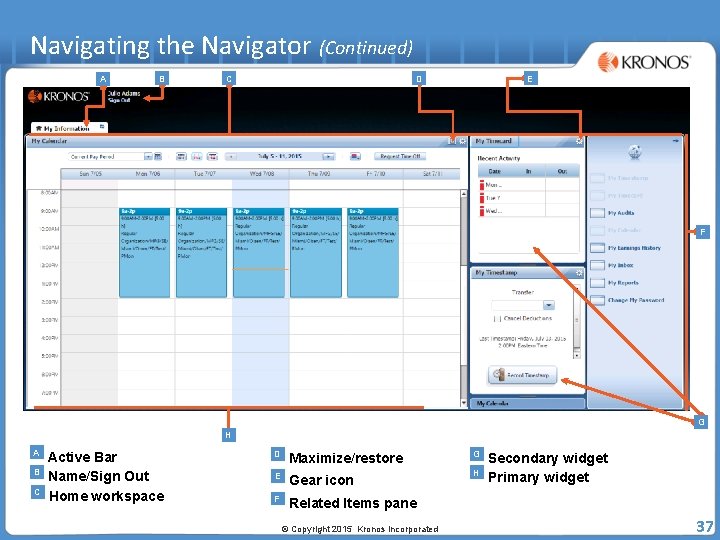
Navigating the Navigator (Continued) A B E D C F G H A B C Active Bar Name/Sign Out Home workspace D Maximize/restore E Gear icon F Related Items pane © Copyright 2015 Kronos Incorporated G H Secondary widget Primary widget 37
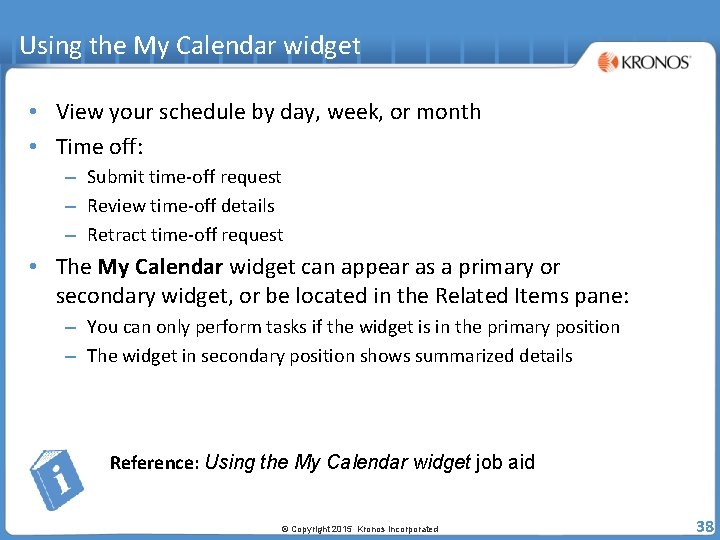
Using the My Calendar widget • View your schedule by day, week, or month • Time off: – Submit time-off request – Review time-off details – Retract time-off request • The My Calendar widget can appear as a primary or secondary widget, or be located in the Related Items pane: – You can only perform tasks if the widget is in the primary position – The widget in secondary position shows summarized details Reference: Using the My Calendar widget job aid © Copyright 2015 Kronos Incorporated 38
Using the Timestamp widget • Perform tasks while the widget is in the primary and secondary position: – Punch in and out – Perform job transfer – Perform labor account transfer Reference: Navigating the timestamp job aid © Copyright 2015 Kronos Incorporated 39
Punching in and out • Records time through the Timestamp widget • Keep track of your worked hours • Multiple punches are interpreted as alternating in and out punches: – First punch of the day is assumed to be an in punch – Second is assumed to be an out punch Reference: Punching in and out job aid © Copyright 2015 Kronos Incorporated 40
Leave requests on the Kronos website (URL) © Copyright 2014 Kronos Incorporated
Benefits of employee self-service for requesting leave • My Leave Requests features allow you to: View and manage your leave requests quickly and easily Submit requests for leave Cancel requests for leave Submit requests for additional leave time and cancel requests for additional leave time – Review leave case information – – © Copyright 2015 Kronos Incorporated 42
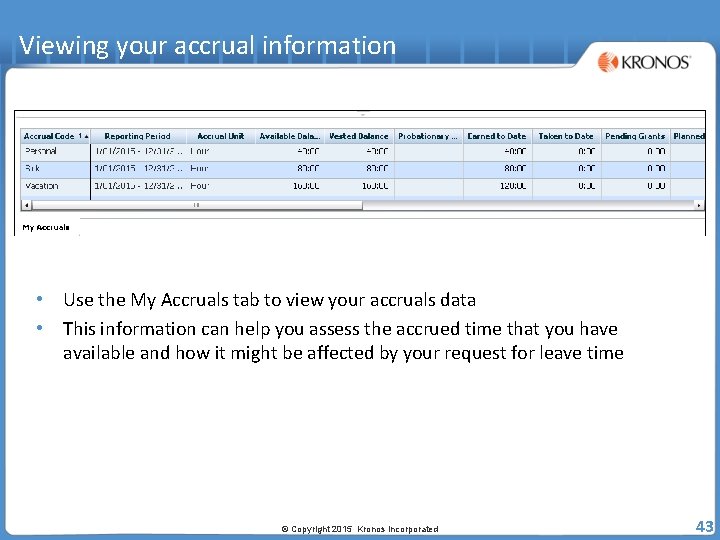
Viewing your accrual information • Use the My Accruals tab to view your accruals data • This information can help you assess the accrued time that you have available and how it might be affected by your request for leave time © Copyright 2015 Kronos Incorporated 43
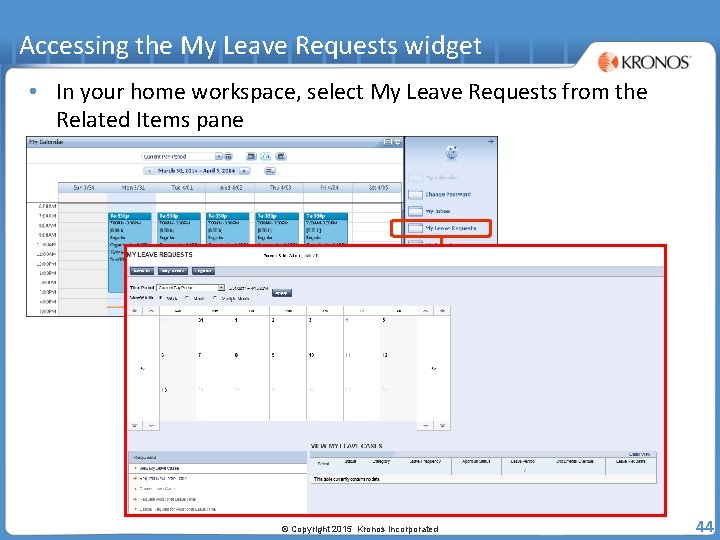
Accessing the My Leave Requests widget • In your home workspace, select My Leave Requests from the Related Items pane © Copyright 2015 Kronos Incorporated 44
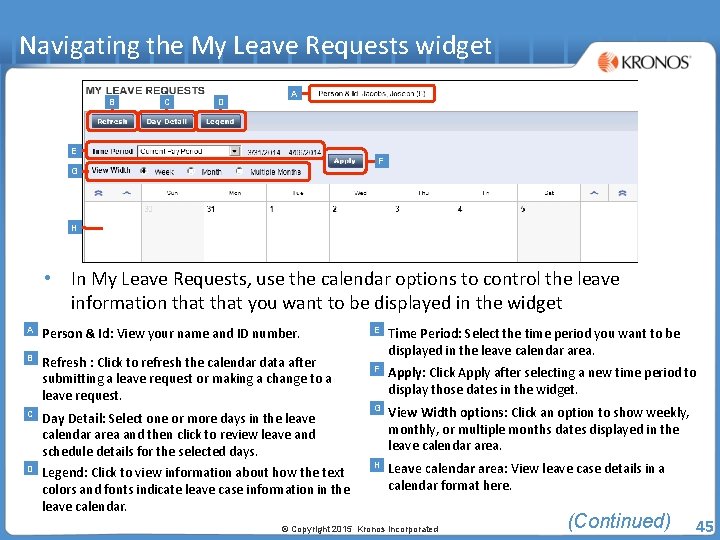
Navigating the My Leave Requests widget B C D A E F G H • In My Leave Requests, use the calendar options to control the leave information that you want to be displayed in the widget A Person & Id: View your name and ID number. B Refresh : Click to refresh the calendar data after submitting a leave request or making a change to a leave request. C D Day Detail: Select one or more days in the leave calendar area and then click to review leave and schedule details for the selected days. Legend: Click to view information about how the text colors and fonts indicate leave case information in the leave calendar. E Time Period: Select the time period you want to be displayed in the leave calendar area. F Apply: Click Apply after selecting a new time period to display those dates in the widget. G View Width options: Click an option to show weekly, monthly, or multiple months dates displayed in the leave calendar area. H Leave calendar area: View leave case details in a calendar format here. © Copyright 2015 Kronos Incorporated (Continued) 45
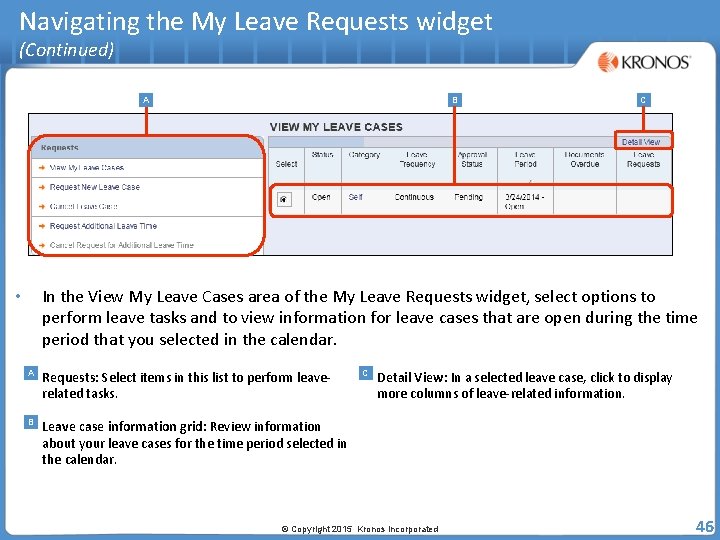
Navigating the My Leave Requests widget (Continued) A B C In the View My Leave Cases area of the My Leave Requests widget, select options to perform leave tasks and to view information for leave cases that are open during the time period that you selected in the calendar. • A Requests: Select items in this list to perform leaverelated tasks. B Leave case information grid: Review information about your leave cases for the time period selected in the calendar. C Detail View: In a selected leave case, click to display more columns of leave-related information. © Copyright 2015 Kronos Incorporated 46
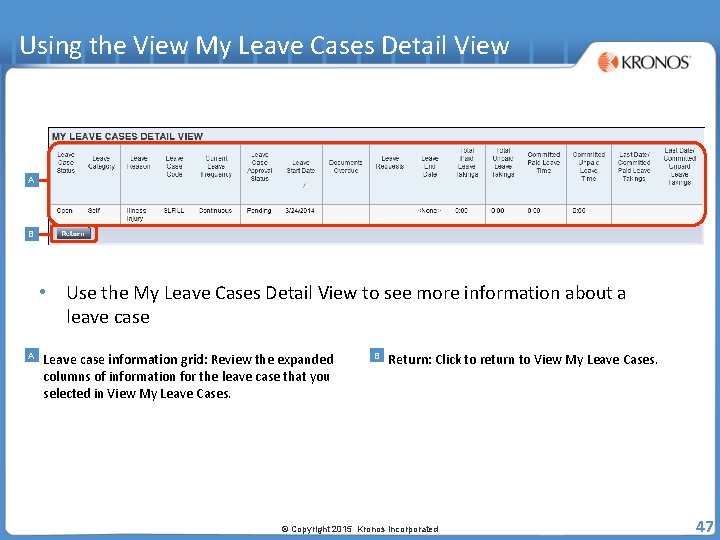
Using the View My Leave Cases Detail View A B • Use the My Leave Cases Detail View to see more information about a leave case A Leave case information grid: Review the expanded columns of information for the leave case that you selected in View My Leave Cases. B Return: Click to return to View My Leave Cases. © Copyright 2015 Kronos Incorporated 47
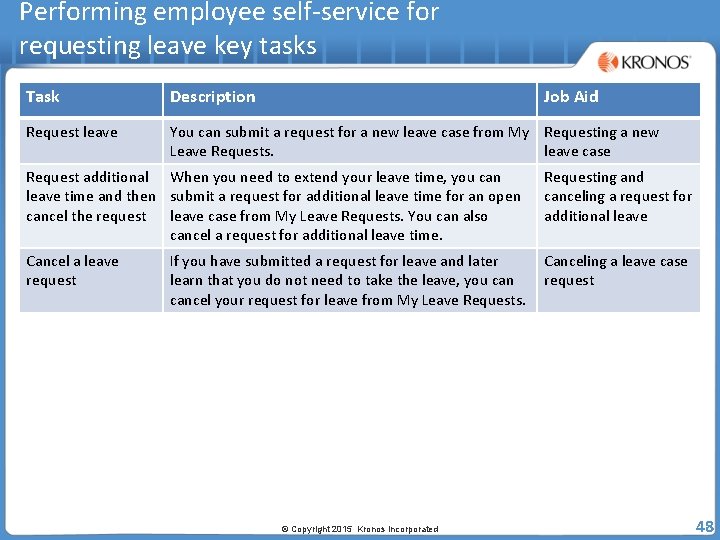
Performing employee self-service for requesting leave key tasks Task Description Job Aid Request leave You can submit a request for a new leave case from My Requesting a new Leave Requests. leave case Request additional When you need to extend your leave time, you can leave time and then submit a request for additional leave time for an open cancel the request leave case from My Leave Requests. You can also cancel a request for additional leave time. Requesting and canceling a request for additional leave Cancel a leave request Canceling a leave case request If you have submitted a request for leave and later learn that you do not need to take the leave, you cancel your request for leave from My Leave Requests. © Copyright 2015 Kronos Incorporated 48
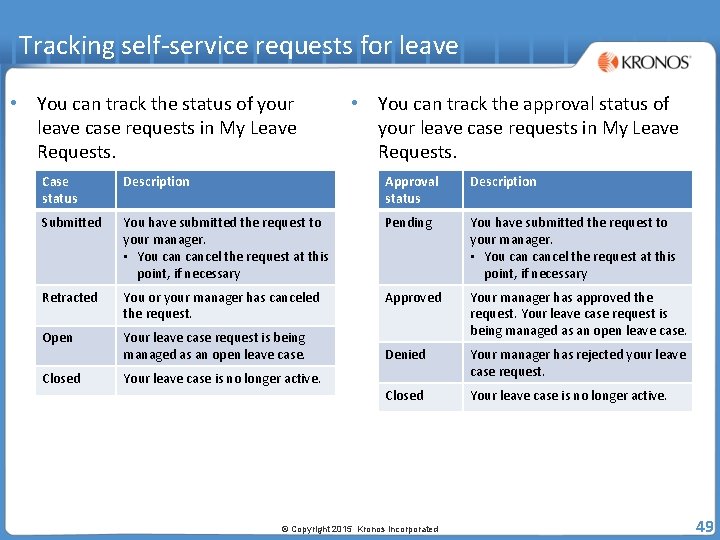
Tracking self-service requests for leave • You can track the status of your leave case requests in My Leave Requests. • You can track the approval status of your leave case requests in My Leave Requests. Case status Description Approval status Description Submitted You have submitted the request to your manager. • You cancel the request at this point, if necessary Pending You have submitted the request to your manager. • You cancel the request at this point, if necessary Retracted You or your manager has canceled the request. Approved Open Your leave case request is being managed as an open leave case. Your manager has approved the request. Your leave case request is being managed as an open leave case. Denied Closed Your leave case is no longer active. Your manager has rejected your leave case request. Closed Your leave case is no longer active. © Copyright 2015 Kronos Incorporated 49
Questions? © Copyright 2014 Kronos Incorporated 50