
The ISAT Test Delivery System TDS for Online
- Slides: 54
The ISAT Test Delivery System (TDS) for Online Testing 2016 Copyright © 2014 American Institutes for Research. All rights reserved.
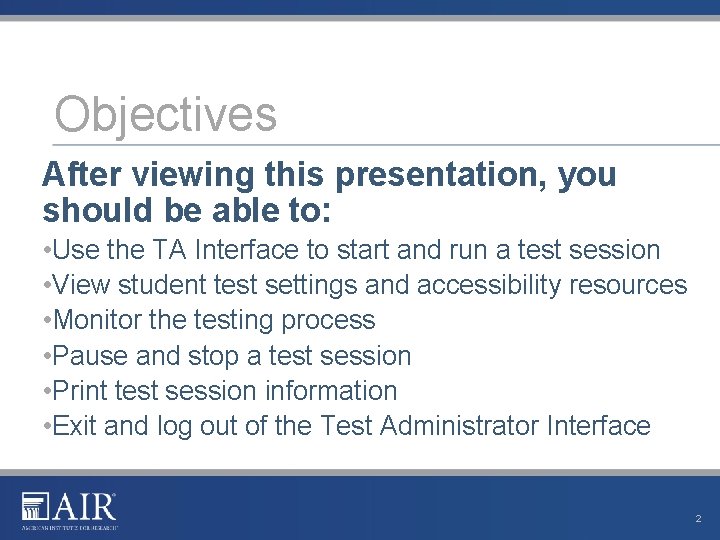
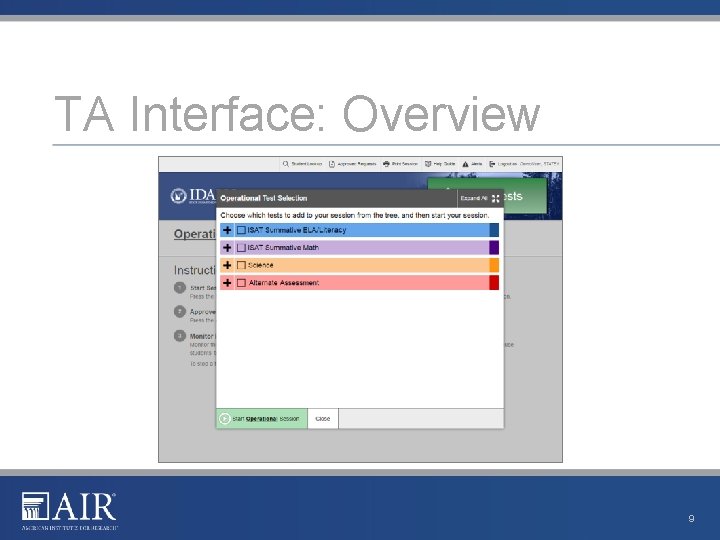
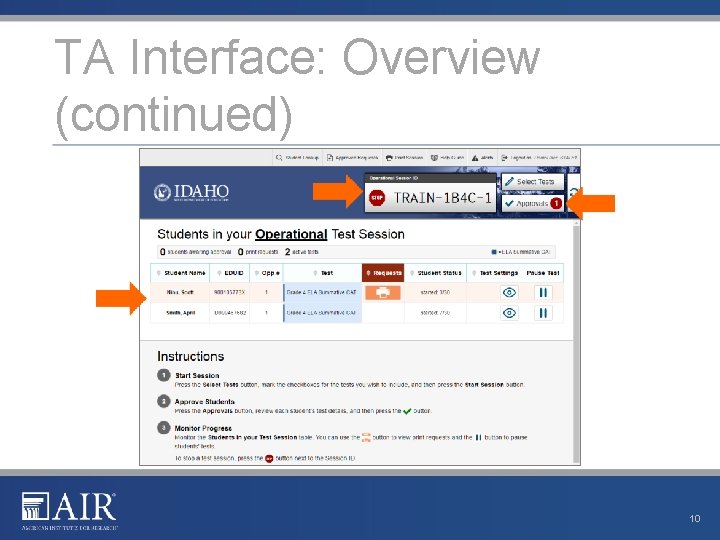
Objectives After viewing this presentation, you should be able to: • Use the TA Interface to start and run a test session • View student test settings and accessibility resources • Monitor the testing process • Pause and stop a test session • Print test session information • Exit and log out of the Test Administrator Interface 2
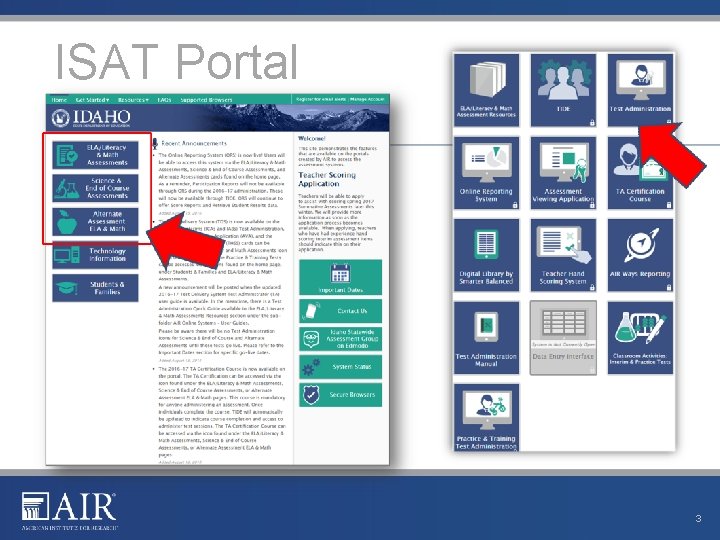
ISAT Portal 3
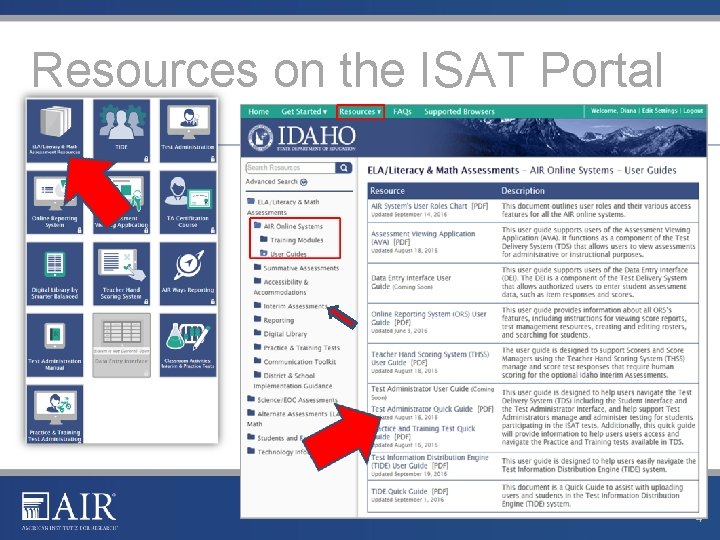
Resources on the ISAT Portal 4
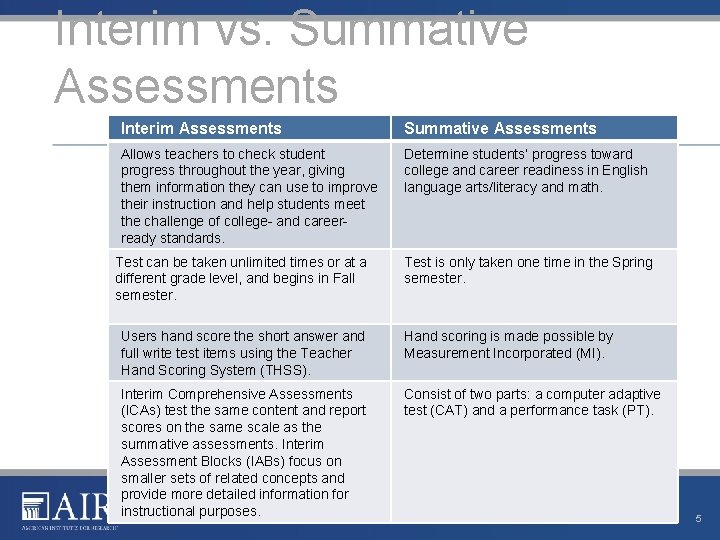
Interim vs. Summative Assessments Interim Assessments Summative Assessments Allows teachers to check student progress throughout the year, giving them information they can use to improve their instruction and help students meet the challenge of college- and careerready standards. Determine students’ progress toward college and career readiness in English language arts/literacy and math. Test can be taken unlimited times or at a different grade level, and begins in Fall semester. Test is only taken one time in the Spring semester. Users hand score the short answer and full write test items using the Teacher Hand Scoring System (THSS). Hand scoring is made possible by Measurement Incorporated (MI). Interim Comprehensive Assessments (ICAs) test the same content and report scores on the same scale as the summative assessments. Interim Assessment Blocks (IABs) focus on smaller sets of related concepts and provide more detailed information for instructional purposes. Consist of two parts: a computer adaptive test (CAT) and a performance task (PT). 5
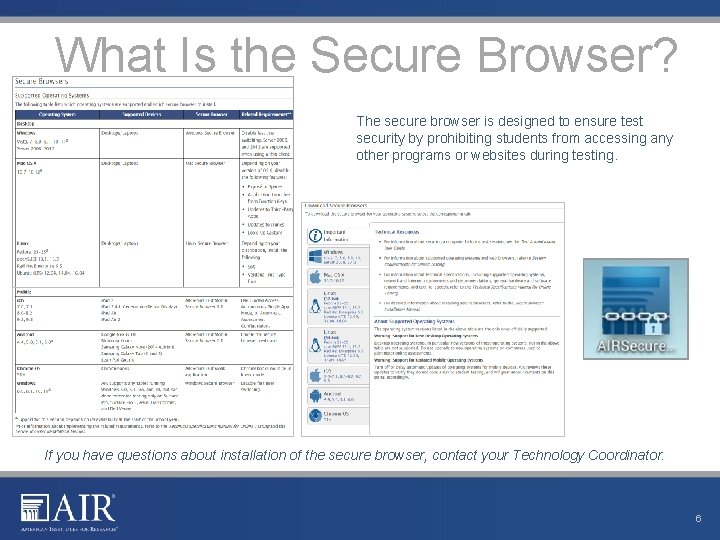
What Is the Secure Browser? The secure browser is designed to ensure test security by prohibiting students from accessing any other programs or websites during testing. If you have questions about installation of the secure browser, contact your Technology Coordinator. 6
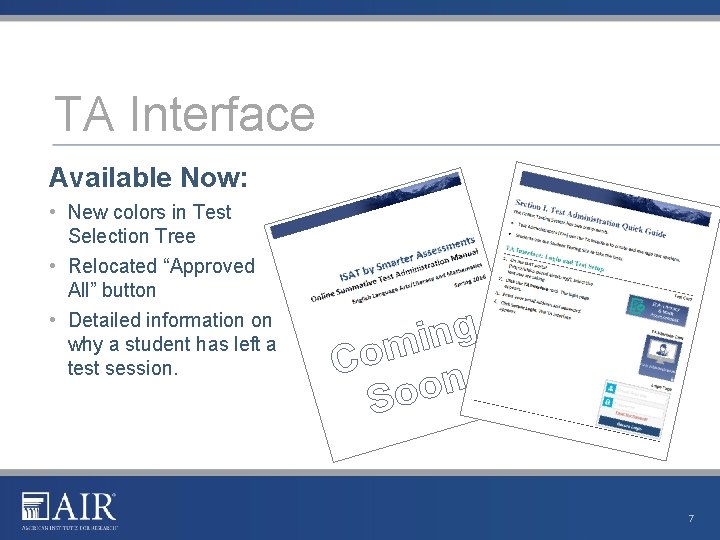
TA Interface Available Now: • New colors in Test Selection Tree • Relocated “Approved All” button • Detailed information on why a student has left a test session. g n i Com n Soo 7
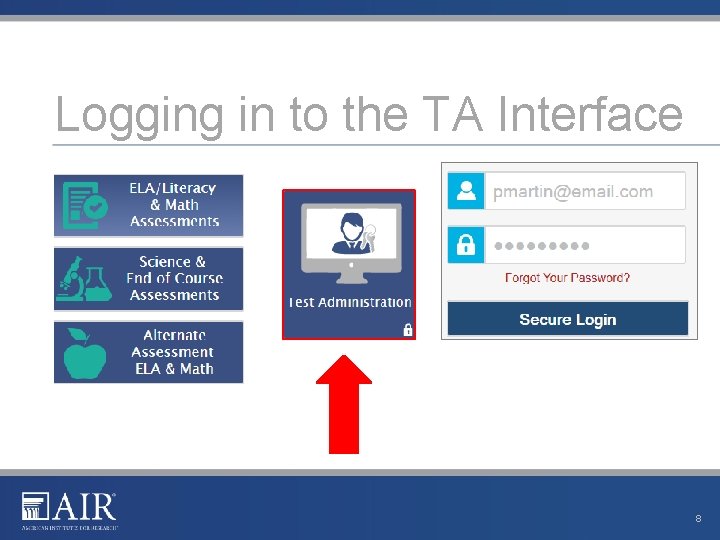
Logging in to the TA Interface 8
TA Interface: Overview 9
TA Interface: Overview (continued) 10
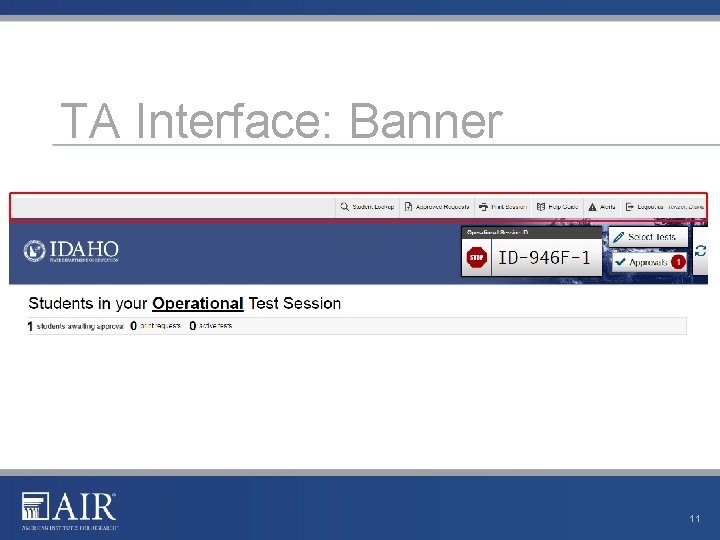
TA Interface: Banner 11
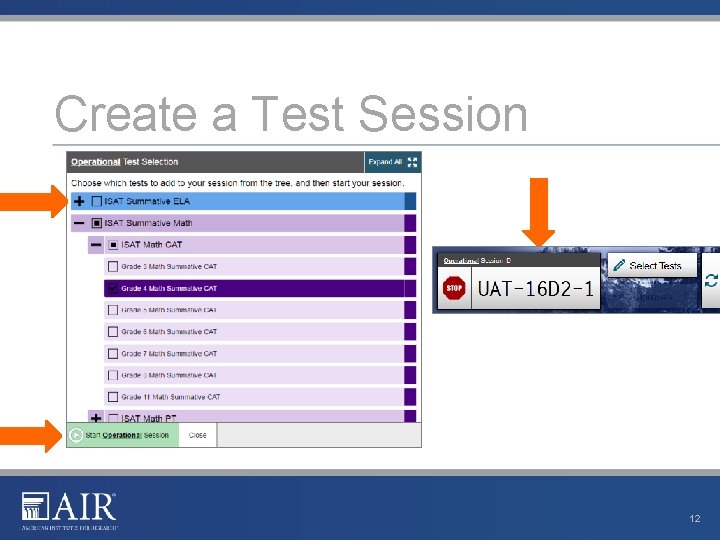
Create a Test Session 12
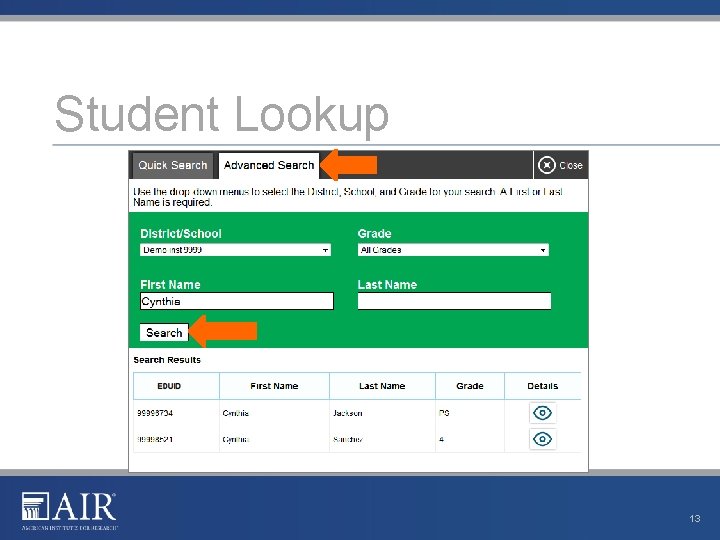
Student Lookup 13
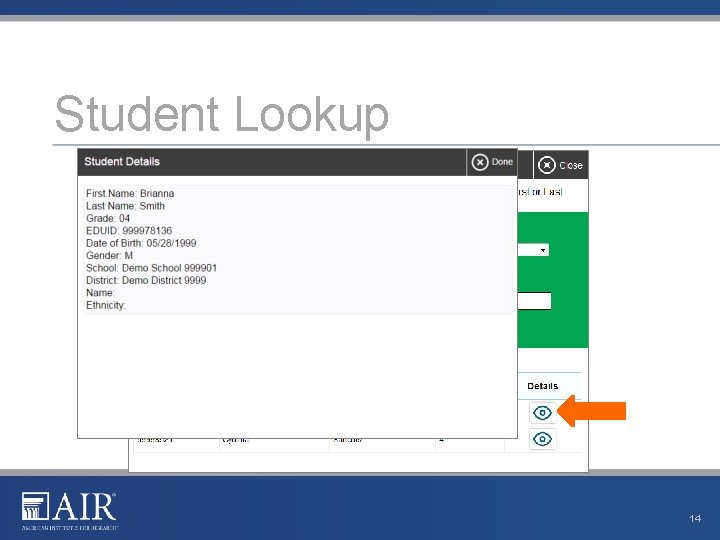
Student Lookup 14
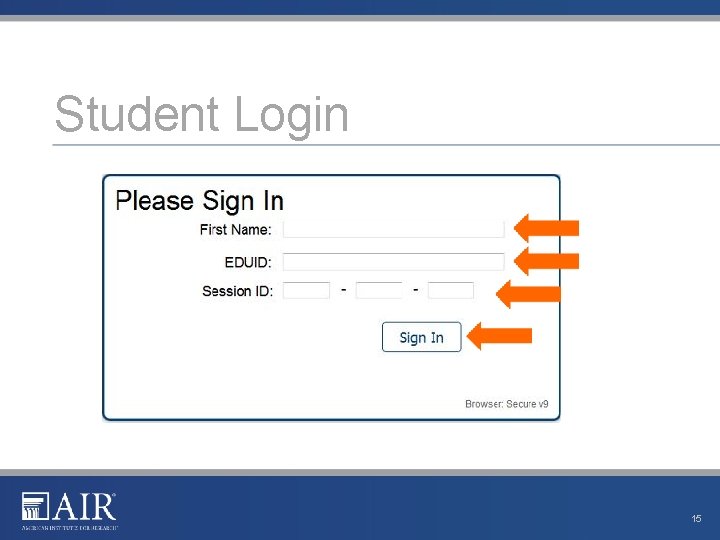
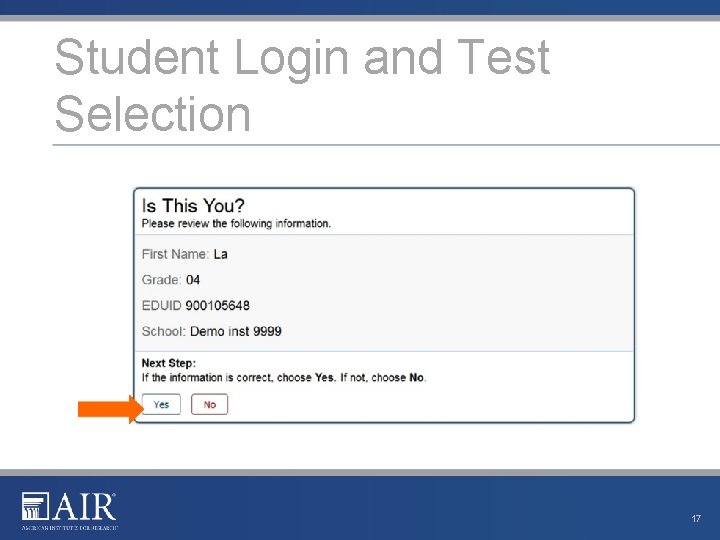
Student Login 15
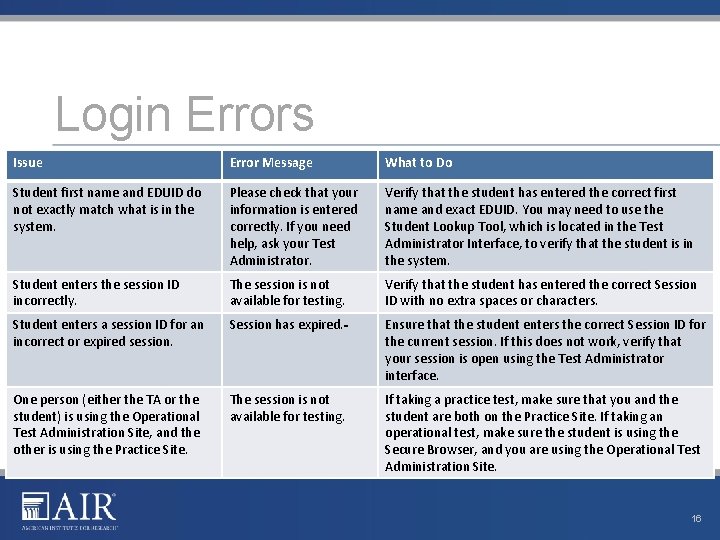
Login Errors Issue Error Message What to Do Student first name and EDUID do not exactly match what is in the system. Please check that your information is entered correctly. If you need help, ask your Test Administrator. Verify that the student has entered the correct first name and exact EDUID. You may need to use the Student Lookup Tool, which is located in the Test Administrator Interface, to verify that the student is in the system. Student enters the session ID incorrectly. The session is not available for testing. Verify that the student has entered the correct Session ID with no extra spaces or characters. Student enters a session ID for an incorrect or expired session. Session has expired. Ensure that the student enters the correct Session ID for the current session. If this does not work, verify that your session is open using the Test Administrator interface. One person (either the TA or the student) is using the Operational Test Administration Site, and the other is using the Practice Site. The session is not available for testing. If taking a practice test, make sure that you and the student are both on the Practice Site. If taking an operational test, make sure the student is using the Secure Browser, and you are using the Operational Test Administration Site. 16
Student Login and Test Selection 17
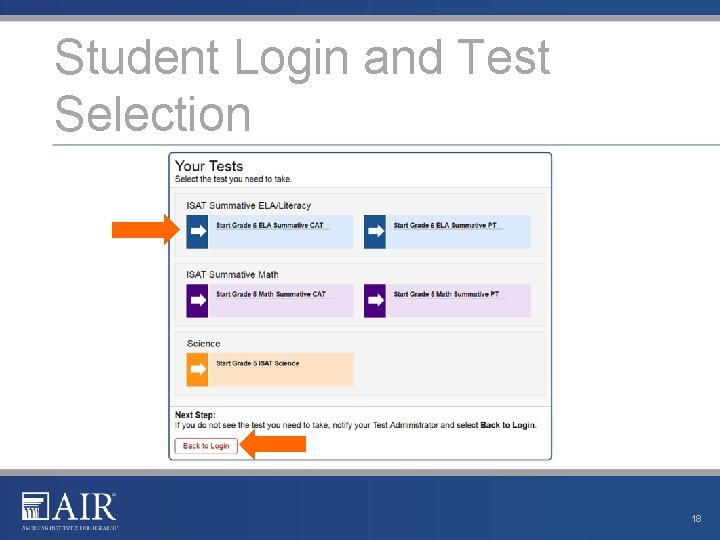
Student Login and Test Selection 18
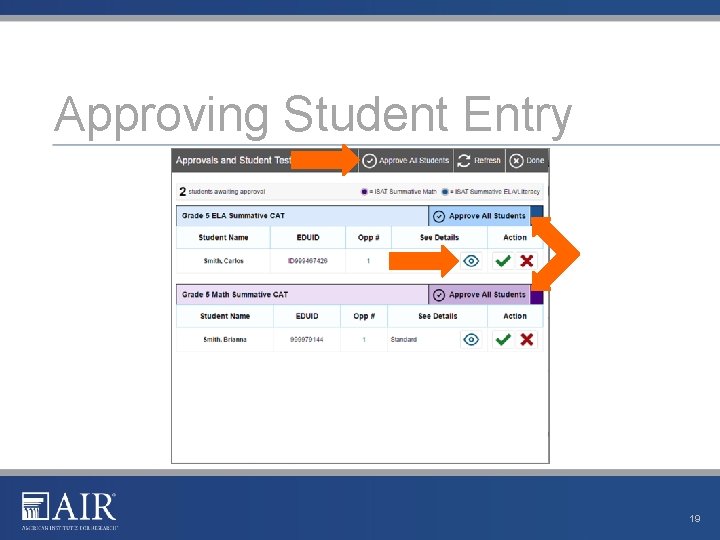
Approving Student Entry 19
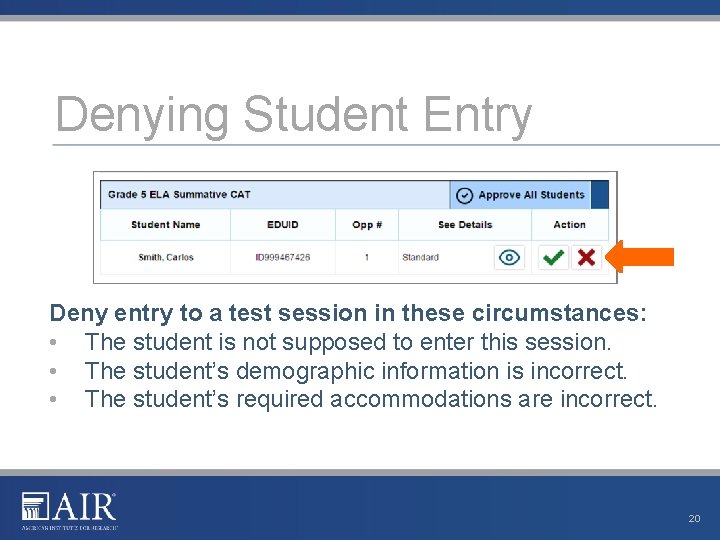
Denying Student Entry Deny entry to a test session in these circumstances: • The student is not supposed to enter this session. • The student’s demographic information is incorrect. • The student’s required accommodations are incorrect. 20
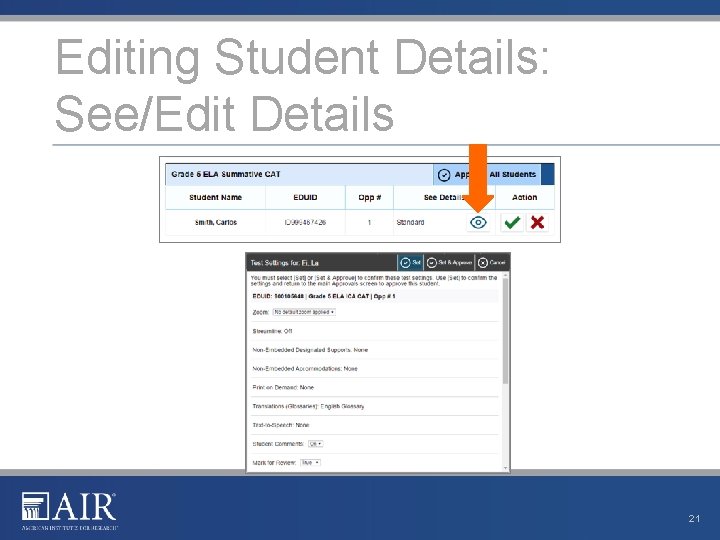
Editing Student Details: See/Edit Details 21
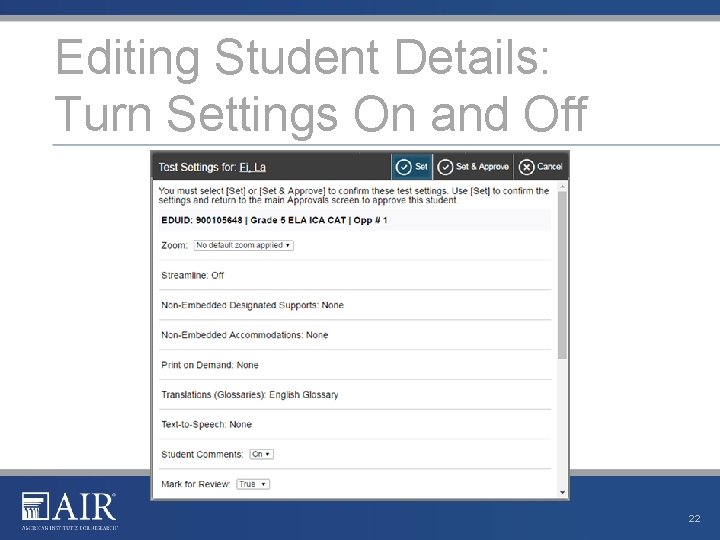
Editing Student Details: Turn Settings On and Off 22
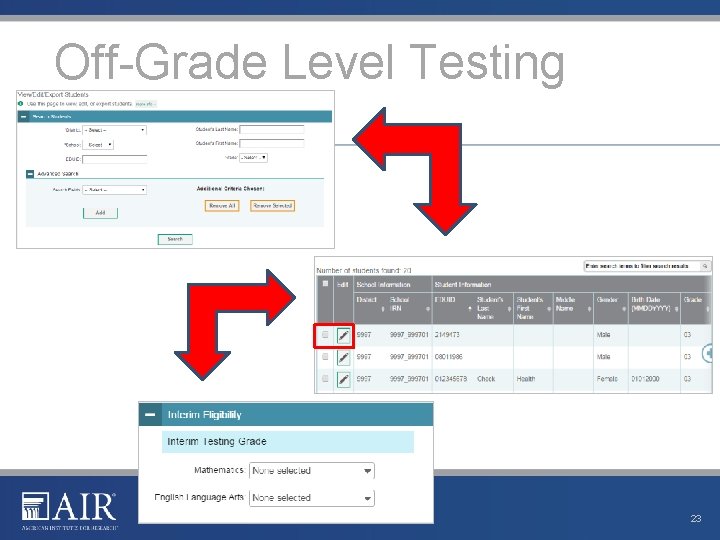
Off-Grade Level Testing 23
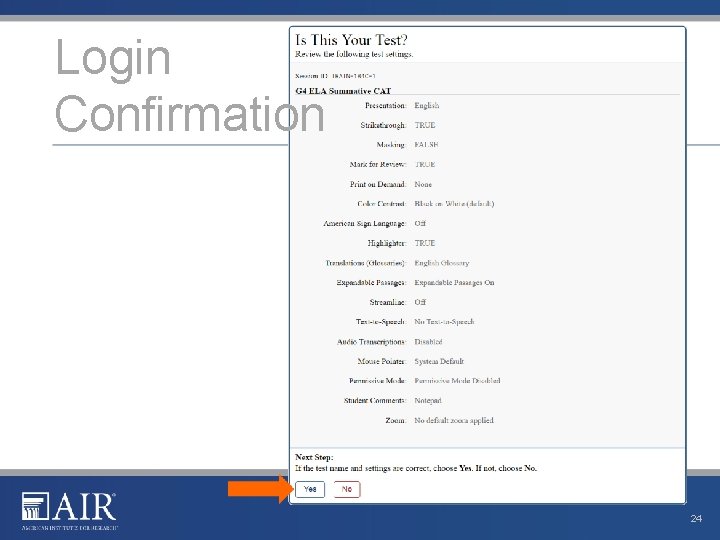
Login Confirmation 24
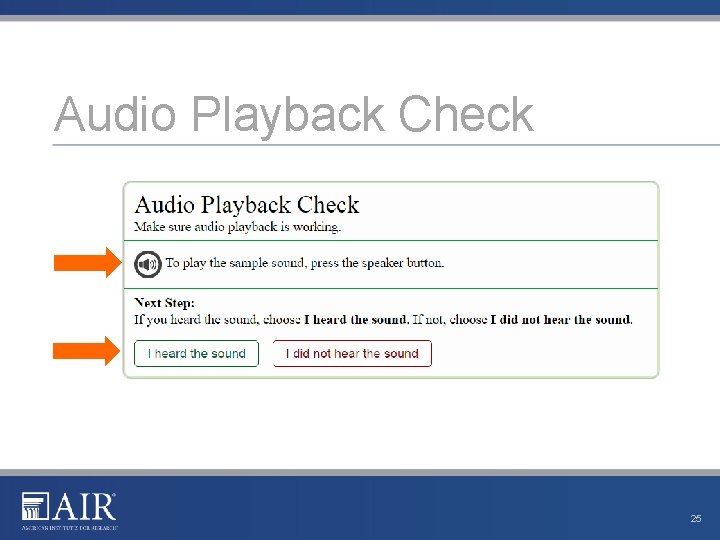
Audio Playback Check 25
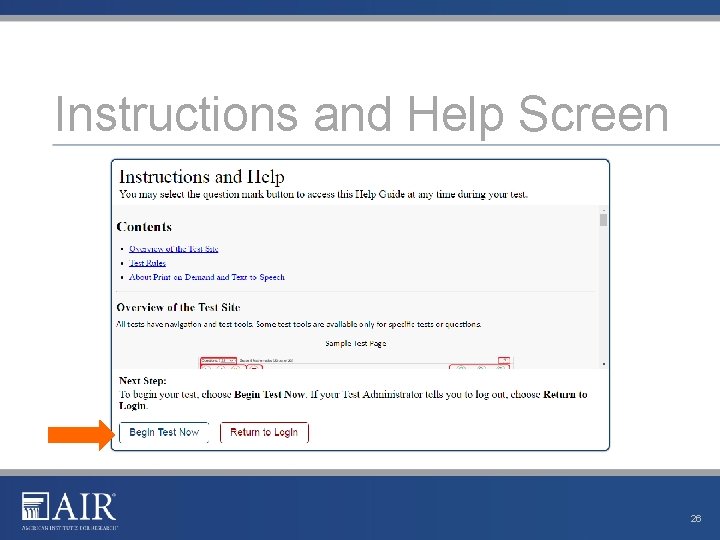
Instructions and Help Screen 26
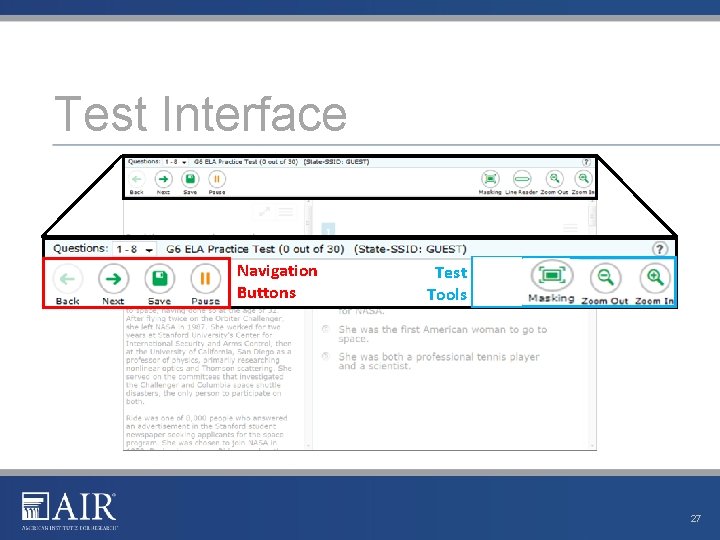
Test Interface Navigation Buttons Test Tools 27
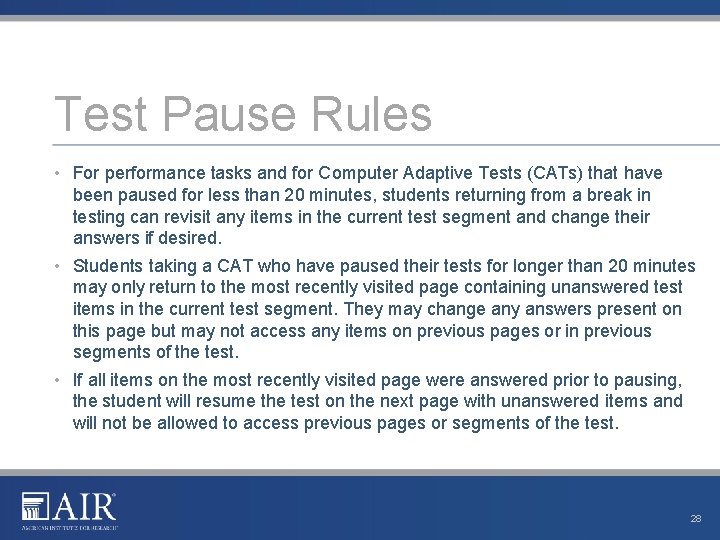
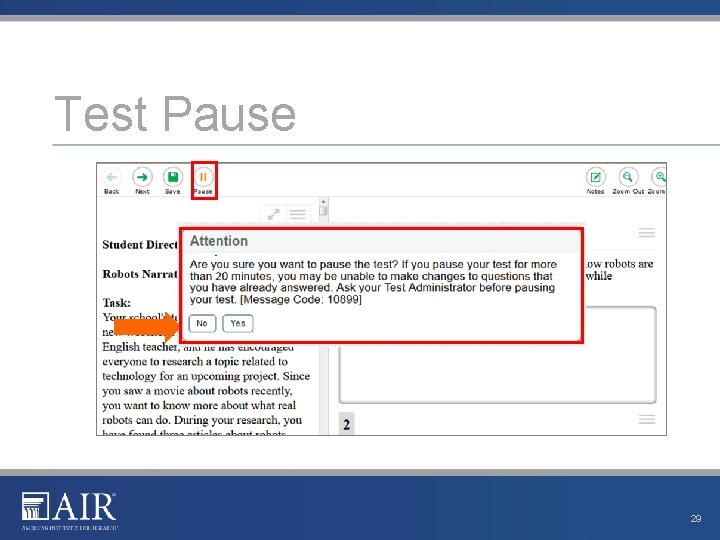
Test Pause Rules • For performance tasks and for Computer Adaptive Tests (CATs) that have been paused for less than 20 minutes, students returning from a break in testing can revisit any items in the current test segment and change their answers if desired. • Students taking a CAT who have paused their tests for longer than 20 minutes may only return to the most recently visited page containing unanswered test items in the current test segment. They may change any answers present on this page but may not access any items on previous pages or in previous segments of the test. • If all items on the most recently visited page were answered prior to pausing, the student will resume the test on the next page with unanswered items and will not be allowed to access previous pages or segments of the test. 28
Test Pause 29
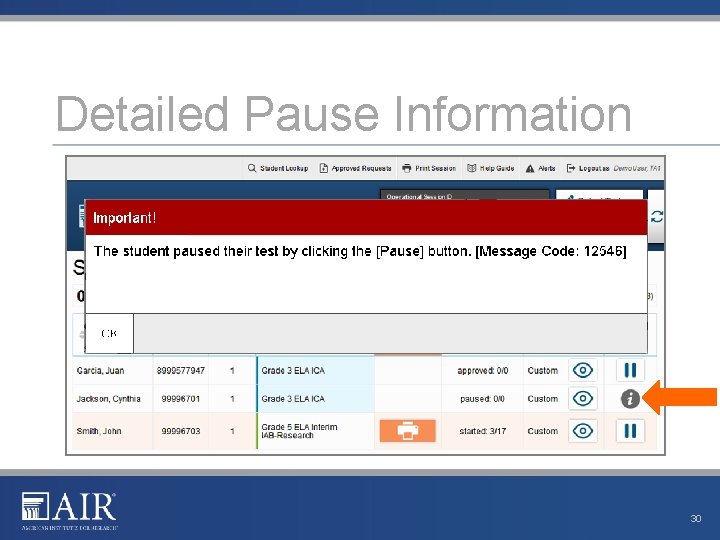
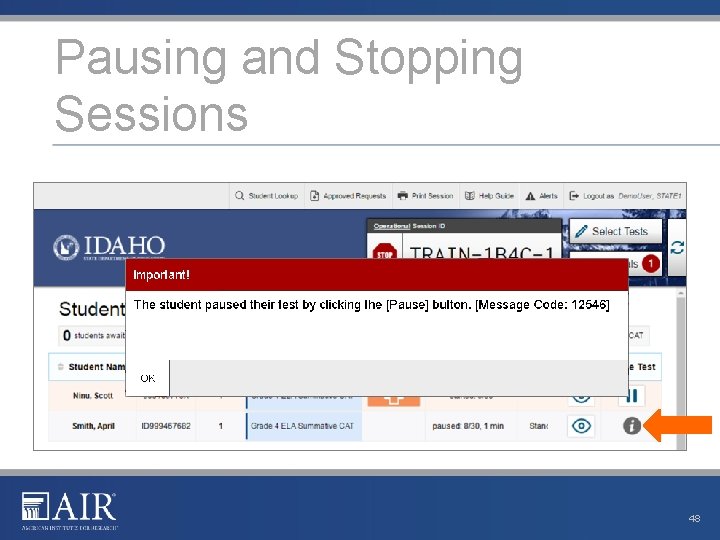
Detailed Pause Information 30
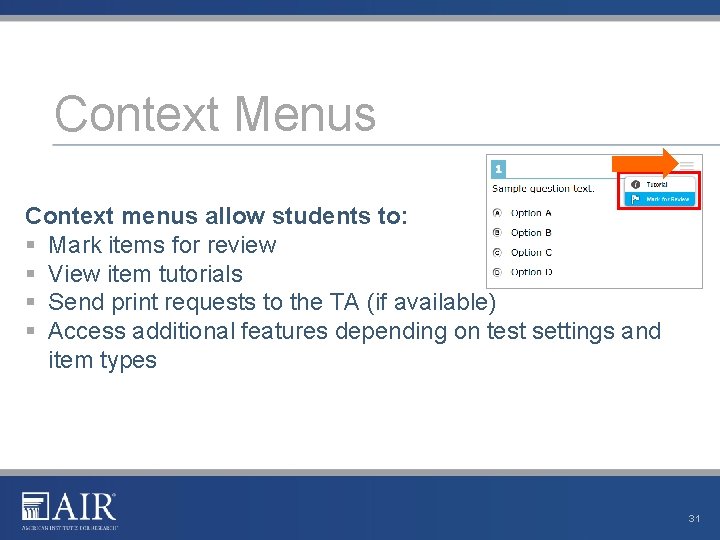
Context Menus Context menus allow students to: § Mark items for review § View item tutorials § Send print requests to the TA (if available) § Access additional features depending on test settings and item types 31
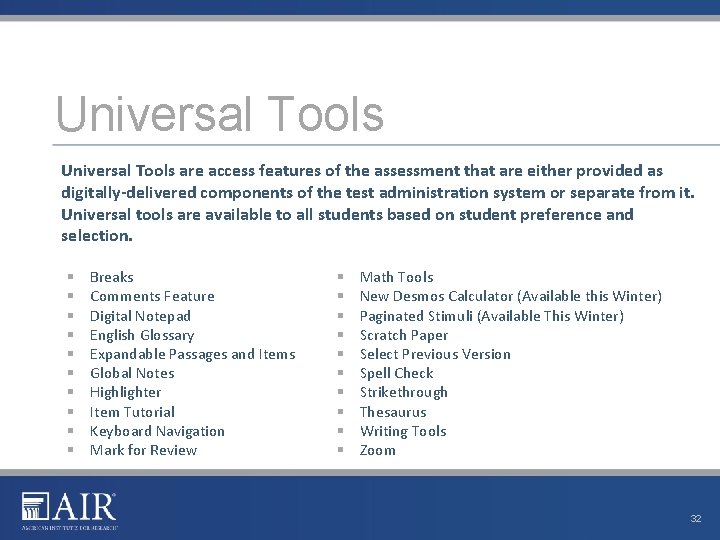
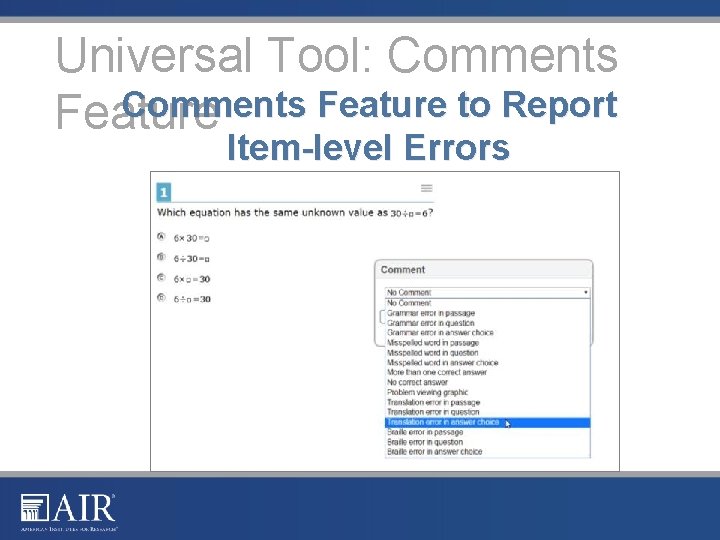
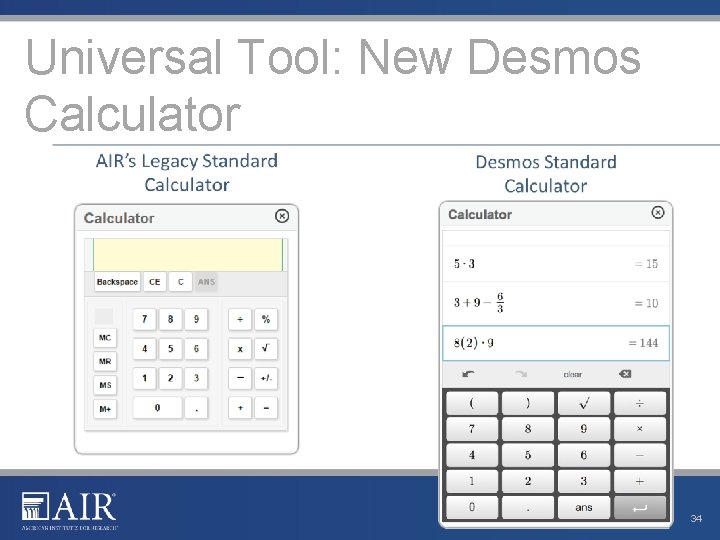
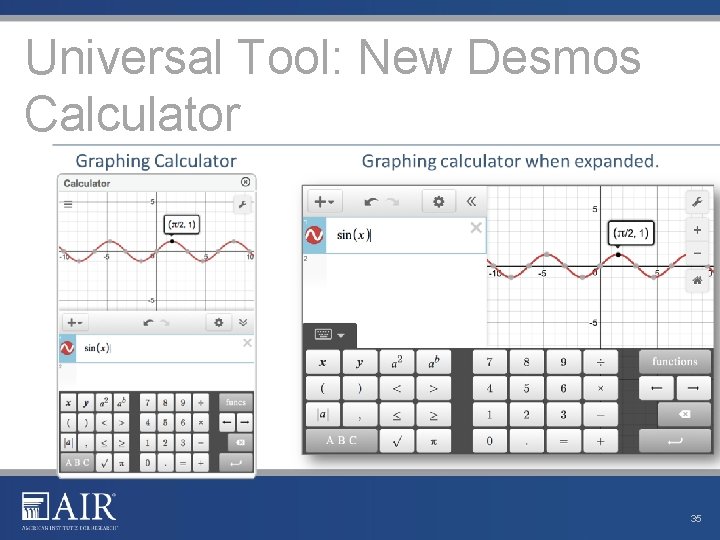
Universal Tools are access features of the assessment that are either provided as digitally-delivered components of the test administration system or separate from it. Universal tools are available to all students based on student preference and selection. § § § § § Breaks Comments Feature Digital Notepad English Glossary Expandable Passages and Items Global Notes Highlighter Item Tutorial Keyboard Navigation Mark for Review § § § § § Math Tools New Desmos Calculator (Available this Winter) Paginated Stimuli (Available This Winter) Scratch Paper Select Previous Version Spell Check Strikethrough Thesaurus Writing Tools Zoom 32
Universal Tool: Comments Feature to Report Feature Item-level Errors
Universal Tool: New Desmos Calculator 34
Universal Tool: New Desmos Calculator 35
Universal Tool: New Desmos Calculator Students can practice using the calculator now on desmos. com at school or at home: • https: //www. desmos. com/fourfunction • https: //www. desmos. com/scientific • https: //www. desmos. com/calculator
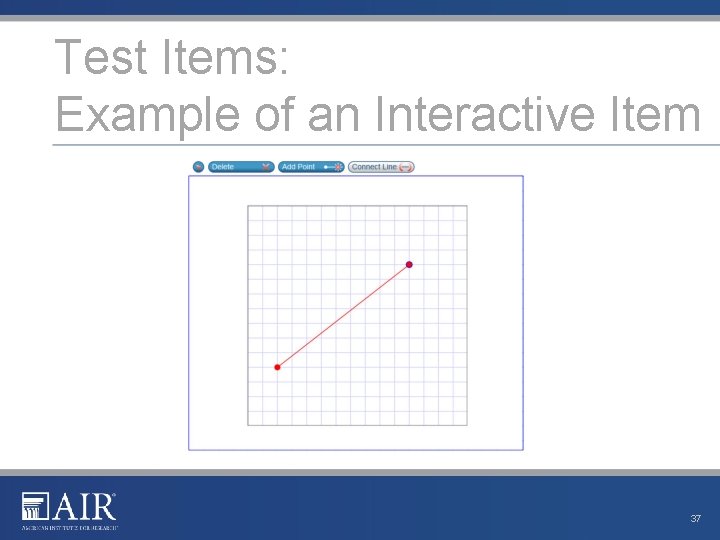
Test Items: Example of an Interactive Item 37
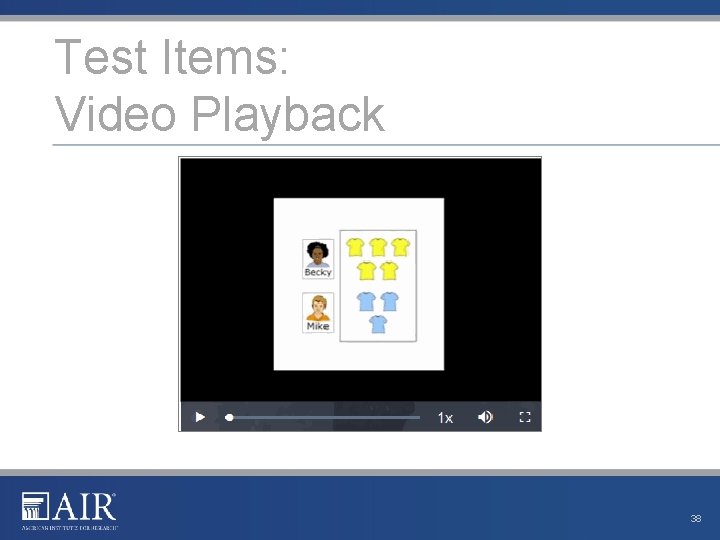
Test Items: Video Playback 38
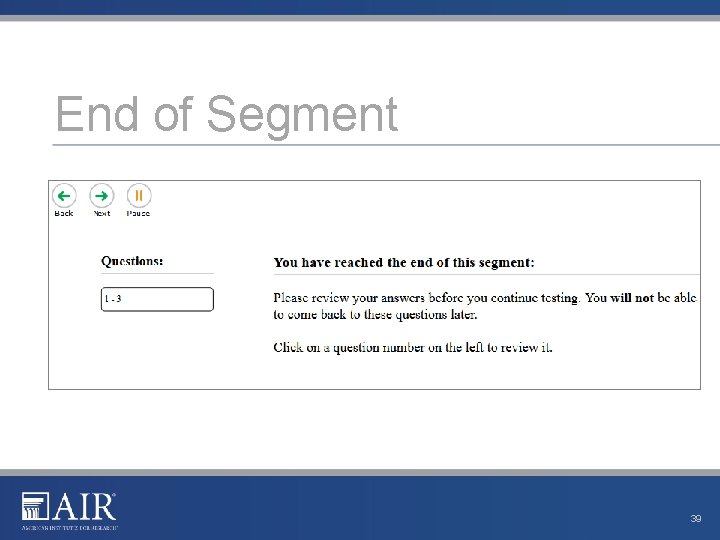
End of Segment 39
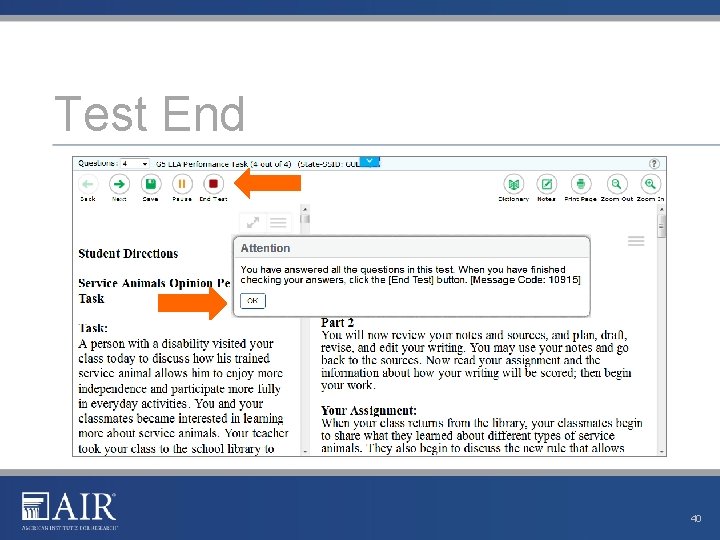
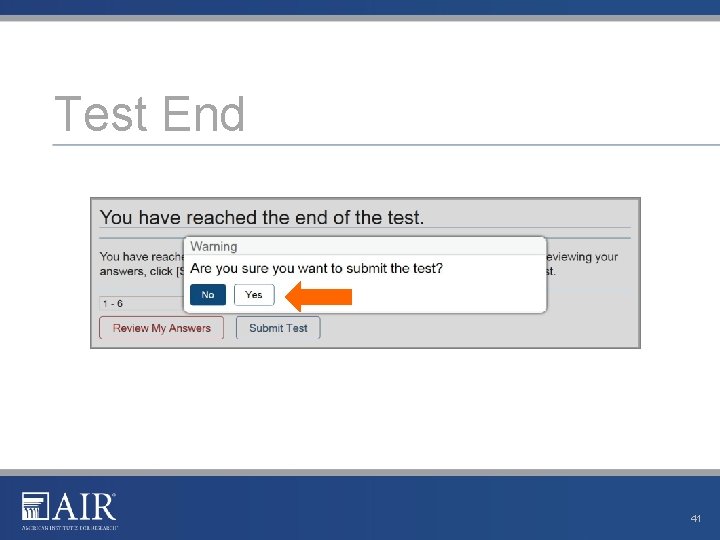
Test End 40
Test End 41
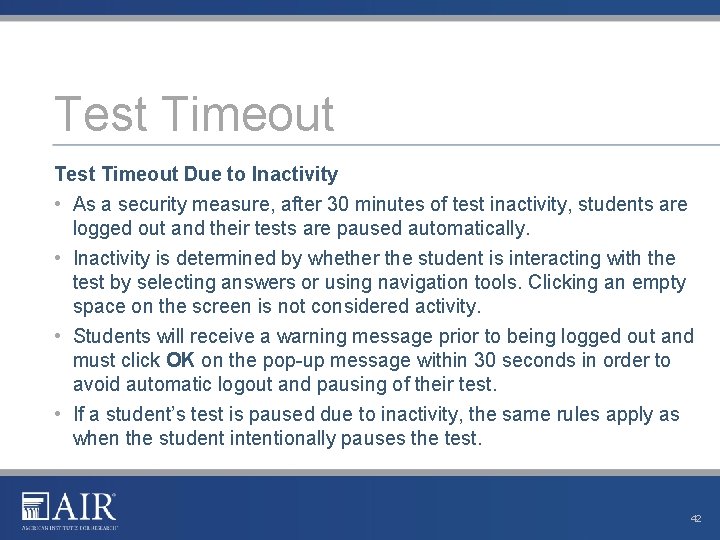
Test Timeout Due to Inactivity • As a security measure, after 30 minutes of test inactivity, students are logged out and their tests are paused automatically. • Inactivity is determined by whether the student is interacting with the test by selecting answers or using navigation tools. Clicking an empty space on the screen is not considered activity. • Students will receive a warning message prior to being logged out and must click OK on the pop-up message within 30 seconds in order to avoid automatic logout and pausing of their test. • If a student’s test is paused due to inactivity, the same rules apply as when the student intentionally pauses the test. 42
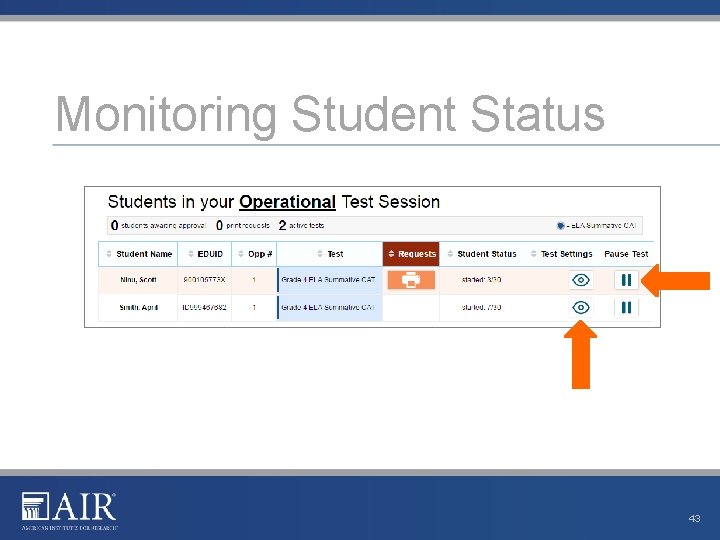
Monitoring Student Status 43
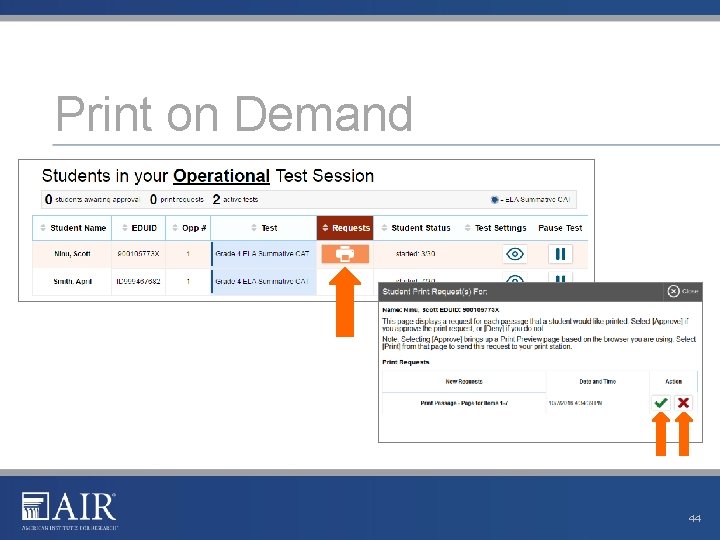
Print on Demand 44
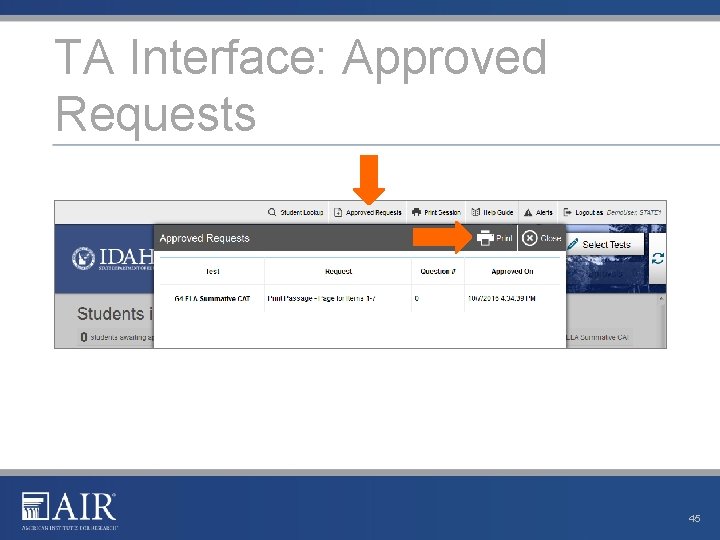
TA Interface: Approved Requests 45
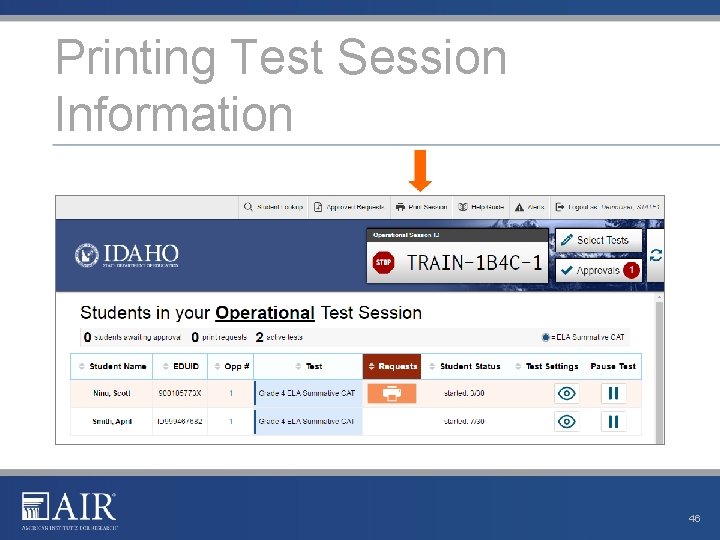
Printing Test Session Information 46
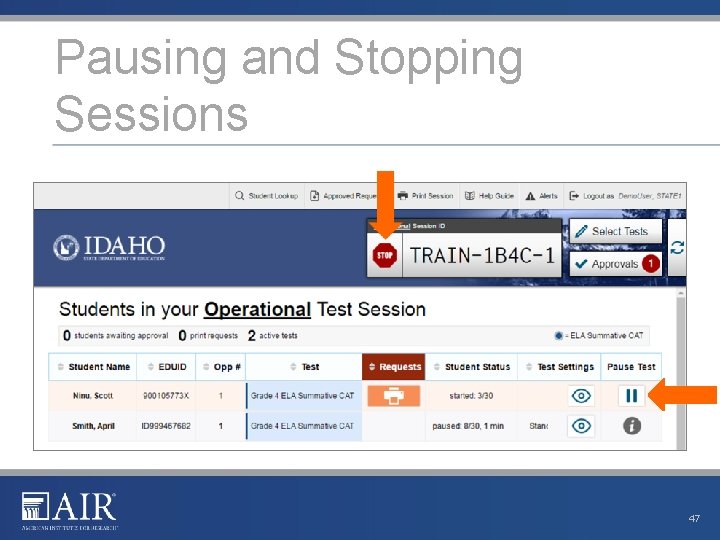
Pausing and Stopping Sessions 47
Pausing and Stopping Sessions 48
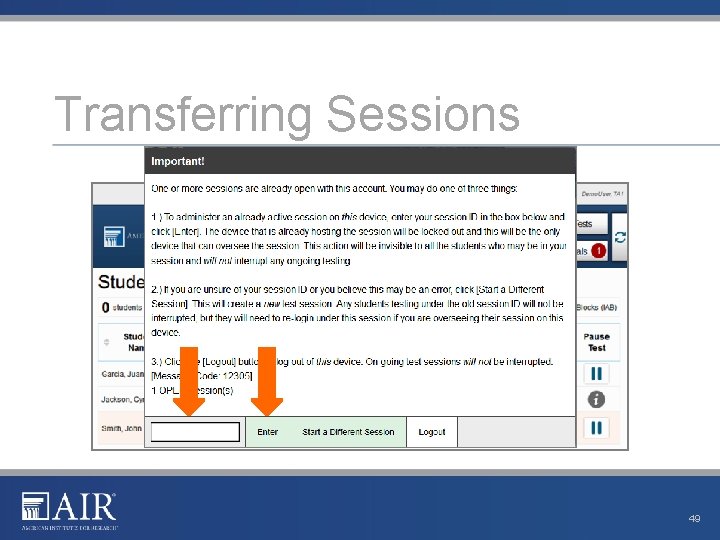
Transferring Sessions 49
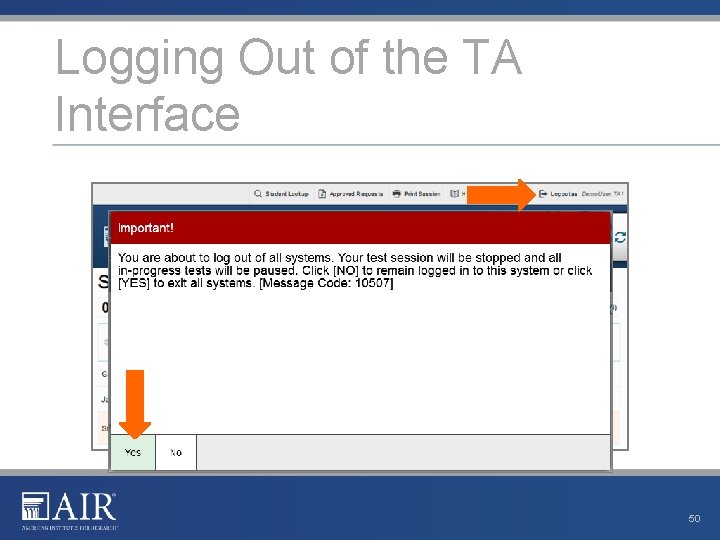
Logging Out of the TA Interface 50
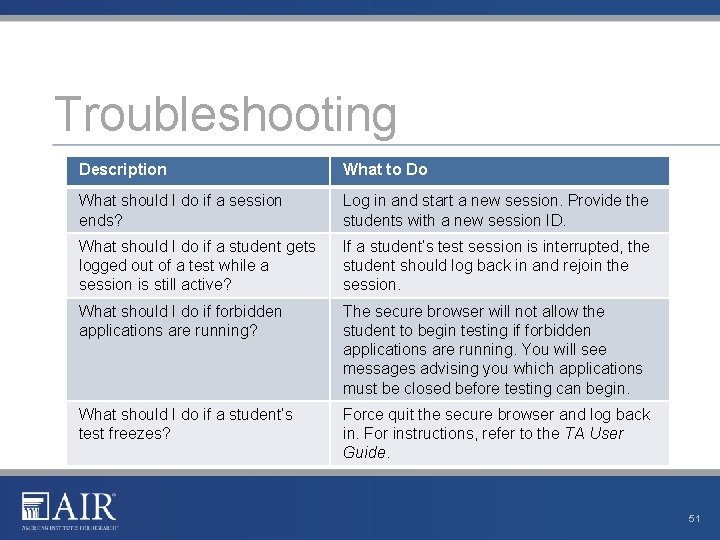
Troubleshooting Description What to Do What should I do if a session ends? Log in and start a new session. Provide the students with a new session ID. What should I do if a student gets logged out of a test while a session is still active? If a student’s test session is interrupted, the student should log back in and rejoin the session. What should I do if forbidden applications are running? The secure browser will not allow the student to begin testing if forbidden applications are running. You will see messages advising you which applications must be closed before testing can begin. What should I do if a student’s test freezes? Force quit the secure browser and log back in. For instructions, refer to the TA User Guide. 51
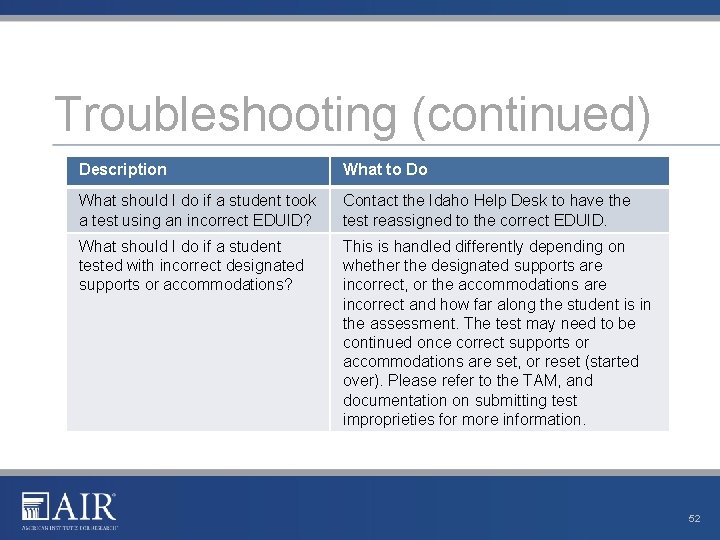
Troubleshooting (continued) Description What to Do What should I do if a student took a test using an incorrect EDUID? Contact the Idaho Help Desk to have the test reassigned to the correct EDUID. What should I do if a student tested with incorrect designated supports or accommodations? This is handled differently depending on whether the designated supports are incorrect, or the accommodations are incorrect and how far along the student is in the assessment. The test may need to be continued once correct supports or accommodations are set, or reset (started over). Please refer to the TAM, and documentation on submitting test improprieties for more information. 52
Thank You! Next Webinar The ISAT Online Reporting System (ORS) 2016 Thursday, December 15 th 12: 00 -1: 00 Mountain Time Registration URL: https: //attendee. gotowebinar. com/register/1793163105504132868 Subscribe to SDE’s Assessment Newsletter: URL: http: //www. sde. idaho. gov/assessment-info/index. html Subscribe on Edmodo: Idaho Assessment Users Community 2016 -2017 URL: https: //www. edmodo. com/home#group? id=10937619 Join Code: bd 6 m 3 d
Contact Information Idaho Help Desk Hours: 8: 00 am to 8: 00 pm Mountain Time, Monday-Friday (except holidays) Phone: 1 -844 -560 -7365 Email: IDHelp. Desk@air. org SDE Nancy Thomas Price Comprehensive Assessment System Coordinator 208 -332 -6988 Visit http: //idaho. portal. airast. org/ http: //www. sde. idaho. gov/assessment/isat-cas/ 54