
The Integrated Data Viewer A webenabled tool for
The Integrated Data Viewer – A web-enabled tool for geoscientific analysis and visualization
Overview n n n Unidata Overview Integrated Data Viewer (IDV) Overview IDV features • Supported data formats • Web enabled features n n IDV as an Integrator Visual Geophysical Exploration Environment (VGEE) Summary Demo
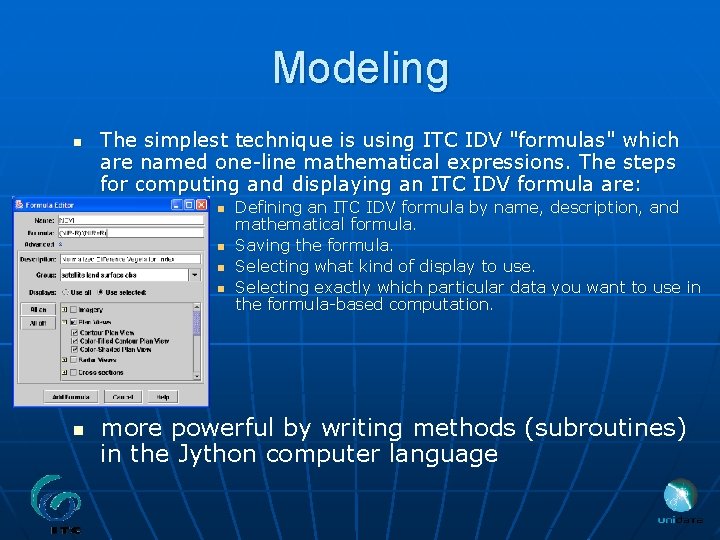
Modeling n The simplest technique is using ITC IDV "formulas" which are named one-line mathematical expressions. The steps for computing and displaying an ITC IDV formula are: n n n Defining an ITC IDV formula by name, description, and mathematical formula. Saving the formula. Selecting what kind of display to use. Selecting exactly which particular data you want to use in the formula-based computation. more powerful by writing methods (subroutines) in the Jython computer language
Jython scripting language n n Java equivalent of Python Various on Jython: http: //www. factbites. com/topics/Jython http: //www. jython. org/j-jython 1 -ltr. pdf n Using Python with Vis. AD http: //www. ssec. wisc. edu/~tomw/visadtutor/ n Python: math module n http: //www. aims. ac. za/wiki/index. php/Python: math_ module There are built-in mathematical functions, too, but preparation for them requires _importing_ the "math module": do ITC N 52 Framework function
Jython scripting language ITC N 52 Framework function (http: //www. 52 north. org/index. php? hot_tools) Custom JAVA functions at: http: //adde. itc. nl/IDV/operation/doc/index. html n
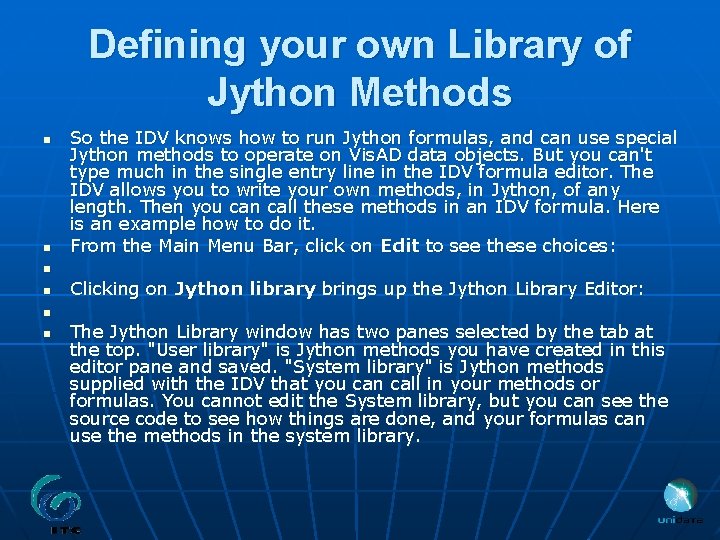
Defining your own Library of Jython Methods n n n So the IDV knows how to run Jython formulas, and can use special Jython methods to operate on Vis. AD data objects. But you can't type much in the single entry line in the IDV formula editor. The IDV allows you to write your own methods, in Jython, of any length. Then you can call these methods in an IDV formula. Here is an example how to do it. From the Main Menu Bar, click on Edit to see these choices: Clicking on Jython library brings up the Jython Library Editor: The Jython Library window has two panes selected by the tab at the top. "User library" is Jython methods you have created in this editor pane and saved. "System library" is Jython methods supplied with the IDV that you can call in your methods or formulas. You cannot edit the System library, but you can see the source code to see how things are done, and your formulas can use the methods in the system library.
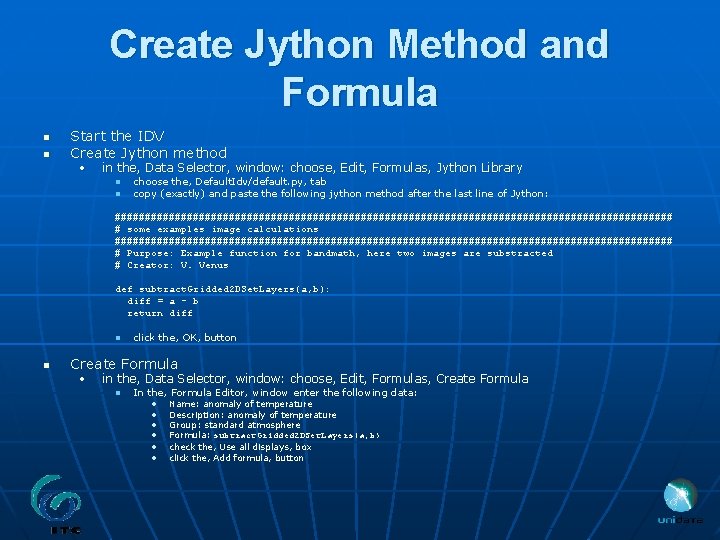
Create Jython Method and Formula n n Start the IDV Create Jython method • in the, Data Selector, window: choose, Edit, Formulas, Jython Library n n choose the, Default. Idv/default. py , tab choose the, Default. Idv/default. py, tab copy (exactly) and paste the following jython method after the last line of Jython: ############################################### # some examples image calculations ############################################### # Purpose: Example function for bandmath, here two images are substracted # Creator: V. Venus def subtract. Gridded 2 DSet. Layers(a, b): diff = a - b return diff n n click the, OK, button Create Formula • in the, Data Selector, window: choose, Edit, Formulas, Create Formula n In the, Formula Editor, window enter the following data: • • • Name: anomaly of temperature Description: anomaly of temperature Group: standard atmosphere Formula: subtract. Gridded 2 DSet. Layers(a, b) check the, Use all displays, box click the, Add formula, button
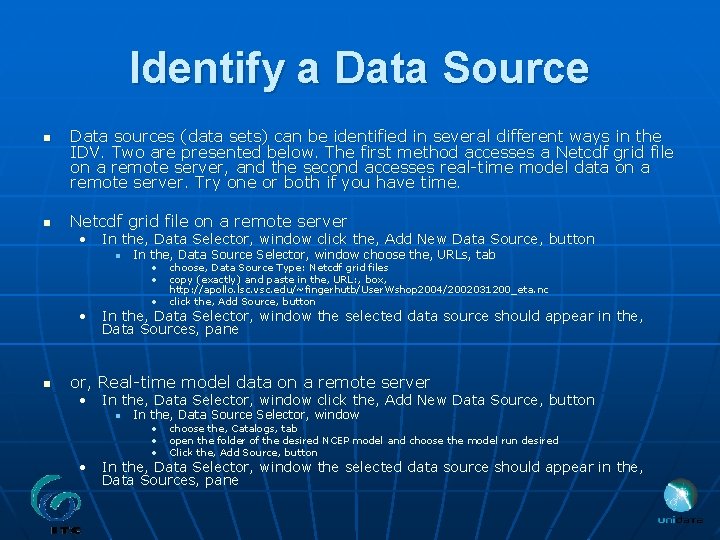
Identify a Data Source n n Data sources (data sets) can be identified in several different ways in the IDV. Two are presented below. The first method accesses a Netcdf grid file on a remote server, and the second accesses real-time model data on a remote server. Try one or both if you have time. Netcdf grid file on a remote server • In the, Data Selector, window click the, Add New Data Source, button n In the, Data Source Selector, window choose the, URLs, tab • • • choose, Data Source Type: Netcdf grid files copy (exactly) and paste in the, URL: , box, http: //apollo. lsc. vsc. edu/~fingerhutb/User. Wshop 2004/2002031200_eta. nc click the, Add Source, button • In the, Data Selector, window the selected data source should appear in the, Data Sources, pane n or, Real-time model data on a remote server • In the, Data Selector, window click the, Add New Data Source, button n In the, Data Source Selector, window • • • choose the, Catalogs, tab open the folder of the desired NCEP model and choose the model run desired Click the, Add Source, button • In the, Data Selector, window the selected data source should appear in the, Data Sources, pane
Summary n Unidata’s IDV is a freely available, powerful analysis and visualization tool which can facilitate geoscientific education and research by: • • • n n Integrating diverse, distributed datasets Allowing customized user experiences Enabling collaborations Unidata is looking to work with other developers to enhance and expand the IDV capabilities Unidata is looking to work with educators to develop curriculum materials which use the IDV.
For Further Information n Integrated Data Viewer homepage • http: //my. unidata. ucar. edu/content/software/IDV n Vis. AD homepage • http: //www. ssec. wisc. edu/~billh/visad. html n Visual Geophysical Exploration Environment (VGEE) homepage • http: //www. dlese. org/vgee n GEON/IDV (UNAVCO) • http: //www. unavco. org/research_science/products/GEON/ GEON. html n ITC IDV • http: //adde. itc. nl (images/software) • http: //thredds. itc. nl (catalog)
- Slides: 10