
The HPC Cluster Data Analysis Group Based on

The HPC Cluster Data Analysis Group Based on slides by Chris Cole http: //dag. compbio. dundee. ac. uk cb-dag@dundee. ac. uk @Uo. D_DAG
Key to slides…. • Descriptive text • Example commands – black monospaced text: ls /tmp • Commands to try – red monospaced text • Prompts/STDOUT/STDERR – green monospaced text • e. g. -bash-4. 1 $ echo $USER jabbott • [ENTER] – press enter key • [username] – your username, not '[username]'
Desktop Computing • A single computer • A single user – usually • Exclusive access – not usually remotely • May be switched off – not necessarily intentionally • Expansion is limited • Lower Spec Memory and CPU • Mainly Windows or Mac – rarely Linux • Data, hardware back-up?
Cluster computing • Many ‘computers’ - nodes • Many users • Shared access – only remotely via a login ‘node’ • Always on – subject to maintenance, etc • Expandable to suit any type of computation • High spec memory and CPU – server grade • Almost universally Linux/Unix • Redundant hardware • Robust backups 4
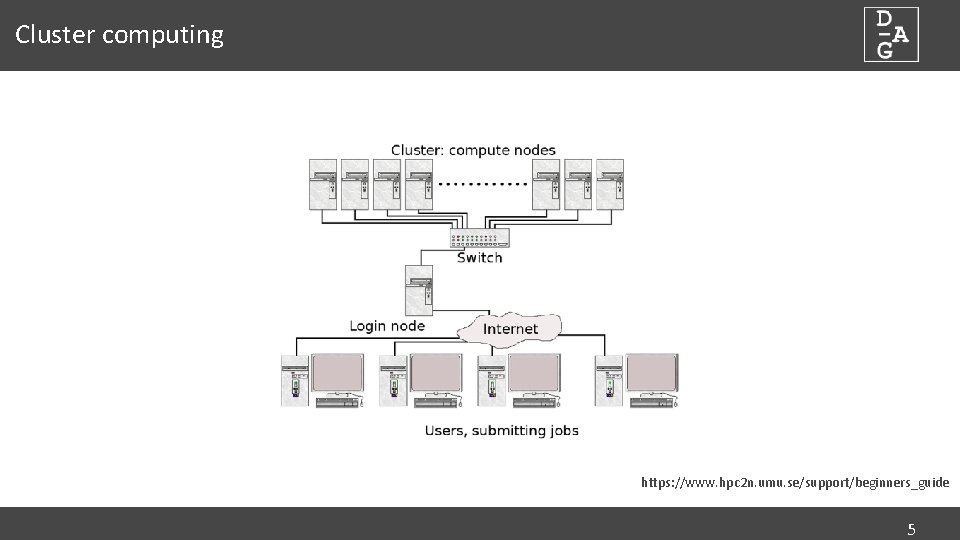
Cluster computing https: //www. hpc 2 n. umu. se/support/beginners_guide 5
“With great power. . . • . . . comes great responsibility. ” • Use all parts to best effect. • Poor use of the cluster can make processes run more slowly than on a desktop! • This is a shared resource, you can impact on others • Need to understand all aspects • Hardware • Filesystem • Software • Queuing system 6

Hardware dundee. ac. uk http: //dag. compbio. dundee. ac. uk cb-dag@dundee. ac. uk @Uo. D_DAG Page 7
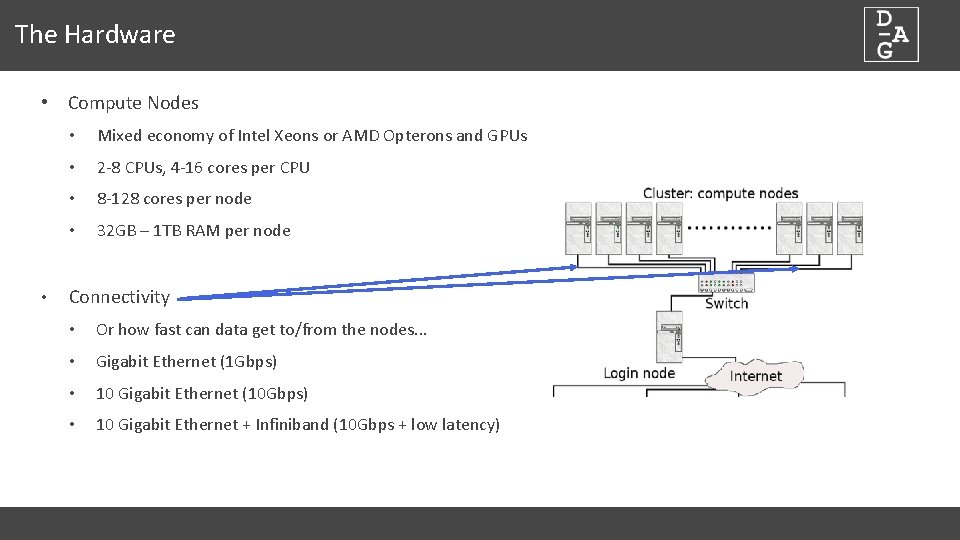
The Hardware • Compute Nodes • • Mixed economy of Intel Xeons or AMD Opterons and GPUs • 2 -8 CPUs, 4 -16 cores per CPU • 8 -128 cores per node • 32 GB – 1 TB RAM per node Connectivity • Or how fast can data get to/from the nodes. . . • Gigabit Ethernet (1 Gbps) • 10 Gigabit Ethernet (10 Gbps) • 10 Gigabit Ethernet + Infiniband (10 Gbps + low latency)
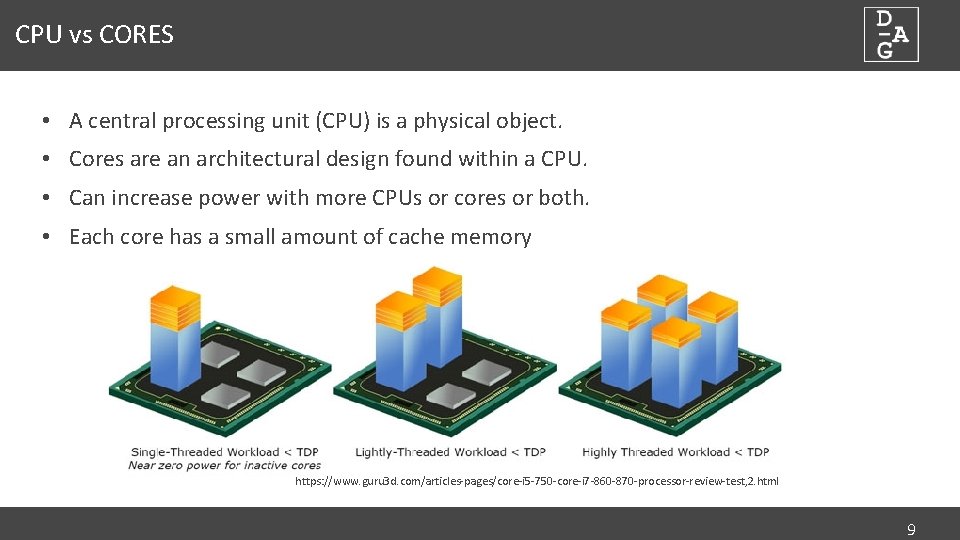
CPU vs CORES • A central processing unit (CPU) is a physical object. • Cores are an architectural design found within a CPU. • Can increase power with more CPUs or cores or both. • Each core has a small amount of cache memory https: //www. guru 3 d. com/articles-pages/core-i 5 -750 -core-i 7 -860 -870 -processor-review-test, 2. html 9
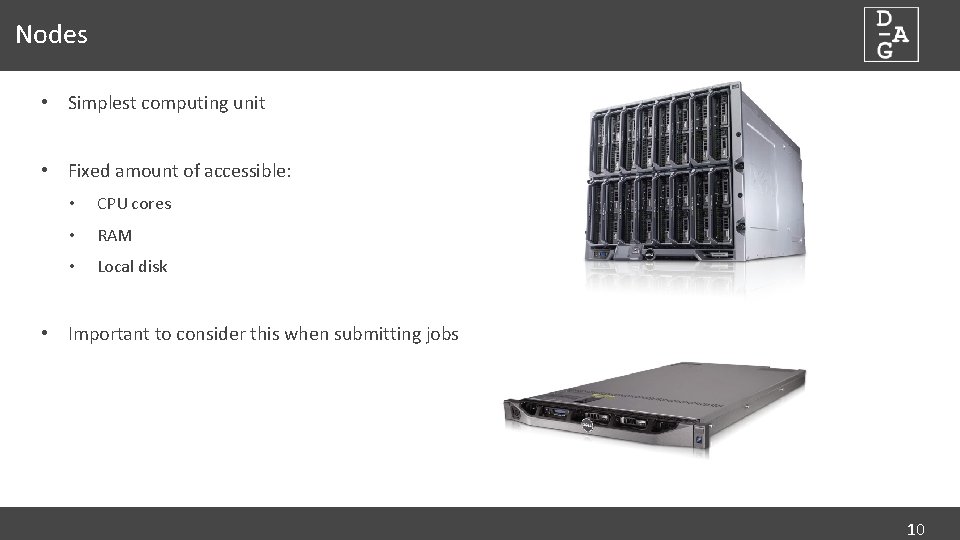
Nodes • Simplest computing unit • Fixed amount of accessible: • CPU cores • RAM • Local disk • Important to consider this when submitting jobs 10
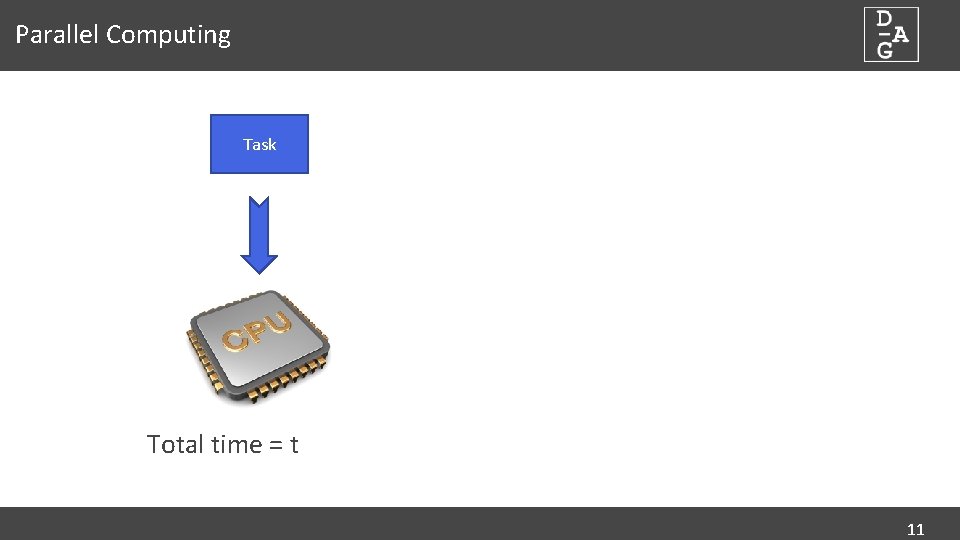
Parallel Computing Task Total time = t 11
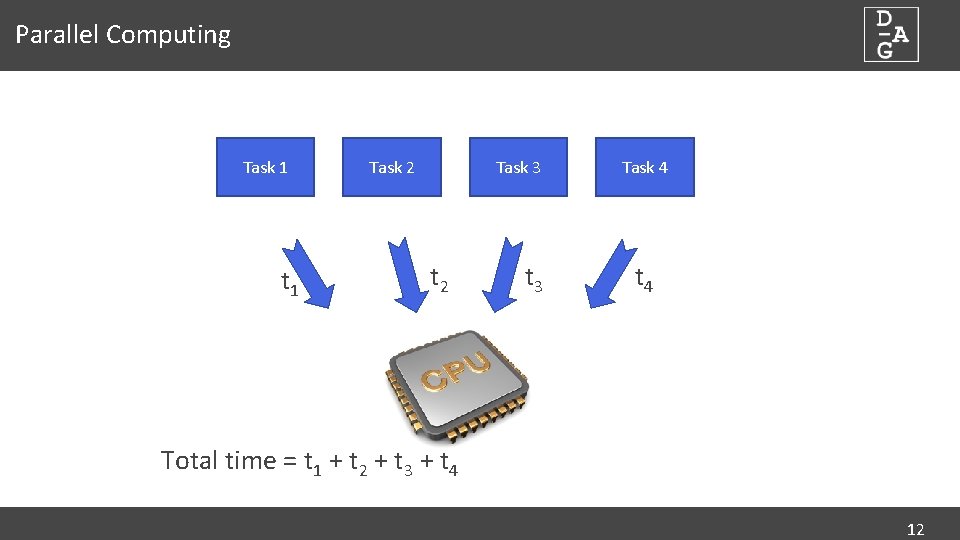
Parallel Computing Task 1 t 1 Task 2 Task 3 t 2 t 3 Task 4 t 4 Total time = t 1 + t 2 + t 3 + t 4 12
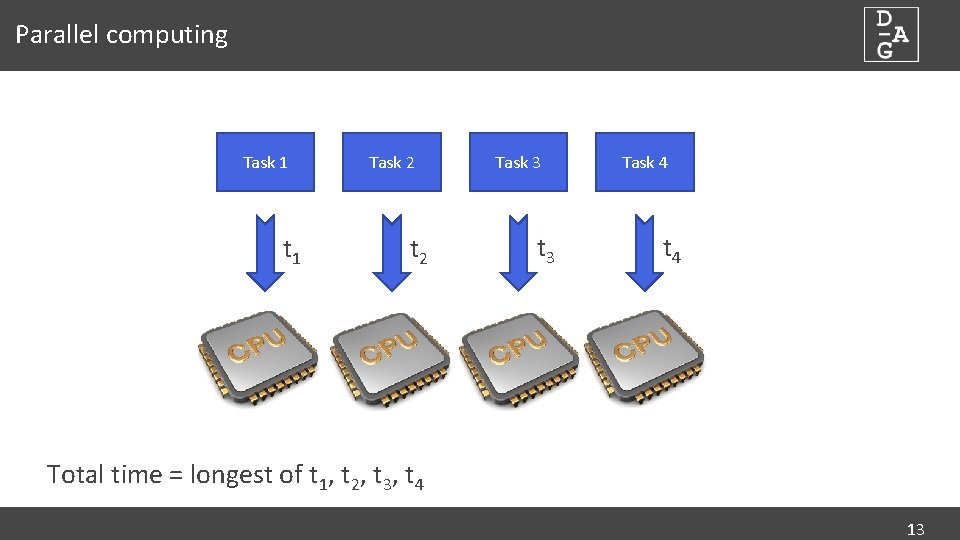
Parallel computing Task 1 t 1 Task 2 t 2 Task 3 t 3 Task 4 t 4 Total time = longest of t 1, t 2, t 3, t 4 13
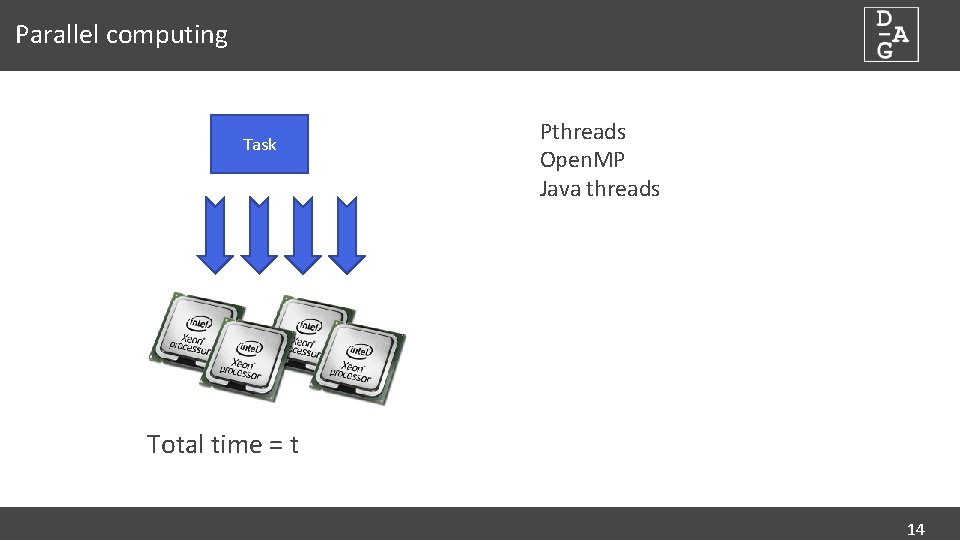
Parallel computing Task Pthreads Open. MP Java threads Total time = t 14
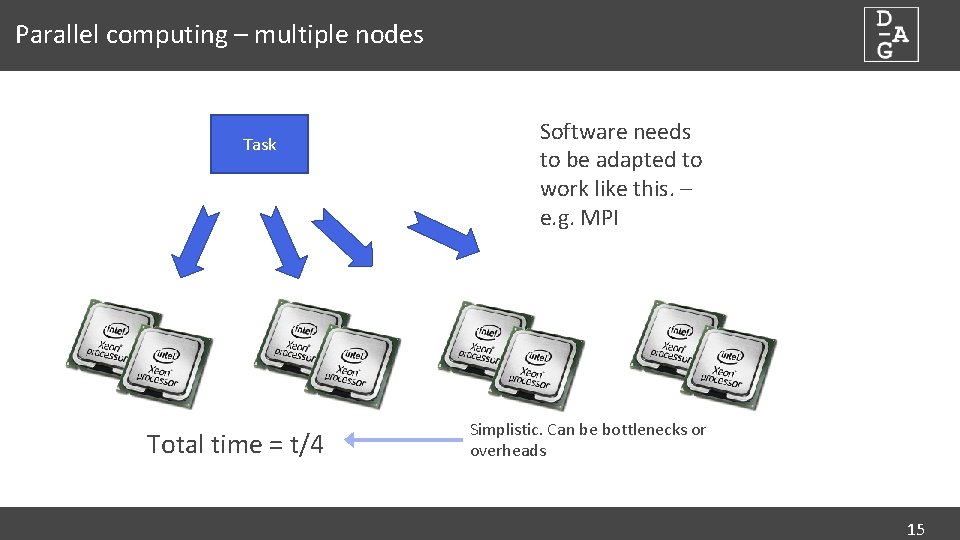
Parallel computing – multiple nodes Task Total time = t/4 Software needs to be adapted to work like this. – e. g. MPI Simplistic. Can be bottlenecks or overheads 15
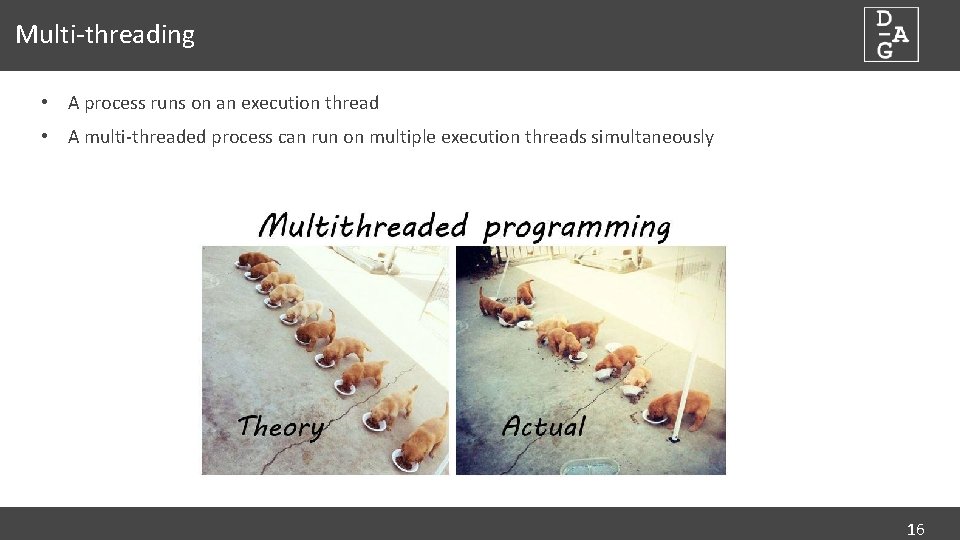
Multi-threading • A process runs on an execution thread • A multi-threaded process can run on multiple execution threads simultaneously 16
Accessing the cluster • • • Need a Life Sciences username/password Need a Cluster account – raise a ticket with IT Need an SSH client • Pu. TTY/git-bash on Windows • Terminal/i. Term 2 on Mac OSX • Terminal/Xterm/Konsole/etc on Linux • See ‘Intro To Linux’ notes … Remember to start Xming before logging in if you want to use a GUI text editor Try logging into the cluster: • Hostname: login. cluster. lifesci. dundee. ac. uk • Username/Password: Life Sciences Directory credentials Now copy some files we’ll need later: -bash-4. 1$ cp –R /tmp/cluster_intro ~ -bash-4. 1$ cd cluster_intro 17

Filesystem dundee. ac. uk http: //dag. compbio. dundee. ac. uk cb-dag@dundee. ac. uk @Uo. D_DAG Page 1
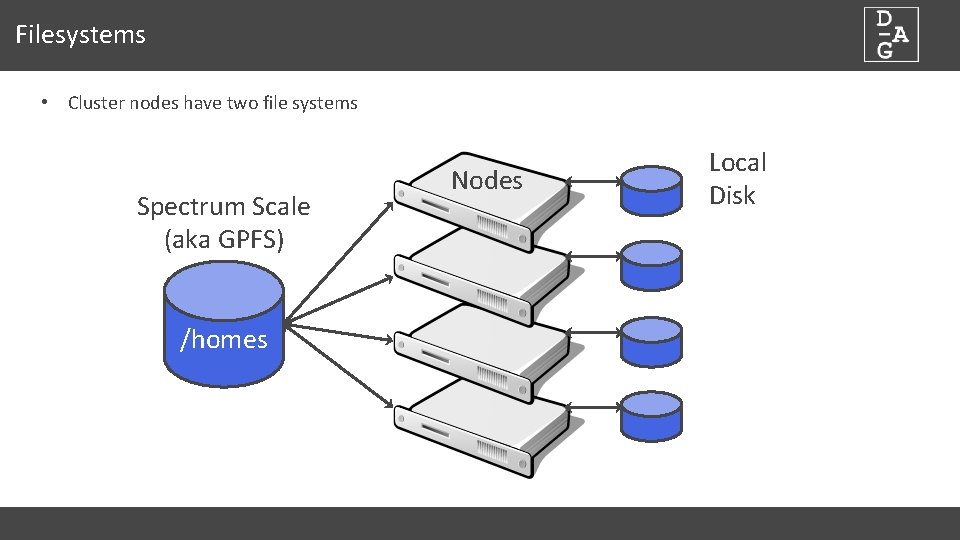
Filesystems • Cluster nodes have two file systems Spectrum Scale (aka GPFS) /homes Nodes Local Disk
Spectrum Scale/GPFS • Accessible by all nodes on the cluster • High capacity (440 TB) • High performance and robust • Mixture of SSD (metadata and top-tier) and HDD (slower data pools) • Very fast for dealing with large files • Not efficient with small files - *do not* create directories full of small files • Backed up • Use NOBACK directories for temporary/scratch/downloaded data • Use of NOBACK being reviewed by IT – this may change 20
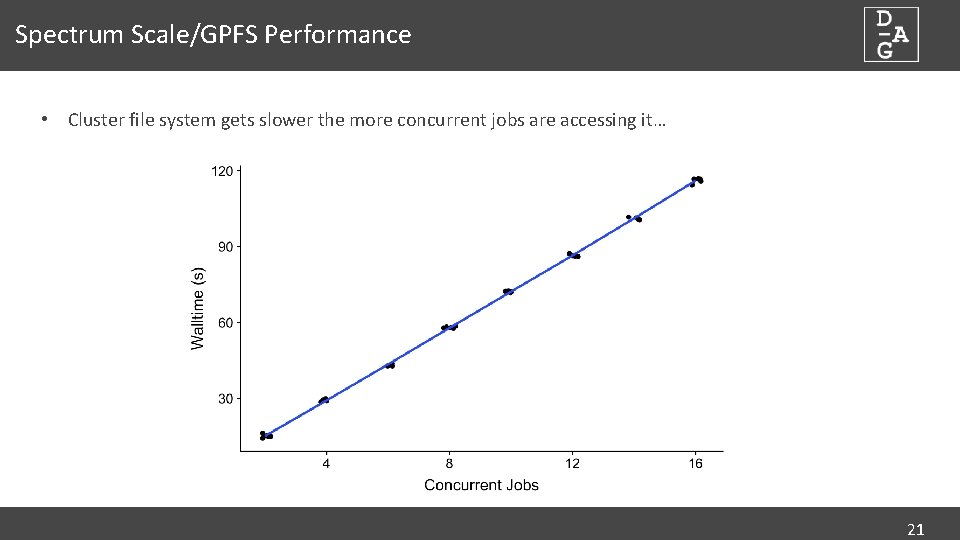
Spectrum Scale/GPFS Performance • Cluster file system gets slower the more concurrent jobs are accessing it… 21
Local disk • Only accessible to jobs on a node • Temporary – files automatically deleted when job finishes • Limited capacity (100 -900 GB) • Shared between jobs on node • Offers more consistent (and generally faster) performance than GPFS • Accessible via $TMPDIR environment variable 22
An aside – environmental variables • An environment variable is a dynamic-named value that can affect the way running processes will behave on a computer. (Wikipedia) • Some are set on login: • $HOME – path to your home directory • $USER – your username • Values can be viewed with ‘echo’ -bash-4. 1 $ echo $USER jabbott • Can be ‘interpreted’ within commands -bash-4. 1 $ cd $HOME • The TMPDIR variable is set within the environment of a job executing through Grid Engine 23
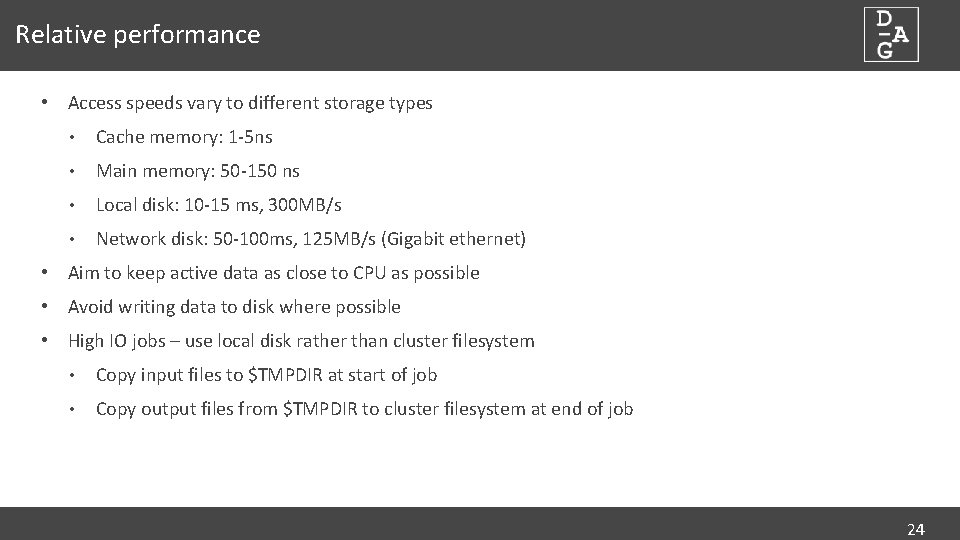
Relative performance • Access speeds vary to different storage types • Cache memory: 1 -5 ns • Main memory: 50 -150 ns • Local disk: 10 -15 ms, 300 MB/s • Network disk: 50 -100 ms, 125 MB/s (Gigabit ethernet) • Aim to keep active data as close to CPU as possible • Avoid writing data to disk where possible • High IO jobs – use local disk rather than cluster filesystem • Copy input files to $TMPDIR at start of job • Copy output files from $TMPDIR to cluster filesystem at end of job 24
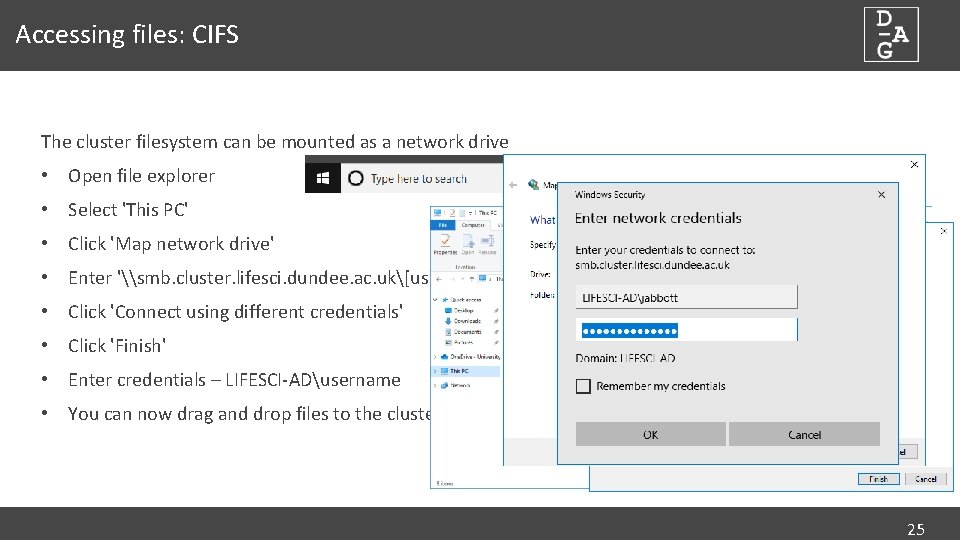
Accessing files: CIFS The cluster filesystem can be mounted as a network drive • Open file explorer • Select 'This PC' • Click 'Map network drive' • Enter '\smb. cluster. lifesci. dundee. ac. uk[username] • Click 'Connect using different credentials' • Click 'Finish' • Enter credentials – LIFESCI-ADusername • You can now drag and drop files to the cluster 25
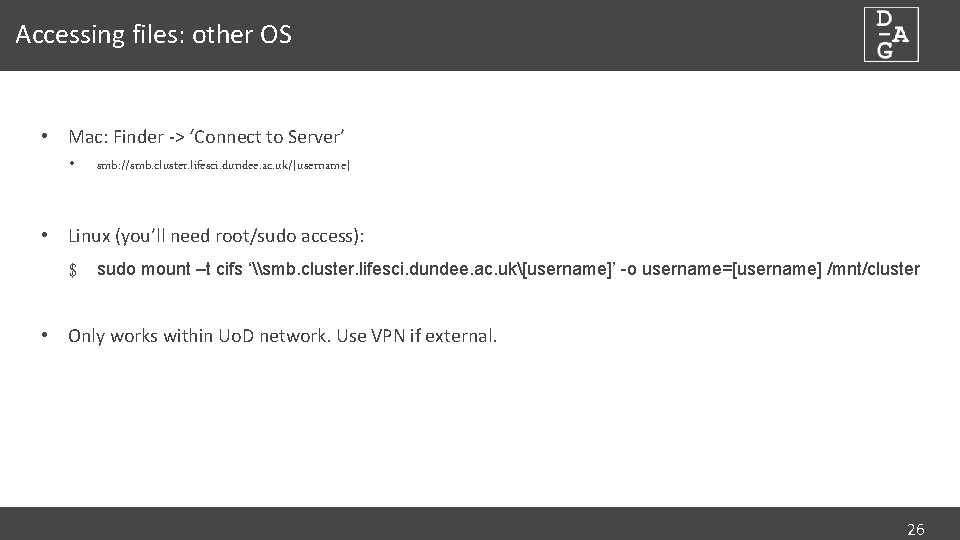
Accessing files: other OS • Mac: Finder -> ‘Connect to Server’ • smb: //smb. cluster. lifesci. dundee. ac. uk/[username] • Linux (you’ll need root/sudo access): $ sudo mount –t cifs ‘\smb. cluster. lifesci. dundee. ac. uk[username]’ -o username=[username] /mnt/cluster • Only works within Uo. D network. Use VPN if external. 26
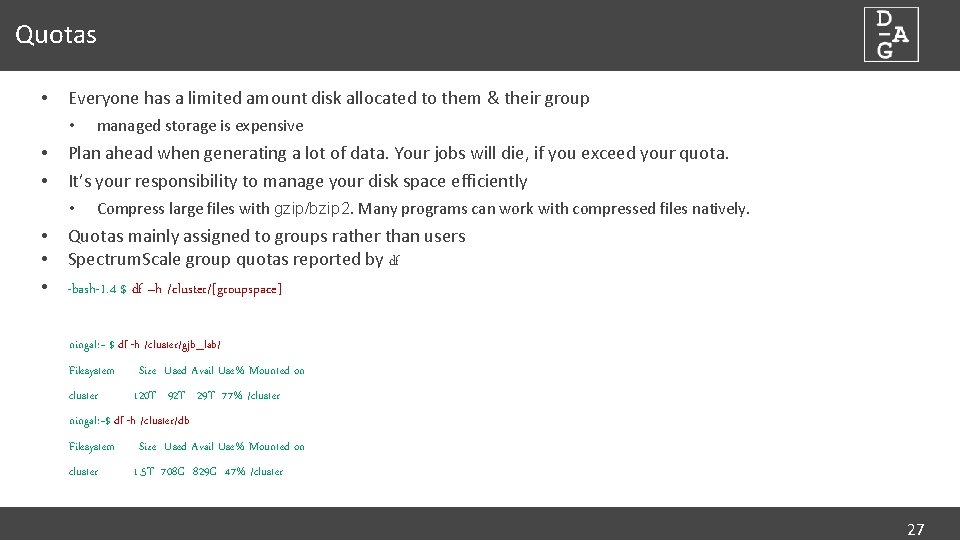
Quotas • Everyone has a limited amount disk allocated to them & their group • • • Plan ahead when generating a lot of data. Your jobs will die, if you exceed your quota. It’s your responsibility to manage your disk space efficiently • • managed storage is expensive Compress large files with gzip/bzip 2. Many programs can work with compressed files natively. Quotas mainly assigned to groups rather than users Spectrum. Scale group quotas reported by df -bash-1. 4 $ df –h /cluster/[groupspace] ningal: ~ $ df -h /cluster/gjb_lab/ Filesystem cluster Size Used Avail Use% Mounted on 120 T 92 T 29 T 77% /cluster ningal: ~$ df -h /cluster/db Filesystem cluster Size Used Avail Use% Mounted on 1. 5 T 708 G 829 G 47% /cluster 27

Software dundee. ac. uk http: //dag. compbio. dundee. ac. uk cb-dag@dundee. ac. uk @Uo. D_DAG Page 2
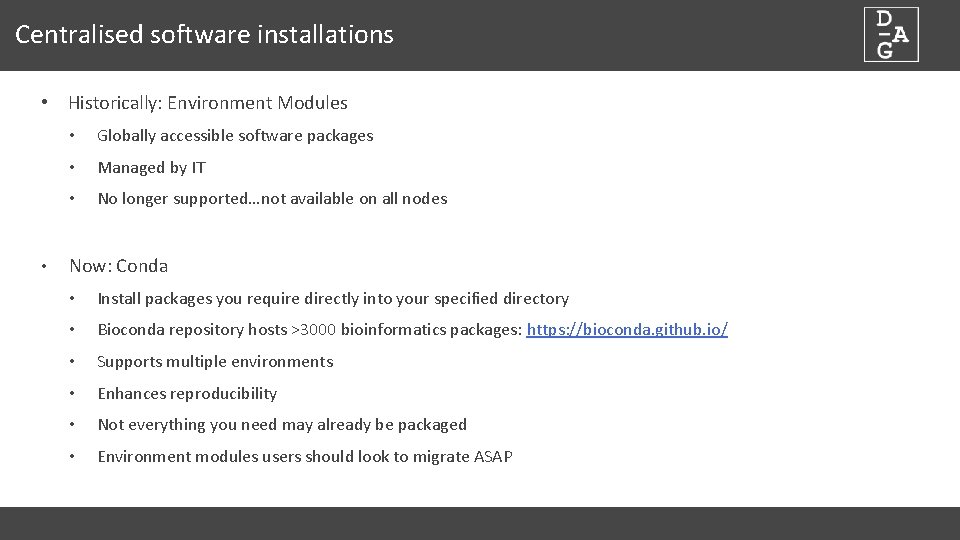
Centralised software installations • Historically: Environment Modules • • Globally accessible software packages • Managed by IT • No longer supported…not available on all nodes Now: Conda • Install packages you require directly into your specified directory • Bioconda repository hosts >3000 bioinformatics packages: https: //bioconda. github. io/ • Supports multiple environments • Enhances reproducibility • Not everything you need may already be packaged • Environment modules users should look to migrate ASAP
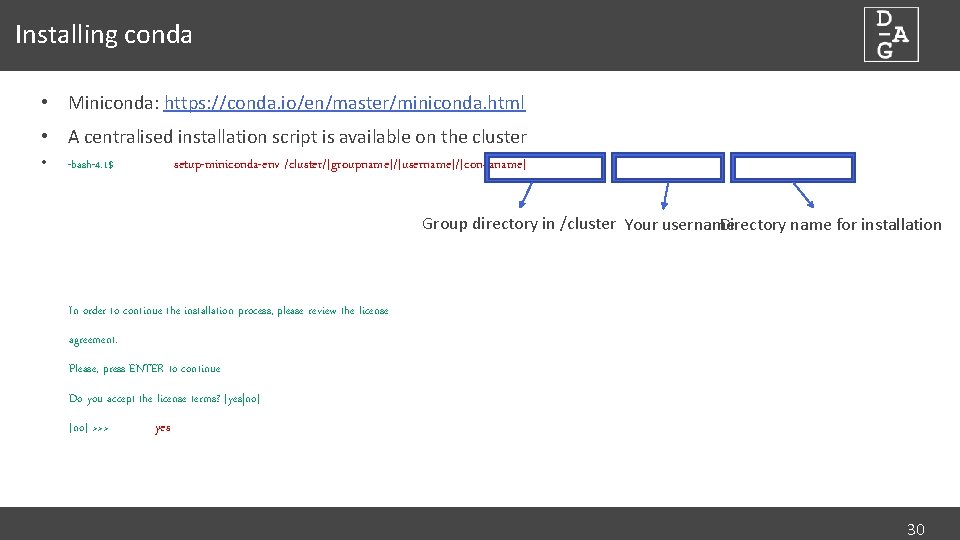
Installing conda • Miniconda: https: //conda. io/en/master/miniconda. html • A centralised installation script is available on the cluster • setup-miniconda-env /cluster/[groupname]/[username]/[condaname] -bash-4. 1$ Group directory in /cluster Your username Directory name for installation In order to continue the installation process, please review the license agreement. Please, press ENTER to continue Do you accept the license terms? [yes|no] [no] >>> yes 30
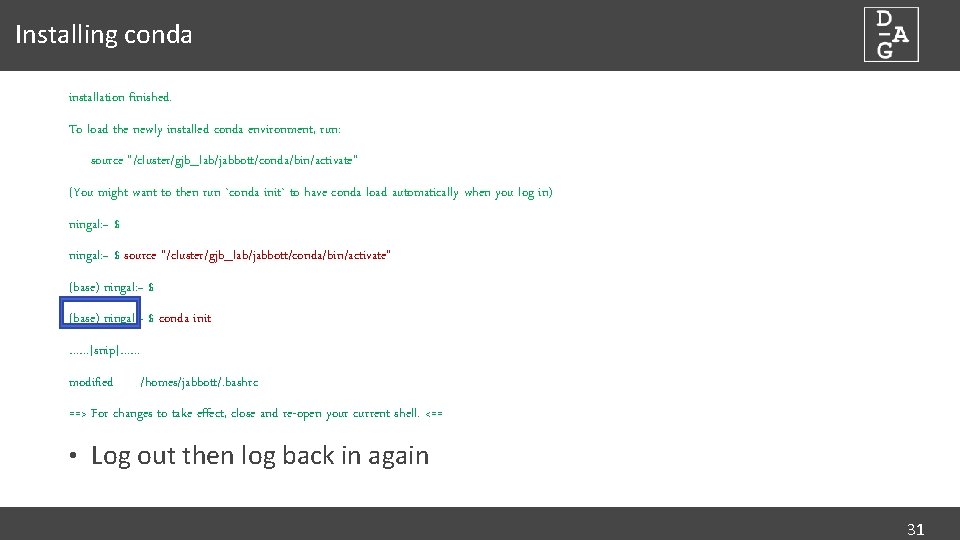
Installing conda installation finished. To load the newly installed conda environment, run: source "/cluster/gjb_lab/jabbott/conda/bin/activate" (You might want to then run `conda init` to have conda load automatically when you log in) ningal: ~ $ source "/cluster/gjb_lab/jabbott/conda/bin/activate" (base) ningal: ~ $ conda init ……[snip]…… modified /homes/jabbott/. bashrc ==> For changes to take effect, close and re-open your current shell. <== • Log out then log back in again 31
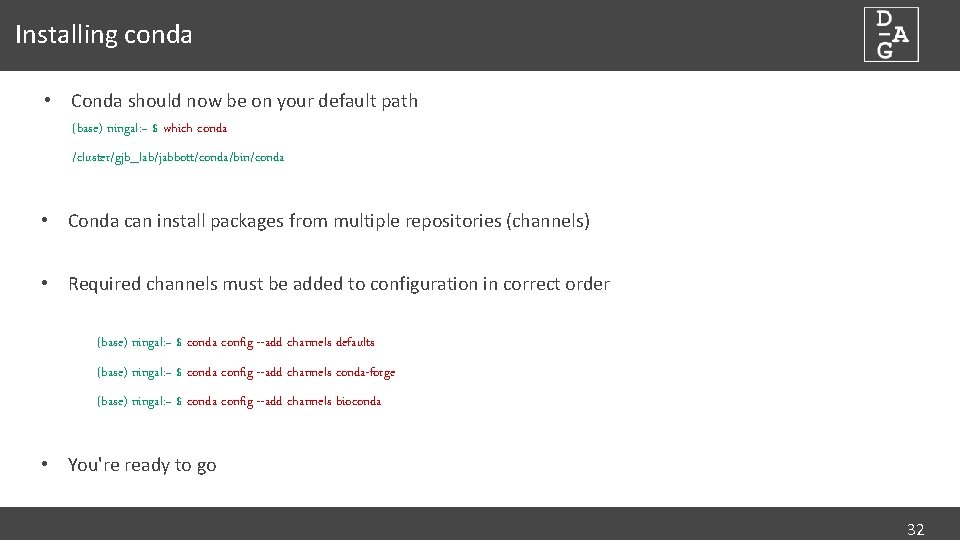
Installing conda • Conda should now be on your default path (base) ningal: ~ $ which conda /cluster/gjb_lab/jabbott/conda/bin/conda • Conda can install packages from multiple repositories (channels) • Required channels must be added to configuration in correct order (base) ningal: ~ $ conda config --add channels defaults (base) ningal: ~ $ conda config --add channels conda-forge (base) ningal: ~ $ conda config --add channels bioconda • You're ready to go 32
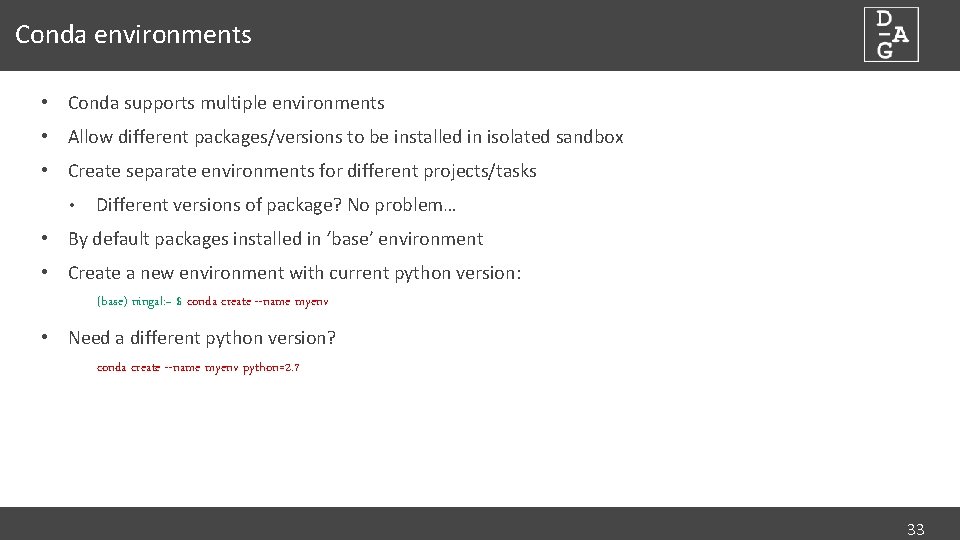
Conda environments • Conda supports multiple environments • Allow different packages/versions to be installed in isolated sandbox • Create separate environments for different projects/tasks • Different versions of package? No problem… • By default packages installed in ‘base’ environment • Create a new environment with current python version: (base) ningal: ~ $ conda create --name myenv • Need a different python version? conda create --name myenv python=2. 7 33
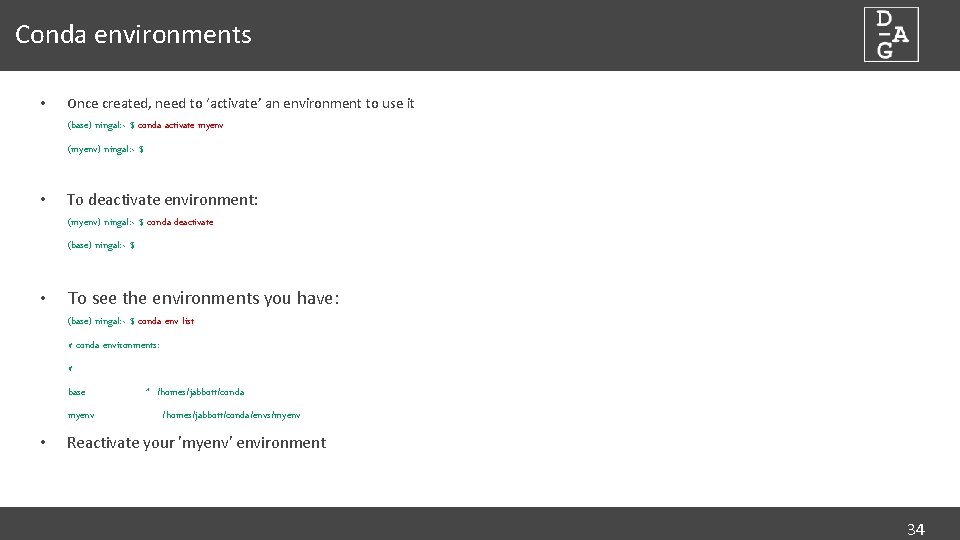
Conda environments • Once created, need to ‘activate’ an environment to use it (base) ningal: ~ $ conda activate myenv (myenv) ningal: ~ $ • To deactivate environment: (myenv) ningal: ~ $ conda deactivate (base) ningal: ~ $ • To see the environments you have: (base) ningal: ~ $ conda env list # conda environments: # base myenv • * /homes/jabbott/conda/envs/myenv Reactivate your 'myenv' environment 34
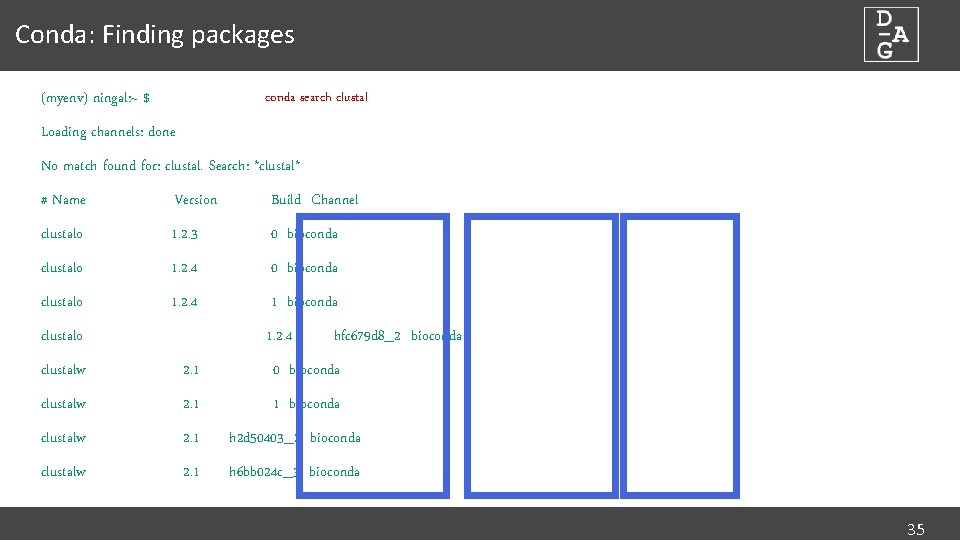
Conda: Finding packages (myenv) ningal: ~ $ conda search clustal Loading channels: done No match found for: clustal. Search: *clustal* # Name Version Build Channel clustalo 1. 2. 3 0 bioconda clustalo 1. 2. 4 1 bioconda clustalo 1. 2. 4 hfc 679 d 8_2 bioconda clustalw 2. 1 0 bioconda clustalw 2. 1 1 bioconda clustalw 2. 1 h 2 d 50403_2 bioconda clustalw 2. 1 h 6 bb 024 c_3 bioconda 35
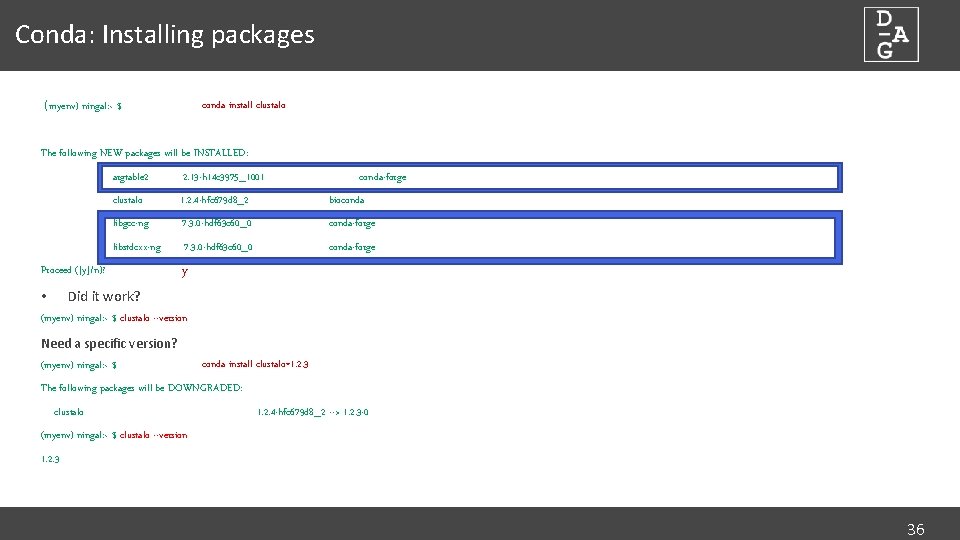
Conda: Installing packages (myenv) ningal: ~ $ conda install clustalo The following NEW packages will be INSTALLED: argtable 2 2. 13 -h 14 c 3975_1001 clustalo 1. 2. 4 -hfc 679 d 8_2 bioconda libgcc-ng 7. 3. 0 -hdf 63 c 60_0 conda-forge libstdcxx-ng 7. 3. 0 -hdf 63 c 60_0 conda-forge Proceed ([y]/n)? conda-forge y Did it work? • (myenv) ningal: ~ $ clustalo --version Need a specific version? (myenv) ningal: ~ $ conda install clustalo=1. 2. 3 The following packages will be DOWNGRADED: clustalo 1. 2. 4 -hfc 679 d 8_2 --> 1. 2. 3 -0 (myenv) ningal: ~ $ clustalo --version 1. 2. 3 36
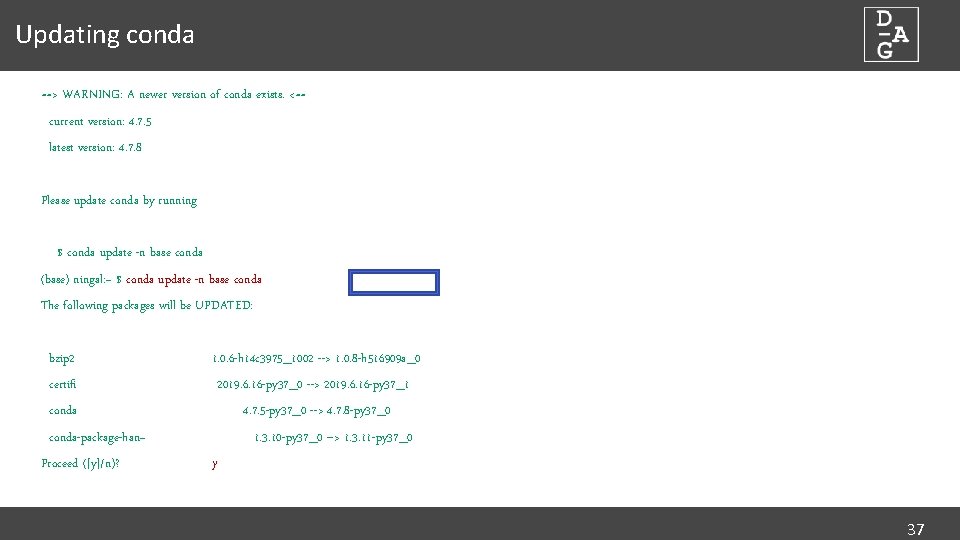
Updating conda ==> WARNING: A newer version of conda exists. <== current version: 4. 7. 5 latest version: 4. 7. 8 Please update conda by running $ conda update -n base conda (base) ningal: ~ $ conda update -n base conda The following packages will be UPDATED: bzip 2 1. 0. 6 -h 14 c 3975_1002 --> 1. 0. 8 -h 516909 a_0 certifi 2019. 6. 16 -py 37_0 --> 2019. 6. 16 -py 37_1 conda 4. 7. 5 -py 37_0 --> 4. 7. 8 -py 37_0 conda-package-han~ Proceed ([y]/n)? 1. 3. 10 -py 37_0 --> 1. 3. 11 -py 37_0 y 37
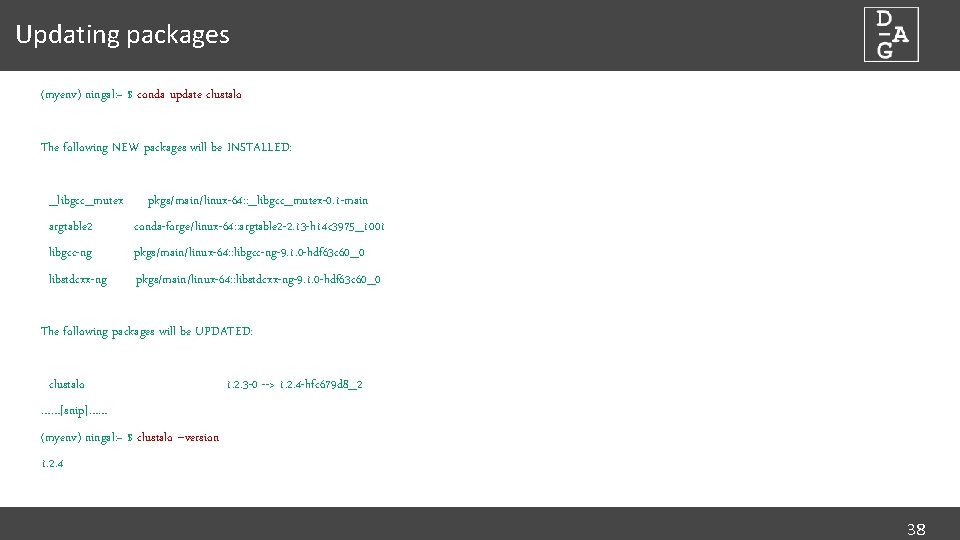
Updating packages (myenv) ningal: ~ $ conda update clustalo The following NEW packages will be INSTALLED: _libgcc_mutex pkgs/main/linux-64: : _libgcc_mutex-0. 1 -main argtable 2 conda-forge/linux-64: : argtable 2 -2. 13 -h 14 c 3975_1001 libgcc-ng pkgs/main/linux-64: : libgcc-ng-9. 1. 0 -hdf 63 c 60_0 libstdcxx-ng pkgs/main/linux-64: : libstdcxx-ng-9. 1. 0 -hdf 63 c 60_0 The following packages will be UPDATED: clustalo 1. 2. 3 -0 --> 1. 2. 4 -hfc 679 d 8_2 ……[snip]…… (myenv) ningal: ~ $ clustalo --version 1. 2. 4 38
An exercise… • We'll use the program 'sambamba' later in the workshop • Search for sambamba and see which versions are available. • Find out more details about the latest version • 'conda search packagename=version --info' • Which package dependencies will be installed along with sambamba? • Now install sambamba into your environment 39
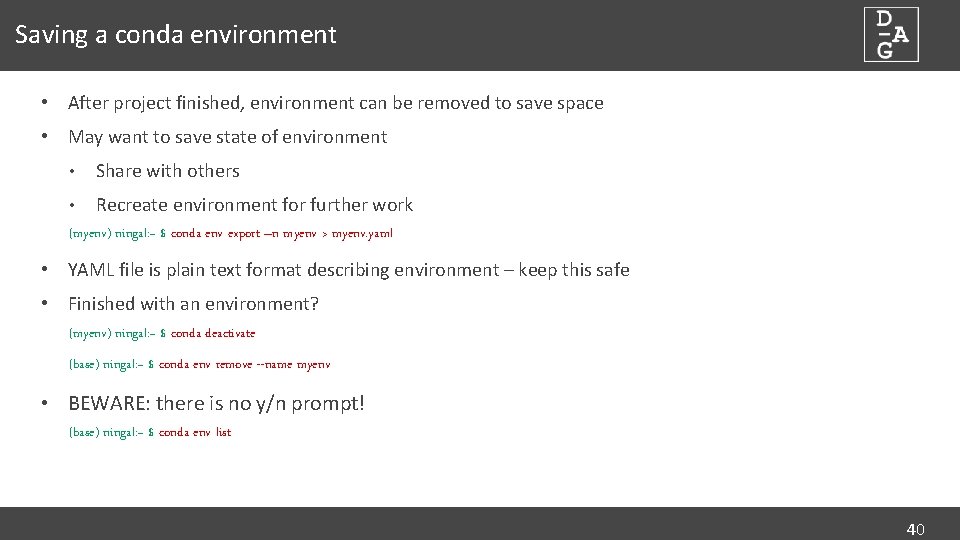
Saving a conda environment • After project finished, environment can be removed to save space • May want to save state of environment • Share with others • Recreate environment for further work (myenv) ningal: ~ $ conda env export –n myenv > myenv. yaml • YAML file is plain text format describing environment – keep this safe • Finished with an environment? (myenv) ningal: ~ $ conda deactivate (base) ningal: ~ $ conda env remove --name myenv • BEWARE: there is no y/n prompt! (base) ningal: ~ $ conda env list 40
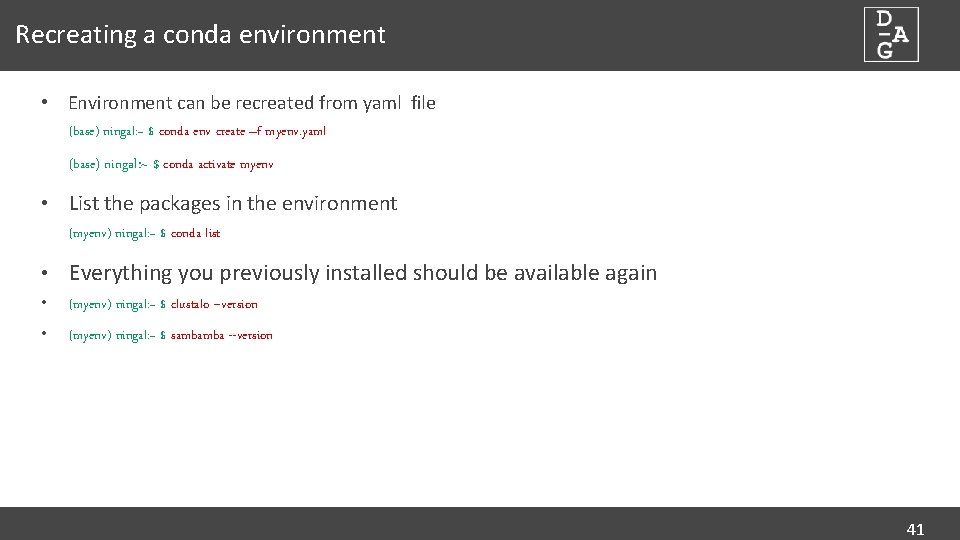
Recreating a conda environment • Environment can be recreated from yaml file (base) ningal: ~ $ conda env create –f myenv. yaml (base) ningal: ~ $ conda activate myenv • List the packages in the environment (myenv) ningal: ~ $ conda list • Everything you previously installed should be available again • (myenv) ningal: ~ $ clustalo --version • (myenv) ningal: ~ $ sambamba --version 41

Cluster Middleware dundee. ac. uk http: //dag. compbio. dundee. ac. uk cb-dag@dundee. ac. uk @Uo. D_DAG Page
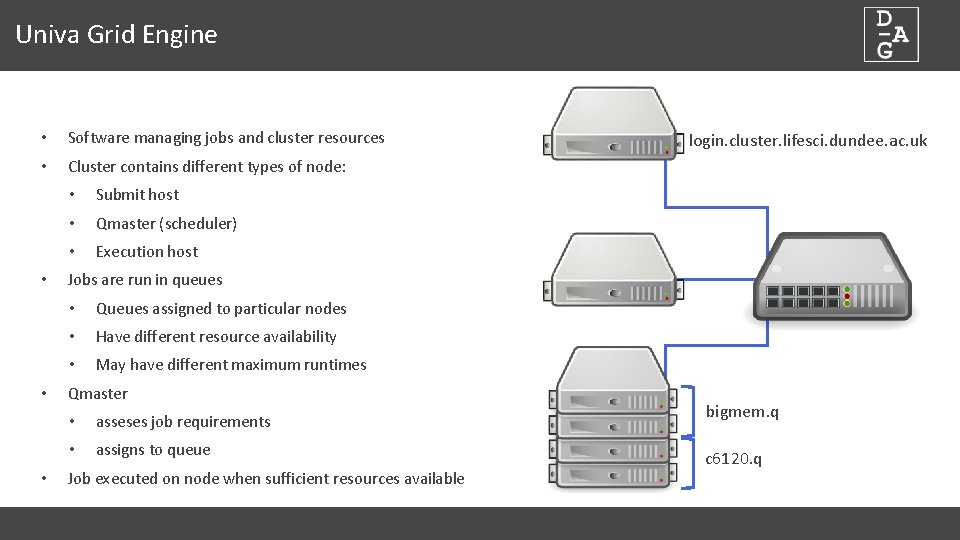
Univa Grid Engine • Software managing jobs and cluster resources • Cluster contains different types of node: • • Submit host • Qmaster (scheduler) • Execution host login. cluster. lifesci. dundee. ac. uk Jobs are run in queues • Queues assigned to particular nodes • Have different resource availability • May have different maximum runtimes Qmaster • asseses job requirements • assigns to queue Job executed on node when sufficient resources available bigmem. q c 6120. q
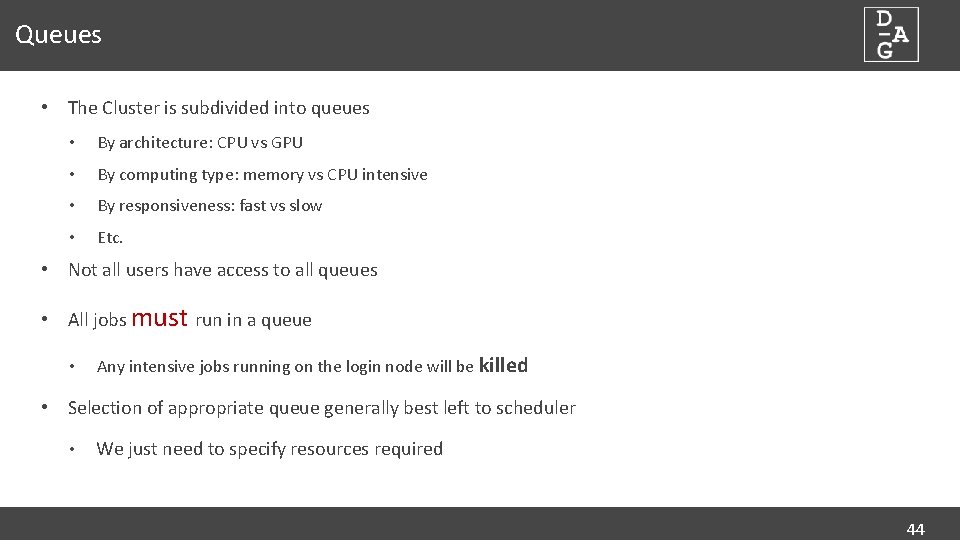
Queues • The Cluster is subdivided into queues • By architecture: CPU vs GPU • By computing type: memory vs CPU intensive • By responsiveness: fast vs slow • Etc. • Not all users have access to all queues • All jobs must run in a queue • Any intensive jobs running on the login node will be killed • Selection of appropriate queue generally best left to scheduler • We just need to specify resources required 44
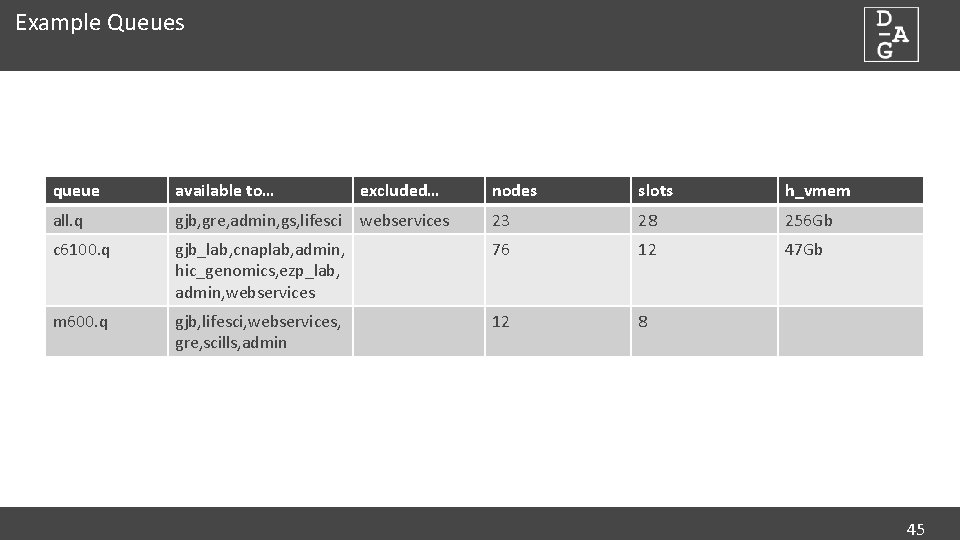
Example Queues queue available to… excluded… nodes slots h_vmem all. q gjb, gre, admin, gs, lifesci webservices 23 28 256 Gb c 6100. q gjb_lab, cnaplab, admin, hic_genomics, ezp_lab, admin, webservices 76 12 47 Gb m 600. q gjb, lifesci, webservices, gre, scills, admin 12 8 45
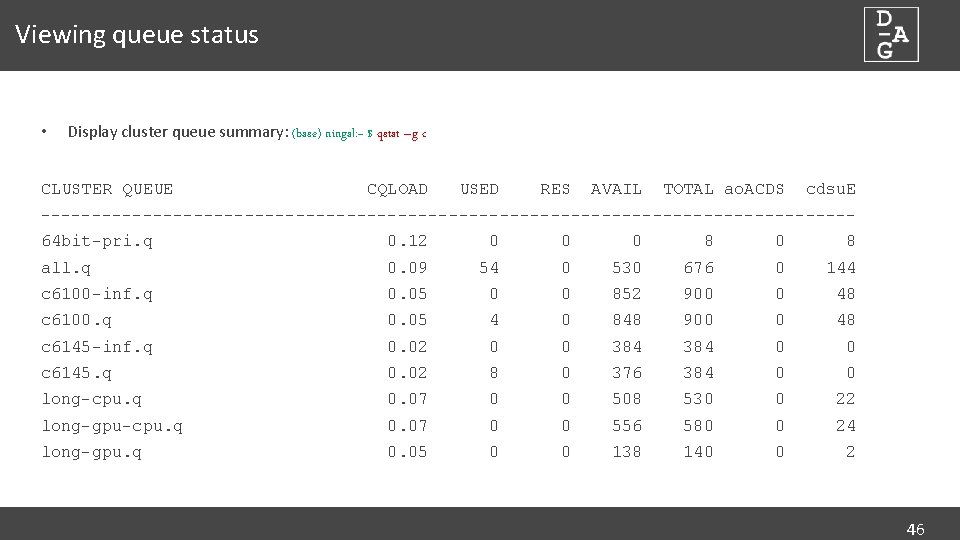
Viewing queue status • Display cluster queue summary: (base) ningal: ~ $ qstat –g c CLUSTER QUEUE CQLOAD USED RES AVAIL TOTAL ao. ACDS cdsu. E ----------------------------------------64 bit-pri. q 0. 12 0 0 0 8 all. q 0. 09 54 0 530 676 0 144 c 6100 -inf. q 0. 05 0 0 852 900 0 48 c 6100. q 0. 05 4 0 848 900 0 48 c 6145 -inf. q 0. 02 0 0 384 0 0 c 6145. q 0. 02 8 0 376 384 0 0 long-cpu. q 0. 07 0 0 508 530 0 22 long-gpu-cpu. q 0. 07 0 0 556 580 0 24 long-gpu. q 0. 05 0 0 138 140 0 2 46
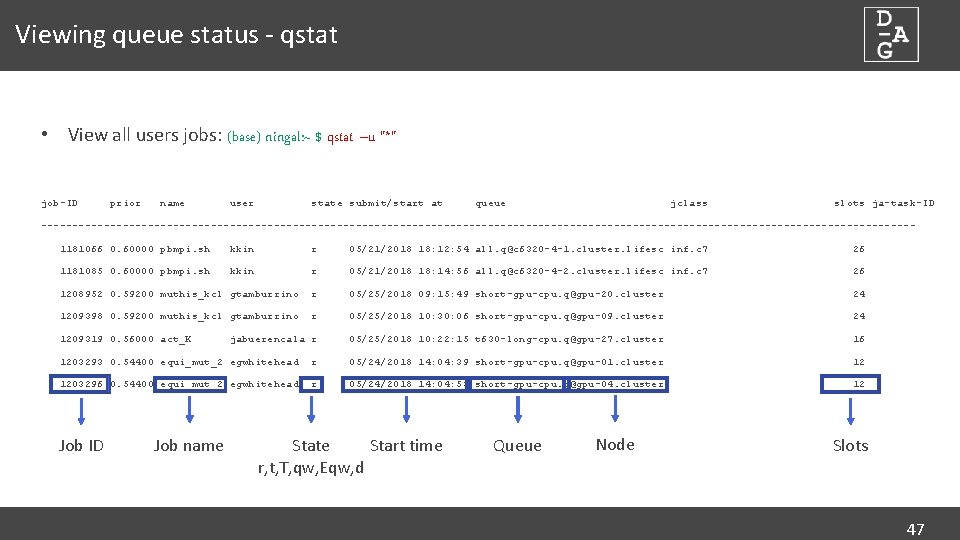
Viewing queue status - qstat • View all users jobs: (base) ningal: ~ $ qstat –u "*" job-ID prior name user state submit/start at queue jclass slots ja-task-ID ---------------------------------------------------------------------1181066 0. 60000 pbmpi. sh kkin r 05/21/2018 18: 12: 54 all. q@c 6320 -4 -1. cluster. lifesc inf. c 7 26 1181085 0. 60000 pbmpi. sh kkin r 05/21/2018 18: 14: 56 all. q@c 6320 -4 -2. cluster. lifesc inf. c 7 26 1208952 0. 59200 muthis_kcl gtamburrino r 05/25/2018 09: 15: 49 short-gpu-cpu. q@gpu-20. cluster 24 1209398 0. 59200 muthis_kcl gtamburrino r 05/25/2018 10: 30: 06 short-gpu-cpu. q@gpu-09. cluster 24 jabuerencala r 05/25/2018 10: 22: 15 t 630 -long-cpu. q@gpu-27. cluster 16 1209319 0. 56000 act_K 1203293 0. 54400 equi_mut_2 egwhitehead r 05/24/2018 14: 04: 39 short-gpu-cpu. q@gpu-01. cluster 12 1203296 0. 54400 equi_mut_2 egwhitehead r 05/24/2018 14: 04: 53 short-gpu-cpu. q@gpu-04. cluster 12 Job ID Job name Start time State r, t, T, qw, Eqw, d Queue Node Slots 47
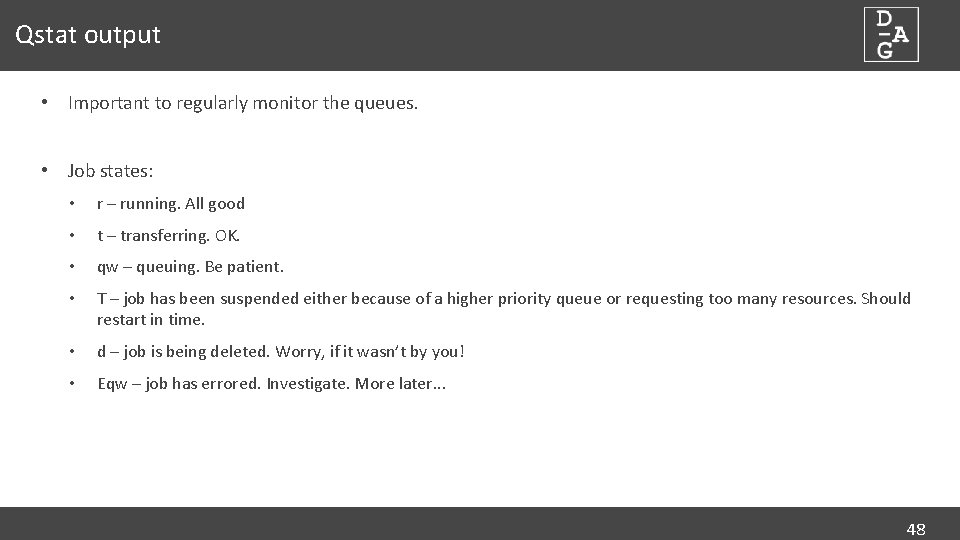
Qstat output • Important to regularly monitor the queues. • Job states: • r – running. All good • t – transferring. OK. • qw – queuing. Be patient. • T – job has been suspended either because of a higher priority queue or requesting too many resources. Should restart in time. • d – job is being deleted. Worry, if it wasn’t by you! • Eqw – job has errored. Investigate. More later. . . 48
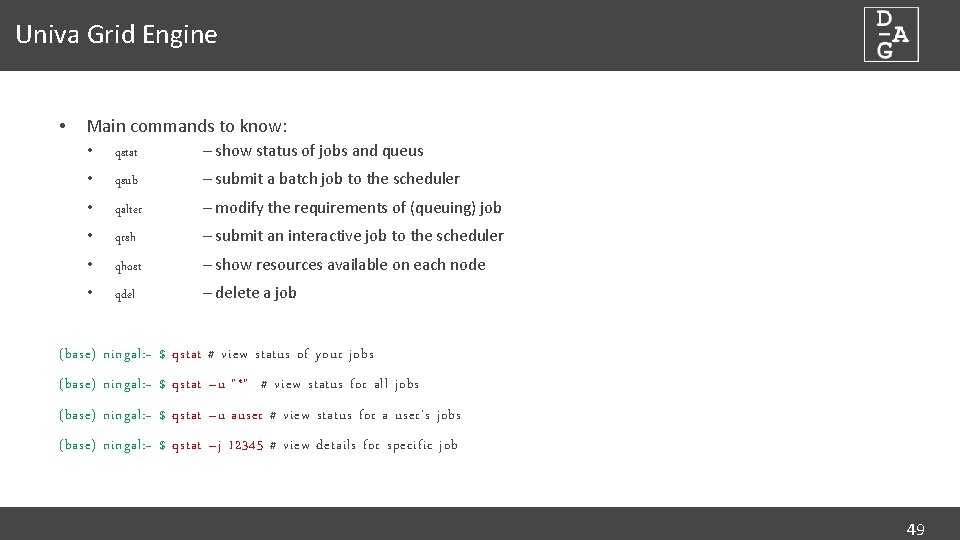
Univa Grid Engine • Main commands to know: • qstat – show status of jobs and queus • qsub – submit a batch job to the scheduler • qalter – modify the requirements of (queuing) job • qrsh – submit an interactive job to the scheduler • qhost – show resources available on each node • qdel – delete a job (base) ningal: ~ $ qstat # view status of your jobs (base) ningal: ~ $ qstat –u "*" # view status for all jobs (base) ningal: ~ $ qstat –u auser # view status for a user’s jobs (base) ningal: ~ $ qstat –j 12345 # view details for specific job 49
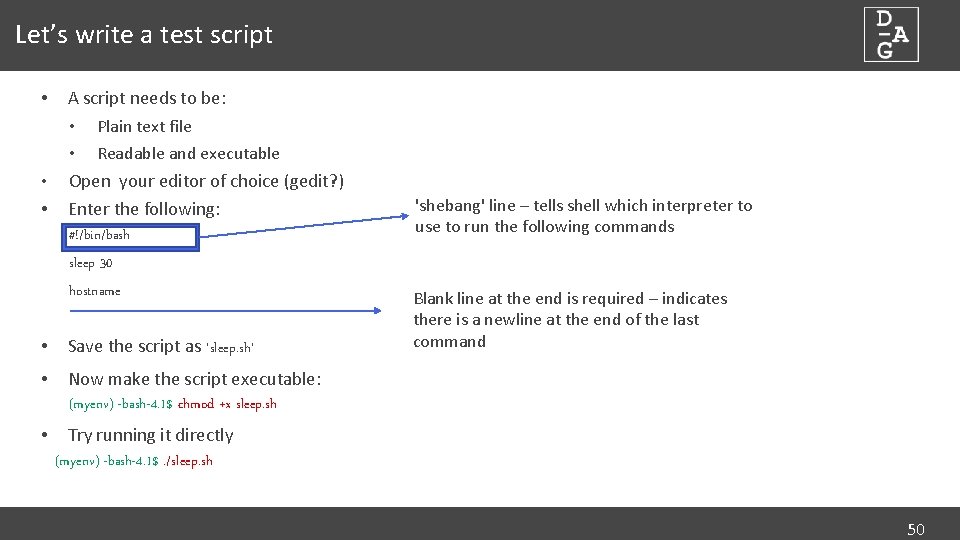
Let’s write a test script • • • A script needs to be: • Plain text file • Readable and executable Open your editor of choice (gedit? ) Enter the following: #!/bin/bash sleep 30 hostname • Save the script as 'sleep. sh' • Now make the script executable: (myenv) -bash-4. 1$ chmod +x sleep. sh • 'shebang' line – tells shell which interpreter to use to run the following commands Blank line at the end is required – indicates there is a newline at the end of the last command Try running it directly (myenv) -bash-4. 1$. /sleep. sh 50
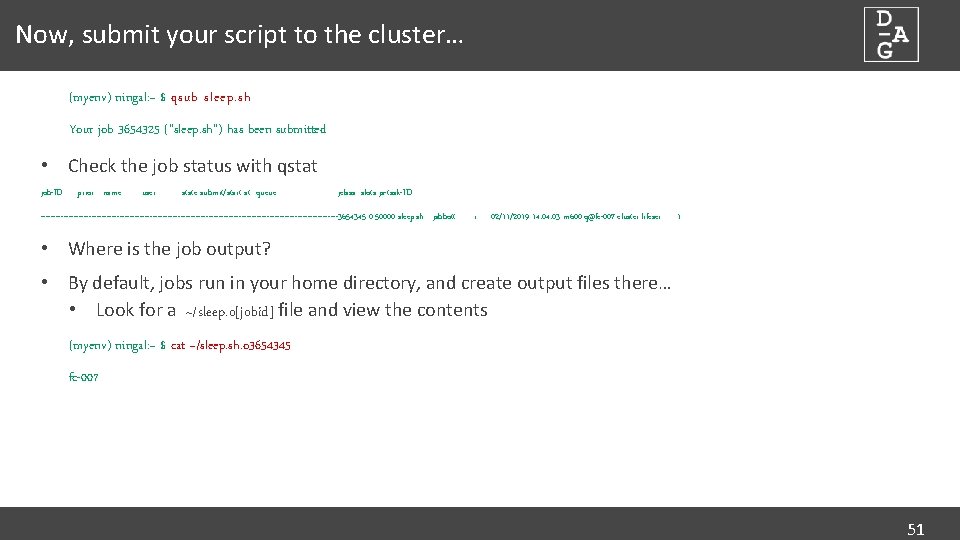
Now, submit your script to the cluster… (myenv) ningal: ~ $ qsub sleep. sh Your job 3654325 ("sleep. sh") has been submitted • Check the job status with qstat job-ID prior name user state submit/start at queue jclass slots ja-task-ID -----------------------------------------------------------3654345 0. 50000 sleep. sh jabbott r 02/11/2019 14: 03 m 600. q@fc-007. cluster. lifesci. 1 • Where is the job output? • By default, jobs run in your home directory, and create output files there… • Look for a ~/sleep. o[jobid] file and view the contents (myenv) ningal: ~ $ cat ~/sleep. sh. o 3654345 fc-007 51
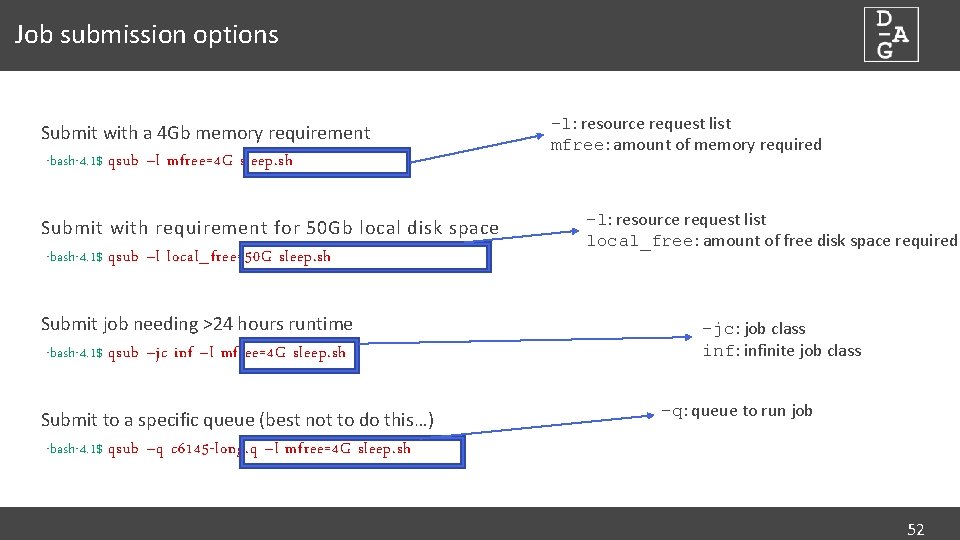
Job submission options Submit with a 4 Gb memory requirement -bash-4. 1$ qsub –l mfree=4 G sleep. sh Submit with requirement for 50 Gb local disk space -bash-4. 1$ qsub –l local_free=50 G sleep. sh Submit job needing >24 hours runtime -bash-4. 1$ qsub –jc inf –l mfree=4 G sleep. sh Submit to a specific queue (best not to do this…) -bash-4. 1$ qsub –q c 6145 -long. q –l mfree=4 G sleep. sh -l: resource request list mfree: amount of memory required -l: resource request list local_free: amount of free disk space required -jc: job class inf: infinite job class -q: queue to run job 52
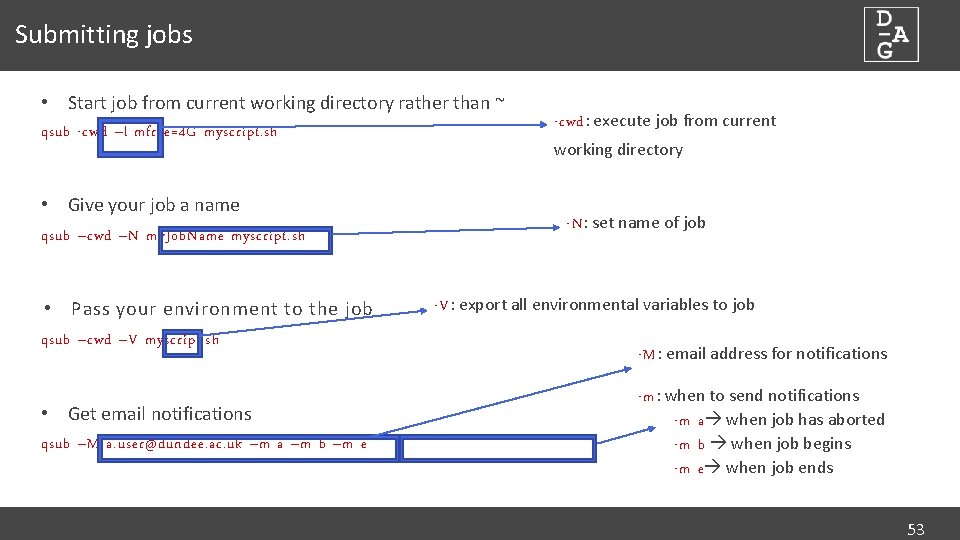
Submitting jobs • Start job from current working directory rather than ~ qsub -cwd –l mfree=4 G myscript. sh • Give your job a name qsub –cwd –N my. Job. Name myscript. sh • Pass your environment to the job qsub –cwd –V myscript. sh • Get email notifications qsub –M a. user@dundee. ac. uk –m a –m b –m e -cwd : execute job from current working directory -N : set name of job -V : export all environmental variables to job -M : email address for notifications -m : when to send notifications -m a when job has aborted -m b when job begins -m e when job ends 53
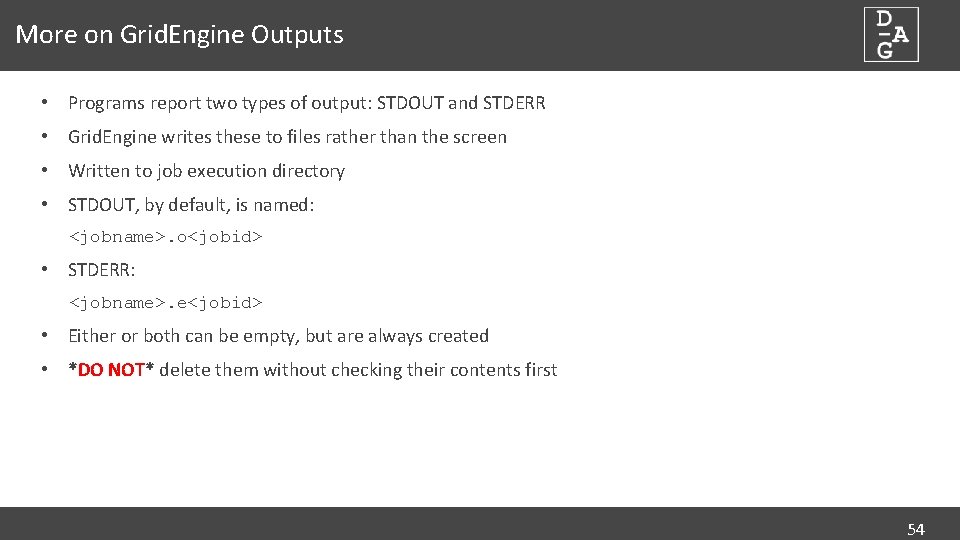
More on Grid. Engine Outputs • Programs report two types of output: STDOUT and STDERR • Grid. Engine writes these to files rather than the screen • Written to job execution directory • STDOUT, by default, is named: <jobname>. o<jobid> • STDERR: <jobname>. e<jobid> • Either or both can be empty, but are always created • *DO NOT* delete them without checking their contents first 54
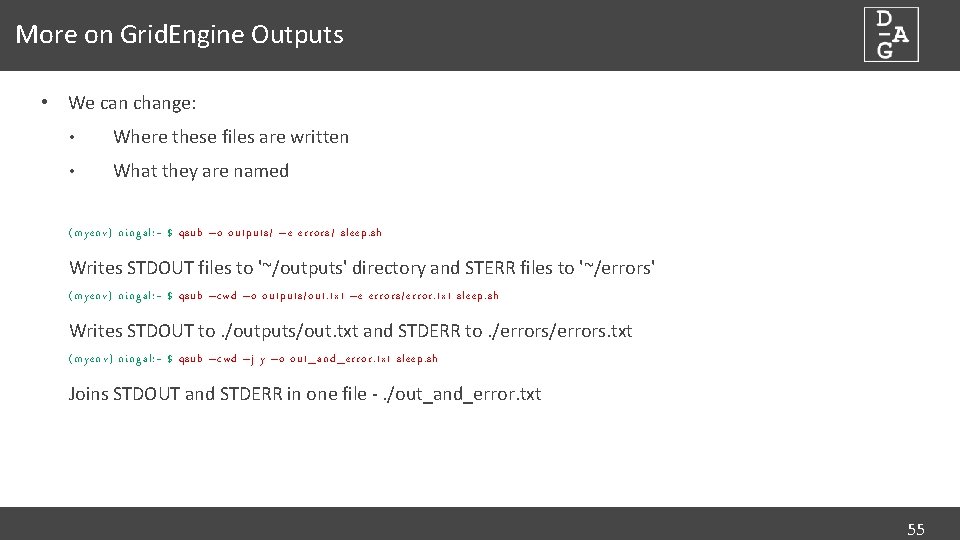
More on Grid. Engine Outputs • We can change: • Where these files are written • What they are named (myenv) ningal: ~ $ qsub –o outputs/ –e errors/ sleep. sh Writes STDOUT files to '~/outputs' directory and STERR files to '~/errors' (myenv) ningal: ~ $ qsub –cwd –o outputs/out. txt –e errors/error. txt sleep. sh Writes STDOUT to. /outputs/out. txt and STDERR to. /errors. txt (myenv) ningal: ~ $ qsub –cwd –j y –o out_and_error. txt sleep. sh Joins STDOUT and STDERR in one file -. /out_and_error. txt 55
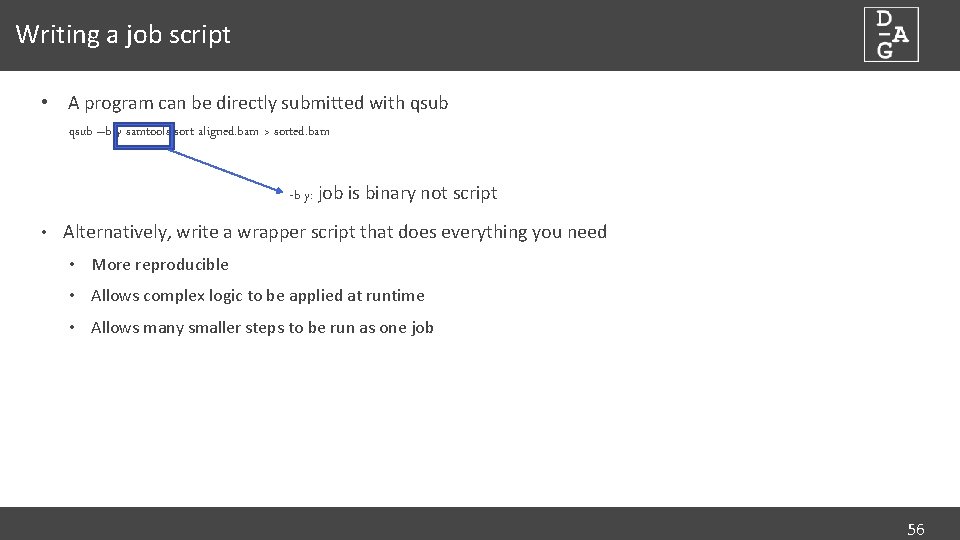
Writing a job script • A program can be directly submitted with qsub –b y samtools sort aligned. bam > sorted. bam -b y: job is binary not script • Alternatively, write a wrapper script that does everything you need • More reproducible • Allows complex logic to be applied at runtime • Allows many smaller steps to be run as one job 56
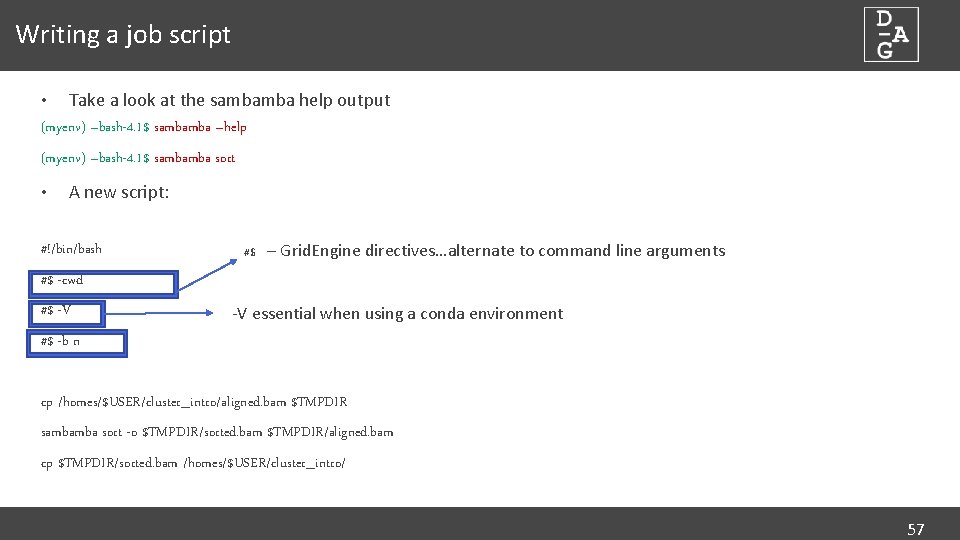
Writing a job script Take a look at the sambamba help output (myenv) –bash-4. 1$ sambamba –help • (myenv) –bash-4. 1$ sambamba sort • A new script: #!/bin/bash #$ – Grid. Engine directives…alternate to command line arguments #$ -cwd #$ -V -V essential when using a conda environment #$ -b n cp /homes/$USER/cluster_intro/aligned. bam $TMPDIR sambamba sort -o $TMPDIR/sorted. bam $TMPDIR/aligned. bam cp $TMPDIR/sorted. bam /homes/$USER/cluster_intro/ 57
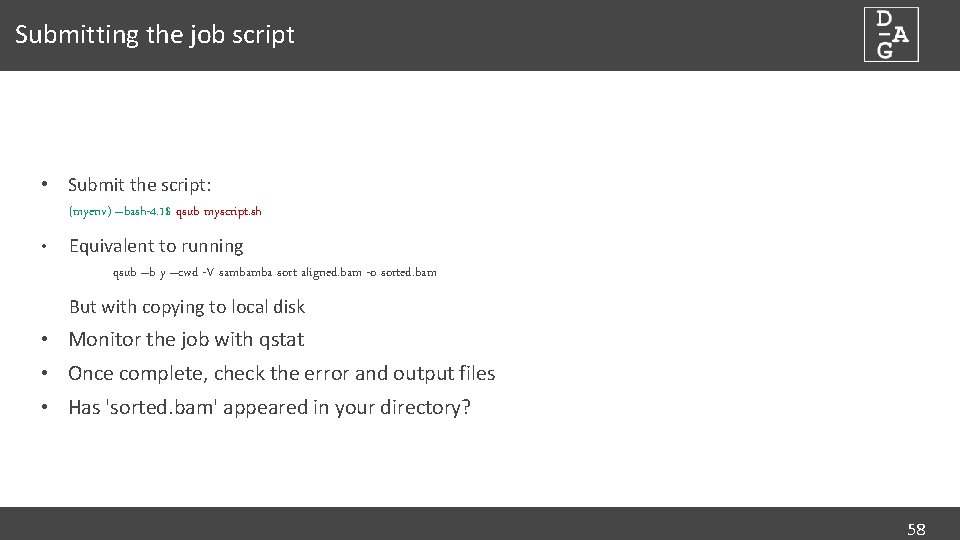
Submitting the job script • Submit the script: (myenv) –bash-4. 1$ qsub myscript. sh • Equivalent to running qsub –b y –cwd -V sambamba sort aligned. bam -o sorted. bam But with copying to local disk • Monitor the job with qstat • Once complete, check the error and output files • Has 'sorted. bam' appeared in your directory? 58
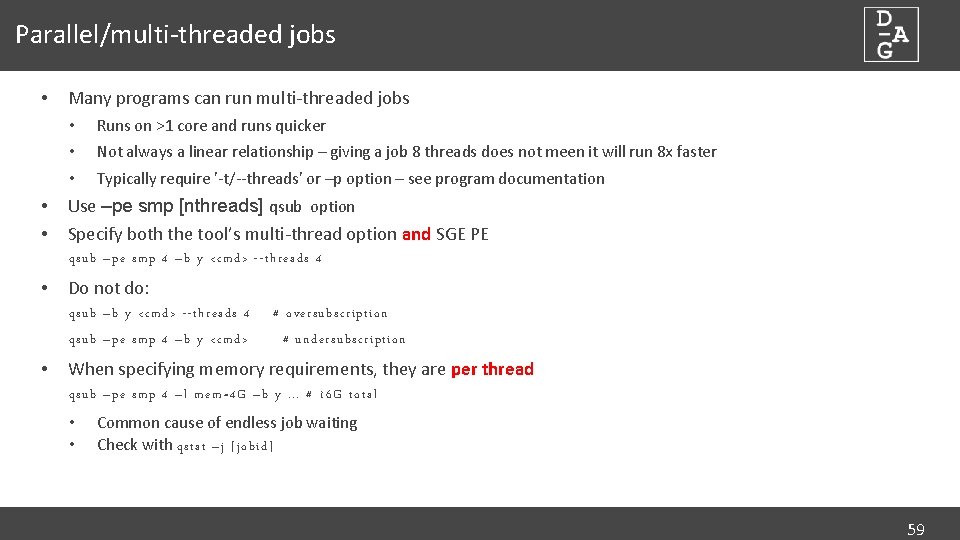
Parallel/multi-threaded jobs • • • Many programs can run multi-threaded jobs • Runs on >1 core and runs quicker • Not always a linear relationship – giving a job 8 threads does not meen it will run 8 x faster • Typically require '-t/--threads' or –p option – see program documentation Use –pe smp [nthreads] qsub option Specify both the tool’s multi-thread option and SGE PE qsub –pe smp 4 –b y <cmd> --threads 4 • Do not do: qsub –b y <cmd> --threads 4 qsub –pe smp 4 –b y <cmd> • # oversubscription # undersubscription When specifying memory requirements, they are per thread qsub –pe smp 4 –l mem=4 G –b y. . . # 16 G total • • Common cause of endless job waiting Check with qstat –j [jobid] 59
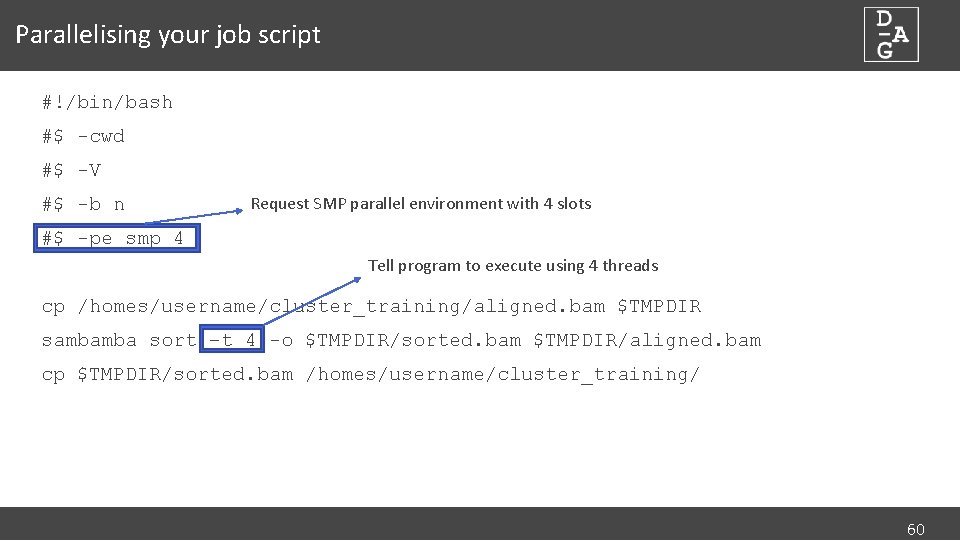
Parallelising your job script #!/bin/bash #$ -cwd #$ -V #$ -b n Request SMP parallel environment with 4 slots #$ -pe smp 4 Tell program to execute using 4 threads cp /homes/username/cluster_training/aligned. bam $TMPDIR sambamba sort –t 4 -o $TMPDIR/sorted. bam $TMPDIR/aligned. bam cp $TMPDIR/sorted. bam /homes/username/cluster_training/ 60
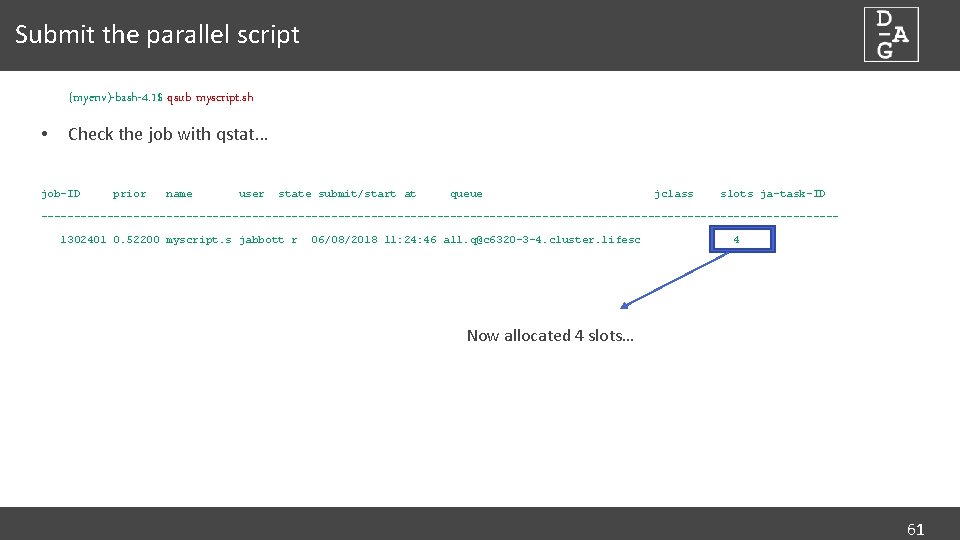
Submit the parallel script (myenv)-bash-4. 1$ qsub myscript. sh • Check the job with qstat… job-ID prior name user state submit/start at queue jclass slots ja-task-ID ------------------------------------------------------------1302401 0. 52200 myscript. s jabbott r 06/08/2018 11: 24: 46 all. q@c 6320 -3 -4. cluster. lifesc 4 Now allocated 4 slots… 61
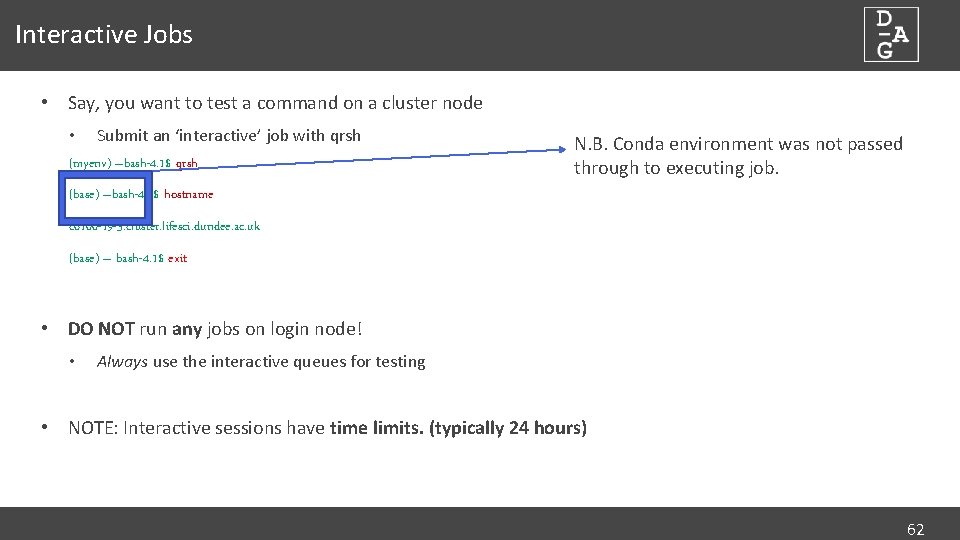
Interactive Jobs • Say, you want to test a command on a cluster node Submit an ‘interactive’ job with qrsh (myenv) –bash-4. 1$ qrsh • N. B. Conda environment was not passed through to executing job. (base) –bash-4. 1$ hostname c 6100 -19 -3. cluster. lifesci. dundee. ac. uk (base) – bash-4. 1$ exit • DO NOT run any jobs on login node! • Always use the interactive queues for testing • NOTE: Interactive sessions have time limits. (typically 24 hours) 62
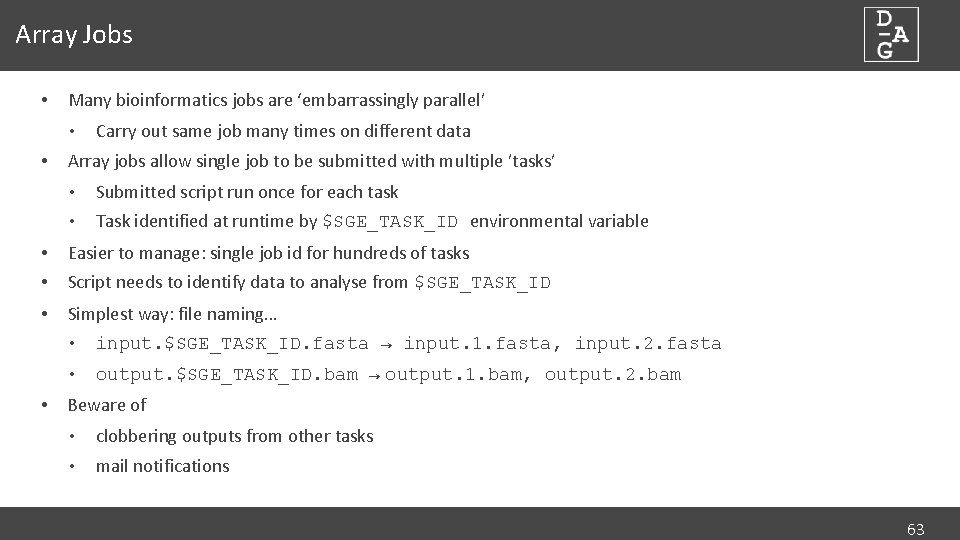
Array Jobs • Many bioinformatics jobs are ‘embarrassingly parallel’ • • Carry out same job many times on different data Array jobs allow single job to be submitted with multiple ’tasks’ • Submitted script run once for each task • Task identified at runtime by $SGE_TASK_ID environmental variable • Easier to manage: single job id for hundreds of tasks • Script needs to identify data to analyse from $SGE_TASK_ID • Simplest way: file naming… • • input. $SGE_TASK_ID. fasta → input. 1. fasta, input. 2. fasta • output. $SGE_TASK_ID. bam → output. 1. bam, output. 2. bam Beware of • clobbering outputs from other tasks • mail notifications 63
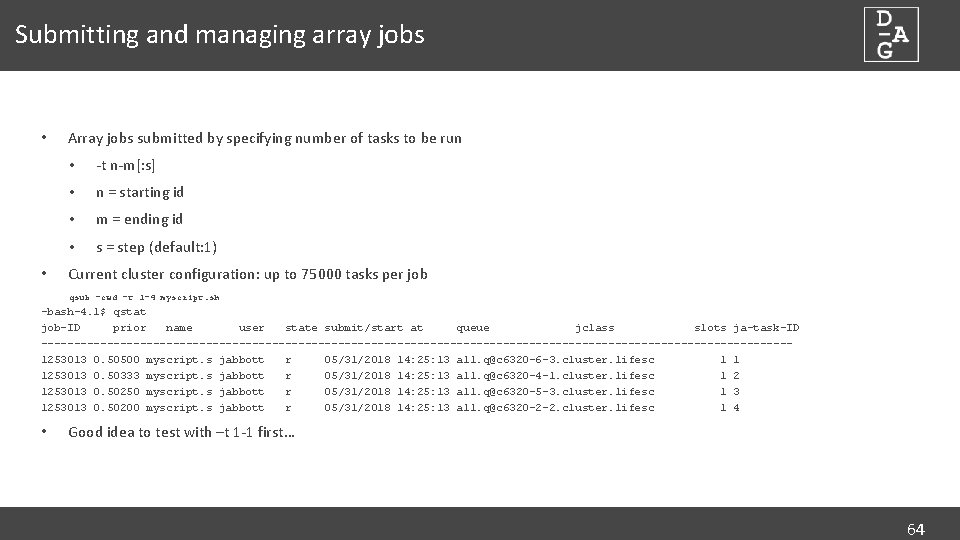
Submitting and managing array jobs • • Array jobs submitted by specifying number of tasks to be run • -t n-m[: s] • n = starting id • m = ending id • s = step (default: 1) Current cluster configuration: up to 75000 tasks per job qsub –cwd –t 1 -4 myscript. sh -bash-4. 1$ qstat job-ID prior name user state submit/start at queue jclass slots ja-task-ID ---------------------------------------------------------1253013 0. 50500 myscript. s jabbott r 05/31/2018 14: 25: 13 all. q@c 6320 -6 -3. cluster. lifesc 1 1 1253013 0. 50333 myscript. s jabbott r 05/31/2018 14: 25: 13 all. q@c 6320 -4 -1. cluster. lifesc 1 2 1253013 0. 50250 myscript. s jabbott r 05/31/2018 14: 25: 13 all. q@c 6320 -5 -3. cluster. lifesc 1 3 1253013 0. 50200 myscript. s jabbott r 05/31/2018 14: 25: 13 all. q@c 6320 -2 -2. cluster. lifesc 1 4 • Good idea to test with –t 1 -1 first… 64
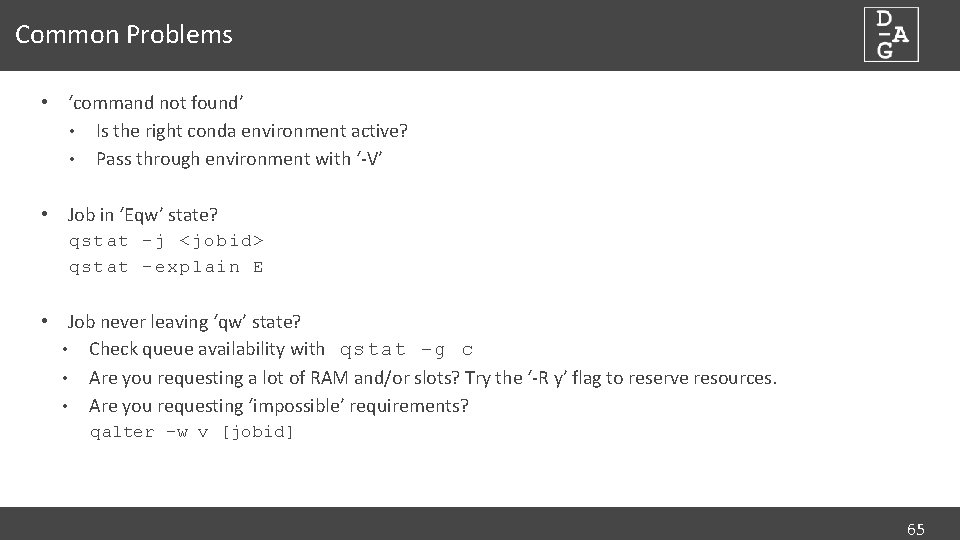
Common Problems • ‘command not found’ • Is the right conda environment active? • Pass through environment with ‘-V’ • Job in ‘Eqw’ state? qstat –j <jobid> qstat –explain E • Job never leaving ‘qw’ state? • Check queue availability with qstat –g c • Are you requesting a lot of RAM and/or slots? Try the ‘-R y’ flag to reserve resources. • Are you requesting ‘impossible’ requirements? qalter –w v [jobid] 65
Common Problems • Job never finishing? • Many potential reasons. • Using idle queue and cluster is very busy. • Undersubscribed RAM and going into swap • Oversubscribed resources and regularly going into ‘T’ state. • Other job(s) sharing node behaving badly 66
Troubleshooting • Job aborted/died? • Could be a scheduler problem or a program problem. • Check your email. You set ‘-m a’, right? • No mail? Try ‘qacct –j [jobid]’ • Check SGE error output • *Always* read documentation of programs you’re using. • Ask for help on cluster mailing list: cluster@compbio. dundee. ac. uk • Visit a DAG drop-in session • Check the wiki for help: https: //wiki. lifesci. dundee. ac. uk/cluster/sge/howto • Conda? https: //wiki. lifesci. dundee. ac. uk/cluster/conda • Report (serious) problems to IT. 67
Reporting Problems • Raise a ticket with Help 4 U • What is the expected behaviour? • What actually happens? • Are there any errors reported in the STDERR file • Does the job go to an error state? qstat –explain E –j job_id|grep reason • How did you submit the job? Include the qsub command you used • What is the Job ID of the problem job 68
Homework Write a parallel (threaded) job script to: • sort all the bam files in 'exercise' directory using sambamba • report some statistics of each bam file to a different output file for each bam file using the 'sambamba flagstat' command • The script should be run as an array job 69
- Slides: 69