
The HHS Learning Portal Learning Management System LMS

- Slides: 8
The HHS Learning Portal / Learning Management System (LMS) HHS Learning Portal (LMS): These terms are used interchangeably and refer to the same system. The Learning Management System (LMS) is a system for managing, accessing, and tracking training. The system is used across the Department of Health and Human Services (HHS)– hence the name HHS Learning. The HHS LMS structure is comprised of many domains used to segment users into groups. NIH has its own domain to ensure that all NIH staff have access to NIH-specific training resources. Ultimately, the NIH domain prevents users in other domains (HHS Operating Divisions, or OPDIVs) from viewing and accessing NIH-specific training resources. For a diagram of the HHS LMS Domain Structure, see Appendix A. 1
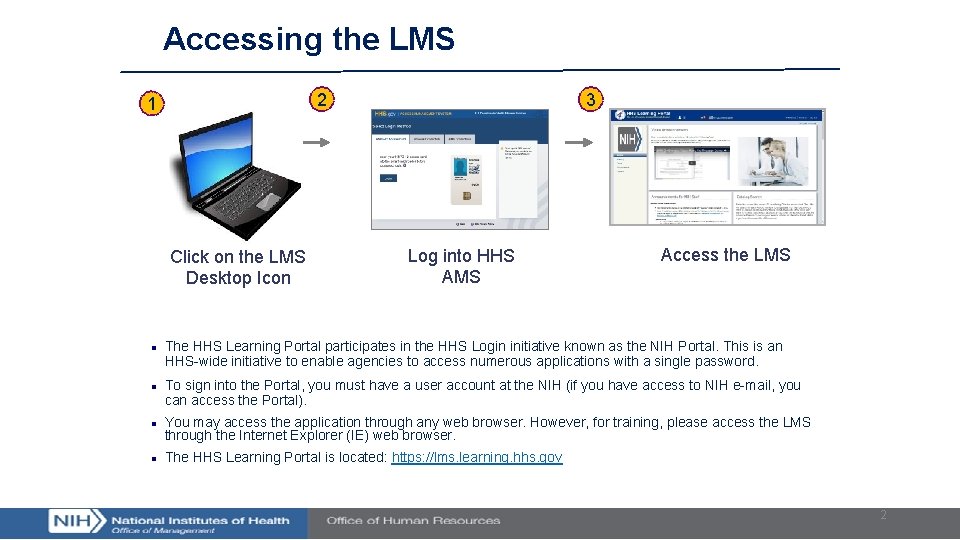
Accessing the LMS 2 1 Click on the LMS Desktop Icon n n 3 Log into HHS AMS Access the LMS The HHS Learning Portal participates in the HHS Login initiative known as the NIH Portal. This is an HHS-wide initiative to enable agencies to access numerous applications with a single password. To sign into the Portal, you must have a user account at the NIH (if you have access to NIH e-mail, you can access the Portal). You may access the application through any web browser. However, for training, please access the LMS through the Internet Explorer (IE) web browser. The HHS Learning Portal is located: https: //lms. learning. hhs. gov 2
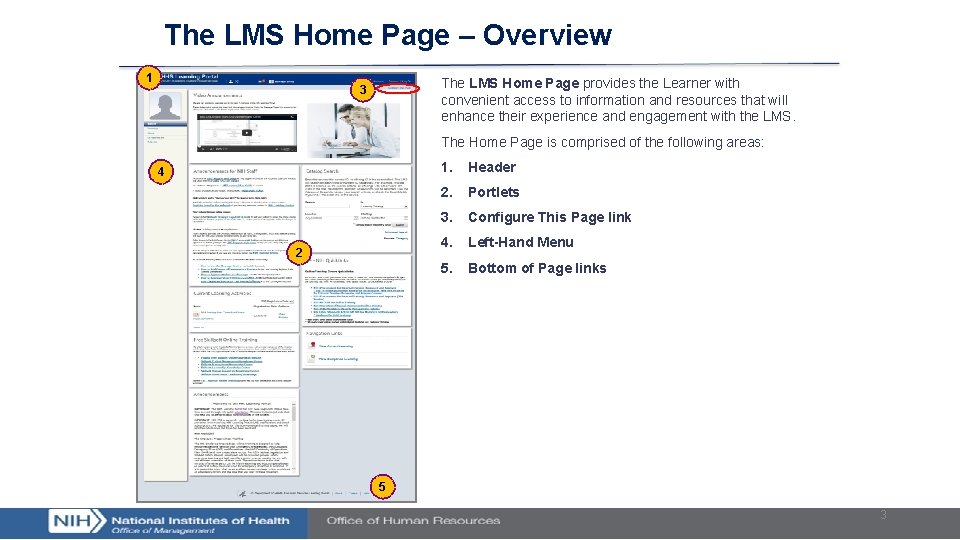
The LMS Home Page – Overview 1 The LMS Home Page provides the Learner with convenient access to information and resources that will enhance their experience and engagement with the LMS. 3 The Home Page is comprised of the following areas: 4 2 1. Header 2. Portlets 3. Configure This Page link 4. Left-Hand Menu 5. Bottom of Page links 5 3
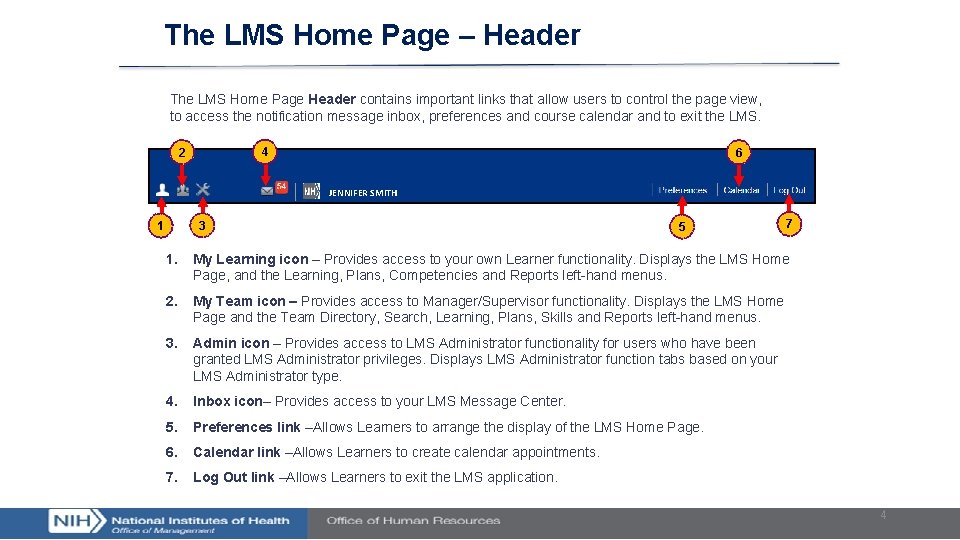
The LMS Home Page – Header The LMS Home Page Header contains important links that allow users to control the page view, to access the notification message inbox, preferences and course calendar and to exit the LMS. 4 2 6 JENNIFER SMITH 3 1 5 7 1. My Learning icon – Provides access to your own Learner functionality. Displays the LMS Home Page, and the Learning, Plans, Competencies and Reports left-hand menus. 2. My Team icon – Provides access to Manager/Supervisor functionality. Displays the LMS Home Page and the Team Directory, Search, Learning, Plans, Skills and Reports left-hand menus. 3. Admin icon – Provides access to LMS Administrator functionality for users who have been granted LMS Administrator privileges. Displays LMS Administrator function tabs based on your LMS Administrator type. 4. Inbox icon– Provides access to your LMS Message Center. 5. Preferences link –Allows Learners to arrange the display of the LMS Home Page. 6. Calendar link –Allows Learners to create calendar appointments. 7. Log Out link –Allows Learners to exit the LMS application. 4
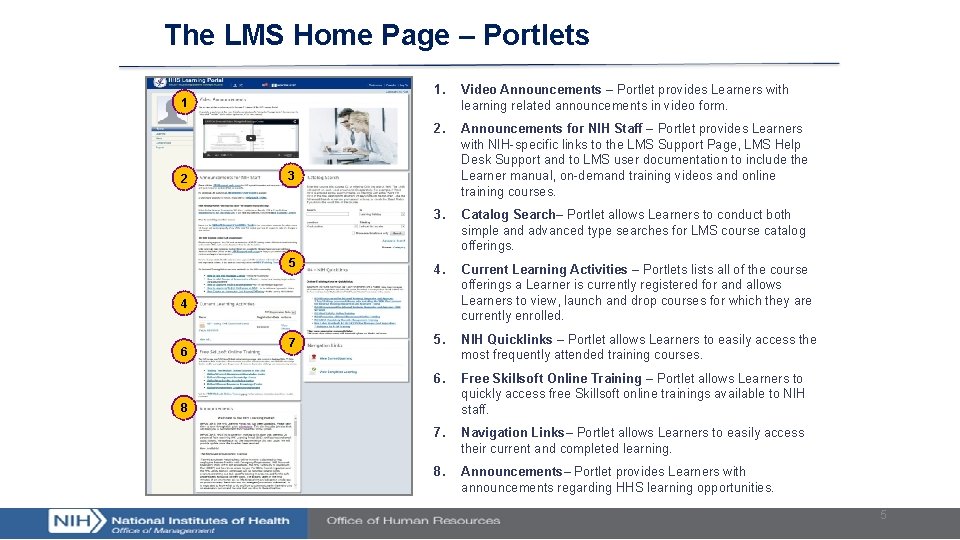
The LMS Home Page – Portlets 1. Video Announcements – Portlet provides Learners with learning related announcements in video form. 2. Announcements for NIH Staff – Portlet provides Learners with NIH-specific links to the LMS Support Page, LMS Help Desk Support and to LMS user documentation to include the Learner manual, on-demand training videos and online training courses. 3. Catalog Search– Portlet allows Learners to conduct both simple and advanced type searches for LMS course catalog offerings. 5 4. Current Learning Activities – Portlets lists all of the course offerings a Learner is currently registered for and allows Learners to view, launch and drop courses for which they are currently enrolled. 7 5. NIH Quicklinks – Portlet allows Learners to easily access the most frequently attended training courses. 6. Free Skillsoft Online Training – Portlet allows Learners to quickly access free Skillsoft online trainings available to NIH staff. 7. Navigation Links– Portlet allows Learners to easily access their current and completed learning. 8. Announcements– Portlet provides Learners with announcements regarding HHS learning opportunities. 1 2 3 4 6 8 5
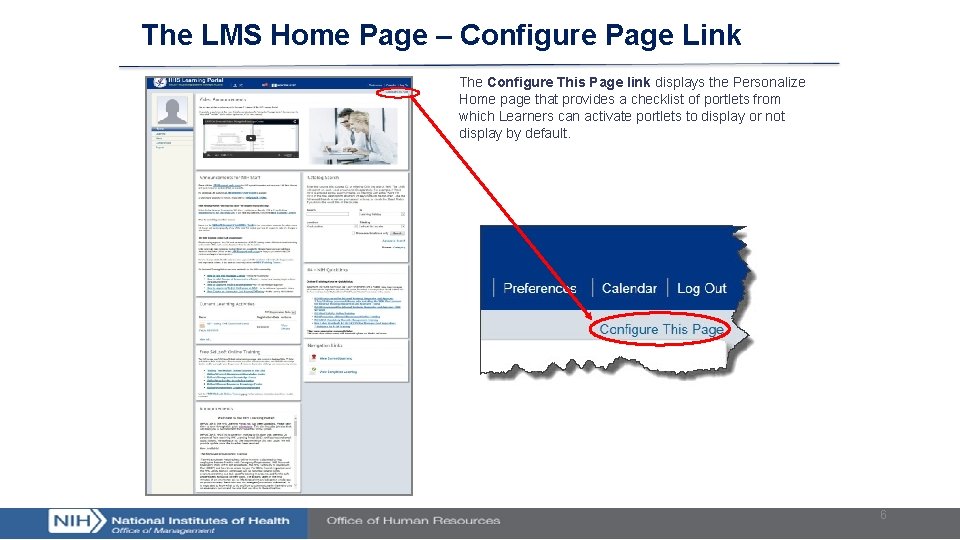
The LMS Home Page – Configure Page Link The Configure This Page link displays the Personalize Home page that provides a checklist of portlets from which Learners can activate portlets to display or not display by default. 6
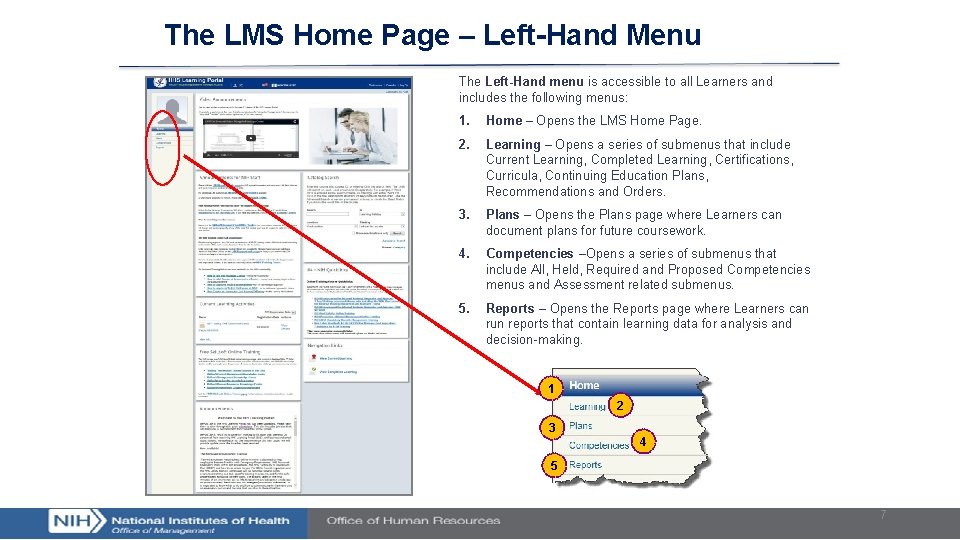
The LMS Home Page – Left-Hand Menu The Left-Hand menu is accessible to all Learners and includes the following menus: 1. Home – Opens the LMS Home Page. 2. Learning – Opens a series of submenus that include Current Learning, Completed Learning, Certifications, Curricula, Continuing Education Plans, Recommendations and Orders. 3. Plans – Opens the Plans page where Learners can document plans for future coursework. 4. Competencies –Opens a series of submenus that include All, Held, Required and Proposed Competencies menus and Assessment related submenus. 5. Reports – Opens the Reports page where Learners can run reports that contain learning data for analysis and decision-making. 1 2 3 4 5 7
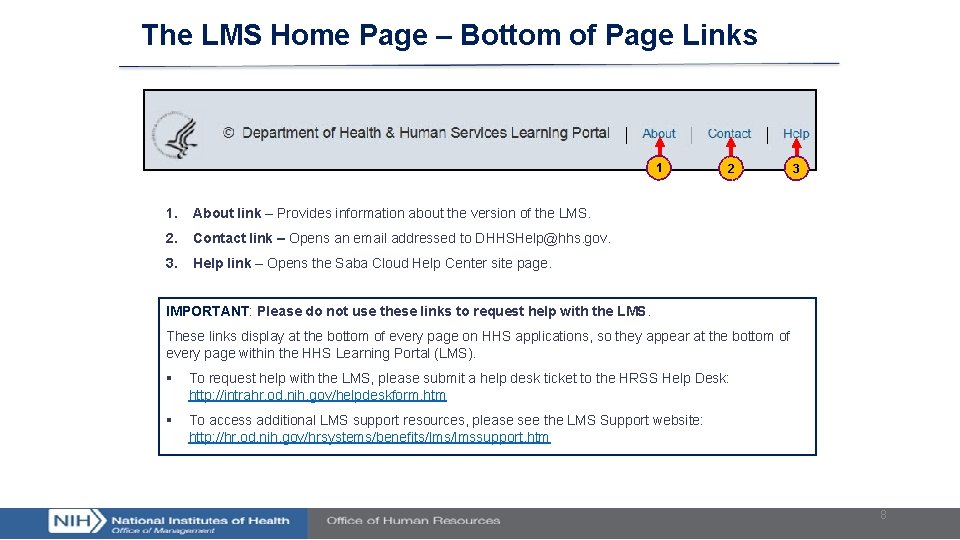
The LMS Home Page – Bottom of Page Links 1 1. About link – Provides information about the version of the LMS. 2. Contact link – Opens an email addressed to DHHSHelp@hhs. gov. 3. Help link – Opens the Saba Cloud Help Center site page. 2 3 IMPORTANT: Please do not use these links to request help with the LMS. These links display at the bottom of every page on HHS applications, so they appear at the bottom of every page within the HHS Learning Portal (LMS). § To request help with the LMS, please submit a help desk ticket to the HRSS Help Desk: http: //intrahr. od. nih. gov/helpdeskform. htm § To access additional LMS support resources, please see the LMS Support website: http: //hr. od. nih. gov/hrsystems/benefits/lmssupport. htm 8