
The failure of Synchronization with SNS App Appendix
- Slides: 10
The failure of Synchronization with SNS App <Appendix> Customer Consultant Guide Android mobile technology platform Version 1. 0 Global CS team 4 th , February 2015 *Note : You can also refer this guide regarding similar Region : Global other VOC about failure of synchronization with SNS Language : English application which is not explained on this guide.
Notice: All functionality, features, specifications and other product information provided in this document including, but not limited to, the benefits, design, pricing, components, performance, availability, and capabilities of the product are subject to change without notice or obligation. Samsung reserves the right to make changes to this document and the product described herein, at anytime, without obligation on Samsung to provide notification of such change. 2
Revision History: This version replaces all previous versions Date Version Comments HQ made initial version : Page 4 : “Facebook session expired” message appears continuously 2015. 02. 04 V 1. 0 Page 5 : Posting to Facebook or Twitter using S Voice fails Page 6 : “Twitter session expired” message appears continuously Page 7 : How to update the SNS Provider application Page 8~9 : How to install the Samsung Apps/Galaxy Apps 3
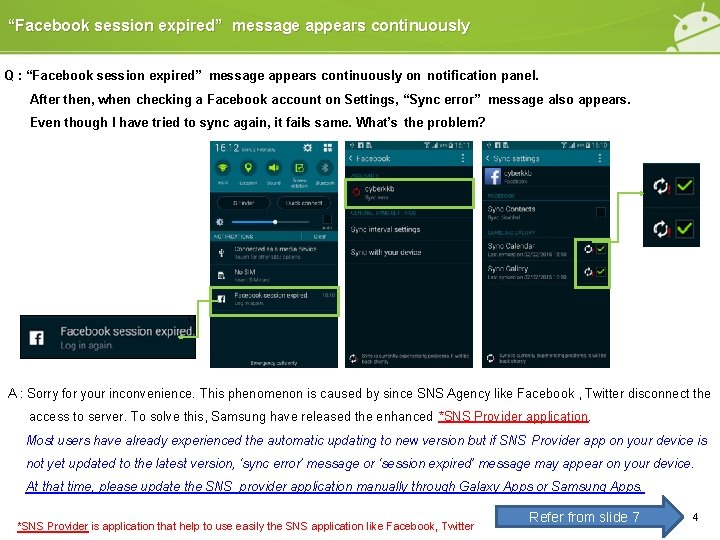
“Facebook session expired” message appears continuously Q : “Facebook session expired” message appears continuously on notification panel. After then, when checking a Facebook account on Settings, “Sync error” message also appears. Even though I have tried to sync again, it fails same. What’s the problem? A : Sorry for your inconvenience. This phenomenon is caused by since SNS Agency like Facebook , Twitter disconnect the access to server. To solve this, Samsung have released the enhanced *SNS Provider application. Most users have already experienced the automatic updating to new version but if SNS Provider app on your device is not yet updated to the latest version, ‘sync error’ message or ‘session expired’ message may appear on your device. At that time, please update the SNS provider application manually through Galaxy Apps or Samsung Apps. *SNS Provider is application that help to use easily the SNS application like Facebook, Twitter Refer from slide 7 4
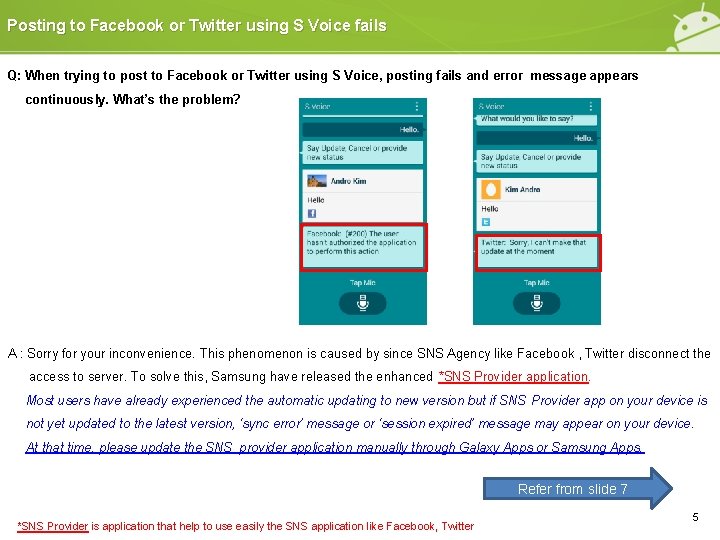
Posting to Facebook or Twitter using S Voice fails Q: When trying to post to Facebook or Twitter using S Voice, posting fails and error message appears continuously. What’s the problem? A : Sorry for your inconvenience. This phenomenon is caused by since SNS Agency like Facebook , Twitter disconnect the access to server. To solve this, Samsung have released the enhanced *SNS Provider application. Most users have already experienced the automatic updating to new version but if SNS Provider app on your device is not yet updated to the latest version, ‘sync error’ message or ‘session expired’ message may appear on your device. At that time, please update the SNS provider application manually through Galaxy Apps or Samsung Apps. Refer from slide 7 *SNS Provider is application that help to use easily the SNS application like Facebook, Twitter 5
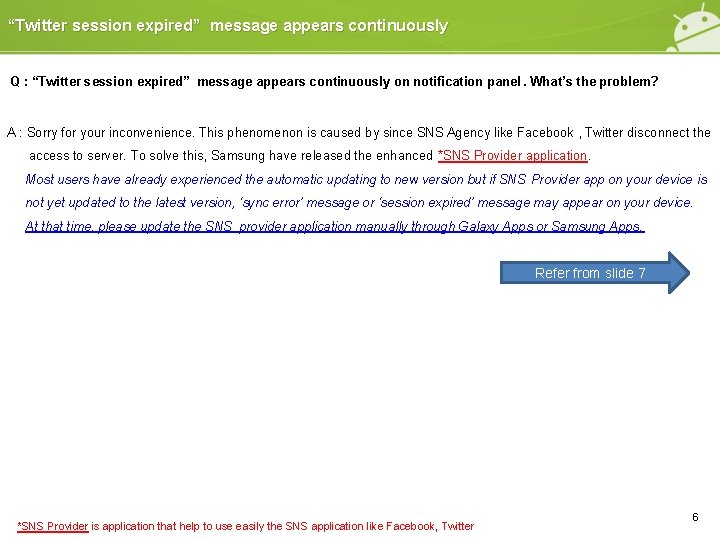
“Twitter session expired” message appears continuously Q : “Twitter session expired” message appears continuously on notification panel. What’s the problem? A : Sorry for your inconvenience. This phenomenon is caused by since SNS Agency like Facebook , Twitter disconnect the access to server. To solve this, Samsung have released the enhanced *SNS Provider application. Most users have already experienced the automatic updating to new version but if SNS Provider app on your device is not yet updated to the latest version, ‘sync error’ message or ‘session expired’ message may appear on your device. At that time, please update the SNS provider application manually through Galaxy Apps or Samsung Apps. Refer from slide 7 *SNS Provider is application that help to use easily the SNS application like Facebook, Twitter 6
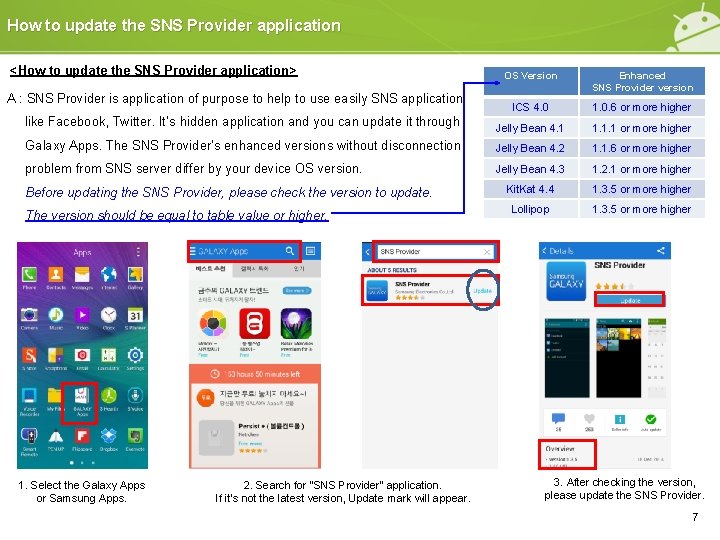
How to update the SNS Provider application <How to update the SNS Provider application> OS Version Enhanced SNS Provider version ICS 4. 0 1. 0. 6 or more higher like Facebook, Twitter. It’s hidden application and you can update it through Jelly Bean 4. 1 1. 1. 1 or more higher Galaxy Apps. The SNS Provider’s enhanced versions without disconnection Jelly Bean 4. 2 1. 1. 6 or more higher problem from SNS server differ by your device OS version. Jelly Bean 4. 3 1. 2. 1 or more higher Kit. Kat 4. 4 1. 3. 5 or more higher Lollipop 1. 3. 5 or more higher A : SNS Provider is application of purpose to help to use easily SNS application Before updating the SNS Provider, please check the version to update. The version should be equal to table value or higher. 1. Select the Galaxy Apps or Samsung Apps. 2. Search for “SNS Provider” application. If it’s not the latest version, Update mark will appear. 3. After checking the version, please update the SNS Provider. 7
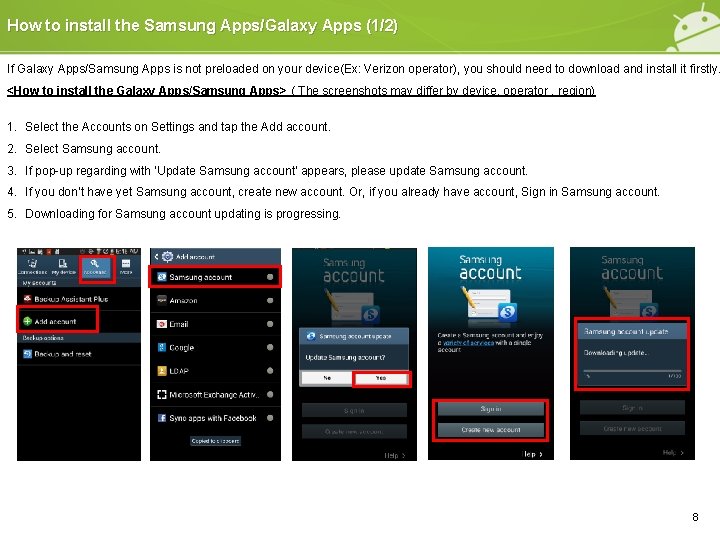
How to install the Samsung Apps/Galaxy Apps (1/2) If Galaxy Apps/Samsung Apps is not preloaded on your device(Ex: Verizon operator), you should need to download and install it firstly. <How to install the Galaxy Apps/Samsung Apps> ( The screenshots may differ by device, operator , region) 1. Select the Accounts on Settings and tap the Add account. 2. Select Samsung account. 3. If pop-up regarding with ‘Update Samsung account’ appears, please update Samsung account. 4. If you don’t have yet Samsung account, create new account. Or, if you already have account, Sign in Samsung account. 5. Downloading for Samsung account updating is progressing. 8
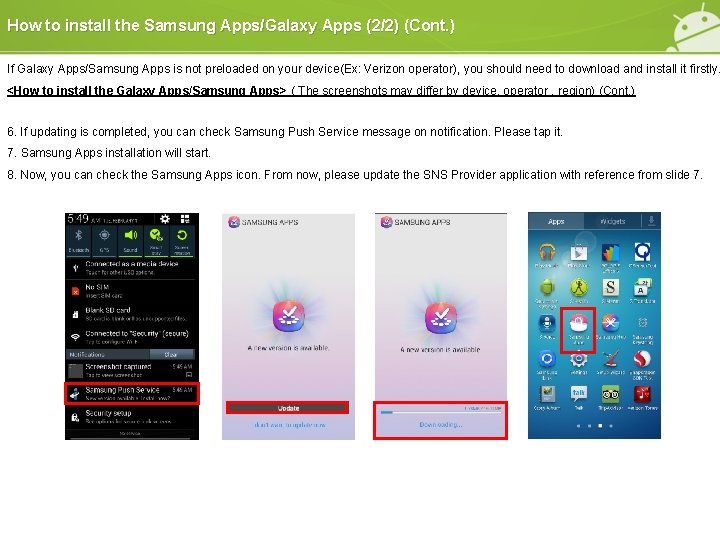
How to install the Samsung Apps/Galaxy Apps (2/2) (Cont. ) If Galaxy Apps/Samsung Apps is not preloaded on your device(Ex: Verizon operator), you should need to download and install it firstly. <How to install the Galaxy Apps/Samsung Apps> ( The screenshots may differ by device, operator , region) (Cont. ) 6. If updating is completed, you can check Samsung Push Service message on notification. Please tap it. 7. Samsung Apps installation will start. 8. Now, you can check the Samsung Apps icon. From now, please update the SNS Provider application with reference from slide 7.
END Customer Consultant Guide Android mobile technology platform Region : Global Language : English 10