
The Early Development Instrument EDI EDI Teacher Training










- Slides: 70
The Early Development Instrument (EDI) EDI Teacher Training Newfoundland
Outline • Early Childhood Development • The Early Development Instrument (EDI) • e-EDI Teacher Training • Completion of EDI Questionnaire
Early Years Matter They set the stage for further development
Early Years Matter • Child’s experiences in the early years of life influence the way the children’s genes are expressed • Child’s ability to learn when they enter school is strongly influenced by the brain development that takes place in the early years
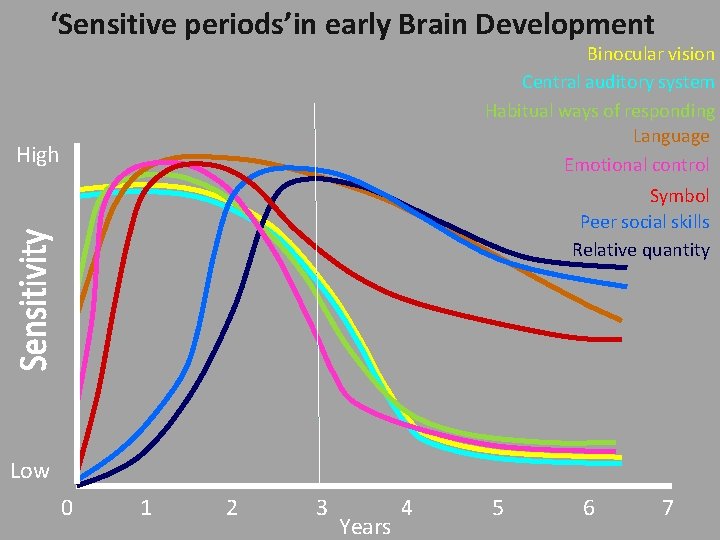
‘Sensitive periods’in early Brain Development Binocular vision Central auditory system Habitual ways of responding Language Emotional control High Symbol Peer social skills Relative quantity Low 0 1 2 3 Years 4 5 6 7
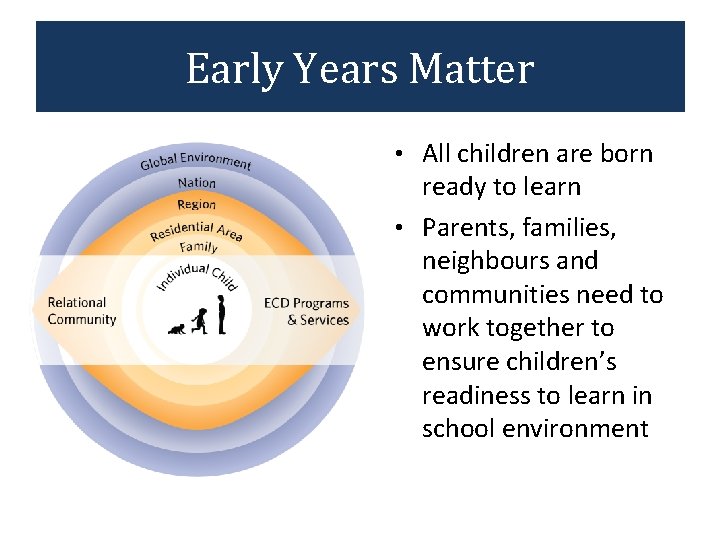
Early Years Matter • All children are born ready to learn • Parents, families, neighbours and communities need to work together to ensure children’s readiness to learn in school environment
Key Message The later you attempt to change a trajectory the more energy that is required An effort in the early years when neural systems are most plastic and susceptible to influence can have long-lasting positive outcomes
Why Measure? Developmental Status Intervention and Prevention Programs Greatest Need Making a Difference
“No Data, No Problem, No Action” Alfredo Solari
Over 25% Of Canada’s kindergarten children are vulnerable
A large number of children at a small risk for school failure may generate a much greater burden of suffering than a small number of children with a high risk (Based on Rose 1992, Offord et al. 1998)
Vulnerability by Family Income (N=1799) Source: NLSCY/UEY 1999/2000; EDI 1999/2000
Numbers of children classified “Vulnerable” Source: NLSCY/UEY 1999/2000; EDI 1999/2000
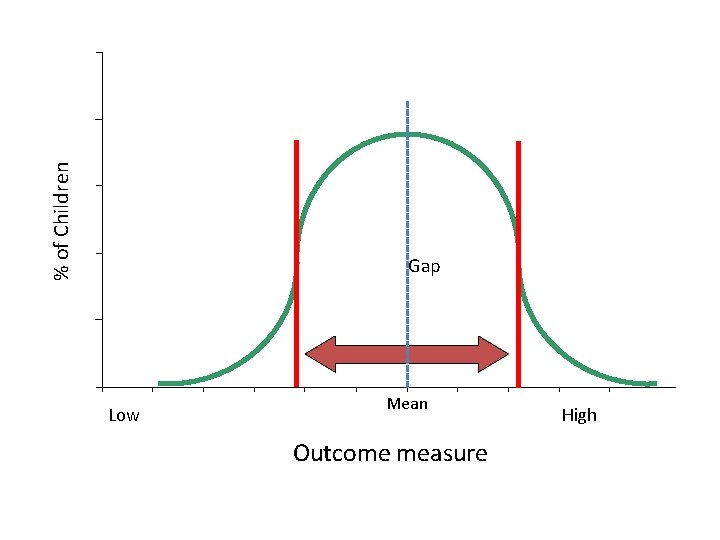
% of Children Gap Low Mean Outcome measure High
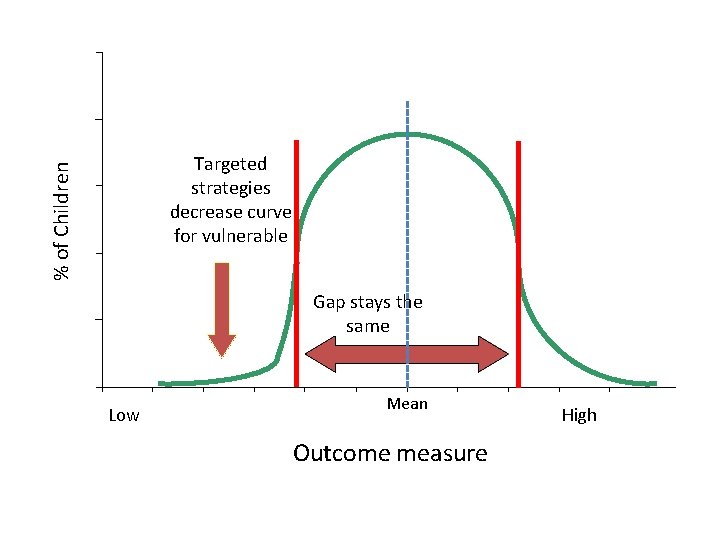
% of Children Targeted strategies decrease curve for vulnerable Gap stays the same Low Mean Outcome measure High
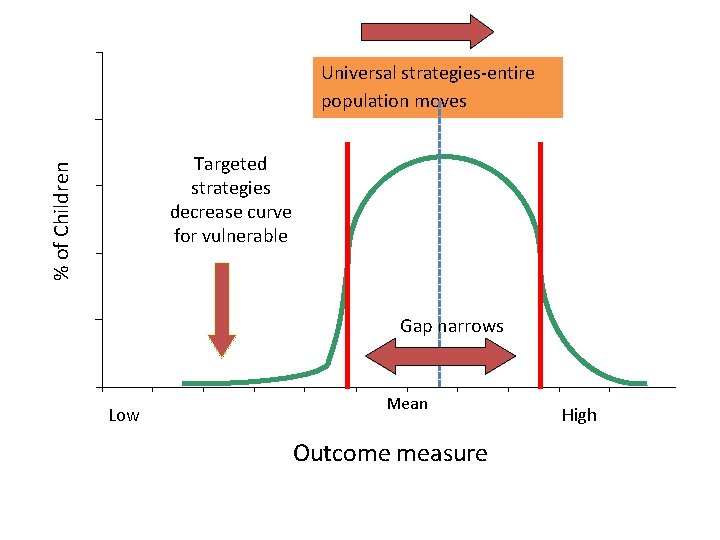
Universal strategies-entire population moves % of Children Targeted strategies decrease curve for vulnerable Gap narrows Low Mean Outcome measure High
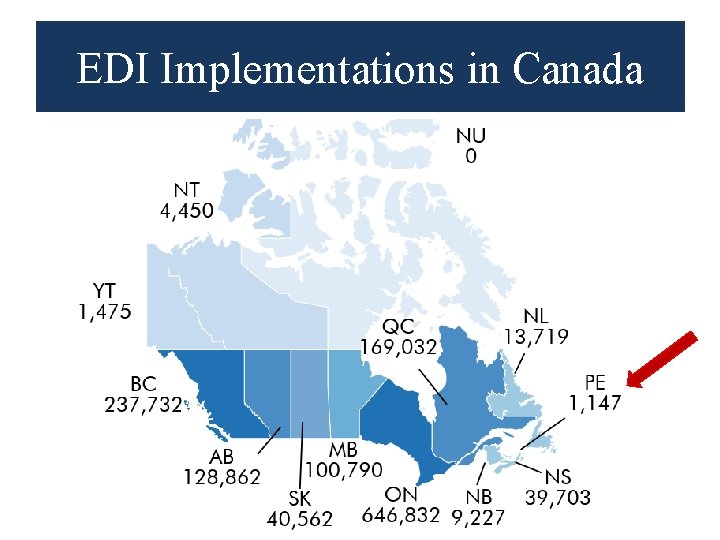
EDI in Canada EDI Implementations in Canada
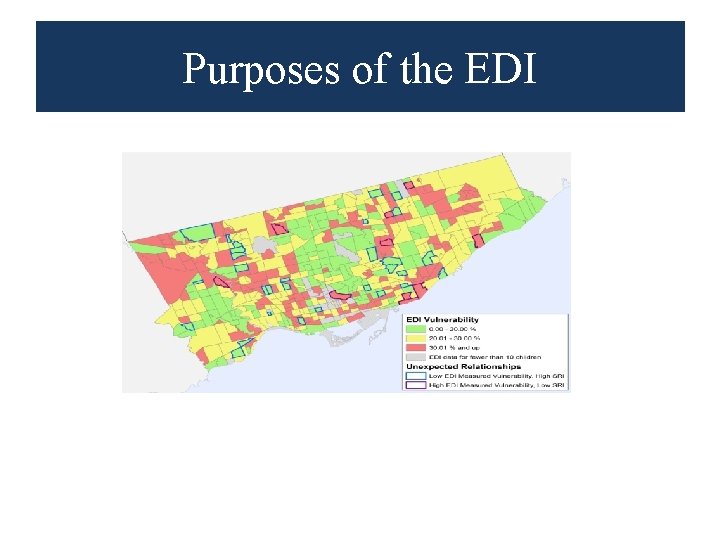
Purposes of the EDI
Purposes of the EDI
Purposes of the EDI
Purposes of the EDI
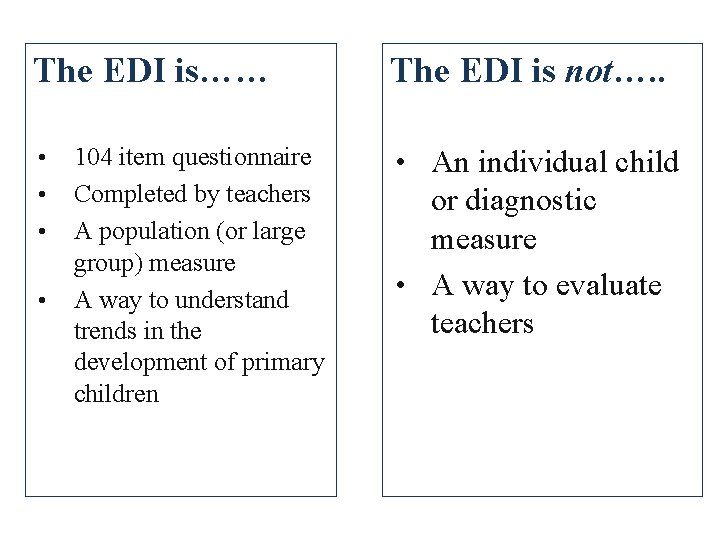
The EDI is…… • • 104 item questionnaire Completed by teachers A population (or large group) measure A way to understand trends in the development of primary children The EDI is not…. . • An individual child or diagnostic measure • A way to evaluate teachers
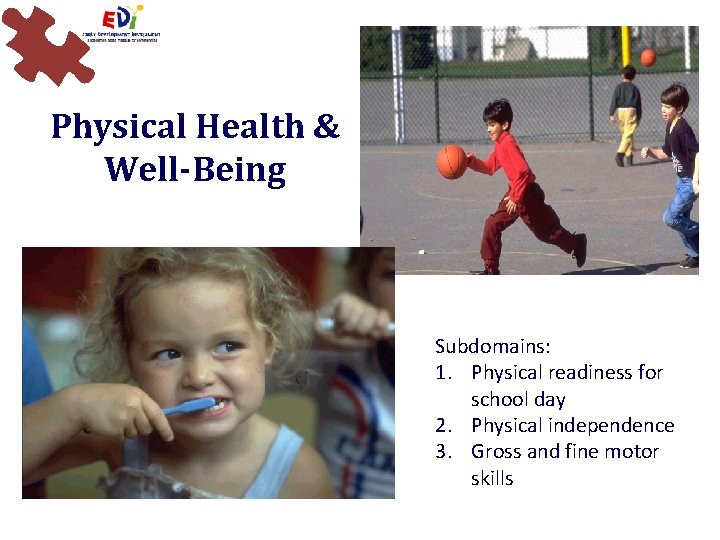
Physical Health & Well-Being Subdomains: 1. Physical readiness for school day 2. Physical independence 3. Gross and fine motor skills
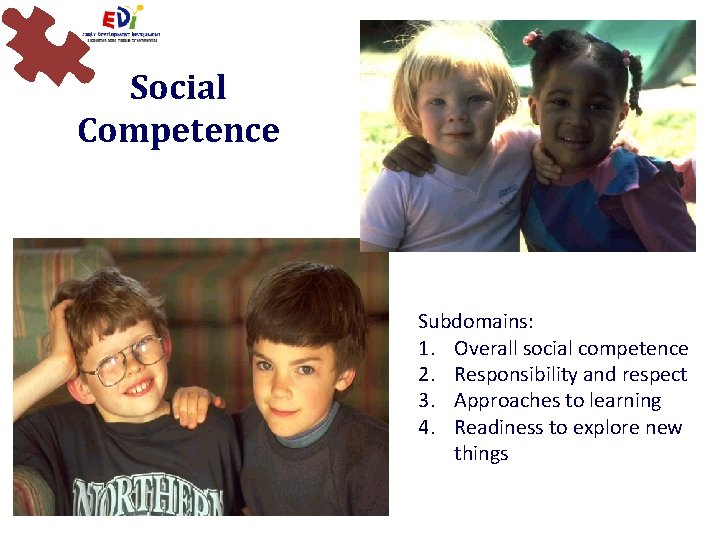
Social Competence Subdomains: 1. Overall social competence 2. Responsibility and respect 3. Approaches to learning 4. Readiness to explore new things
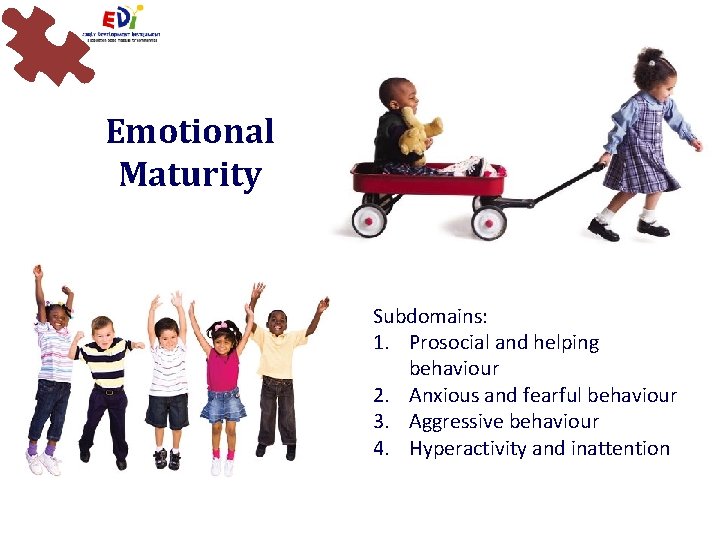
Emotional Maturity Subdomains: 1. Prosocial and helping behaviour 2. Anxious and fearful behaviour 3. Aggressive behaviour 4. Hyperactivity and inattention
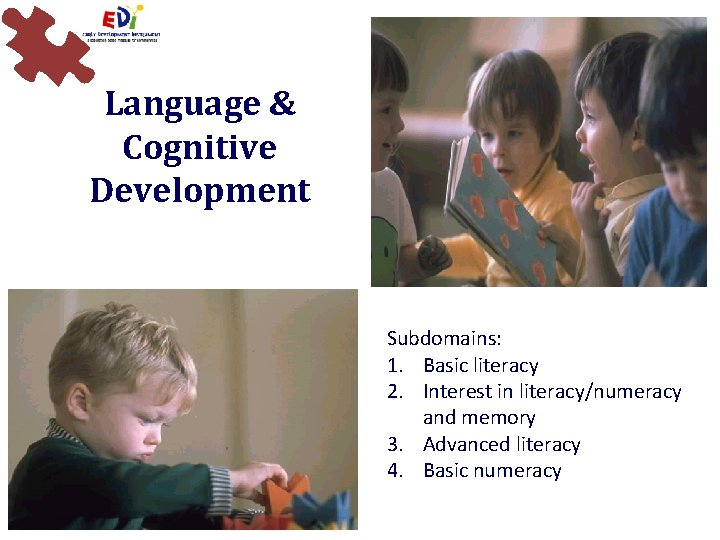
Language & Cognitive Development Subdomains: 1. Basic literacy 2. Interest in literacy/numeracy and memory 3. Advanced literacy 4. Basic numeracy
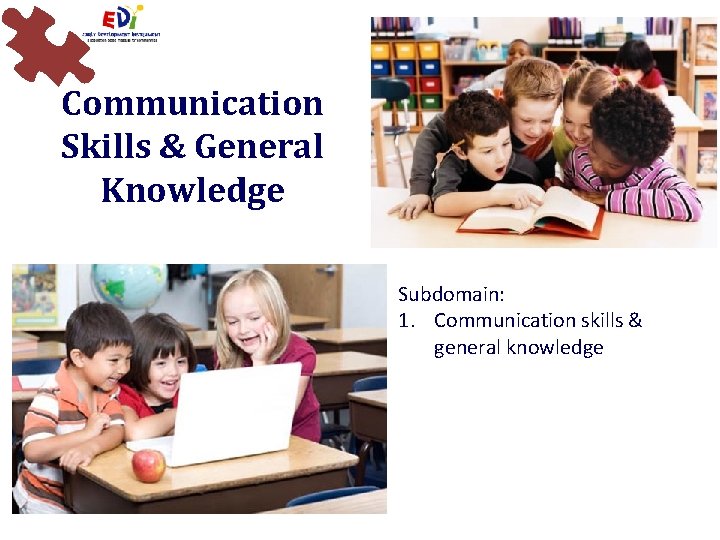
Communication Skills & General Knowledge Subdomain: 1. Communication skills & general knowledge
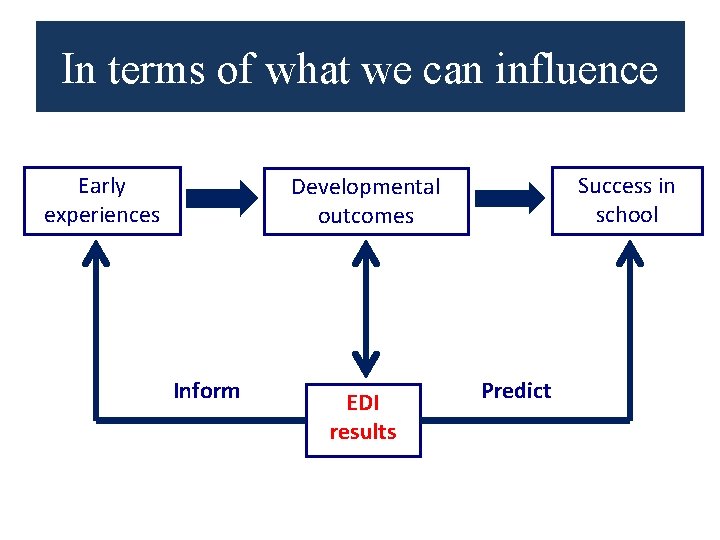
In terms of what we can influence Early experiences Success in school Developmental outcomes Inform EDI results Predict
The Early Development Instrument (EDI) e- Teacher Information & Training Session
Overview • Information about the eprocess • How to complete the online questionnaire
Getting Started Teacher should have access to and review the following items: 1. 2. 3. 4. EDI Guide e-EDI Teacher Manual e-EDI Teacher log-in Local class list
EDI Guide & Teacher’s Manual • They are intended to facilitate completion of the • The Manual provides steps to guide the online completion of the questionnaires • The Guide provides more detailed information about each question in the
Before You Begin the e-EDI 1. Receive your training! 2. Get your login & password 3. Review the e- questions 4. Have your class list handy 5. Ensure that all the children in your class(es) have a local ID & are included on your list 6. Review any background materials (e. g. Guide, Teacher’s Manual) 7. If applicable, list students whose parents/guardians have refused to participate
Tip #1 Read the entire Guide once before starting on the questionnaires After having read the Guide, please consult it if you have any doubts about a given question Have the e- Teacher’s Manual with you when completing the questionnaires
Implementation Timelines & Deadlines 1. Teachers receive e training → Today! 2. Teachers complete the questionnaire online → February 1 st to March 31 st 3. Teachers lock & submit each child’s questionnaire as they are completed → February 1 st to March 31 st
Time • About 20 minutes per questionnaire • After completing a few, it should take closer to 10 minutes per questionnaire • s for best students and struggling students are completed more quickly… middle ground students require more thought.
Tip #2 Due to the “learning curve” involved, it is considerably more efficient to complete all the questionnaires in one sitting* * One sitting may involve 2 or 3 consecutive days, depending on the number of students you have
How to complete the equestionnaires
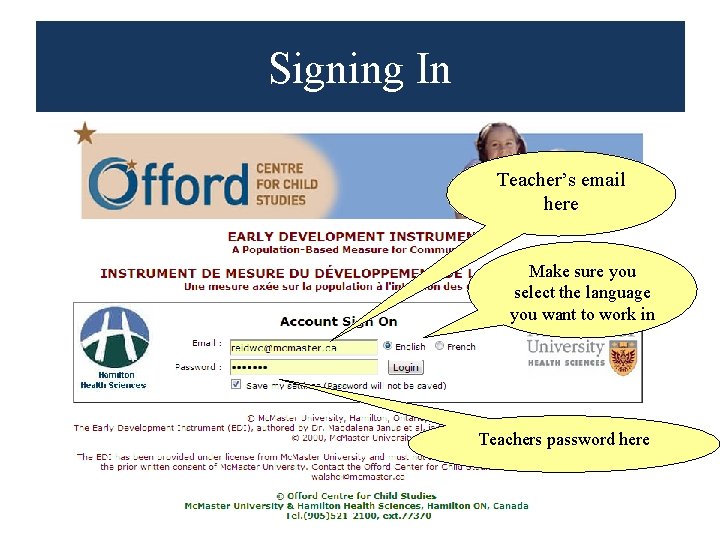
Accessing the e-EDI In your Internet browser type in: www. e-edi. ca
Signing In Teacher’s email here Make sure you select the language you want to work in Teachers password here
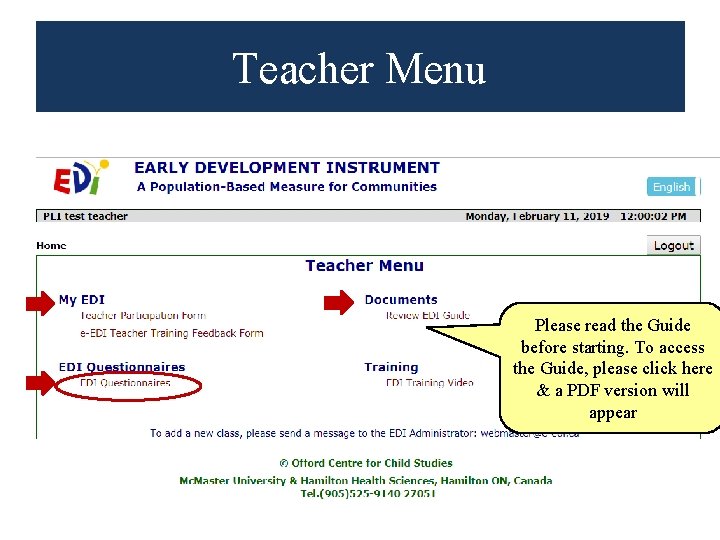
Teacher Menu Please read the Guide before starting. To access the Guide, please click here & a PDF version will appear
General Instructions • Responses should be based on your observations of the students which reflect his/her current developmental status. • Exception: Section C – Responses should be based on observations of the students now, but using the time since the beginning of the school year as a frame of reference.
General Instructions • Use “Don’t know” as a last resort. • Questionnaires received with too many ‘I don’t knows’ cannot be used in the analyses. • If you have not seen a child exhibit a particular behaviour, select Never or Not True (not “Don’t Know”)
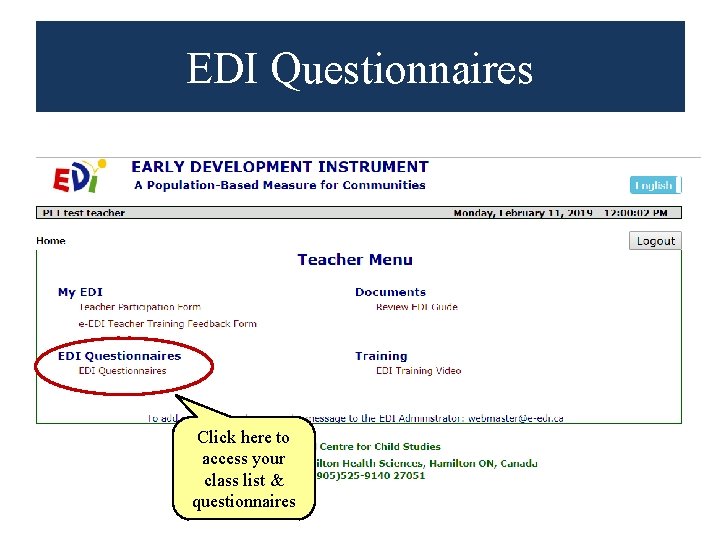
EDI Questionnaires Click here to access your class list & questionnaires
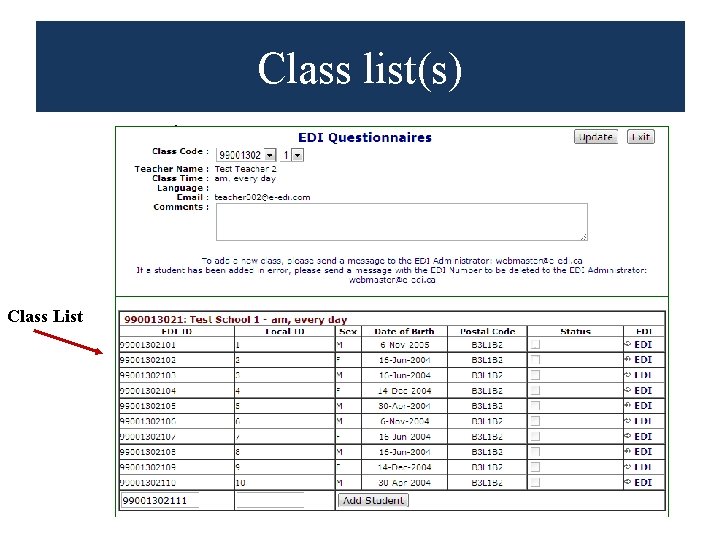
Class list(s) Class List
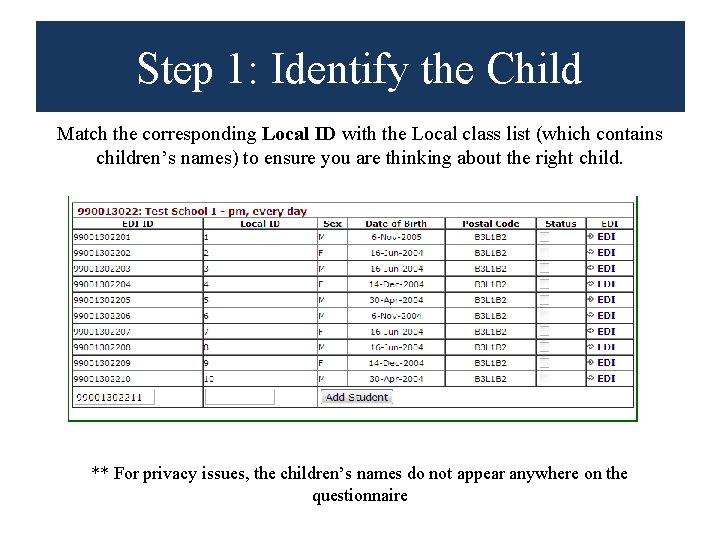
Step 1: Identify the Child Match the corresponding Local ID with the Local class list (which contains children’s names) to ensure you are thinking about the right child. ** For privacy issues, the children’s names do not appear anywhere on the questionnaire
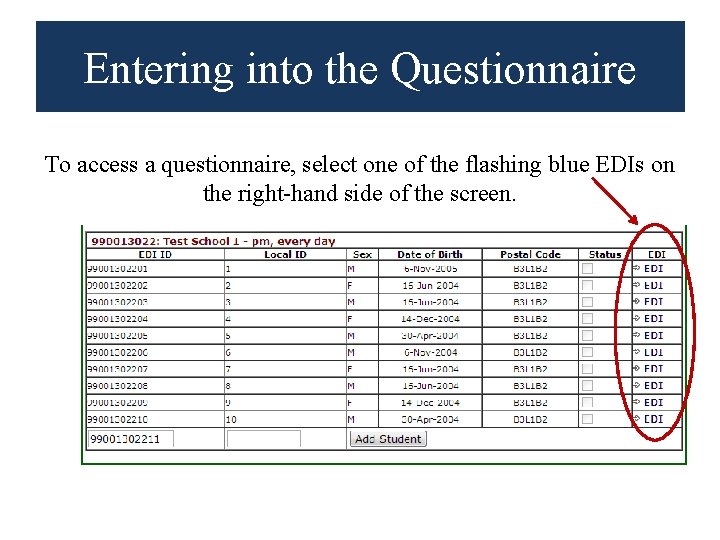
Entering into the Questionnaire To access a questionnaire, select one of the flashing blue EDIs on the right-hand side of the screen.
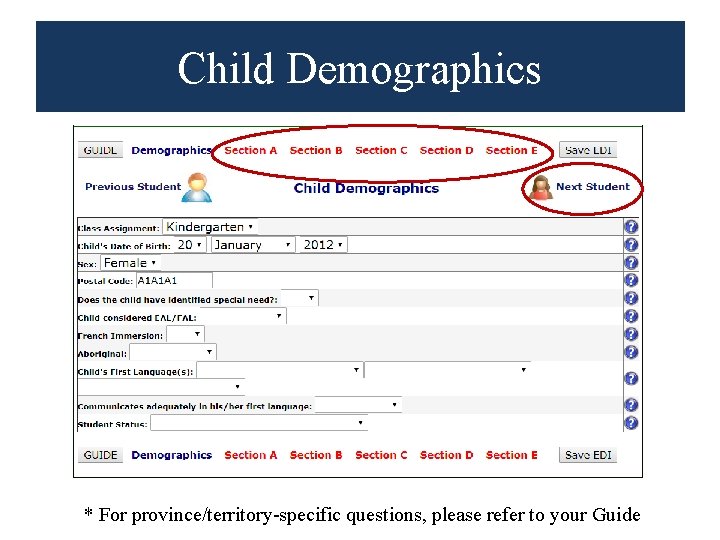
Child Demographics * For province/territory-specific questions, please refer to your Guide
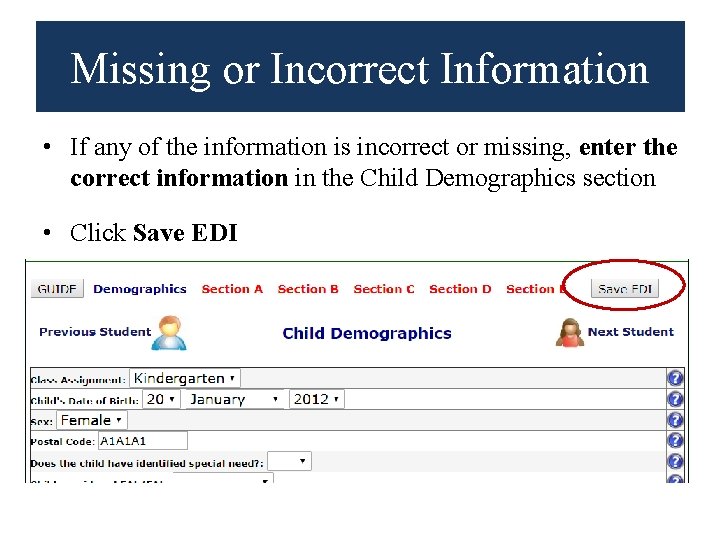
Missing or Incorrect Information • If any of the information is incorrect or missing, enter the correct information in the Child Demographics section • Click Save EDI
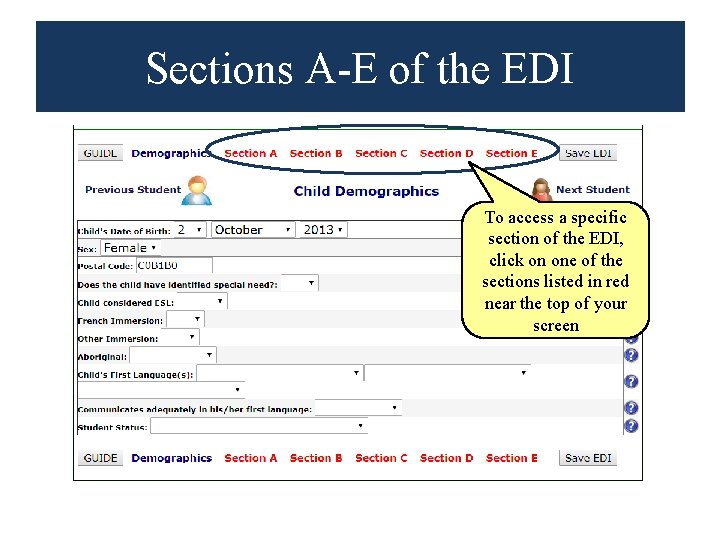
Sections A-E of the EDI To access a specific section of the EDI, click on one of the sections listed in red near the top of your screen
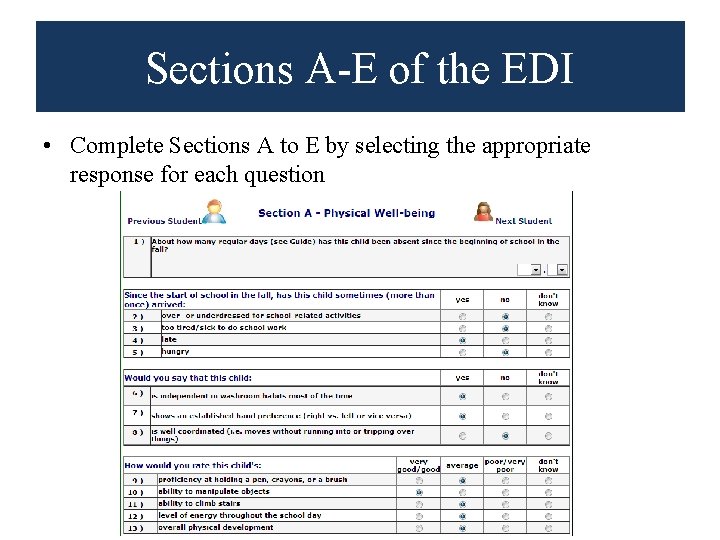
Sections A-E of the EDI • Complete Sections A to E by selecting the appropriate response for each question
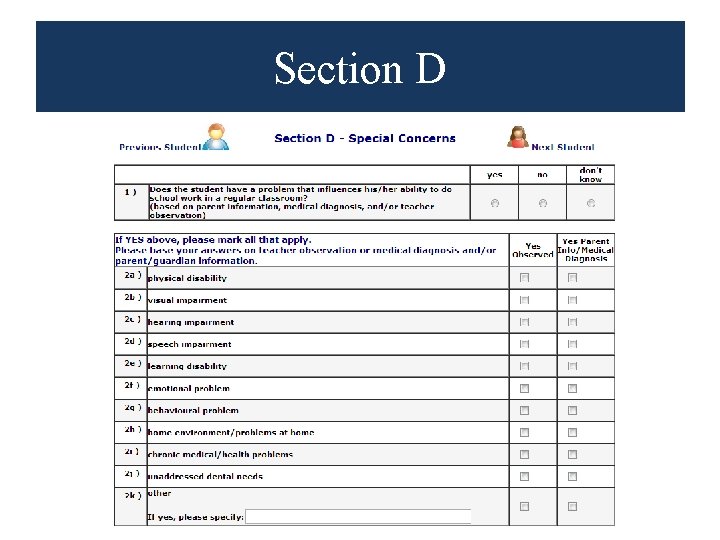
Section D
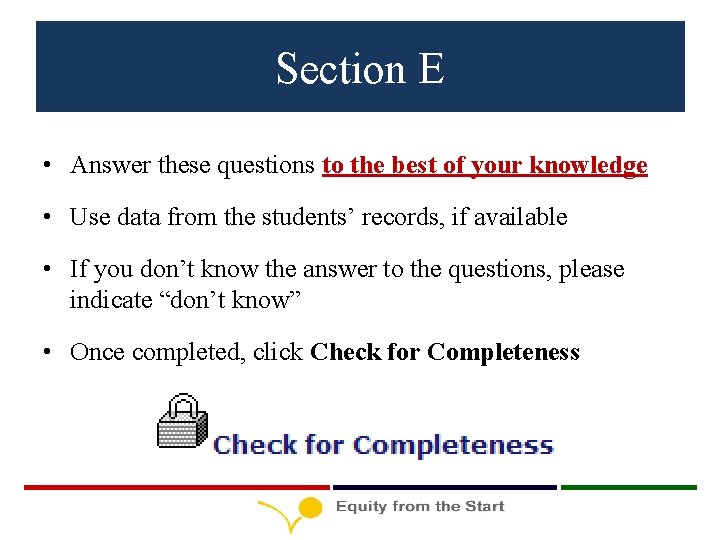
Section E • Answer these questions to the best of your knowledge • Use data from the students’ records, if available • If you don’t know the answer to the questions, please indicate “don’t know” • Once completed, click Check for Completeness
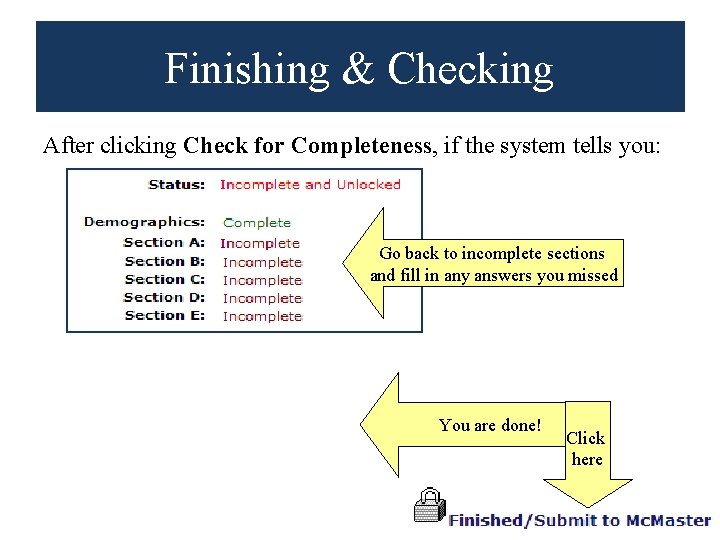
Finishing & Checking After clicking Check for Completeness, if the system tells you: Go back to incomplete sections and fill in any answers you missed You are done! Click here
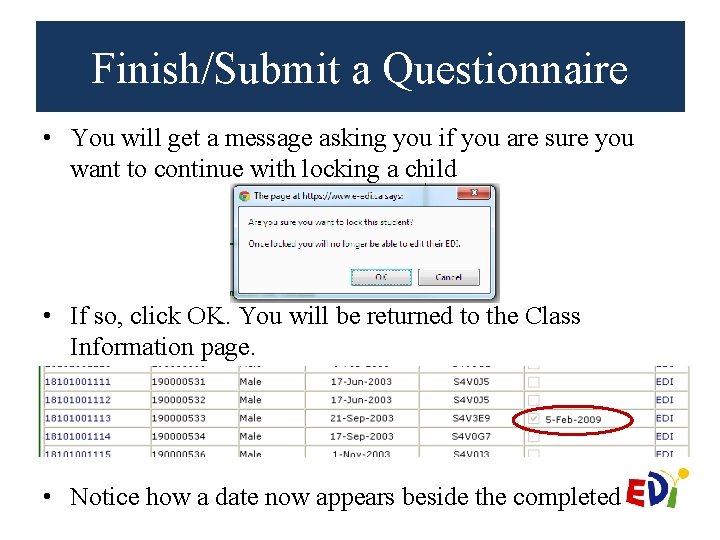
Finish/Submit a Questionnaire • You will get a message asking you if you are sure you want to continue with locking a child • If so, click OK. You will be returned to the Class Information page. • Notice how a date now appears beside the completed
Tip #3 Continuously save as you work! After 15 minutes of inactivity you will automatically be logged off the system and all your unsaved changes will be lost
Please Pay Special Attention to the Following Questions
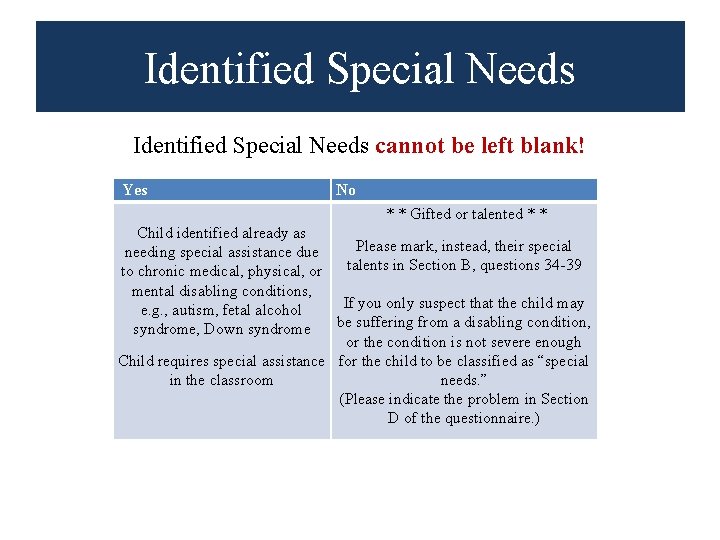
Identified Special Needs cannot be left blank! Yes No * * Gifted or talented * * Child identified already as Please mark, instead, their special needing special assistance due to chronic medical, physical, or talents in Section B, questions 34 -39 mental disabling conditions, If you only suspect that the child may e. g. , autism, fetal alcohol be suffering from a disabling condition, syndrome, Down syndrome or the condition is not severe enough Child requires special assistance for the child to be classified as “special in the classroom needs. ” (Please indicate the problem in Section D of the questionnaire. )
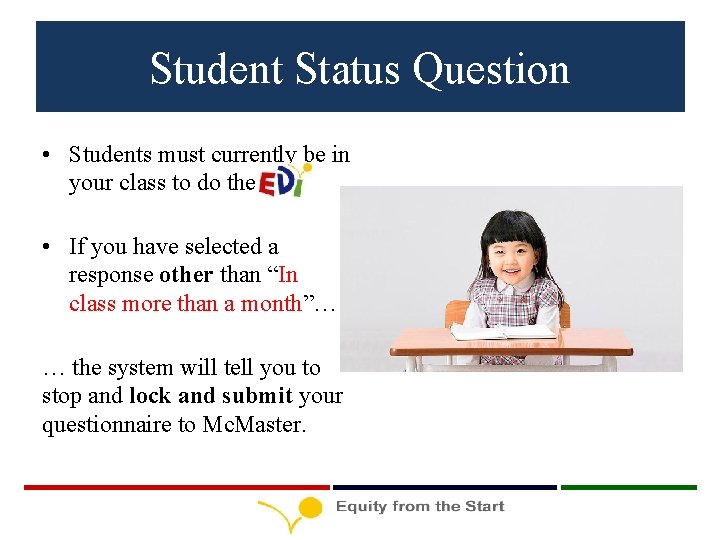
Student Status Question • Students must currently be in your class to do the • If you have selected a response other than “In class more than a month”… … the system will tell you to stop and lock and submit your questionnaire to Mc. Master.
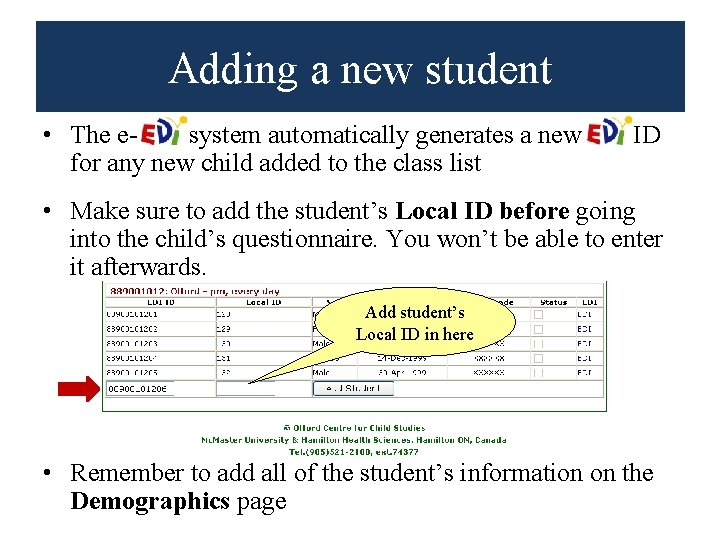
Adding a new student • The e- system automatically generates a new ID for any new child added to the class list • Make sure to add the student’s Local ID before going into the child’s questionnaire. You won’t be able to enter it afterwards. Add student’s Local ID in here • Remember to add all of the student’s information on the Demographics page
Deleting a student • The e- system will not allow you to delete any student from your class list. • In order to delete a student, please contact the EDI Coordinator at the OCCS (* information provided at the end). • Only students who have never been in your class should be deleted from your class list. • If a child has moved away, you should select either “moved out of class” or “moved out of school” in the student status question of the demographics section. You will then be prompted to lock and submit the questionnaire to Mc. Master without filling the rest out.
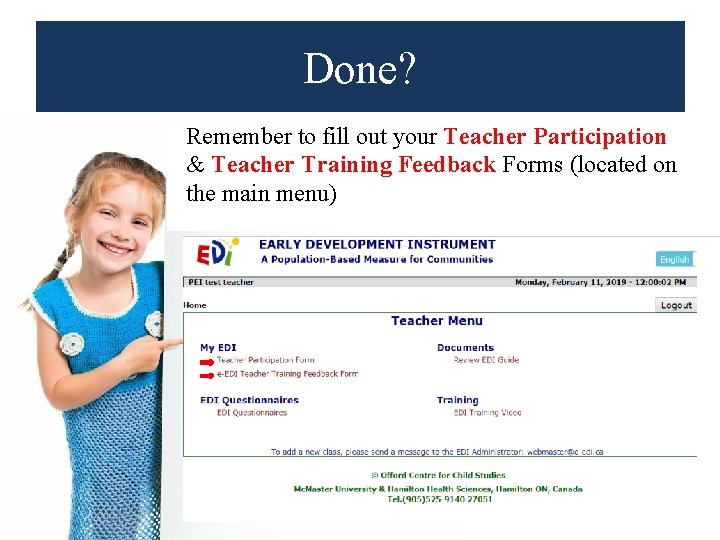
Done? Remember to fill out your Teacher Participation & Teacher Training Feedback Forms (located on the main menu)
Privacy & Confidentiality All information collected is kept completely confidential & is used for research purposes only No child or teacher is EVER identified in our reporting
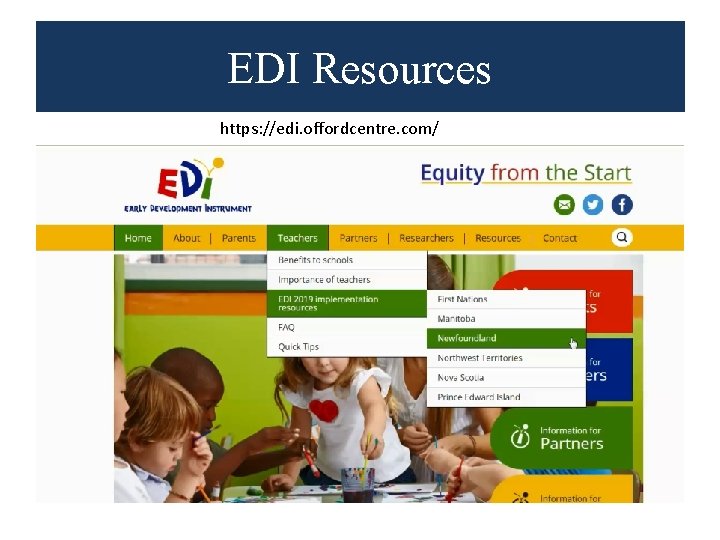
EDI Resources https: //edi. offordcentre. com/
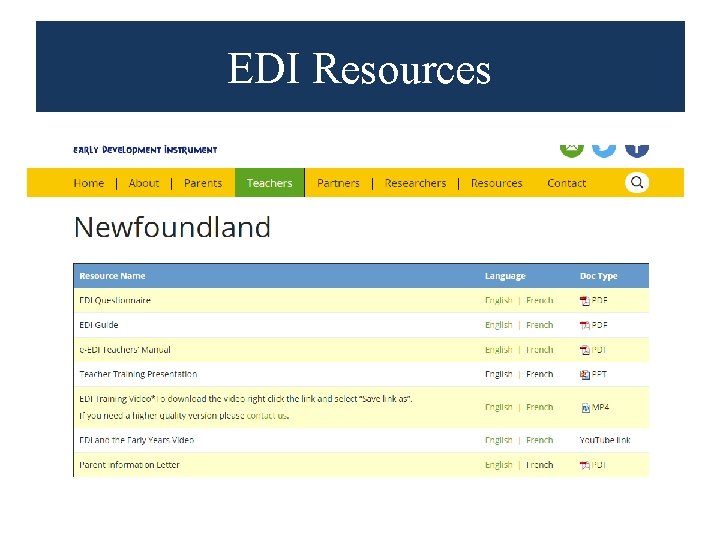
EDI Resources
For questions, please contact your local coordinator or the Offord Centre for Child Studies at: webmaster@e-edi. ca rasope@mcmaster. ca reidwc@mcmaster. ca
Good luck & Thank You!