
The DSpace Course Module DSpace Installation Module objectives
The DSpace Course Module – DSpace Installation
Module objectives § By the end of this module you will: Understand the platforms DSpace can be hosted on § Understand the third party components and tools DSpace requires to run § Understand how to install DSpace § Have hands on experience of configuring and installing DSpace §
Operating Systems § UNIX like OS Linux § HP/UX § Sun Solaris § Mac. OS X § § Microsoft Windows Microsoft Server 2003/8 § Development: Windows XP/VISTA §

Third party software, tools and components Java JDK 5 or later (standard JDK) § Apache Maven 2. 0. 8 or later (Java build tool) § Apache Ant 1. 6. 2 or later (Java build tool) § Relational Database § Postgre. SQL (7. 3 or greater) § Oracle 9 or greater § § Servlet Engine Jakarta Tomcat § Jetty § Caucho Resin §
Third party software, tools and components Live CD contains all this software pre-installed & configured § Detailed information on prerequisite software & configuration can be found in the handbooks & in the DSpace installation documentation § Website: www. dspace. org § [dspace-src]/dspace/docs §
DSpace Software Installation § 2 release versions: § Default release Adequate for most cases of running DSpace § Quickest way to get DSpace installed and running § Still allows for customisation § § Source release Recommended for development § Contains *all* DSpace code § § We’ll be using the source release in this training
Subversion (SVN) § DSpace uses Subversion (SVN) to manage its source code, record code changes and allow multiple developers to work on DSpace without overwriting each others code § Source repository can be viewed at: § § Check out code from SVN: § § http: //dspace. svn. sourceforge. net/viewvc/dspace/trunk/dspace svn checkout https: //dspace. svn. sourceforge. net/svnroot/dspace/trunk/dspace Today we’ll be using a pre-downloaded version of the DSpace source as oppose to SVN
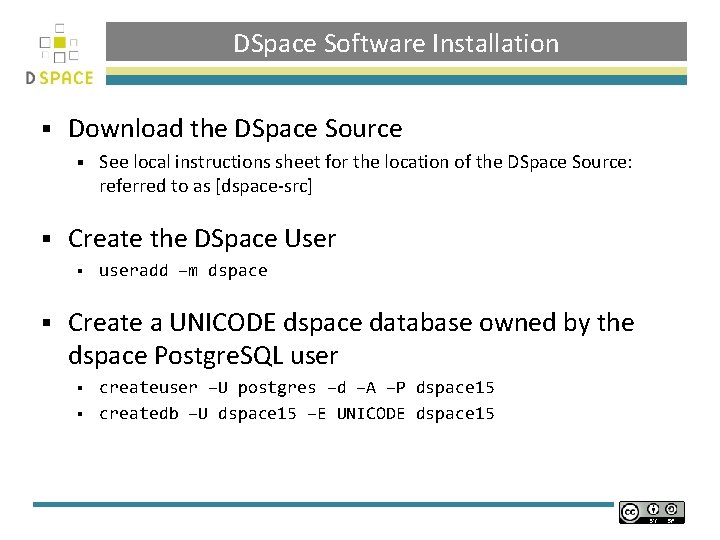
DSpace Software Installation § Download the DSpace Source § § Create the DSpace User § § See local instructions sheet for the location of the DSpace Source: referred to as [dspace-src] useradd –m dspace Create a UNICODE dspace database owned by the dspace Postgre. SQL user createuser –U postgres –d –A –P dspace 15 § createdb –U dspace 15 –E UNICODE dspace 15 §
![DSpace Software Installation § Edit [dspace-source]/dspace/config/dspace. cfg § § § § § dspace. dir](http://slidetodoc.com/presentation_image_h/146a9d6f57ce53127f6839fdfe778f27/image-9.jpg "DSpace Software Installation § Edit [dspace-source]/dspace/config/dspace. cfg § § § § § dspace. dir")
DSpace Software Installation § Edit [dspace-source]/dspace/config/dspace. cfg § § § § § dspace. dir -- must be set to the [dspace] (installation) directory. dspace. url -- complete URL of this server's DSpace home page. dspace. hostname -- fully-qualified domain name of web server. dspace. name -- "Proper" name of your server, e. g. "My Digital Library". db. url – URL for connecting to the database db. username – the database username you entered in the previous step. db. password -- the database password you entered in the previous step. mail. * -- email settings Create the directory for the DSpace installation mkdir [dspace] § chown dspace [dspace] § (Assuming dspace is the UNIX user)
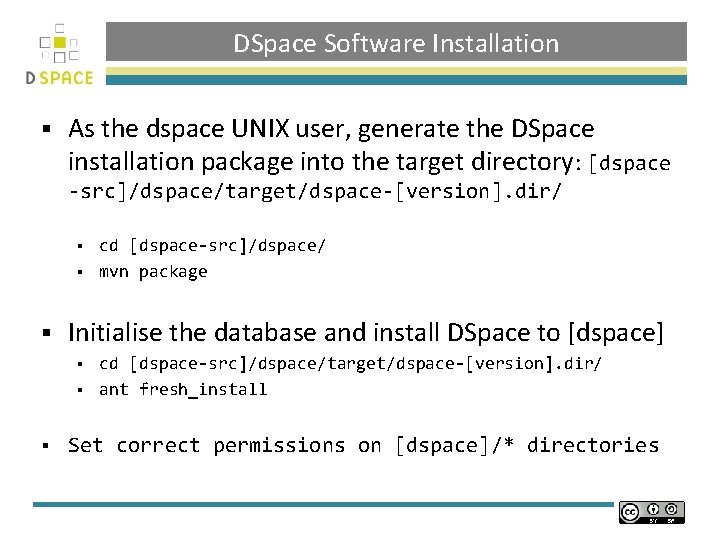
DSpace Software Installation § As the dspace UNIX user, generate the DSpace installation package into the target directory: [dspace -src]/dspace/target/dspace-[version]. dir/ cd [dspace-src]/dspace/ § mvn package § § Initialise the database and install DSpace to [dspace] cd [dspace-src]/dspace/target/dspace-[version]. dir/ § ant fresh_install § § Set correct permissions on [dspace]/* directories
DSpace Software Installation § Link the DSpace web application(s) to the deployment directory of Tomcat § /var/lib/tomcat 5. 5/webapps/ sudo ln –s [dspace]/webapps/jspui § sudo ln –s [dspace]/webapps/xmlui § § Create an initial administrator account § § jspui xmlui. . . [dspace]/bin/create-administrator Browse to the base URL of your DSpace web apps § JSP User Interface – http: //localhost: 8080/jspui. . .
Credits § These slides have been produced by: § Stuart Lewis & Chris Yates § Repository Support Project § http: //www. rsp. ac. uk/ § Part of the Repository. Net § Funded by JISC § http: //www. jisc. ac. uk/
- Slides: 12