
The DSpace Course Module DSpace Configuration Module objectives

The DSpace Course Module - DSpace Configuration
Module objectives § By the end of this module you will: Understand how to configure the submission interface via input-forms. xml § How to configure Emails/Notifications & Subscriptions § How to enable and configure RSS feeds § How to configure nightly scripts (filter media/index -all) §
Modifying the Submission Process Submission Steps
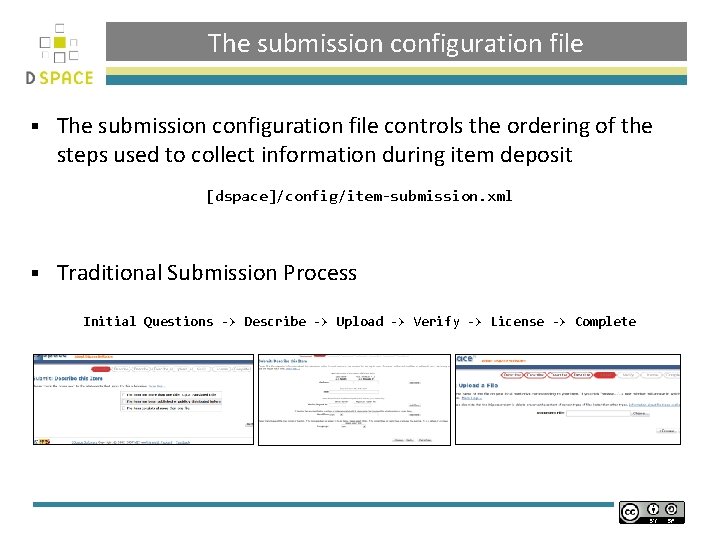
The submission configuration file § The submission configuration file controls the ordering of the steps used to collect information during item deposit [dspace]/config/item-submission. xml § Traditional Submission Process Initial Questions -> Describe -> Upload -> Verify -> License -> Complete
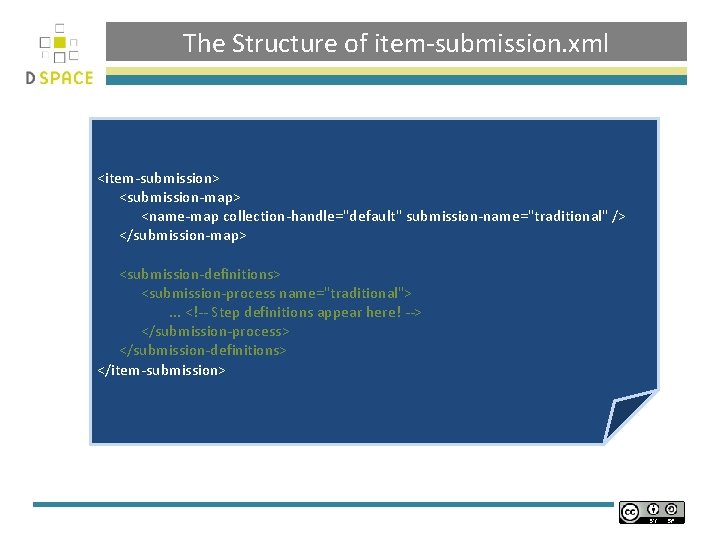
The Structure of item-submission. xml <item-submission> <submission-map> <name-map collection-handle="default" submission-name="traditional" /> </submission-map> <submission-definitions> <submission-process name="traditional">. . . <!-- Step definitions appear here! --> </submission-process> </submission-definitions> </item-submission>
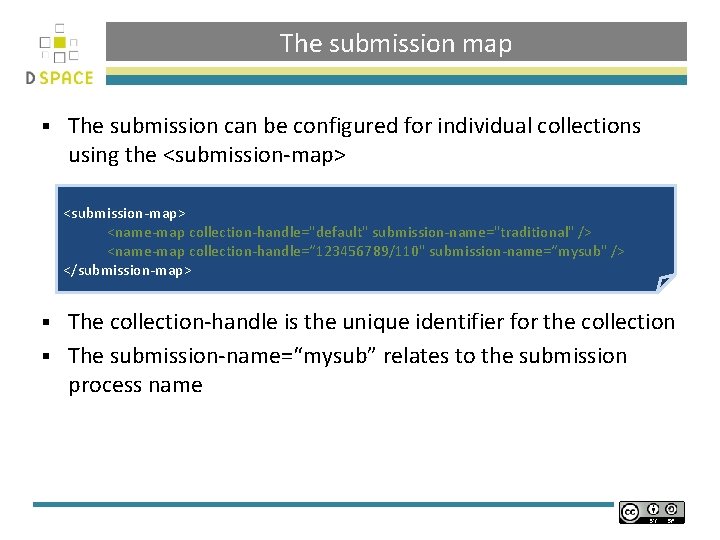
The submission map § The submission can be configured for individual collections using the <submission-map> <name-map collection-handle="default" submission-name="traditional" /> <name-map collection-handle=“ 123456789/110" submission-name=“mysub" /> </submission-map> The collection-handle is the unique identifier for the collection § The submission-name=“mysub” relates to the submission process name §
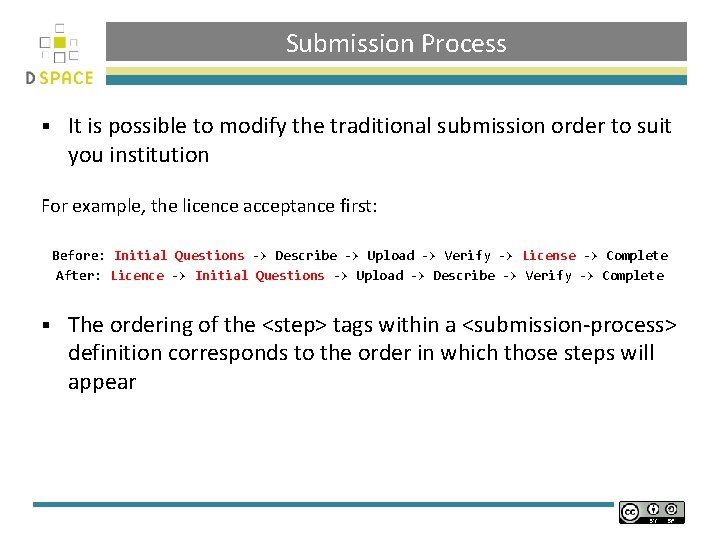
Submission Process § It is possible to modify the traditional submission order to suit you institution For example, the licence acceptance first: Before: Initial Questions -> Describe -> Upload -> Verify -> License -> Complete After: Licence -> Initial Questions -> Upload -> Describe -> Verify -> Complete § The ordering of the <step> tags within a <submission-process> definition corresponds to the order in which those steps will appear
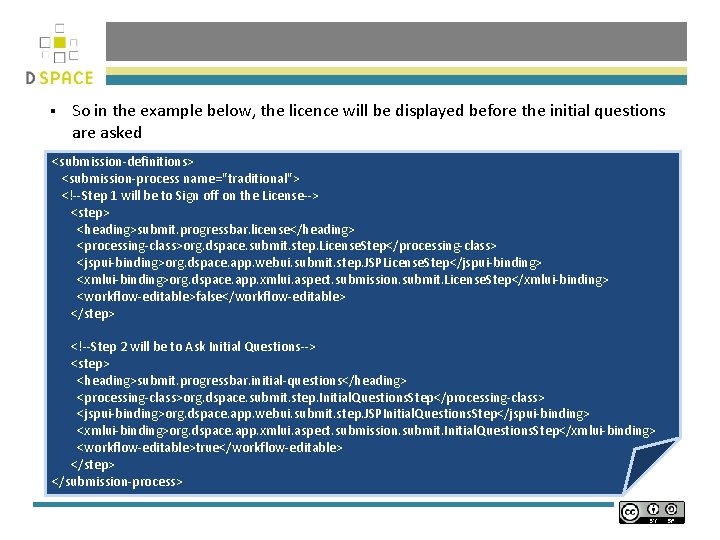
§ So in the example below, the licence will be displayed before the initial questions are asked <submission-definitions> <submission-process name="traditional"> <!--Step 1 will be to Sign off on the License--> <step> <heading>submit. progressbar. license</heading> <processing-class>org. dspace. submit. step. License. Step</processing-class> <jspui-binding>org. dspace. app. webui. submit. step. JSPLicense. Step</jspui-binding> <xmlui-binding>org. dspace. app. xmlui. aspect. submission. submit. License. Step</xmlui-binding> <workflow-editable>false</workflow-editable> </step> <!--Step 2 will be to Ask Initial Questions--> <step> <heading>submit. progressbar. initial-questions</heading> <processing-class>org. dspace. submit. step. Initial. Questions. Step</processing-class> <jspui-binding>org. dspace. app. webui. submit. step. JSPInitial. Questions. Step</jspui-binding> <xmlui-binding>org. dspace. app. xmlui. aspect. submission. submit. Initial. Questions. Step</xmlui-binding> <workflow-editable>true</workflow-editable> </step> </submission-process>
![Practical: Submission Order § Open [dspace]/config/item-submission. xml sudo gedit [dspace]/config/item-submission. xml § Locate the](http://slidetodoc.com/presentation_image_h2/fe8254ed96dff1d5a22cc538c0baf9c5/image-9.jpg "Practical: Submission Order § Open [dspace]/config/item-submission. xml sudo gedit [dspace]/config/item-submission. xml § Locate the")
Practical: Submission Order § Open [dspace]/config/item-submission. xml sudo gedit [dspace]/config/item-submission. xml § Locate the code block below § Move this above step 1 as below
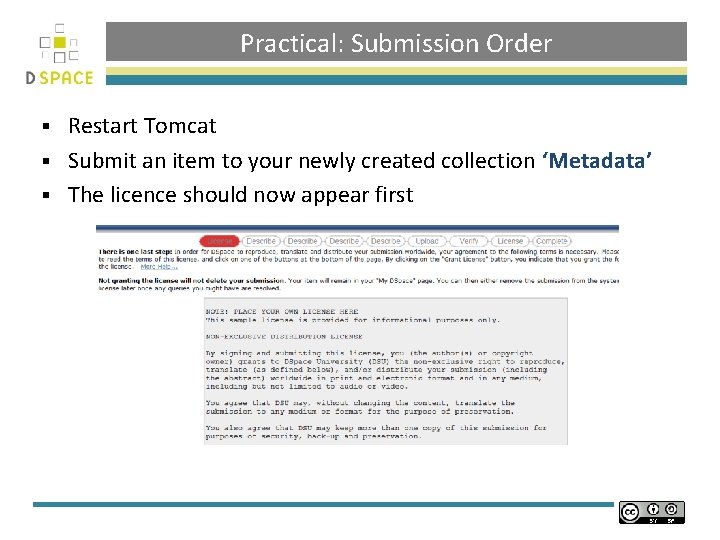
Practical: Submission Order Restart Tomcat § Submit an item to your newly created collection ‘Metadata’ § The licence should now appear first §
Modifying the Submission Process Input Forms
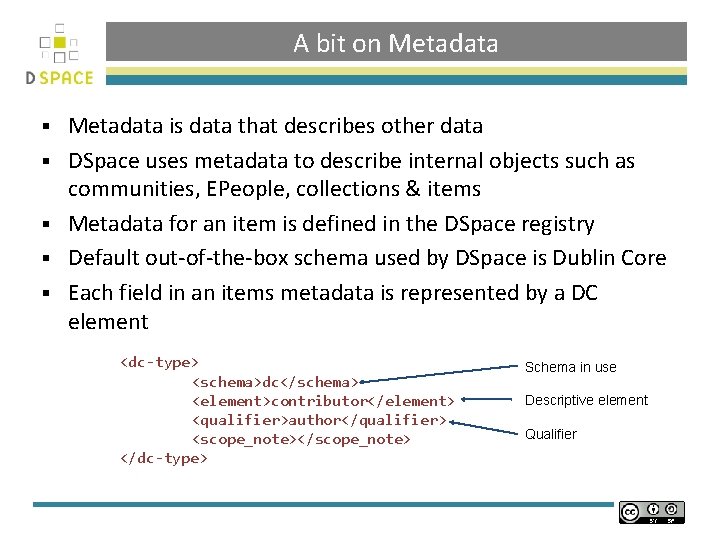
A bit on Metadata § § § Metadata is data that describes other data DSpace uses metadata to describe internal objects such as communities, EPeople, collections & items Metadata for an item is defined in the DSpace registry Default out-of-the-box schema used by DSpace is Dublin Core Each field in an items metadata is represented by a DC element <dc-type> <schema>dc</schema> <element>contributor</element> <qualifier>author</qualifier> <scope_note></scope_note> </dc-type> Schema in use Descriptive element Qualifier
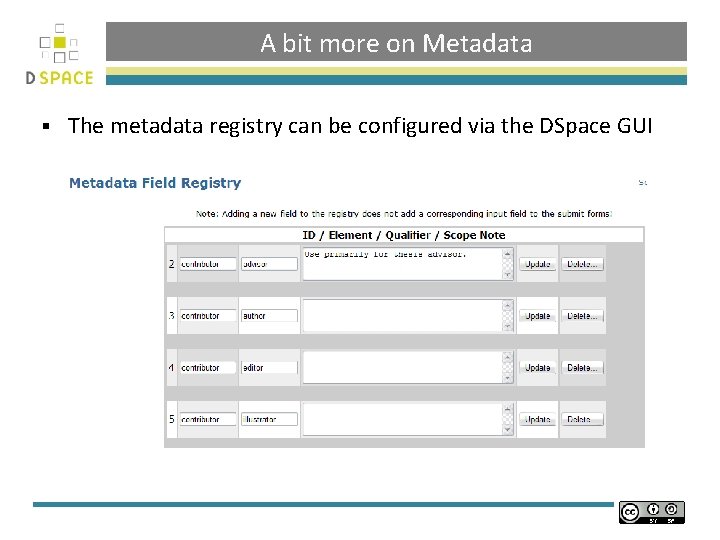
A bit more on Metadata § The metadata registry can be configured via the DSpace GUI
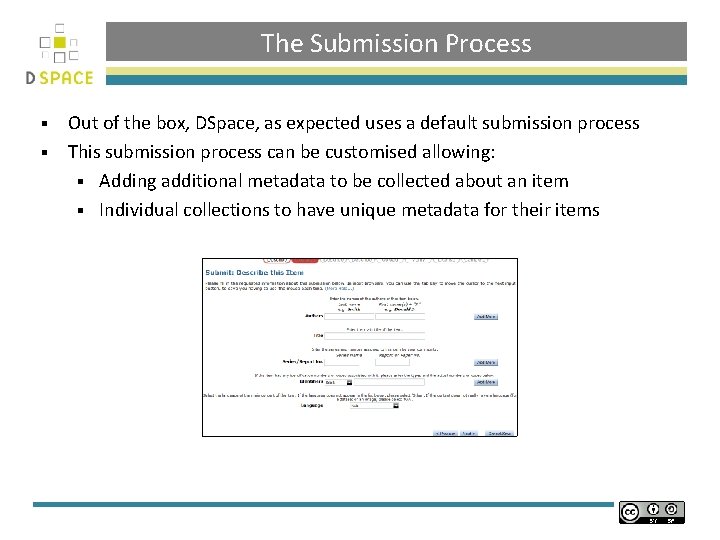
The Submission Process Out of the box, DSpace, as expected uses a default submission process § This submission process can be customised allowing: § Adding additional metadata to be collected about an item § Individual collections to have unique metadata for their items §
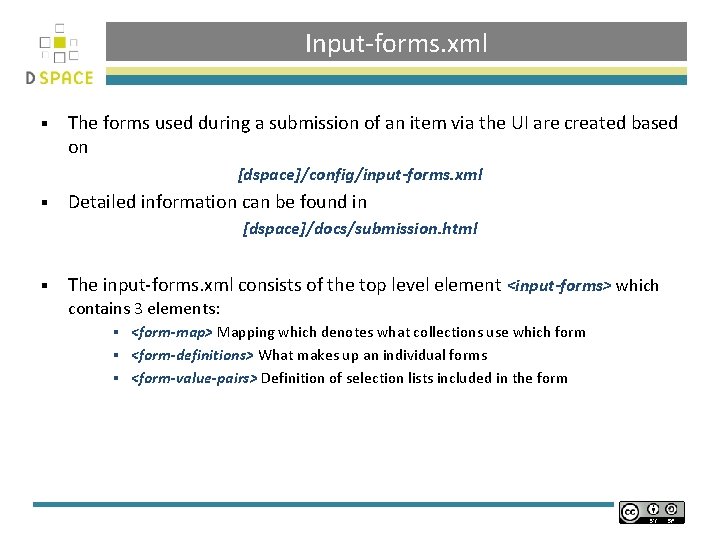
Input-forms. xml § The forms used during a submission of an item via the UI are created based on [dspace]/config/input-forms. xml § Detailed information can be found in [dspace]/docs/submission. html § The input-forms. xml consists of the top level element <input-forms> which contains 3 elements: <form-map> Mapping which denotes what collections use which form § <form-definitions> What makes up an individual forms § <form-value-pairs> Definition of selection lists included in the form §
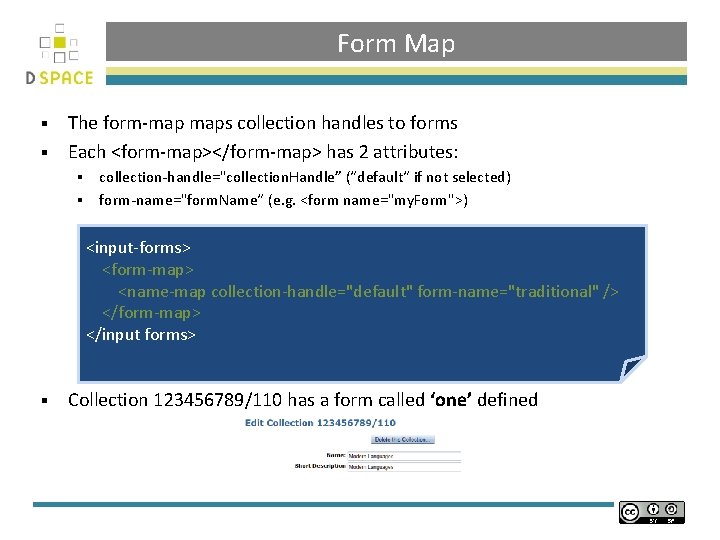
Form Map The form-map maps collection handles to forms § Each <form-map></form-map> has 2 attributes: § § § collection-handle="collection. Handle” (“default“ if not selected) form-name="form. Name“ (e. g. <form name="my. Form">) <input-forms> <form-map> <name-map collection-handle="default" form-name="traditional" /> </form-map> </input forms> § Collection 123456789/110 has a form called ‘one’ defined
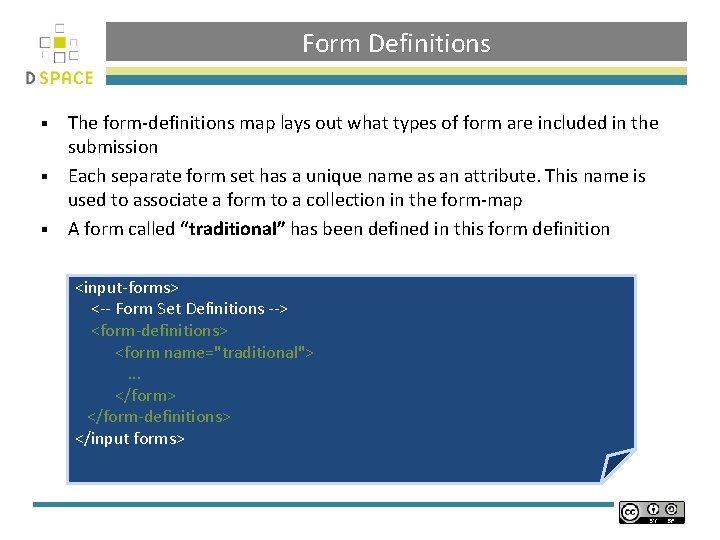
Form Definitions The form-definitions map lays out what types of form are included in the submission § Each separate form set has a unique name as an attribute. This name is used to associate a form to a collection in the form-map § A form called “traditional” has been defined in this form definition § <input-forms> <-- Form Set Definitions --> <form-definitions> <form name="traditional">. . . </form> </form-definitions> </input forms>
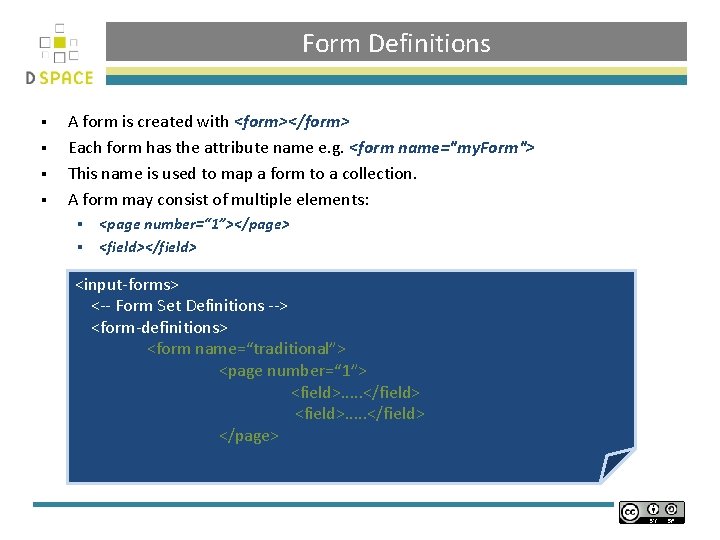
Form Definitions § § A form is created with <form></form> Each form has the attribute name e. g. <form name="my. Form"> This name is used to map a form to a collection. A form may consist of multiple elements: § § <page number=“ 1”></page> <field></field> <input-forms> <-- Form Set Definitions --> <form-definitions> <form name=“traditional”> <page number=“ 1”> <field>. . </field> </page>
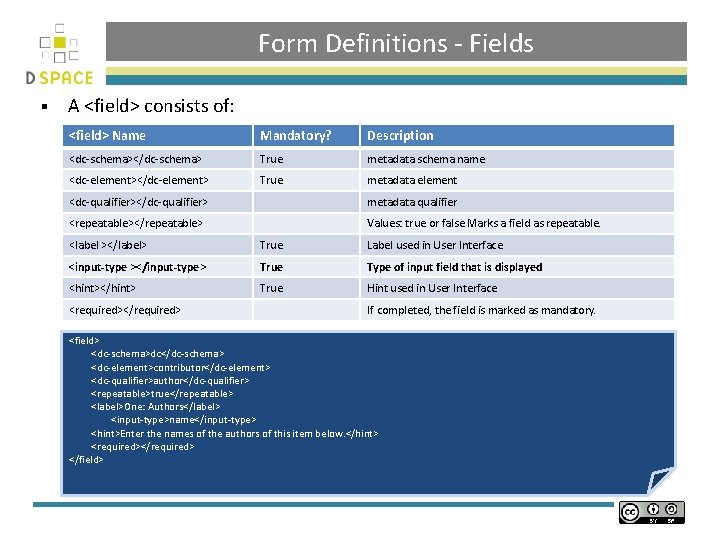
Form Definitions - Fields § A <field> consists of: <field> Name Mandatory? Description <dc-schema></dc-schema> True metadata schema name <dc-element></dc-element> True metadata element <dc-qualifier></dc-qualifier> metadata qualifier <repeatable></repeatable> Values: true or false Marks a field as repeatable. <label ></label> True Label used in User Interface <input-type ></input-type> True Type of input field that is displayed <hint></hint> True Hint used in User Interface <required></required> If completed, the field is marked as mandatory. <field> <dc-schema>dc</dc-schema> <dc-element>contributor</dc-element> <dc-qualifier>author</dc-qualifier> <repeatable>true</repeatable> <label>One: Authors</label> <input-type>name</input-type> <hint>Enter the names of the authors of this item below. </hint> <required></required> </field>

Form Definitions - Fields The input-type: § Input-type Description 1 onebox Single boxes for short text 2 twobox A pair of single boxes 3 textarea A text area 4 name A pair of text boxes for personal names 5 date At least a year must be given 6 dropdown A selection list 7 qualdrop-value A selection list combined with a single text box 1. 4. 2. 5. 3. 6.
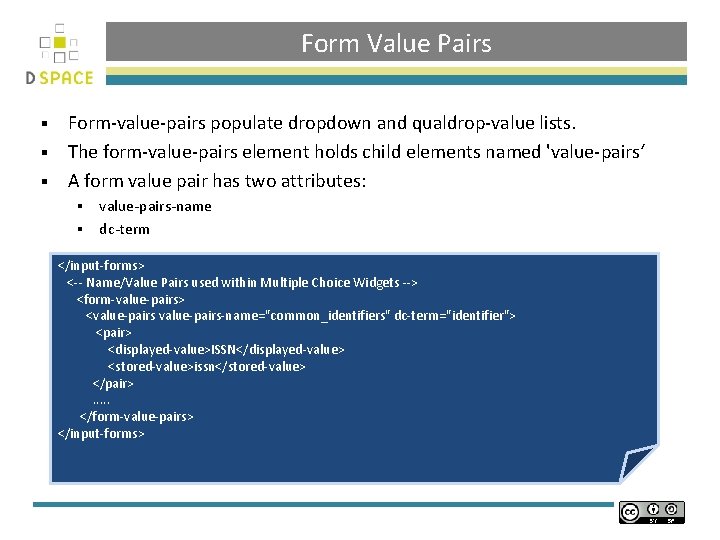
Form Value Pairs Form-value-pairs populate dropdown and qualdrop-value lists. § The form-value-pairs element holds child elements named 'value-pairs‘ § A form value pair has two attributes: § § § value-pairs-name dc-term </input-forms> <-- Name/Value Pairs used within Multiple Choice Widgets --> <form-value-pairs> <value-pairs-name="common_identifiers" dc-term="identifier"> <pair> <displayed-value>ISSN</displayed-value> <stored-value>issn</stored-value> </pair>. . . </form-value-pairs> </input-forms>
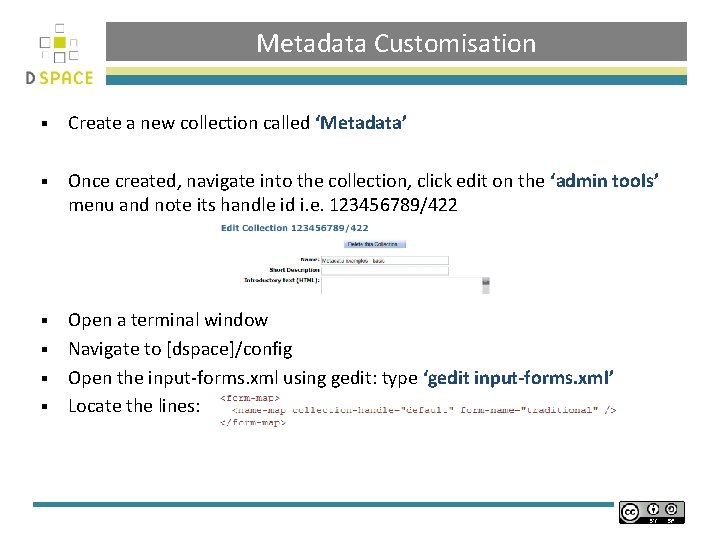
Metadata Customisation § Create a new collection called ‘Metadata’ § Once created, navigate into the collection, click edit on the ‘admin tools’ menu and note its handle id i. e. 123456789/422 Open a terminal window § Navigate to [dspace]/config § Open the input-forms. xml using gedit: type ‘gedit input-forms. xml’ § Locate the lines: §
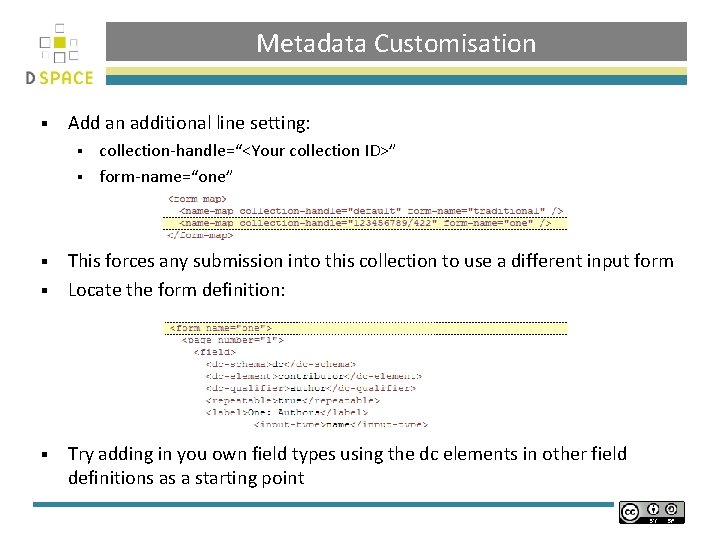
Metadata Customisation § Add an additional line setting: collection-handle=“<Your collection ID>” § form-name=“one” § This forces any submission into this collection to use a different input form § Locate the form definition: § § Try adding in you own field types using the dc elements in other field definitions as a starting point
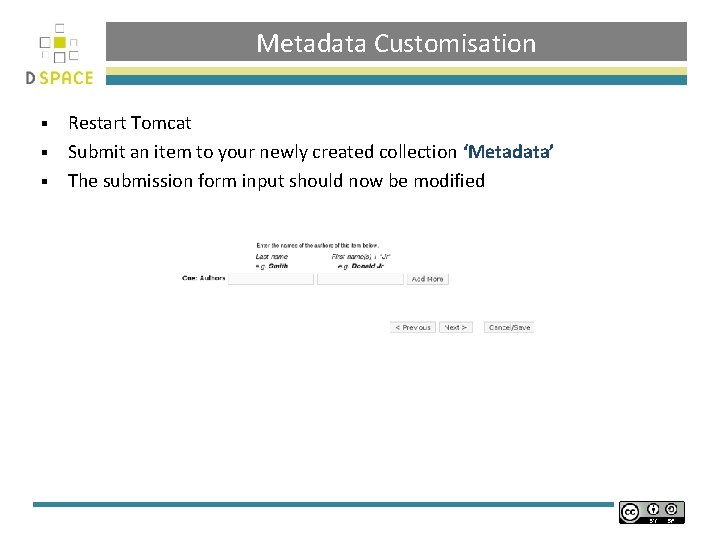
Metadata Customisation Restart Tomcat § Submit an item to your newly created collection ‘Metadata’ § The submission form input should now be modified §
Configuring Emails/Notifications & Subscriptions
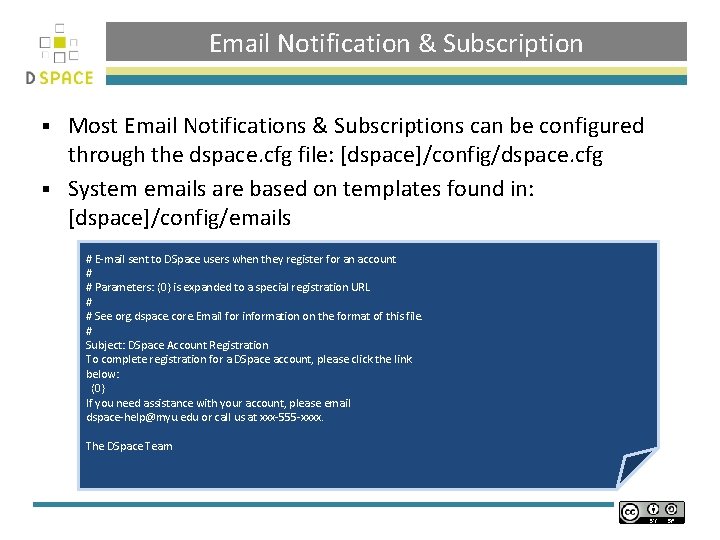
Email Notification & Subscription Most Email Notifications & Subscriptions can be configured through the dspace. cfg file: [dspace]/config/dspace. cfg § System emails are based on templates found in: [dspace]/config/emails § # E-mail sent to DSpace users when they register for an account # # Parameters: {0} is expanded to a special registration URL # # See org. dspace. core. Email for information on the format of this file. # Subject: DSpace Account Registration To complete registration for a DSpace account, please click the link below: {0} If you need assistance with your account, please email dspace-help@myu. edu or call us at xxx-555 -xxxx. The DSpace Team
Configuring RSS Feeds
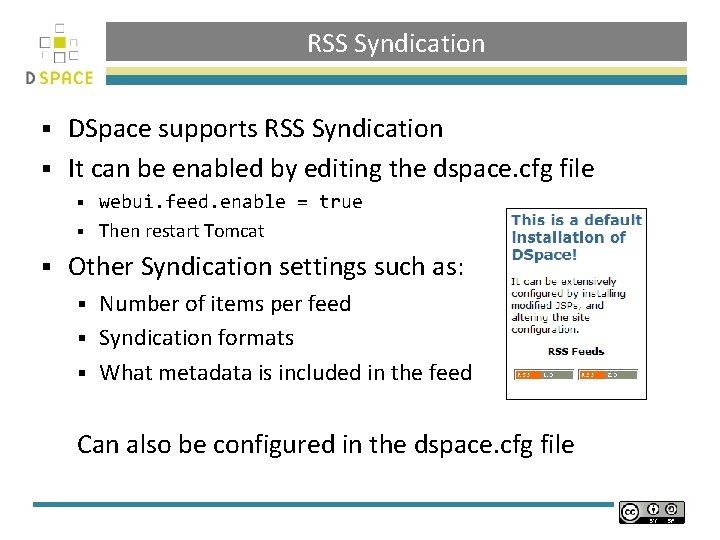
RSS Syndication DSpace supports RSS Syndication § It can be enabled by editing the dspace. cfg file § webui. feed. enable = true § Then restart Tomcat § § Other Syndication settings such as: Number of items per feed § Syndication formats § What metadata is included in the feed § Can also be configured in the dspace. cfg file
![Practical: RSS Syndication § Open the dspace. cfg file § [dspace]/config/dspace. cfg Locate the](http://slidetodoc.com/presentation_image_h2/fe8254ed96dff1d5a22cc538c0baf9c5/image-29.jpg "Practical: RSS Syndication § Open the dspace. cfg file § [dspace]/config/dspace. cfg Locate the")
Practical: RSS Syndication § Open the dspace. cfg file § [dspace]/config/dspace. cfg Locate the #### Syndication § Modify webui. feed. enable § § Feed Settings ###### webui. feed. enable = true § Restart Tomcat as defined in your local instructions § Have an explore of what syndication features can be configured
Nightly Scripts Configuring Nightly Scripts (‘cron’ Jobs)
Nightly Scripts § A couple of DSpace features require that a script is run regularly Email subscriptions feature (deposit alert) § Filter media tool (generates thumbnails & extracts full-text) § Indexer § Statistics generation §

Nightly Scripts § To schedule these scripts to run, execute the command crontab –e as the DSpace user § § § § § Then add the following lines: # Send out subscription e-mails at 01: 00 every day 0 1 * * * [dspace]/bin/sub-daily # Run the media filter at 02: 00 every day 0 2 * * * [dspace]/bin/filter-media # Run the checksum checker at 03: 00 0 3 * * * [dspace]/bin/checker -lp # Mail the results to the sysadmin at 04: 00 0 4 * * * [dspace]/bin/dsrun org. dspace. checker. Daily. Report. Emailer –c Postgre. SQL also benefits from regular 'vacuuming‘ § § # Clean up the database nightly at 4. 20 am 20 4 * * * vacuumdb --analyze dspace > /dev/null 2>&1
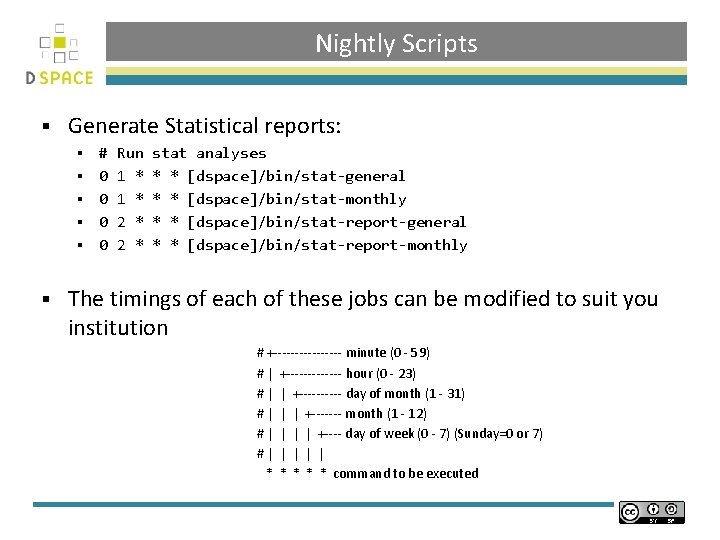
Nightly Scripts § Generate Statistical reports: § § § # 0 0 Run 1 * 2 * stat analyses * * [dspace]/bin/stat-general * * [dspace]/bin/stat-monthly * * [dspace]/bin/stat-report-general * * [dspace]/bin/stat-report-monthly The timings of each of these jobs can be modified to suit you institution # +-------- minute (0 - 59) # | +------- hour (0 - 23) # | | +----- day of month (1 - 31) # | | | +------- month (1 - 12) # | | +---- day of week (0 - 7) (Sunday=0 or 7) #| | | * * * command to be executed
Credits § These slides have been produced by: § Stuart Lewis & Chris Yates § Repository Support Project § http: //www. rsp. ac. uk/ § Part of the Repository. Net § Funded by JISC § http: //www. jisc. ac. uk/
- Slides: 34