
The Dos and Donts Of Vmware ESXi v
- Slides: 14
The Do’s and Don’ts Of Vmware ESXi / v. Center Guest Backups www. euroconnect. be
Introduction With the prevalent use of virtualization, the backup landscape has changed. However, creating backups in virtual environments is not as straightforward as it is in physical environments and it demands specific data backup techniques. From time to time organizations encounter difficulties and pitfalls when backing up VMware ESXi and v. Center guests using different approaches, and they struggle to achieve the most efficient backups possible. In this ebook, you will learn some quick and simple do’s and don’ts for backup of your customers’ VMware guest to avoid common mistakes as well as ensure a smooth and efficient backup. www. euroconnect. be
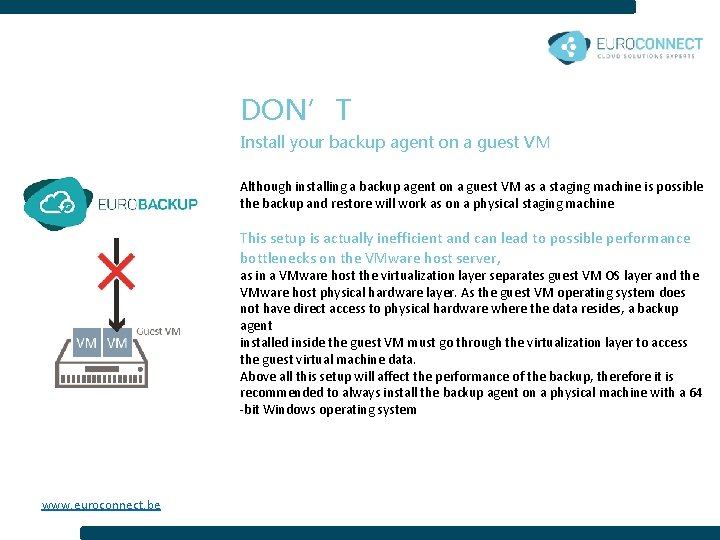
DON’T Install your backup agent on a guest VM Although installing a backup agent on a guest VM as a staging machine is possible the backup and restore will work as on a physical staging machine This setup is actually inefficient and can lead to possible performance bottlenecks on the VMware host server, as in a VMware host the virtualization layer separates guest VM OS layer and the VMware host physical hardware layer. As the guest VM operating system does not have direct access to physical hardware where the data resides, a backup agent installed inside the guest VM must go through the virtualization layer to access the guest virtual machine data. Above all this setup will affect the performance of the backup, therefore it is recommended to always install the backup agent on a physical machine with a 64 -bit Windows operating system www. euroconnect. be
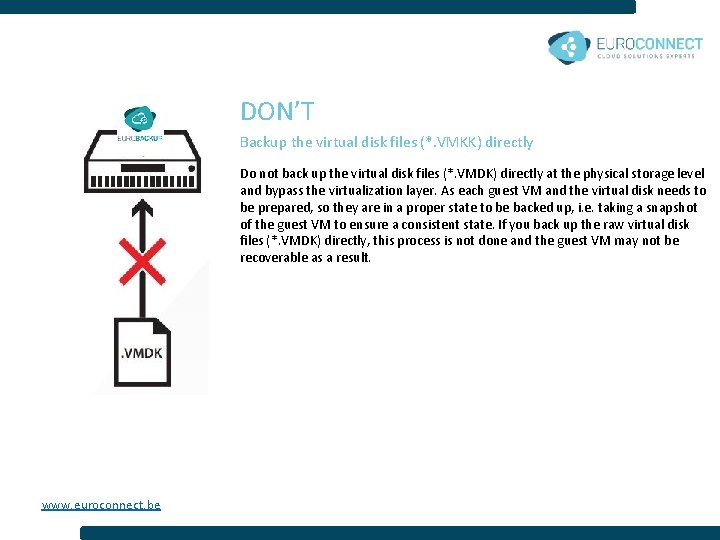
DON’T Backup the virtual disk files (*. VMKK) directly Do not back up the virtual disk files (*. VMDK) directly at the physical storage level and bypass the virtualization layer. As each guest VM and the virtual disk needs to be prepared, so they are in a proper state to be backed up, i. e. taking a snapshot of the guest VM to ensure a consistent state. If you back up the raw virtual disk files (*. VMDK) directly, this process is not done and the guest VM may not be recoverable as a result. www. euroconnect. be
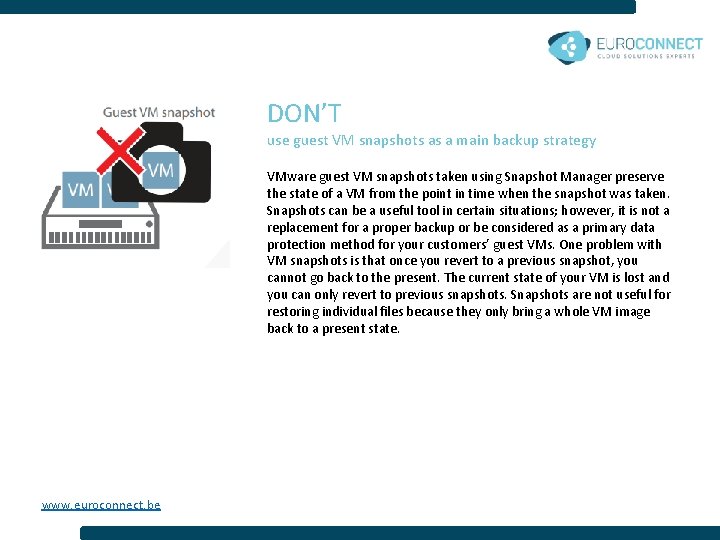
DON’T use guest VM snapshots as a main backup strategy VMware guest VM snapshots taken using Snapshot Manager preserve the state of a VM from the point in time when the snapshot was taken. Snapshots can be a useful tool in certain situations; however, it is not a replacement for a proper backup or be considered as a primary data protection method for your customers’ guest VMs. One problem with VM snapshots is that once you revert to a previous snapshot, you cannot go back to the present. The current state of your VM is lost and you can only revert to previous snapshots. Snapshots are not useful for restoring individual files because they only bring a whole VM image back to a present state. www. euroconnect. be
DO install VMware Tools on the guest VM selected for backup VMware Tools are used by backup agents to quiesce* the guest VMs prior to backing them up. To create consistent backups for your VMs, ensure that VMware Tools are installed and up-to-date on all guest VMs to be backed up. * Quiescing is a process that ensures the disk data is in a state suitable for backups to reduce the possibility of data corruption upon restore. This is especially important for transaction-based applications running on VMs like Micorsoft SQL Server, Microsoft Exchange Server, etc. There are different types of quiescing mechanisms according to the guest operating systems, such as Crash-consistent, File-system-consistent and Applicationconsist quiescing. For more details, refer to the following VMware v. Sphere document: http: //pubs. vmware. com/vsphere 60/index. jsp#com. vmware. vddk. pg. doc/vddk. Bkup. Vadp. 9. 6. html www. euroconnect. be
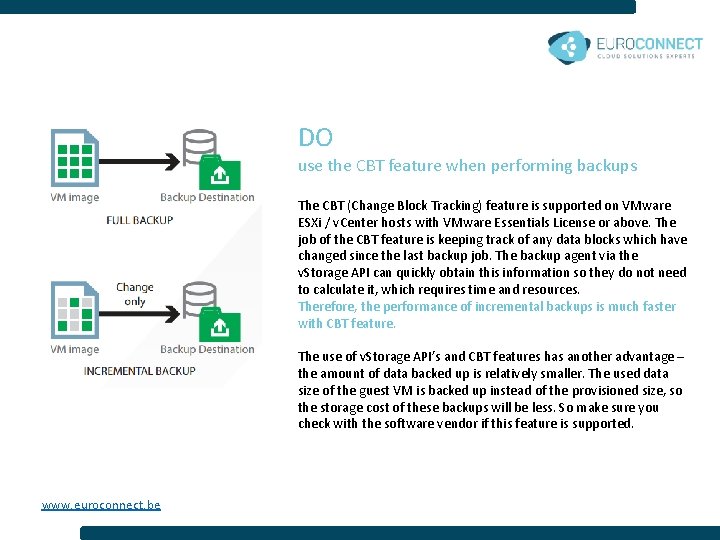
DO use the CBT feature when performing backups The CBT (Change Block Tracking) feature is supported on VMware ESXi / v. Center hosts with VMware Essentials License or above. The job of the CBT feature is keeping track of any data blocks which have changed since the last backup job. The backup agent via the v. Storage API can quickly obtain this information so they do not need to calculate it, which requires time and resources. Therefore, the performance of incremental backups is much faster with CBT feature. The use of v. Storage API’s and CBT features has another advantage – the amount of data backed up is relatively smaller. The used data size of the guest VM is backed up instead of the provisioned size, so the storage cost of these backups will be less. So make sure you check with the software vendor if this feature is supported. www. euroconnect. be
DO plan your backup schedules carefully to minimize any performance impact To avoid concentrated disk I/O on the VMware host datastores, which will have a negative performance impact on the guest VMs residing on the datastores, you should schedule your backups to limit the number of concurrent guest VM backups on a host and shared datastores. If there are too many simultaneous guest VM backups on the same host, the backups may slow down and even degrade the performance of your VMs. www. euroconnect. be
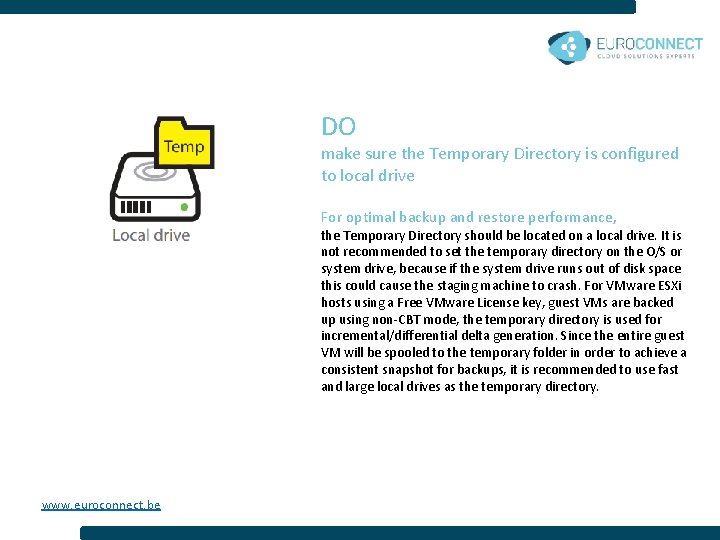
DO make sure the Temporary Directory is configured to local drive For optimal backup and restore performance, the Temporary Directory should be located on a local drive. It is not recommended to set the temporary directory on the O/S or system drive, because if the system drive runs out of disk space this could cause the staging machine to crash. For VMware ESXi hosts using a Free VMware License key, guest VMs are backed up using non-CBT mode, the temporary directory is used for incremental/differential delta generation. Since the entire guest VM will be spooled to the temporary folder in order to achieve a consistent snapshot for backups, it is recommended to use fast and large local drives as the temporary directory. www. euroconnect. be
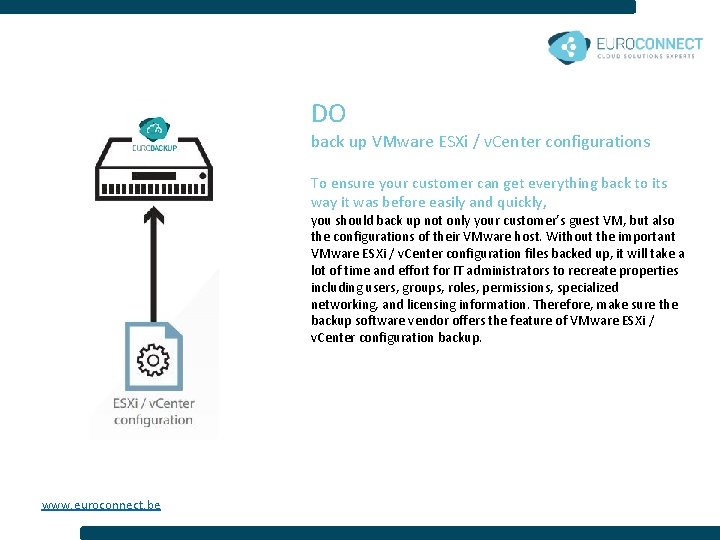
DO back up VMware ESXi / v. Center configurations To ensure your customer can get everything back to its way it was before easily and quickly, you should back up not only your customer’s guest VM, but also the configurations of their VMware host. Without the important VMware ESXi / v. Center configuration files backed up, it will take a lot of time and effort for IT administrators to recreate properties including users, groups, roles, permissions, specialized networking, and licensing information. Therefore, make sure the backup software vendor offers the feature of VMware ESXi / v. Center configuration backup. www. euroconnect. be
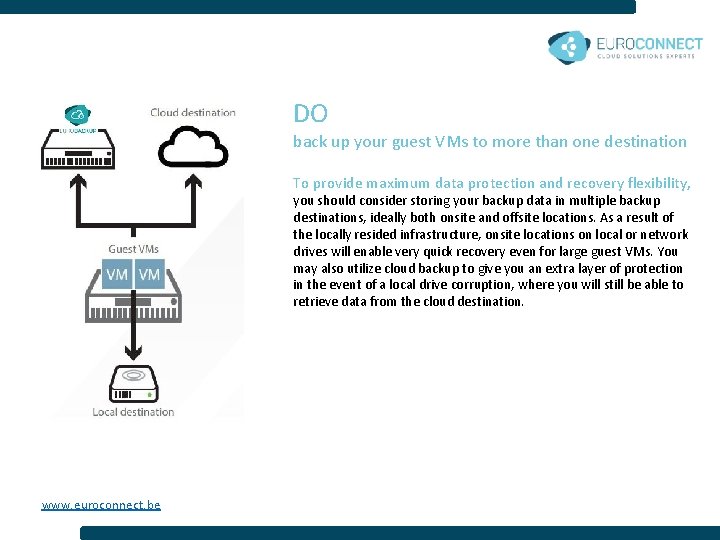
DO back up your guest VMs to more than one destination To provide maximum data protection and recovery flexibility, you should consider storing your backup data in multiple backup destinations, ideally both onsite and offsite locations. As a result of the locally resided infrastructure, onsite locations on local or network drives will enable very quick recovery even for large guest VMs. You may also utilize cloud backup to give you an extra layer of protection in the event of a local drive corruption, where you will still be able to retrieve data from the cloud destination. www. euroconnect. be
DO enable Instant Recovery To minimize disruption and downtime of crucial production guest VMs during system failure, you should enable the Instant Recovery feature when creating VM backup sets. Unlike normal VM recovery that can take hours to complete, backup sets with Instant Recovery enabled can boot up the guest VMs directly from its backup file in just a couple of minutes, without restoring the whole VM first. Users can be back in production almost immediately. For optimal recovery performance, you should consider storing the backup data on on-premises local or network drives. As part of the disaster recovery plan, administrators can also use this feature to boot up the VM for testing the integrity of the backup set. www. euroconnect. be
DO enable Granular Restore Accidental data deletion or corruption caused by human errors is unavoidable in the daily operation of any business. To reduce the recovery time of essential data, you should enable Granular Restore for your ESXi/v. Center guest VMs. Granular Restore technology allows you to selectively recover specific files or folders from a single backup, without the need to boot up or restore the whole guest VM first. Contrary to the traditional restore method that needs two backup sets - one for the VM image and the other for the selected files - Granular Restore saves businesses extra client access license, backup time, storage resources and management effort with only one backup set for the guest VM. www. euroconnect. be
About Euro. Connect Offering you the most affordable VMware backup solution, Euro. Connect promises quick, safe and easy protection for your customer’s entire VMware environment. We have configured our system to be easy to use, even for newbies. Our VMware backup software ensures secure VMware backup that can help your business customers back up their virtual machines to their local as well as cloud storage quickly. Our VM Run Direct feature allows you to instantly boot up a guest VM from its point-in-time backup file within one minute for meet the disaster recovery requirement. Visit our website https: //euroconnect. be www. euroconnect. be