
The Calculator Lab By Dr Taha Havakhor Assistant

The Calculator Lab By: Dr. Taha Havakhor Assistant Professor of MIS
What have done so far? • Defining the custom components: • • Calculator-display Function-button Number-button (see files in the community page) Operation-button (see files in the community page)
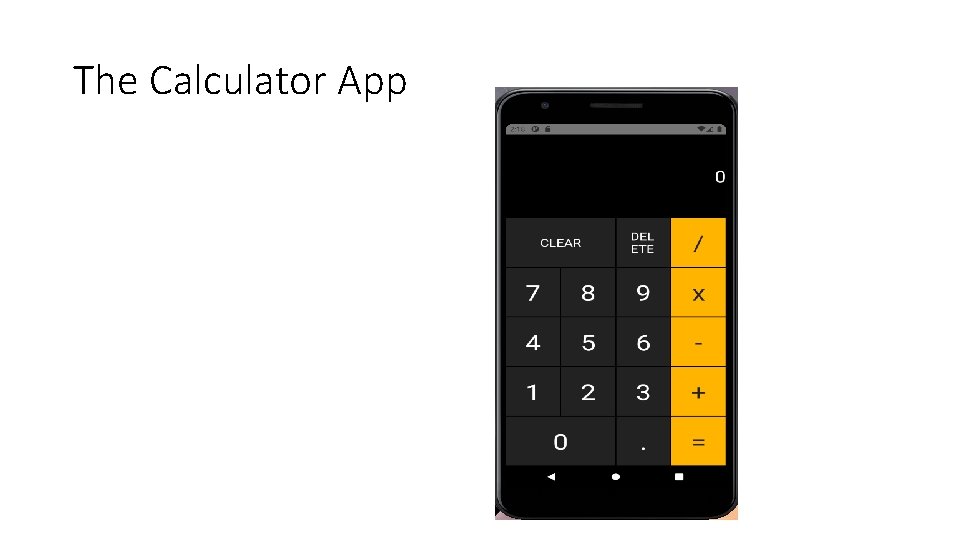
The Calculator App
Import your custom components first • In App. js import your custom components import Calculator. Display from '. /components/calculator-display’; import Number. Button from '. /components/number-button’; import Operation. Button from '. /components/operation-button’; import Function. Button from '. /components/function-button';
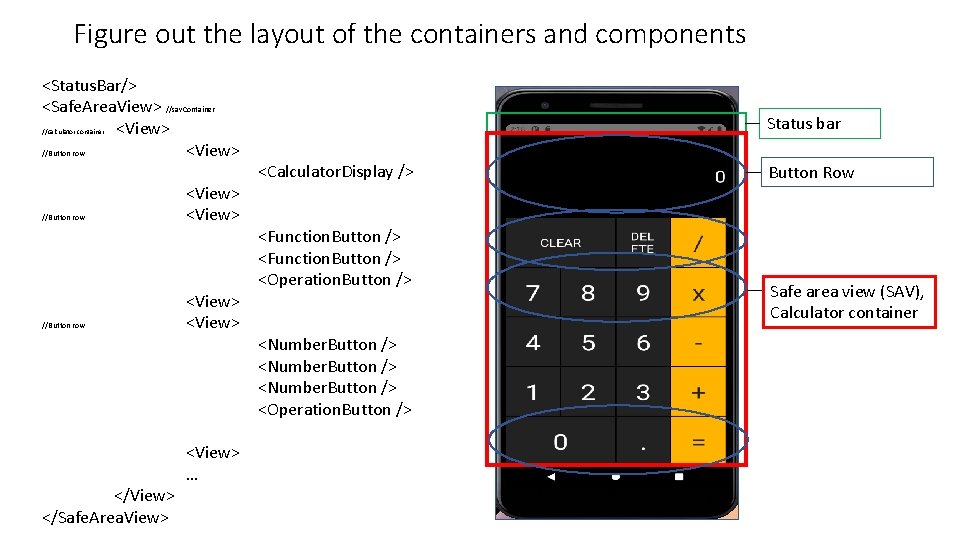
Figure out the layout of the containers and components <Status. Bar/> <Safe. Area. View> //sav. Container <View> //Button row <View> Status bar //calculator container //Button row </View> </Safe. Area. View> <View> <View> … <Calculator. Display /> <Function. Button /> <Operation. Button /> <Number. Button /> <Operation. Button /> Button Row Safe area view (SAV), Calculator container
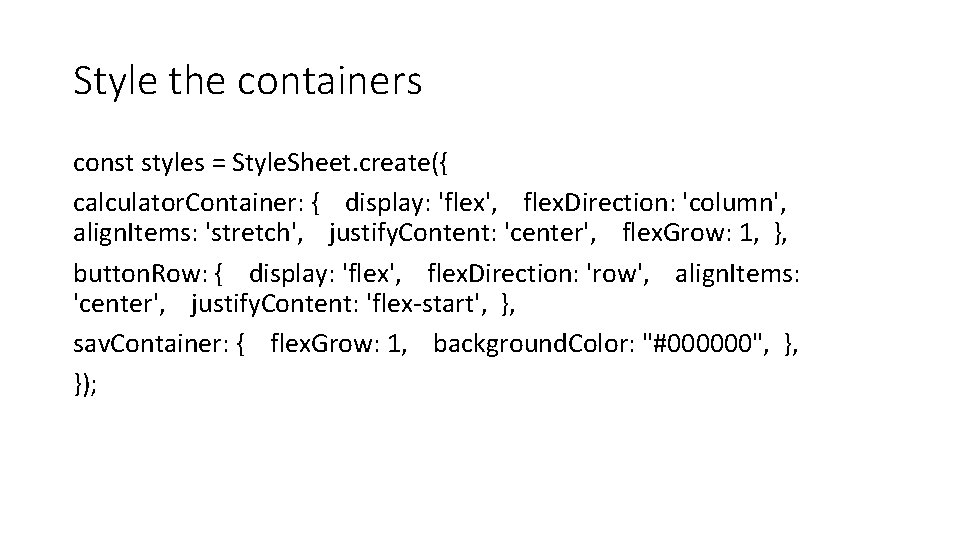
Style the containers const styles = Style. Sheet. create({ calculator. Container: { display: 'flex', flex. Direction: 'column', align. Items: 'stretch', justify. Content: 'center', flex. Grow: 1, }, button. Row: { display: 'flex', flex. Direction: 'row', align. Items: 'center', justify. Content: 'flex-start', }, sav. Container: { flex. Grow: 1, background. Color: "#000000", }, });
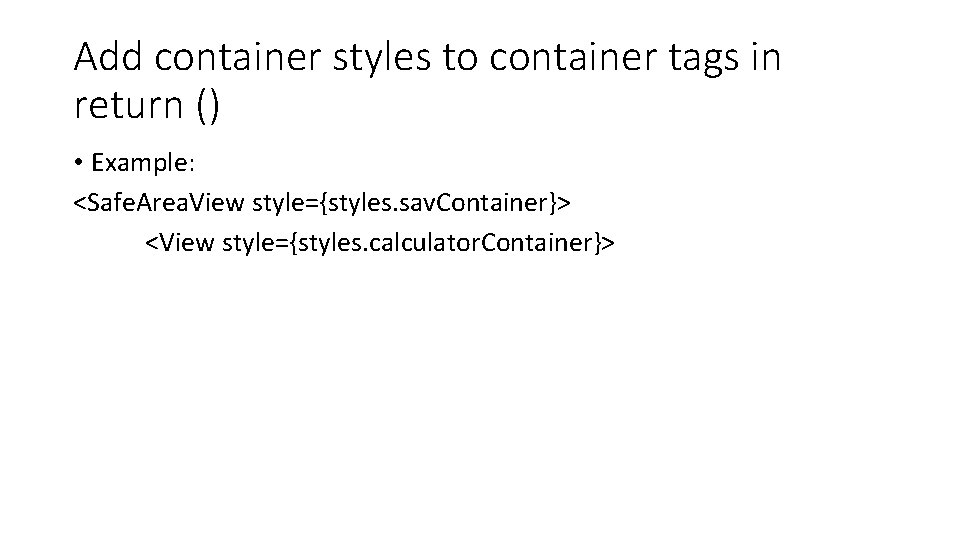
Add container styles to container tags in return () • Example: <Safe. Area. View style={styles. sav. Container}> <View style={styles. calculator. Container}>
Let’s play • Open calculate-app complement file from the community site and follow the instructions.
- Slides: 8