
The Brain in the Palm of Your Hand
The Brain in the Palm of Your Hand Using Mobile Devices to Support Independence 11/26/2020
2 Presenters Cheryl Belitsky, PT Leslie Mullette, OTR/L, ATP
3 Learning Objectives 1. Participants will be able to customize the mobile device to be user friendly. 2. Participants will understand how to use built-in reminders, alerts and information sharing to enhance memory, organization, and independence. 3. Participants will be able to implement a process to identify and choose apps for memory and organization.
4 Customizing mobile devices Change visual presentation to make it easier to see the display: change font size, invert colors for higher contrast, use zoom feature, remove background images Determine the easiest method to input information into the device: speech, keyboard, swipe, handwriting recognition Audio feedback: alarms, notification sounds, text to speech Set up folders to organize information for easy access
5
Ways that mobile devices can support functioning? set reminders time management medical management reading vision and hearing support communication social networking mind exercises 6
Apps to support memory/organization Calendar (Built-in) Reminder (Built-in) Awesome Note Vocal First/Then Med Helper Pillboxie Picture Schedule Visual Routine 7
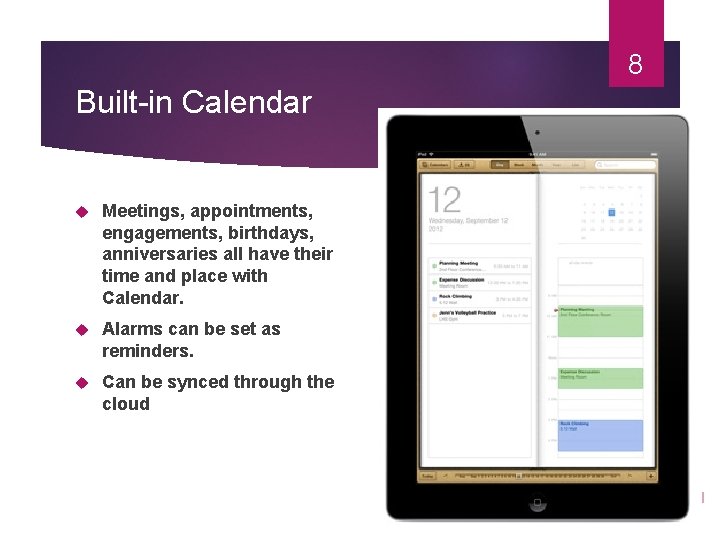
8 Built-in Calendar Meetings, appointments, engagements, birthdays, anniversaries all have their time and place with Calendar. Alarms can be set as reminders. Can be synced through the cloud
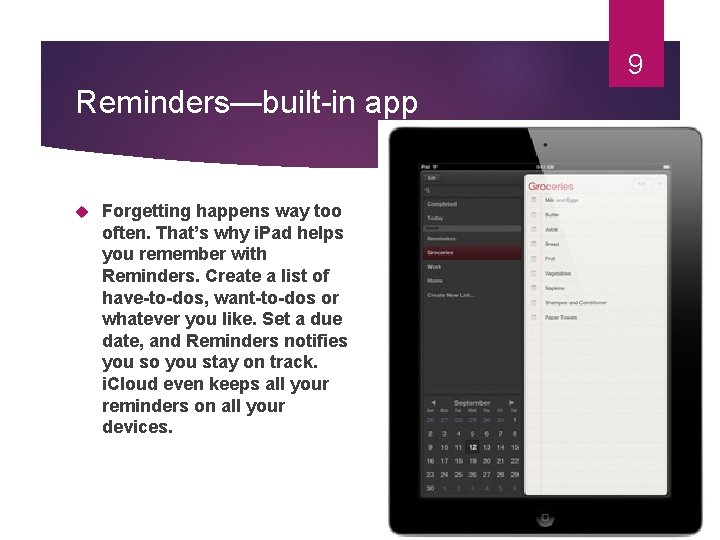
9 Reminders—built-in app Forgetting happens way too often. That’s why i. Pad helps you remember with Reminders. Create a list of have-to-dos, want-to-dos or whatever you like. Set a due date, and Reminders notifies you so you stay on track. i. Cloud even keeps all your reminders on all your devices.
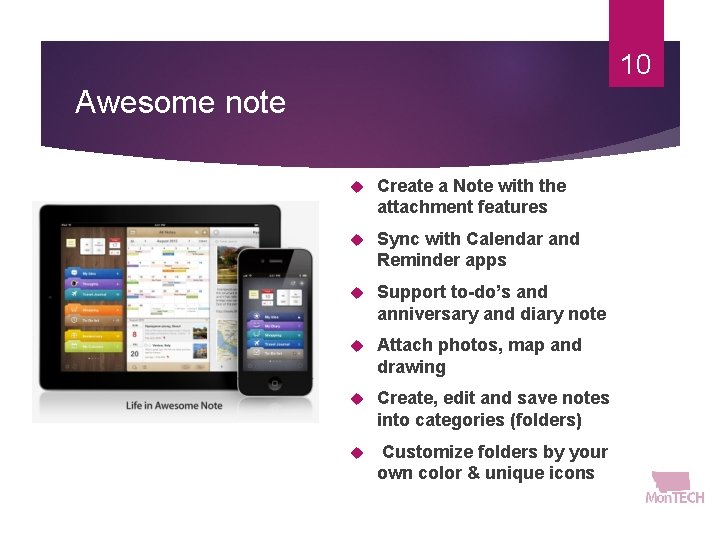
10 Awesome note Create a Note with the attachment features Sync with Calendar and Reminder apps Support to-do’s and anniversary and diary note Attach photos, map and drawing Create, edit and save notes into categories (folders) Customize folders by your own color & unique icons
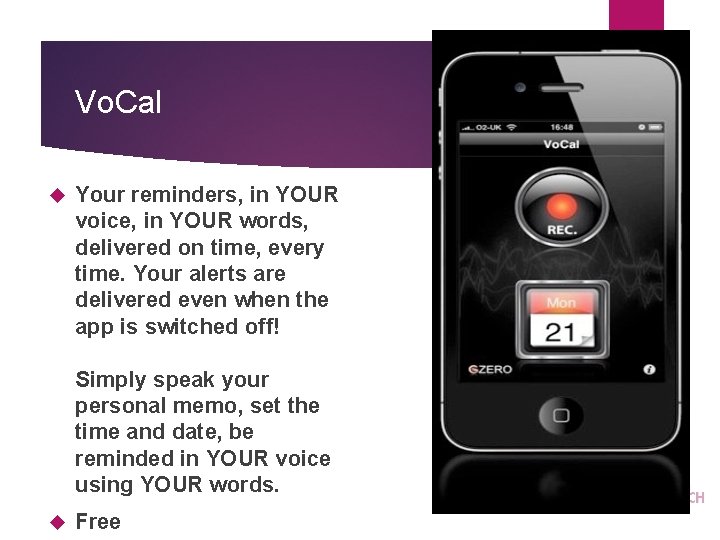
11 Vo. Cal Your reminders, in YOUR voice, in YOUR words, delivered on time, every time. Your alerts are delivered even when the app is switched off! Simply speak your personal memo, set the time and date, be reminded in YOUR voice using YOUR words. Free
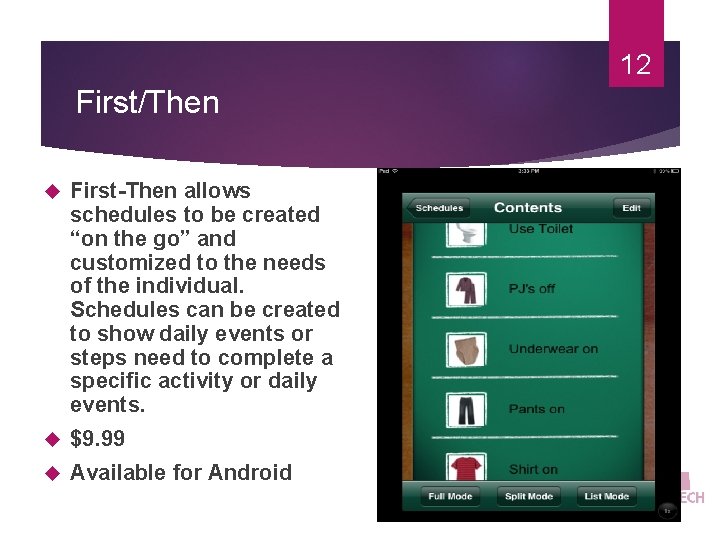
12 First/Then First-Then allows schedules to be created “on the go” and customized to the needs of the individual. Schedules can be created to show daily events or steps need to complete a specific activity or daily events. $9. 99 Available for Android
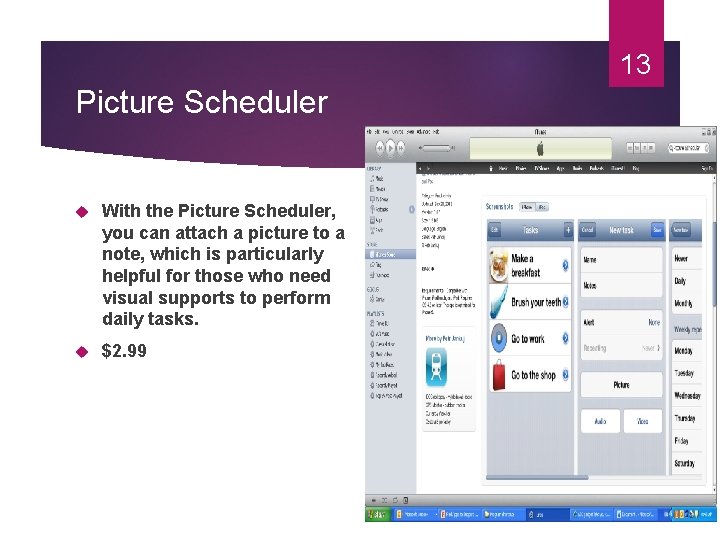
13 Picture Scheduler With the Picture Scheduler, you can attach a picture to a note, which is particularly helpful for those who need visual supports to perform daily tasks. $2. 99
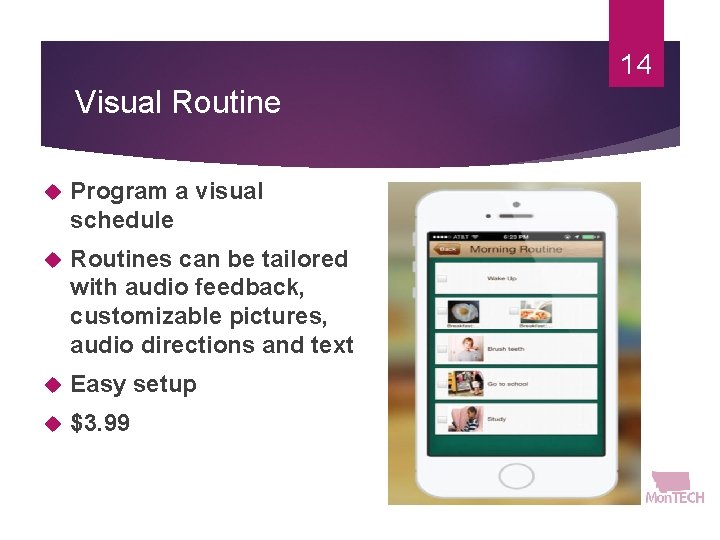
14 Visual Routine Program a visual schedule Routines can be tailored with audio feedback, customizable pictures, audio directions and text Easy setup $3. 99
15 Med Helper A comprehensive prescription/medication compliance and tracking App designed to help individuals and caretakers manage the challenges of staying on time up to date and on schedule with very simple to very complex regimes. Available on Android and IOS platforms. Free
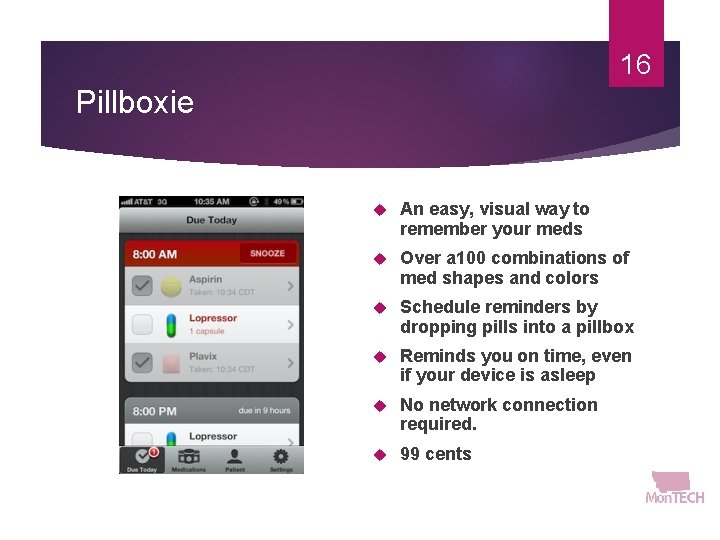
16 Pillboxie An easy, visual way to remember your meds Over a 100 combinations of med shapes and colors Schedule reminders by dropping pills into a pillbox Reminds you on time, even if your device is asleep No network connection required. 99 cents
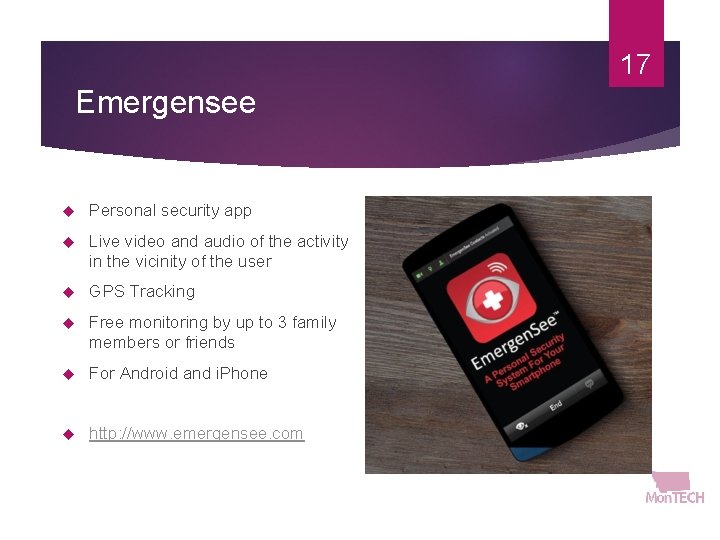
17 Emergensee Personal security app Live video and audio of the activity in the vicinity of the user GPS Tracking Free monitoring by up to 3 family members or friends For Android and i. Phone http: //www. emergensee. com
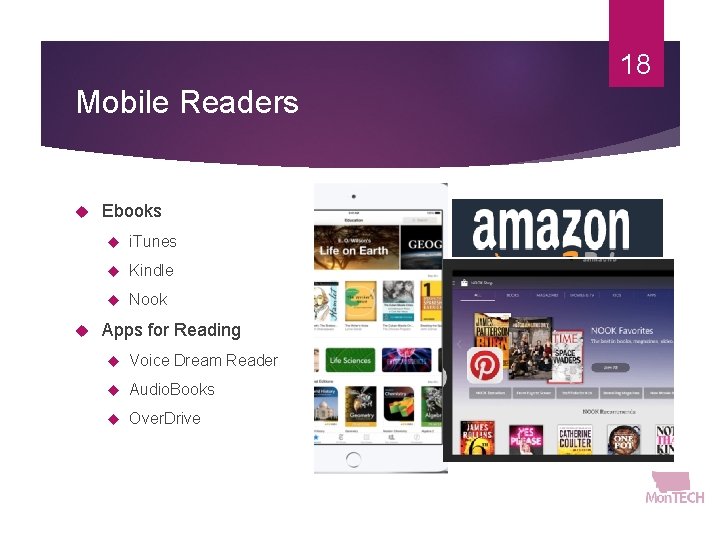
18 Mobile Readers Ebooks i. Tunes Kindle Nook Apps for Reading Voice Dream Reader Audio. Books Over. Drive
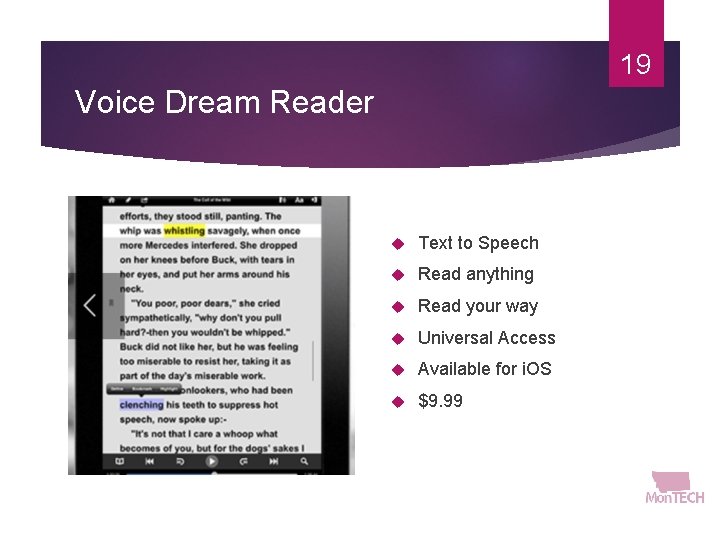
19 Voice Dream Reader Text to Speech Read anything Read your way Universal Access Available for i. OS $9. 99
20 Over. Drive e. Books, audiobooks and videos from your local library Change the font, contrast, background of reading page Change the speed of the audio voice Free and available for i. OS, Android, Google, Nook, Kindle and PC Download from your local library webpage
21 Mobile Communication Tools Apps for communication Speak It! Flip Writer Proloquo 4 Text Sono. Flex My Talk Aphasia- Lingraphica
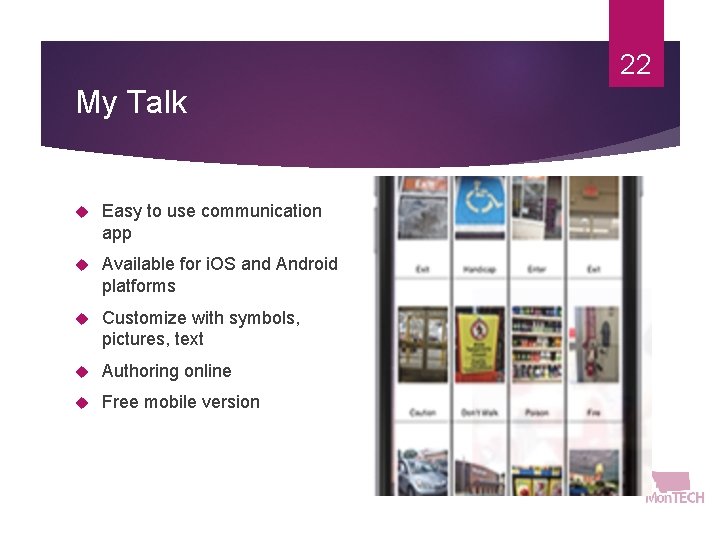
22 My Talk Easy to use communication app Available for i. OS and Android platforms Customize with symbols, pictures, text Authoring online Free mobile version
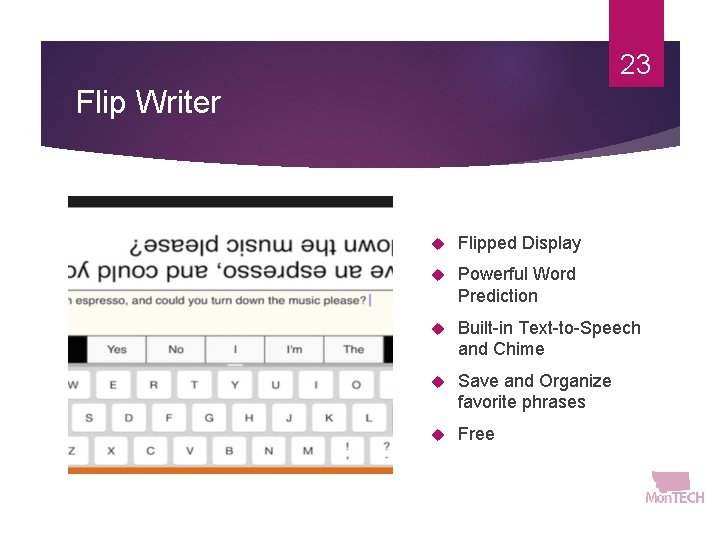
23 Flip Writer Flipped Display Powerful Word Prediction Built-in Text-to-Speech and Chime Save and Organize favorite phrases Free
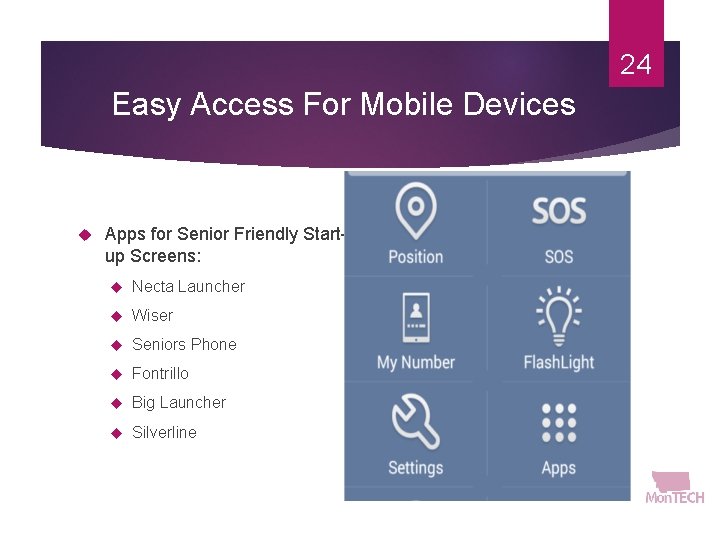
24 Easy Access For Mobile Devices Apps for Senior Friendly Startup Screens: Necta Launcher Wiser Seniors Phone Fontrillo Big Launcher Silverline
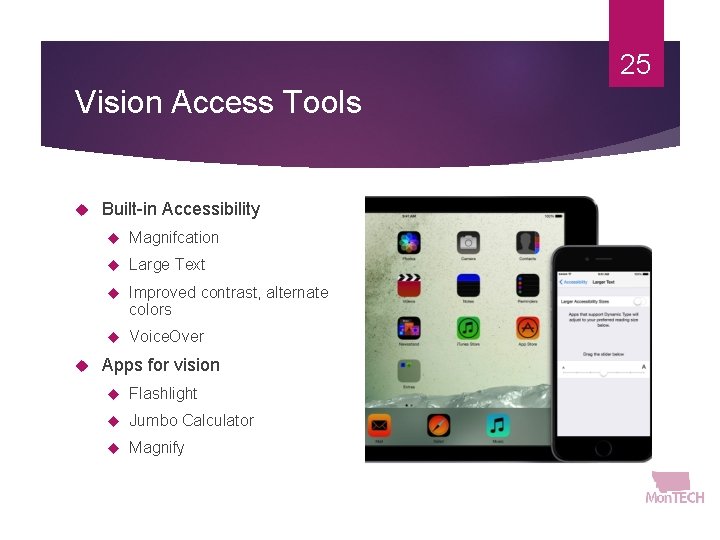
25 Vision Access Tools Built-in Accessibility Magnifcation Large Text Improved contrast, alternate colors Voice. Over Apps for vision Flashlight Jumbo Calculator Magnify
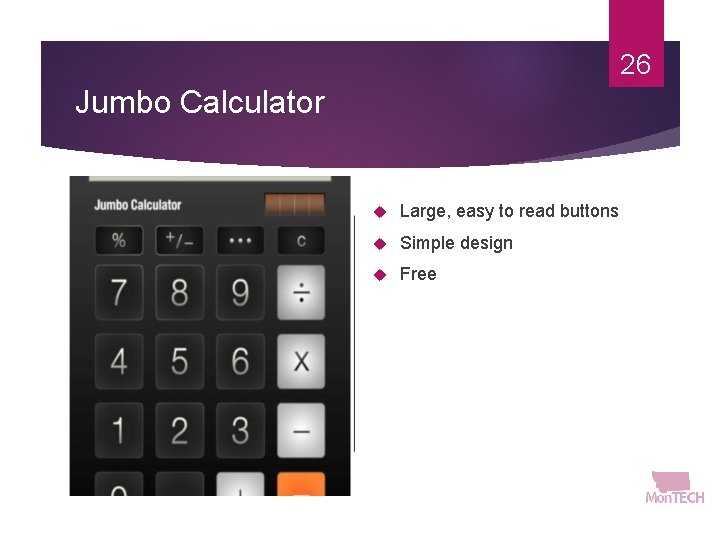
26 Jumbo Calculator Large, easy to read buttons Simple design Free
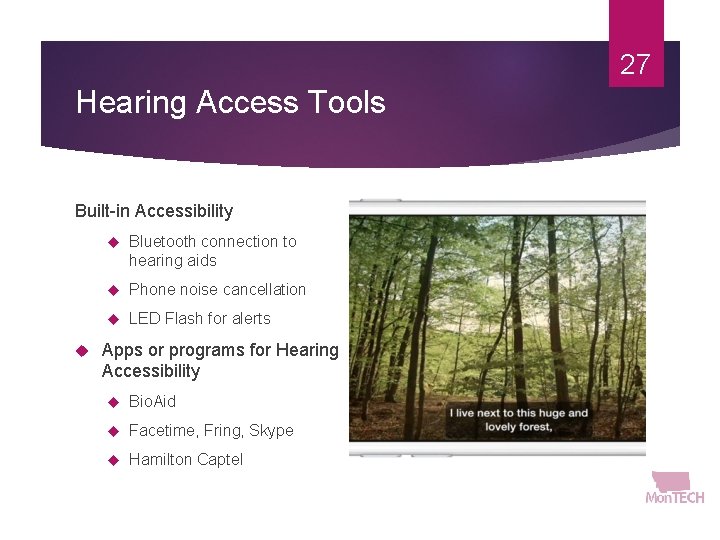
27 Hearing Access Tools Built-in Accessibility Bluetooth connection to hearing aids Phone noise cancellation LED Flash for alerts Apps or programs for Hearing Accessibility Bio. Aid Facetime, Fring, Skype Hamilton Captel
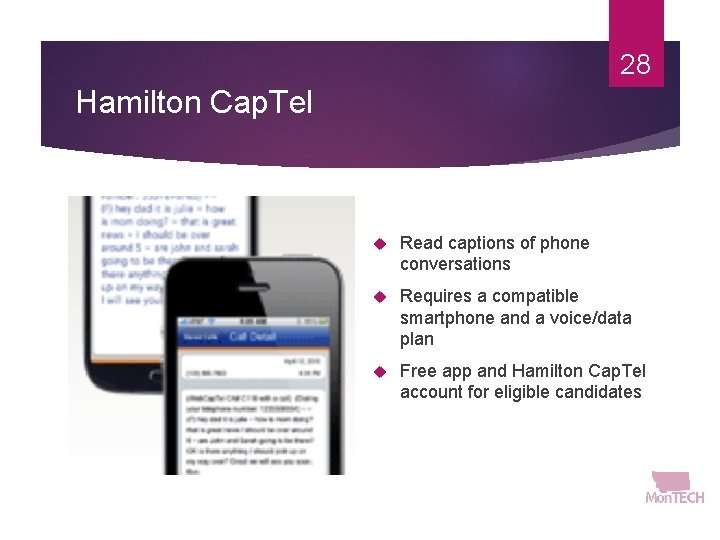
28 Hamilton Cap. Tel Read captions of phone conversations Requires a compatible smartphone and a voice/data plan Free app and Hamilton Cap. Tel account for eligible candidates
29 How to evaluate useful apps Go to the i. Tunes App store. Enter a search using key word (s). Read reviews posted by other users regarding the app. Review the screen shots to see if the appears to suit your needs. Follow the link to the developer’s website and search the site for demonstrations of the app. Search the app on You. Tube and view tutorials and reviews posted by others who have used the app. Categorize the app by type (“reading, ” “organizations, ” etc. ) the search the internet for the “best (type) apps” and review the lists and reviews that have been created and generated by others. Analyze what you want to use the app for the see if it meets your criteria and is suitable for your user’s age group. Download and test out a “lite” or free version of the app before purchasing the full version, if possible.
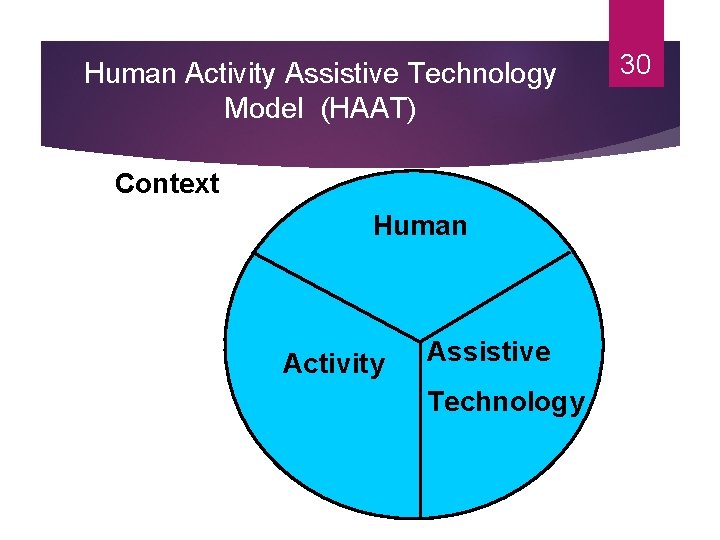
Human Activity Assistive Technology Model (HAAT) Context Human Activity Assistive Technology 30
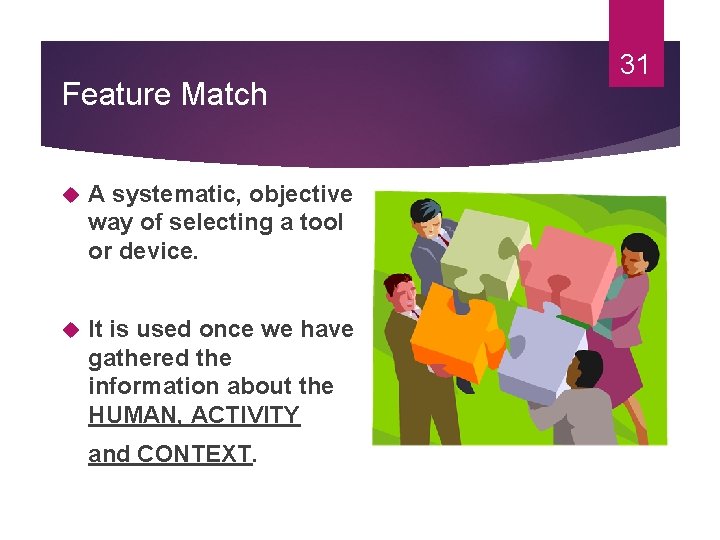
Feature Match A systematic, objective way of selecting a tool or device. It is used once we have gathered the information about the HUMAN, ACTIVITY and CONTEXT. 31
CETT (Client, Environment, Task, Tool) Scaffold for AT Decision. Making 32
33 WATI AT Decision Making Guide

Contact information 34 406 -243 -5751 1 -877 -243 -5511 (toll free in MT) montech. ruralinstitute. umt. edu
- Slides: 34