
The best way to see VRay VFB Lesson
The best way to see: V-Ray VFB
Lesson Introduction - Orientation • This presentation will take you through the basics of the V-Ray VFB window • This lesson topic is approximately 30 minutes in length • Presentation covers all 3 Learning Cycles for the Lesson Topic – Lecture, Demonstration, and Activity. • Learning Outcomes: You will be able to navigate around the V-Ray Virtual Frame Buffer window and how to use the Color Correction and Lens Effects tools within the VFB
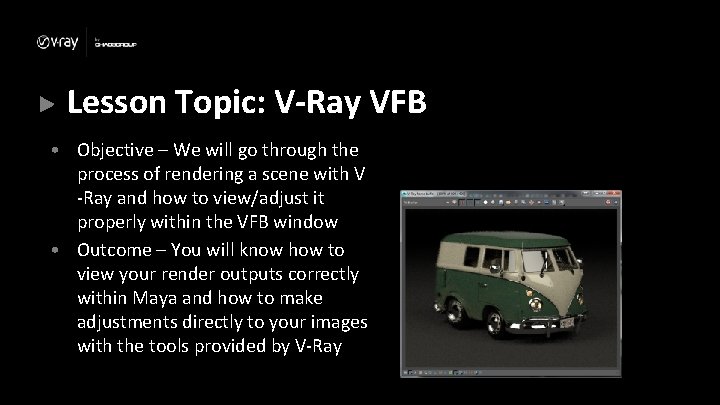
Lesson Topic: V-Ray VFB • Objective – We will go through the process of rendering a scene with V -Ray and how to view/adjust it properly within the VFB window • Outcome – You will know how to view your render outputs correctly within Maya and how to make adjustments directly to your images with the tools provided by V-Ray
Lecture: Terminology • The V-Ray VFB is the proper way to view our V-Ray render outputs – Virtual Frame Buffer • The VFB is the window that we use to view our renders – Render History • Previous render outputs can be saved and compared to – Color Corrections • Adjustments can be made to our rendered images directly from the VFB window – Lens Effects • Simulates bloom and glare lens effects on your rendered images in the VFB window
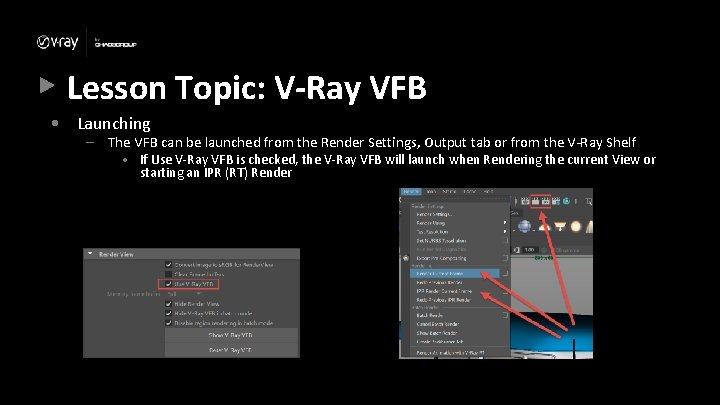
Lesson Topic: V-Ray VFB • Launching – The VFB can be launched from the Render Settings, Output tab or from the V-Ray Shelf • If Use V-Ray VFB is checked, the V-Ray VFB will launch when Rendering the current View or starting an IPR (RT) Render
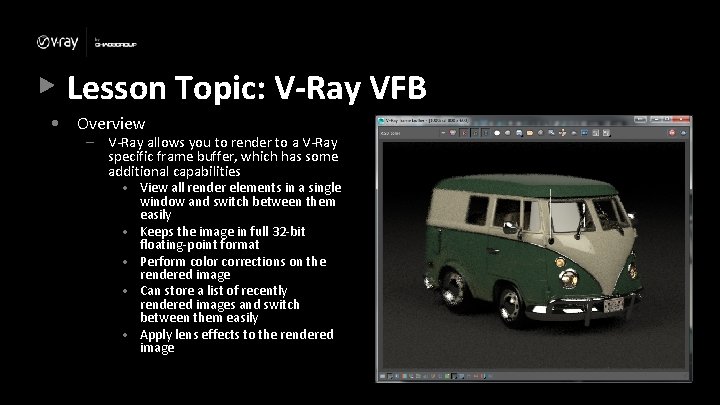
Lesson Topic: V-Ray VFB • Overview – V-Ray allows you to render to a V-Ray specific frame buffer, which has some additional capabilities • View all render elements in a single window and switch between them easily • Keeps the image in full 32 -bit floating-point format • Perform color corrections on the rendered image • Can store a list of recently rendered images and switch between them easily • Apply lens effects to the rendered image

Lesson Topic: V-Ray VFB • Toolbars – Top window tools • • • • Render Element dropdown selection R, G, B, and A channel isolation buttons Monochrome view Save current channel Load image into buffer Clear (or remove) an image from buffer Duplicate to Maya Frame Buffer Track mouse while rendering Render selected region Link V-Ray VFB to PDplayer Swap A and B images Enable Comparison from images in history Stop current render Repeat last render
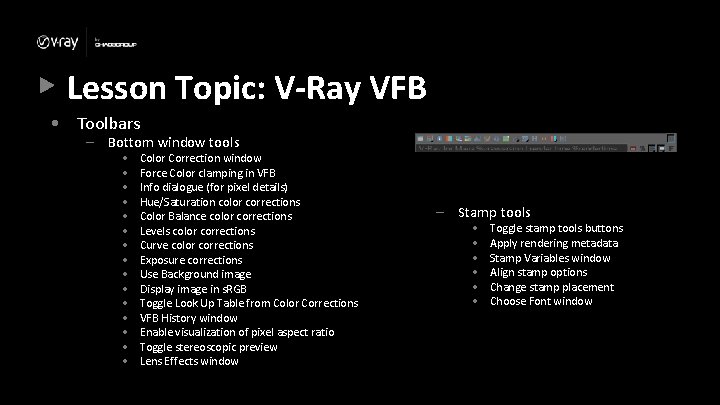
Lesson Topic: V-Ray VFB • Toolbars – Bottom window tools • • • • Color Correction window Force Color clamping in VFB Info dialogue (for pixel details) Hue/Saturation color corrections Color Balance color corrections Levels color corrections Curve color corrections Exposure corrections Use Background image Display image in s. RGB Toggle Look Up Table from Color Corrections VFB History window Enable visualization of pixel aspect ratio Toggle stereoscopic preview Lens Effects window – Stamp tools • • • Toggle stamp tools buttons Apply rendering metadata Stamp Variables window Align stamp options Change stamp placement Choose Font window
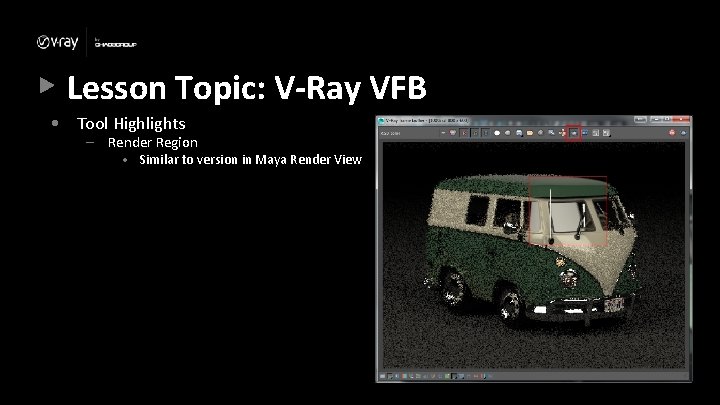
Lesson Topic: V-Ray VFB • Tool Highlights – Render Region • Similar to version in Maya Render View
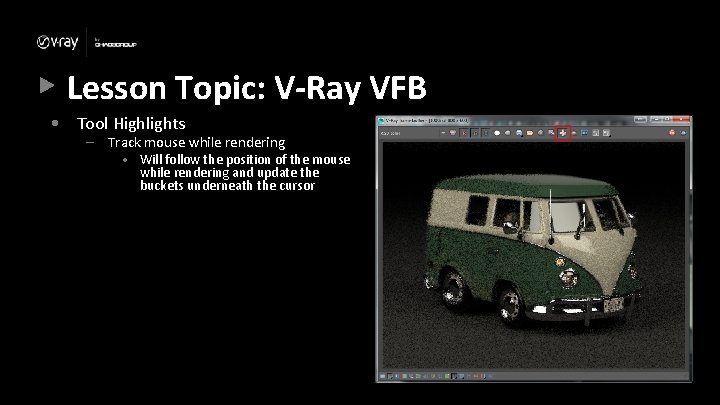
Lesson Topic: V-Ray VFB • Tool Highlights – Track mouse while rendering • Will follow the position of the mouse while rendering and update the buckets underneath the cursor
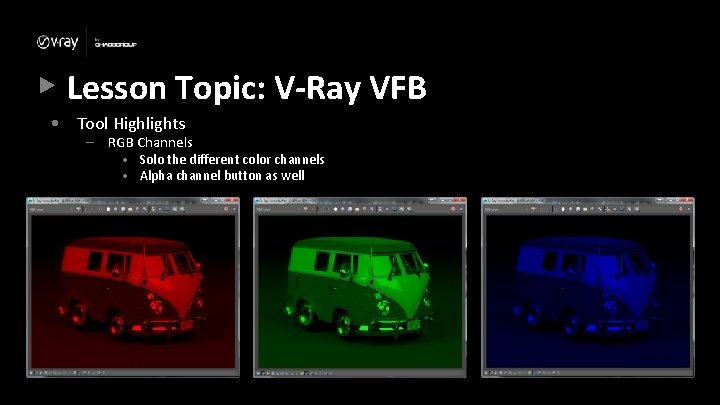
Lesson Topic: V-Ray VFB • Tool Highlights – RGB Channels • Solo the different color channels • Alpha channel button as well
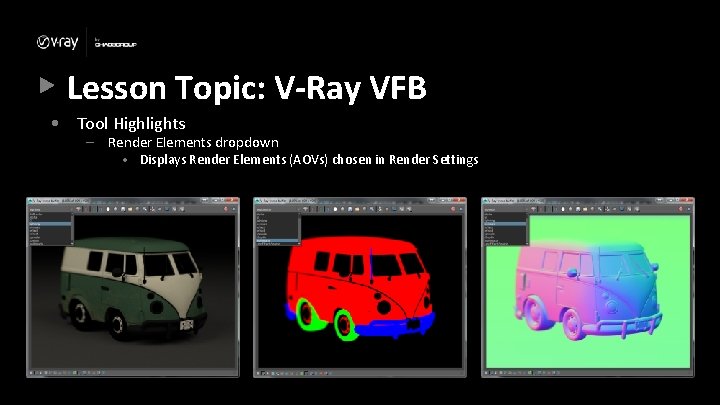
Lesson Topic: V-Ray VFB • Tool Highlights – Render Elements dropdown • Displays Render Elements (AOVs) chosen in Render Settings
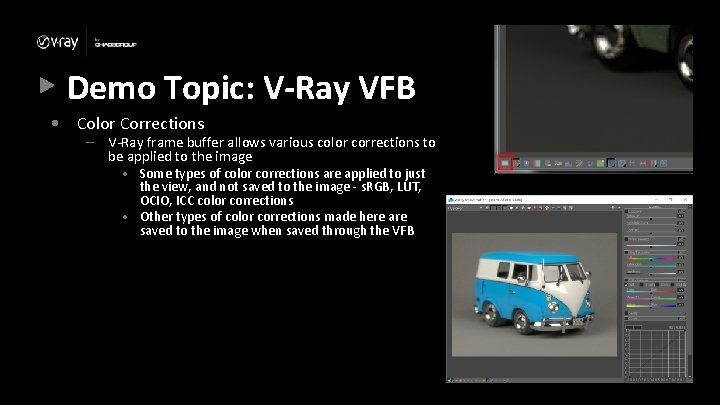
Demo Topic: V-Ray VFB • Color Corrections – V-Ray frame buffer allows various color corrections to be applied to the image • Some types of color corrections are applied to just the view, and not saved to the image - s. RGB, LUT, OCIO, ICC color corrections • Other types of color corrections made here are saved to the image when saved through the VFB
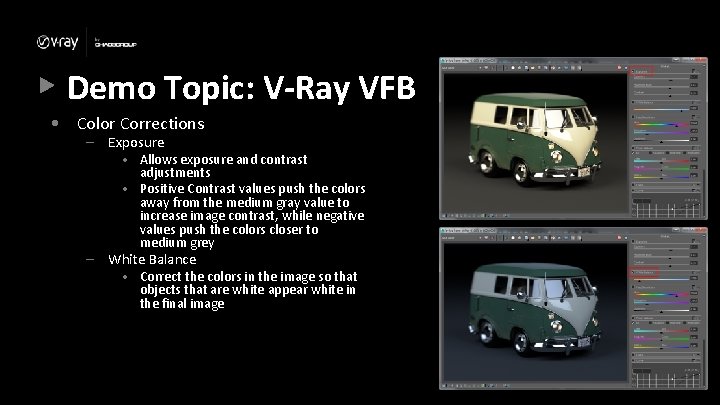
Demo Topic: V-Ray VFB • Color Corrections – Exposure – • Allows exposure and contrast adjustments • Positive Contrast values push the colors away from the medium gray value to increase image contrast, while negative values push the colors closer to medium grey White Balance • Correct the colors in the image so that objects that are white appear white in the final image
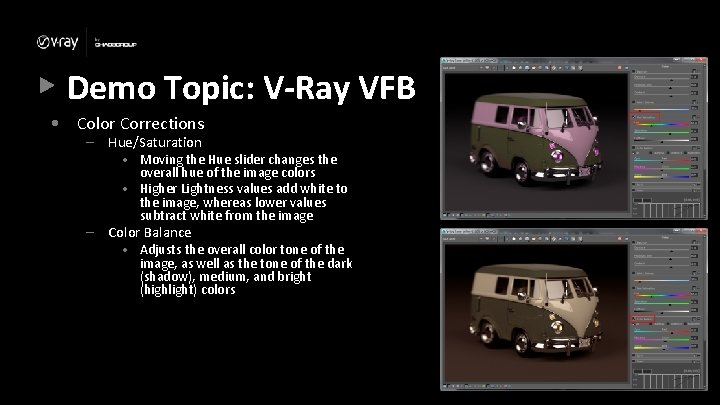
Demo Topic: V-Ray VFB • Color Corrections – Hue/Saturation – • Moving the Hue slider changes the overall hue of the image colors • Higher Lightness values add white to the image, whereas lower values subtract white from the image Color Balance • Adjusts the overall color tone of the image, as well as the tone of the dark (shadow), medium, and bright (highlight) colors
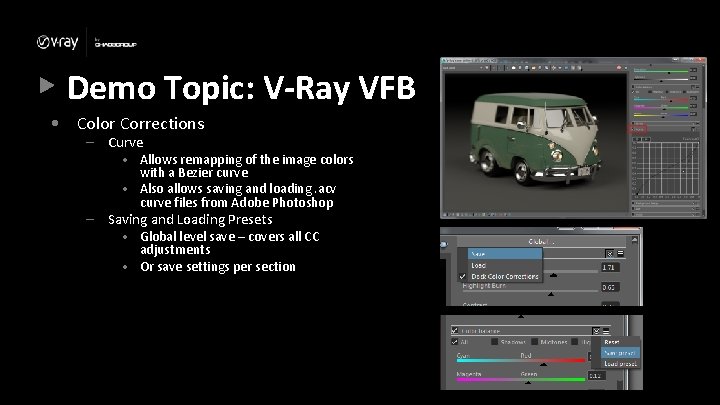
Demo Topic: V-Ray VFB • Color Corrections – Curve – • Allows remapping of the image colors with a Bezier curve • Also allows saving and loading. acv curve files from Adobe Photoshop Saving and Loading Presets • Global level save – covers all CC adjustments • Or save settings per section
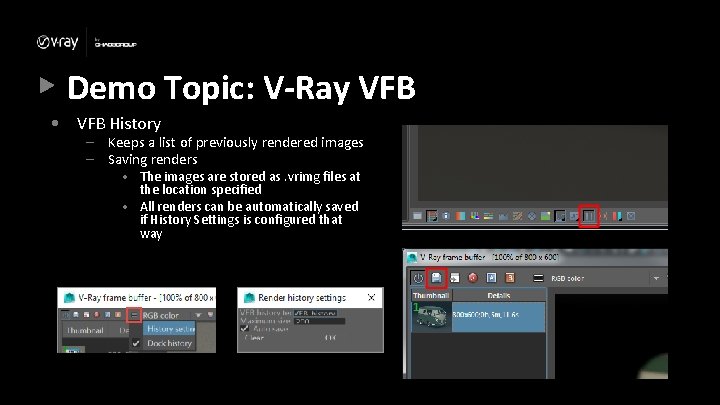
Demo Topic: V-Ray VFB • VFB History – Keeps a list of previously rendered images – Saving renders • The images are stored as. vrimg files at the location specified • All renders can be automatically saved if History Settings is configured that way
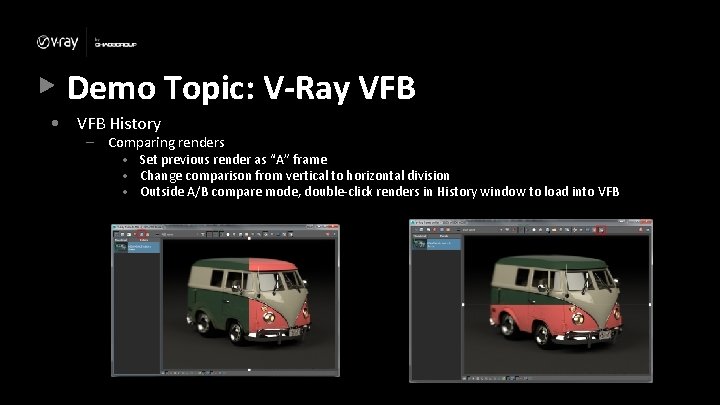
Demo Topic: V-Ray VFB • VFB History – Comparing renders • Set previous render as “A” frame • Change comparison from vertical to horizontal division • Outside A/B compare mode, double-click renders in History window to load into VFB
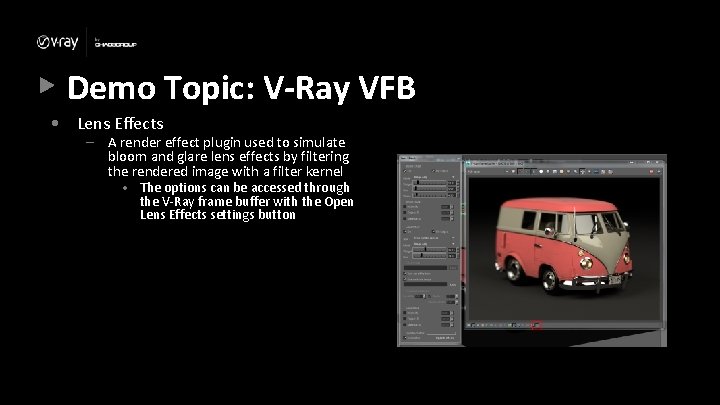
Demo Topic: V-Ray VFB • Lens Effects – A render effect plugin used to simulate bloom and glare lens effects by filtering the rendered image with a filter kernel • The options can be accessed through the V-Ray frame buffer with the Open Lens Effects settings button
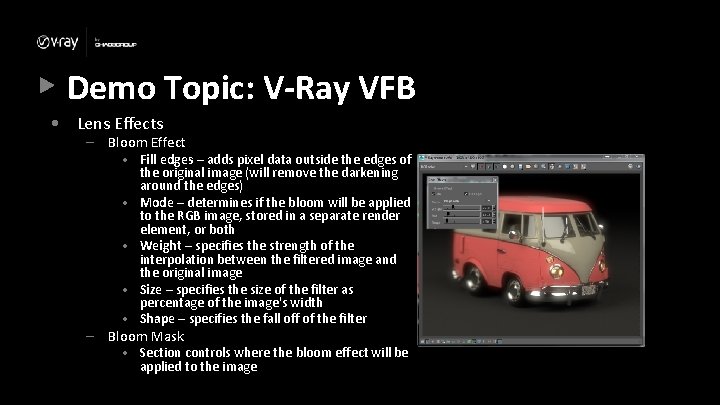
Demo Topic: V-Ray VFB • Lens Effects – Bloom Effect – • Fill edges – adds pixel data outside the edges of the original image (will remove the darkening around the edges) • Mode – determines if the bloom will be applied to the RGB image, stored in a separate render element, or both • Weight – specifies the strength of the interpolation between the filtered image and the original image • Size – specifies the size of the filter as percentage of the image's width • Shape – specifies the fall off of the filter Bloom Mask • Section controls where the bloom effect will be applied to the image
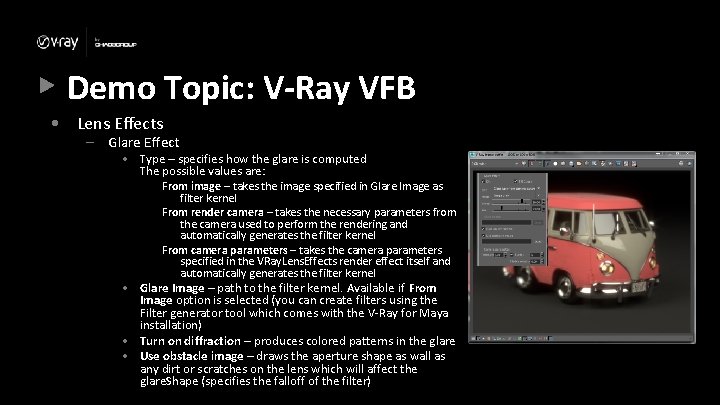
Demo Topic: V-Ray VFB • Lens Effects – Glare Effect • Type – specifies how the glare is computed The possible values are: From image – takes the image specified in Glare Image as filter kernel From render camera – takes the necessary parameters from the camera used to perform the rendering and automatically generates the filter kernel From camera parameters – takes the camera parameters specified in the VRay. Lens. Effects render effect itself and automatically generates the filter kernel • Glare Image – path to the filter kernel. Available if From Image option is selected (you can create filters using the Filter generator tool which comes with the V-Ray for Maya installation) • Turn on diffraction – produces colored patterns in the glare • Use obstacle image – draws the aperture shape as wall as any dirt or scratches on the lens which will affect the glare. Shape (specifies the falloff of the filter)
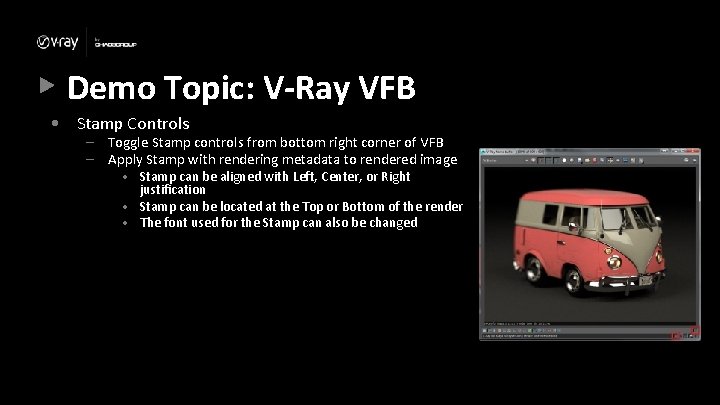
Demo Topic: V-Ray VFB • Stamp Controls – Toggle Stamp controls from bottom right corner of VFB – Apply Stamp with rendering metadata to rendered image • Stamp can be aligned with Left, Center, or Right justification • Stamp can be located at the Top or Bottom of the render • The font used for the Stamp can also be changed
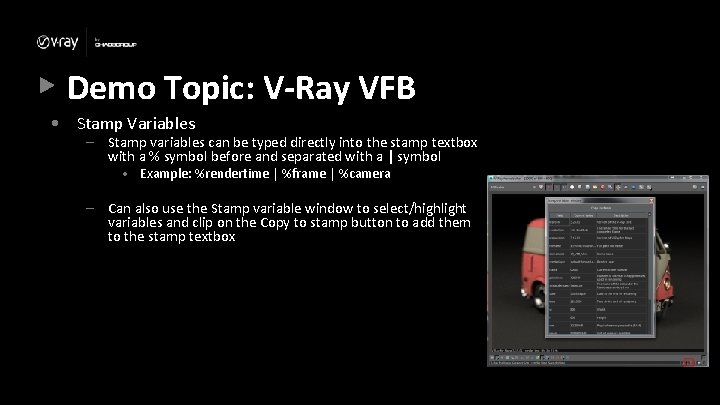
Demo Topic: V-Ray VFB • Stamp Variables – Stamp variables can be typed directly into the stamp textbox with a % symbol before and separated with a | symbol • Example: %rendertime | %frame | %camera – Can also use the Stamp variable window to select/highlight variables and clip on the Copy to stamp button to add them to the stamp textbox
Demo Topic: Lecture Conclusion • VFB Toolbars – Quick access to tools from the VFB window • Render History – Not just to go back to the past, but a comparison tool • Color Corrections – Access to almost everything that’s not a render setting • Lens Effects – Bloom and Glare Effects
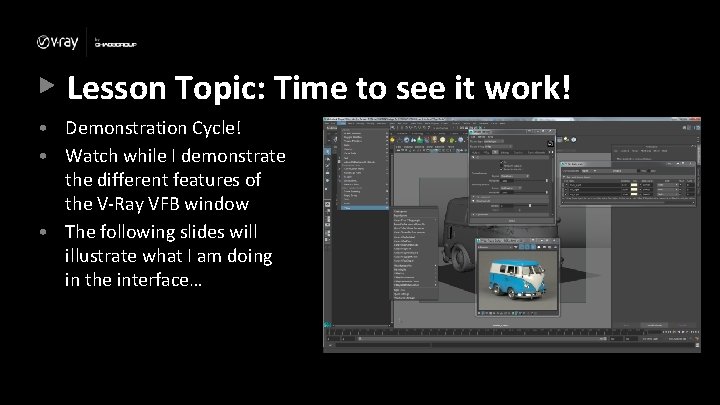
Lesson Topic: Time to see it work! • Demonstration Cycle! • Watch while I demonstrate the different features of the V-Ray VFB window • The following slides will illustrate what I am doing in the interface…
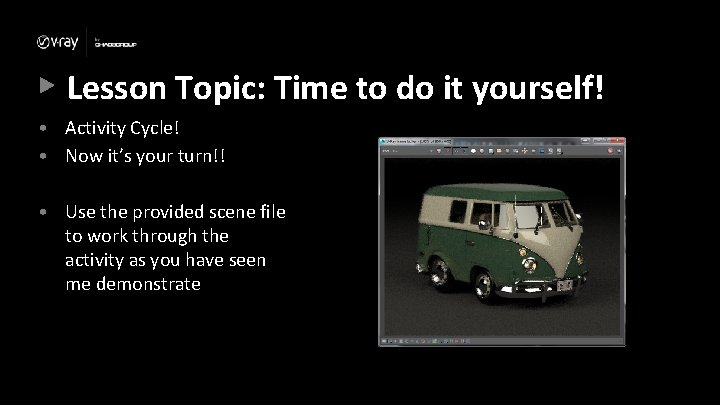
Lesson Topic: Time to do it yourself! • Activity Cycle! • Now it’s your turn!! • Use the provided scene file to work through the activity as you have seen me demonstrate
- Slides: 28