
The Abstract Windowing Toolkit Since Java was first
The Abstract Windowing Toolkit • Since Java was first released, its user interface facilities have been a significant weakness – The Abstract Windowing Toolkit (AWT) was part of the JDK form the beginning, but it really was not sufficient to support a complex user interface • JDK 1. 1 fixed a number of problems, and most notably, it introduced a new event model. It did not make any major additions to the basic components 9/30/2020 CS 2 - AWT/Swing 1
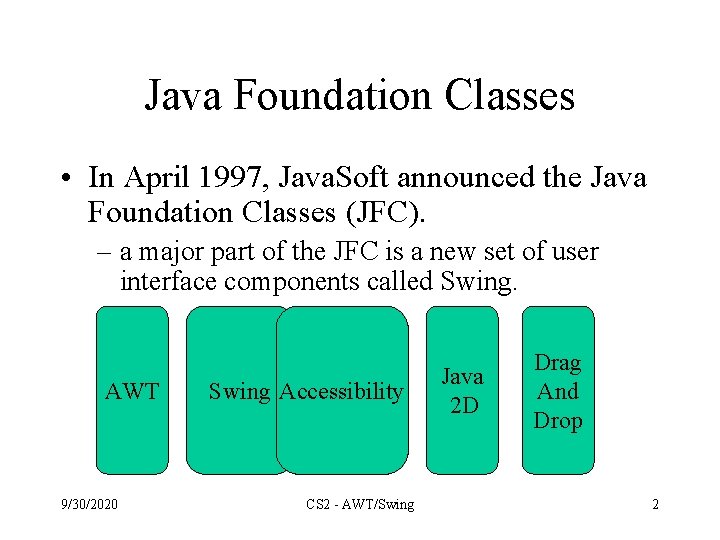
Java Foundation Classes • In April 1997, Java. Soft announced the Java Foundation Classes (JFC). – a major part of the JFC is a new set of user interface components called Swing. AWT 9/30/2020 Swing Accessibility CS 2 - AWT/Swing Java 2 D Drag And Drop 2
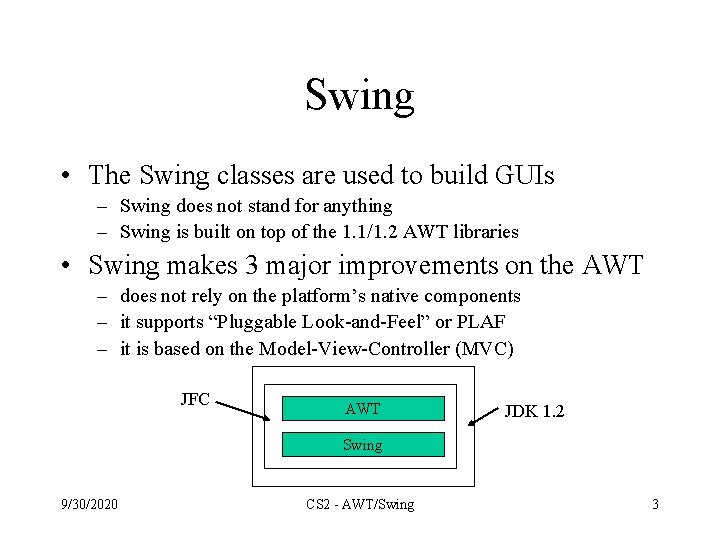
Swing • The Swing classes are used to build GUIs – Swing does not stand for anything – Swing is built on top of the 1. 1/1. 2 AWT libraries • Swing makes 3 major improvements on the AWT – does not rely on the platform’s native components – it supports “Pluggable Look-and-Feel” or PLAF – it is based on the Model-View-Controller (MVC) JFC AWT JDK 1. 2 Swing 9/30/2020 CS 2 - AWT/Swing 3
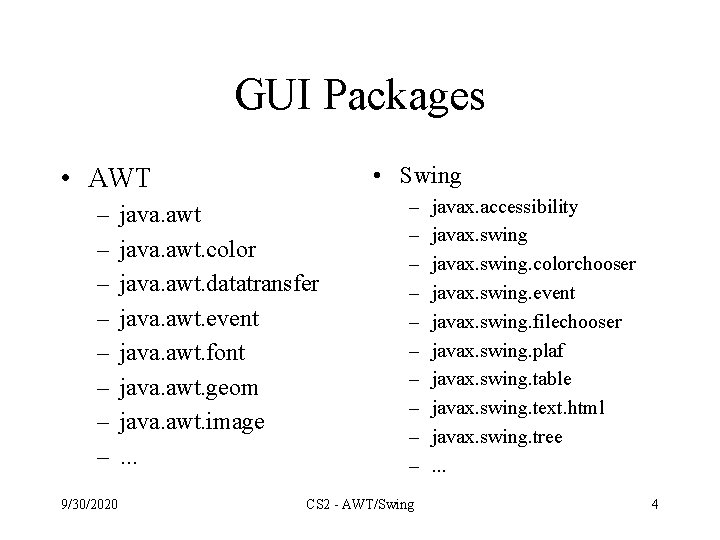
GUI Packages • AWT • Swing – – – – – 9/30/2020 java. awt. color java. awt. datatransfer java. awt. event java. awt. font java. awt. geom java. awt. image. . . CS 2 - AWT/Swing javax. accessibility javax. swing. colorchooser javax. swing. event javax. swing. filechooser javax. swing. plaf javax. swing. table javax. swing. text. html javax. swing. tree. . . 4
Components • A GUI consists of different graphic Component objects which are combined into a hierarchy using Container objects. • Component class – An abstract class for GUI components such as menus, buttons, labels, lists, etc. • Container – An abstract class that extends Component. Containers can hold multiple components. 9/30/2020 CS 2 - AWT/Swing 5
Weighing Components • Sun make a distinction between lightweight and heavyweight components – Lightweight components are not dependent on native peers to render themselves. They are coded in Java. – Heavyweight components are rendered by the host operating system. They are resources managed by the underlying window manager. 9/30/2020 CS 2 - AWT/Swing 6
Heavyweight Components • Heavyweight components were unwieldy for two reasons – Equivalent components on different platforms do not necessarily act alike. – The look and feel of each component was tied to the host operating system • Almost all Swing components are lightweight except – JApplet, JFrame, JDialog, and JWindow 9/30/2020 CS 2 - AWT/Swing 7
Additional Swing Features • Swing also provides – A wide variety of components (tables, trees, sliders, progress bars, internal frame, …) – Swing components can have tooltips placed over them. – Arbitrary keyboard events can be bound to components. – Additional debugging support. – Support for parsing and displaying HTML based information. 9/30/2020 CS 2 - AWT/Swing 8
Applets versus Applications • Using Swing it is possible to create two different types of GUI programs – Standalone applications • Programs that are started from the command line • Code resides on the machine on which they are run – Applets • • Programs run inside a web browser Code is downloaded from a web server JVM is contained inside the web browser Applets are normally prevented from doing certain things • For now we will write standalone applications 9/30/2020 CS 2 - AWT/Swing 9
JFrames • A JFrame is a Window with all of the adornments added. • A JFrame provides the basic building block for screen-oriented applications. JFrame win = new JFrame( “title” ); 9/30/2020 CS 2 - AWT/Swing 10
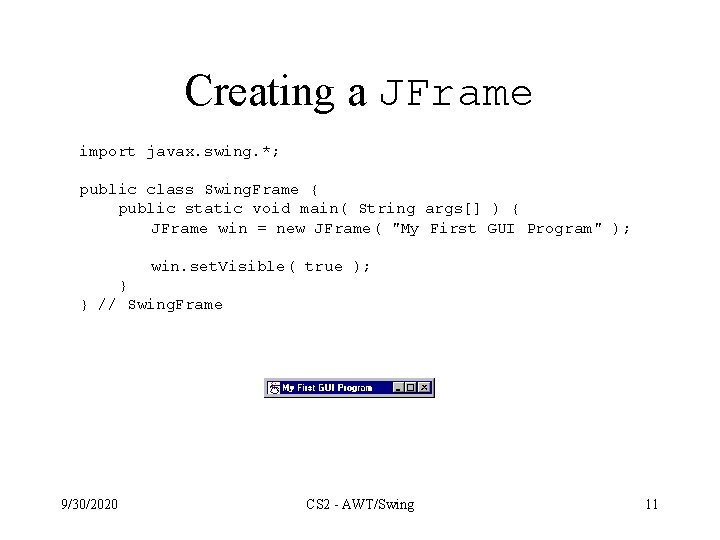
Creating a JFrame import javax. swing. *; public class Swing. Frame { public static void main( String args[] ) { JFrame win = new JFrame( "My First GUI Program" ); win. set. Visible( true ); } } // Swing. Frame 9/30/2020 CS 2 - AWT/Swing 11

JFrame • Sizing a Frame – You can specify the size • Height and width given in pixels • The size of a pixel will vary based on the resolution of the device on which the frame is rendered – The method, pack(), will set the size of the frame automatically based on the size of the components contained in the content pane • Note that pack does not look at the title bar 9/30/2020 CS 2 - AWT/Swing 12
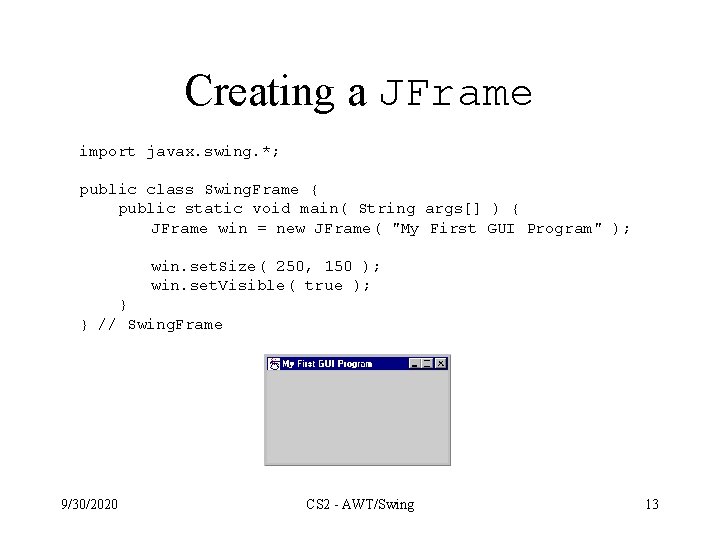
Creating a JFrame import javax. swing. *; public class Swing. Frame { public static void main( String args[] ) { JFrame win = new JFrame( "My First GUI Program" ); win. set. Size( 250, 150 ); win. set. Visible( true ); } } // Swing. Frame 9/30/2020 CS 2 - AWT/Swing 13
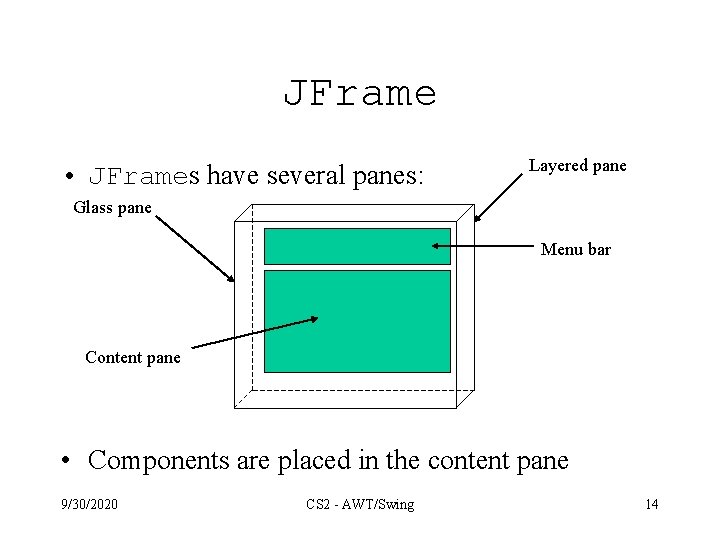
JFrame • JFrames have several panes: Layered pane Glass pane Menu bar Content pane • Components are placed in the content pane 9/30/2020 CS 2 - AWT/Swing 14
Swing Components • JComponent – JCombo. Box, JLabel, JList, JMenu. Bar, JPanel, JPopup. Menu, JScroll. Bar, JScroll. Pane, JTable, JTree, JInternal. Frame, JOption. Pane, JProgress. Bar, JRoot. Pane, JSeparator, JSlider, JSplit. Pane, JTabbed. Pane, JTool. Bar, JTool. Tip, Jviewport, JColor. Chooser, JText. Component, … 9/30/2020 CS 2 - AWT/Swing 15
JLabels • JLabels are components that you can put text into. • When creating a label you can specify the initial value and the alignment you wish to use within the label. • You can use get. Text() and set. Text() to get and change the value of the label. lbl = new JLabel( ”text", JLabel. RIGHT ) ; 9/30/2020 CS 2 - AWT/Swing 16
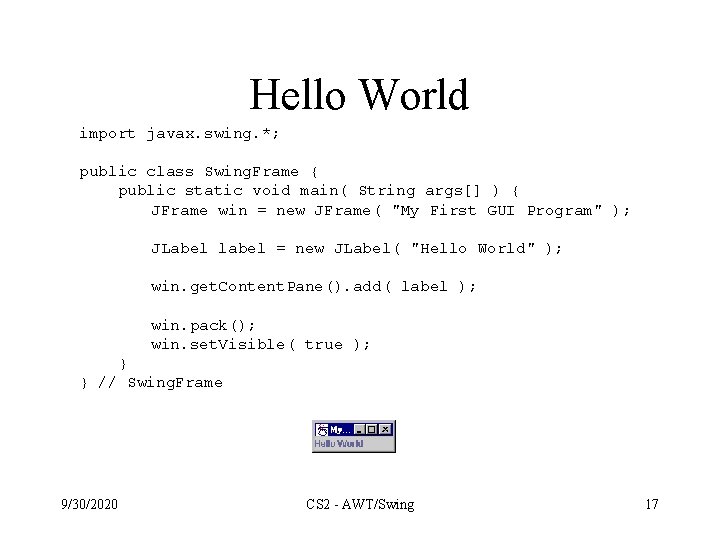
Hello World import javax. swing. *; public class Swing. Frame { public static void main( String args[] ) { JFrame win = new JFrame( "My First GUI Program" ); JLabel label = new JLabel( "Hello World" ); win. get. Content. Pane(). add( label ); win. pack(); win. set. Visible( true ); } } // Swing. Frame 9/30/2020 CS 2 - AWT/Swing 17
JButtons • JButton extends Component , displays a string and delivers an Action. Event for each mouse click. • Normally buttons are displayed with a border • In addition to text, JButtons can also display icons button = new JButton( “text” ) ; 9/30/2020 CS 2 - AWT/Swing 18
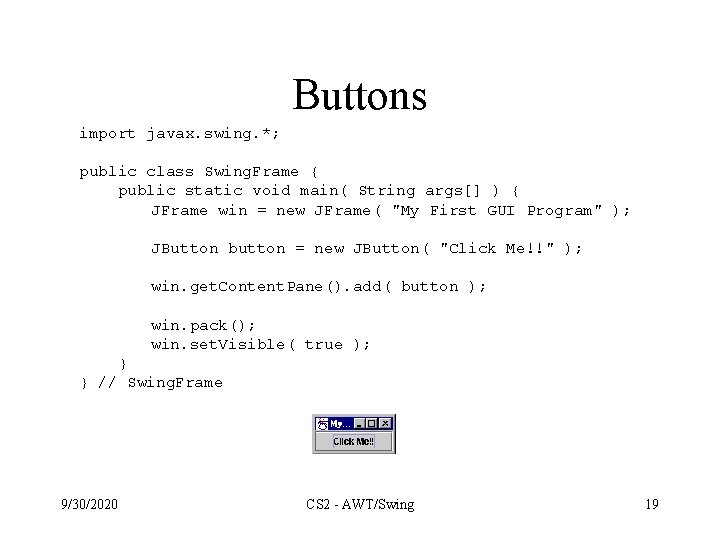
Buttons import javax. swing. *; public class Swing. Frame { public static void main( String args[] ) { JFrame win = new JFrame( "My First GUI Program" ); JButton button = new JButton( "Click Me!!" ); win. get. Content. Pane(). add( button ); win. pack(); win. set. Visible( true ); } } // Swing. Frame 9/30/2020 CS 2 - AWT/Swing 19
Layout Manager • Layout Manager – An interface that defines methods for positioning and sizing objects within a container. Java defines several default implementations of Layout. Manager. • Geometrical placement in a Container is controlled by a Layout. Manager object 9/30/2020 CS 2 - AWT/Swing 20
Components, Containers, and Layout Managers • Containers may contain components (which means containers can containers!!). • All containers come equipped with a layout manager which positions and shapes (lays out) the container's components. • Much of the action in the AWT occurs between components, containers, and their layout managers. 9/30/2020 CS 2 - AWT/Swing 21
Layout Managers • Layouts allow you to format components on the screen in a platform independent way • The standard JDK provides five classes that implement the Layout. Manager interface: – – – Flow. Layout Grid. Layout Border. Layout Card. Layout Grid. Bag. Layout • Layout managers are defined in the AWT package 9/30/2020 CS 2 - AWT/Swing 22
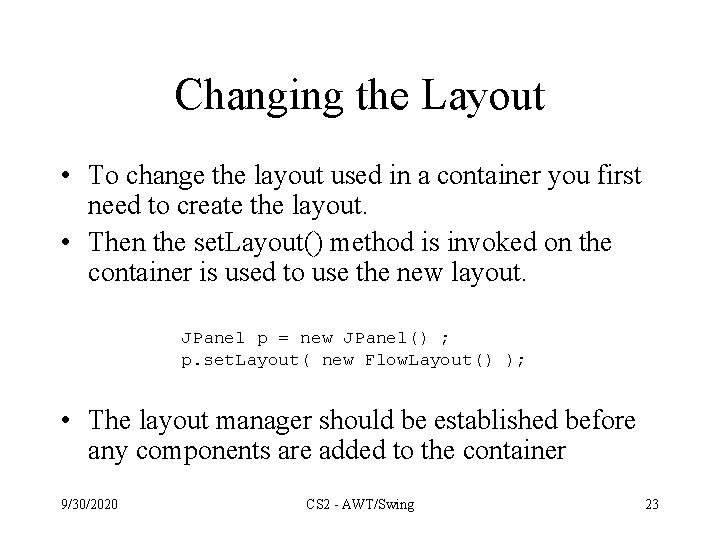
Changing the Layout • To change the layout used in a container you first need to create the layout. • Then the set. Layout() method is invoked on the container is used to use the new layout. JPanel p = new JPanel() ; p. set. Layout( new Flow. Layout() ); • The layout manager should be established before any components are added to the container 9/30/2020 CS 2 - AWT/Swing 23
Flow. Layout • Flow. Layout is the default layout for the JPanel class. • When you add components to the screen, they flow left to right (centered) based on the order added and the width of the screen. • Very similar to word wrap and full justification on a word processor. • If the screen is resized, the components' flow will change based on the new width and height 9/30/2020 CS 2 - AWT/Swing 24
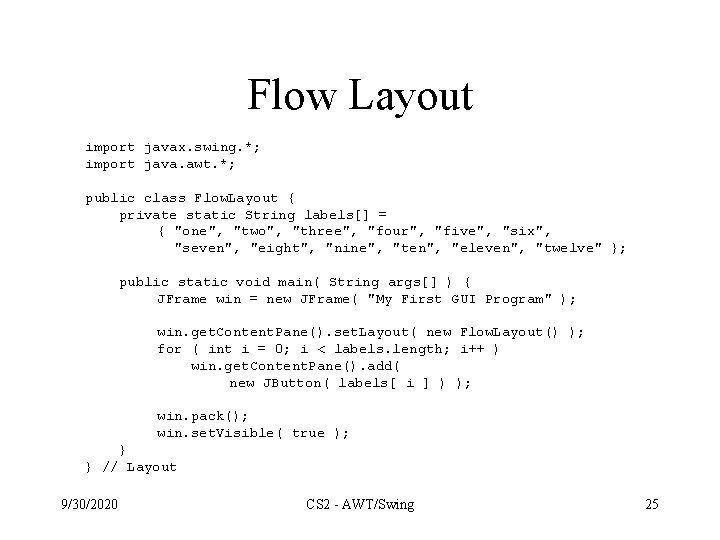
Flow Layout import javax. swing. *; import java. awt. *; public class Flow. Layout { private static String labels[] = { "one", "two", "three", "four", "five", "six", "seven", "eight", "nine", "ten", "eleven", "twelve" }; public static void main( String args[] ) { JFrame win = new JFrame( "My First GUI Program" ); win. get. Content. Pane(). set. Layout( new Flow. Layout() ); for ( int i = 0; i < labels. length; i++ ) win. get. Content. Pane(). add( new JButton( labels[ i ] ) ); win. pack(); win. set. Visible( true ); } } // Layout 9/30/2020 CS 2 - AWT/Swing 25
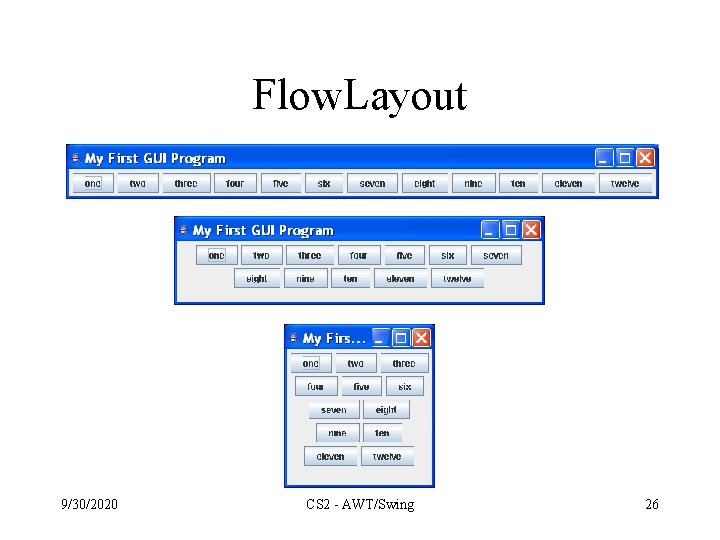
Flow. Layout 9/30/2020 CS 2 - AWT/Swing 26
Grid. Layout • Arranges components in rows and columns – If the number of rows is specified • columns = number of components / rows – If the number of columns is specified • Rows = number of components / columns – The number of columns is ignored unless the number of rows is zero. • The order in which you add components matters – Component 1 (0, 0), Component 2 (0, 1), …. . . • Components are resized to fit the row-column area 9/30/2020 CS 2 - AWT/Swing 27
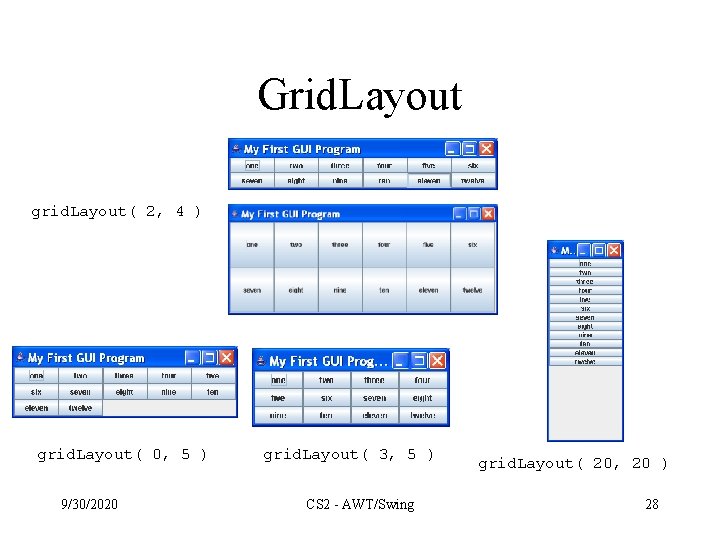
Grid. Layout grid. Layout( 2, 4 ) grid. Layout( 0, 5 ) 9/30/2020 grid. Layout( 3, 5 ) CS 2 - AWT/Swing grid. Layout( 20, 20 ) 28
Border. Layout • Border. Layout provides 5 areas to hold components. These are named after the four different borders of the screen, North, South, East, West, and Center. • When a Component is added to the layout, you must specify which area to place it in. The order in which components is not important. • The center area will always be resized to be as large as possible 9/30/2020 CS 2 - AWT/Swing 29
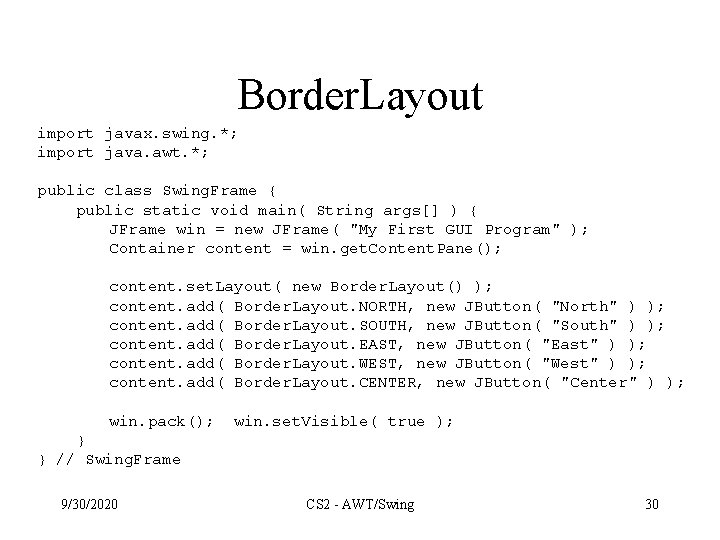
Border. Layout import javax. swing. *; import java. awt. *; public class Swing. Frame { public static void main( String args[] ) { JFrame win = new JFrame( "My First GUI Program" ); Container content = win. get. Content. Pane(); content. set. Layout( new Border. Layout() ); content. add( Border. Layout. NORTH, new JButton( "North" ) ); content. add( Border. Layout. SOUTH, new JButton( "South" ) ); content. add( Border. Layout. EAST, new JButton( "East" ) ); content. add( Border. Layout. WEST, new JButton( "West" ) ); content. add( Border. Layout. CENTER, new JButton( "Center" ) ); win. pack(); win. set. Visible( true ); } } // Swing. Frame 9/30/2020 CS 2 - AWT/Swing 30
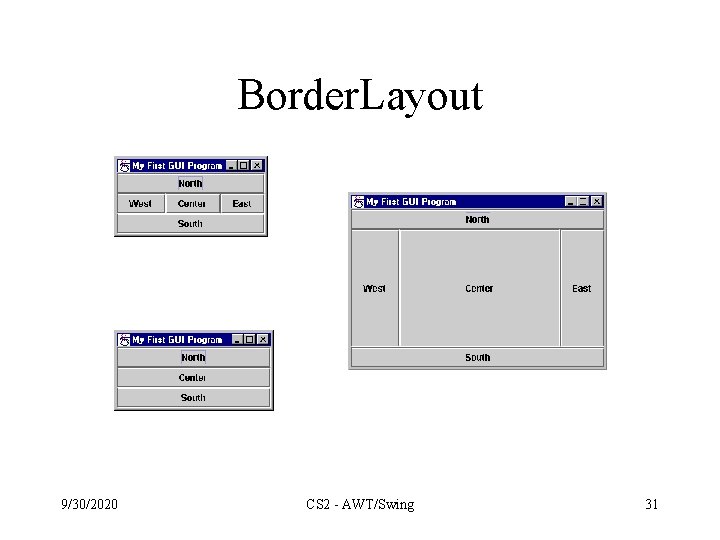
Border. Layout 9/30/2020 CS 2 - AWT/Swing 31
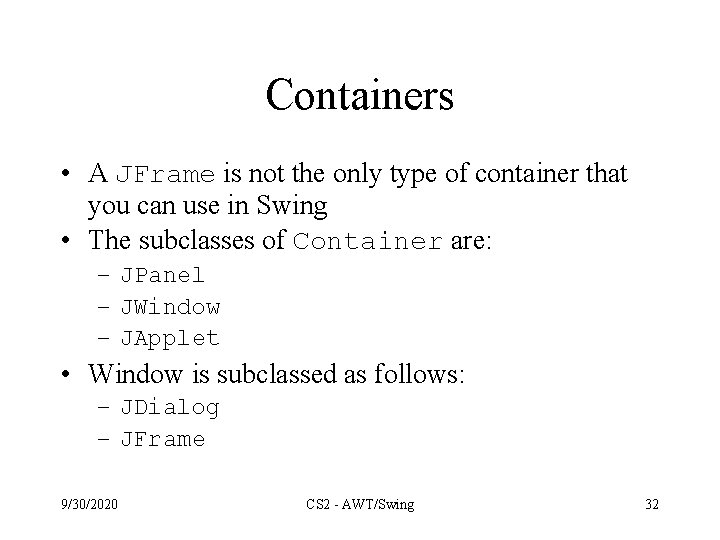
Containers • A JFrame is not the only type of container that you can use in Swing • The subclasses of Container are: – JPanel – JWindow – JApplet • Window is subclassed as follows: – JDialog – JFrame 9/30/2020 CS 2 - AWT/Swing 32
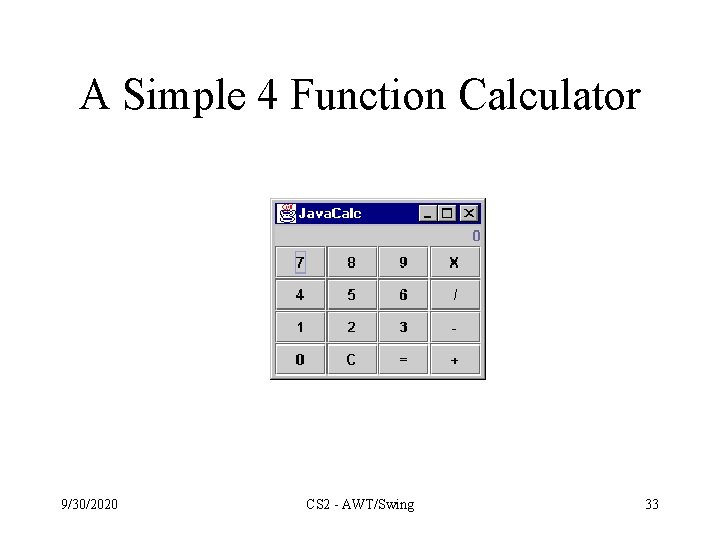
A Simple 4 Function Calculator 9/30/2020 CS 2 - AWT/Swing 33
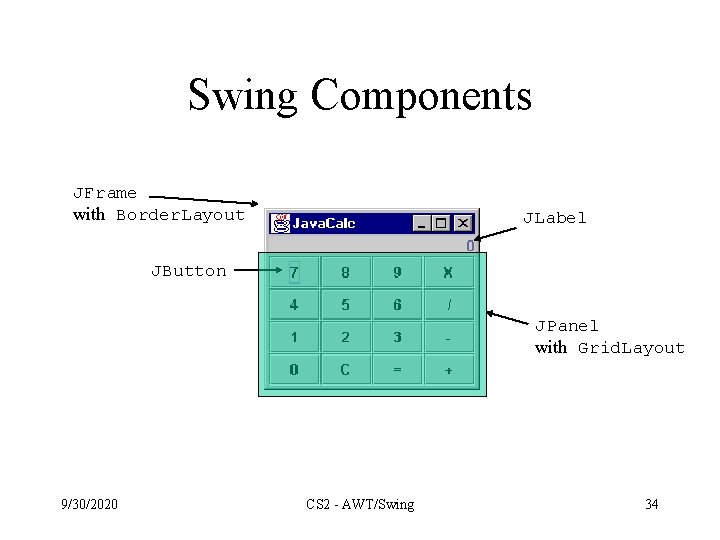
Swing Components JFrame with Border. Layout JLabel JButton JPanel with Grid. Layout 9/30/2020 CS 2 - AWT/Swing 34
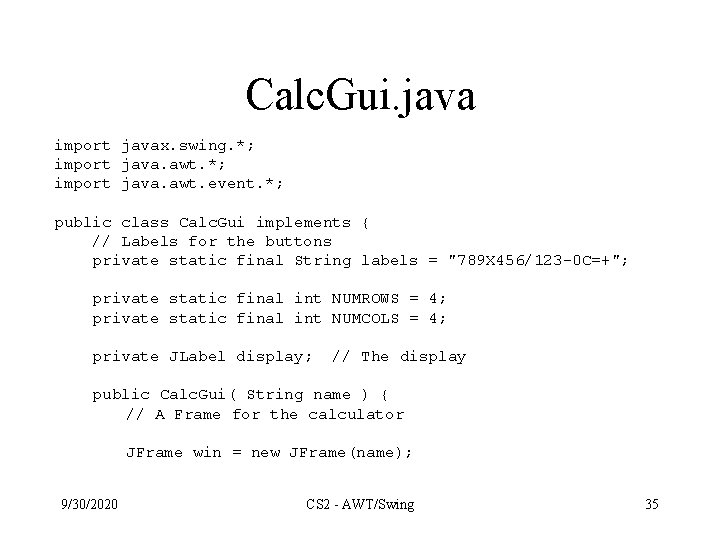
Calc. Gui. java import javax. swing. *; import java. awt. event. *; public class Calc. Gui implements { // Labels for the buttons private static final String labels = "789 X 456/123 -0 C=+"; private static final int NUMROWS = 4; private static final int NUMCOLS = 4; private JLabel display; // The display public Calc. Gui( String name ) { // A Frame for the calculator JFrame win = new JFrame(name); 9/30/2020 CS 2 - AWT/Swing 35
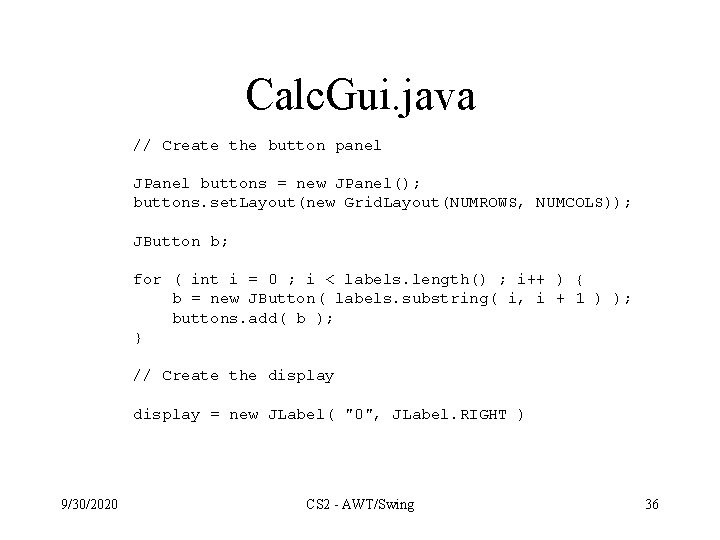
Calc. Gui. java // Create the button panel JPanel buttons = new JPanel(); buttons. set. Layout(new Grid. Layout(NUMROWS, NUMCOLS)); JButton b; for ( int i = 0 ; i < labels. length() ; i++ ) { b = new JButton( labels. substring( i, i + 1 ) ); buttons. add( b ); } // Create the display = new JLabel( "0", JLabel. RIGHT ) 9/30/2020 CS 2 - AWT/Swing 36
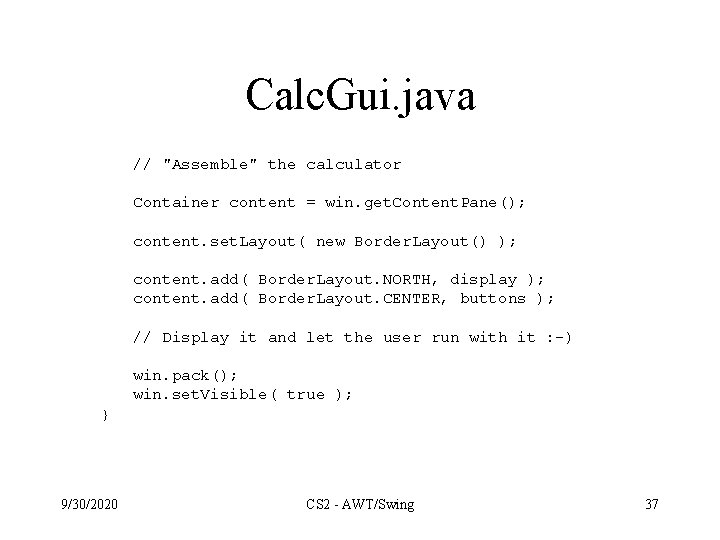
Calc. Gui. java // "Assemble" the calculator Container content = win. get. Content. Pane(); content. set. Layout( new Border. Layout() ); content. add( Border. Layout. NORTH, display ); content. add( Border. Layout. CENTER, buttons ); // Display it and let the user run with it : -) win. pack(); win. set. Visible( true ); } 9/30/2020 CS 2 - AWT/Swing 37
- Slides: 37