
Texturing in Open GL Lab 7 Creating Textures
Texturing in Open. GL Lab #7
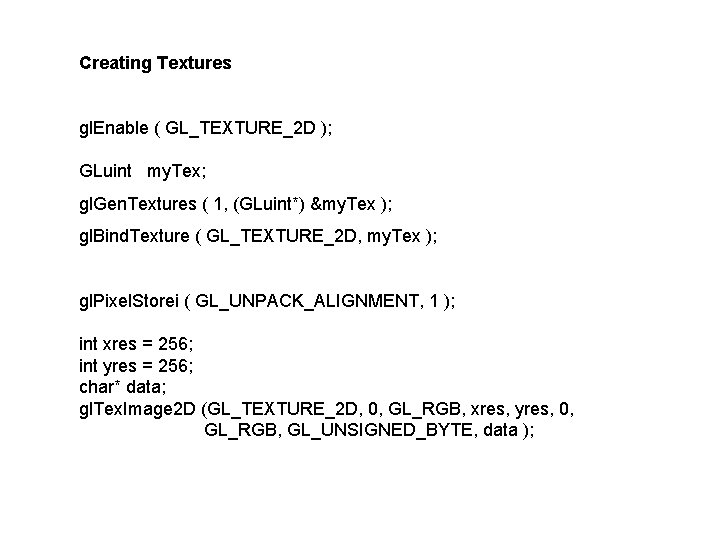
Creating Textures gl. Enable ( GL_TEXTURE_2 D ); GLuint my. Tex; gl. Gen. Textures ( 1, (GLuint*) &my. Tex ); gl. Bind. Texture ( GL_TEXTURE_2 D, my. Tex ); gl. Pixel. Storei ( GL_UNPACK_ALIGNMENT, 1 ); int xres = 256; int yres = 256; char* data; gl. Tex. Image 2 D (GL_TEXTURE_2 D, 0, GL_RGB, xres, yres, 0, GL_RGB, GL_UNSIGNED_BYTE, data );
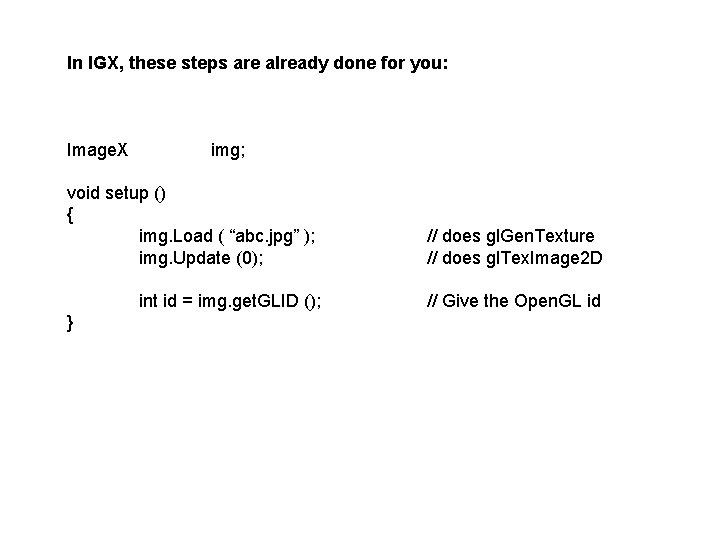
In IGX, these steps are already done for you: Image. X img; void setup () { img. Load ( “abc. jpg” ); img. Update (0); int id = img. get. GLID (); } // does gl. Gen. Texture // does gl. Tex. Image 2 D // Give the Open. GL id
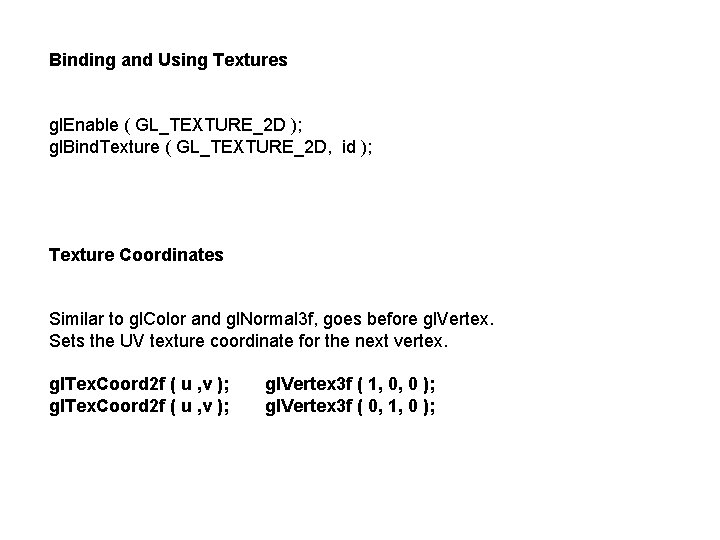
Binding and Using Textures gl. Enable ( GL_TEXTURE_2 D ); gl. Bind. Texture ( GL_TEXTURE_2 D, id ); Texture Coordinates Similar to gl. Color and gl. Normal 3 f, goes before gl. Vertex. Sets the UV texture coordinate for the next vertex. gl. Tex. Coord 2 f ( u , v ); gl. Vertex 3 f ( 1, 0, 0 ); gl. Vertex 3 f ( 0, 1, 0 );
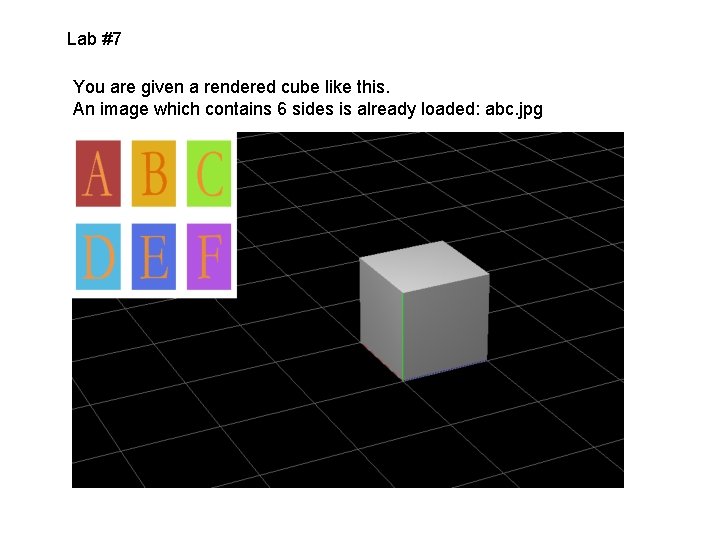
Lab #7 You are given a rendered cube like this. An image which contains 6 sides is already loaded: abc. jpg
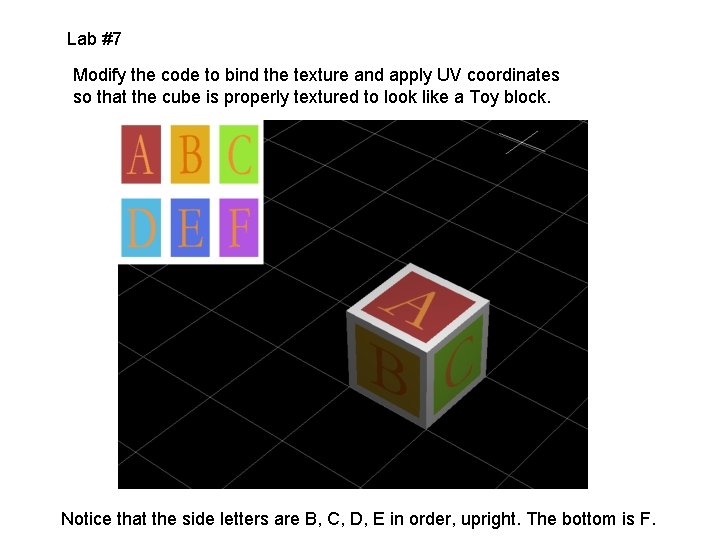
Lab #7 Modify the code to bind the texture and apply UV coordinates so that the cube is properly textured to look like a Toy block. Notice that the side letters are B, C, D, E in order, upright. The bottom is F.
Advanced: * Create and animate a texture without using the Image. X class. You need to: 1) Create an array of bytes to hold the data 2) Call gl. Gen. Texture and gl. Tex. Image 2 D to load the data 3) Change the texture over time. This could be done by painting it using the mouse, or modifying by a function over time. 4) If you animate the texture, you must call gl. Tex. Image 2 D in the draw 3 D portion (not setup). This makes sure the image is continuously updated on the GPU. 5) Call gl. Bind. Texture and gl. Tex. Coords to render the texture on object.
- Slides: 7