
Texture Mapping n A way of adding surface

- Slides: 28
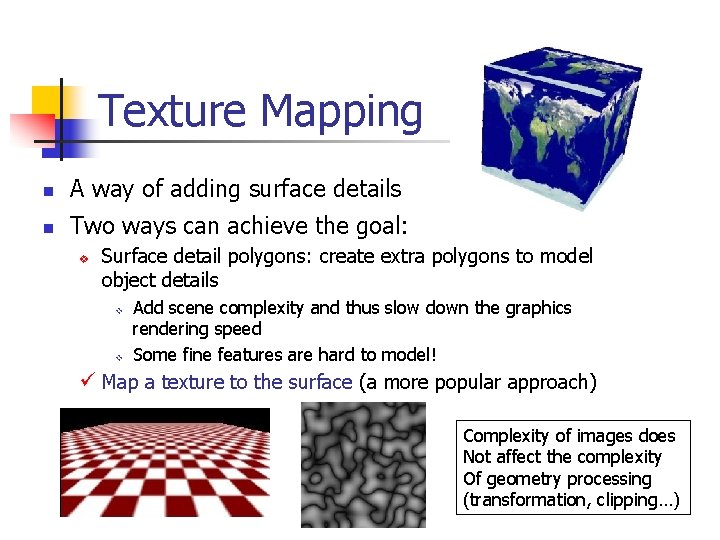
Texture Mapping n A way of adding surface details n Two ways can achieve the goal: v Surface detail polygons: create extra polygons to model object details v v Add scene complexity and thus slow down the graphics rendering speed Some fine features are hard to model! ü Map a texture to the surface (a more popular approach) Complexity of images does Not affect the complexity Of geometry processing (transformation, clipping…)
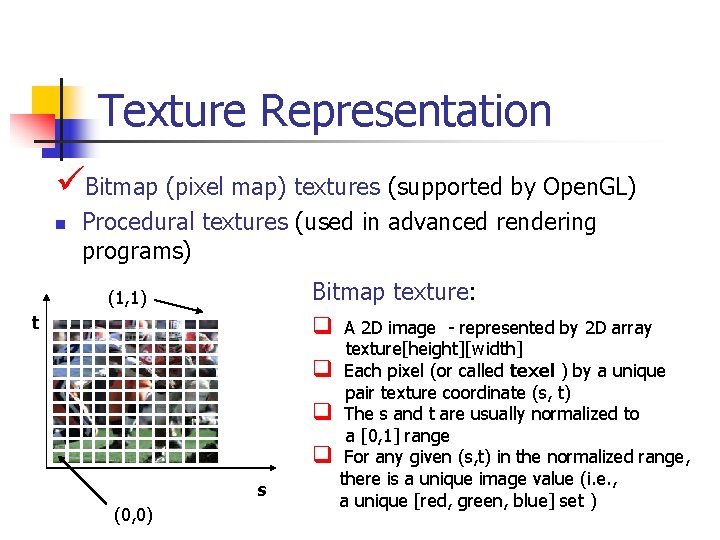
Texture Representation üBitmap (pixel map) textures (supported by Open. GL) n Procedural textures (used in advanced rendering programs) Bitmap texture: q A 2 D image - represented by 2 D array (1, 1) t q q q s (0, 0) texture[height][width] Each pixel (or called texel ) by a unique pair texture coordinate (s, t) The s and t are usually normalized to a [0, 1] range For any given (s, t) in the normalized range, there is a unique image value (i. e. , a unique [red, green, blue] set )
Map textures to surfaces n Establish mapping from texture to surfaces (polygons): - Application program needs to specify texture coordinates for each corner of the polygon (1, 0) (1, 1) The polygon can be in an arbitrary size (0, 0) (1, 0)
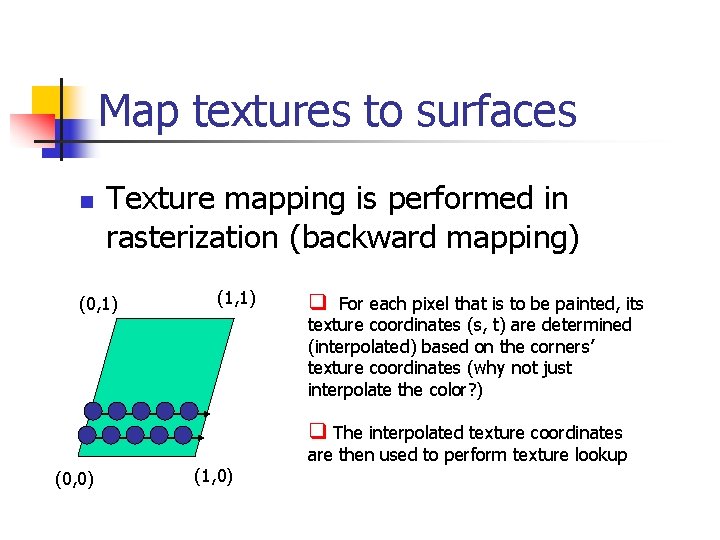
Map textures to surfaces n Texture mapping is performed in rasterization (backward mapping) (0, 1) (1, 1) q For each pixel that is to be painted, its texture coordinates (s, t) are determined (interpolated) based on the corners’ texture coordinates (why not just interpolate the color? ) q The interpolated texture coordinates (0, 0) (1, 0) are then used to perform texture lookup
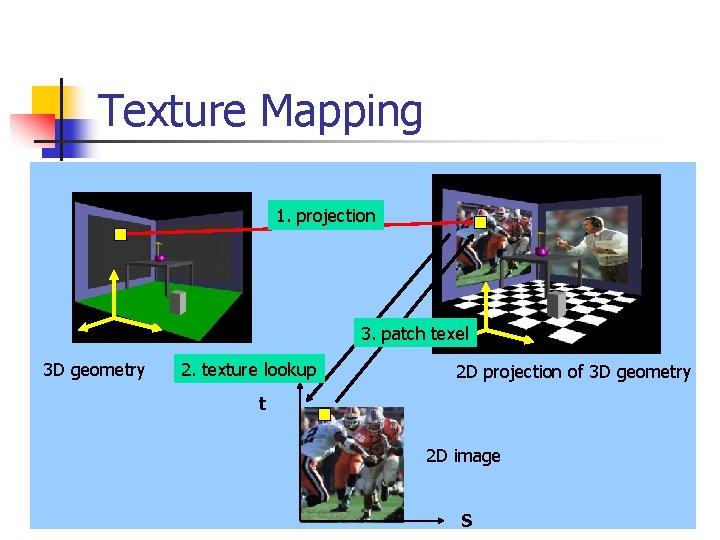
Texture Mapping 1. projection 3. patch texel 3 D geometry 2. texture lookup 2 D projection of 3 D geometry t 2 D image S
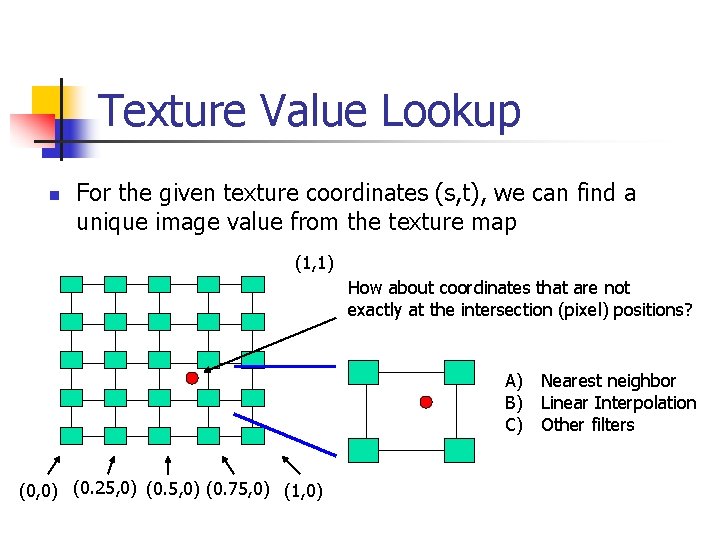
Texture Value Lookup n For the given texture coordinates (s, t), we can find a unique image value from the texture map (1, 1) How about coordinates that are not exactly at the intersection (pixel) positions? A) Nearest neighbor B) Linear Interpolation C) Other filters (0, 0) (0. 25, 0) (0. 75, 0) (1, 0)
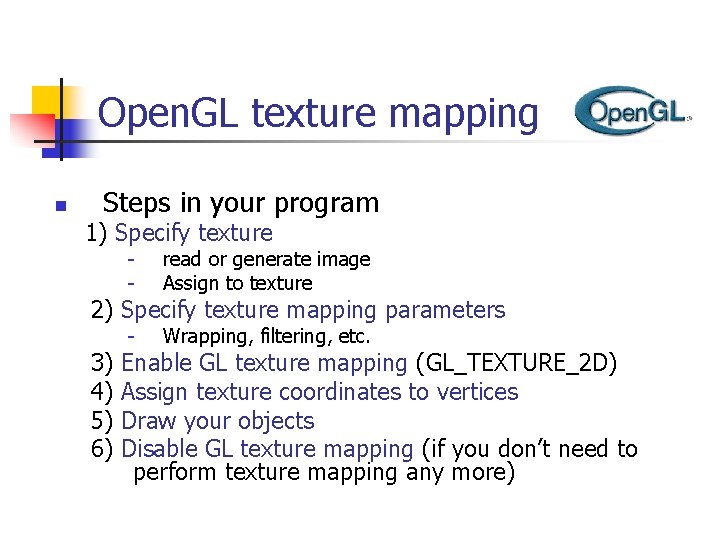
Open. GL texture mapping n Steps in your program 1) Specify texture - read or generate image Assign to texture - Wrapping, filtering, etc. 2) Specify texture mapping parameters 3) 4) 5) 6) Enable GL texture mapping (GL_TEXTURE_2 D) Assign texture coordinates to vertices Draw your objects Disable GL texture mapping (if you don’t need to perform texture mapping any more)
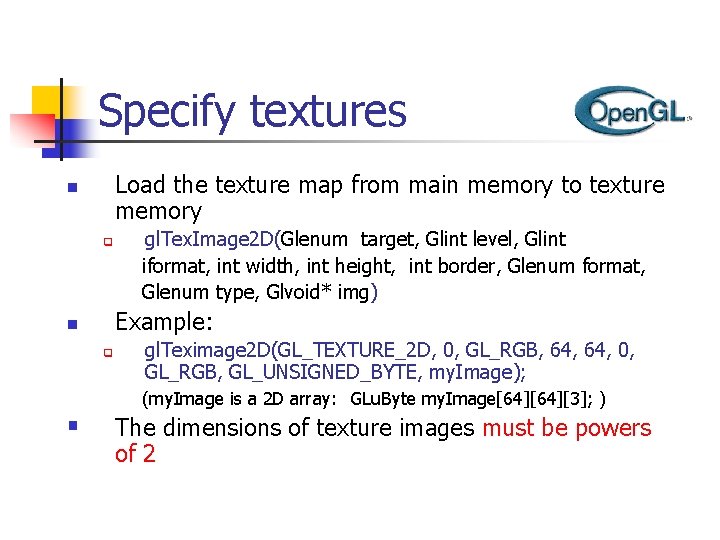
Specify textures Load the texture map from main memory to texture memory n q gl. Tex. Image 2 D(Glenum target, Glint level, Glint iformat, int width, int height, int border, Glenum format, Glenum type, Glvoid* img) Example: n q gl. Teximage 2 D(GL_TEXTURE_2 D, 0, GL_RGB, 64, 0, GL_RGB, GL_UNSIGNED_BYTE, my. Image); (my. Image is a 2 D array: GLu. Byte my. Image[64][3]; ) § The dimensions of texture images must be powers of 2
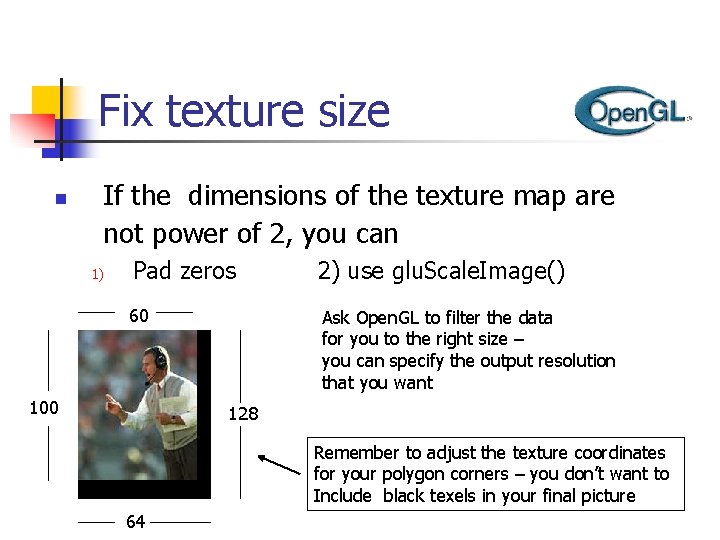
Fix texture size n If the dimensions of the texture map are not power of 2, you can 1) Pad zeros 2) use glu. Scale. Image() 60 Ask Open. GL to filter the data for you to the right size – you can specify the output resolution that you want 100 128 Remember to adjust the texture coordinates for your polygon corners – you don’t want to Include black texels in your final picture 64
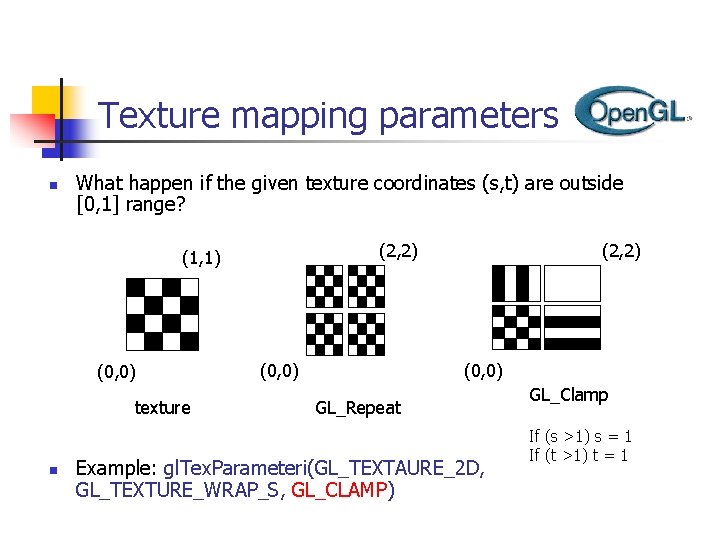
Texture mapping parameters n What happen if the given texture coordinates (s, t) are outside [0, 1] range? (2, 2) (1, 1) (0, 0) texture n (0, 0) (2, 2) (0, 0) GL_Repeat Example: gl. Tex. Parameteri(GL_TEXTAURE_2 D, GL_TEXTURE_WRAP_S, GL_CLAMP) GL_Clamp If (s >1) s = 1 If (t >1) t = 1
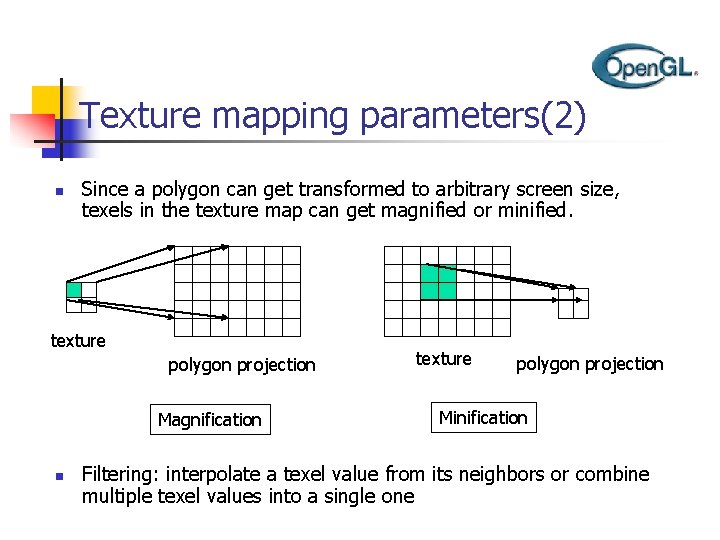
Texture mapping parameters(2) n Since a polygon can get transformed to arbitrary screen size, texels in the texture map can get magnified or minified. texture polygon projection Magnification n texture polygon projection Minification Filtering: interpolate a texel value from its neighbors or combine multiple texel values into a single one
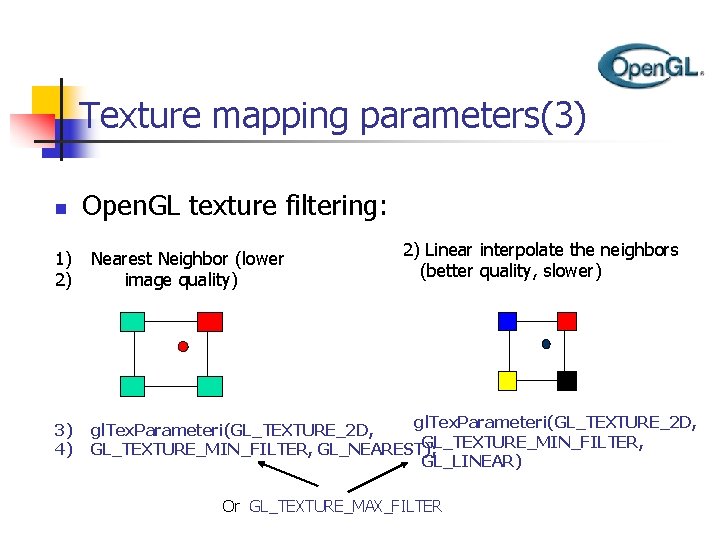
Texture mapping parameters(3) n Open. GL texture filtering: 2) Linear interpolate the neighbors (better quality, slower) 1) 2) Nearest Neighbor (lower image quality) 3) 4) gl. Tex. Parameteri(GL_TEXTURE_2 D, GL_TEXTURE_MIN_FILTER, GL_NEAREST); GL_LINEAR) Or GL_TEXTURE_MAX_FILTER
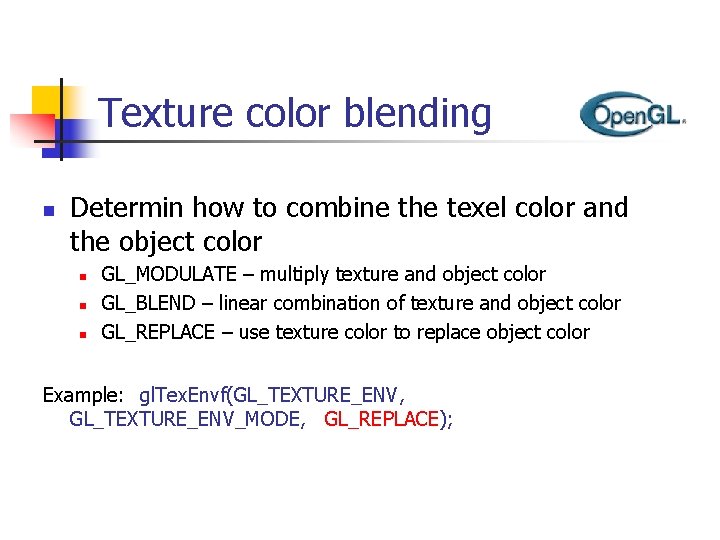
Texture color blending n Determin how to combine the texel color and the object color n n n GL_MODULATE – multiply texture and object color GL_BLEND – linear combination of texture and object color GL_REPLACE – use texture color to replace object color Example: gl. Tex. Envf(GL_TEXTURE_ENV, GL_TEXTURE_ENV_MODE, GL_REPLACE);
Enable (Disable) Textures n n Enable texture – gl. Enable(GL_TEXTURE_2 D) Disable texture – gl. Disable(GL_TEXTURE_2 D) Remember to disable texture mapping when you draw non-textured polygons
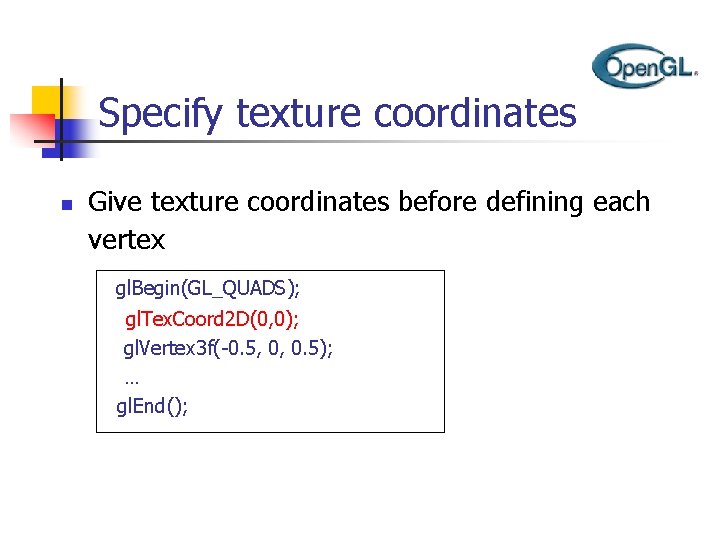
Specify texture coordinates n Give texture coordinates before defining each vertex gl. Begin(GL_QUADS); gl. Tex. Coord 2 D(0, 0); gl. Vertex 3 f(-0. 5, 0, 0. 5); … gl. End();
Transform texture coordinates n n All the texture coordinates are multiplied by Gl_TEXTURE matrix before in use To transform texture coordinates, you do: n n n gl. Matrix. Mode(Gl_TEXTURE); Apply regular transformation functions Then you can draw the textured objects
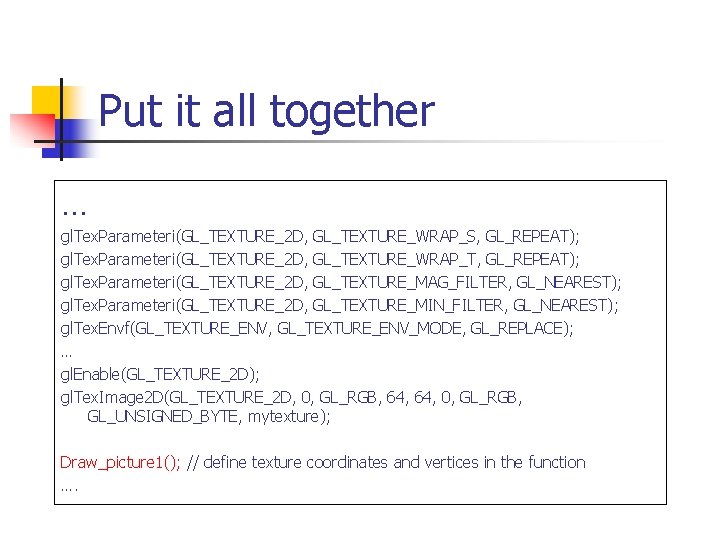
Put it all together … gl. Tex. Parameteri(GL_TEXTURE_2 D, GL_TEXTURE_WRAP_S, GL_REPEAT); gl. Tex. Parameteri(GL_TEXTURE_2 D, GL_TEXTURE_WRAP_T, GL_REPEAT); gl. Tex. Parameteri(GL_TEXTURE_2 D, GL_TEXTURE_MAG_FILTER, GL_NEAREST); gl. Tex. Parameteri(GL_TEXTURE_2 D, GL_TEXTURE_MIN_FILTER, GL_NEAREST); gl. Tex. Envf(GL_TEXTURE_ENV, GL_TEXTURE_ENV_MODE, GL_REPLACE); … gl. Enable(GL_TEXTURE_2 D); gl. Tex. Image 2 D(GL_TEXTURE_2 D, 0, GL_RGB, 64, 0, GL_RGB, GL_UNSIGNED_BYTE, mytexture); Draw_picture 1(); // define texture coordinates and vertices in the function ….
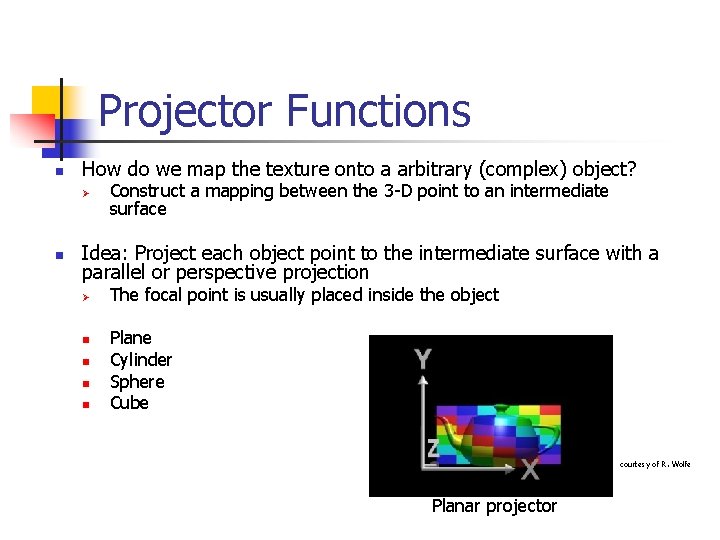
Projector Functions n How do we map the texture onto a arbitrary (complex) object? Ø n Construct a mapping between the 3 -D point to an intermediate surface Idea: Project each object point to the intermediate surface with a parallel or perspective projection Ø n n The focal point is usually placed inside the object Plane Cylinder Sphere Cube courtesy of R. Wolfe Planar projector
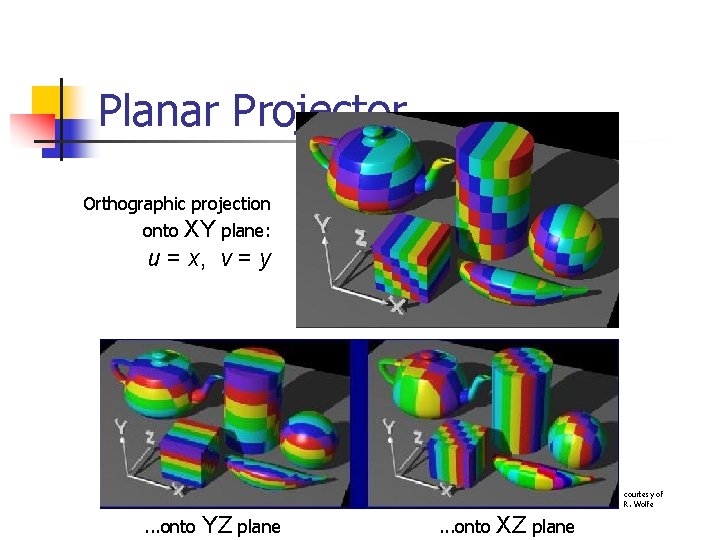
Planar Projector Orthographic projection XY plane: u = x, v = y onto courtesy of R. Wolfe . . . onto YZ plane . . . onto XZ plane
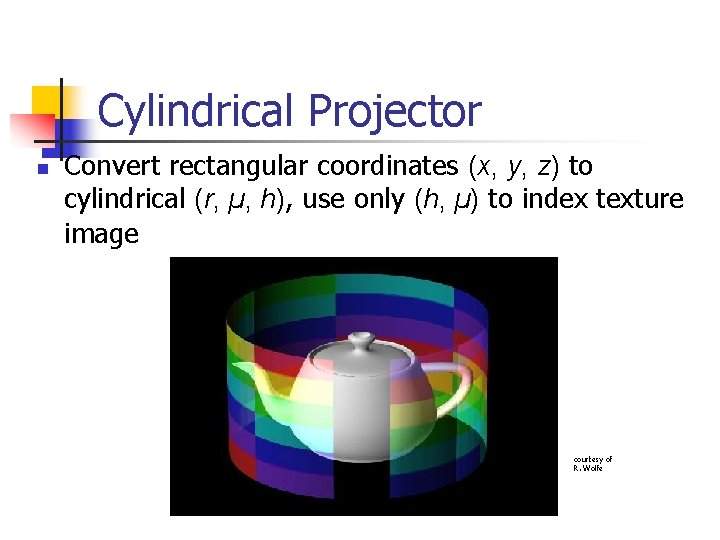
Cylindrical Projector n Convert rectangular coordinates (x, y, z) to cylindrical (r, µ, h), use only (h, µ) to index texture image courtesy of R. Wolfe
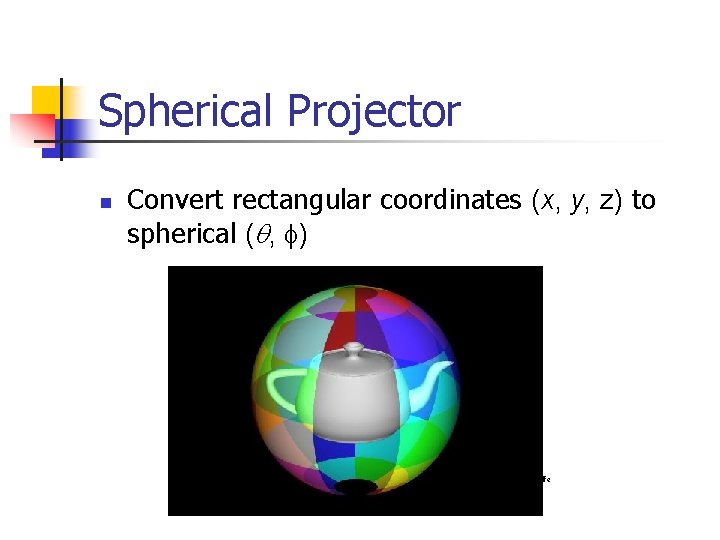
Spherical Projector n Convert rectangular coordinates (x, y, z) to spherical ( , f) courtesy of R. Wolfe
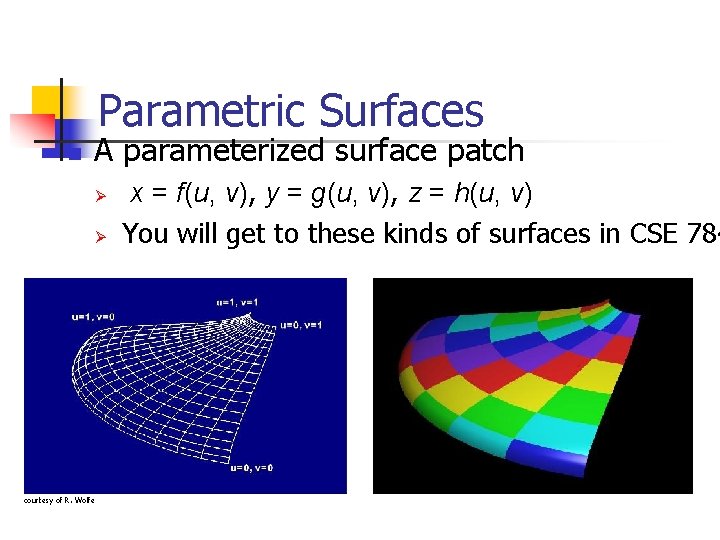
Parametric Surfaces n A parameterized surface patch Ø Ø courtesy of R. Wolfe x = f(u, v), y = g(u, v), z = h(u, v) You will get to these kinds of surfaces in CSE 784
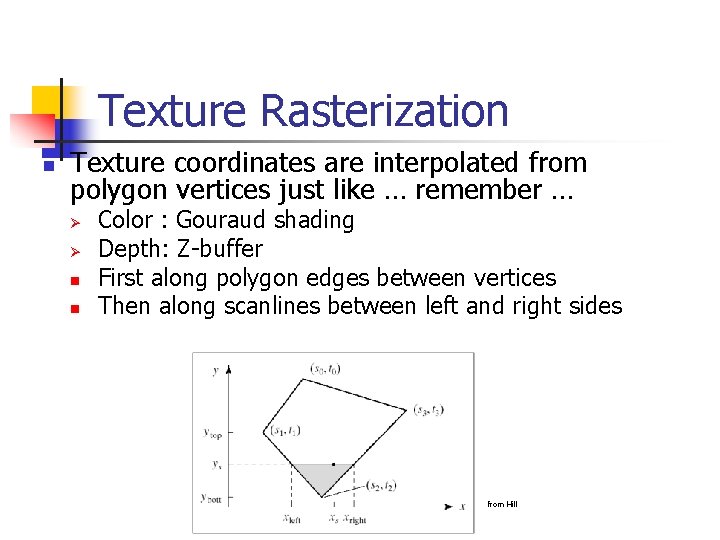
Texture Rasterization n Texture coordinates are interpolated from polygon vertices just like … remember … Ø Ø n n Color : Gouraud shading Depth: Z-buffer First along polygon edges between vertices Then along scanlines between left and right sides from Hill
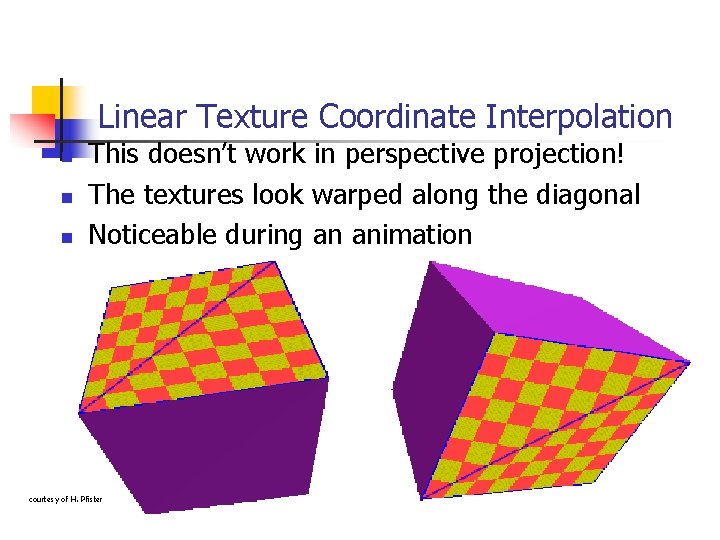
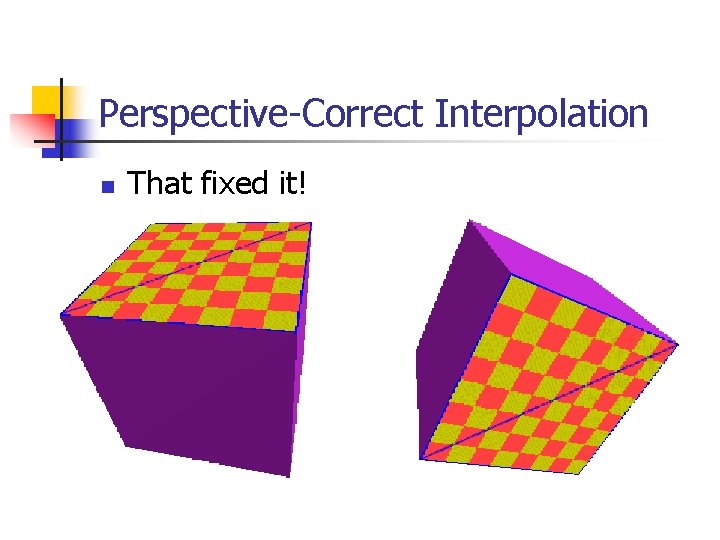
Linear Texture Coordinate Interpolation n This doesn’t work in perspective projection! The textures look warped along the diagonal Noticeable during an animation courtesy of H. Pfister
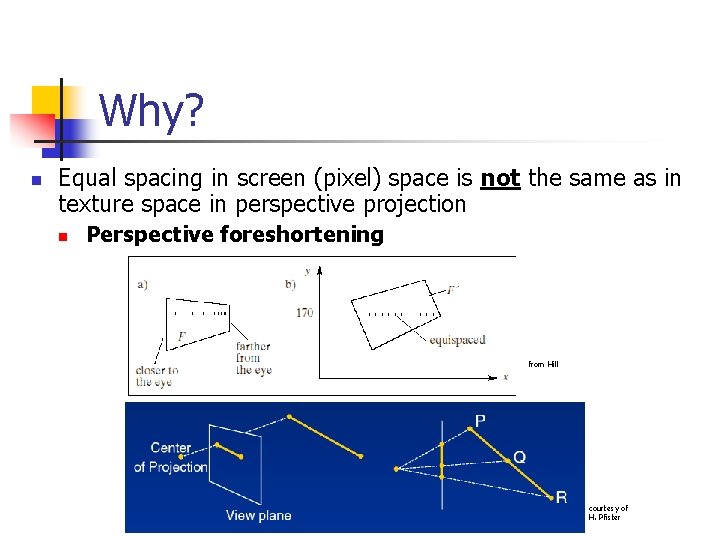
Why? n Equal spacing in screen (pixel) space is not the same as in texture space in perspective projection n Perspective foreshortening from Hill courtesy of H. Pfister
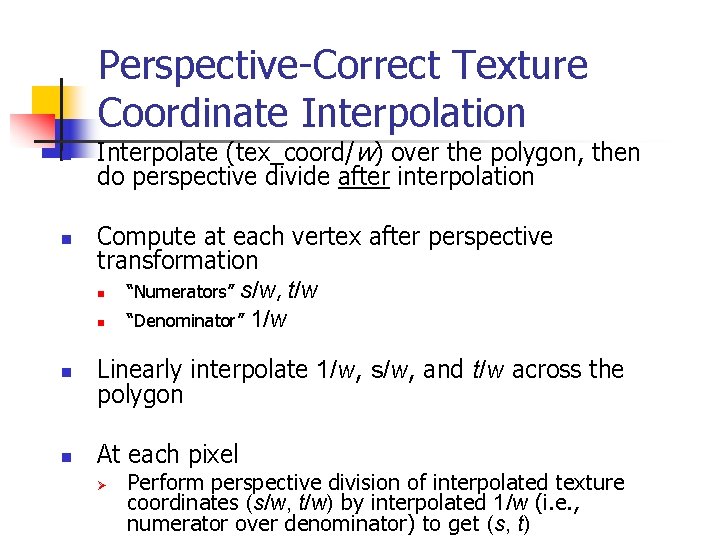
Perspective-Correct Texture Coordinate Interpolation n n Interpolate (tex_coord/w) over the polygon, then do perspective divide after interpolation Compute at each vertex after perspective transformation n “Numerators” s/w, t/w n “Denominator” 1/w n Linearly interpolate 1/w, s/w, and t/w across the polygon n At each pixel Ø Perform perspective division of interpolated texture coordinates (s/w, t/w) by interpolated 1/w (i. e. , numerator over denominator) to get (s, t)
Perspective-Correct Interpolation n That fixed it!
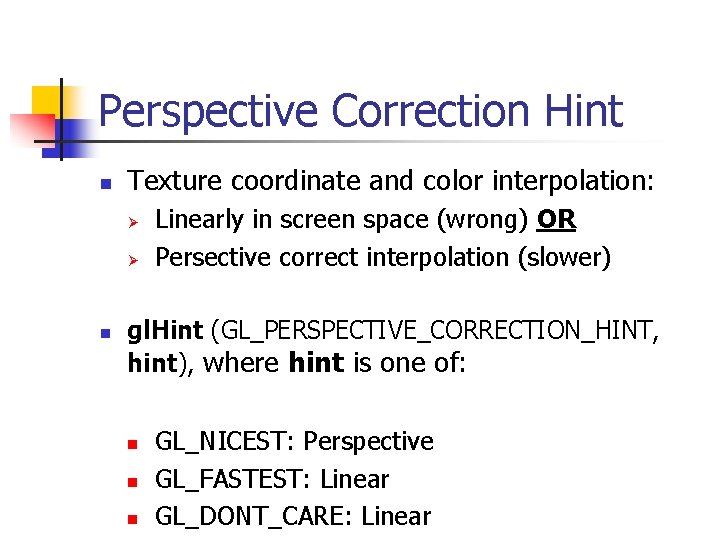
Perspective Correction Hint n Texture coordinate and color interpolation: Ø Ø n Linearly in screen space (wrong) OR Persective correct interpolation (slower) gl. Hint (GL_PERSPECTIVE_CORRECTION_HINT, hint), where hint is one of: n n n GL_NICEST: Perspective GL_FASTEST: Linear GL_DONT_CARE: Linear