
TESTING COMPUTER NETWORK Check that the Link light

- Slides: 7
TESTING COMPUTER NETWORK
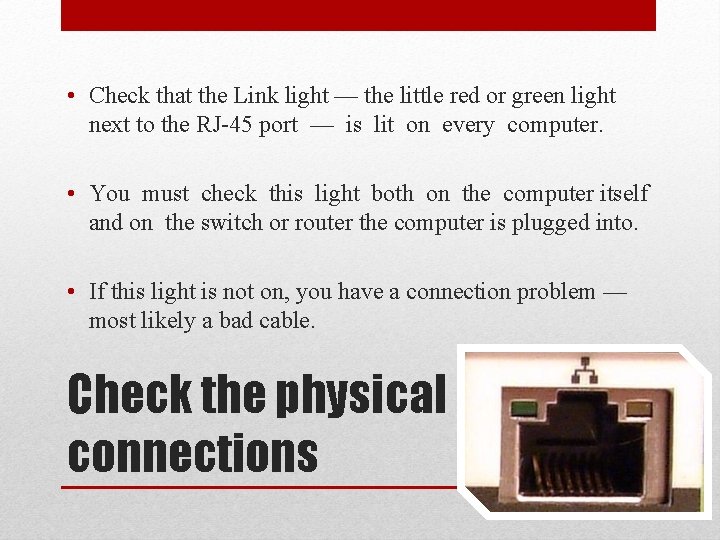
• Check that the Link light — the little red or green light next to the RJ-45 port — is lit on every computer. • You must check this light both on the computer itself and on the switch or router the computer is plugged into. • If this light is not on, you have a connection problem — most likely a bad cable. Check the physical connections
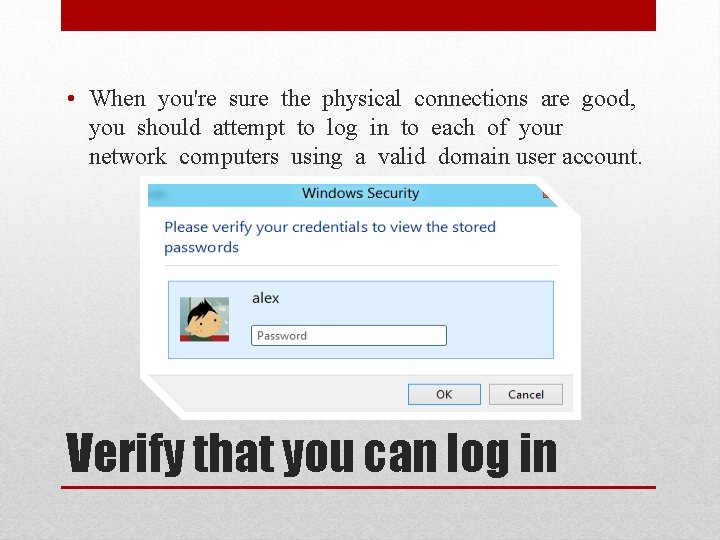
• When you're sure the physical connections are good, you should attempt to log in to each of your network computers using a valid domain user account. Verify that you can log in
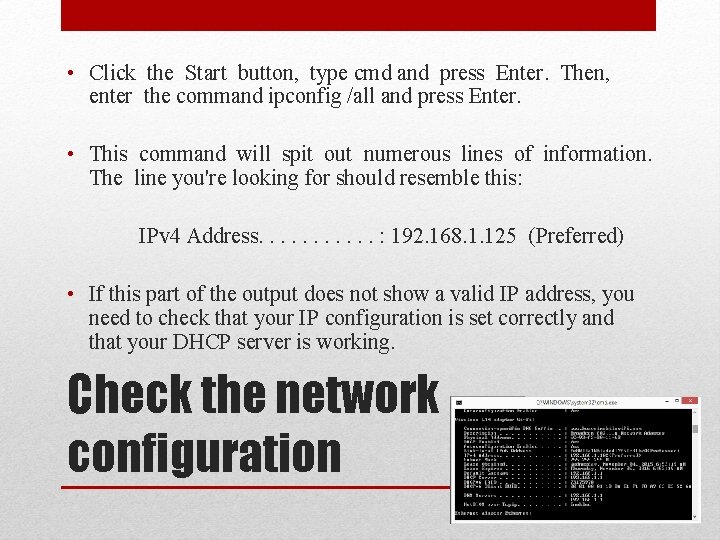
• Click the Start button, type cmd and press Enter. Then, enter the command ipconfig /all and press Enter. • This command will spit out numerous lines of information. The line you're looking for should resemble this: IPv 4 Address. . . : 192. 168. 1. 125 (Preferred) • If this part of the output does not show a valid IP address, you need to check that your IP configuration is set correctly and that your DHCP server is working. Check the network configuration
• Another basic test you should perform is to use the ping command a command prompt to make sure that the computers on your network can contact one another. Verify that the computer can ping each other
• Do several ping tests. First, make sure that TCP/IP is up and running by having the computer try to ping itself. Open a command prompt and type ping local host. The output from this command will indicate whether or not the ping was successful. • Next, try to ping your servers by name. For example, if your file server is named File. Server 01, use the command ping File. Server 01. Verify that the computer can ping each other
• http: //windows. microsoft. com/en-ph/windowsvista/troubleshoot-network-connection-problems