
Test Information Distribution Engine TIDE Training Module 2020

Test Information Distribution Engine (TIDE) Training Module 2020– 2021 Copyright © 2020 Cambium Assessment, Inc. All rights reserve
Objectives Preparing for Testing • Activating your new TIDE account and logging in to TIDE • Navigating the TIDE interface • Understanding account permissions • Managing user accounts • Managing student information and test settings Administering Tests • Managing testing incidents • Monitoring test progress After Testing • Managing non-participation codes 2
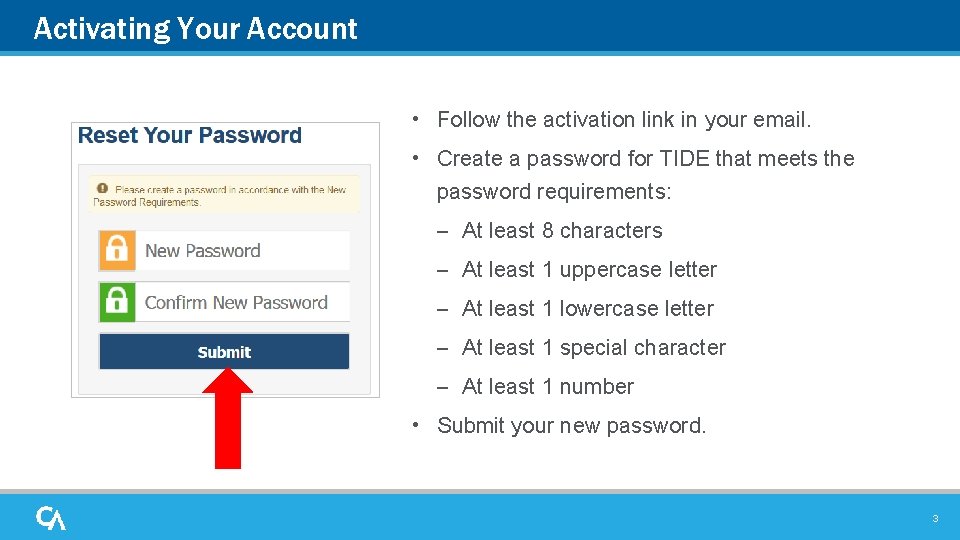
Activating Your Account • Follow the activation link in your email. • Create a password for TIDE that meets the password requirements: – At least 8 characters – At least 1 uppercase letter – At least 1 lowercase letter – At least 1 special character – At least 1 number • Submit your new password. 3
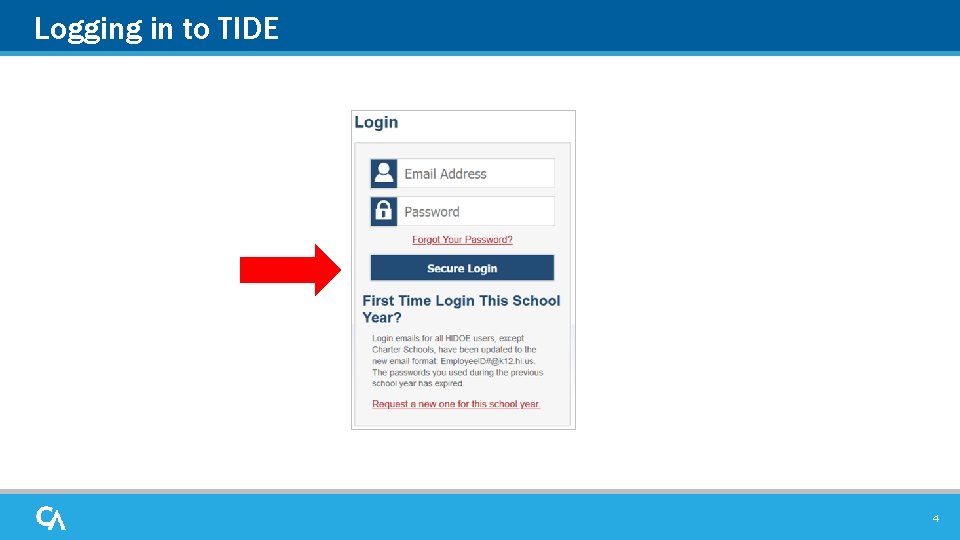
Logging in to TIDE 4
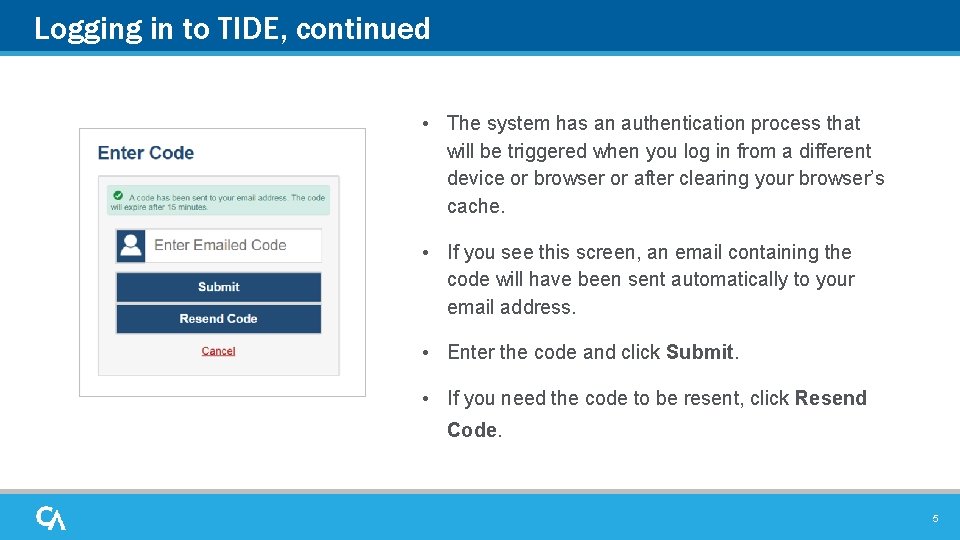
Logging in to TIDE, continued • The system has an authentication process that will be triggered when you log in from a different device or browser or after clearing your browser’s cache. • If you see this screen, an email containing the code will have been sent automatically to your email address. • Enter the code and click Submit. • If you need the code to be resent, click Resend Code. 5
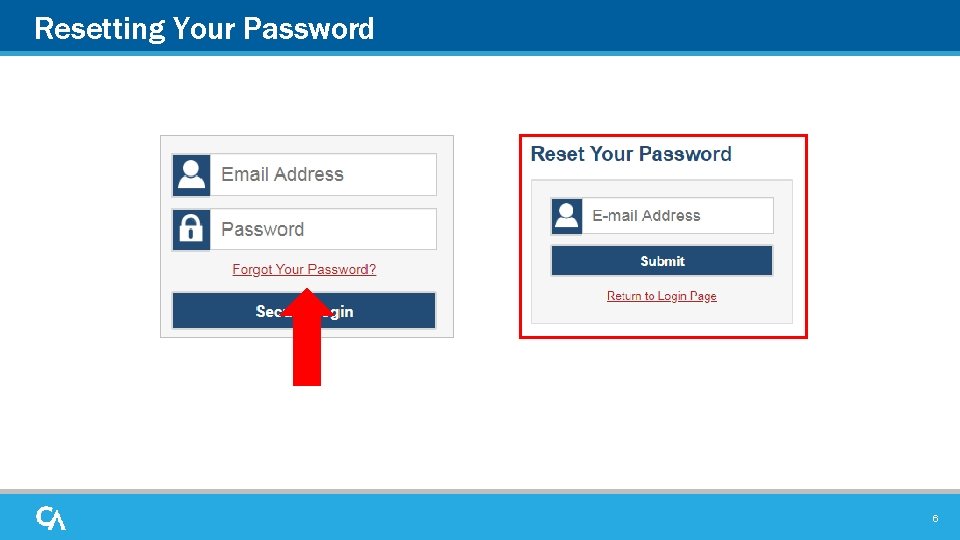
Resetting Your Password 6
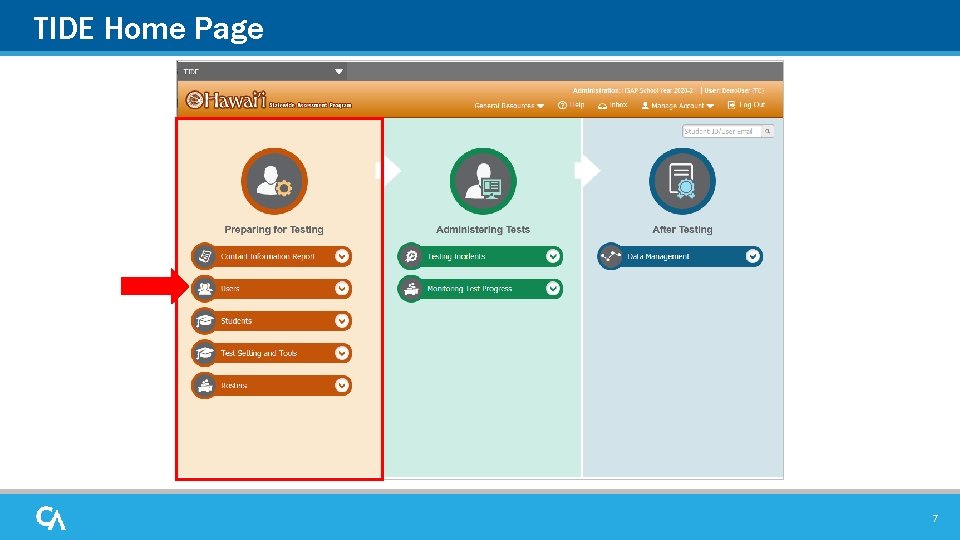
TIDE Home Page 7
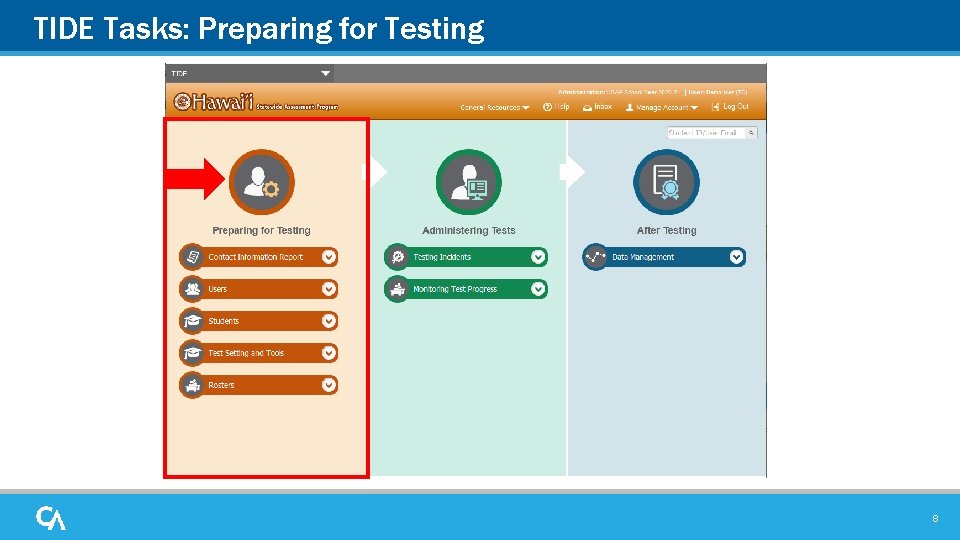
TIDE Tasks: Preparing for Testing 8
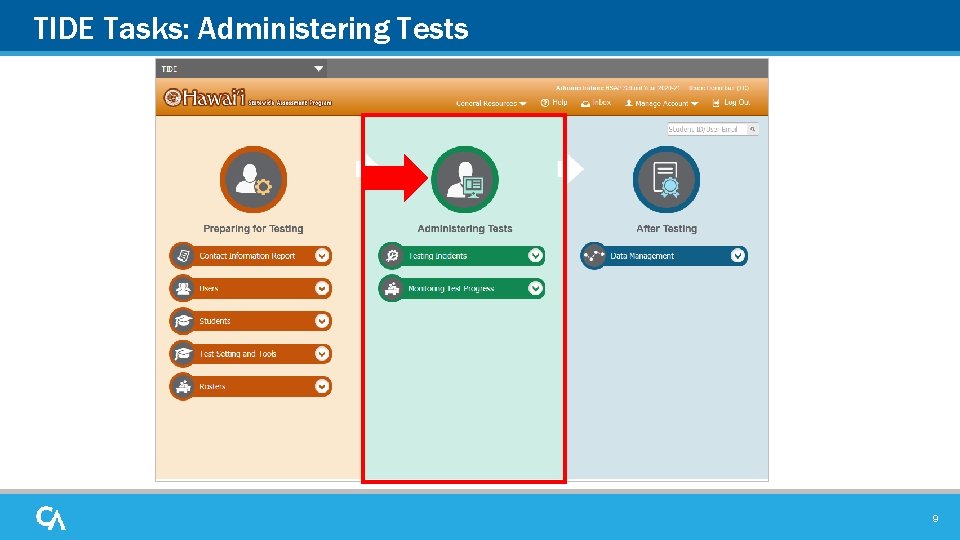
TIDE Tasks: Administering Tests 9
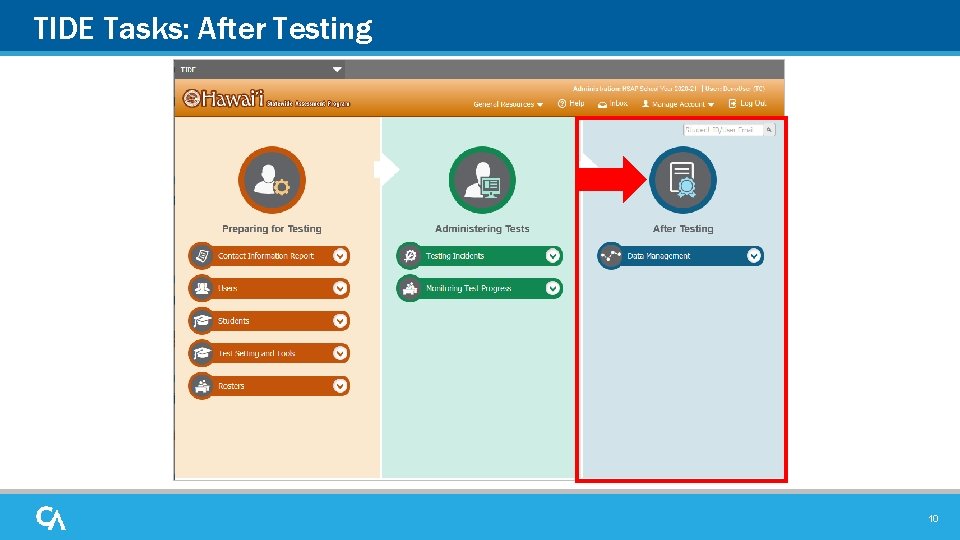
TIDE Tasks: After Testing 10
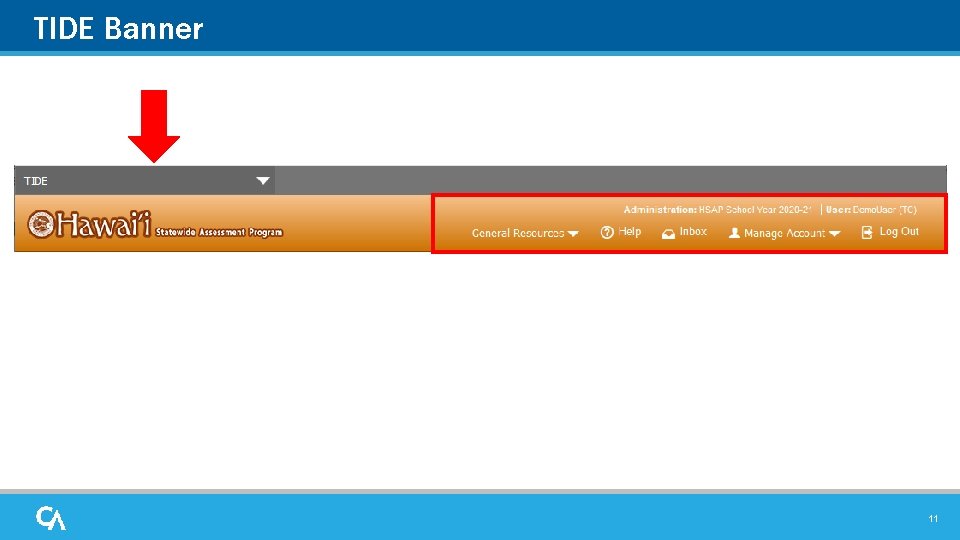
TIDE Banner 11
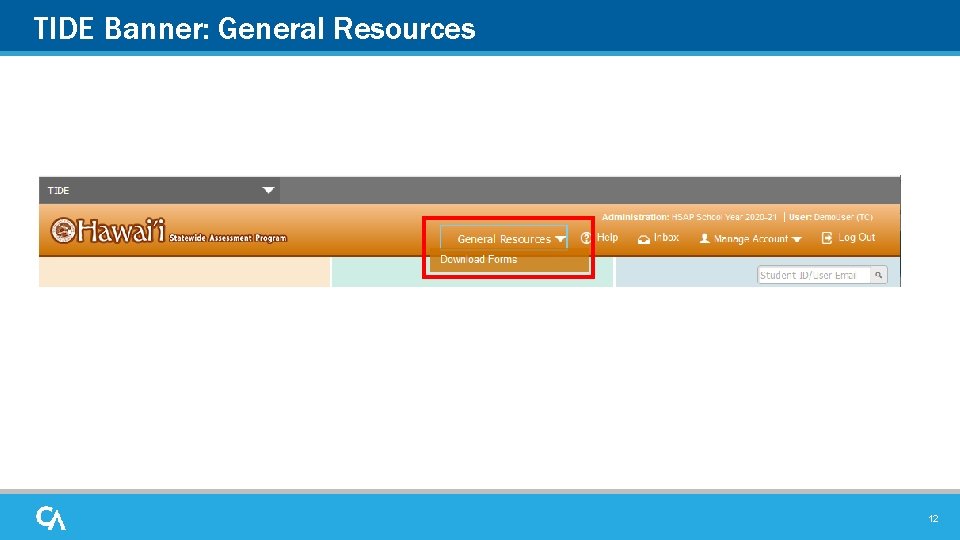
TIDE Banner: General Resources 12
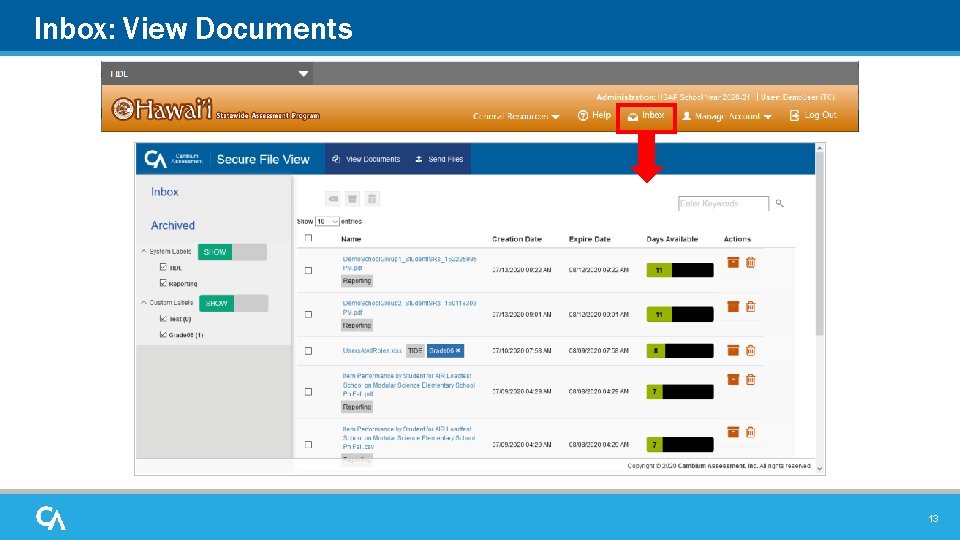
Inbox: View Documents 13
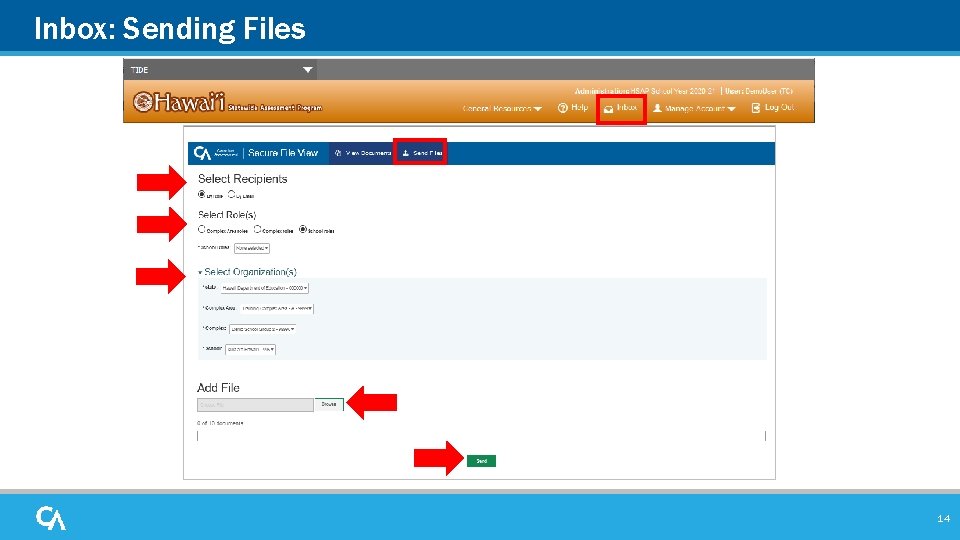
Inbox: Sending Files 14
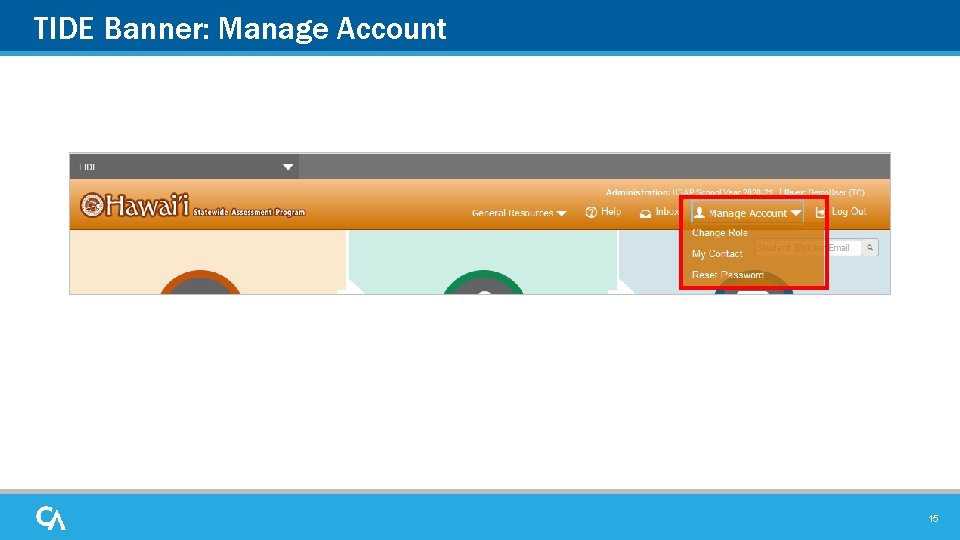
TIDE Banner: Manage Account 15
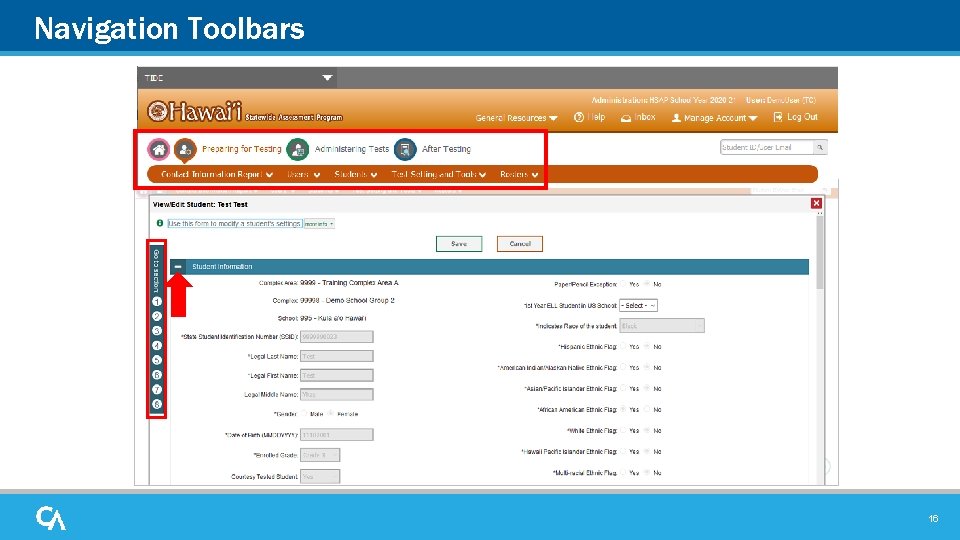
Navigation Toolbars 16
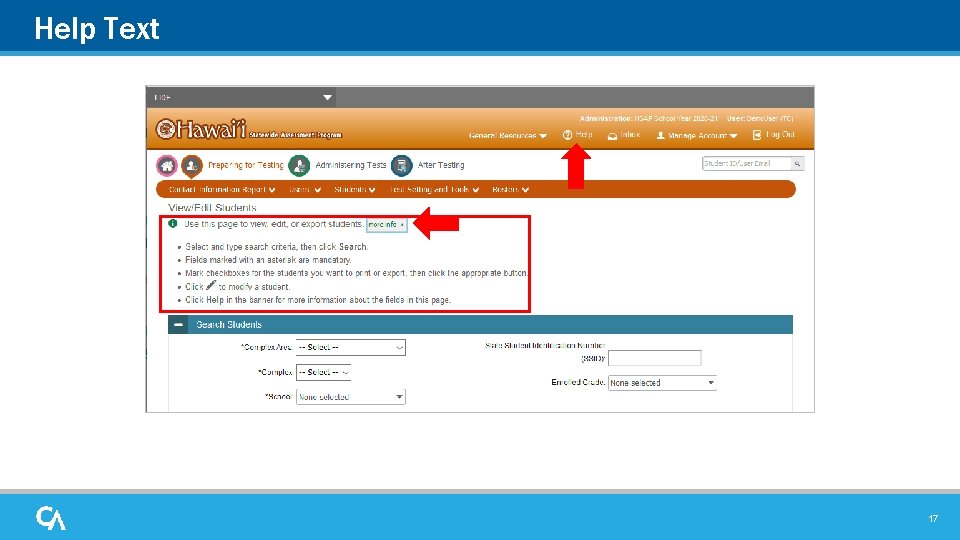
Help Text 17
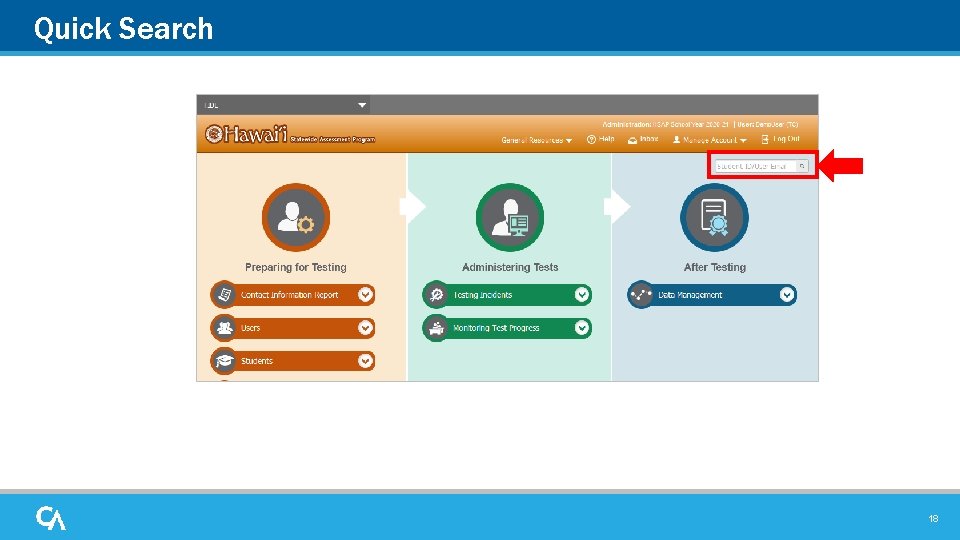
Quick Search 18
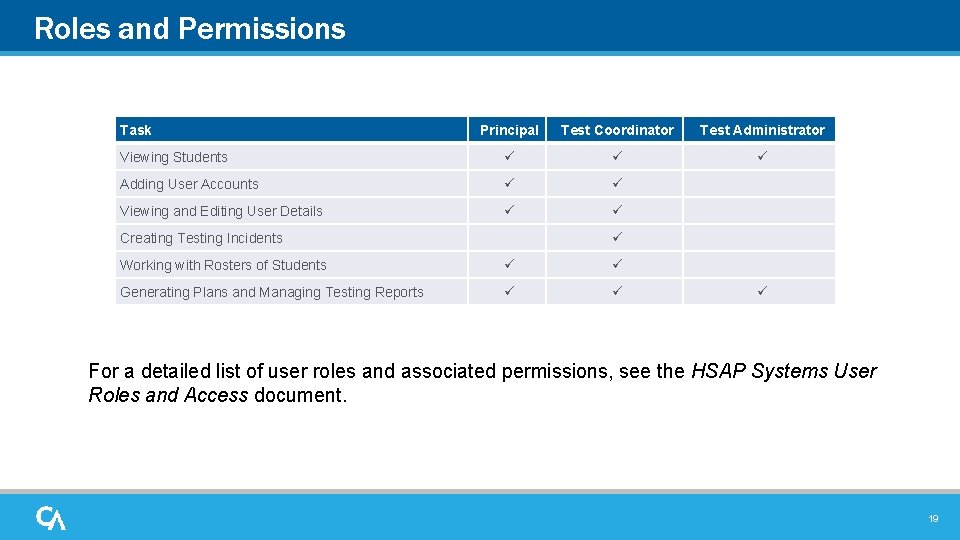
Roles and Permissions Task Principal Test Coordinator Test Administrator Viewing Students Adding User Accounts Viewing and Editing User Details Creating Testing Incidents Working with Rosters of Students Generating Plans and Managing Testing Reports For a detailed list of user roles and associated permissions, see the HSAP Systems User Roles and Access document. 19
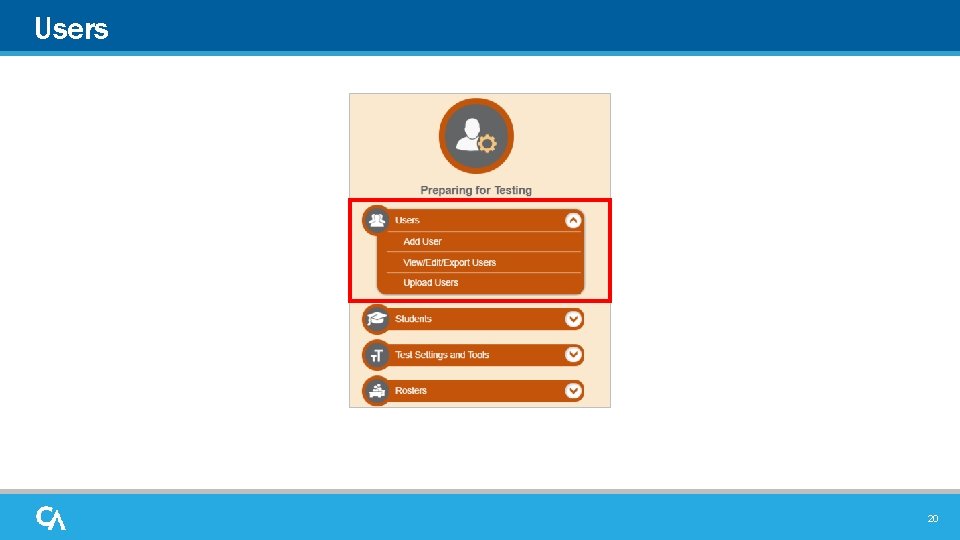
Users 20
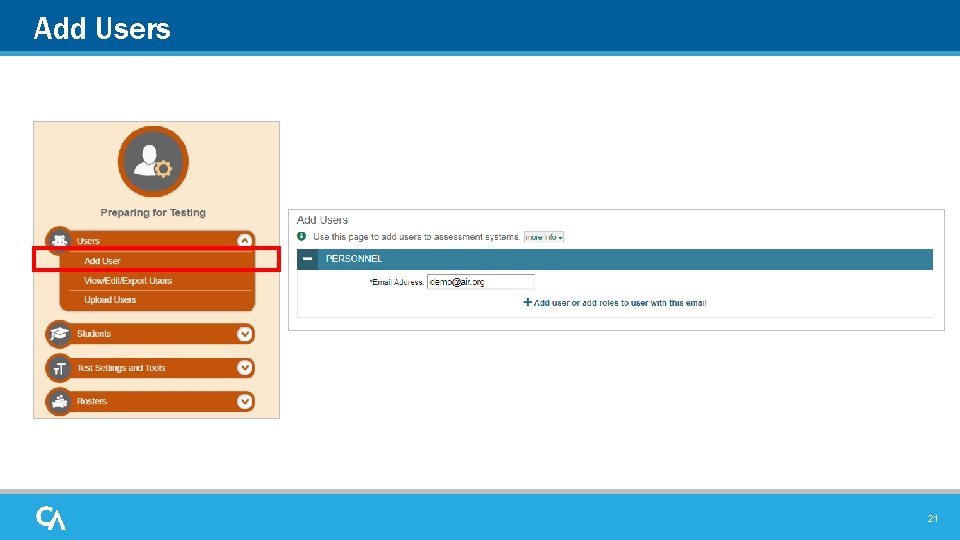
Add Users 21
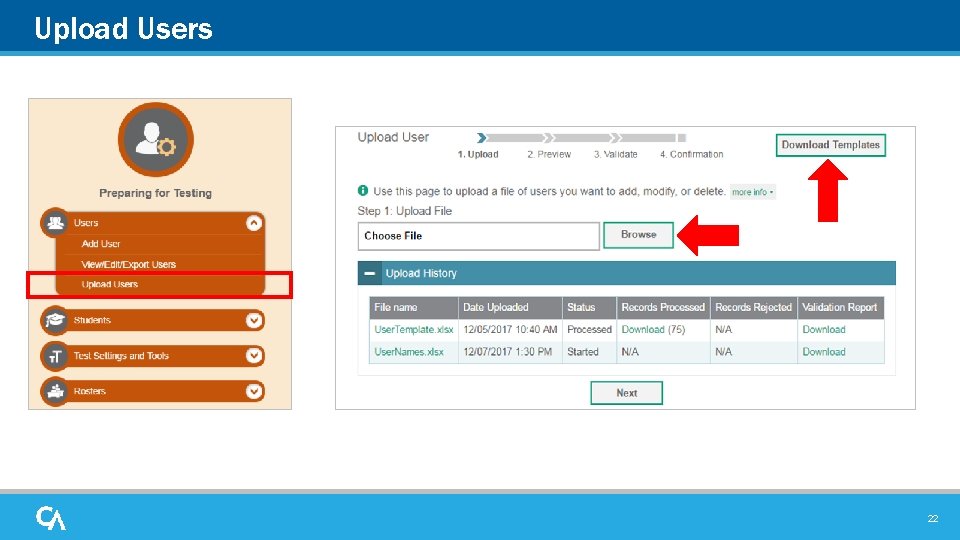
Upload Users 22
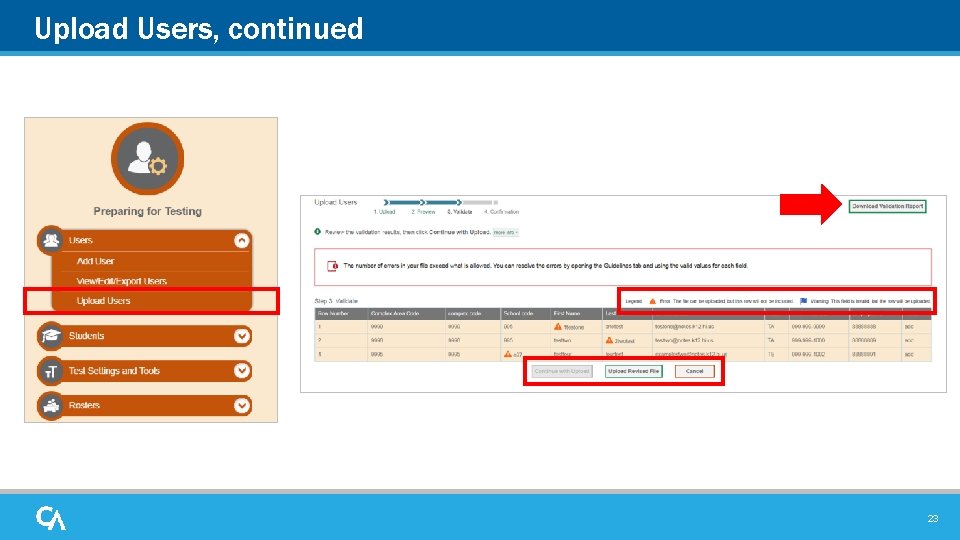
Upload Users, continued 23
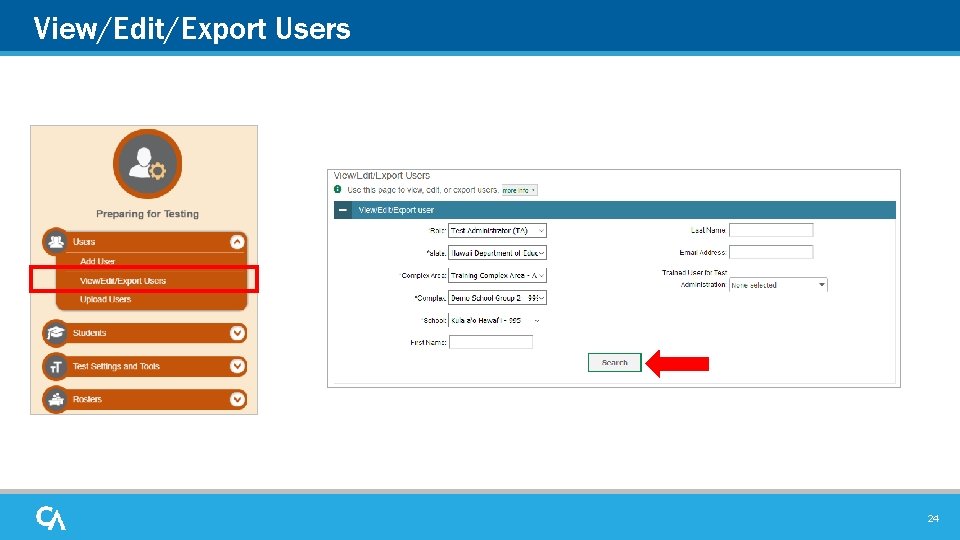
View/Edit/Export Users 24
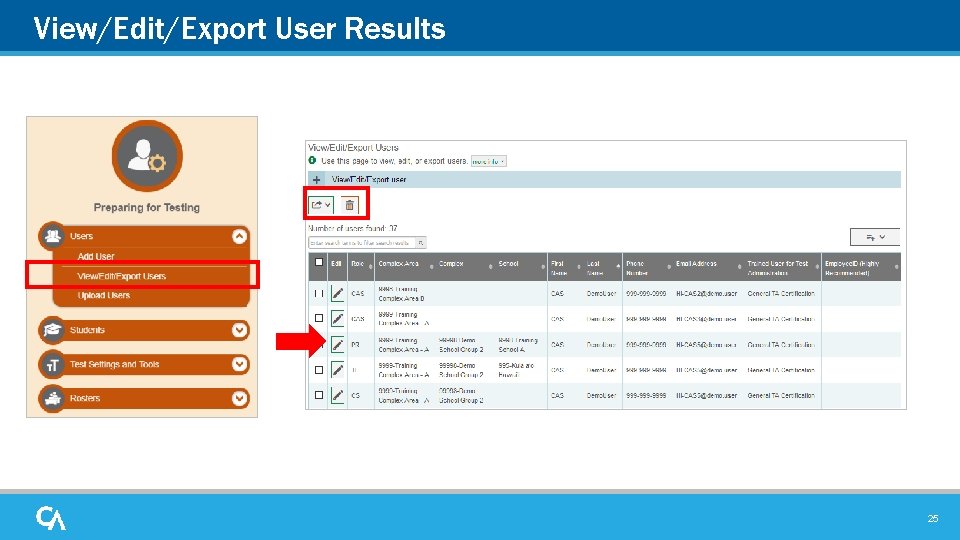
View/Edit/Export User Results 25
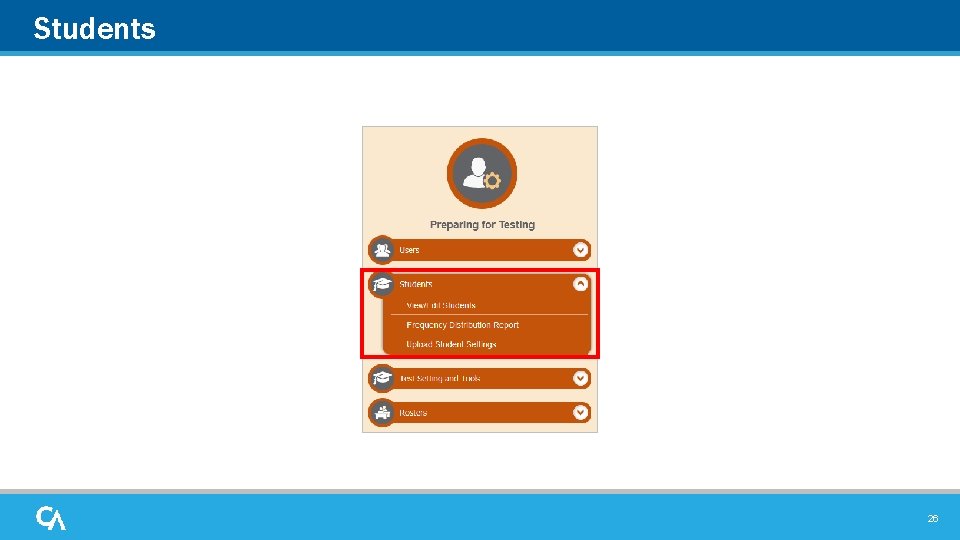
Students 26
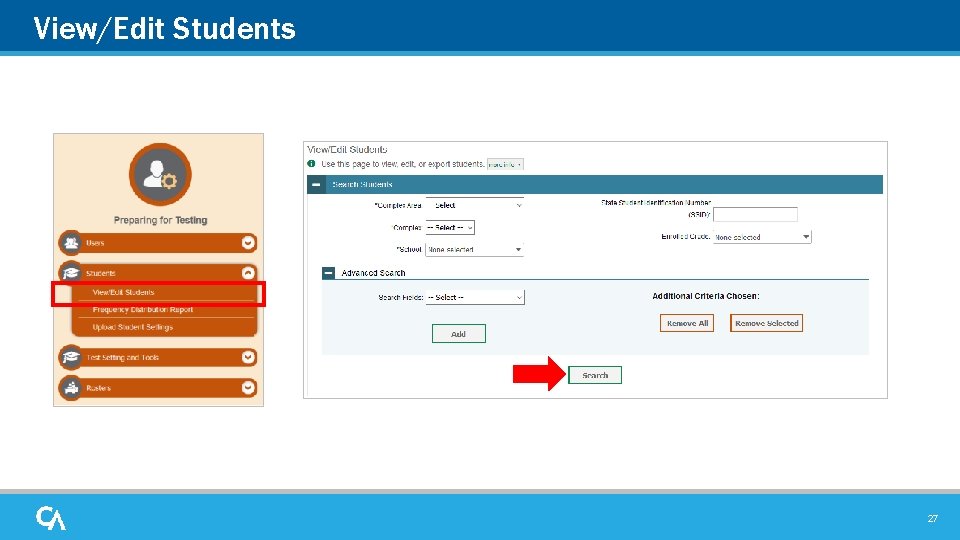
View/Edit Students 27
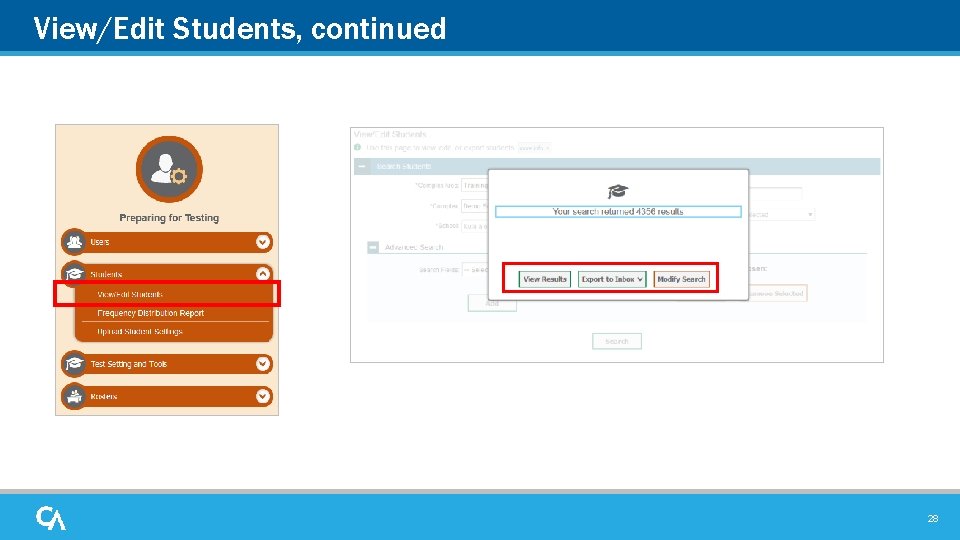
View/Edit Students, continued 28
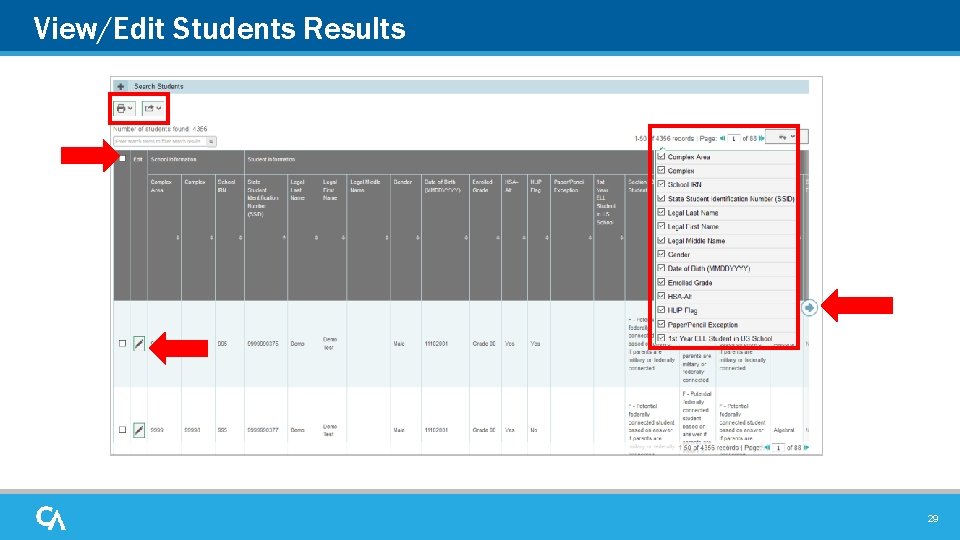
View/Edit Students Results 29
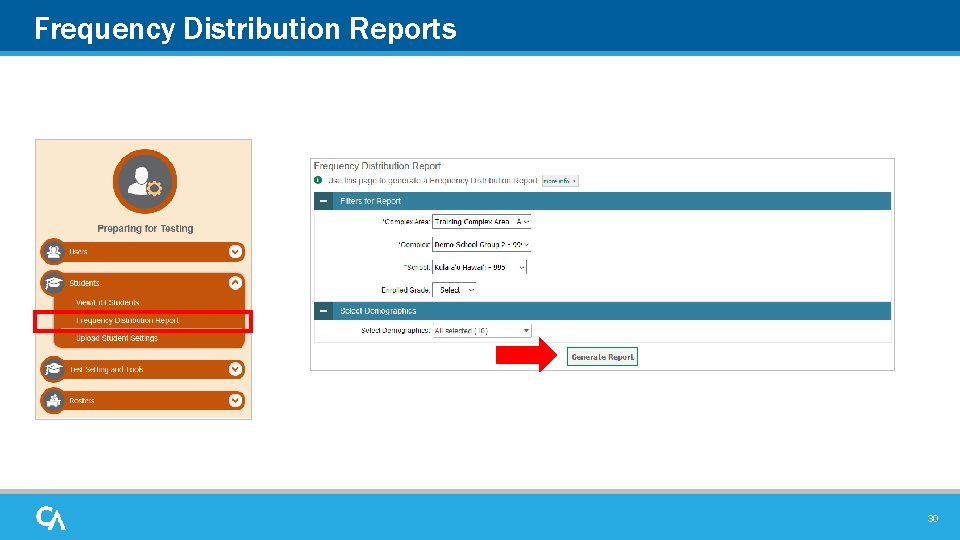
Frequency Distribution Reports 30
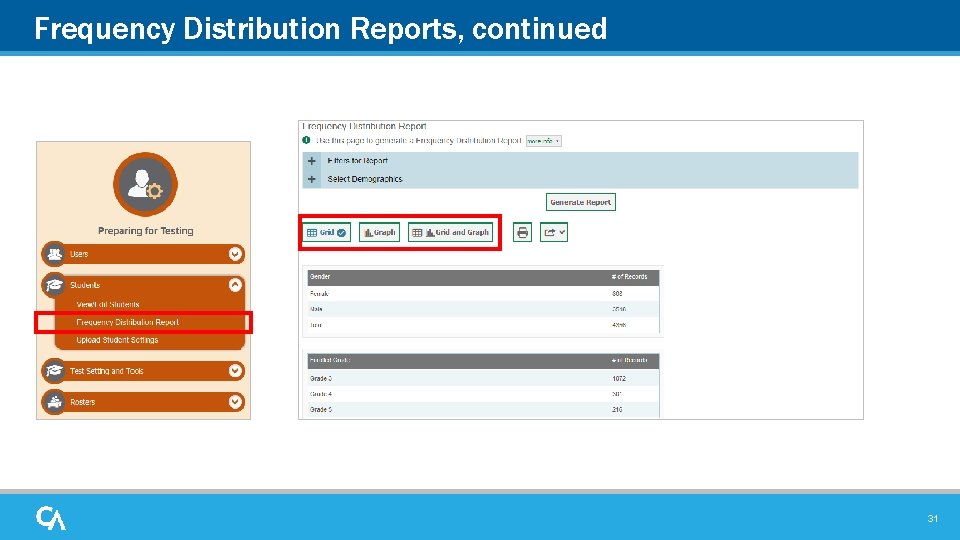
Frequency Distribution Reports, continued 31
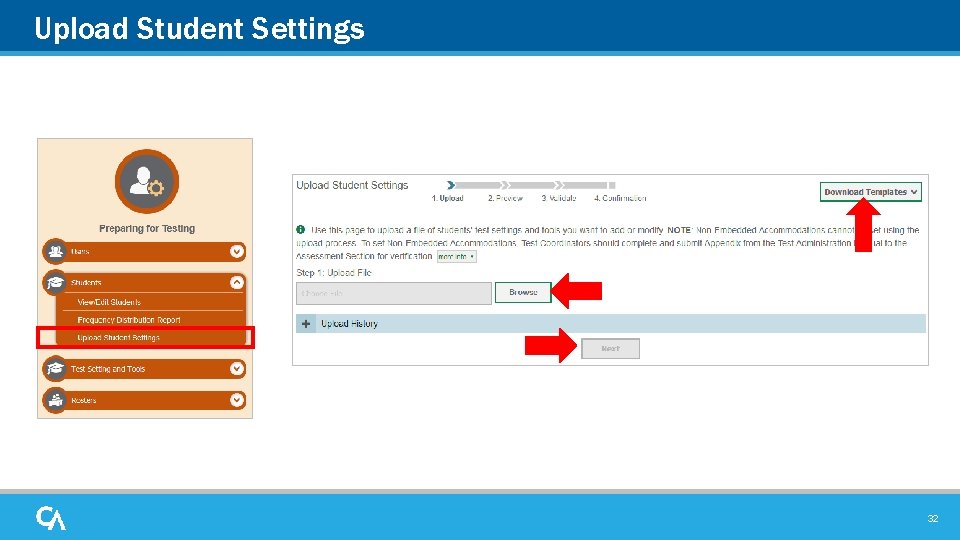
Upload Student Settings 32
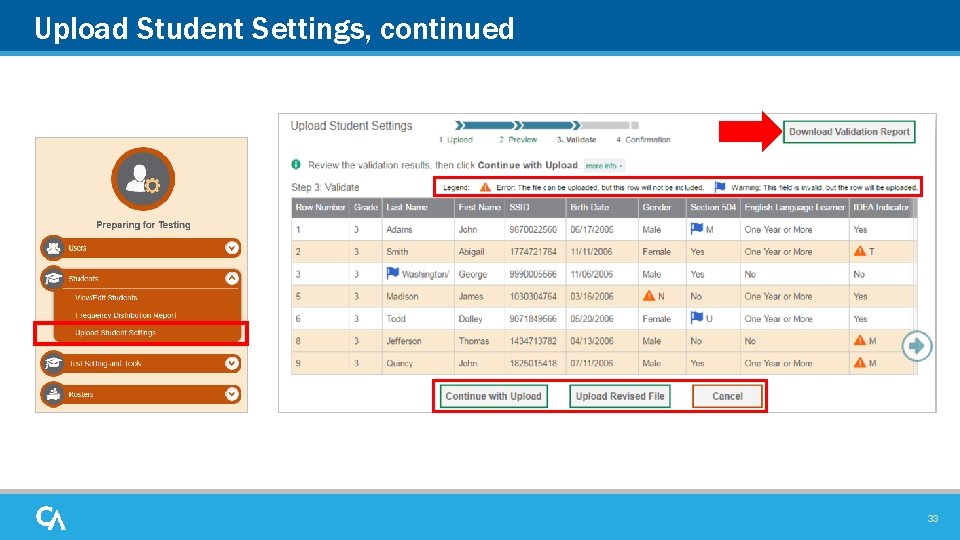
Upload Student Settings, continued 33
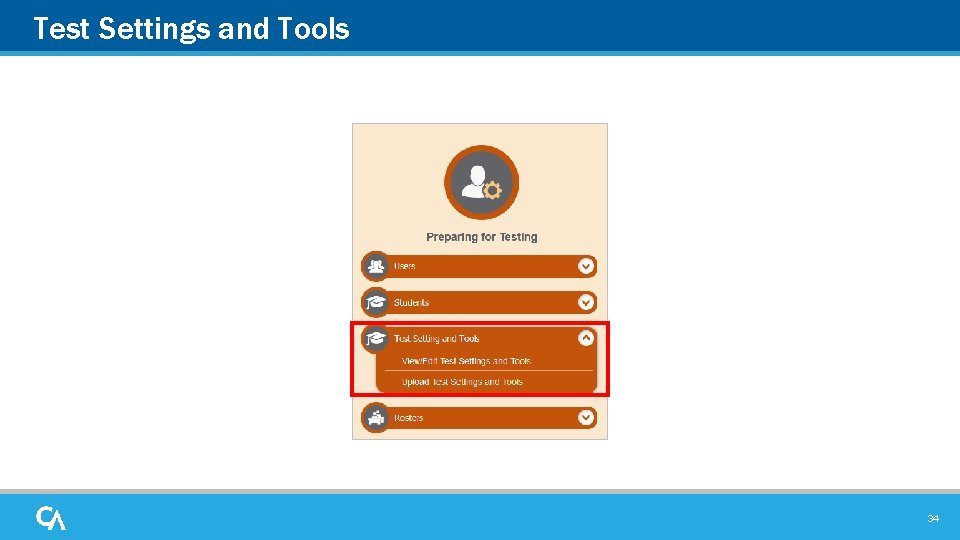
Test Settings and Tools 34
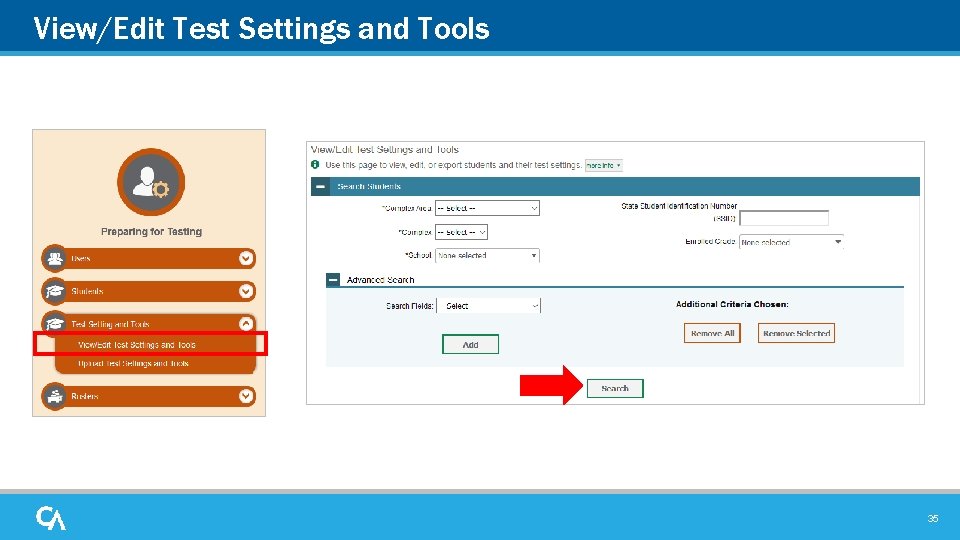
View/Edit Test Settings and Tools 35
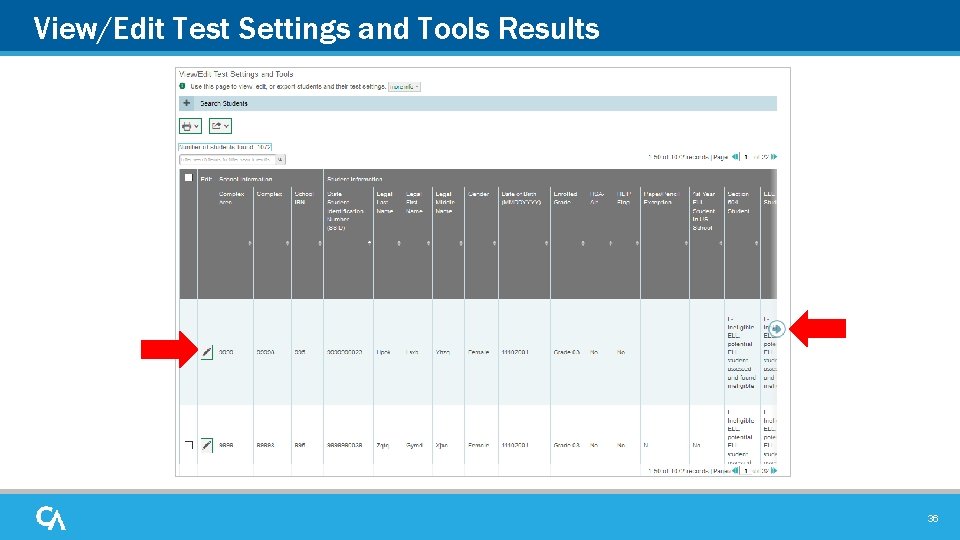
View/Edit Test Settings and Tools Results 36
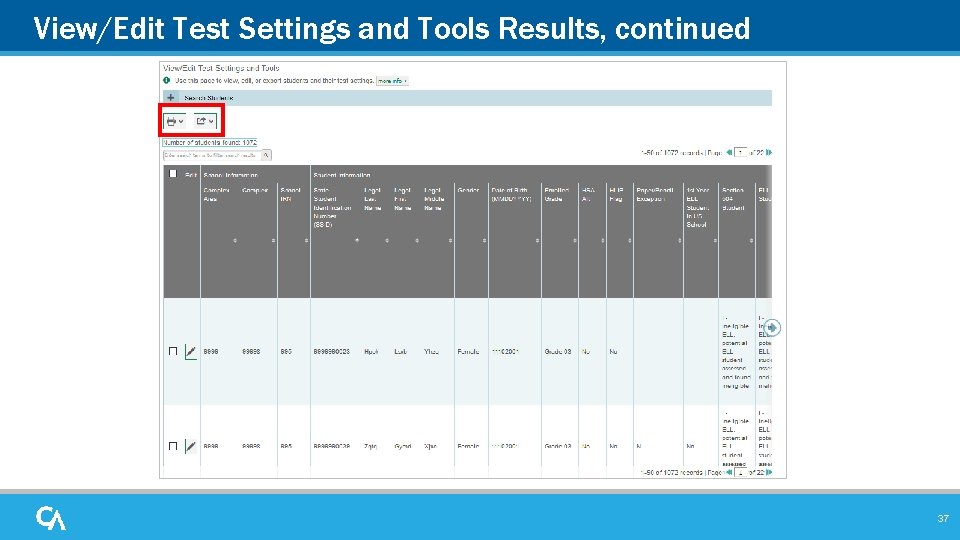
View/Edit Test Settings and Tools Results, continued 37
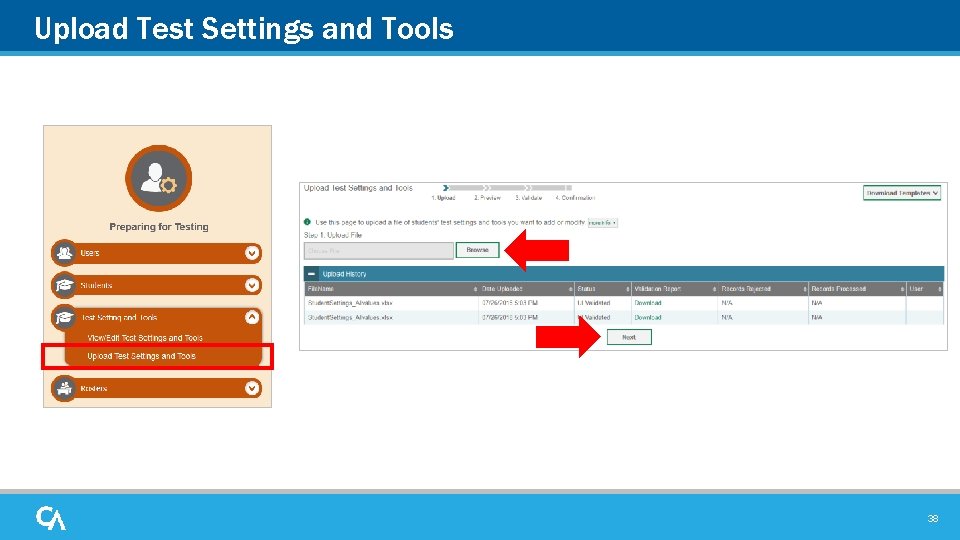
Upload Test Settings and Tools 38
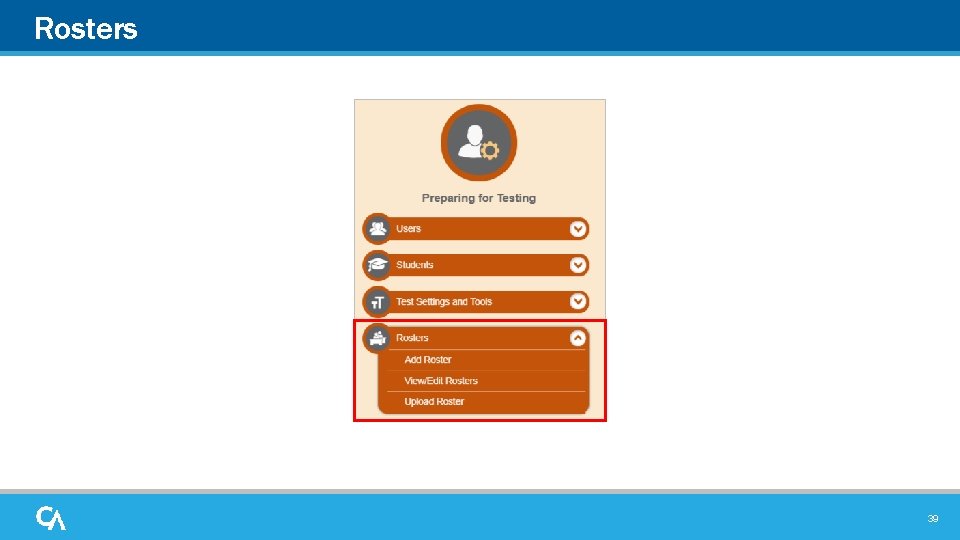
Rosters 39
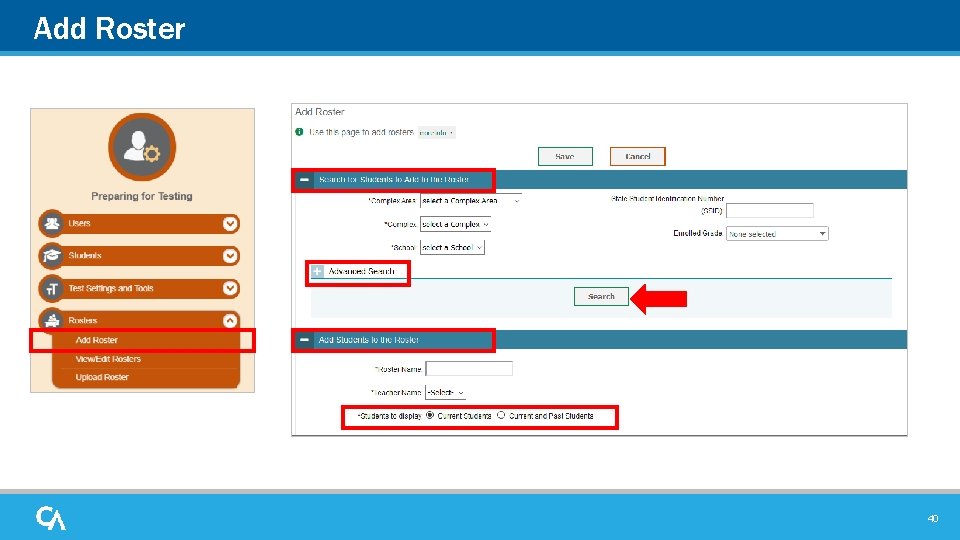
Add Roster 40
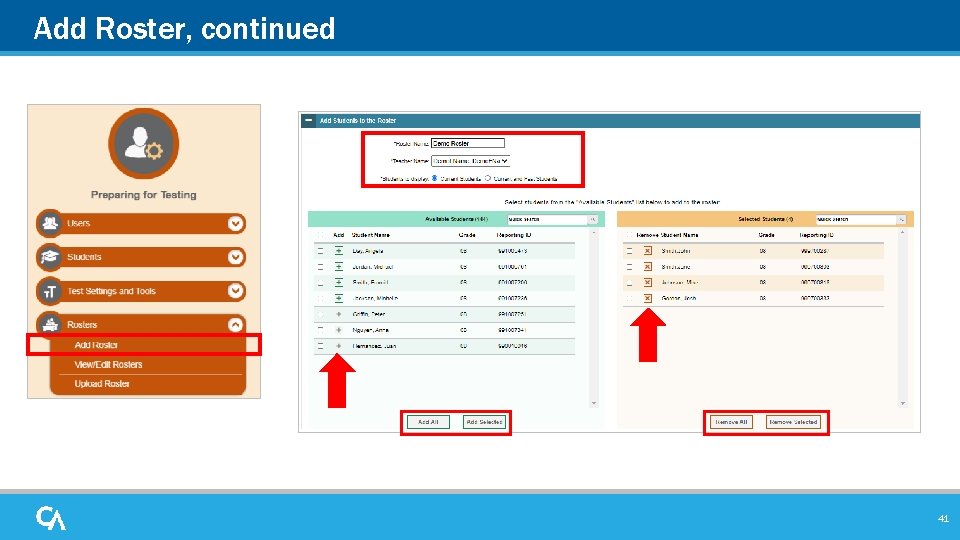
Add Roster, continued 41
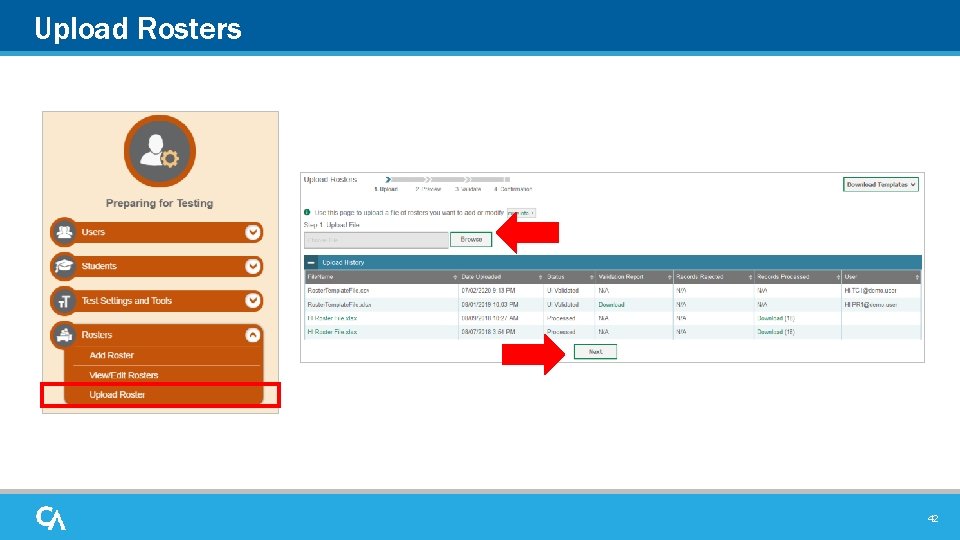
Upload Rosters 42
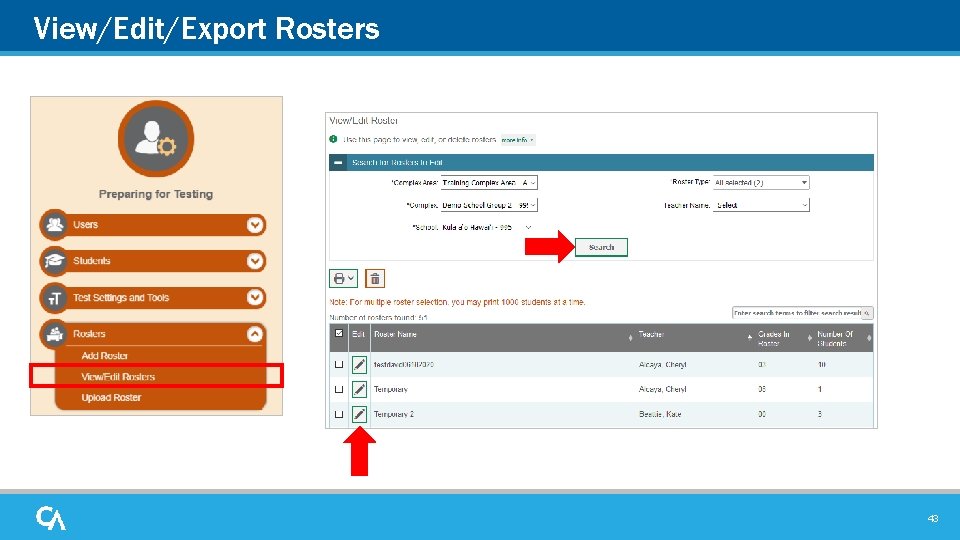
View/Edit/Export Rosters 43
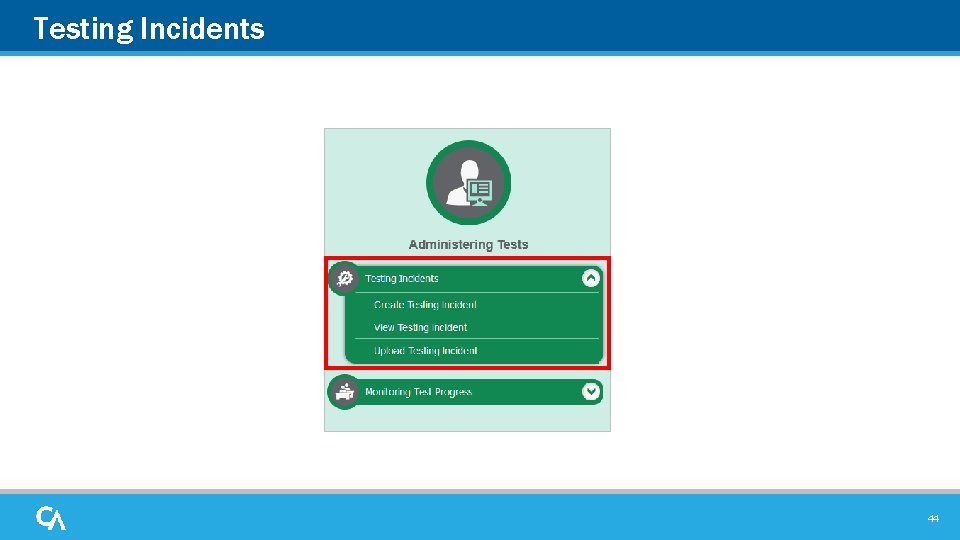
Testing Incidents 44
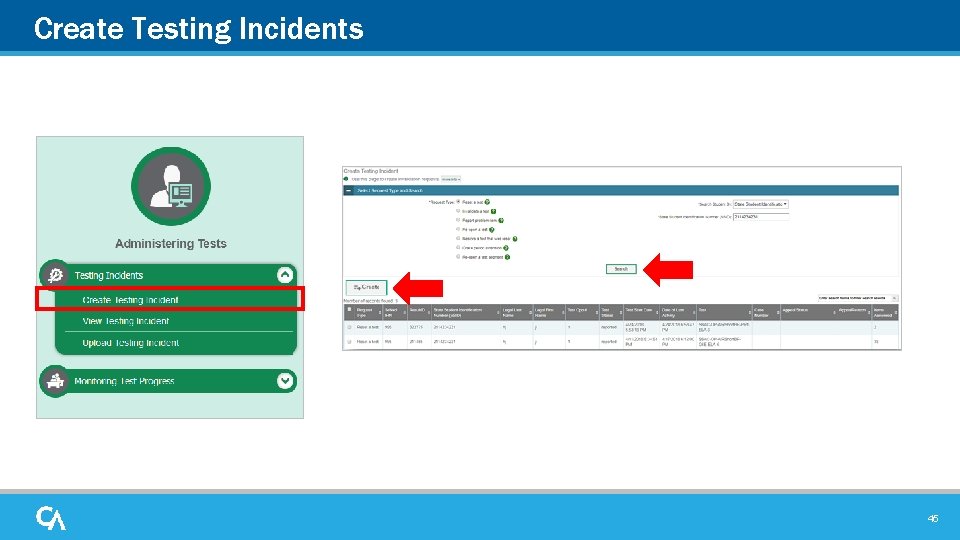
Create Testing Incidents 45
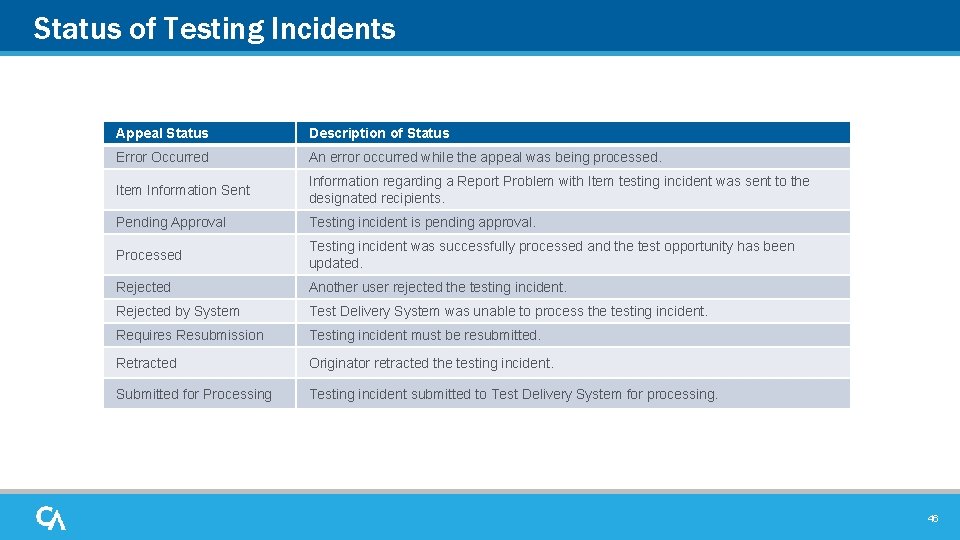
Status of Testing Incidents Appeal Status Description of Status Error Occurred An error occurred while the appeal was being processed. Item Information Sent Information regarding a Report Problem with Item testing incident was sent to the designated recipients. Pending Approval Testing incident is pending approval. Processed Testing incident was successfully processed and the test opportunity has been updated. Rejected Another user rejected the testing incident. Rejected by System Test Delivery System was unable to process the testing incident. Requires Resubmission Testing incident must be resubmitted. Retracted Originator retracted the testing incident. Submitted for Processing Testing incident submitted to Test Delivery System for processing. 46
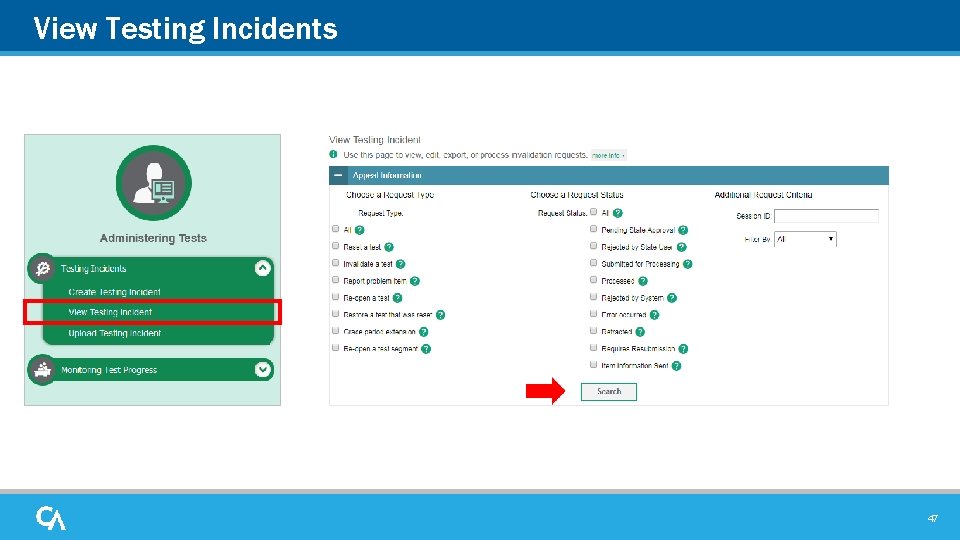
View Testing Incidents 47
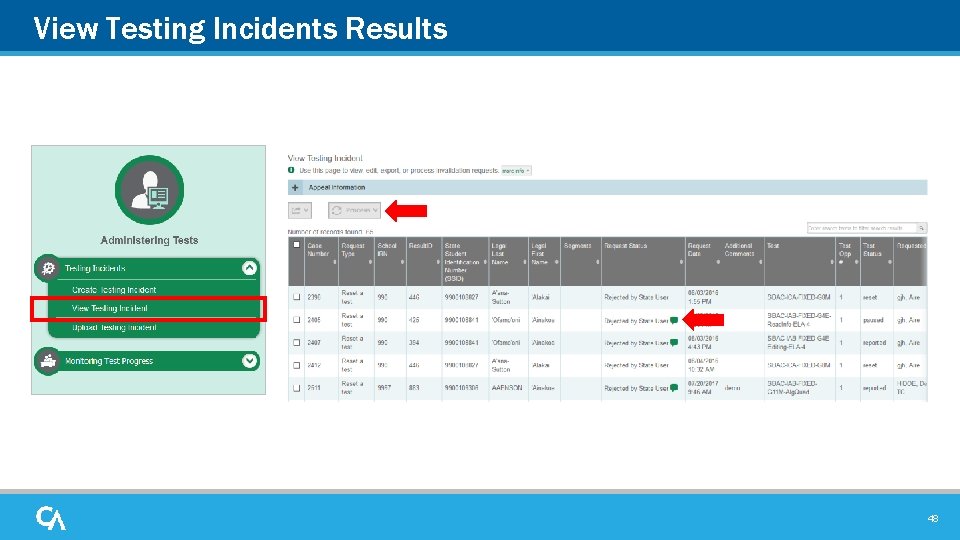
View Testing Incidents Results 48
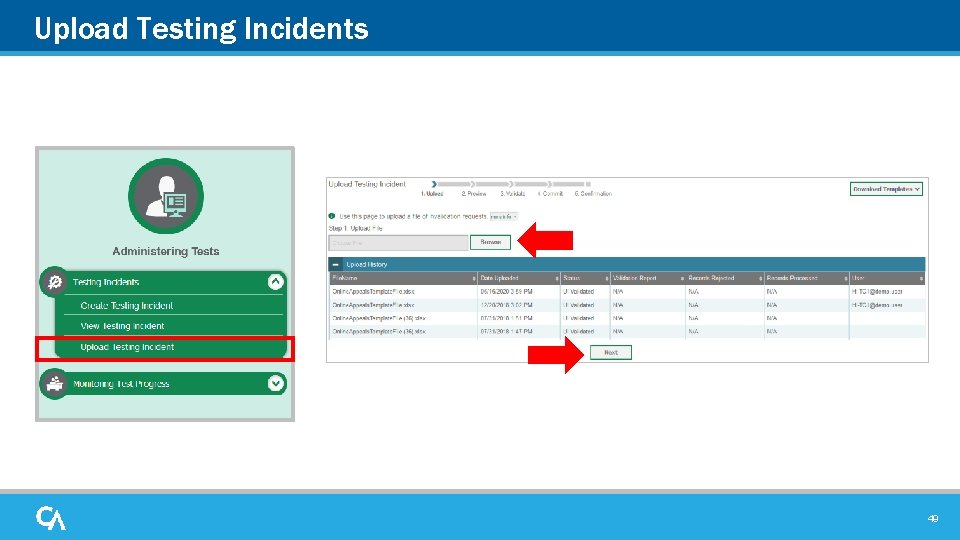
Upload Testing Incidents 49
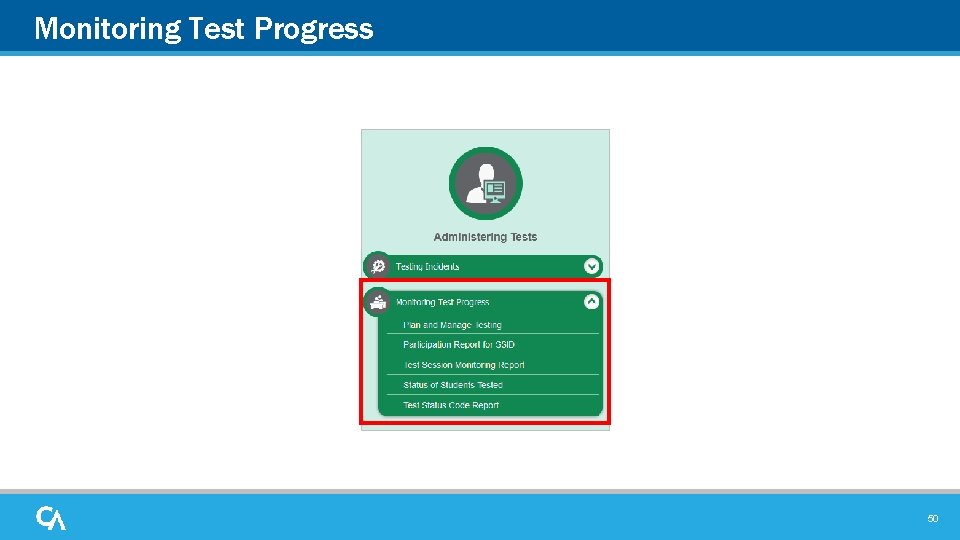
Monitoring Test Progress 50
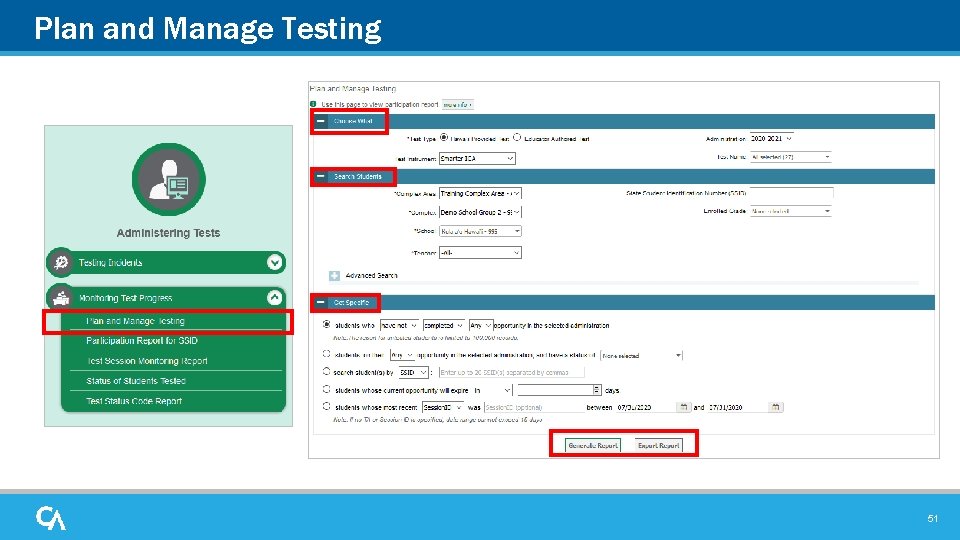
Plan and Manage Testing 51
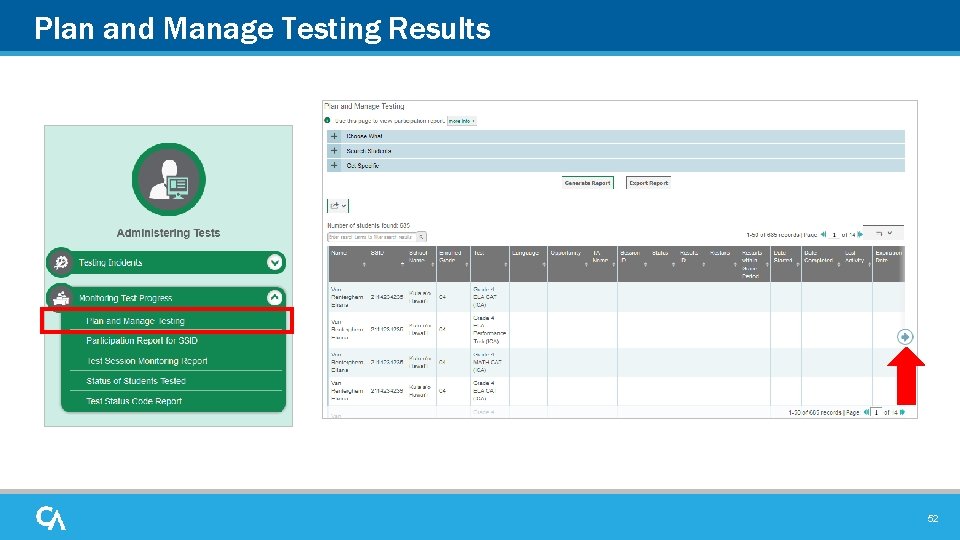
Plan and Manage Testing Results 52
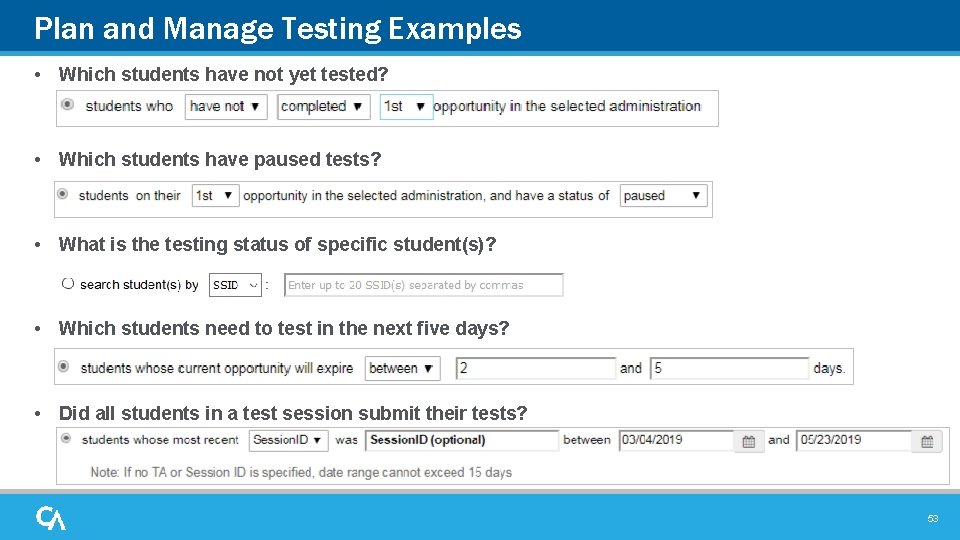
Plan and Manage Testing Examples • Which students have not yet tested? • Which students have paused tests? • What is the testing status of specific student(s)? • Which students need to test in the next five days? • Did all students in a test session submit their tests? 53
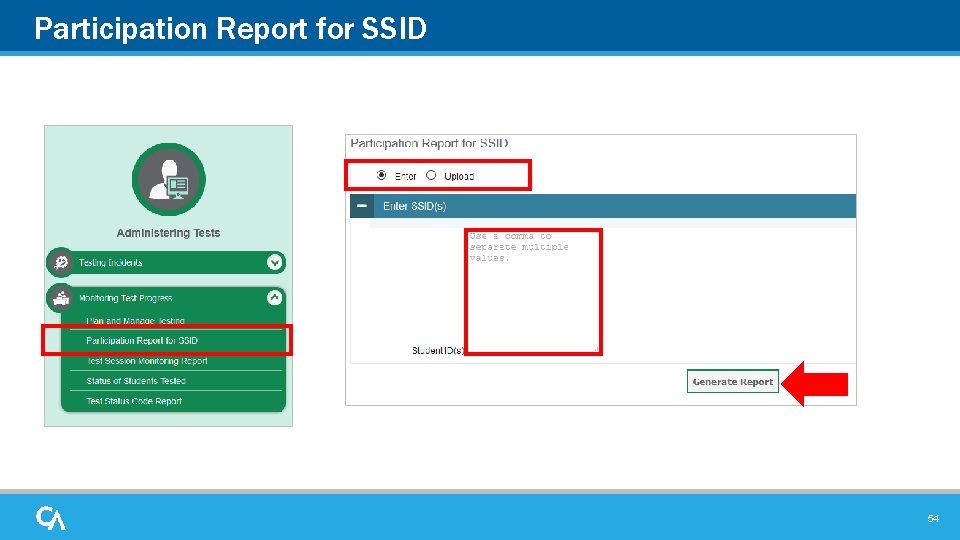
Participation Report for SSID 54
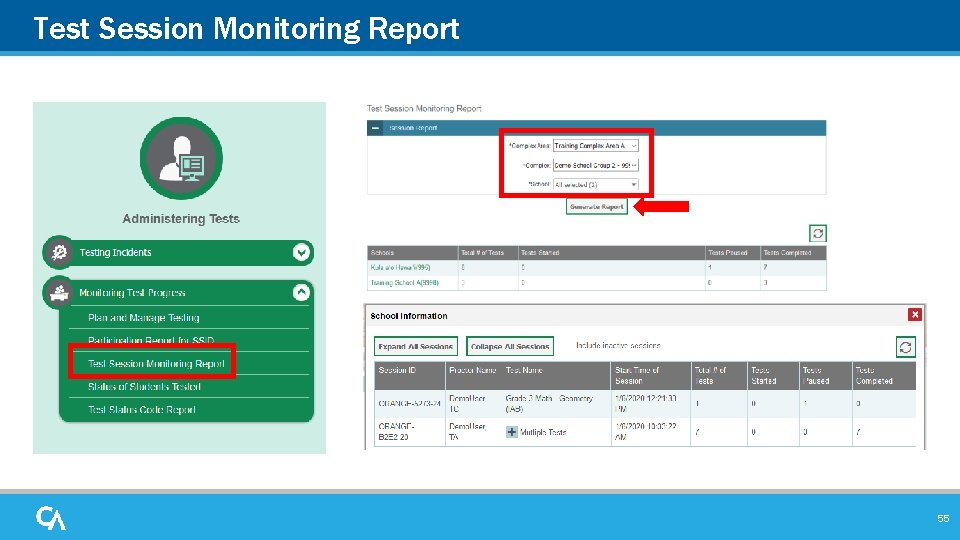
Test Session Monitoring Report 55
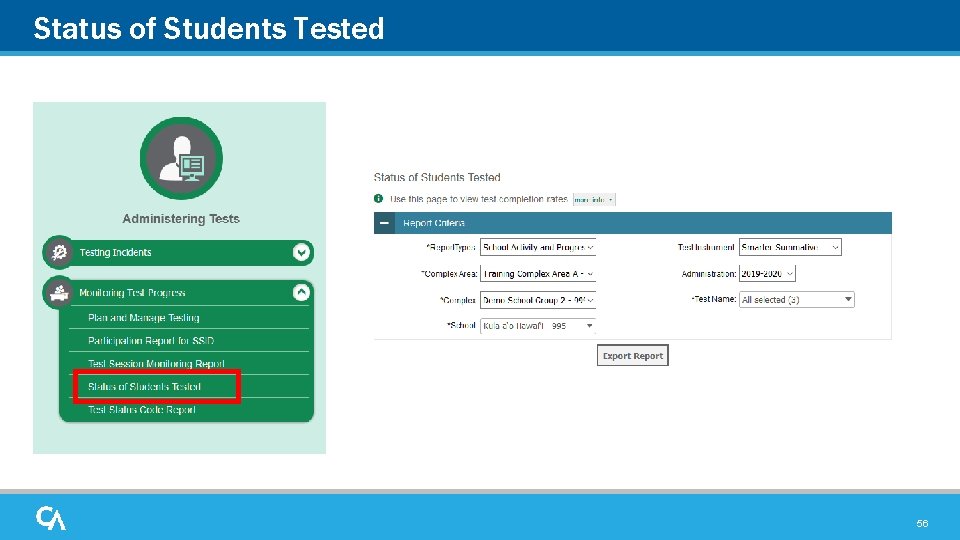
Status of Students Tested 56
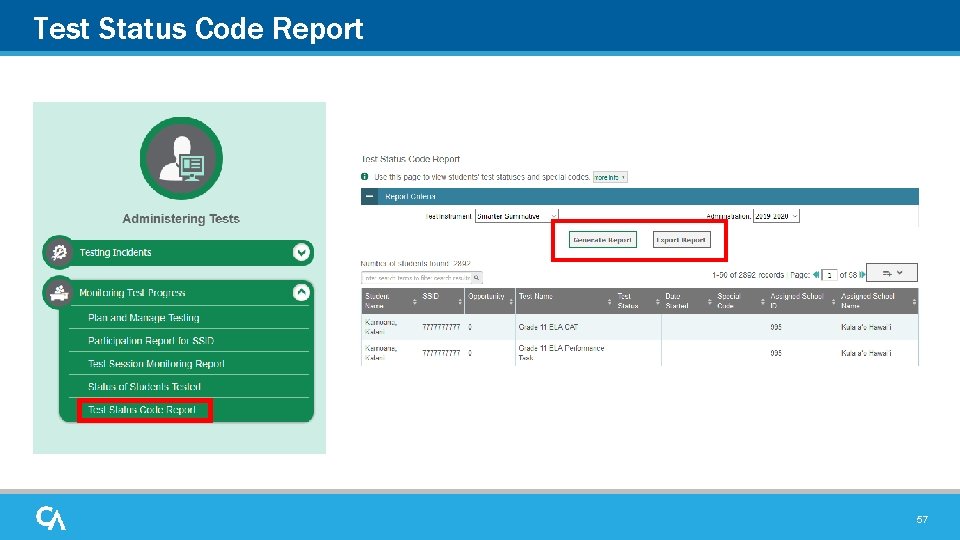
Test Status Code Report 57
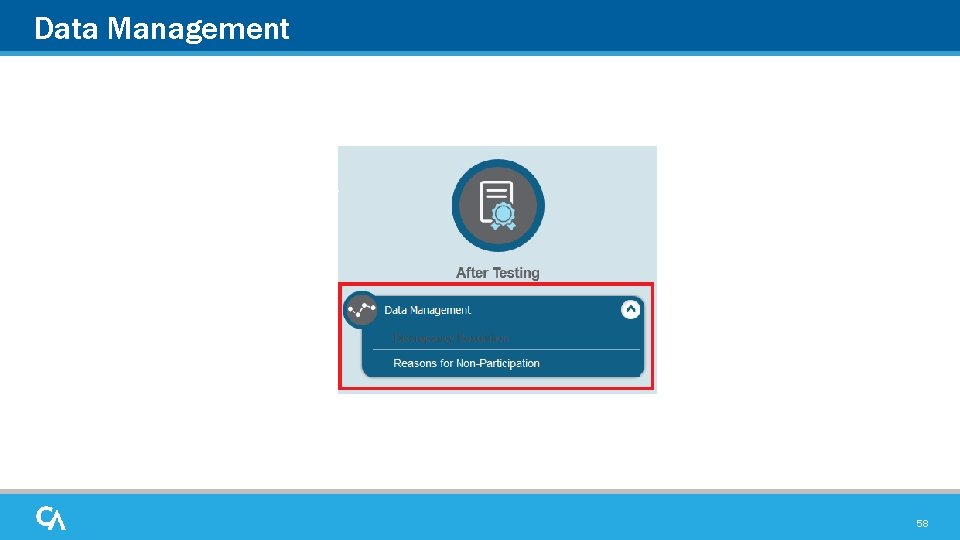
Data Management 58
Non-Participation Codes • A non-participation event occurs when a student does not take a test as scheduled. • You must assign a code to explain the non-participation for each test a student does not participate in. • Non-participation codes persist until they are changed. • Non-participation codes may also be referred to as special codes or reasons for non-participation. Discrepancy Resolution • The Discrepancy Resolution (DRS) report will become active in TIDE approximately one month prior to the close of the summative test window. • The DRS report will list all students who have not yet started their eligible summative assessment(s) AND do not have a Non-Participation Code entered in TIDE. Once a Non-Participation Code is entered in TIDE for a student, that student will no longer be included in the school’s DRS report. 59
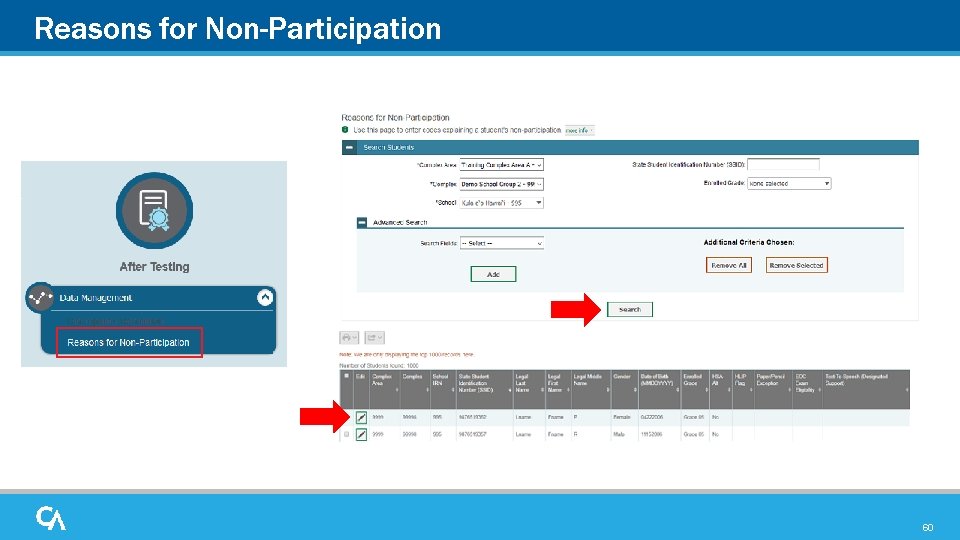
Reasons for Non-Participation 60
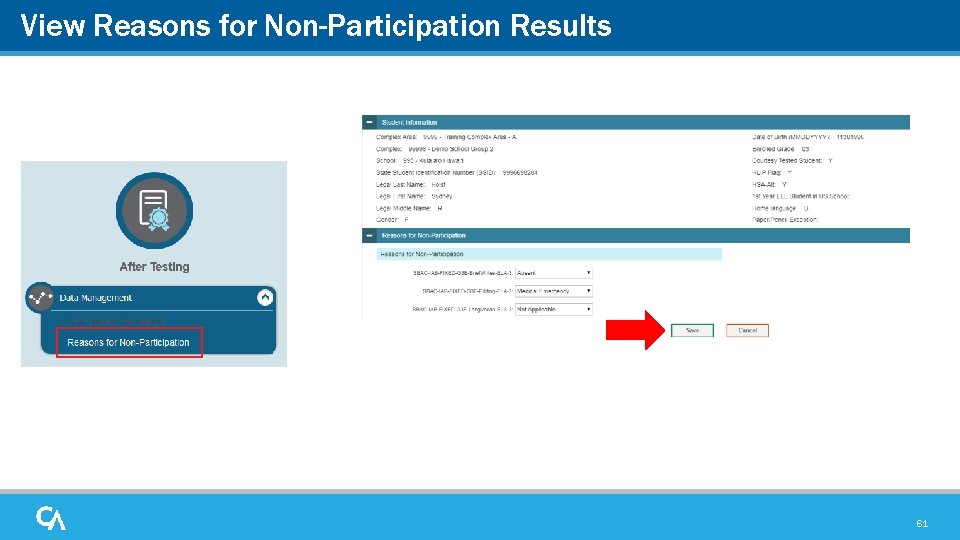
View Reasons for Non-Participation Results 61
Contact Your Help Desk You can contact the Help Desk for assistance with any technical issues you encounter. When contacting the Help Desk, please be ready to provide the following information: • Any error messages that are appearing (including codes) • Your operating system and browser information • Your network configuration information • Your contact information for follow-up by telephone or email • Any other relevant information, such as test names or content areas, student IDs, session IDs, and search criteria For test administration or policy issues, please contact your school Test Coordinator. 62
Thank You! Further Information • Visit – alohahsap. org – smarterbalanced. org • Call, fax, or email the HSAP Help Desk – Hours: 7: 30 am to 4: 00 p. m. HST, Monday-Friday (except holidays) – Phone: 1 -866 -648 -3712 – Fax: 1 -877 -231 -7813 – Email: HSAPHelp. Desk@cambiumassessment. com 63
- Slides: 63