
Terminal SSH Tips CSE 116 TA Philip Matuskiewicz
- Slides: 20
Terminal / SSH Tips CSE 116 TA: Philip Matuskiewicz File location: http: //www. cse. buffalo. edu/~pjm 35/ta/116/linuxhelp. V 2. ppt
Special Users • Root – Similar to the administrator account on Windows – Has COMPLETE control over everything on Linux • Nobody – Many processes (programs) on the system run as this to prevent security vulnerabilities that exist in Windows while running as System (Windows Equivalent of Root/Administrator)
A quick hint • Linux/Unix is CASE sen. Si. Tive. – In Linux, file. java is NOT the same as FILE. JAVA • Change your Password!!! – passwd – prompts you to enter your new password • Terminology – Commands used below will be explained later – Arguments are information commands take in (eg: cd argument) – Flags tell the command how to behave (eg rm flag argument)
List Directories / Files • Command: ls – Result: lists all files / directories in the current directory • Command: ls –la – Result: lists all files / directories with additional information like file ownership and permissions (discussed later)
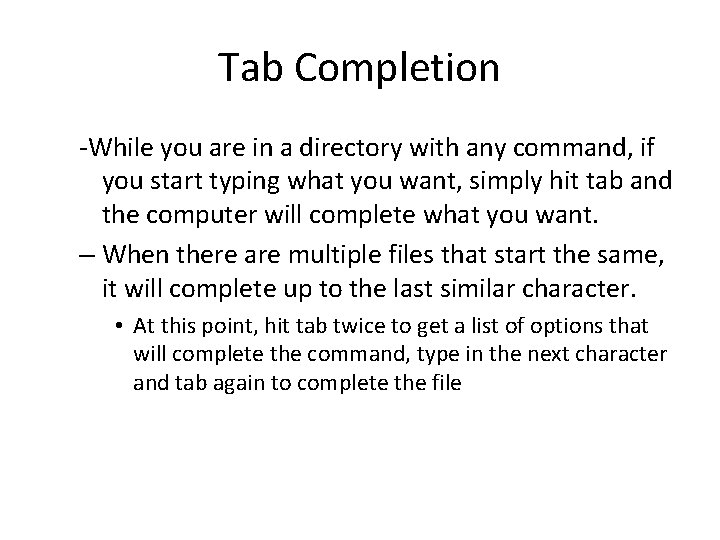
Tab Completion -While you are in a directory with any command, if you start typing what you want, simply hit tab and the computer will complete what you want. – When there are multiple files that start the same, it will complete up to the last similar character. • At this point, hit tab twice to get a list of options that will complete the command, type in the next character and tab again to complete the file
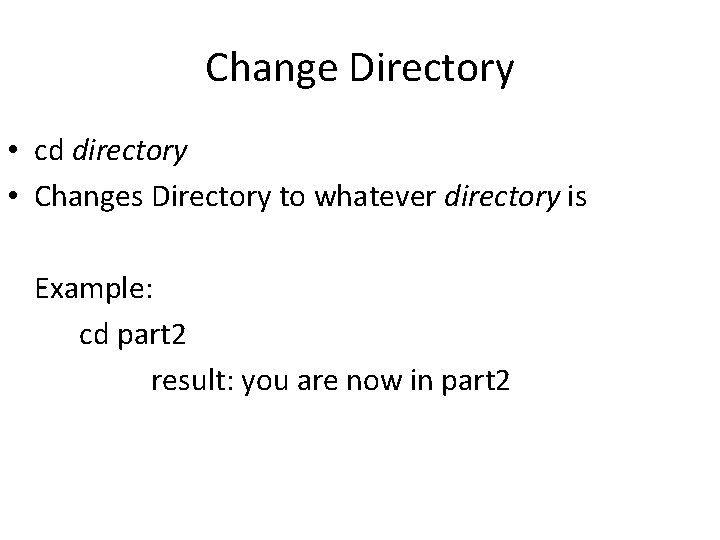
Change Directory • cd directory • Changes Directory to whatever directory is Example: cd part 2 result: you are now in part 2
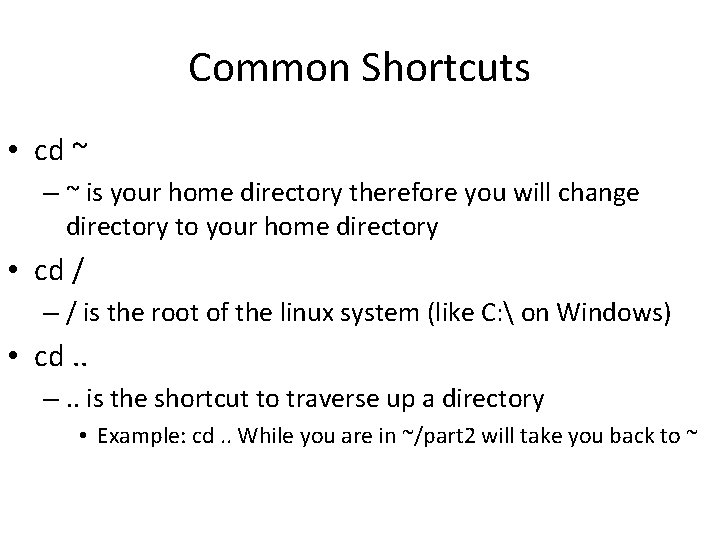
Common Shortcuts • cd ~ – ~ is your home directory therefore you will change directory to your home directory • cd / – / is the root of the linux system (like C: on Windows) • cd. . –. . is the shortcut to traverse up a directory • Example: cd. . While you are in ~/part 2 will take you back to ~
Creating a new directory • mkdir new_directory Example: mkdir
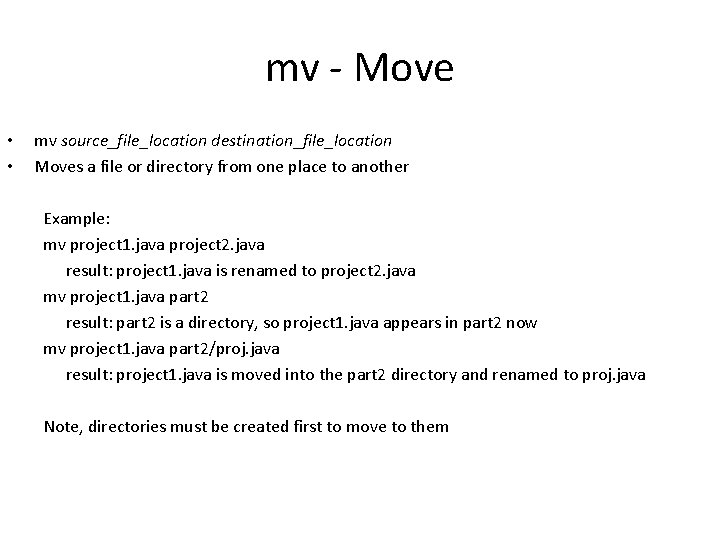
mv - Move • • mv source_file_location destination_file_location Moves a file or directory from one place to another Example: mv project 1. java project 2. java result: project 1. java is renamed to project 2. java mv project 1. java part 2 result: part 2 is a directory, so project 1. java appears in part 2 now mv project 1. java part 2/proj. java result: project 1. java is moved into the part 2 directory and renamed to proj. java Note, directories must be created first to move to them
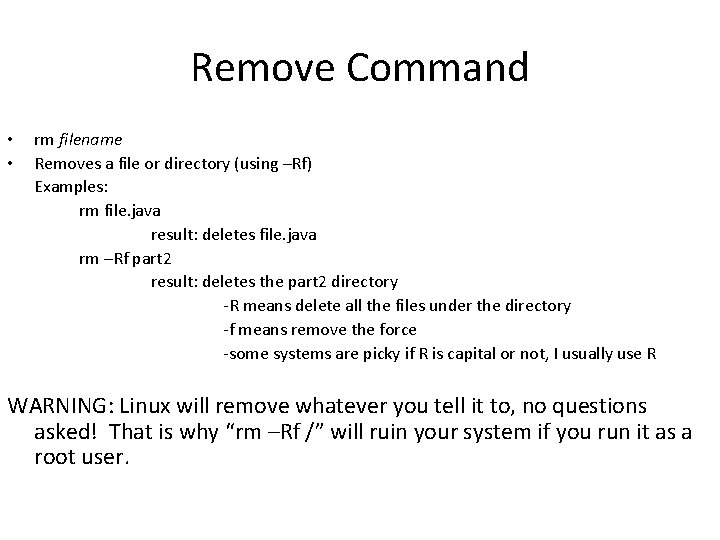
Remove Command • • rm filename Removes a file or directory (using –Rf) Examples: rm file. java result: deletes file. java rm –Rf part 2 result: deletes the part 2 directory -R means delete all the files under the directory -f means remove the force -some systems are picky if R is capital or not, I usually use R WARNING: Linux will remove whatever you tell it to, no questions asked! That is why “rm –Rf /” will ruin your system if you run it as a root user.
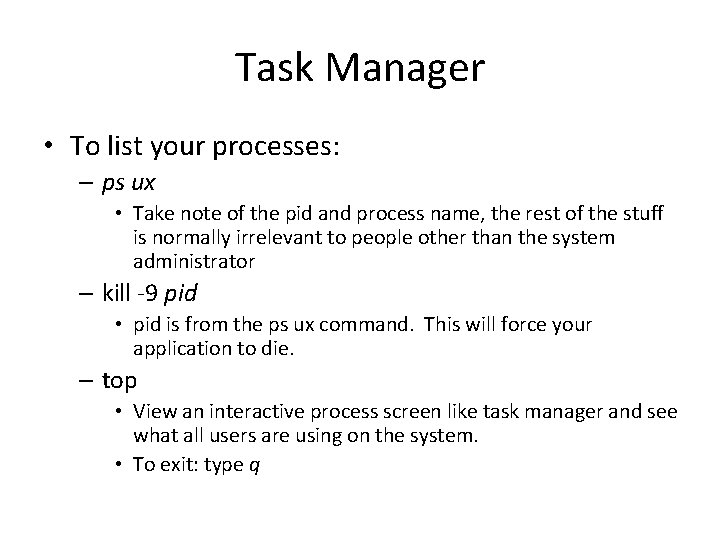
Task Manager • To list your processes: – ps ux • Take note of the pid and process name, the rest of the stuff is normally irrelevant to people other than the system administrator – kill -9 pid • pid is from the ps ux command. This will force your application to die. – top • View an interactive process screen like task manager and see what all users are using on the system. • To exit: type q
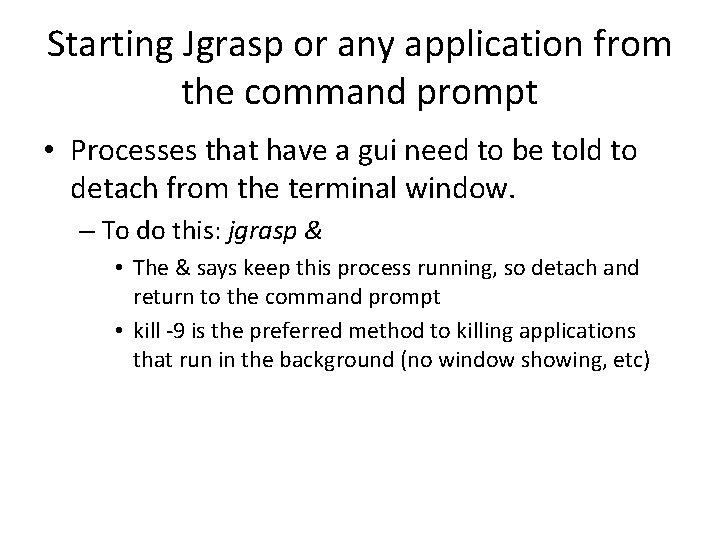
Starting Jgrasp or any application from the command prompt • Processes that have a gui need to be told to detach from the terminal window. – To do this: jgrasp & • The & says keep this process running, so detach and return to the command prompt • kill -9 is the preferred method to killing applications that run in the background (no window showing, etc)
Using the submit_cse 116 command • Simply cd to the directory your file is in • Type: submit_cse 116 filename – Replace filename with your file
Using zip / archives • To zip a directory: – zip –r file. zip file/* • r means traverse and zip all files in the directory • * is a wildcard character meaning zip everything • Unzip a directory – Unzip file. zip • Unzip all the files into the directory you are at
Using archives with Tar and gunzip • To create a tar directory – tar cf file. tar directory/ • The flag c is compress, f is force • If you add z, you will use gunzip so file. tar changes to file. tar. gz – So tar czf file. tar. gz directory/ – tar xf file. tar • Extracts the tar archive to the current directory • z will handle gunzip so tar xzf will handle tar. gz archives – The v parameter • Interested in seeing what is happening, type in v with the other flags: tar xvzf file. tar. gz will extract the archive and tell you what it is doing
Stuck? Use the manual • For every Linux command, there is a manual. • Access the manual through: - man command - Example: - man cd - This will open up vi (another text editor). Use the arrow keys to read the file. Type “q” to quit. - You may need to use “: q” to exit.
The pico text editor (nano is very similar and more modern) • Command: pico filename • To save your file: ctrl o – Writes your file out to the destination. Options are listed on the bottom of the terminal • To exit pico: ctrl x – Will ask you to save your file before exiting • Your mouse will NOT work in pico!!! Use your arrow keys to move the text position!
Changing Permissions • Command: chmod permission file Example: chmod 777 file. zip result: file. zip is now user, group, and world writeable. chmod –r 777 directory result: directory and all files in it are now chmod’d to 777 Notes: The flag –r is for recursion into subdirectories. 777 is explained on the next slide.
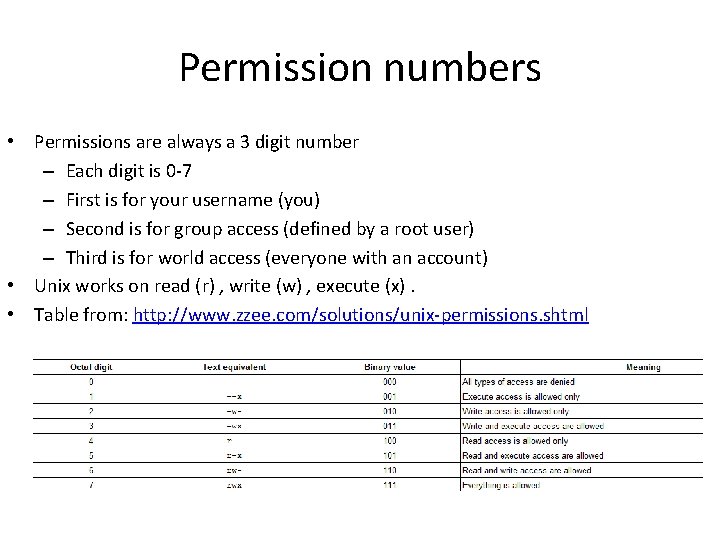
Permission numbers • Permissions are always a 3 digit number – Each digit is 0 -7 – First is for your username (you) – Second is for group access (defined by a root user) – Third is for world access (everyone with an account) • Unix works on read (r) , write (w) , execute (x). • Table from: http: //www. zzee. com/solutions/unix-permissions. shtml
Giving file ownership to others • Command chown -R user directory – Recursively changes ownership of directories, subdirectories, and files to another user • Command chown user file – Changes ownership of a single file to another user • Normally only root can do this so it doesn’t really matter but is good extra information.