
TENEX Precinct Central Touchpad Training Touchpad setup Open

- Slides: 16
TENEX Precinct Central Touchpad Training
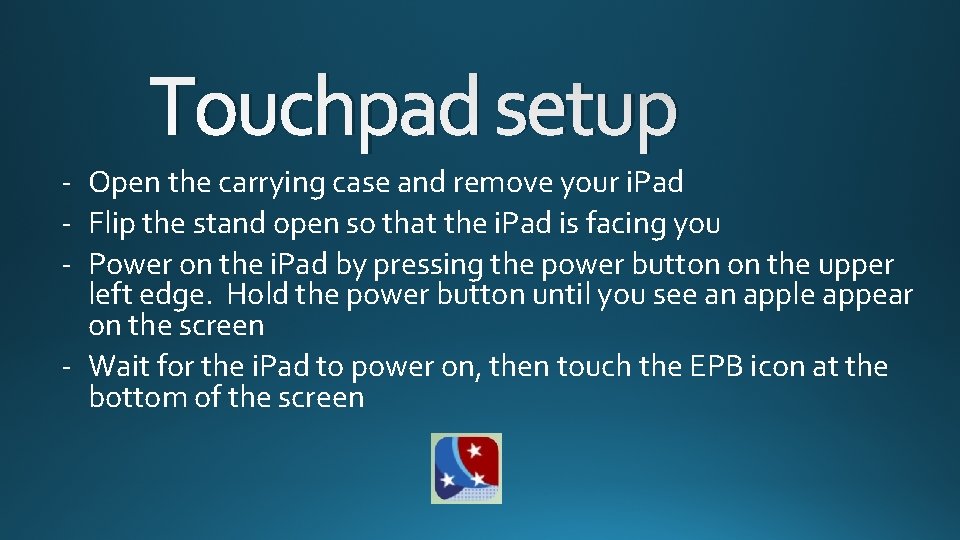
Touchpad setup - Open the carrying case and remove your i. Pad - Flip the stand open so that the i. Pad is facing you - Power on the i. Pad by pressing the power button on the upper left edge. Hold the power button until you see an apple appear on the screen - Wait for the i. Pad to power on, then touch the EPB icon at the bottom of the screen
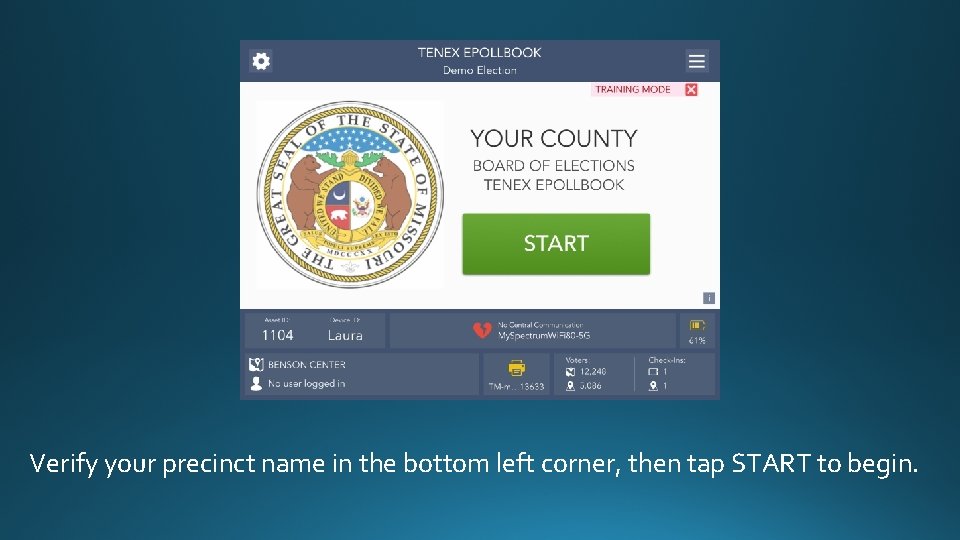
Verify your precinct name in the bottom left corner, then tap START to begin.
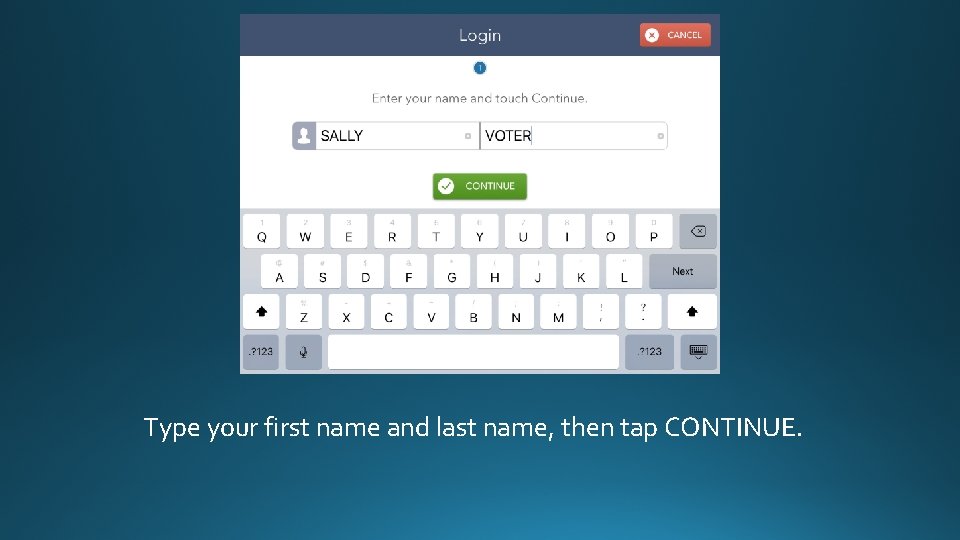
Type your first name and last name, then tap CONTINUE.
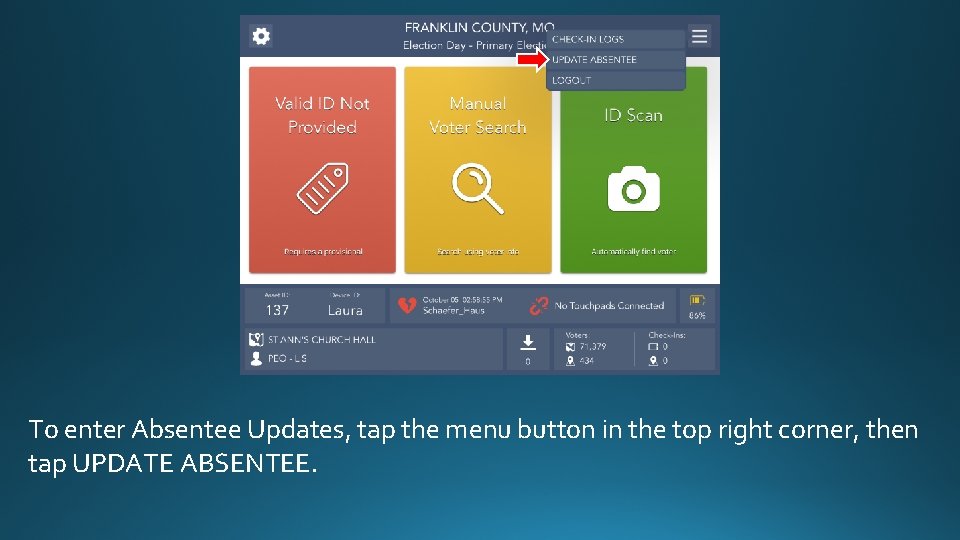
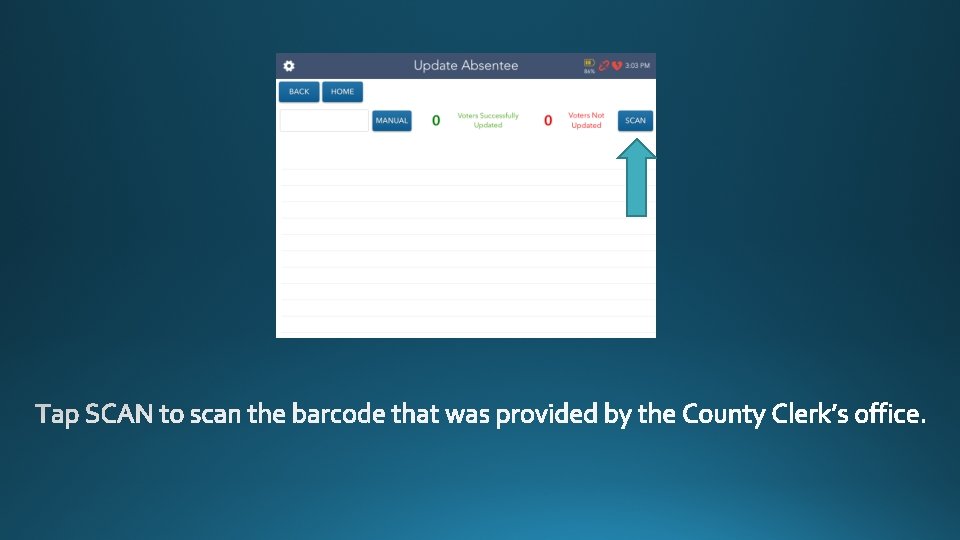
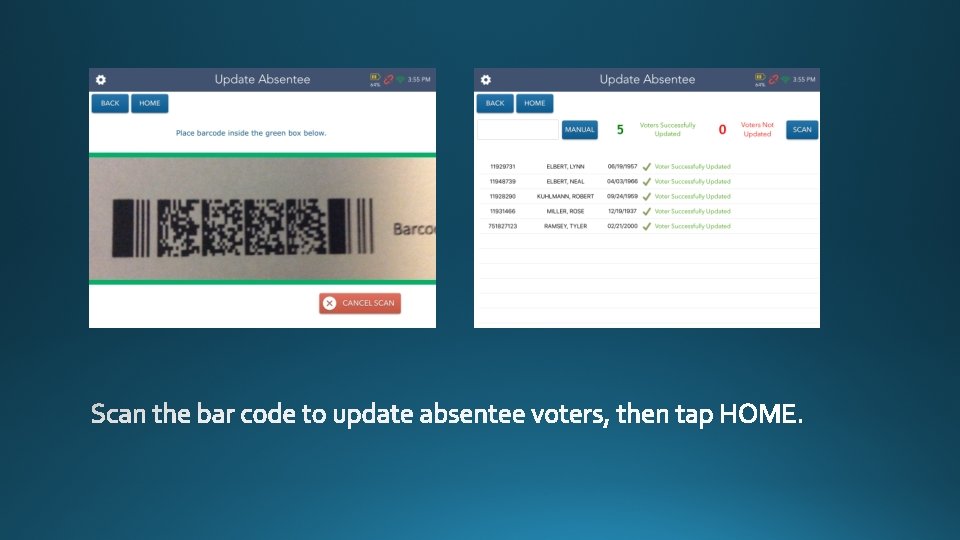
To enter Absentee Updates, tap the menu button in the top right corner, then tap UPDATE ABSENTEE.
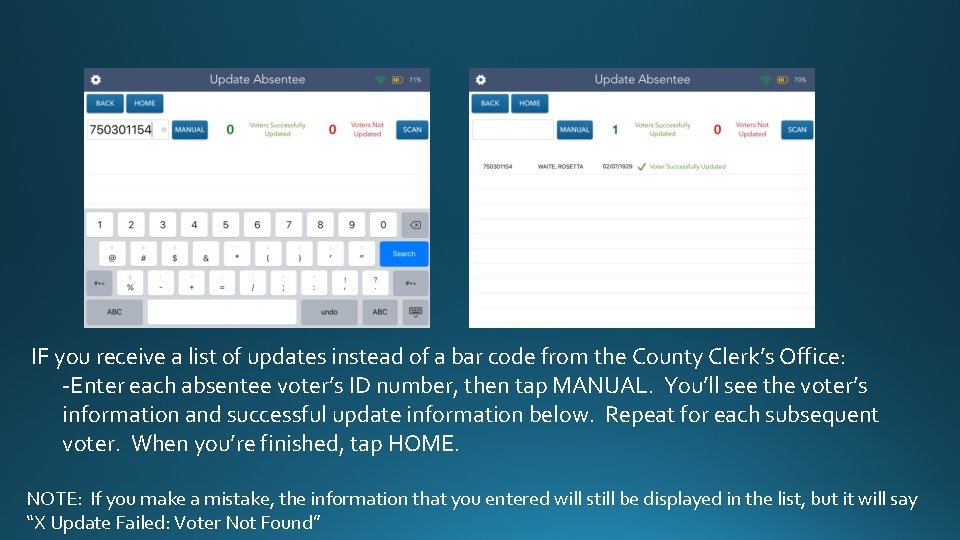
IF you receive a list of updates instead of a bar code from the County Clerk’s Office: -Enter each absentee voter’s ID number, then tap MANUAL. You’ll see the voter’s information and successful update information below. Repeat for each subsequent voter. When you’re finished, tap HOME. NOTE: If you make a mistake, the information that you entered will still be displayed in the list, but it will say “X Update Failed: Voter Not Found”
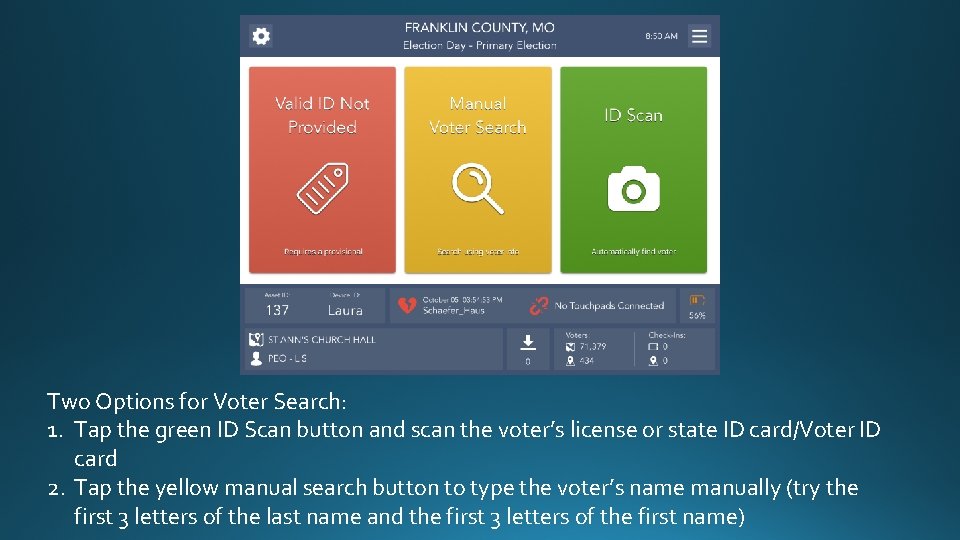
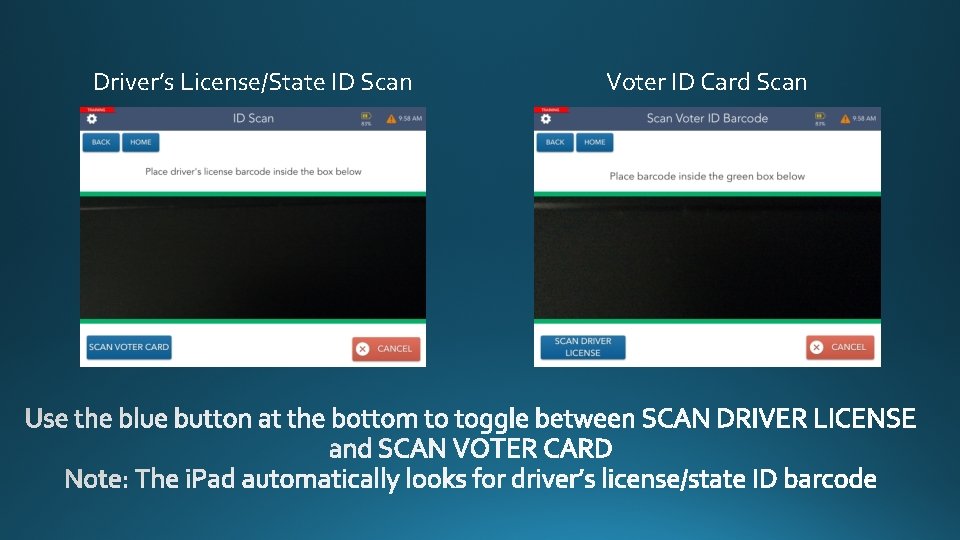
Two Options for Voter Search: 1. Tap the green ID Scan button and scan the voter’s license or state ID card/Voter ID card 2. Tap the yellow manual search button to type the voter’s name manually (try the first 3 letters of the last name and the first 3 letters of the first name)
Driver’s License/State ID Scan Voter ID Card Scan
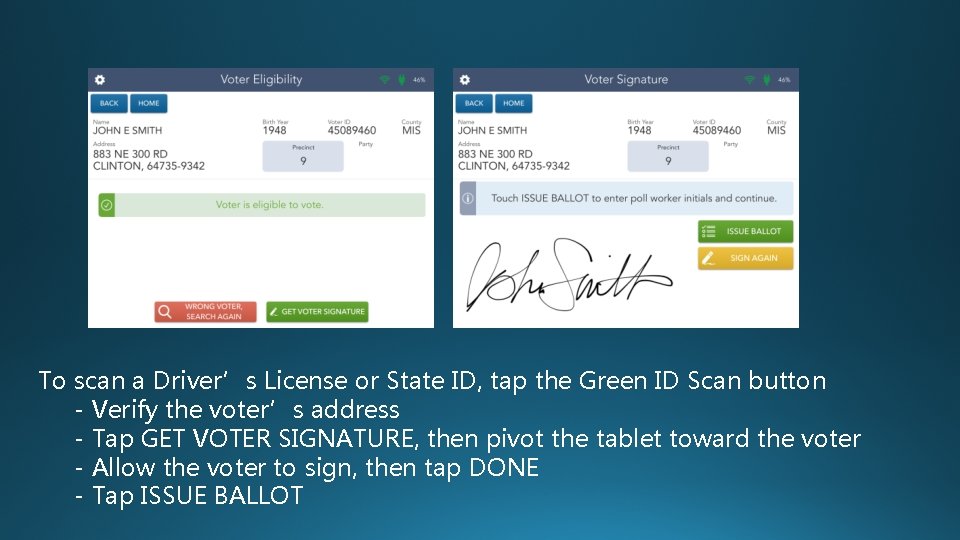
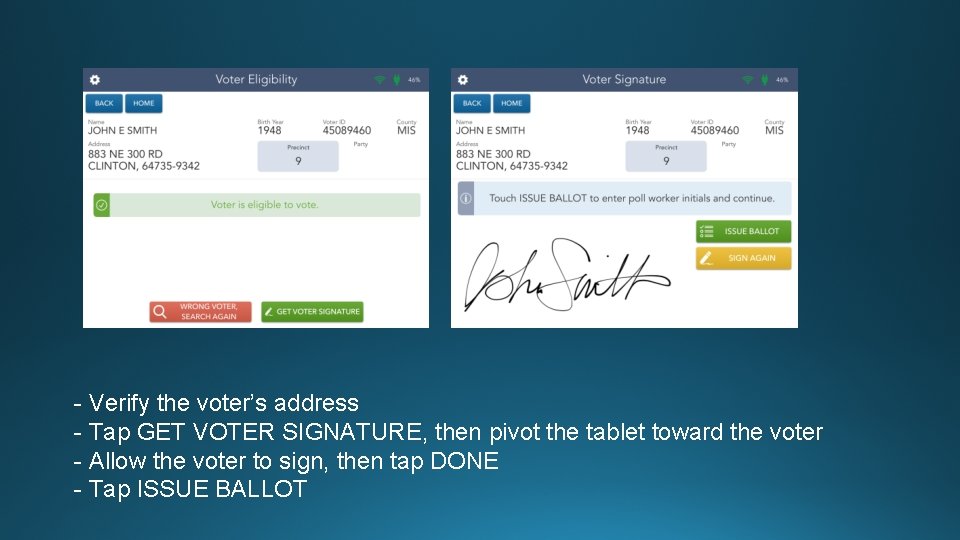
To scan a Driver’s License or State ID, tap the Green ID Scan button - Verify the voter’s address - Tap GET VOTER SIGNATURE, then pivot the tablet toward the voter - Allow the voter to sign, then tap DONE - Tap ISSUE BALLOT
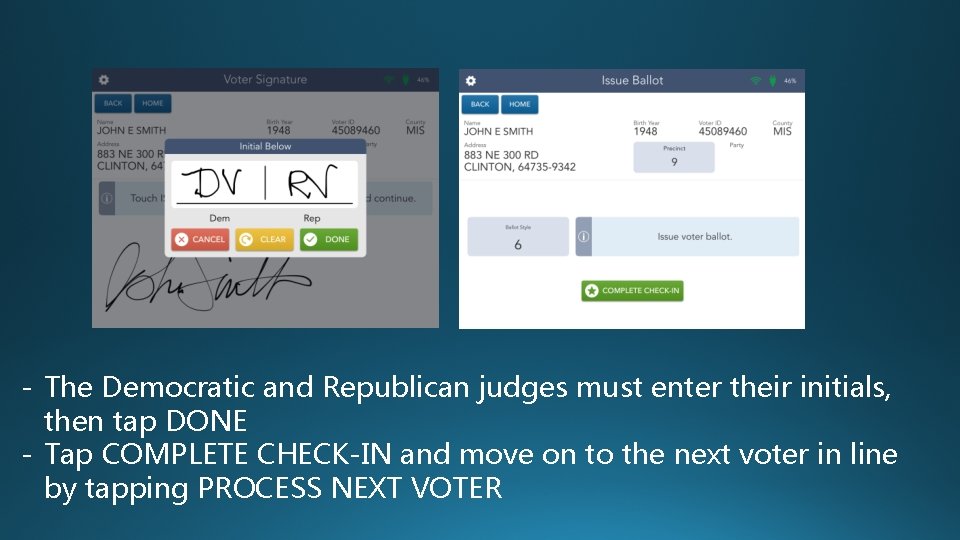
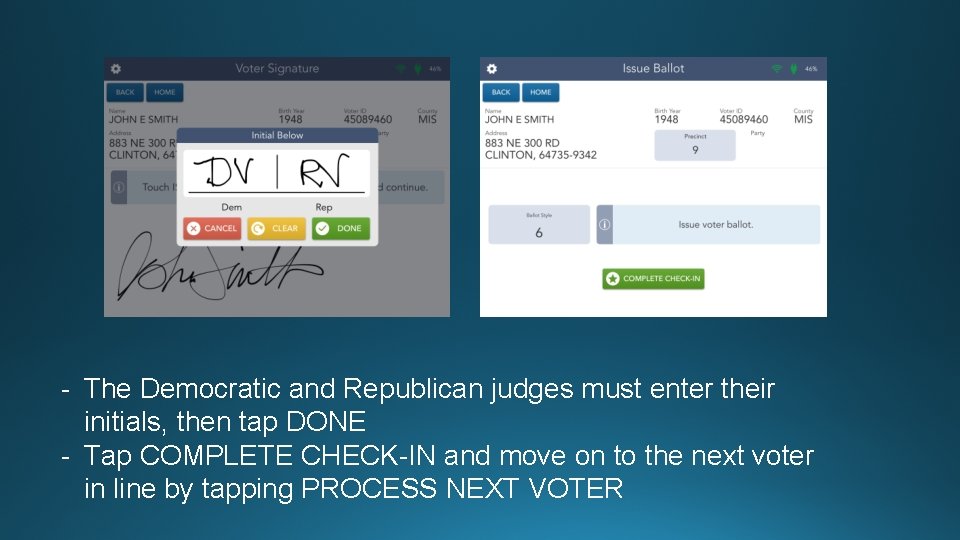
- The Democratic and Republican judges must enter their initials, then tap DONE - Tap COMPLETE CHECK-IN and move on to the next voter in line by tapping PROCESS NEXT VOTER
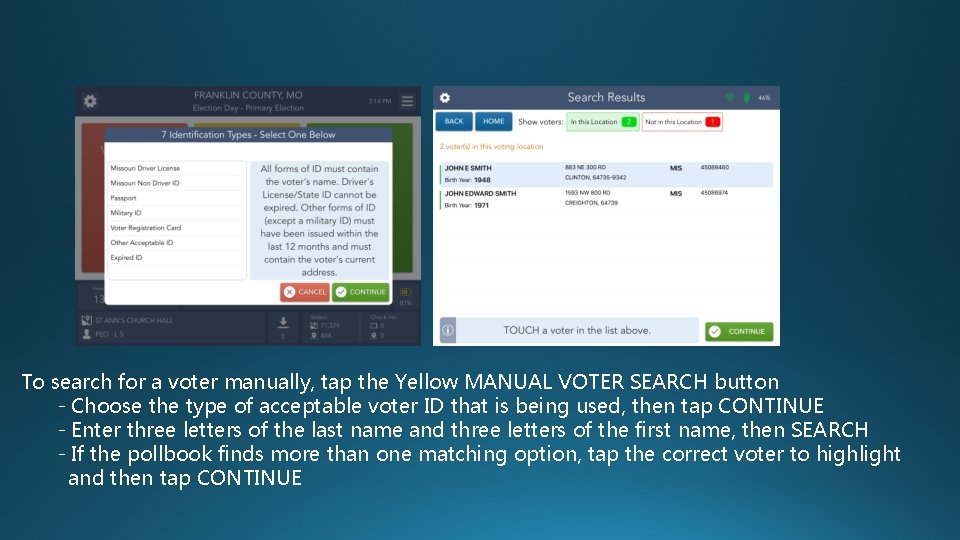
To search for a voter manually, tap the Yellow MANUAL VOTER SEARCH button - Choose the type of acceptable voter ID that is being used, then tap CONTINUE - Enter three letters of the last name and three letters of the first name, then SEARCH - If the pollbook finds more than one matching option, tap the correct voter to highlight and then tap CONTINUE
- Verify the voter’s address - Tap GET VOTER SIGNATURE, then pivot the tablet toward the voter - Allow the voter to sign, then tap DONE - Tap ISSUE BALLOT
- The Democratic and Republican judges must enter their initials, then tap DONE - Tap COMPLETE CHECK-IN and move on to the next voter in line by tapping PROCESS NEXT VOTER
Tips: - If the screen turns black, touch the HOME button (the round button on the right side of the screen) - Voter check-in numbers are displayed on the main screen in the bottom right-hand corner - Power off the i. Pad at the end of the night by pressing the power button until you see the “Slide to Power Off” message. Simply slide your finger to shut down. - For troubleshooting, double-tap the HOME button and swipe the application up off of the screen to reset.