
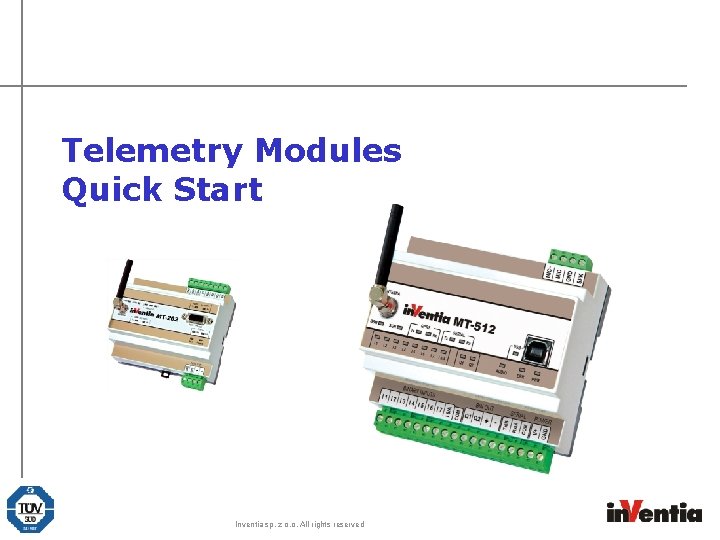
Telemetry Modules Quick Start Inventia sp z o
- Slides: 21
Telemetry Modules Quick Start Inventia sp. z o. o. All rights reserved
Necessary Software à à à Microsoft Framework 1. 1 MTManager MT-Data Provider v 2. 5 MT-USB Telemetry Driver Softing OPC or other OPC client All programs should be installed with default settings Inventia sp. z o. o. All rights reserved
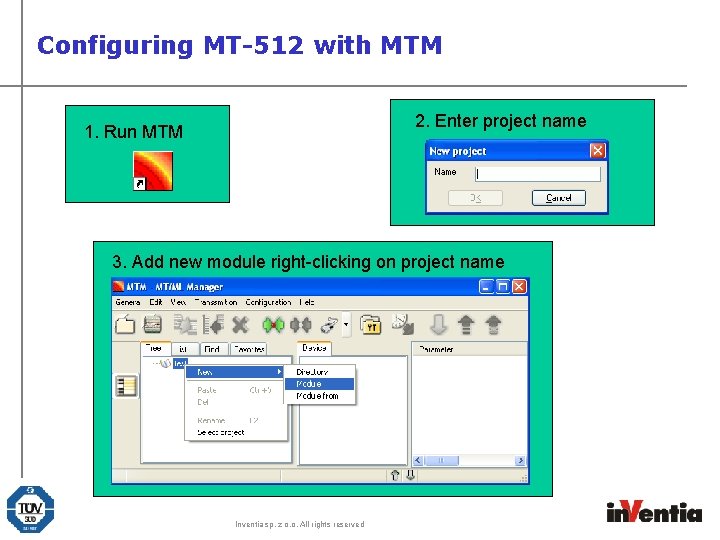
Configuring MT-512 with MTM 2. Enter project name 1. Run MTM 2. 3. Add new module right-clicking on project name Inventia sp. z o. o. All rights reserved
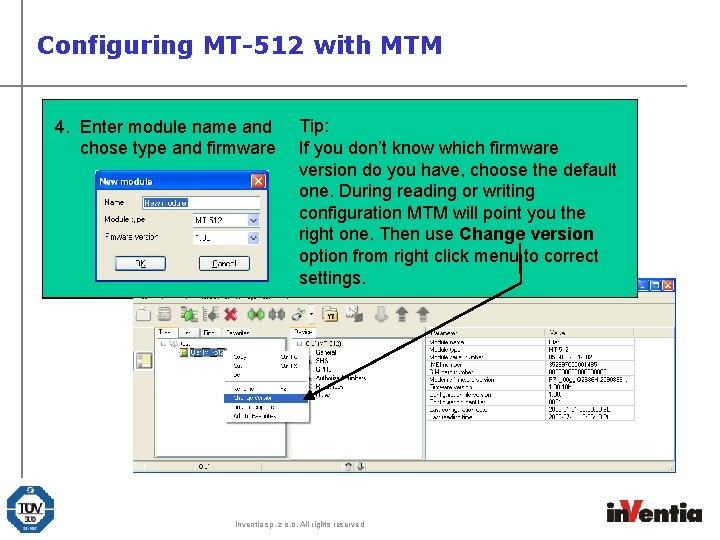
Configuring MT-512 with MTM 4. Enter module name and chose type and firmware Tip: If you don’t know which firmware version do you have, choose the default one. During reading or writing configuration MTM will point you the right one. Then use Change version option from right click menu to correct settings. Inventia sp. z o. o. All rights reserved
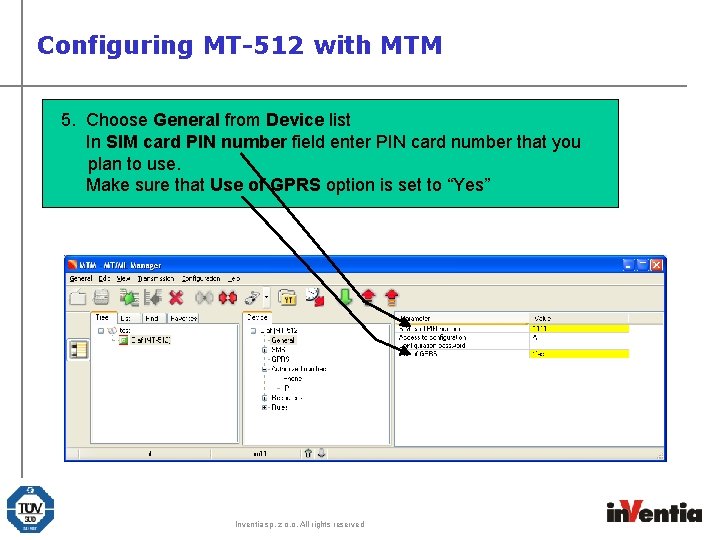
Configuring MT-512 with MTM 5. Choose General from Device list In SIM card PIN number field enter PIN card number that you plan to use. Make sure that Use of GPRS option is set to “Yes” Inventia sp. z o. o. All rights reserved
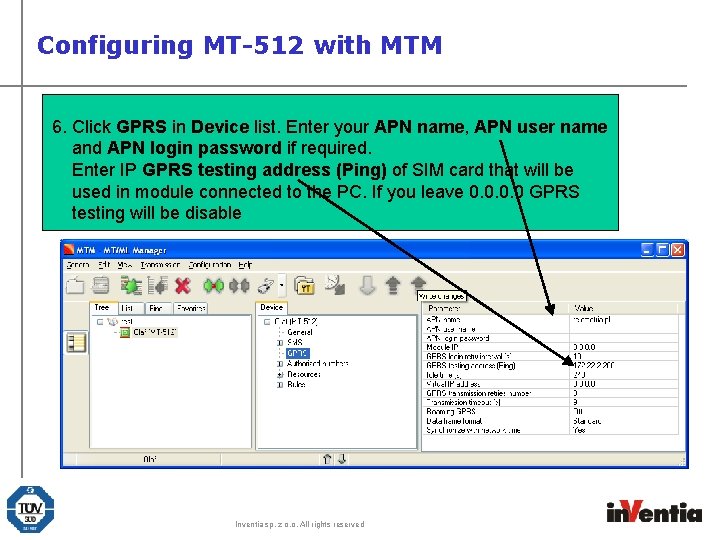
Configuring MT-512 with MTM 6. Click GPRS in Device list. Enter your APN name, APN user name and APN login password if required. Enter IP GPRS testing address (Ping) of SIM card that will be used in module connected to the PC. If you leave 0. 0 GPRS testing will be disable Inventia sp. z o. o. All rights reserved
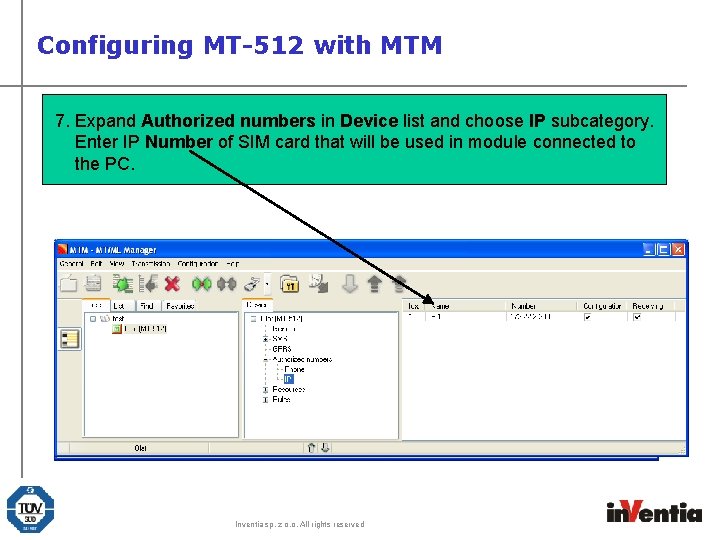
Configuring MT-512 with MTM 7. Expand Authorized numbers in Device list and choose IP subcategory. Enter IP Number of SIM card that will be used in module connected to the PC. Inventia sp. z o. o. All rights reserved
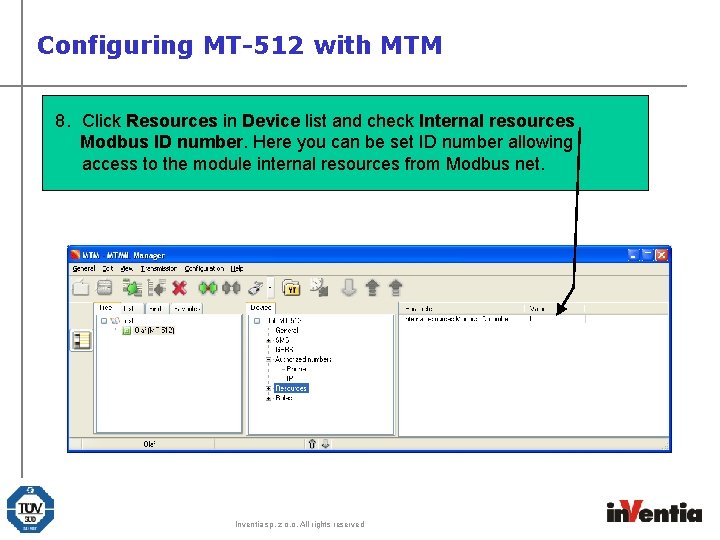
Configuring MT-512 with MTM 8. Click Resources in Device list and check Internal resources Modbus ID number. Here you can be set ID number allowing access to the module internal resources from Modbus net. Inventia sp. z o. o. All rights reserved
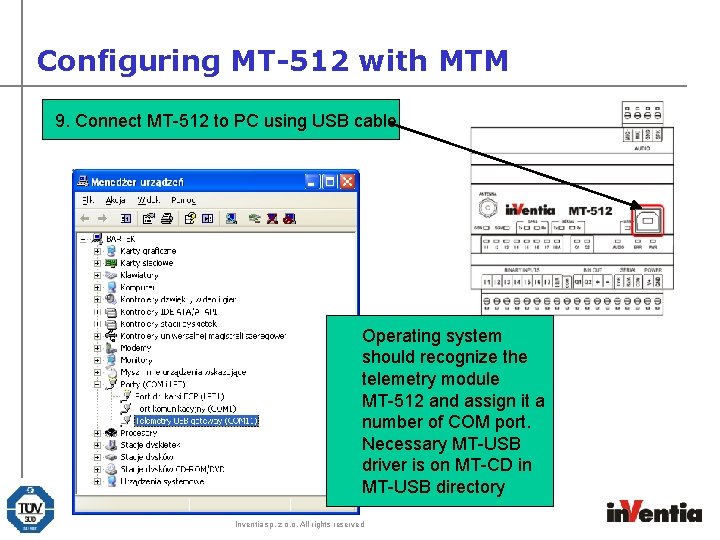
Configuring MT-512 with MTM 9. Connect MT-512 to PC using USB cable Operating system should recognize the telemetry module MT-512 and assign it a number of COM port. Necessary MT-USB driver is on MT-CD in MT-USB directory Inventia sp. z o. o. All rights reserved
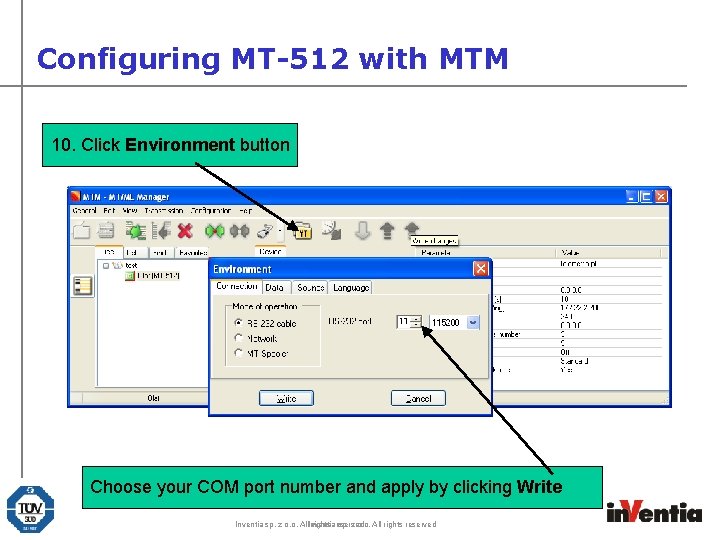
Configuring MT-512 with MTM 10. Click Environment button Choose your COM port number and apply by clicking Write Inventia sp. z o. o. All. Inventia rights reserved sp. z o. o. All rights reserved
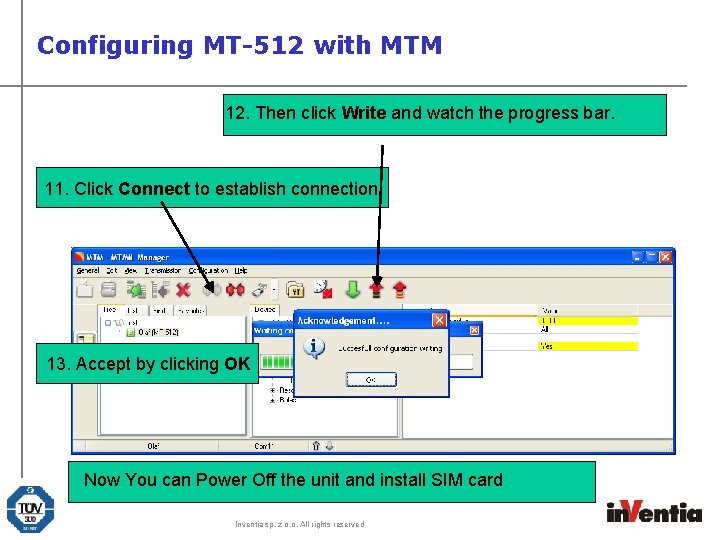
Configuring MT-512 with MTM 12. Then click Write and watch the progress bar. 11. Click Connect to establish connection 13. Accept by clicking OK Now You can Power Off the unit and install SIM card Inventia sp. z o. o. All rights reserved
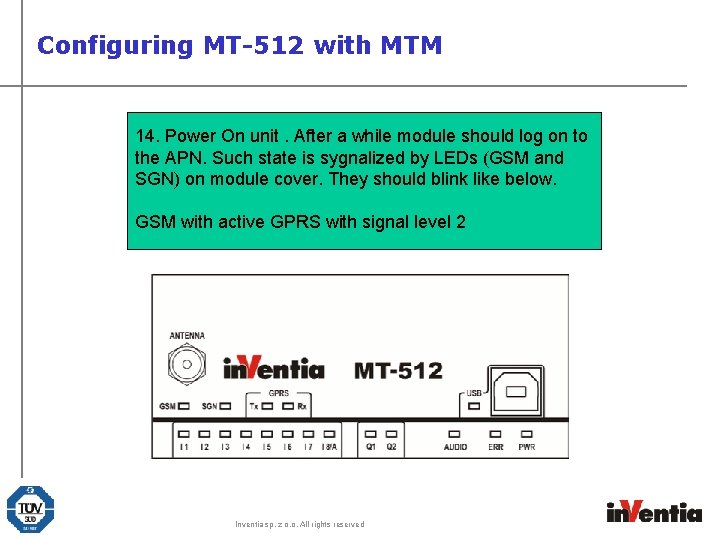
Configuring MT-512 with MTM 14. Power On unit. After a while module should log on to the APN. Such state is sygnalized by LEDs (GSM and SGN) on module cover. They should blink like below. GSM with active GPRS with signal level 2 Inventia sp. z o. o. All rights reserved
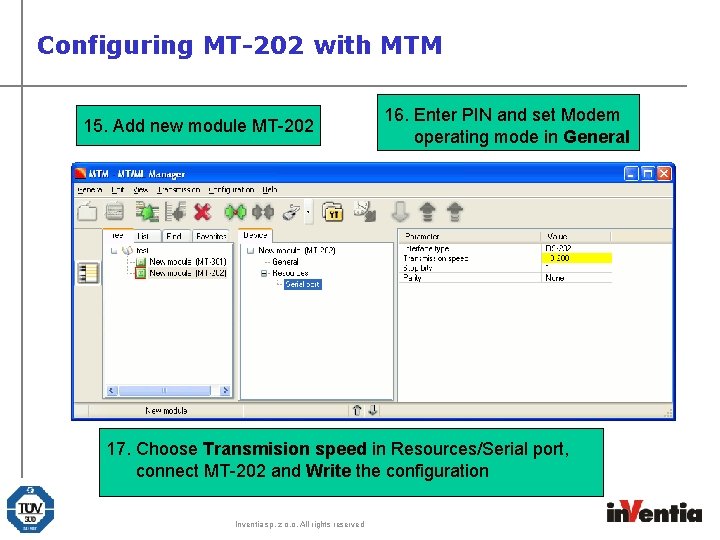
Configuring MT-202 with MTM 15. Add new module MT-202 16. Enter PIN and set Modem operating mode in General 17. Choose Transmision speed in Resources/Serial port, connect MT-202 and Write the configuration Inventia sp. z o. o. All rights reserved
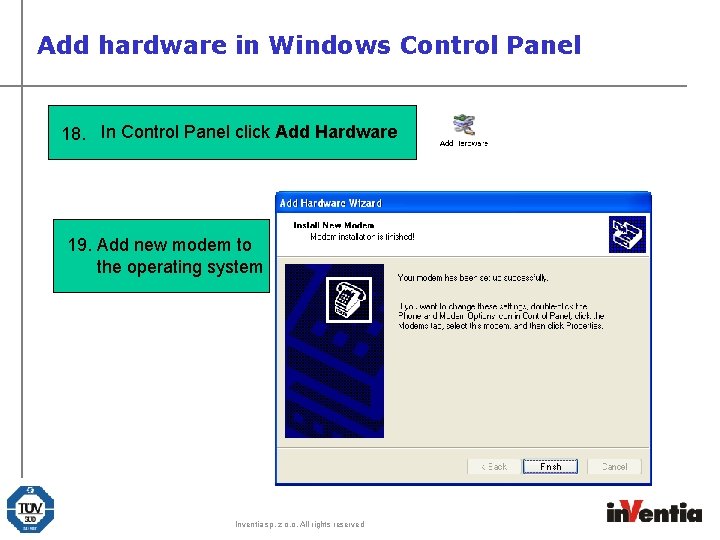
Add hardware in Windows Control Panel 18. In Control Panel click Add Hardware 19. Add new modem to the operating system Inventia sp. z o. o. All rights reserved
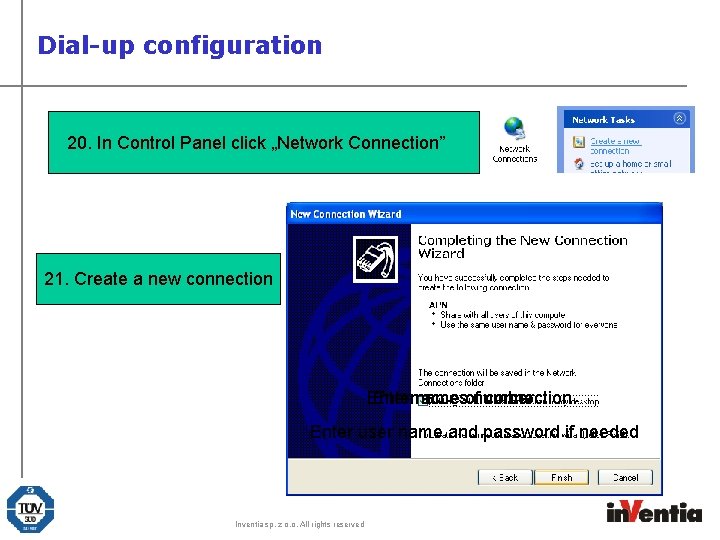
Dial-up configuration 20. In Control Panel click „Network Connection” 21. Create a new connection Entername accesofnumber connection Enter user name and password if needed Inventia sp. z o. o. All rights reserved
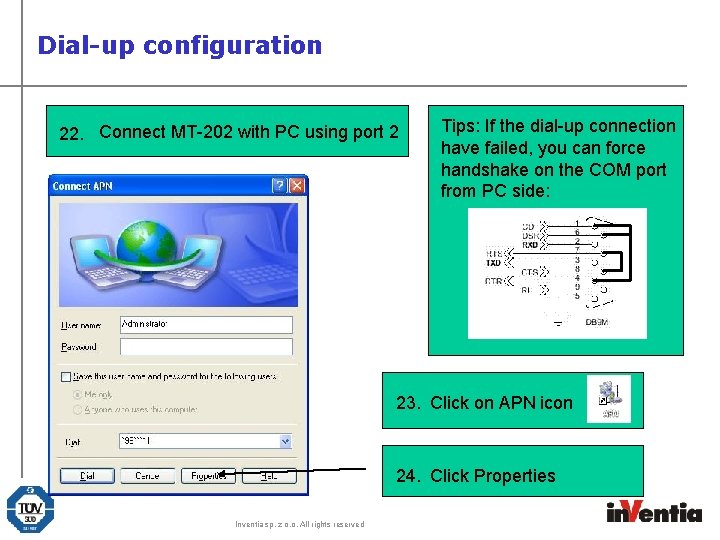
Dial-up configuration 22. Connect MT-202 with PC using port 2 Tips: If the dial-up connection have failed, you can force handshake on the COM port from PC side: 23. Click on APN icon 24. Click Properties Inventia sp. z o. o. All rights reserved
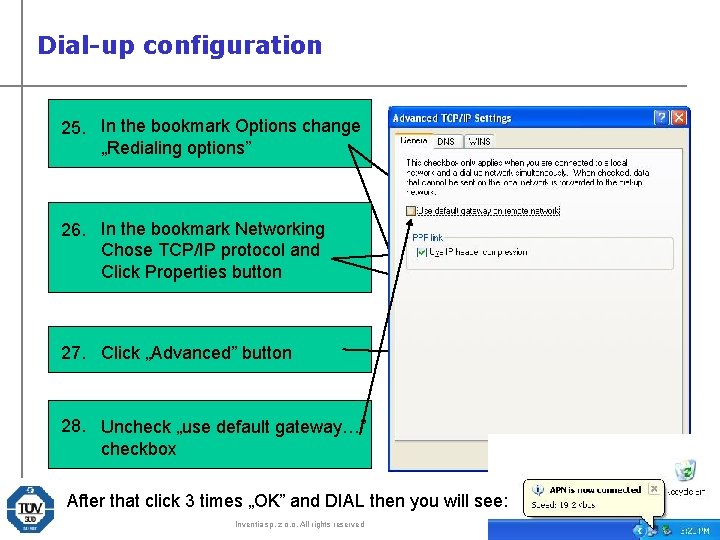
Dial-up configuration 25. In the bookmark Options change „Redialing options” 26. In the bookmark Networking Chose TCP/IP protocol and Click Properties button 27. Click „Advanced” button 28. Uncheck „use default gateway…” checkbox After that click 3 times „OK” and DIAL then you will see: Inventia sp. z o. o. All rights reserved
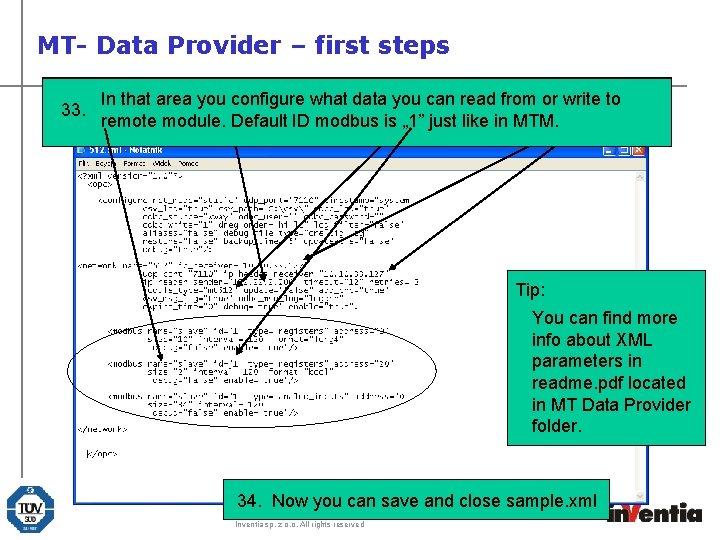
MT- Data Provider – first steps After First step installation isisto change go to destination default sample. xml directory: file. ”C: Program Youismust enter IPthe In that area you configure what data youcard can read from or write to Next move entering IP number of SIM that mounted in 32. 29. 30. 33. Here you should to put correct type of the module 31. FilesIn. VentiaMTopc 2” numbers of remote module and open „sample. xml” in in NOTEPAD remote module. Default ID (MT-512) modbus is „ 1” just like MTM. MT-202 Tip: You can find more info about XML parameters in readme. pdf located in MT Data Provider folder. 34. Now you can save and close sample. xml Inventia sp. z o. o. All rights reserved
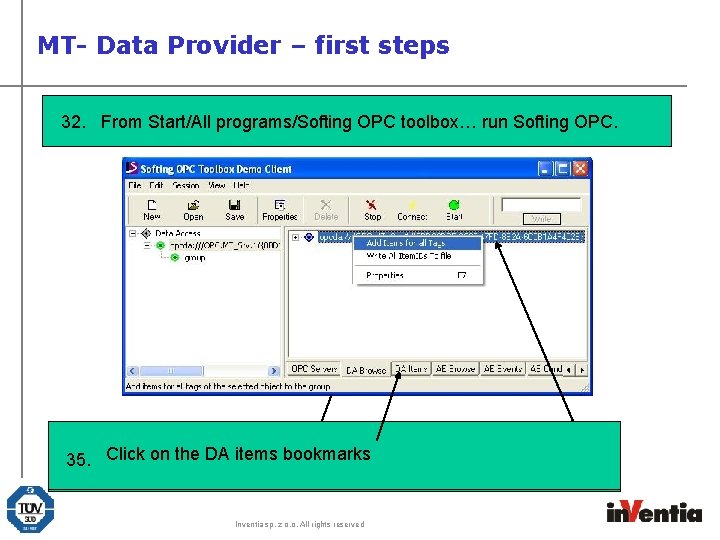
MT- Data Provider – first steps 32. From Start/All programs/Softing OPC toolbox… run Softing OPC. Left click od DA DA Browse bookmark right click on server ID 34. on. Click the bookmarks Double on items MT-OPC server willand start driver 33. Click 35. And left click on „Add Item for all tags” Inventia sp. z o. o. All rights reserved
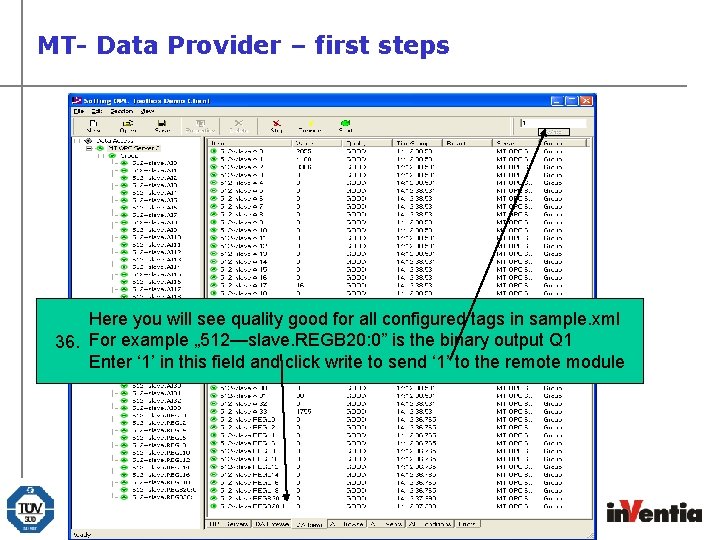
MT- Data Provider – first steps Here you will see quality good for all configured tags in sample. xml 36. For example „ 512—slave. REGB 20: 0” is the binary output Q 1 Enter ‘ 1’ in this field and click write to send ‘ 1’ to the remote module Inventia sp. z o. o. All rights reserved
Congratulations!!! You have configured your first telemetry system based on module MT-512 produced by In. Ventia !!! If you have questions please contact Technical Support: +48 22 54 53 230 Inventia sp. z o. o. All rights reserved