
Technology Liaison Program Office of Digital Safety Educational







- Slides: 48
Technology Liaison Program Office of Digital Safety, Educational Technology & Library Media February 2021 Presented by: The Office of Digital Safety, Educational Technology & Library Media Michael Fort Supervisor – Educational Technology 1
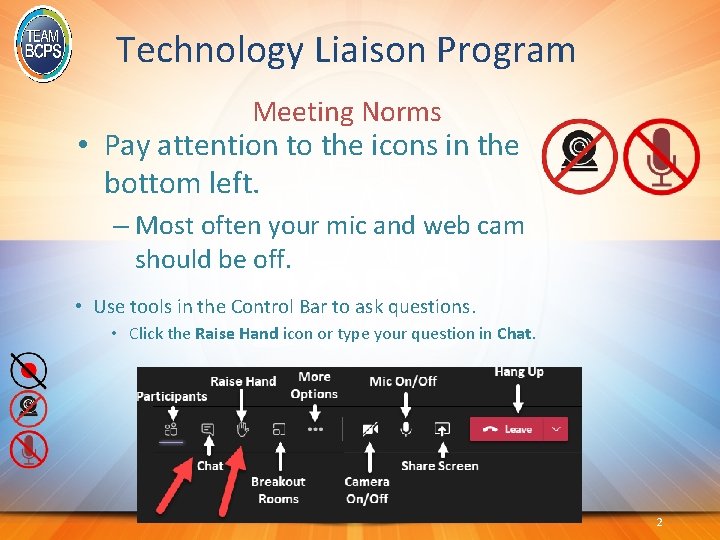
Technology Liaison Program Meeting Norms • Pay attention to the icons in the bottom left. – Most often your mic and web cam should be off. • Use tools in the Control Bar to ask questions. • Click the Raise Hand icon or type your question in Chat. 2
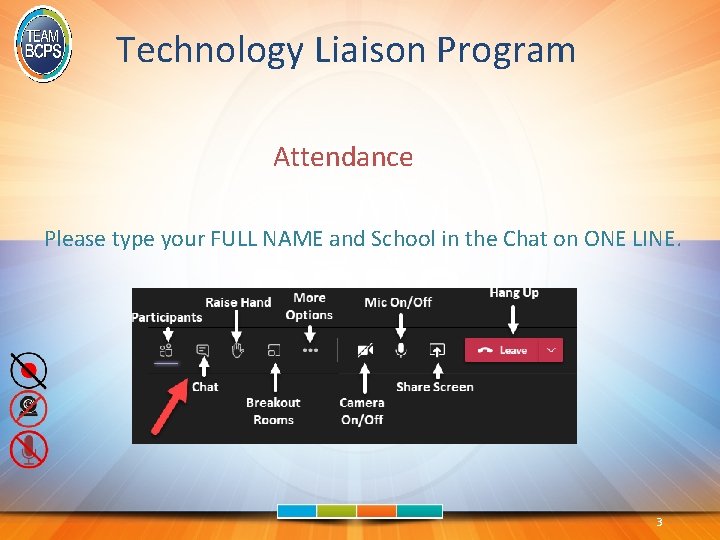
Technology Liaison Program Attendance Please type your FULL NAME and School in the Chat on ONE LINE. 3
Agenda Welcome/Opening Remarks Technology Support Services Important Points Building Readiness Student Devices Self Serve Password Enrollment Classroom Technology Inventory Questions
Return to School I know this time is stressful. This meeting will answer some questions you may have. Items that can’t be answered today will be addressed as soon as possible.
Technology Support Services
TSS Jodi Obenstine - Director www. bcps. org/tech-support The Call Center is open 7 am to 4: 15 pm 443 -809 -4672
Important Points
Important Points We do not have access to existing student usernames and passwords. Do. IT is working on ways to make password resetting more efficient. All non-teaching school Windows desktops have been reimaged. Student facing Windows desktops are being imaged.
Important Points Students that do not have a BCPS device should be issued one, especially if returning. Place a ticket. Building Wi-Fi issues? Place a ticket.
Important Points Staff with a Chromebook should have been reported to the principal. Check with principal to see if on list. These deliveries should be complete. If not on list, place a ticket. Staff device not reimaged? Place a ticket so an appointment can be made. Liaisons will NOT be imaging on their own at this time.
This just in… Duplication of Homeroom Course in Schoology at elementary schools “Missing Courses”
Building Readiness
Building Readiness • Ticket for Wi-Fi issues. • News HUB Article on BCPS Secure Login Directions • Printing to come. • TSS to help set up classrooms. • Teachers MUST return port replicators and other BCPS technology they took home. • Staff may not “double equipment” to maintain a home and school teaching space.
Printing • 1 -2 large machine printers will be operational in each school, depending on size of the school • These will be available for teacher and staff use. • No student printing will be available. • TSS will be providing directions for the installation of local printers for staff in the coming weeks. • These conditions will be in place until the end of the current school year with the goal of implementing cloud-based printing operations in the fall. • No personal printers should be brought in.
Requests to Purchase Technology that was treq’d at some point and now the school wants a replacement – Do. IT will provide a replacement and invoice the school. In some cases, due to volume, additional equipment must be ordered and is subject to delays. What will be ordered/provided is the same thing that is throughout BCPS if the model is still available. Do. IT will approve any substitutions if needed. Technology that was removed from the building to go home or has mysteriously disappeared and the school/office requests a replacement - Do. IT will provide a replacement and invoice the school. In some cases, due to volume, additional equipment must be ordered and is subject to delays. What will be ordered/provided is the same thing that is throughout BCPS if the model is still available. Do. IT will approve any substitutions if needed. A teacher or office staff member requests to purchase additional technology so a set can be at home and at school – BCPS provides one set of equipment to identified staff members. BCPS funds should NOT be used to purchase multiple sets of equipment for the same staff member.
Requests to Purchase Technology A request to purchase web cams, document cameras, ear buds, etc. for staff members who did not receive one or need a replacement – the same model that was purchased for others is what will be approved for purchase by the schools. The items selected have been tested and confirmed to work with BCPS technology. Other purchases, while maybe less expensive or more readily available are not supported by BCPS. Switch out of docking station for port replicator for staff members who inadvertently received an Elitebook and turned in an HP Revolve – in most cases, we are asking the person to exchange their Elite. Book back for the HP Revolve instead of replacing the port replicator. The former is no cost to BCPS. The latter requires a purchase. This is a case by case scenario and is approved/denied by the Director, TSS at this time. Request to purchase/replace AV – these requests are going to Case Seibert for evaluation and will be handled as we did when onsite. There is a specific bundle for cart projectors, replacement projectors and interactive panels that can be purchased by schools. If we have supply, we will help if the projector is broken. If it’s a new classroom, we will help if we have supplies. If it’s replacement for the sake of replacing, the school will pay for these.
Requests to Purchase Technology Projector Bulbs – Do. IT will provide and invoice the school. Do. IT purchases OEM bulbs where able due to longer life and better quality. Additional charging cords – Do. IT will provide them if we have them available. A systemic charging solution is being researched since cables are gone from carts. There is a global shortage on quality power cables in any great quantity. Schools will be charged for them and should use the adapters we provide. The cheap china adapters found on Amazon or similar sites can overheat and damage the device or catch fire.
Student Devices
Student Devices • All students should be issued a BCPS device. • Place a ticket if there is still need. • Students must care for their devices. • No bags will be issued. • Students should carry device in an appropriate container. • Schools may wish to purchase sleeves for their students. • Students should bring a fully charged device each day.
Student Devices • Students in class may or may not be following along with the teacher on their device. • Teacher can present to the class via the projection system. • Utilize a room mic (webcam) to capture student responses in the room. • Be mindful of many open mics on student devices that could cause feedback and there will be a delay from the “live action” in the classroom.
Student Devices • High School – Windows Devices • Must be reimaged (via ticket) • 15, 20, 25 for swaps sent via a ticket. • Middle School – Chromebooks • Students swapping Windows for Chromebooks • More shipments forthcoming • Elementary – Chromebooks • Students with Windows devices are NOT swapping yet • 15, 20, 25 for swaps sent via a ticket.
Computer Labs (Secondary) • Labs are being reimaged. • In. Tune will be used to deploy software needed. • First student will download via In. Tune. The software will then be available for other users. • If software is NOT in In. Tune, place a ticket describing the software needed, location of lab and the number of machines needed. • MUST be approved software.
Self Serve Password Enrollment
Self Serve Password Enrollment A new BCPS Self-Service Password process has enabled staff to reset their password without contacting the Help Desk. This process requires an initial setup of two-step authentication. Two-step authentication means that to access an online account, users must provide two kinds of identification: a password and one other method. After February 22, 2021, all staff will be required to complete this process when logging into Office 365. Staff must ENROLL but they do NOT need to change their password. For directions to enroll initially in password self-service, click ere. For directions to perform a password self-service reset once enrolled, click ere. Please note that Microsoft and Google passwords are no longer linked. For users to have one password for BCPS, they must also reset their password in Google through https: //myaccount. google. com/personal-info and click password.
Classroom Technology
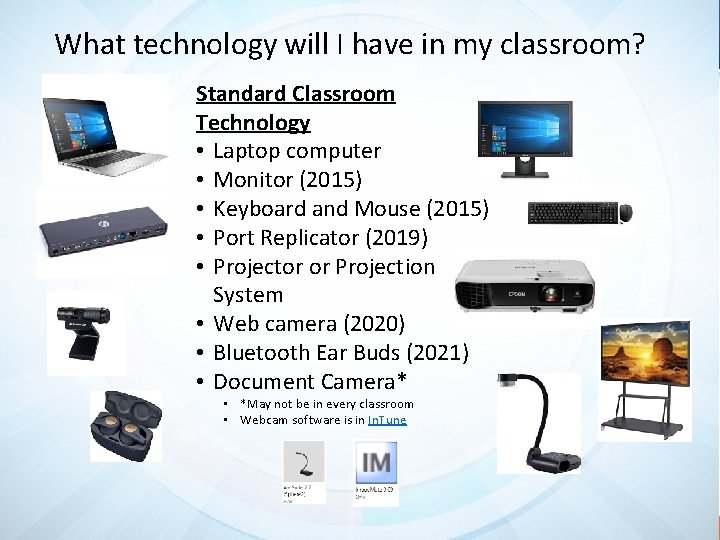
What technology will I have in my classroom? Standard Classroom Technology • Laptop computer • Monitor (2015) • Keyboard and Mouse (2015) • Port Replicator (2019) • Projector or Projection System • Web camera (2020) • Bluetooth Ear Buds (2021) • Document Camera* • *May not be in every classroom • Webcam software is in In. Tune
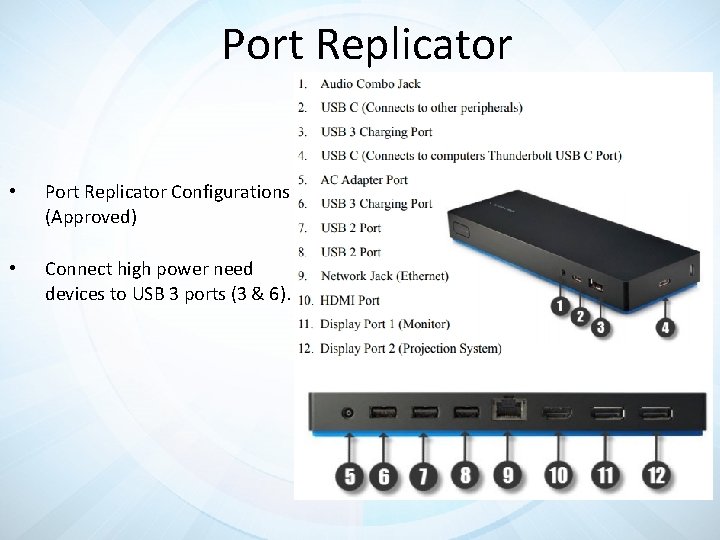
Port Replicator • Port Replicator Configurations (Approved) • Connect high power need devices to USB 3 ports (3 & 6).
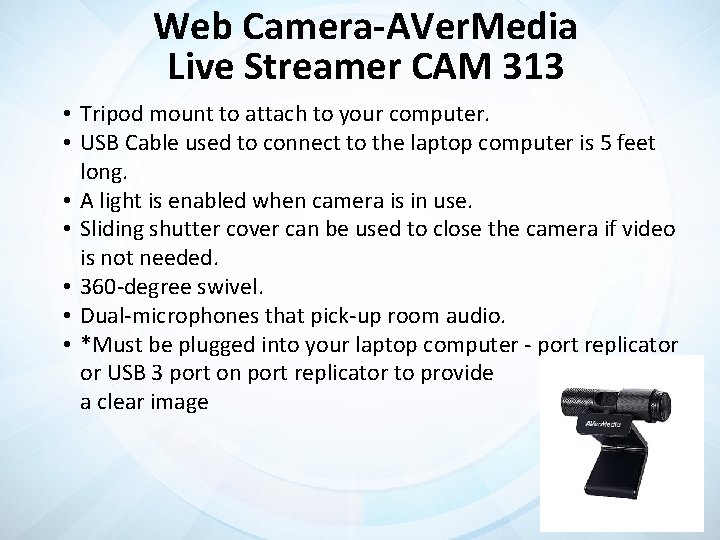
Web Camera-AVer. Media Live Streamer CAM 313 • Tripod mount to attach to your computer. • USB Cable used to connect to the laptop computer is 5 feet long. • A light is enabled when camera is in use. • Sliding shutter cover can be used to close the camera if video is not needed. • 360 -degree swivel. • Dual-microphones that pick-up room audio. • *Must be plugged into your laptop computer - port replicator or USB 3 port on port replicator to provide a clear image
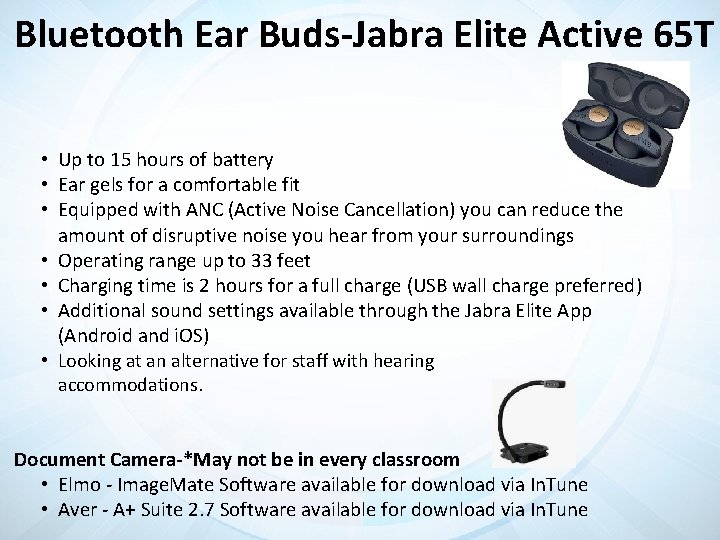
Bluetooth Ear Buds-Jabra Elite Active 65 T • Up to 15 hours of battery • Ear gels for a comfortable fit • Equipped with ANC (Active Noise Cancellation) you can reduce the amount of disruptive noise you hear from your surroundings • Operating range up to 33 feet • Charging time is 2 hours for a full charge (USB wall charge preferred) • Additional sound settings available through the Jabra Elite App (Android and i. OS) • Looking at an alternative for staff with hearing accommodations. Document Camera-*May not be in every classroom • Elmo - Image. Mate Software available for download via In. Tune • Aver - A+ Suite 2. 7 Software available for download via In. Tune
Available Audio Technology • Webcams provided to classroom teachers have a built-in microphone. • Teachers will be provided with Bluetooth earbuds that includes a microphone and headset. • Teacher laptops include a built-in microphone and speakers. • Some projectors and display panels include speakers and microphones.
Audio Considerations • Consider how teacher voice is being captured for the students online. • Consider if/how student voices in the classroom will be heard by students online and vice versa. • Ensure multimedia that is displayed can be heard by both cohorts. • Prepare a process for when the teacher needs to address only the in-person students. • Troubleshoot audio delays and speaker feedback by changing audio sources and adjusting physical arrangements. • Avoid two open mics next to each other, have students in the classroom mute and/or use headset.
Available Video Technology • Teachers will have the built-in webcam on their laptop and an external webcam with a five-foot cord. • The port replicator can connect to up to three displays such as a second monitor, projector, or display panel. (Dongles needed. See Port Replicator Configurations) • Windows allows you to extend or duplicate your desktop to multiple monitors. (Extending the Desktop directions) • Google Meet lets you choose which window or tab to share. • Keep the Google Chrome browser up-to-date.
Video Considerations • Consider where a web camera will be set up so students online can see the teacher. • Pre-determine the physical space that is visible through the webcam so teacher movements will be seen by virtual students. • Consider the Windows display settings that will let you most efficiently share your instruction to both students in the classroom and online. • Determine how to arrange your laptop and second monitor so you can best monitor your students online, the projected content, and the students in the classroom.
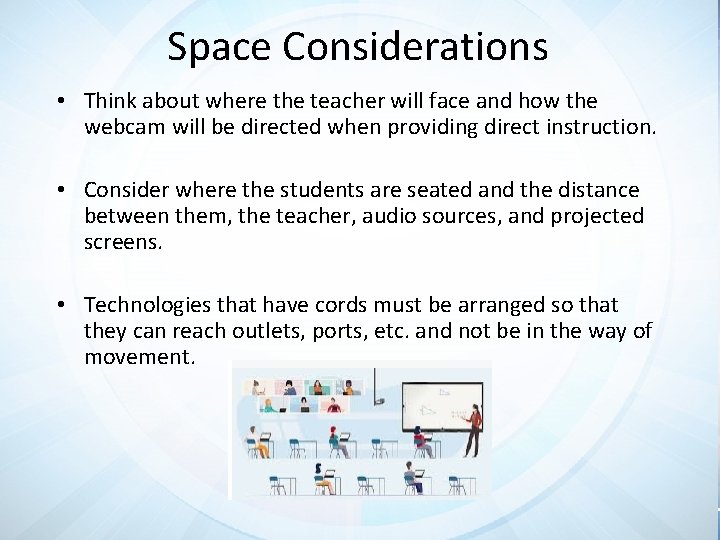
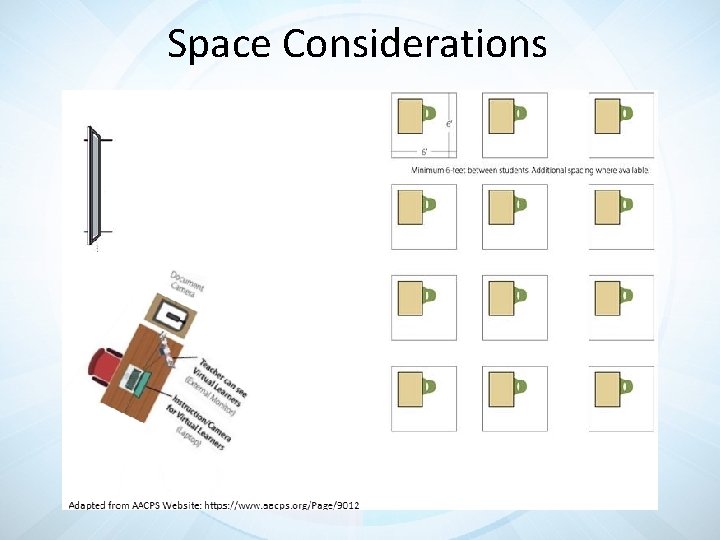
Space Considerations • Think about where the teacher will face and how the webcam will be directed when providing direct instruction. • Consider where the students are seated and the distance between them, the teacher, audio sources, and projected screens. • Technologies that have cords must be arranged so that they can reach outlets, ports, etc. and not be in the way of movement.
Space Considerations
Collaboration Let’s share some ideas and concerns…. Jamboard – Elementary : https: //jamboard. google. com/d/1 UQLDMRYJqr. Vsl. DXUNNOWOu 5 Feq. G 3 I 9 Fh. W_g. AHx. K 3 j. I/edit? usp=sharing Jamboard – Secondary: https: //jamboard. google. com/d/19 -3 -C 0 g 6 OSaf_Wta. WHK 1 k 00 sea. Gp. BSu. JPG 2 LPL 5 Ugk/edit? usp=sharing
Inventory
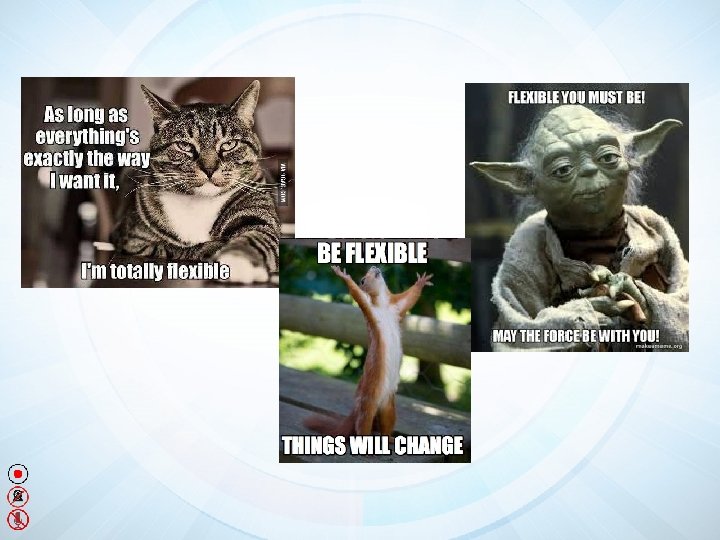
Device Inventory • https: //bcpstechnologyliaisons. pbworks. com/ • Additional Support documents coming! • Inventory is one of the most important parts of the Technology Liaison role. • We must get a handle on our technology inventory. • We will be flexible and supportive during the process.
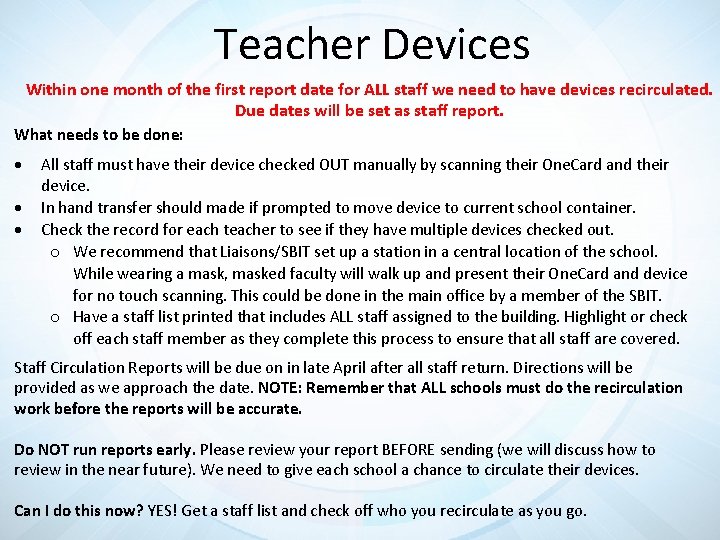
Teacher Devices Within one month of the first report date for ALL staff we need to have devices recirculated. Due dates will be set as staff report. What needs to be done: All staff must have their device checked OUT manually by scanning their One. Card and their device. In hand transfer should made if prompted to move device to current school container. Check the record for each teacher to see if they have multiple devices checked out. o We recommend that Liaisons/SBIT set up a station in a central location of the school. While wearing a mask, masked faculty will walk up and present their One. Card and device for no touch scanning. This could be done in the main office by a member of the SBIT. o Have a staff list printed that includes ALL staff assigned to the building. Highlight or check off each staff member as they complete this process to ensure that all staff are covered. Staff Circulation Reports will be due on in late April after all staff return. Directions will be provided as we approach the date. NOTE: Remember that ALL schools must do the recirculation work before the reports will be accurate. Do NOT run reports early. Please review your report BEFORE sending (we will discuss how to review in the near future). We need to give each school a chance to circulate their devices. Can I do this now? YES! Get a staff list and check off who you recirculate as you go.
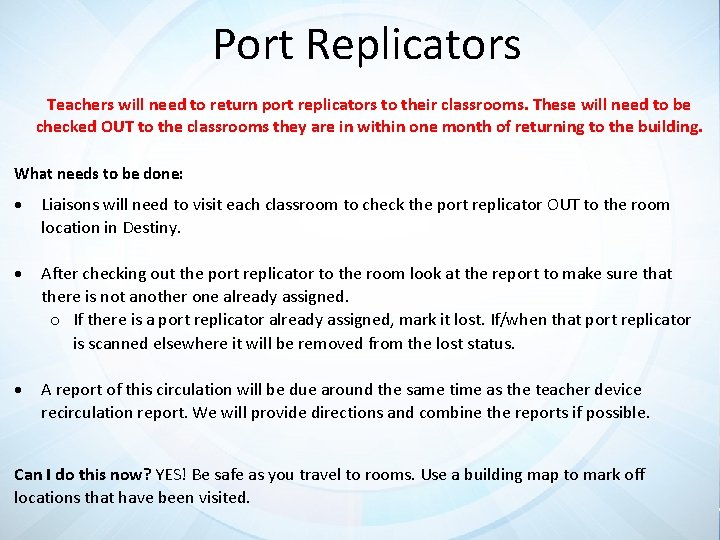
Port Replicators Teachers will need to return port replicators to their classrooms. These will need to be checked OUT to the classrooms they are in within one month of returning to the building. What needs to be done: Liaisons will need to visit each classroom to check the port replicator OUT to the room location in Destiny. After checking out the port replicator to the room look at the report to make sure that there is not another one already assigned. o If there is a port replicator already assigned, mark it lost. If/when that port replicator is scanned elsewhere it will be removed from the lost status. A report of this circulation will be due around the same time as the teacher device recirculation report. We will provide directions and combine the reports if possible. Can I do this now? YES! Be safe as you travel to rooms. Use a building map to mark off locations that have been visited.
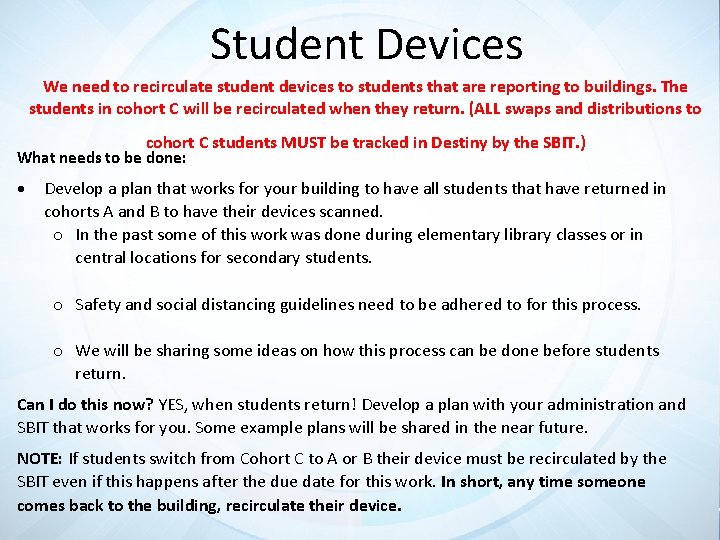
Student Devices We need to recirculate student devices to students that are reporting to buildings. The students in cohort C will be recirculated when they return. (ALL swaps and distributions to cohort C students MUST be tracked in Destiny by the SBIT. ) What needs to be done: Develop a plan that works for your building to have all students that have returned in cohorts A and B to have their devices scanned. o In the past some of this work was done during elementary library classes or in central locations for secondary students. o Safety and social distancing guidelines need to be adhered to for this process. o We will be sharing some ideas on how this process can be done before students return. Can I do this now? YES, when students return! Develop a plan with your administration and SBIT that works for you. Some example plans will be shared in the near future. NOTE: If students switch from Cohort C to A or B their device must be recirculated by the SBIT even if this happens after the due date for this work. In short, any time someone comes back to the building, recirculate their device.
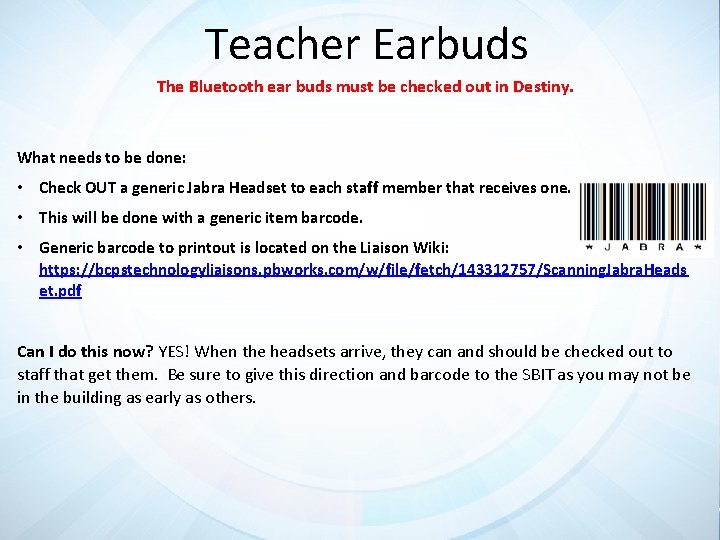
Teacher Earbuds The Bluetooth ear buds must be checked out in Destiny. What needs to be done: • Check OUT a generic Jabra Headset to each staff member that receives one. • This will be done with a generic item barcode. • Generic barcode to printout is located on the Liaison Wiki: https: //bcpstechnologyliaisons. pbworks. com/w/file/fetch/143312757/Scanning. Jabra. Heads et. pdf Can I do this now? YES! When the headsets arrive, they can and should be checked out to staff that get them. Be sure to give this direction and barcode to the SBIT as you may not be in the building as early as others.
Support Sites
Liaison Support Sites • https: //bcpstechnologyliaisons. pbworks. com/ • www. bcps. org/tech-support • https: //innovationhub. bcps. org/ • Schoology Groups • Digital Content and Instructional Tools • J 5 JW-XJC 6 -FSMDF • Focus Student Information System (SIS) • 7 QQV-2 F 6 M-BWRJJ
Questions?
Thank you! The Office of Digital Safety, Educational Technology & Library Media Michael Fort Supervisor – Educational Technology mfort@bcps. org 443 -809 -8918