
Technology Lesson 1 1 Starter Label the parts
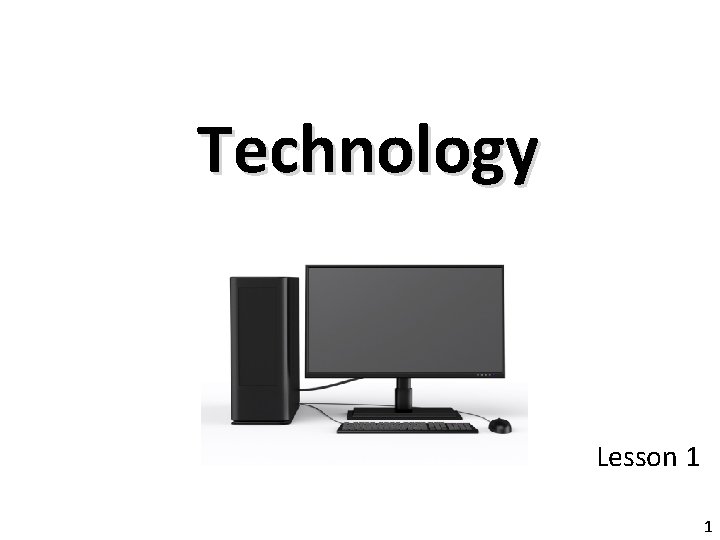
Technology Lesson 1 1
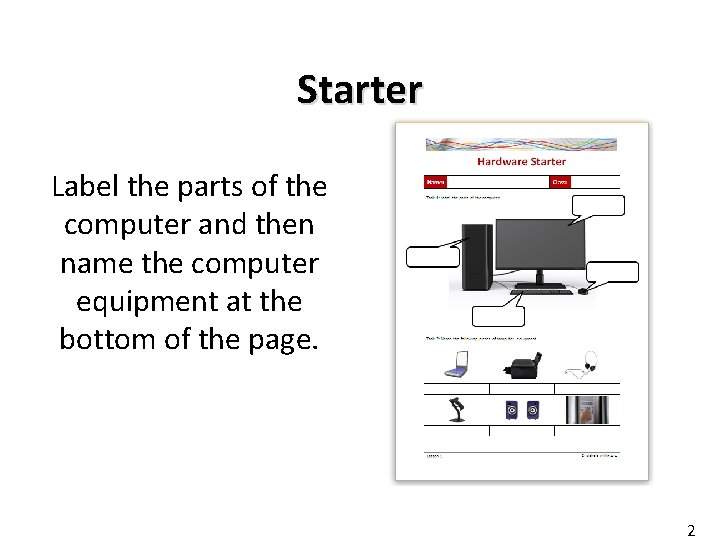
Starter Label the parts of the computer and then name the computer equipment at the bottom of the page. 2
Objective of the lesson Understand some of the hardware which is used with modern computers. • All of you will: – Know that hardware can be grouped into input devices, output devices and storage devices and identify at least one piece of hardware for each category. • Most of you will: – Describe the difference between hardware and software. – Identify several pieces of hardware for each category. – Perform internet research into other input devices. • Some of you will: – Perform internet research into some more unusual input devices such as OCR and MICR. 3
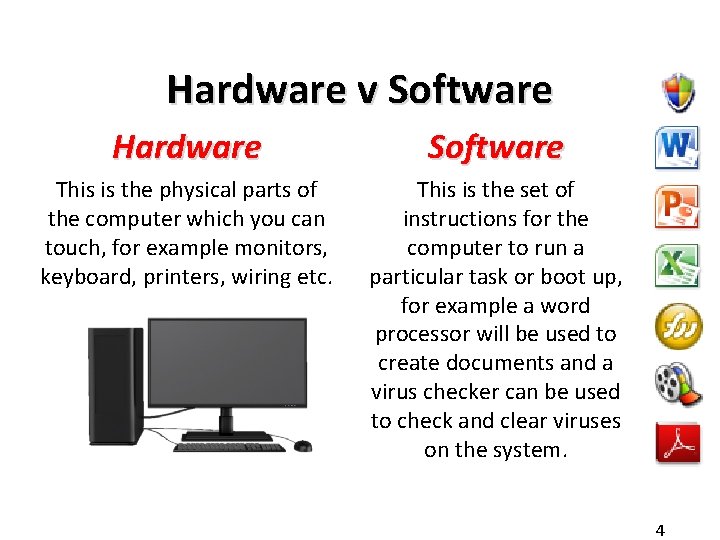
Hardware v Software Hardware Software This is the physical parts of the computer which you can touch, for example monitors, keyboard, printers, wiring etc. This is the set of instructions for the computer to run a particular task or boot up, for example a word processor will be used to create documents and a virus checker can be used to check and clear viruses on the system. 4
Hardware • Hardware can be grouped into three main areas: – Input Devices: these are used to control the computer and are used to put data into the system. – Output Devices: these get something out of the computer for instance data or sound. – Storage Devices: these are used to save data onto and can be inside the computer or portable so the data can be taken with the user. Complete Worksheet 1 5
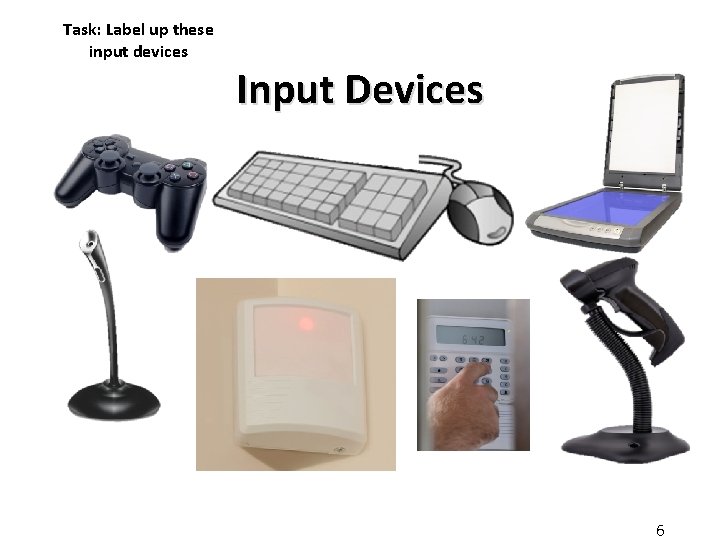
Task: Label up these input devices Input Devices 6
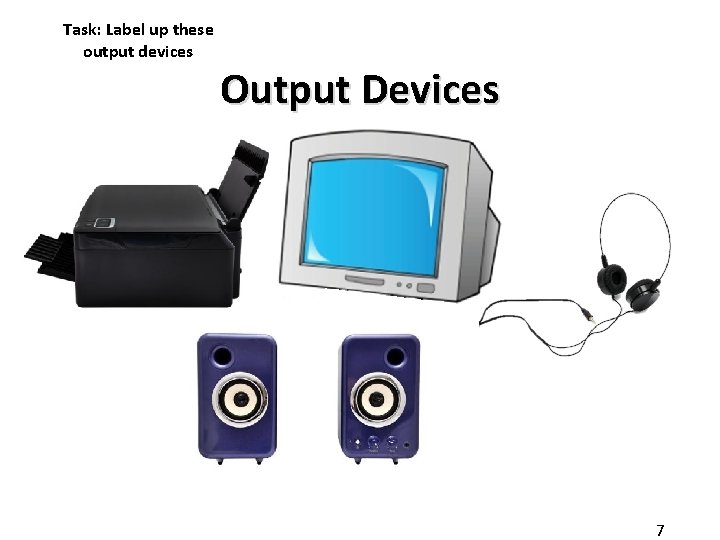
Task: Label up these output devices Output Devices 7
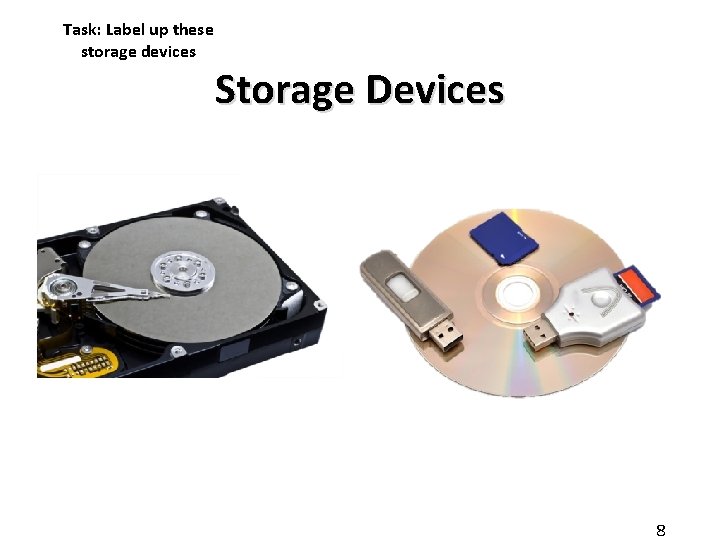
Task: Label up these storage devices Storage Devices 8
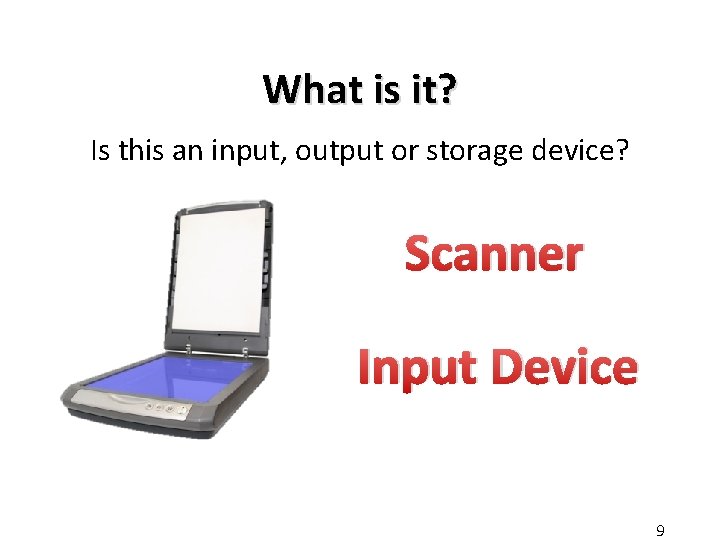
What is it? Is this an input, output or storage device? Scanner Input Device 9
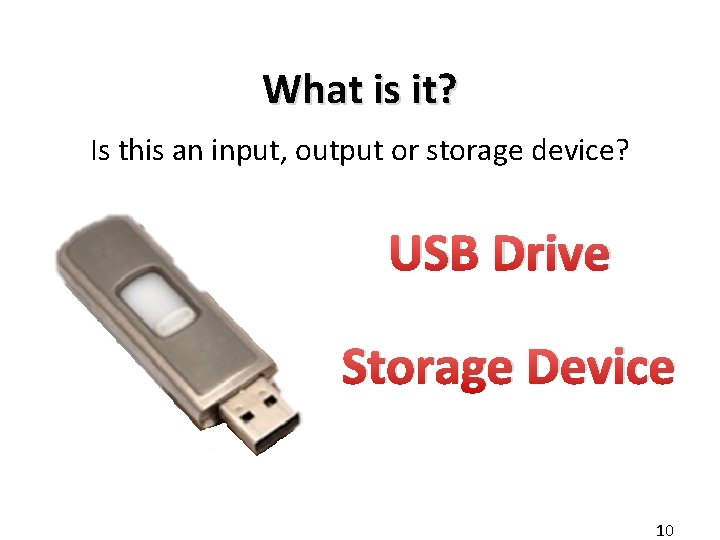
What is it? Is this an input, output or storage device? USB Drive Storage Device 10
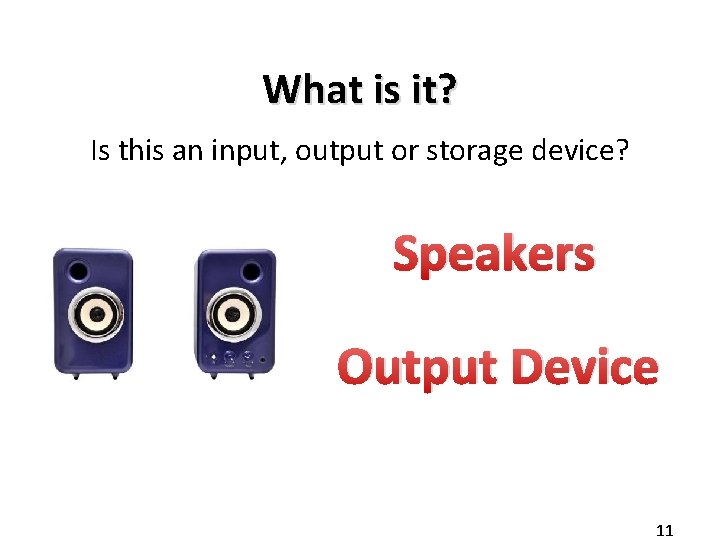
What is it? Is this an input, output or storage device? Speakers Output Device 11

What is it? Is this an input, output or storage device? Game Controller Input Device 12
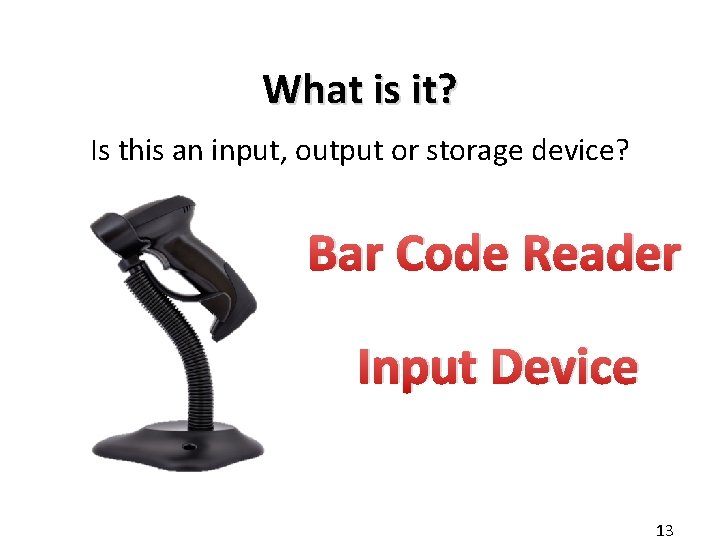
What is it? Is this an input, output or storage device? Bar Code Reader Input Device 13
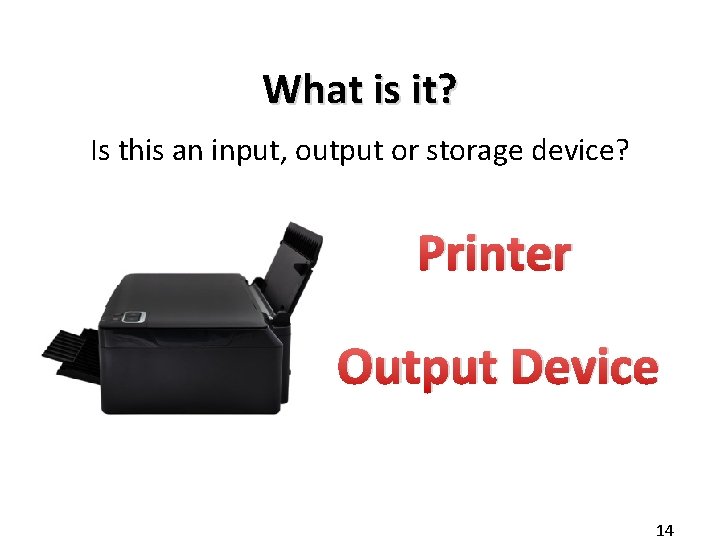
What is it? Is this an input, output or storage device? Printer Output Device 14
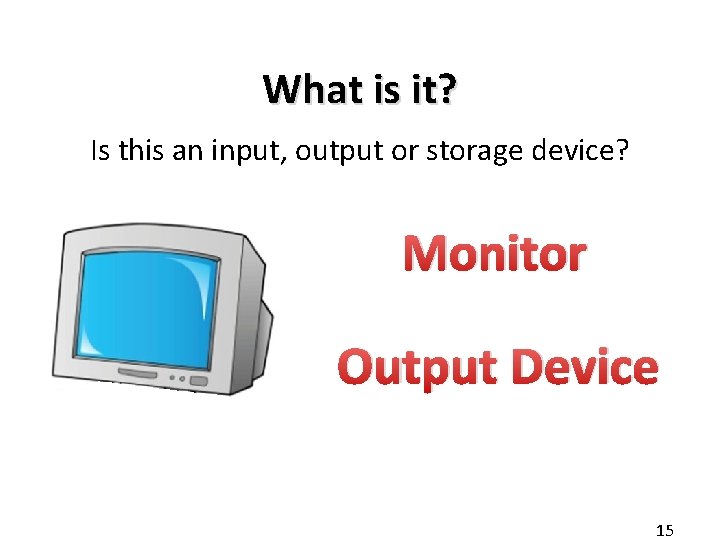
What is it? Is this an input, output or storage device? Monitor Output Device 15
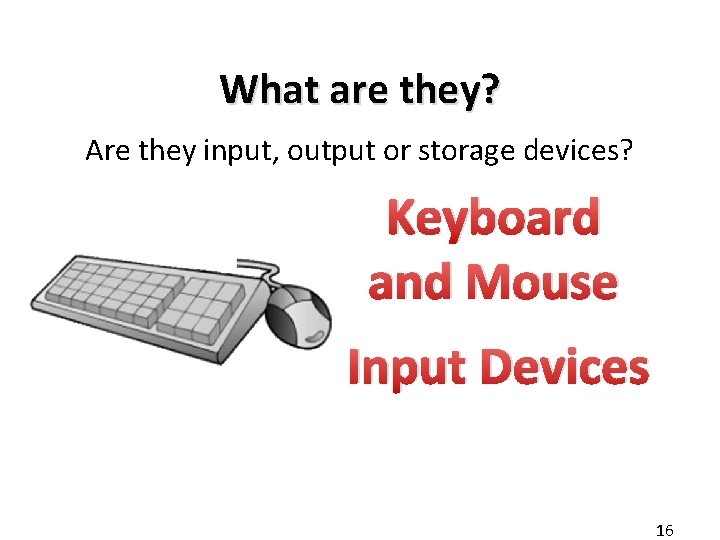
What are they? Are they input, output or storage devices? Keyboard and Mouse Input Devices 16
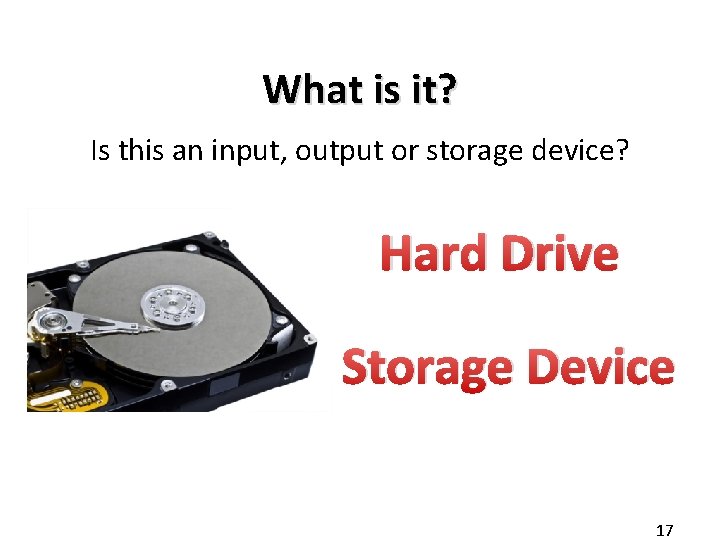
What is it? Is this an input, output or storage device? Hard Drive Storage Device 17
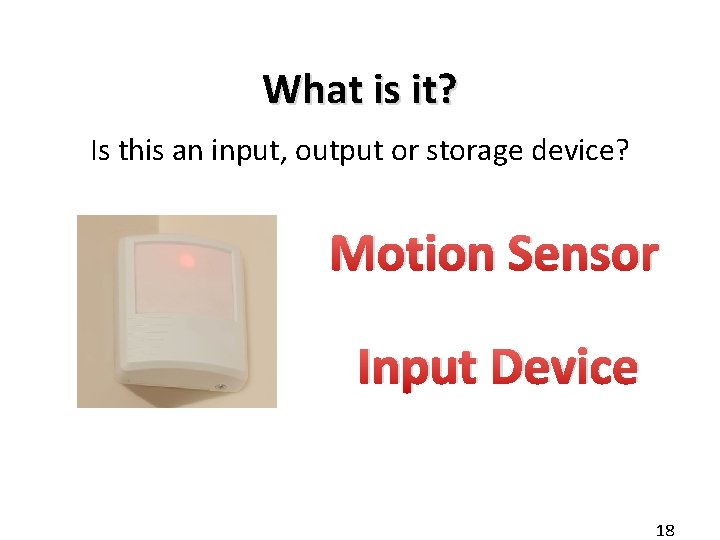
What is it? Is this an input, output or storage device? Motion Sensor Input Device 18
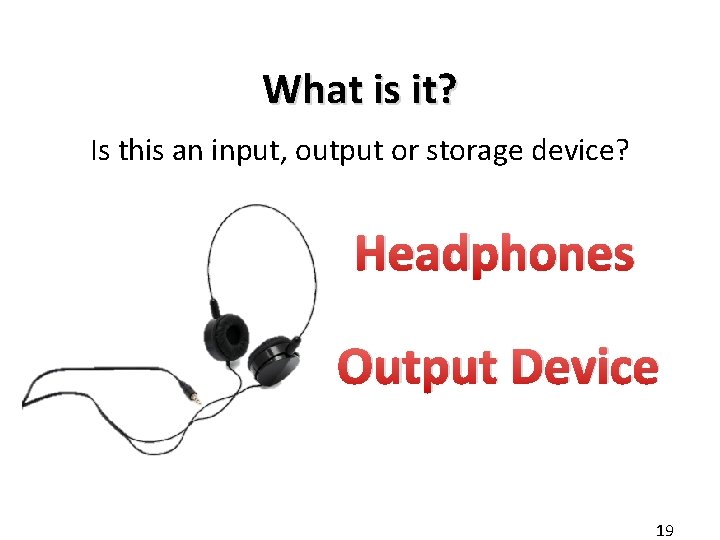
What is it? Is this an input, output or storage device? Headphones Output Device 19
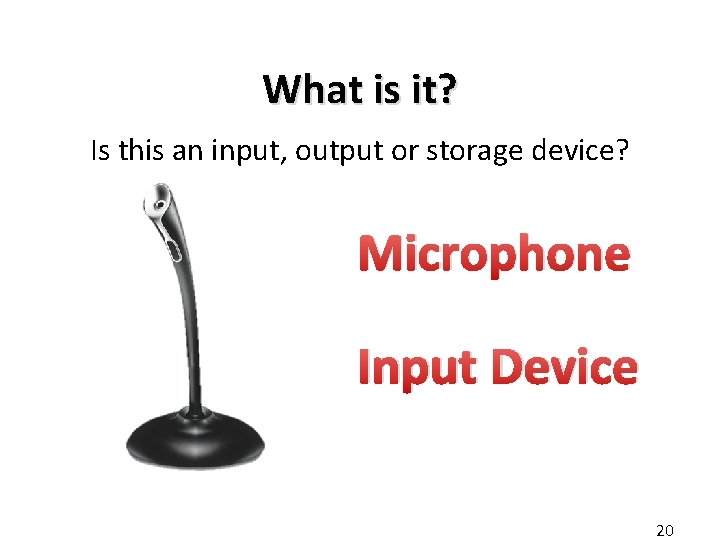
What is it? Is this an input, output or storage device? Microphone Input Device 20
Internet Research • Use the internet to find an image and a definition of the following pieces of input hardware: – Concept Keyboard – Trackball – Digital Camera – Touchscreen – Graphics Tablet – Magnetic Strip Reader – Magnetic Ink Character Reader (MICR) – Optical Mark Reader (OMR) 21
Technology Lesson 2 22
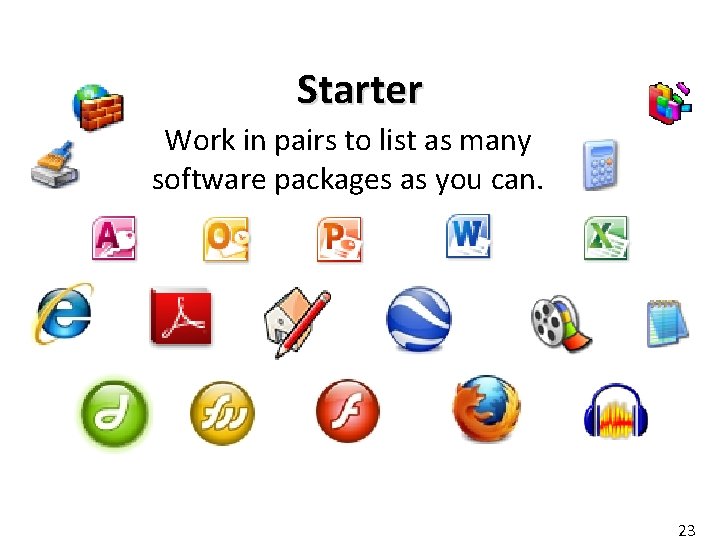
Starter Work in pairs to list as many software packages as you can. 23
Objective of the lesson Understand some of the software which is used with modern computers. • All of you will: – List a number of applications and describe what they can be used for. • Most of you will: – Understand the difference between applications software, operating system software and utilities software and identify a few different software names which would appear in each group. • Some of you will: – Be able to name several types and brands of software which fall into each category. 24
Software • Last lesson you looked at the different types of hardware used in modern computers. This lesson we will concentrate on the software that is used. • Software is the name given to the programs which control the computer. • They can be grouped into three main groups: – Operation Software: used to control the workings of a computer. – Applications: installed onto the computer to perform a specific task such as creating documents or spreadsheets. – Utilities Software: These carry out specific tasks which help the computer system run efficiently such as virus checking and Winzip. 25
Operating System • An operating system enables the hardware of a computer system to run and allows the various parts of the computer to exchange data and run their tasks. • Over 90% of the world’s computers use the Microsoft operating software called Windows®. • Other operating systems include: – Unix – Android – Mac OS X 26
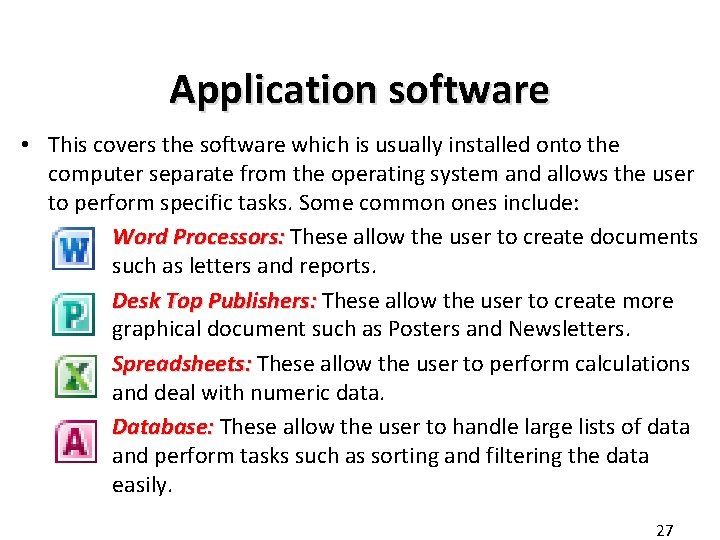
Application software • This covers the software which is usually installed onto the computer separate from the operating system and allows the user to perform specific tasks. Some common ones include: Word Processors: These allow the user to create documents such as letters and reports. Desk Top Publishers: These allow the user to create more graphical document such as Posters and Newsletters. Spreadsheets: These allow the user to perform calculations and deal with numeric data. Database: These allow the user to handle large lists of data and perform tasks such as sorting and filtering the data easily. 27
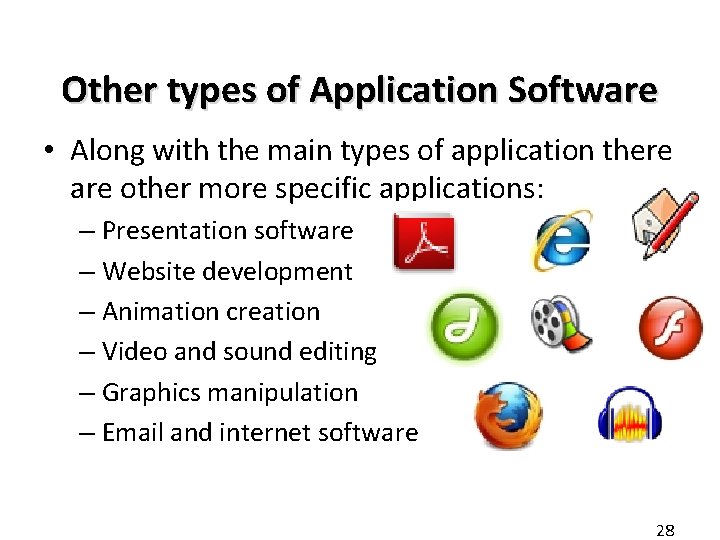
Other types of Application Software • Along with the main types of application there are other more specific applications: – Presentation software – Website development – Animation creation – Video and sound editing – Graphics manipulation – Email and internet software 28
Utilities software • Utilities software helps the computer system run smoothly. Common utilities software include: – Anti Virus: Scans for computer viruses and clears them up when they are discovered. – Backup: This makes a copy of all information on the disk. – Data Compression: Squashes the data into a smaller size so it can be transferred easily. – Disk Checkers and Cleaners: These scan the hard drive and files that are not used or are unnecessary. 29
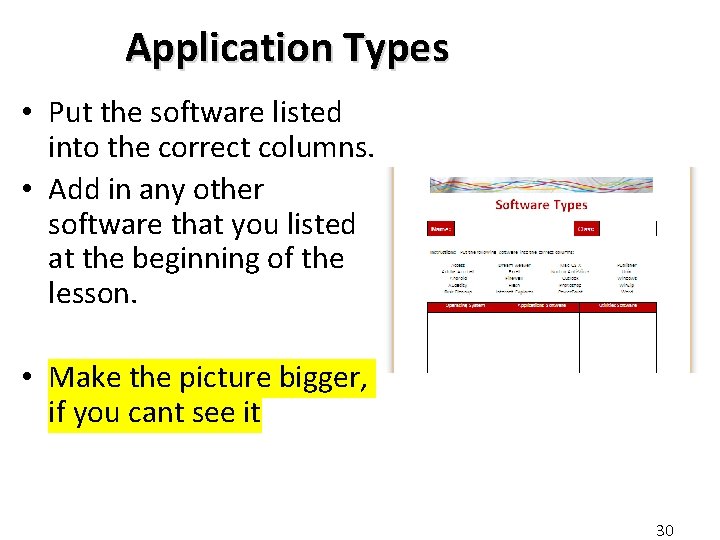
Application Types • Put the software listed into the correct columns. • Add in any other software that you listed at the beginning of the lesson. • Make the picture bigger, if you cant see it 30
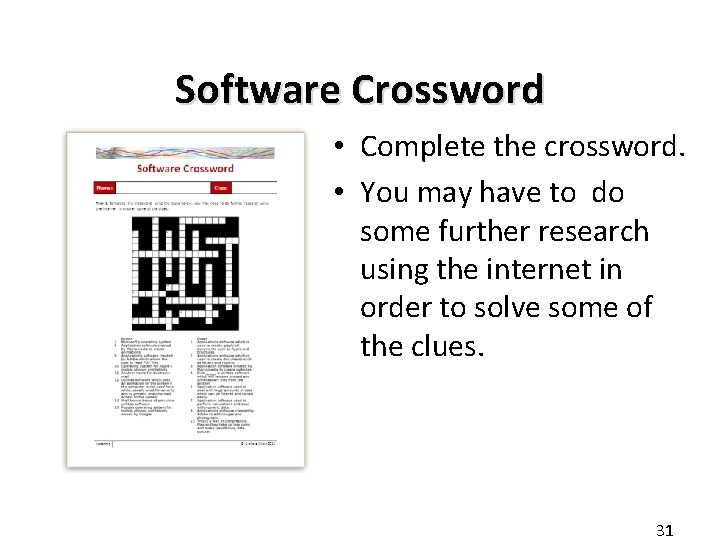
Software Crossword • Complete the crossword. • You may have to do some further research using the internet in order to solve some of the clues. 31
Extension Activity • Create a presentation to describe the difference between the three different types of software, using suitable examples where necessary: – Operating system – Applications software – Utilities software 32
- Slides: 32