
Technology in Action Chapter 6 Understanding and Assessing

- Slides: 38
Technology in Action Chapter 6 Understanding and Assessing Hardware: Evaluating Your System Copyright © 2010 Pearson Education, Inc. Publishing as Prentice Hall 1
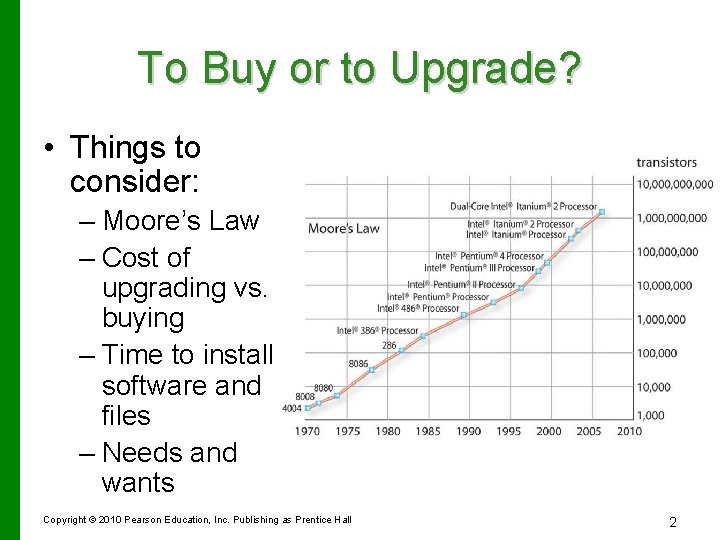
To Buy or to Upgrade? • Things to consider: – Moore’s Law – Cost of upgrading vs. buying – Time to install software and files – Needs and wants Copyright © 2010 Pearson Education, Inc. Publishing as Prentice Hall 2
Assessing Your Hardware: Evaluating Your System • Assess the computer’s subsystems • The subsystems include – CPU – RAM – Storage devices – Video – Audio – Ports Copyright © 2010 Pearson Education, Inc. Publishing as Prentice Hall 3
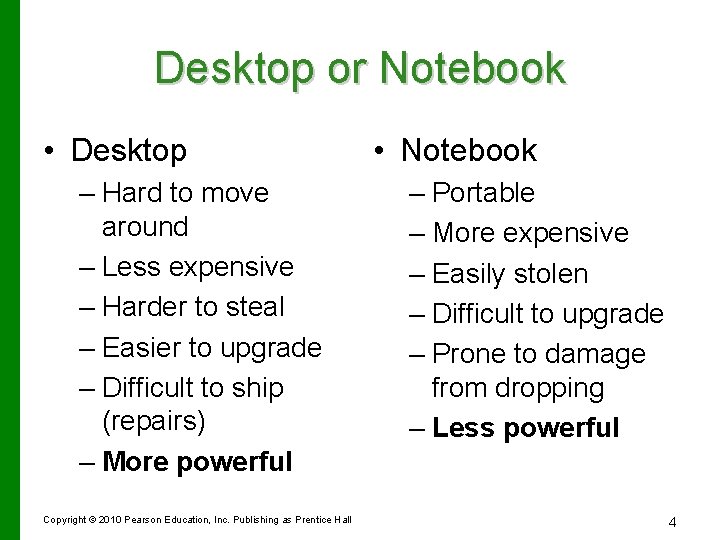
Desktop or Notebook • Desktop – Hard to move around – Less expensive – Harder to steal – Easier to upgrade – Difficult to ship (repairs) – More powerful Copyright © 2010 Pearson Education, Inc. Publishing as Prentice Hall • Notebook – Portable – More expensive – Easily stolen – Difficult to upgrade – Prone to damage from dropping – Less powerful 4
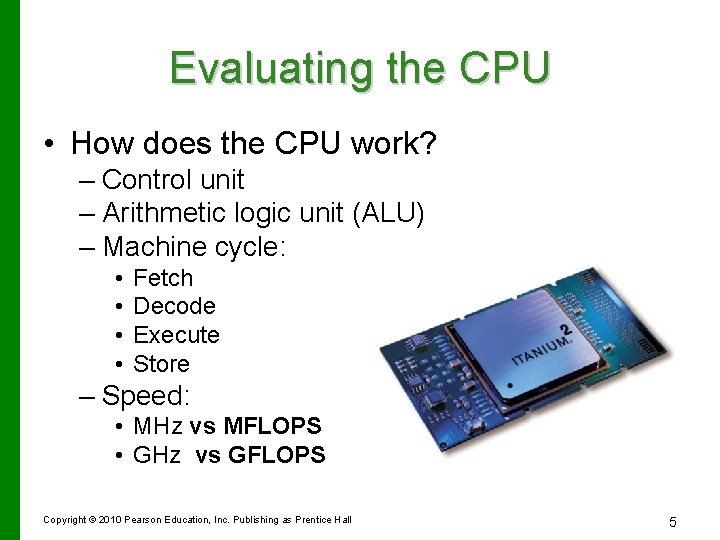
Evaluating the CPU • How does the CPU work? – Control unit – Arithmetic logic unit (ALU) – Machine cycle: • • Fetch Decode Execute Store – Speed: • MHz vs MFLOPS • GHz vs GFLOPS Copyright © 2010 Pearson Education, Inc. Publishing as Prentice Hall 5
Evaluating Other CPU Features • Front side bus (CPU + mem) and cache memory • Some CPUs are optimized to process multimedia instructions • Intel CPUs called core duo processors – Use less power than dual processors – Increase multitasking performance Copyright © 2010 Pearson Education, Inc. Publishing as Prentice Hall 6
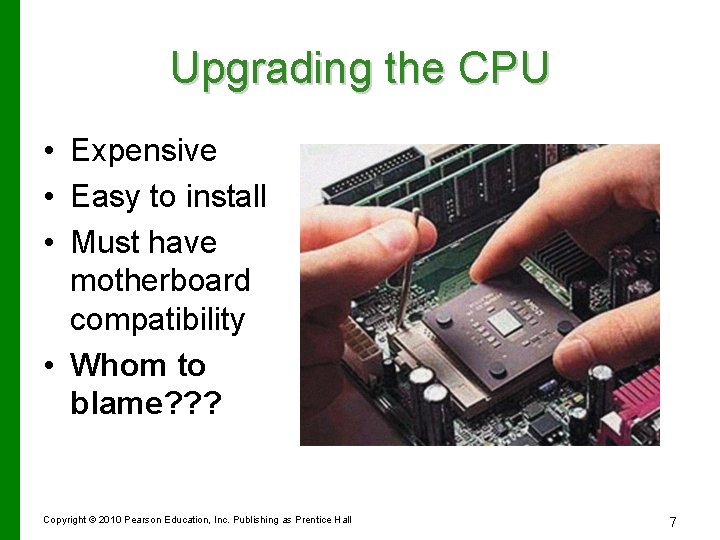
Upgrading the CPU • Expensive • Easy to install • Must have motherboard compatibility • Whom to blame? ? ? Copyright © 2010 Pearson Education, Inc. Publishing as Prentice Hall 7
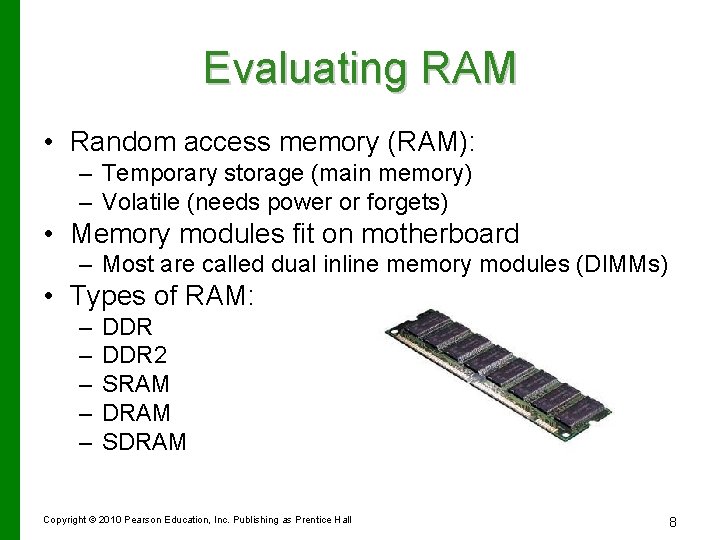
Evaluating RAM • Random access memory (RAM): – Temporary storage (main memory) – Volatile (needs power or forgets) • Memory modules fit on motherboard – Most are called dual inline memory modules (DIMMs) • Types of RAM: – – – DDR 2 SRAM DRAM SDRAM Copyright © 2010 Pearson Education, Inc. Publishing as Prentice Hall 8
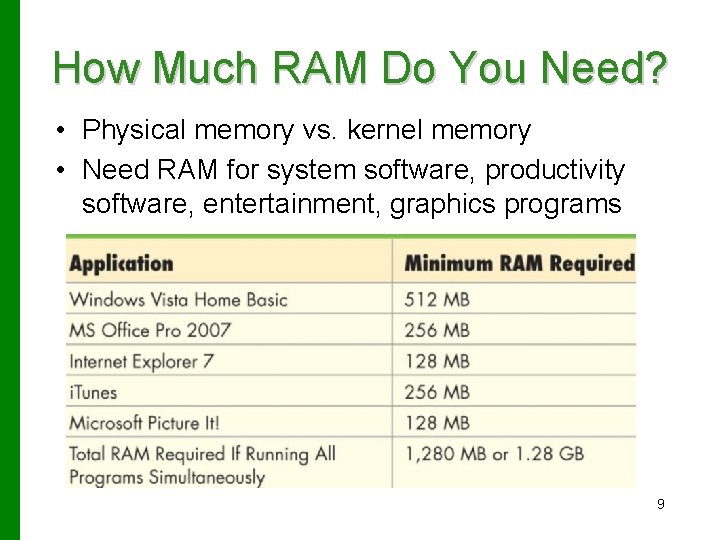
How Much RAM Do You Need? • Physical memory vs. kernel memory • Need RAM for system software, productivity software, entertainment, graphics programs 9
Virtual Memory • Memory-bound system=performance limited by lack of memory • Virtual memory=using the disk as an extension of memory • Page file=pages of 1012 bytes • Drawback = slower performance • Increasing RAM will avoid this problem • Made programming easier 10
Adding RAM • Increases system performance • Things to consider: – Type of RAM module-use type recommended by manufacturer unless you have reliable information – Amount of RAM: • • Maximum limit Number of slots Operating system Applications running at the same time Copyright © 2010 Pearson Education, Inc. Publishing as Prentice Hall 11
Evaluating Storage • Types of storage devices: – Hard drive-inside system unit – Floppy drive – Zip disk drive – CD/DVD – Flash memory • Nonvolatile storage Copyright © 2010 Pearson Education, Inc. Publishing as Prentice Hall 12
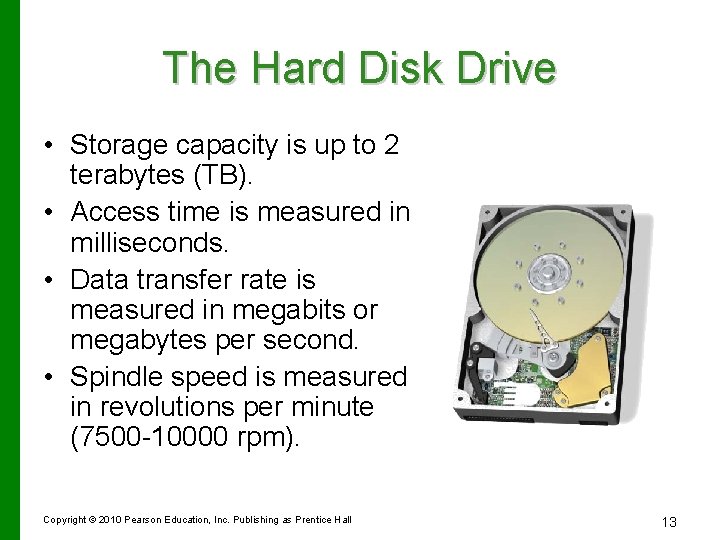
The Hard Disk Drive • Storage capacity is up to 2 terabytes (TB). • Access time is measured in milliseconds. • Data transfer rate is measured in megabits or megabytes per second. • Spindle speed is measured in revolutions per minute (7500 -10000 rpm). Copyright © 2010 Pearson Education, Inc. Publishing as Prentice Hall 13
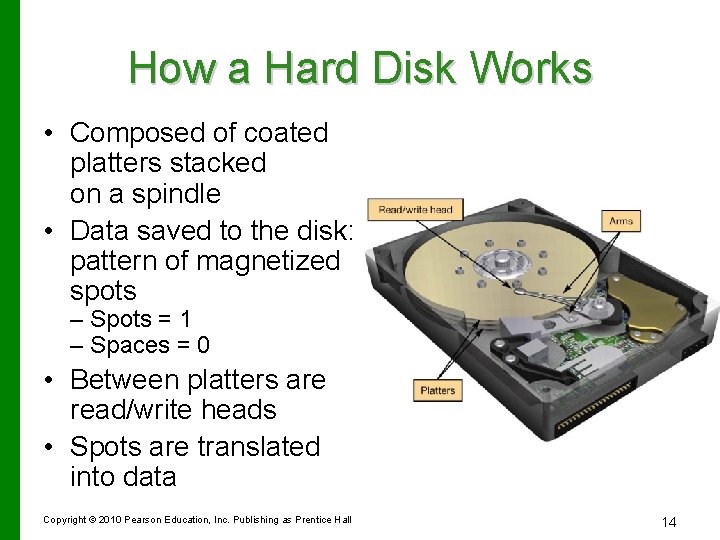
How a Hard Disk Works • Composed of coated platters stacked on a spindle • Data saved to the disk: pattern of magnetized spots Platters Read/write head – Spots = 1 – Spaces = 0 • Between platters are read/write heads • Spots are translated into data Access arms Copyright © 2010 Pearson Education, Inc. Publishing as Prentice Hall 14
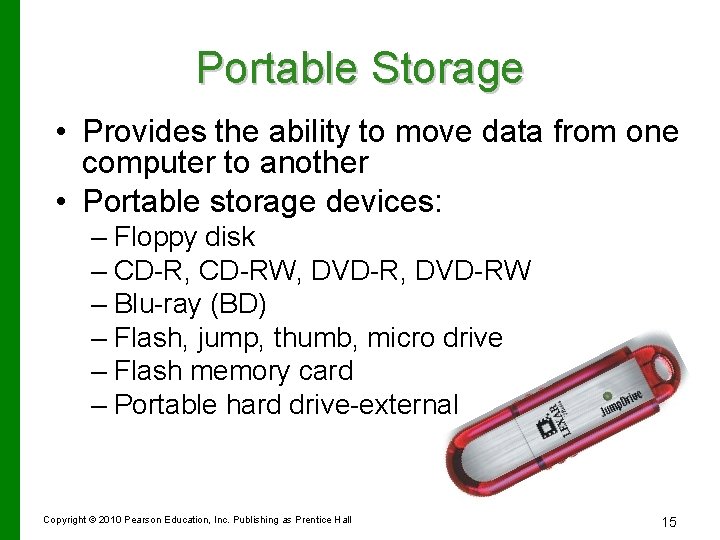
Portable Storage • Provides the ability to move data from one computer to another • Portable storage devices: – Floppy disk – CD-R, CD-RW, DVD-RW – Blu-ray (BD) – Flash, jump, thumb, micro drive – Flash memory card – Portable hard drive-external Copyright © 2010 Pearson Education, Inc. Publishing as Prentice Hall 15
Store It Online • Company provides space on its servers • Some sites offer limited free space with option to rent larger amounts. • Example: – Xdrive offers 5 GB free or rent 50 GB for < $10/month • Mobile solution--can access anywhere Internet access is available • Cloud computing Copyright © 2010 Pearson Education, Inc. Publishing as Prentice Hall 16
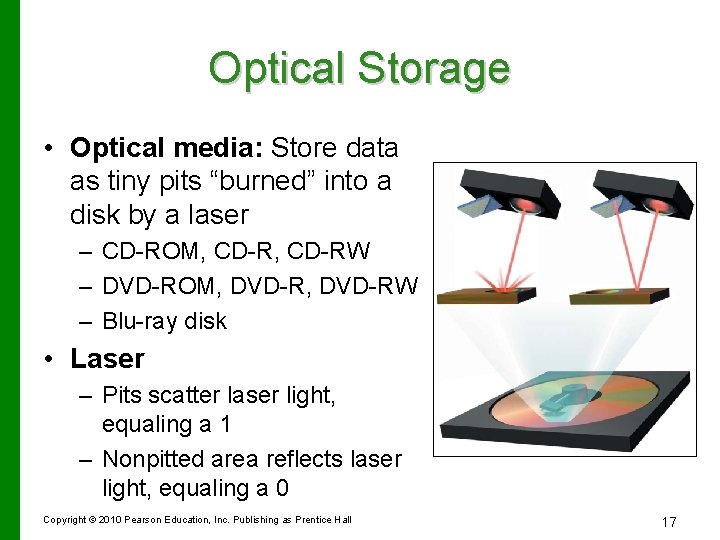
Optical Storage • Optical media: Store data as tiny pits “burned” into a disk by a laser – CD-ROM, CD-RW – DVD-ROM, DVD-RW – Blu-ray disk • Laser – Pits scatter laser light, equaling a 1 – Nonpitted area reflects laser light, equaling a 0 Copyright © 2010 Pearson Education, Inc. Publishing as Prentice Hall 17
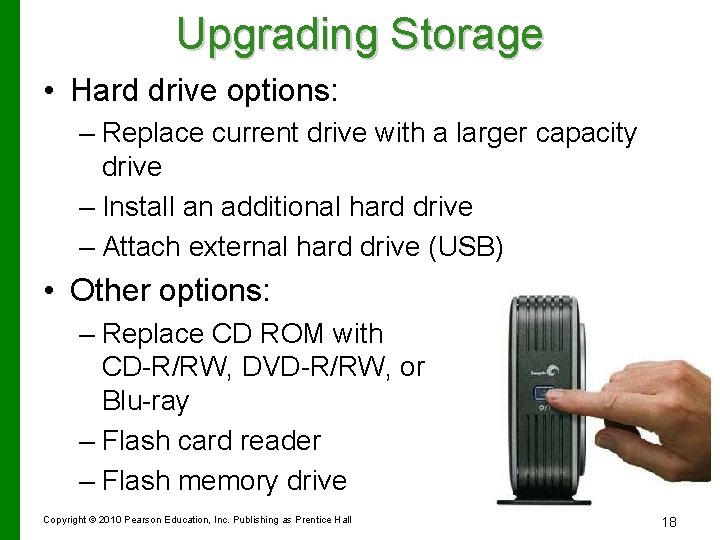
Upgrading Storage • Hard drive options: – Replace current drive with a larger capacity drive – Install an additional hard drive – Attach external hard drive (USB) • Other options: – Replace CD ROM with CD-R/RW, DVD-R/RW, or Blu-ray – Flash card reader – Flash memory drive Copyright © 2010 Pearson Education, Inc. Publishing as Prentice Hall 18
Evaluating Video • Two components: – Video card (adapter) – Monitor Copyright © 2010 Pearson Education, Inc. Publishing as Prentice Hall 19
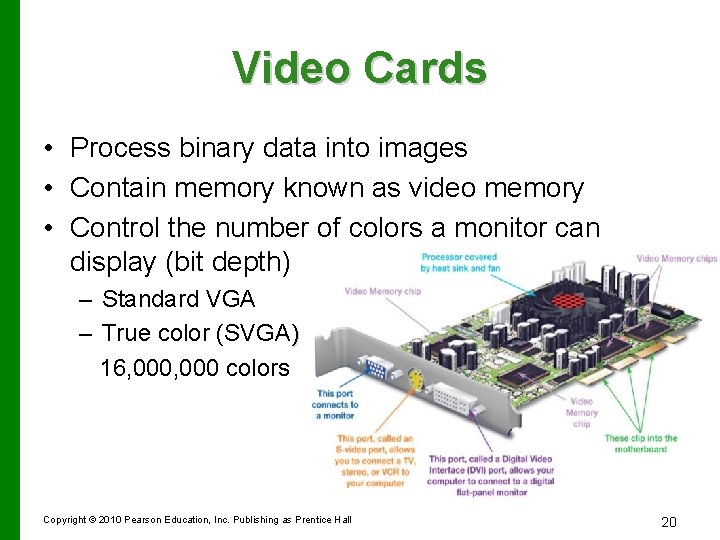
Video Cards • Process binary data into images • Contain memory known as video memory • Control the number of colors a monitor can display (bit depth) – Standard VGA – True color (SVGA) 16, 000 colors Copyright © 2010 Pearson Education, Inc. Publishing as Prentice Hall 20
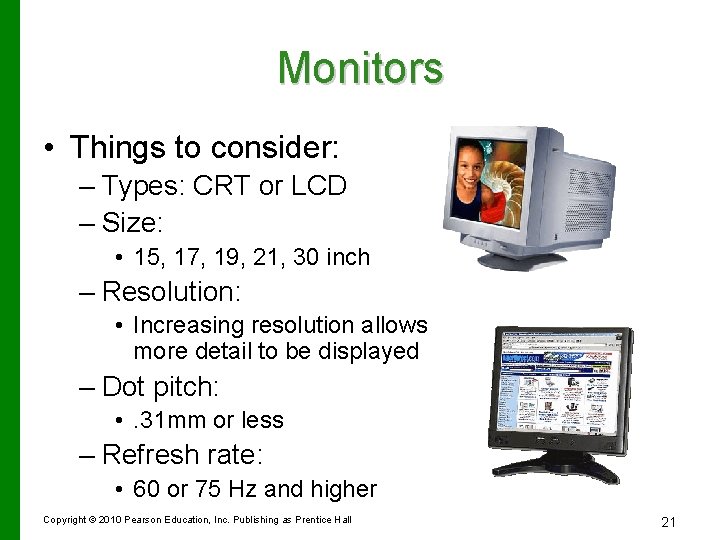
Monitors • Things to consider: – Types: CRT or LCD – Size: • 15, 17, 19, 21, 30 inch – Resolution: • Increasing resolution allows more detail to be displayed – Dot pitch: • . 31 mm or less – Refresh rate: • 60 or 75 Hz and higher Copyright © 2010 Pearson Education, Inc. Publishing as Prentice Hall 21
LCD Monitors • • • Aspect ratio—height to width ratio Contrast ratio Brightness Pixel color response rate Side viewing Copyright © 2010 Pearson Education, Inc. Publishing as Prentice Hall 22
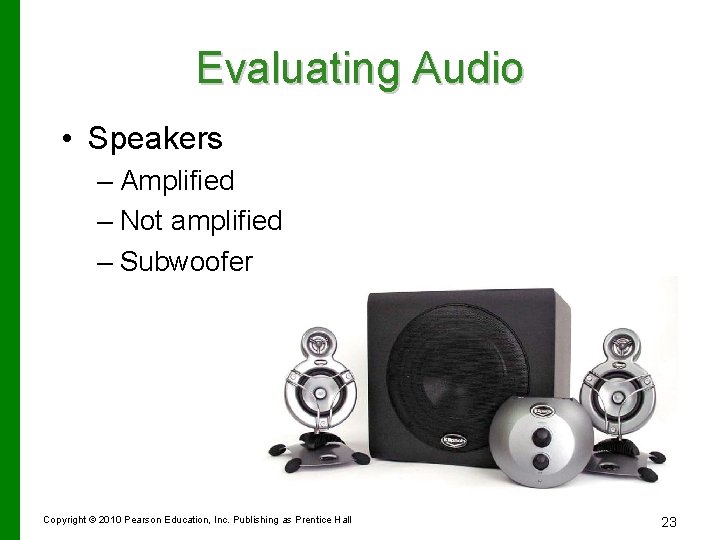
Evaluating Audio • Speakers – Amplified – Not amplified – Subwoofer Copyright © 2010 Pearson Education, Inc. Publishing as Prentice Hall 23
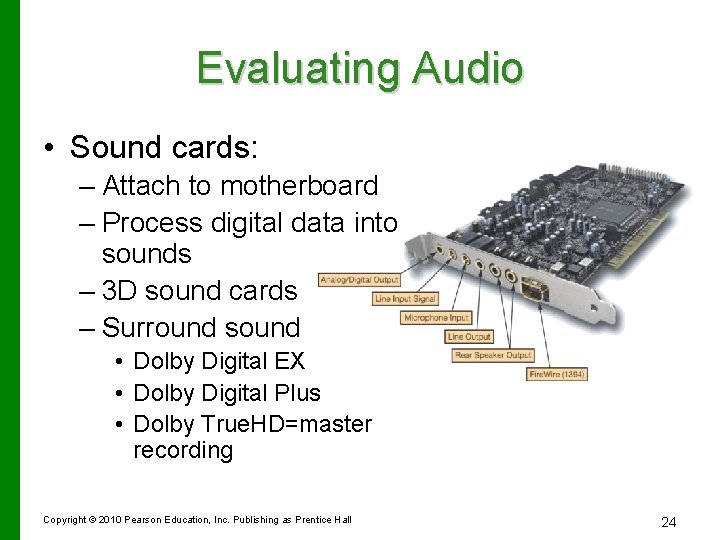
Evaluating Audio • Sound cards: – Attach to motherboard – Process digital data into sounds – 3 D sound cards – Surround sound • Dolby Digital EX • Dolby Digital Plus • Dolby True. HD=master recording Copyright © 2010 Pearson Education, Inc. Publishing as Prentice Hall 24
Evaluating Ports • Ports are used to connect peripheral devices to the computer. • Things to consider: – Devices you want to use – Ports needed for the devices Copyright © 2010 Pearson Education, Inc. Publishing as Prentice Hall 25
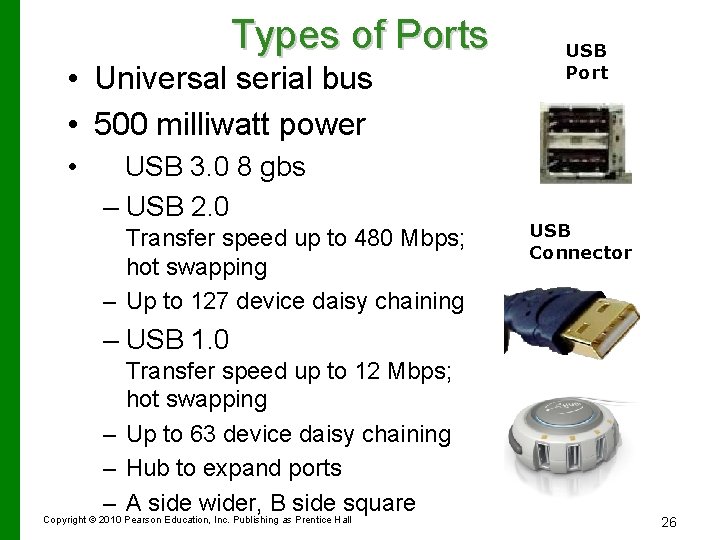
Types of Ports • Universal serial bus • 500 milliwatt power • USB 3. 0 8 gbs – USB 2. 0 Transfer speed up to 480 Mbps; hot swapping – Up to 127 device daisy chaining USB Port USB Connector – USB 1. 0 Transfer speed up to 12 Mbps; hot swapping – Up to 63 device daisy chaining – Hub to expand ports – A side wider, B side square Copyright © 2010 Pearson Education, Inc. Publishing as Prentice Hall 26
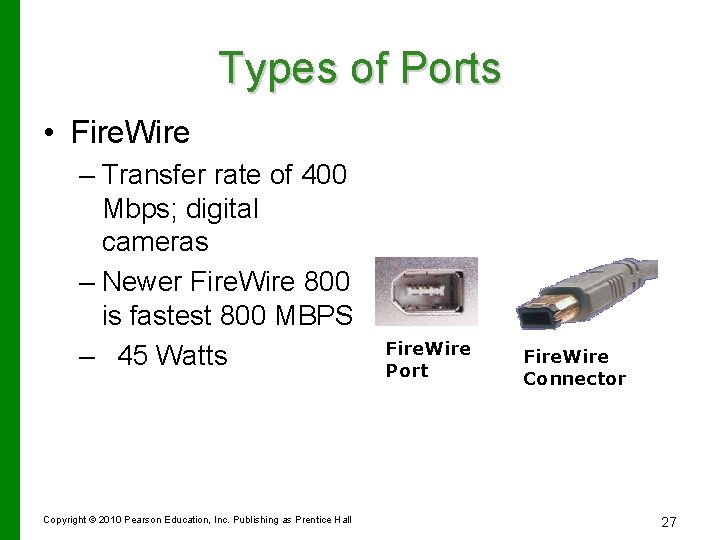
Types of Ports • Fire. Wire – Transfer rate of 400 Mbps; digital cameras – Newer Fire. Wire 800 is fastest 800 MBPS – 45 Watts Copyright © 2010 Pearson Education, Inc. Publishing as Prentice Hall Fire. Wire Port Fire. Wire Connector 27
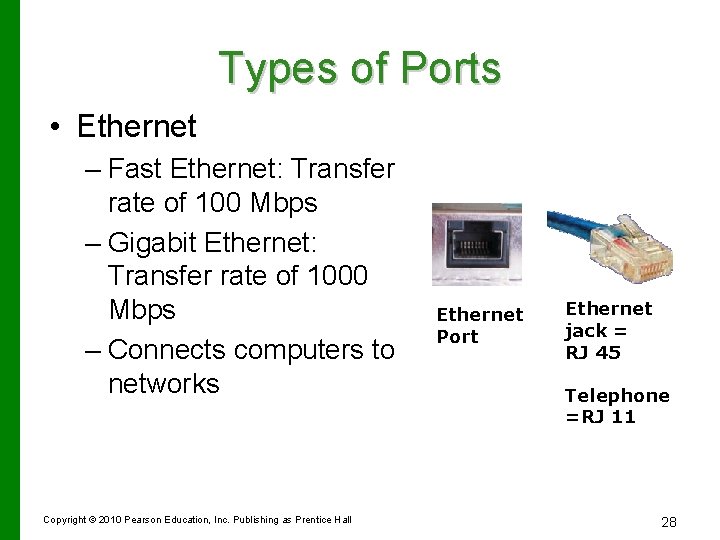
Types of Ports • Ethernet – Fast Ethernet: Transfer rate of 100 Mbps – Gigabit Ethernet: Transfer rate of 1000 Mbps – Connects computers to networks Copyright © 2010 Pearson Education, Inc. Publishing as Prentice Hall Ethernet Port Ethernet jack = RJ 45 Telephone =RJ 11 28
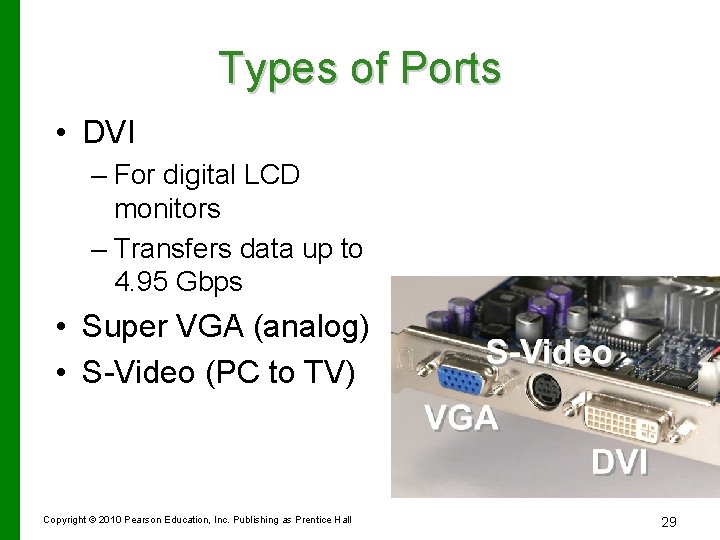
Types of Ports • DVI – For digital LCD monitors – Transfers data up to 4. 95 Gbps • Super VGA (analog) • S-Video (PC to TV) Copyright © 2010 Pearson Education, Inc. Publishing as Prentice Hall 29
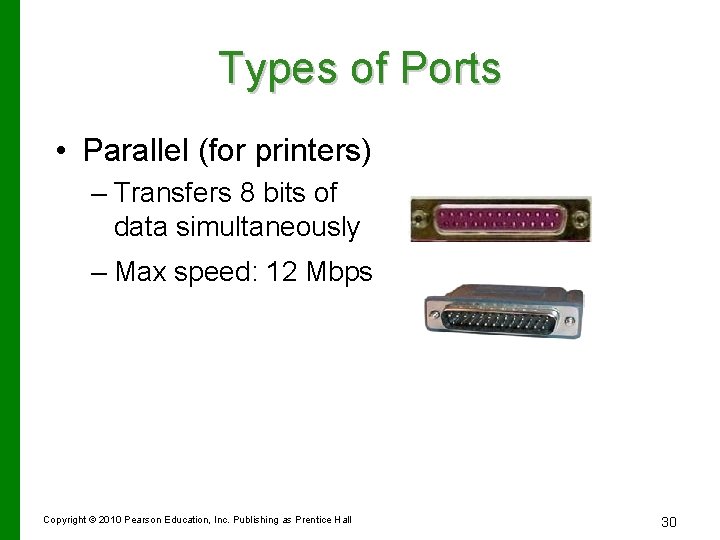
Types of Ports • Parallel (for printers) – Transfers 8 bits of data simultaneously – Max speed: 12 Mbps Copyright © 2010 Pearson Education, Inc. Publishing as Prentice Hall 30
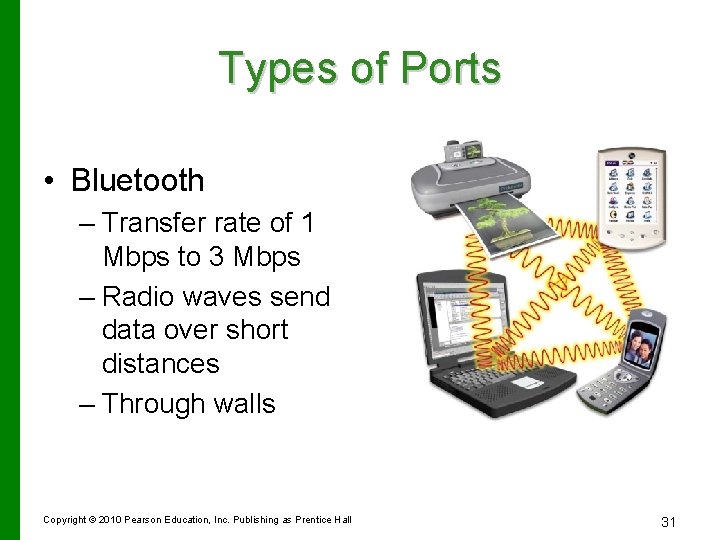
Types of Ports • Bluetooth – Transfer rate of 1 Mbps to 3 Mbps – Radio waves send data over short distances – Through walls Copyright © 2010 Pearson Education, Inc. Publishing as Prentice Hall 31
Wi-Fi (Wireless Fidelity) • • Covers longer distances than Bluetooth Data transfer rate up to 200 Mbps Trouble going through walls (microwaves) 600 ft with good antenna Copyright © 2010 Pearson Education, Inc. Publishing as Prentice Hall 32
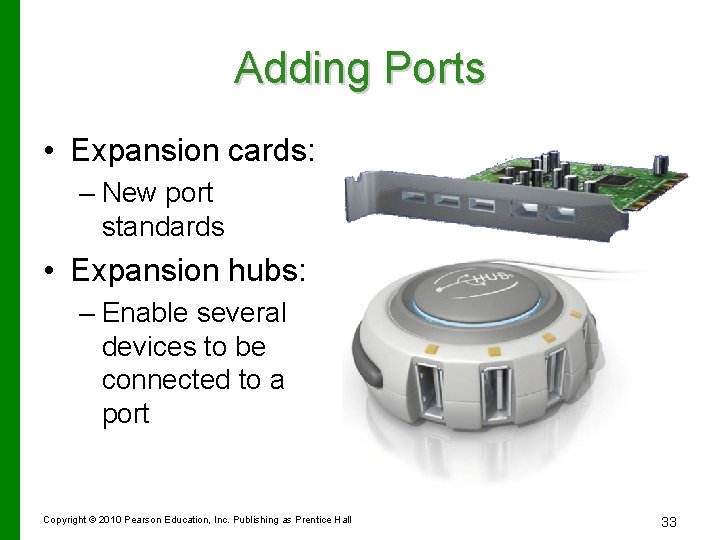
Adding Ports • Expansion cards: – New port standards • Expansion hubs: – Enable several devices to be connected to a port Copyright © 2010 Pearson Education, Inc. Publishing as Prentice Hall 33
Evaluating System Reliability • Performance: – Is slow – Freezes – Crashes • Upkeep and maintenance: – System tools – Control Panel – Update software and hardware drivers Copyright © 2010 Pearson Education, Inc. Publishing as Prentice Hall 34
Upkeep and Maintenance • System tools: – Disk Cleanup – Add/Remove Programs – Disk Defragmenter • Spyware/adware utilities Copyright © 2010 Pearson Education, Inc. Publishing as Prentice Hall 35
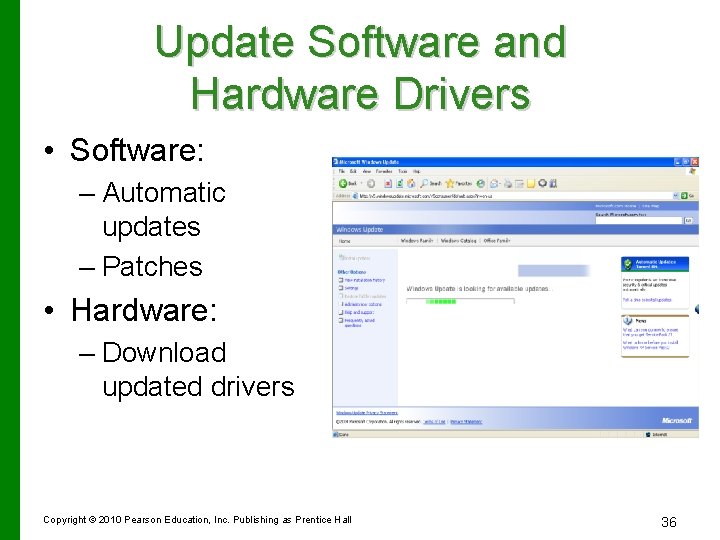
Update Software and Hardware Drivers • Software: – Automatic updates – Patches • Hardware: – Download updated drivers Copyright © 2010 Pearson Education, Inc. Publishing as Prentice Hall 36
The Last Resort • If problems persist: • Use a restore point – Reinstall the operating system – Upgrade the operating system to the latest version Copyright © 2010 Pearson Education, Inc. Publishing as Prentice Hall 37
The Final Decision • How closely does your system meet your needs? • How much would it cost to upgrade your system? • How much would it cost to purchase a new system? • Do you deserve to be happy? Copyright © 2010 Pearson Education, Inc. Publishing as Prentice Hall 38