
Technology In Action Chapter 5 Using System Software
- Slides: 26
Technology In Action Chapter 5 Using System Software: The Operating System, Utility Programs, and File Management © 2006 Prentice-Hall, Inc. NEXT SLIDE 1
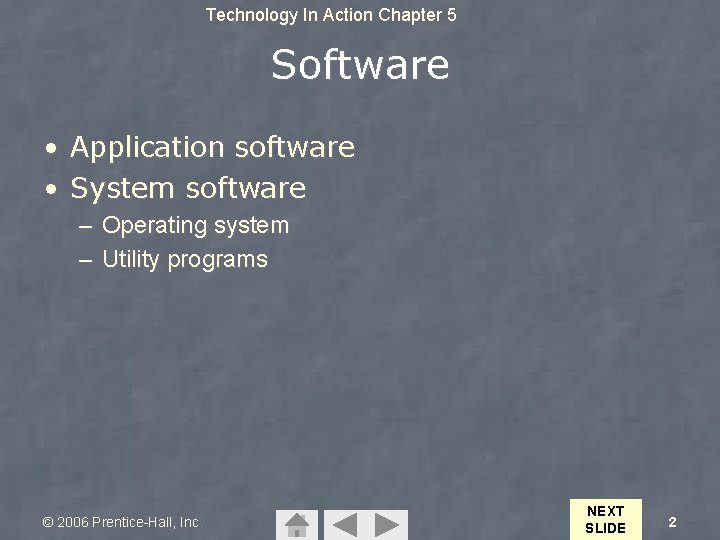
Technology In Action Chapter 5 Software • Application software • System software – Operating system – Utility programs © 2006 Prentice-Hall, Inc. NEXT SLIDE 2
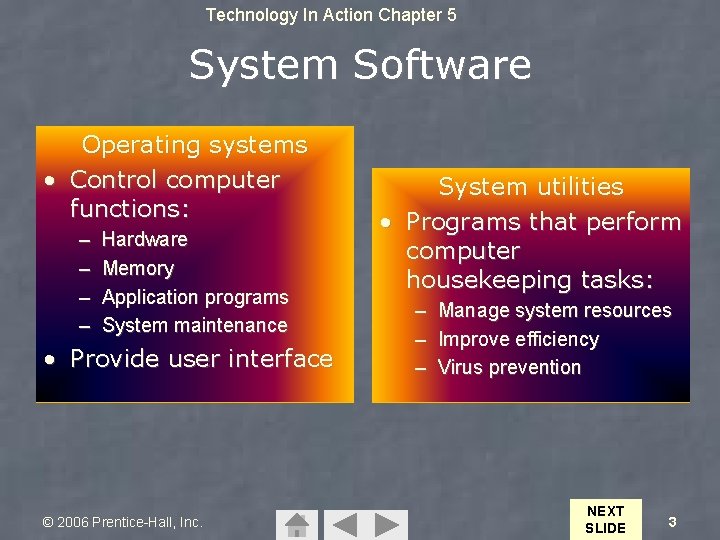
Technology In Action Chapter 5 System Software Operating systems • Control computer functions: – – Hardware Memory Application programs System maintenance • Provide user interface © 2006 Prentice-Hall, Inc. System utilities • Programs that perform computer housekeeping tasks: – Manage system resources – Improve efficiency – Virus prevention NEXT SLIDE 3
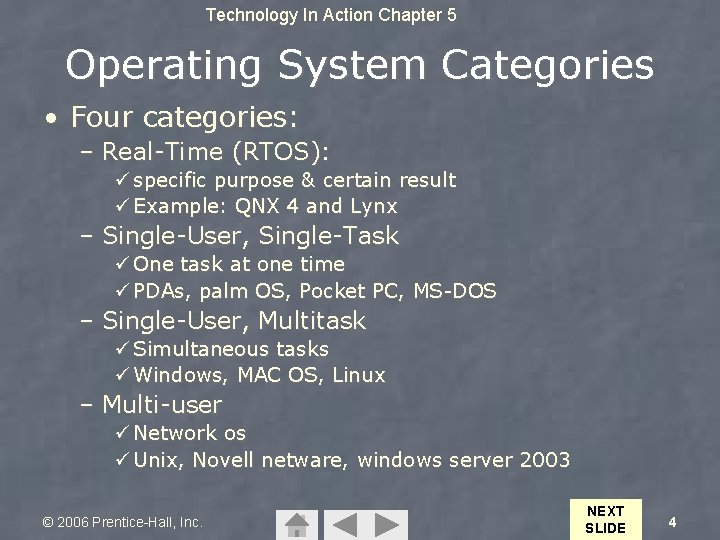
Technology In Action Chapter 5 Operating System Categories • Four categories: – Real-Time (RTOS): ü specific purpose & certain result ü Example: QNX 4 and Lynx – Single-User, Single-Task ü One task at one time ü PDAs, palm OS, Pocket PC, MS-DOS – Single-User, Multitask ü Simultaneous tasks ü Windows, MAC OS, Linux – Multi-user ü Network os ü Unix, Novell netware, windows server 2003 © 2006 Prentice-Hall, Inc. NEXT SLIDE 4
Technology In Action Chapter 5 What OS do they have? • • • MP 3 player Apple Power. Book Home network Digital video camera Cell phone © 2006 Prentice-Hall, Inc. NEXT SLIDE 5
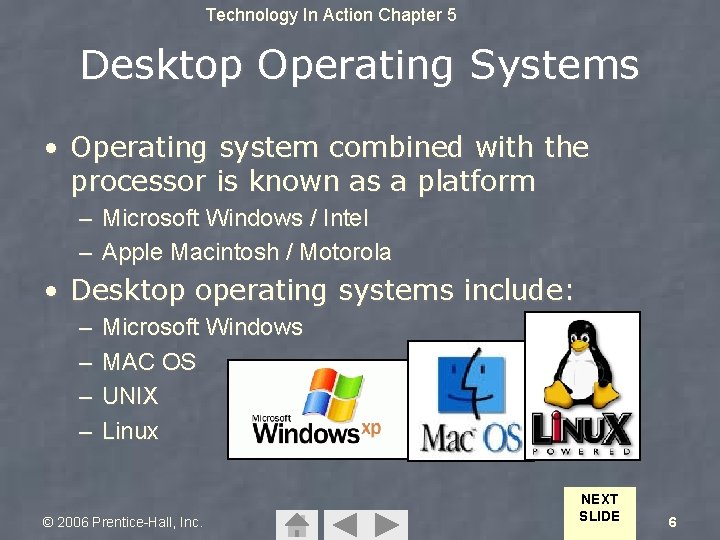
Technology In Action Chapter 5 Desktop Operating Systems • Operating system combined with the processor is known as a platform – Microsoft Windows / Intel – Apple Macintosh / Motorola • Desktop operating systems include: – – Microsoft Windows MAC OS UNIX Linux © 2006 Prentice-Hall, Inc. NEXT SLIDE 6
Technology In Action Chapter 5 Microsoft Windows & Mac OS • WIndows – Generally work with Intel processors – Windows 95 introduce “Plug and Play” • Mac OS – First OS with “point-and-click” user interface – Excels in: ü Graphics display ü Processing capabilities ü System reliability ü Document recovery – Price/fewer applications © 2006 Prentice-Hall, Inc. NEXT SLIDE 7
Technology In Action Chapter 5 UNIX & LINUX • UNIX – Multi-user, multitask operating system – Used primarily with mainframes • Linux – – Open-source OS Based on UNIX Free stable © 2006 Prentice-Hall, Inc. NEXT SLIDE 8
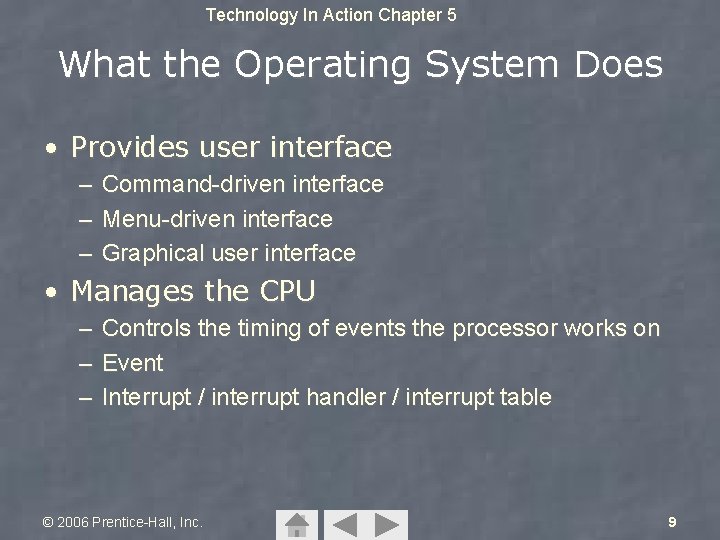
Technology In Action Chapter 5 What the Operating System Does • Provides user interface – Command-driven interface – Menu-driven interface – Graphical user interface • Manages the CPU – Controls the timing of events the processor works on – Event – Interrupt / interrupt handler / interrupt table © 2006 Prentice-Hall, Inc. 9
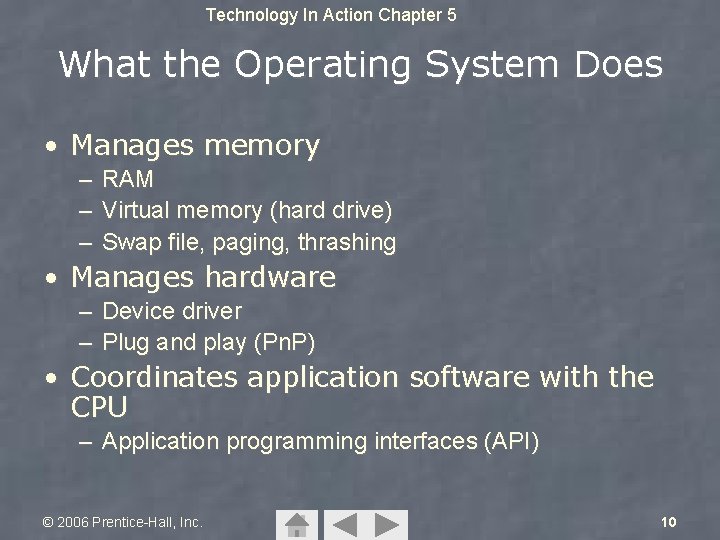
Technology In Action Chapter 5 What the Operating System Does • Manages memory – RAM – Virtual memory (hard drive) – Swap file, paging, thrashing • Manages hardware – Device driver – Plug and play (Pn. P) • Coordinates application software with the CPU – Application programming interfaces (API) © 2006 Prentice-Hall, Inc. 10
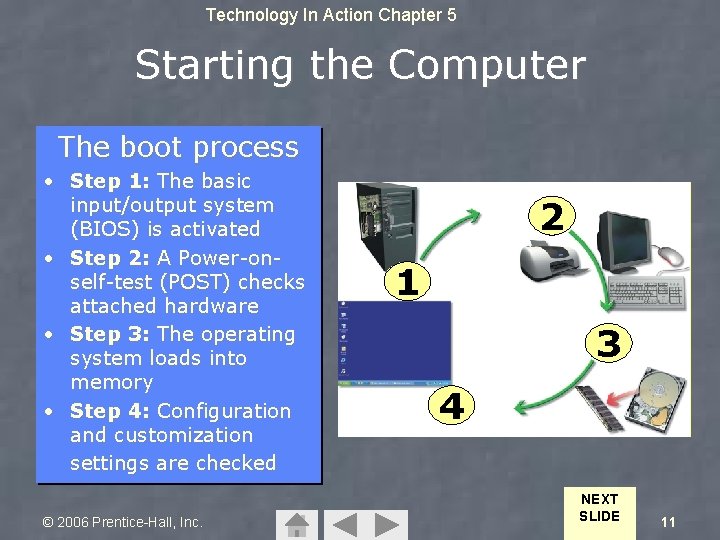
Technology In Action Chapter 5 Starting the Computer The boot process • Step 1: The basic input/output system (BIOS) is activated • Step 2: A Power-onself-test (POST) checks attached hardware • Step 3: The operating system loads into memory • Step 4: Configuration and customization settings are checked © 2006 Prentice-Hall, Inc. 2 1 3 4 NEXT SLIDE 11
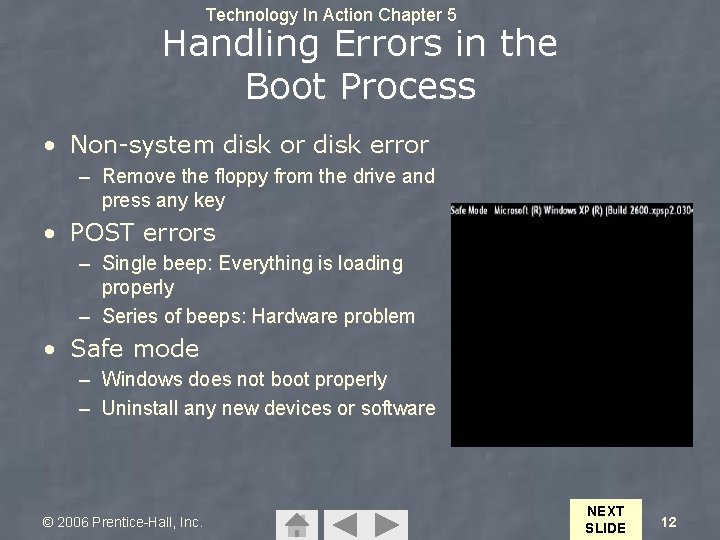
Technology In Action Chapter 5 Handling Errors in the Boot Process • Non-system disk or disk error – Remove the floppy from the drive and press any key • POST errors – Single beep: Everything is loading properly – Series of beeps: Hardware problem • Safe mode – Windows does not boot properly – Uninstall any new devices or software © 2006 Prentice-Hall, Inc. NEXT SLIDE 12
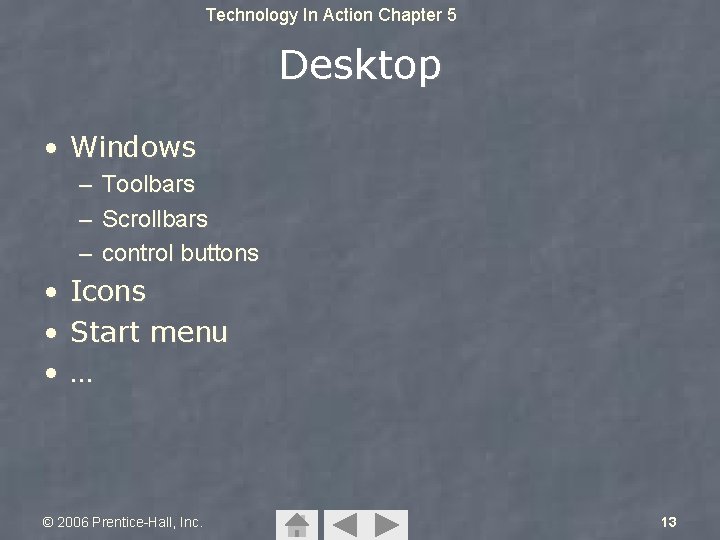
Technology In Action Chapter 5 Desktop • Windows – Toolbars – Scrollbars – control buttons • Icons • Start menu • … © 2006 Prentice-Hall, Inc. 13
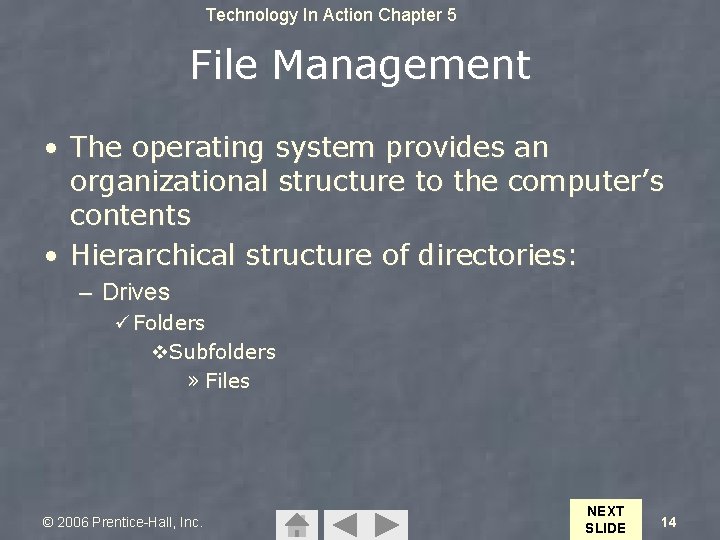
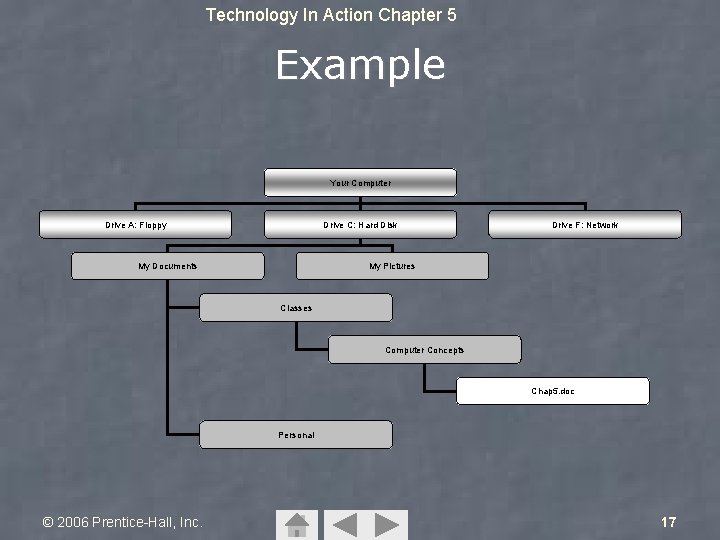
Technology In Action Chapter 5 File Management • The operating system provides an organizational structure to the computer’s contents • Hierarchical structure of directories: – Drives ü Folders v. Subfolders » Files © 2006 Prentice-Hall, Inc. NEXT SLIDE 14
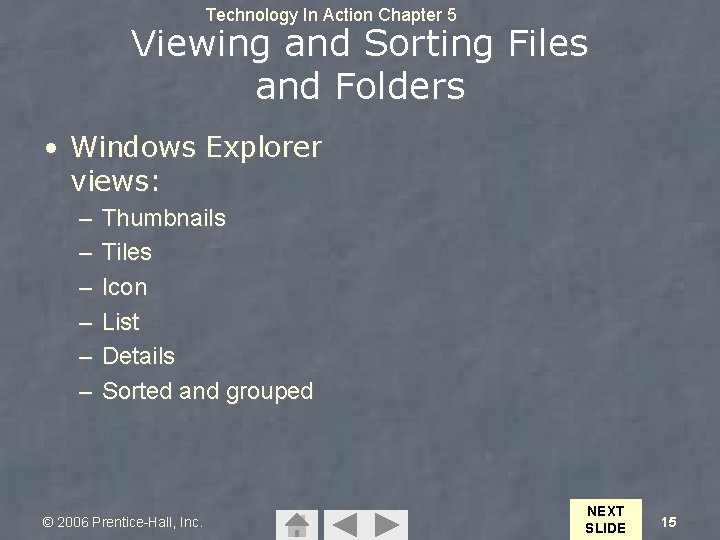
Technology In Action Chapter 5 Viewing and Sorting Files and Folders • Windows Explorer views: – – – Thumbnails Tiles Icon List Details Sorted and grouped © 2006 Prentice-Hall, Inc. NEXT SLIDE 15
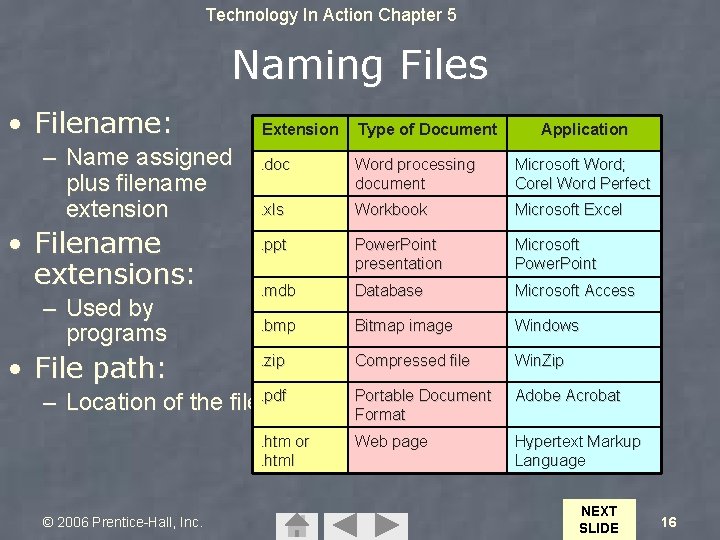
Technology In Action Chapter 5 Naming Files • Filename: – Name assigned plus filename extension • Filename extensions: – Used by programs • File path: Extension. doc Type of Document Bioreport. doc Word processing Application document Microsoft Word; Corel Word Perfect Workbook Microsoft Excel Power. Point presentation Microsoft Power. Point . mdb Database Microsoft Access . bmp Bitmap image Windows . zip Compressed file Win. Zip . xls. ppt or Bio report. doc Secondary. pdf folders Portable Document – Location of the file Filename Adobe Acrobat Format C: My Documents dotmatrix. gif in page ActionTIA Pics. htm or Tech Web Hypertext Markup Drive Primary folder © 2006 Prentice-Hall, Inc. . html Language NEXT SLIDE 16
Technology In Action Chapter 5 Example Your Computer Drive A: Floppy Drive C: Hard Disk My Documents Drive F: Network My Pictures Classes Computer Concepts Chap 5. doc Personal © 2006 Prentice-Hall, Inc. 17
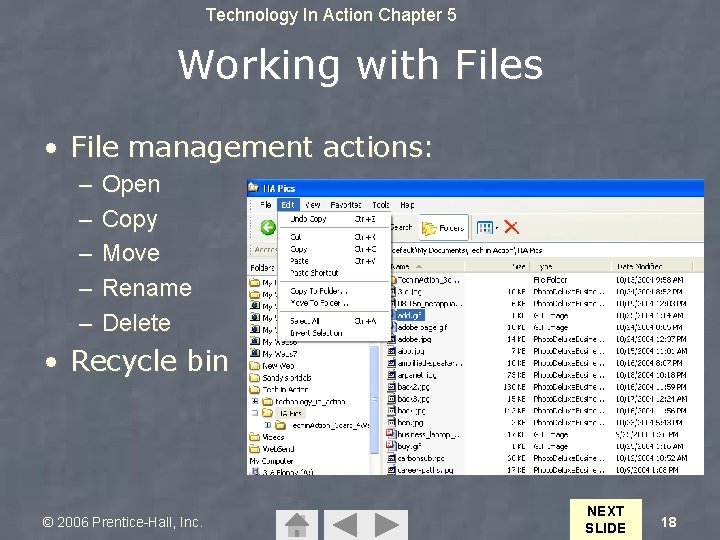
Technology In Action Chapter 5 Working with Files • File management actions: – – – Open Copy Move Rename Delete • Recycle bin © 2006 Prentice-Hall, Inc. NEXT SLIDE 18
Technology In Action Chapter 5 Utility Programs • Small application programs that perform special functions: – – – Manage system resources Create pleasant environment Improve efficiency © 2006 Prentice-Hall, Inc. 19
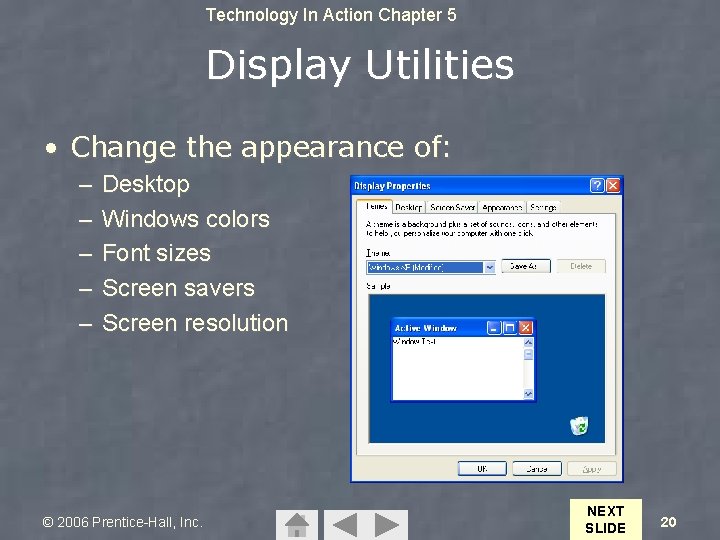
Technology In Action Chapter 5 Display Utilities • Change the appearance of: – – – Desktop Windows colors Font sizes Screen savers Screen resolution © 2006 Prentice-Hall, Inc. NEXT SLIDE 20
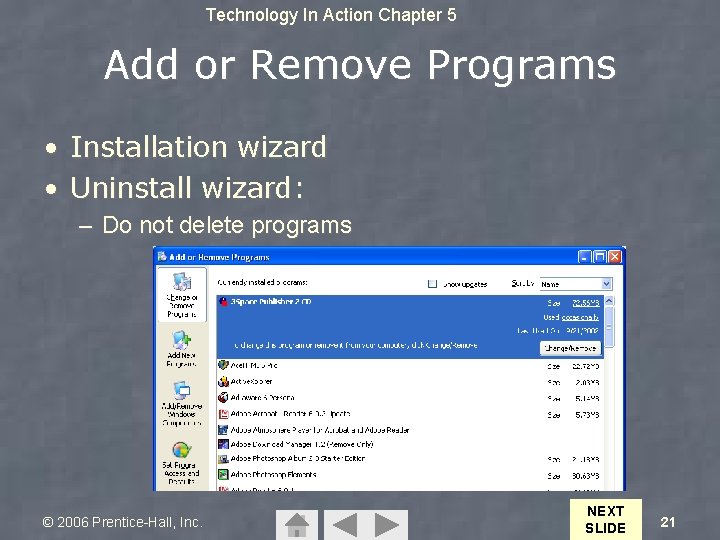
Technology In Action Chapter 5 Add or Remove Programs • Installation wizard • Uninstall wizard: – Do not delete programs © 2006 Prentice-Hall, Inc. NEXT SLIDE 21
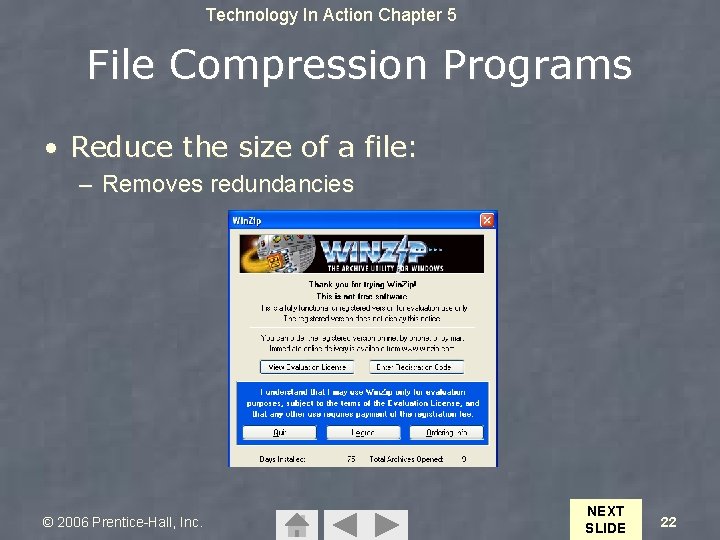
Technology In Action Chapter 5 File Compression Programs • Reduce the size of a file: – Removes redundancies © 2006 Prentice-Hall, Inc. NEXT SLIDE 22
Technology In Action Chapter 5 System Maintenance Utilities • Disk cleanup • Disk defragmenter • Scan. Disk: – Error checker • Task manager © 2006 Prentice-Hall, Inc. NEXT SLIDE 23
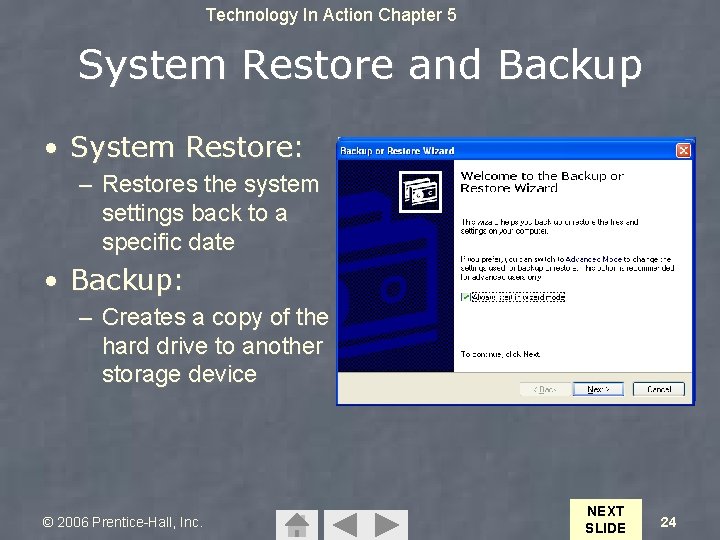
Technology In Action Chapter 5 System Restore and Backup • System Restore: – Restores the system settings back to a specific date • Backup: – Creates a copy of the hard drive to another storage device © 2006 Prentice-Hall, Inc. NEXT SLIDE 24
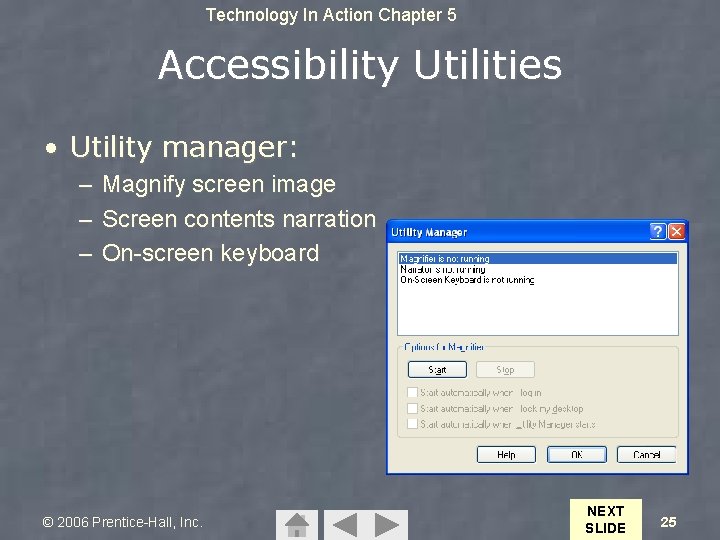
Technology In Action Chapter 5 Accessibility Utilities • Utility manager: – Magnify screen image – Screen contents narration – On-screen keyboard © 2006 Prentice-Hall, Inc. NEXT SLIDE 25
Technology In Action Chapter 5 Summary Questions • What utility programs are included in system software and what do they do? © 2006 Prentice-Hall, Inc. LAST SLIDE 26