
Technology In Action 2007 PrenticeHall Inc 1 Chapter
- Slides: 33
Technology In Action © 2007 Prentice-Hall, Inc. 1
Chapter 2 Looking at Computers: Understanding the Parts © 2007 Prentice-Hall, Inc. 2
Topics • • • Hardware components Input devices Output devices System unit Ergonomics © 2007 Prentice-Hall, Inc. 3
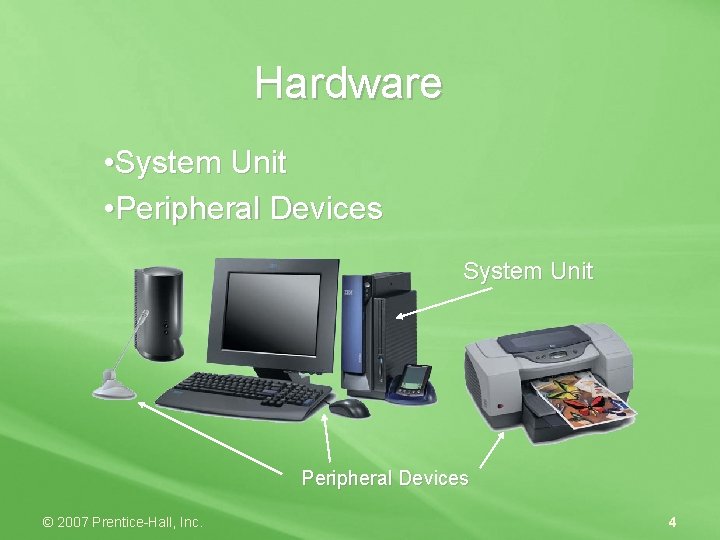
Hardware • System Unit • Peripheral Devices System Unit Peripheral Devices © 2007 Prentice-Hall, Inc. 4
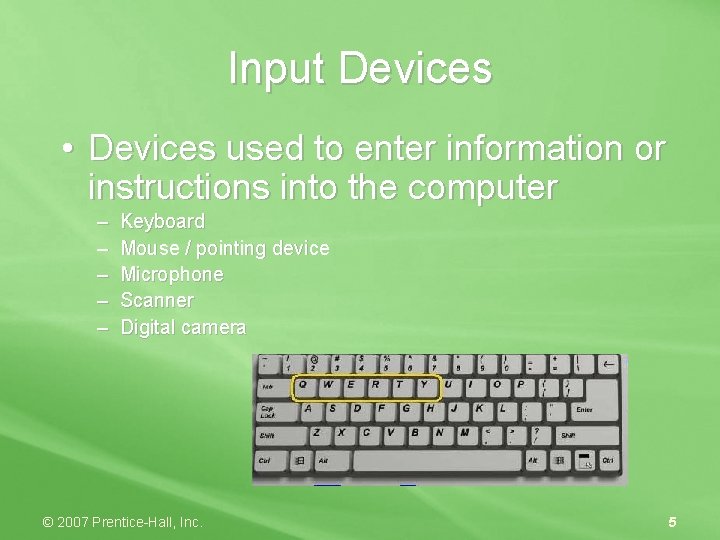
Input Devices • Devices used to enter information or instructions into the computer – – – Keyboard Mouse / pointing device Microphone Scanner Digital camera © 2007 Prentice-Hall, Inc. 5
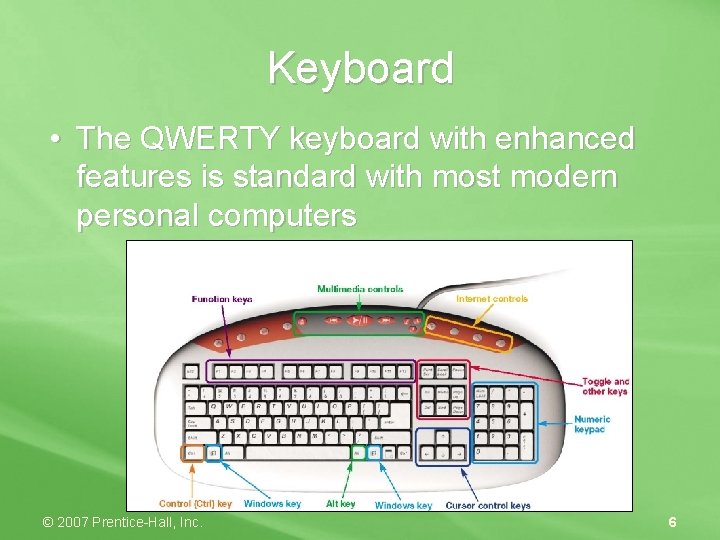
Keyboard • The QWERTY keyboard with enhanced features is standard with most modern personal computers © 2007 Prentice-Hall, Inc. 6
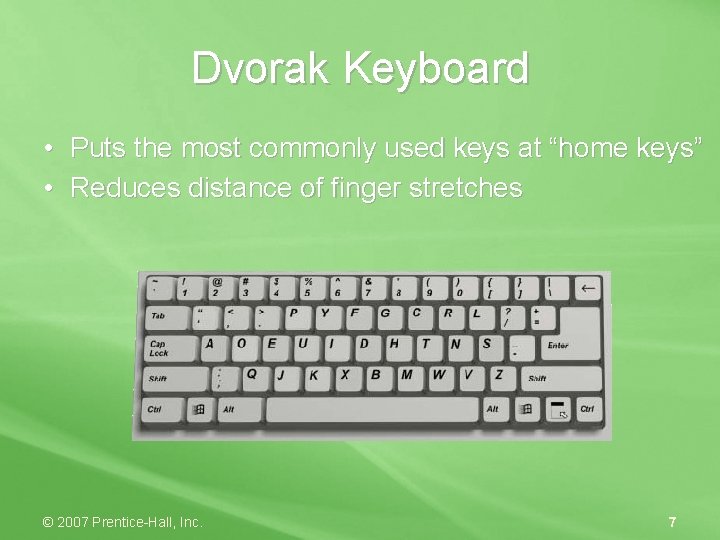
Dvorak Keyboard • Puts the most commonly used keys at “home keys” • Reduces distance of finger stretches © 2007 Prentice-Hall, Inc. 7
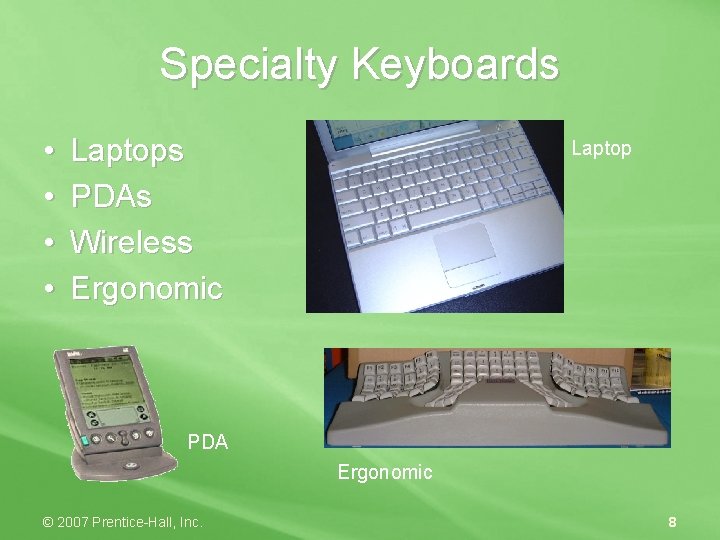
Specialty Keyboards • • Laptops PDAs Wireless Ergonomic Laptop PDA Ergonomic © 2007 Prentice-Hall, Inc. 8
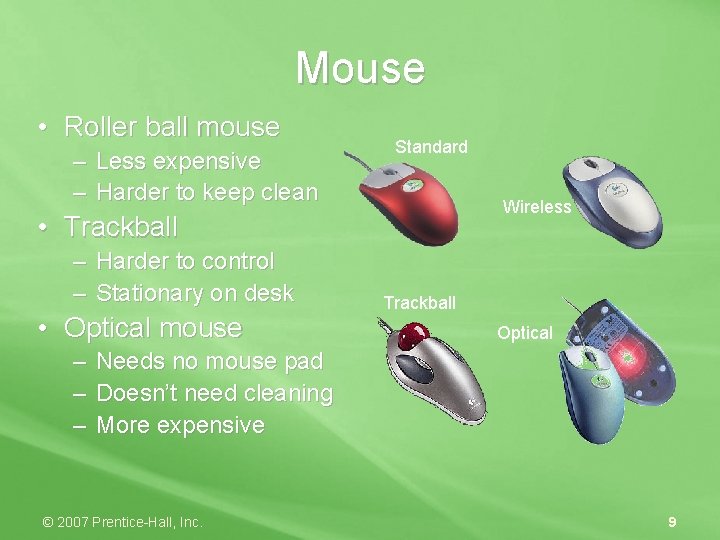
Mouse • Roller ball mouse – Less expensive – Harder to keep clean Standard Wireless • Trackball – Harder to control – Stationary on desk • Optical mouse Trackball Optical – Needs no mouse pad – Doesn’t need cleaning – More expensive © 2007 Prentice-Hall, Inc. 9
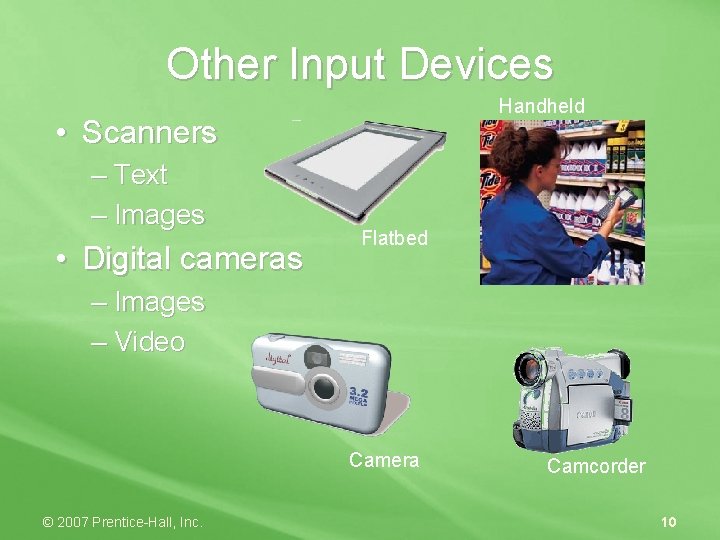
Other Input Devices Handheld • Scanners – Text – Images • Digital cameras Flatbed – Images – Video Camera © 2007 Prentice-Hall, Inc. Camcorder 10
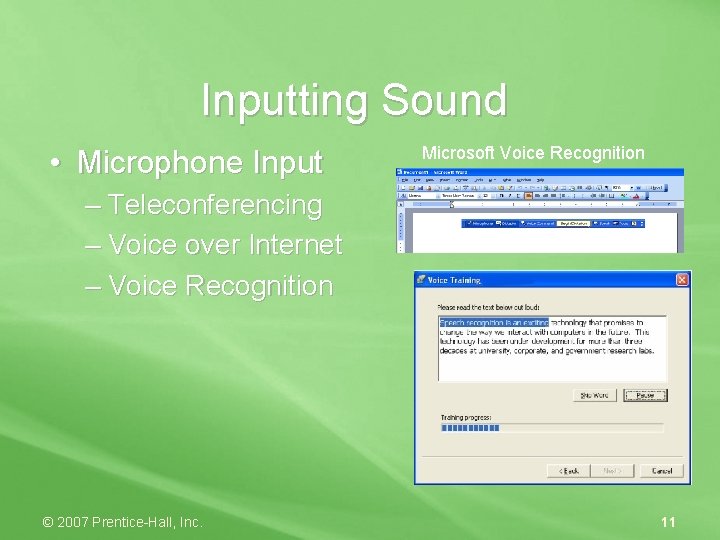
Inputting Sound • Microphone Input Microsoft Voice Recognition – Teleconferencing – Voice over Internet – Voice Recognition © 2007 Prentice-Hall, Inc. 11
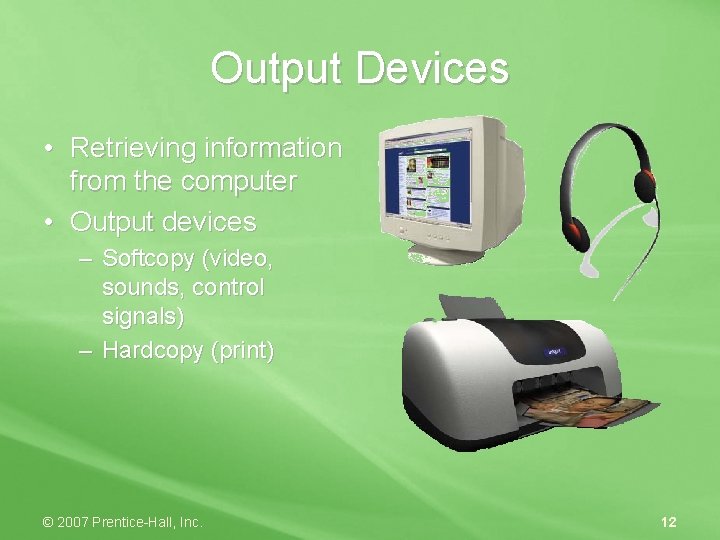
Output Devices • Retrieving information from the computer • Output devices – Softcopy (video, sounds, control signals) – Hardcopy (print) © 2007 Prentice-Hall, Inc. 12
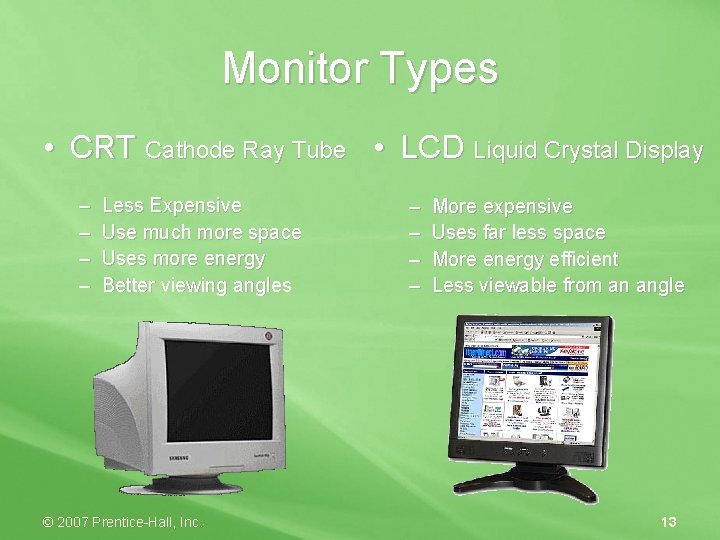
Monitor Types • CRT Cathode Ray Tube • LCD Liquid Crystal Display – – Less Expensive Use much more space Uses more energy Better viewing angles © 2007 Prentice-Hall, Inc. – – More expensive Uses far less space More energy efficient Less viewable from an angle 13
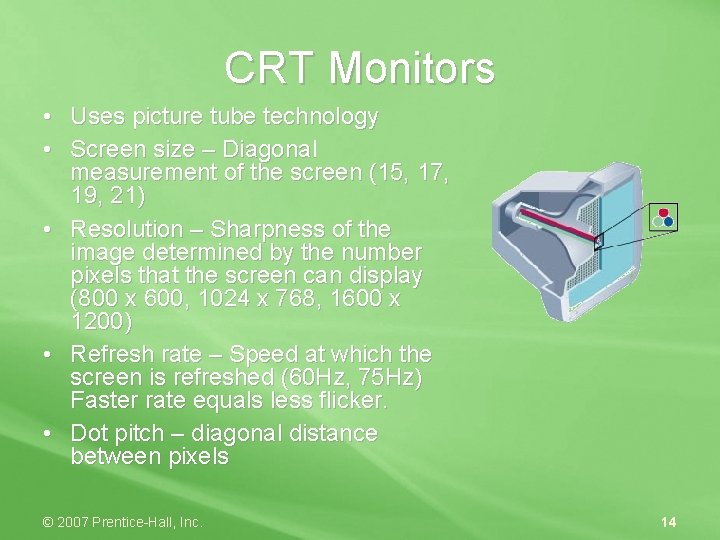
CRT Monitors • Uses picture tube technology • Screen size – Diagonal measurement of the screen (15, 17, 19, 21) • Resolution – Sharpness of the image determined by the number pixels that the screen can display (800 x 600, 1024 x 768, 1600 x 1200) • Refresh rate – Speed at which the screen is refreshed (60 Hz, 75 Hz) Faster rate equals less flicker. • Dot pitch – diagonal distance between pixels © 2007 Prentice-Hall, Inc. 14
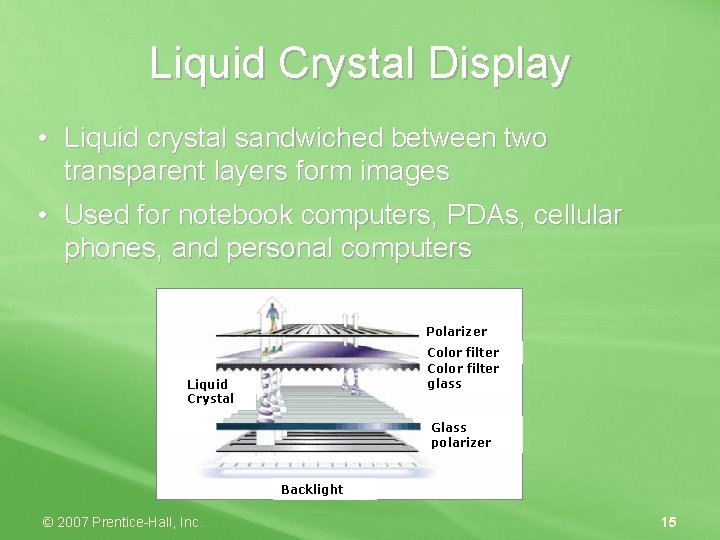
Liquid Crystal Display • Liquid crystal sandwiched between two transparent layers form images • Used for notebook computers, PDAs, cellular phones, and personal computers Polarizer Color filter glass Liquid Crystal Glass polarizer Backlight © 2007 Prentice-Hall, Inc. 15
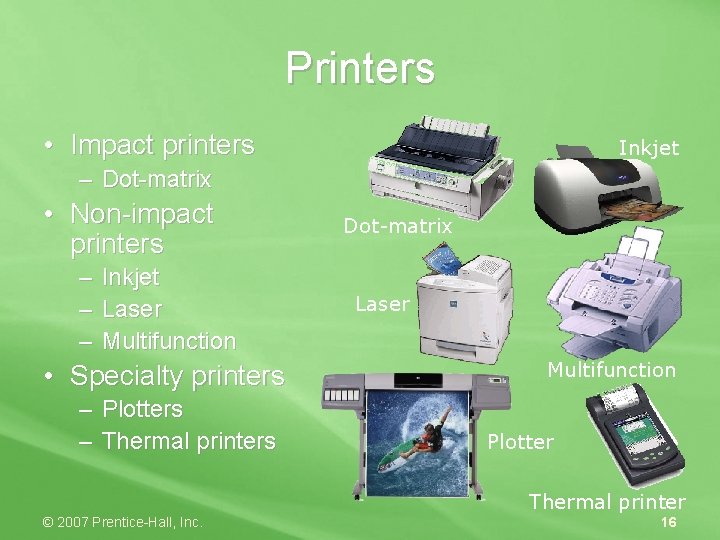
Printers • Impact printers Inkjet – Dot-matrix • Non-impact printers – Inkjet – Laser – Multifunction • Specialty printers – Plotters – Thermal printers Dot-matrix Laser Multifunction Plotter Thermal printer © 2007 Prentice-Hall, Inc. 16
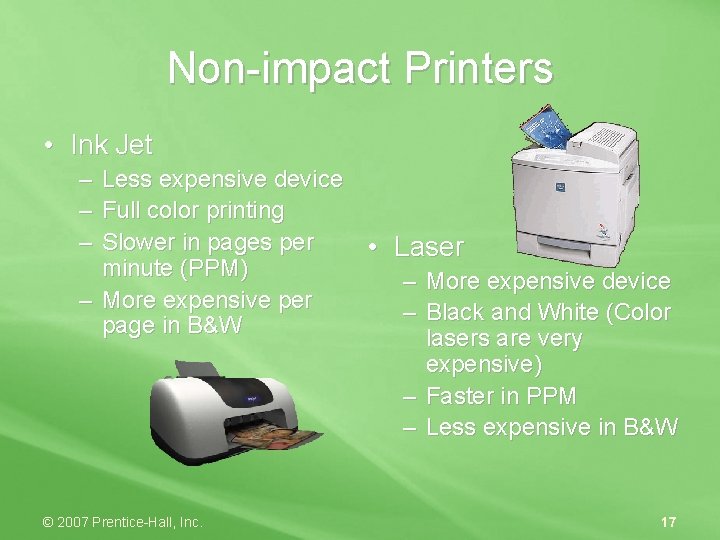
Non-impact Printers • Ink Jet – Less expensive device – Full color printing – Slower in pages per • Laser minute (PPM) – More expensive device – More expensive per – Black and White (Color page in B&W lasers are very expensive) – Faster in PPM – Less expensive in B&W © 2007 Prentice-Hall, Inc. 17
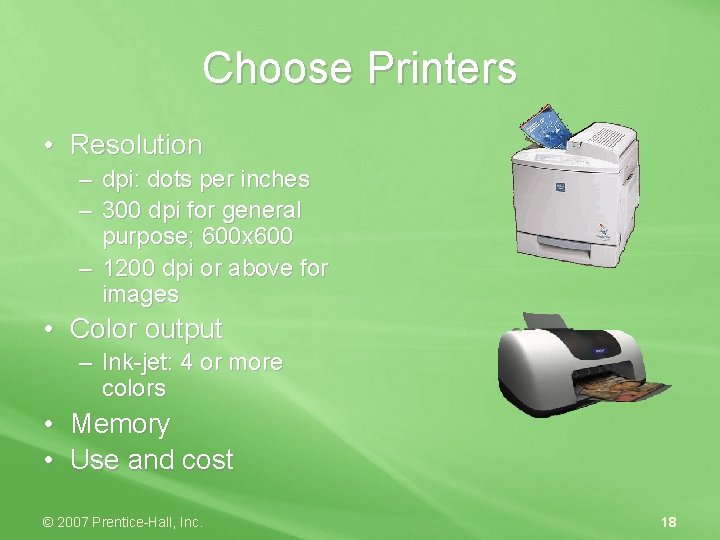
Choose Printers • Resolution – dpi: dots per inches – 300 dpi for general purpose; 600 x 600 – 1200 dpi or above for images • Color output – Ink-jet: 4 or more colors • Memory • Use and cost © 2007 Prentice-Hall, Inc. 18
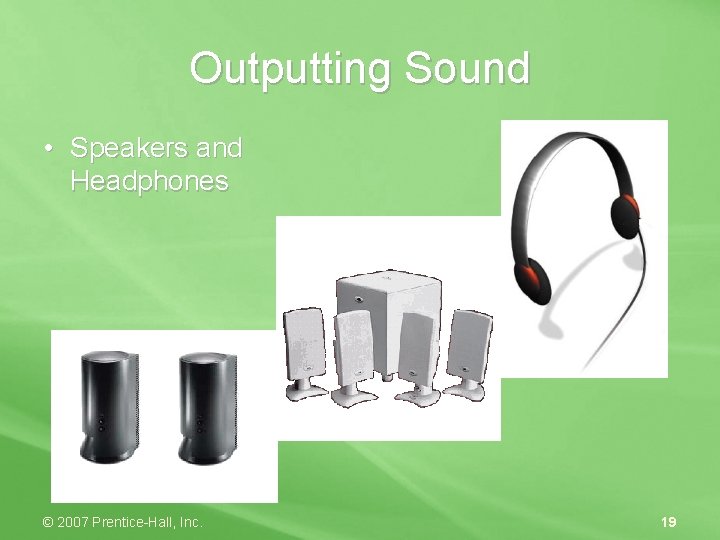
Outputting Sound • Speakers and Headphones © 2007 Prentice-Hall, Inc. 19
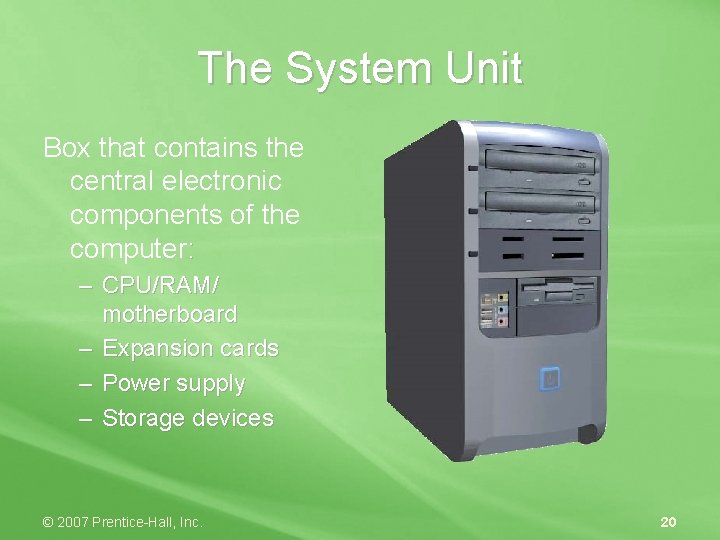
The System Unit Box that contains the central electronic components of the computer: – CPU/RAM/ motherboard – Expansion cards – Power supply – Storage devices © 2007 Prentice-Hall, Inc. 20
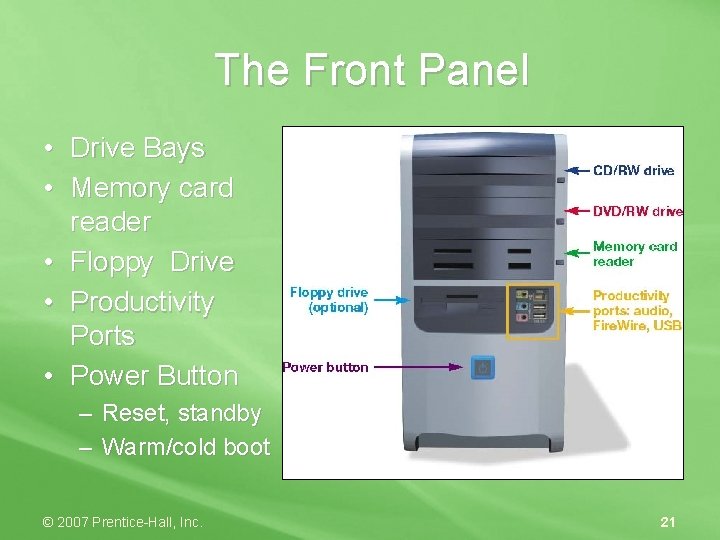
The Front Panel • Drive Bays • Memory card reader • Floppy Drive • Productivity Ports • Power Button – Reset, standby – Warm/cold boot © 2007 Prentice-Hall, Inc. 21
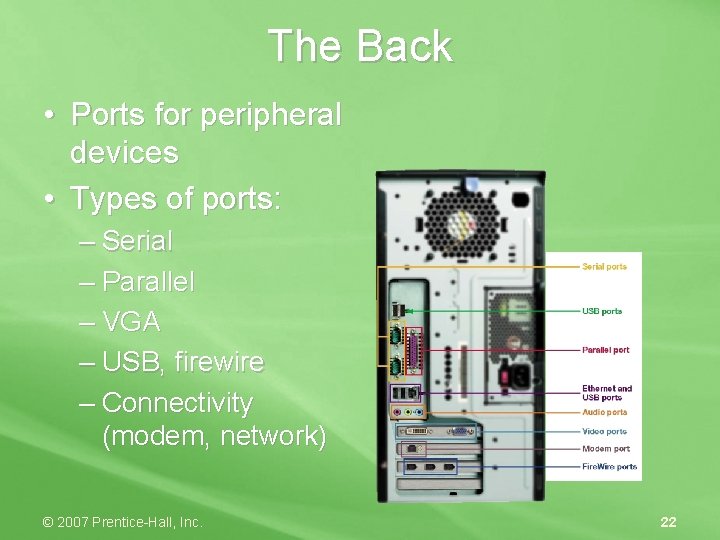
The Back • Ports for peripheral devices • Types of ports: – Serial – Parallel – VGA – USB, firewire – Connectivity (modem, network) © 2007 Prentice-Hall, Inc. 22
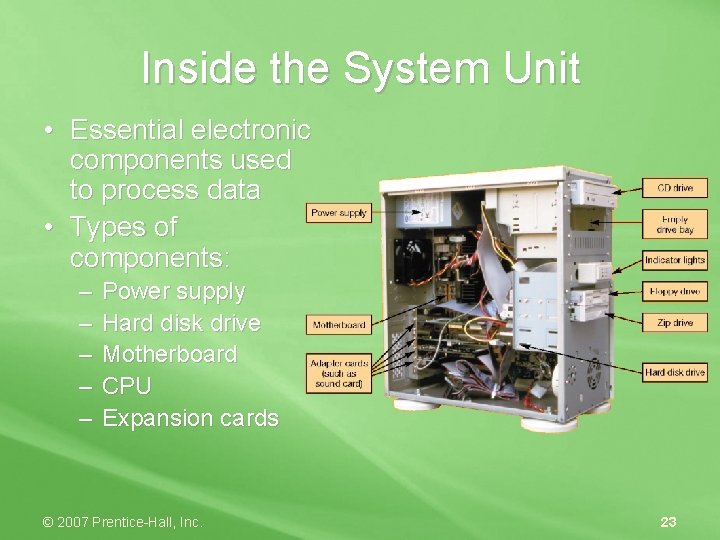
Inside the System Unit • Essential electronic components used to process data • Types of components: – – – Power supply Hard disk drive Motherboard CPU Expansion cards © 2007 Prentice-Hall, Inc. 23
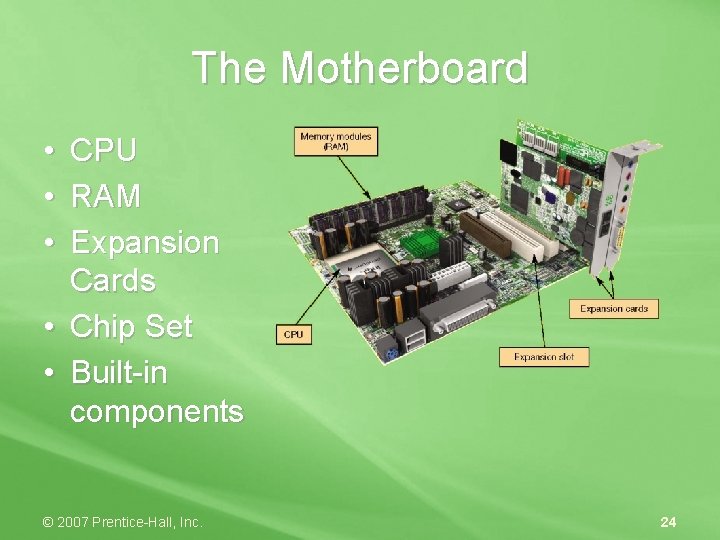
The Motherboard • • • CPU RAM Expansion Cards • Chip Set • Built-in components © 2007 Prentice-Hall, Inc. 24
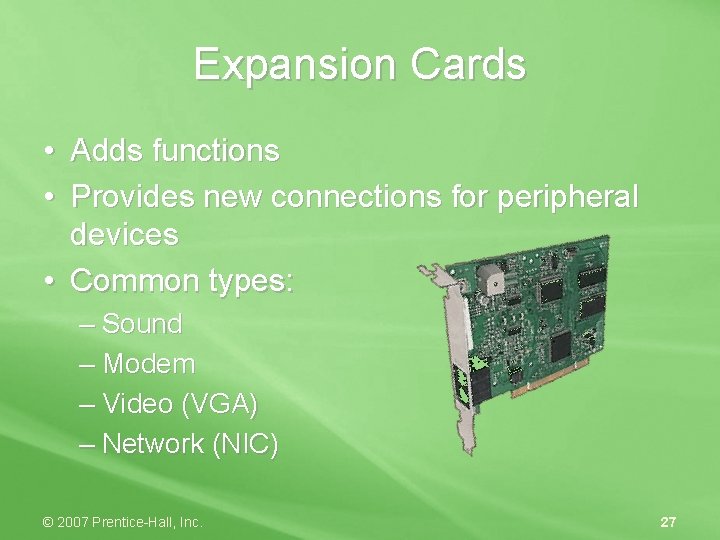
Expansion Cards • Adds functions • Provides new connections for peripheral devices • Common types: – Sound – Modem – Video (VGA) – Network (NIC) © 2007 Prentice-Hall, Inc. 27
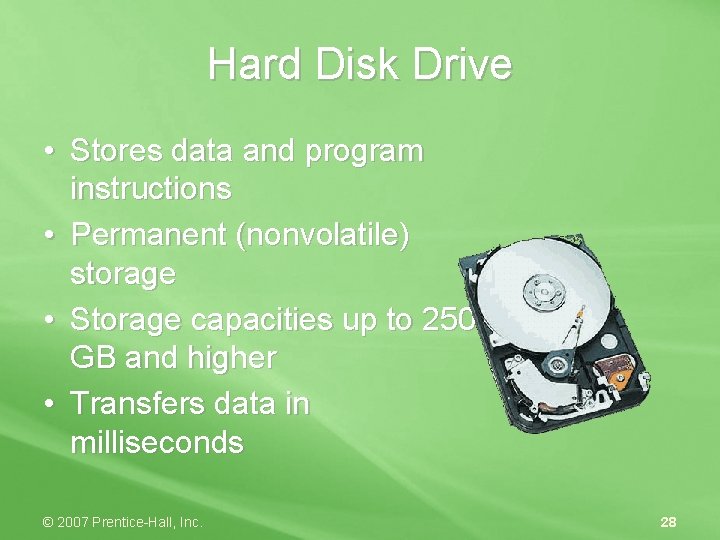
Hard Disk Drive • Stores data and program instructions • Permanent (nonvolatile) storage • Storage capacities up to 250 GB and higher • Transfers data in milliseconds © 2007 Prentice-Hall, Inc. 28
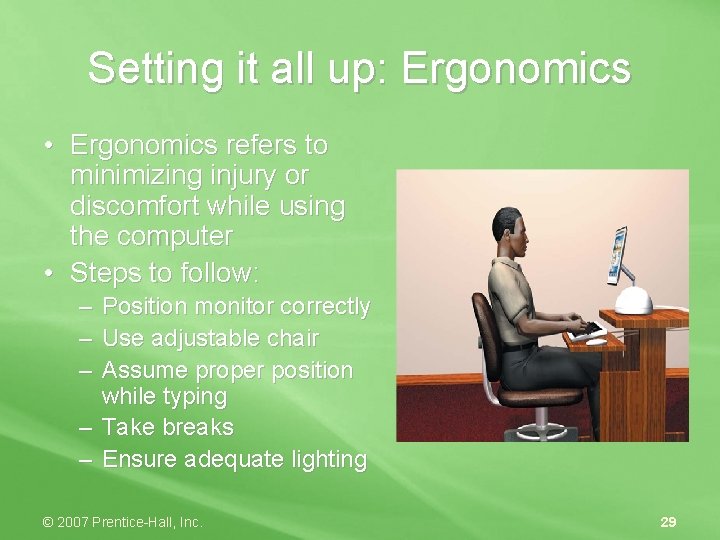
Setting it all up: Ergonomics • Ergonomics refers to minimizing injury or discomfort while using the computer • Steps to follow: – Position monitor correctly – Use adjustable chair – Assume proper position while typing – Take breaks – Ensure adequate lighting © 2007 Prentice-Hall, Inc. 29
Chapter 2 Summary Questions • What devices do you use to get data into the computer? © 2007 Prentice-Hall, Inc. 30
Chapter 2 Summary Questions • What devices enable us to see or hear the processed information? © 2007 Prentice-Hall, Inc. 31
Chapter 2 Summary Questions • What’s on the front of your system unit? © 2007 Prentice-Hall, Inc. 32
Chapter 2 Summary Questions • What’s on the back of your system unit? © 2007 Prentice-Hall, Inc. 33
Chapter 2 Summary Questions • What’s inside your system unit? © 2007 Prentice-Hall, Inc. 34
Chapter 2 Summary Questions • How do you set up your computer to avoid strain and injury? © 2007 Prentice-Hall, Inc. 35