
Technical Presentations Using Tables and Drawings Jeffrey Donnell
Technical Presentations Using Tables and Drawings Jeffrey Donnell MRDC 3104 894 -8568 1
Agenda • How to organize the talk • The deliverables we need to see • How to use and display graphics: – – – Specification lists Function trees Morph Charts Concept drawings Evaluation Tables • Warnings about slide design 2
For Mini-project presentations Display Illustrations of your design(s) Planning or analysis tools (as called for) (Limit text to labels and table entries) Speak Identify and describe drawings Identify and describe planning tools 3
Before and After the Talk • Face the audience • Remove your cap • Introduce yourself and your team • End the talk with this statement: “Thank you. I’ll be happy to answer questions. ” 4
Guidelines for Presenting Images • Describe and explain the diagrams and charts that you display on the screen • Use a pointer to highlight the things you talk about • Use specific, descriptive words to name your concepts, their subsystems and their components • Avoid Photographs 5
Questions to Address During the Talk • For Systems or Subsystems – What makes [this] good or bad? – What should we remember about this design? • For Evaluation Tables – Which two criteria have the biggest impact on the rankings? • For Planning Tools, – How were values determined? – How will the information in [this tool] be used later? 6
Displaying Figures and Tables on slides • • Choose light backgrounds Make displays fill the screen Show descriptive slide title OR figure caption You must describe your figures and tables to the audience: – What is it? – Why is it presented? – What should the audience notice about it? Some planning tools require reformatting for screen display 7

Slide Title (compress to make room for image) Specifications Focus on Your Input ! Spec sheet is cropped to allow for larger fonts 8
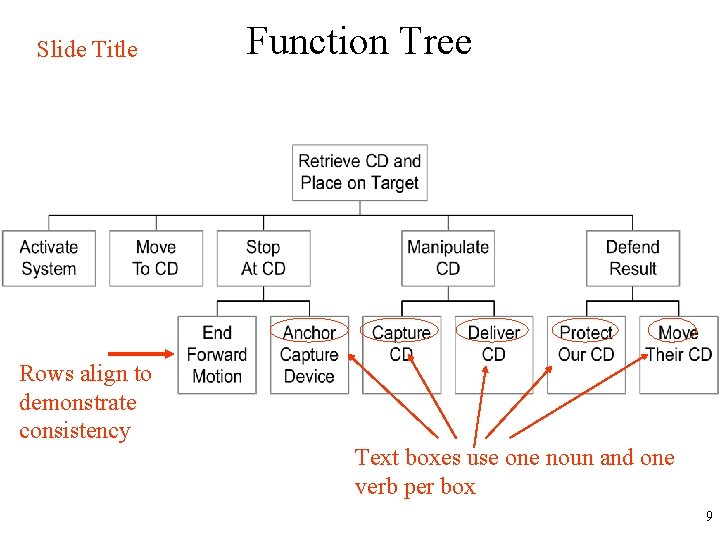
Slide Title Rows align to demonstrate consistency Function Tree Text boxes use one noun and one verb per box 9
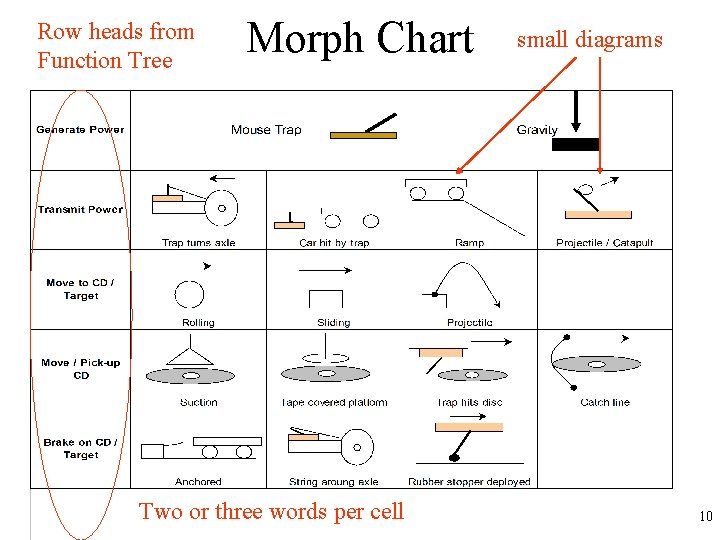
Row heads from Function Tree Morph Chart Two or three words per cell small diagrams 10
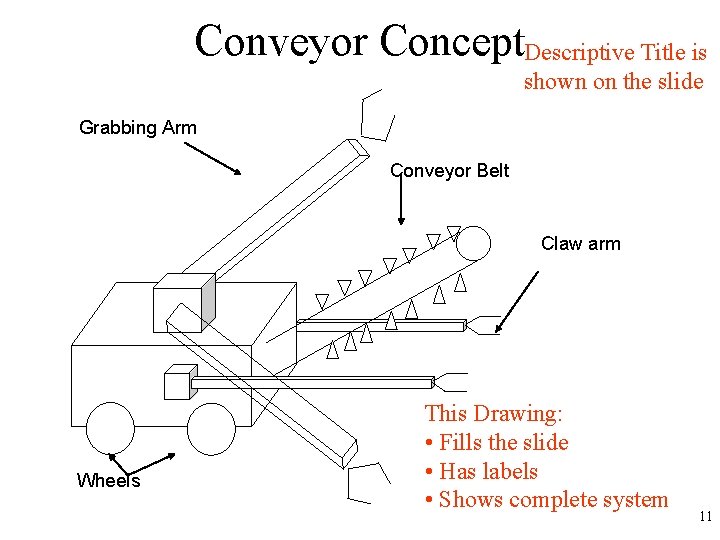
Conveyor Concept. Descriptive Title is shown on the slide Grabbing Arm Conveyor Belt Claw arm Wheels This Drawing: • Fills the slide • Has labels • Shows complete system 11
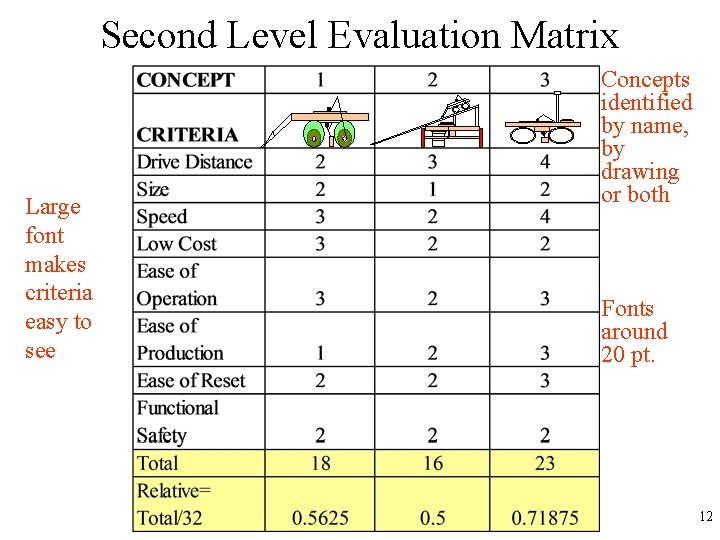
Second Level Evaluation Matrix Large font makes criteria easy to see Concepts identified by name, by drawing or both Fonts around 20 pt. 12
Focus, color and information • Important information must visually dominate any figure or table • When possible, important information should be clustered and centered • Color is best reserved to highlight important information • Light colors often give you the greatest flexibility 13
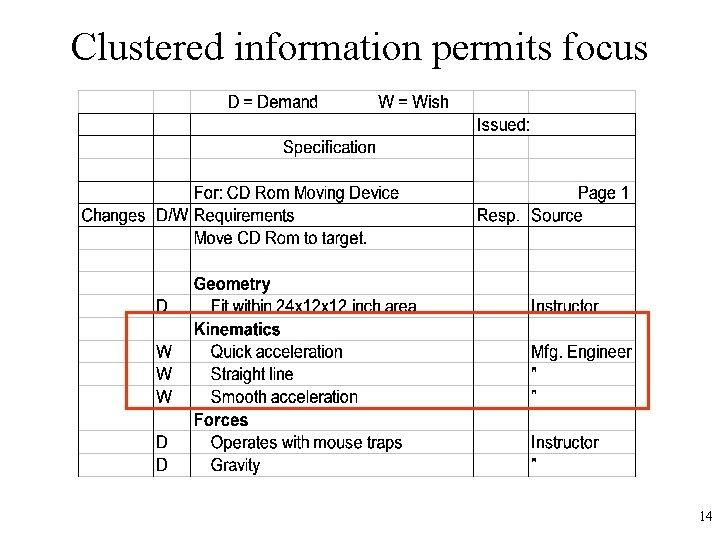
Clustered information permits focus 14
Motion, Sound and information • Motion should highlight important information Animated concept drawings are very helpful • Sound is best avoided Unless the sound IS the information 15
Don’t make anything move unless it needs to move! Any motion is more interesting than you are 16
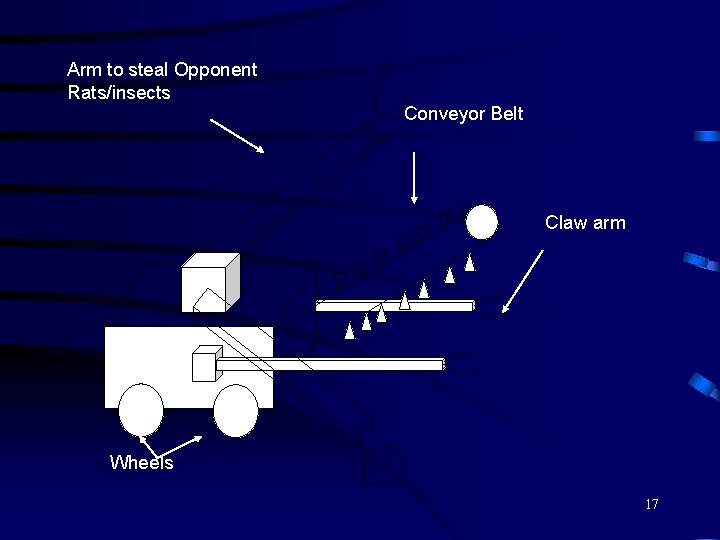
Arm to steal Opponent Rats/insects Conveyor Belt Claw arm Wheels 17
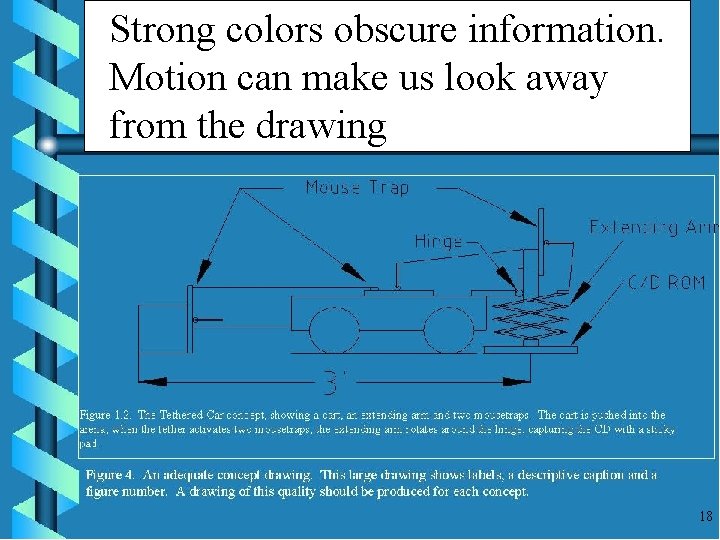
Strong colors obscure information. Motion can make us look away from the drawing 18
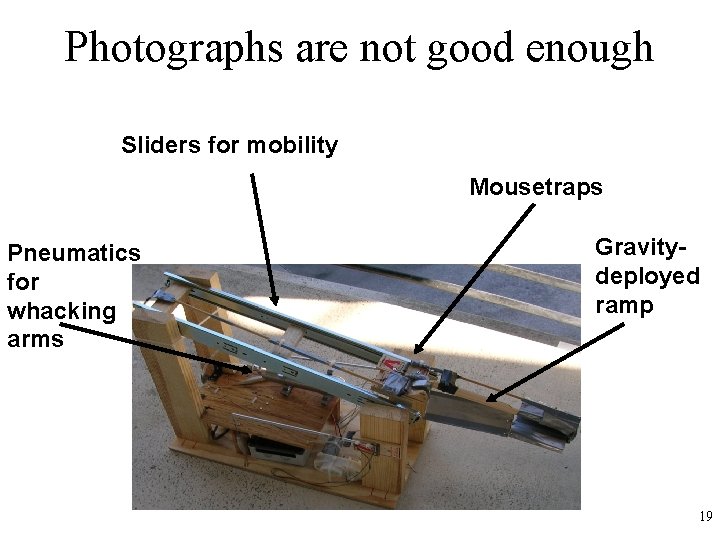
Photographs are not good enough Sliders for mobility Mousetraps Pneumatics for whacking arms Gravitydeployed ramp 19
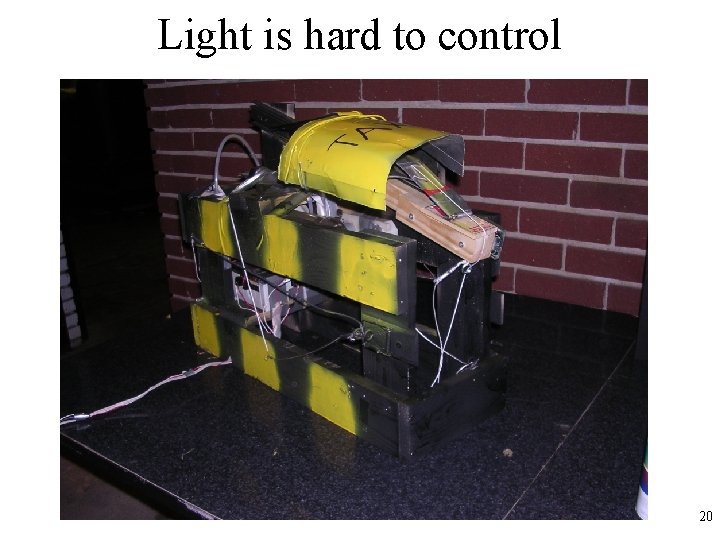
Light is hard to control 20
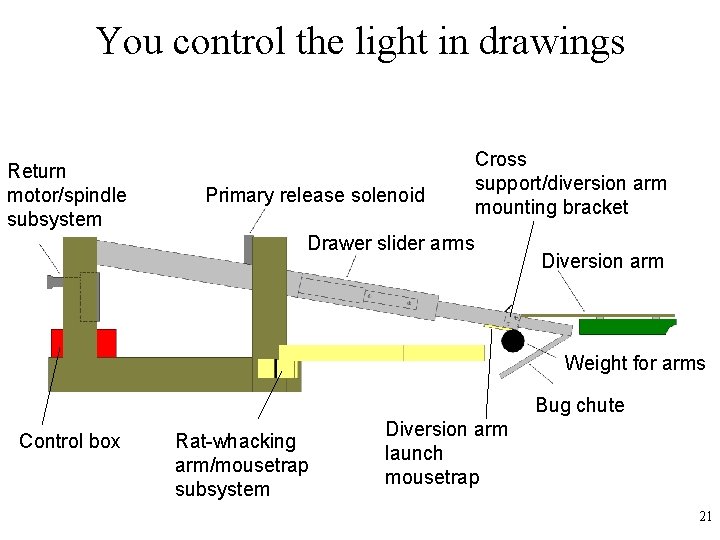
You control the light in drawings Return motor/spindle subsystem Primary release solenoid Cross support/diversion arm mounting bracket Drawer slider arms Diversion arm Weight for arms Bug chute Control box Rat-whacking arm/mousetrap subsystem Diversion arm launch mousetrap 21
- Slides: 21