
TABLE THIS Inserting and formatting tables TABLE Objective
TABLE THIS! Inserting and formatting tables
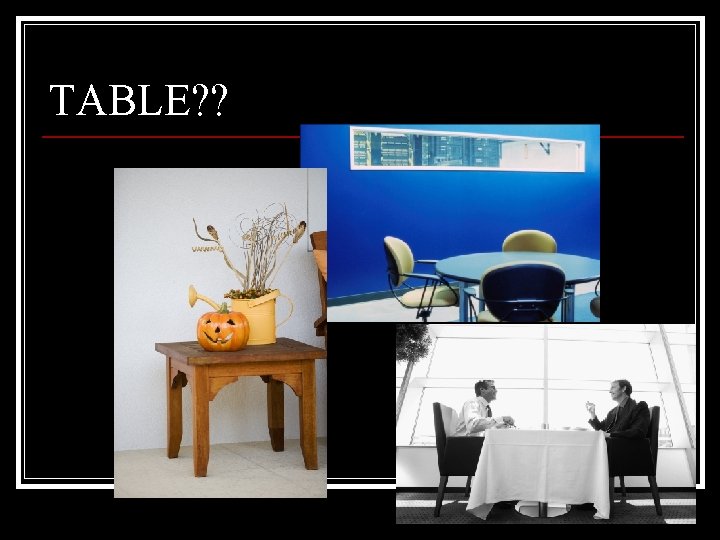
TABLE? ?

Objective: The students will learn to insert and format tables in a word processing document. n Frameworks 2. 2. 1: Review business document formats, i. e…tables. n
What is a Table? n. A series of columns and rows in which data is entered, formatted, and organized

BINGO
How to create your bingo “table” n Open a blank MS Word document n File Menu: select Table, then Insert n Table: 5 columns, 6 rows
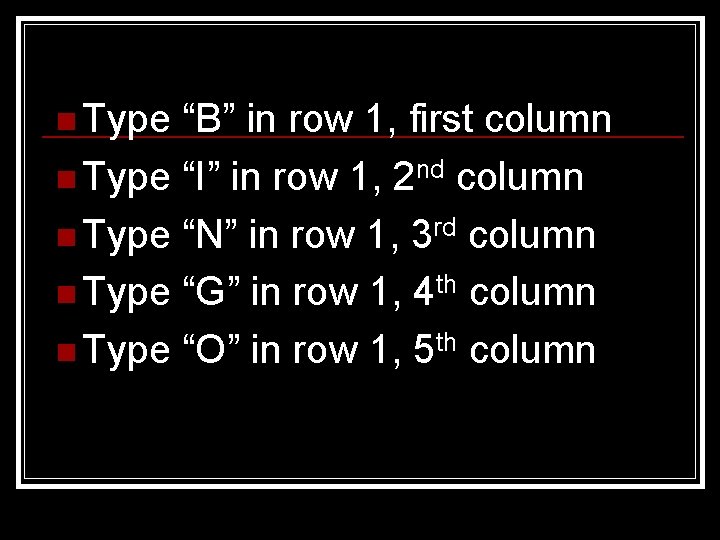
n Type “B” in row 1, first column n Type “I” in row 1, 2 nd column n Type “N” in row 1, 3 rd column n Type “G” in row 1, 4 th column n Type “O” in row 1, 5 th column

Formatting the Table n Highlight the 1 st row containing the word BINGO n Choose format from file menu or from the formatting toolbar, change the font style to BOLD and the font color to RED, font to 48 point, and center the letters.
Inserting the terms Enter a word in each box from the handout. Only use the words that correspond with the specific letter! n Mix it Up!!! Don’t type the words in exact order given n Don’t forget to add a “FREE” space in the center n
Play BINGO!! When you have a space that is called, highlight the space and mark it yellow in color. n To do this easily, make sure your tables & borders toolbar is showing. (View/toolbars/tables & borders) n
When we finish… Print your Bingo Card n Be sure to type your name in the footer. n
- Slides: 11