
Table Of Contents The BOTanist Photos Strategies Team

Table Of Contents • • • The BOTanist Photos Strategies: Team and Alliance Manipulator Design - Lifting Mechanism Manipulator Design - Claw Mechanism Robot Design Review Changes to Make to Robot Remote Controller Design Review Remote Controller Characteristics Changes to Remote Controller What makes the BOTanist unique? Robot Characteristics Cost/Effort • • • Hours/Accountability Input and Output Table Remote Controller Pseudo Code Robot Pseudo Code Flow Chart: Remote Controller Flow Chart: Robot Wiring Schematic: Remote Controller Wiring Schematic: Robot Pin Usage Table Conclusion and Plans for Competition Robot Code Remote Controller Code
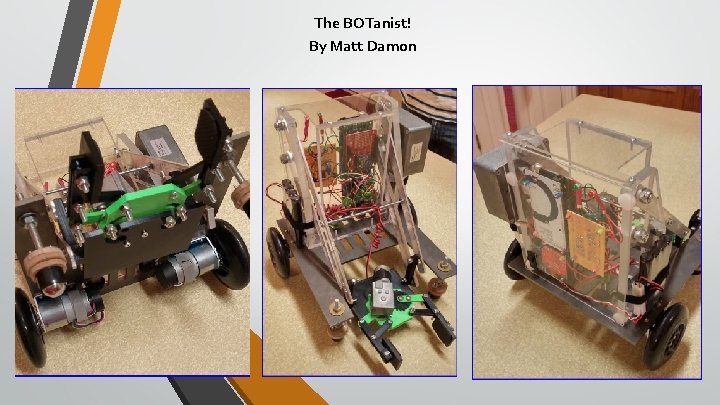
The BOTanist! By Matt Damon

Strategies: Team and Alliance Goals and strategies - Our team agreed to be one of the mover/lifter robots in our alliance Our goal was to fashion our robot to primarily lift or move one block at a time The claw was and is still an option to try and move Minor’s Peak after other tasks are completed. The alliance holds main tasks as priority over Minor’s peak, but believes two robots could move it together. On our team our roles shifted into the following: - Jon- Manufacturing and Solidworks lead-ordering and manufacturing parts Damien- Programming and Manufacturing the Mobility Platform Cherry- Programming and designing remote controller and documentation Amie- Assist in design of claw mechanism, schematics, flow charts, - and other documentation
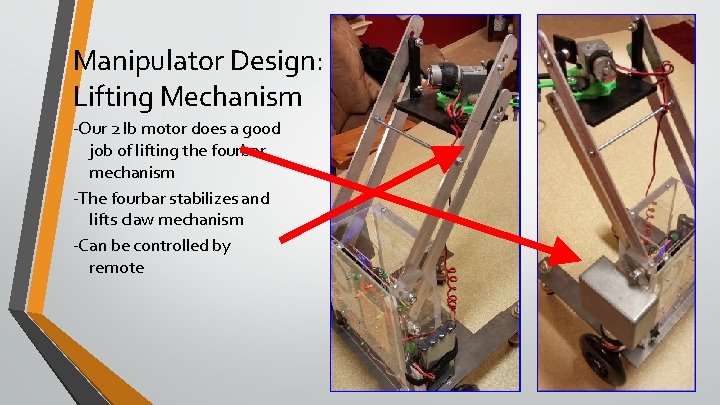
Manipulator Design: Lifting Mechanism -Our 2 lb motor does a good job of lifting the fourbar mechanism -The fourbar stabilizes and lifts claw mechanism -Can be controlled by remote
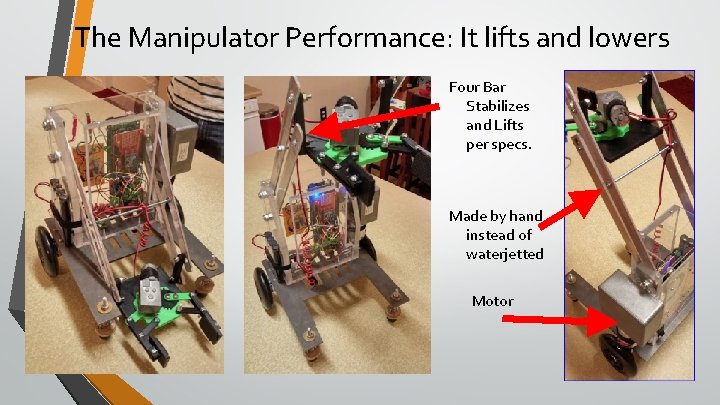
The Manipulator Performance: It lifts and lowers Four Bar Stabilizes and Lifts per specs. Made by hand instead of waterjetted Motor
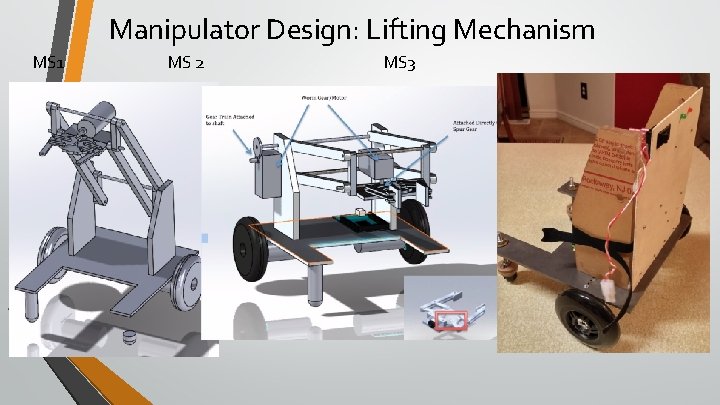
Manipulator Design: Lifting Mechanism MS 1 MS 2 MS 3
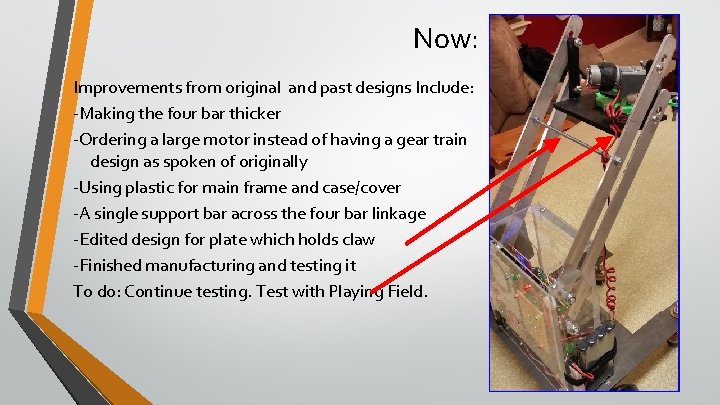
Now: Improvements from original and past designs Include: -Making the four bar thicker -Ordering a large motor instead of having a gear train design as spoken of originally -Using plastic for main frame and case/cover -A single support bar across the four bar linkage -Edited design for plate which holds claw -Finished manufacturing and testing it To do: Continue testing. Test with Playing Field.
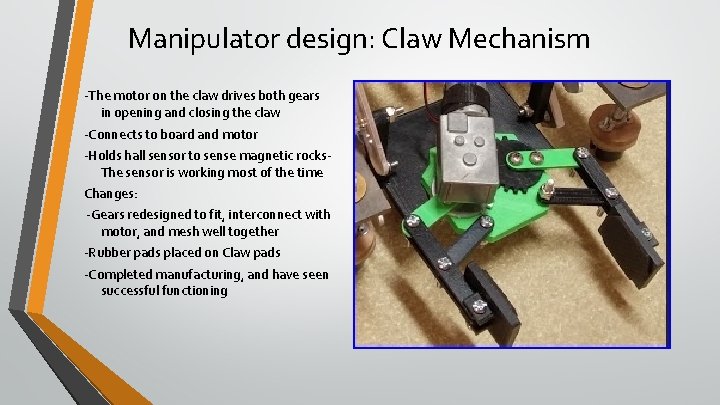
Manipulator design: Claw Mechanism -The motor on the claw drives both gears in opening and closing the claw -Connects to board and motor -Holds hall sensor to sense magnetic rocks. The sensor is working most of the time Changes: -Gears redesigned to fit, interconnect with motor, and mesh well together -Rubber pads placed on Claw pads -Completed manufacturing, and have seen successful functioning
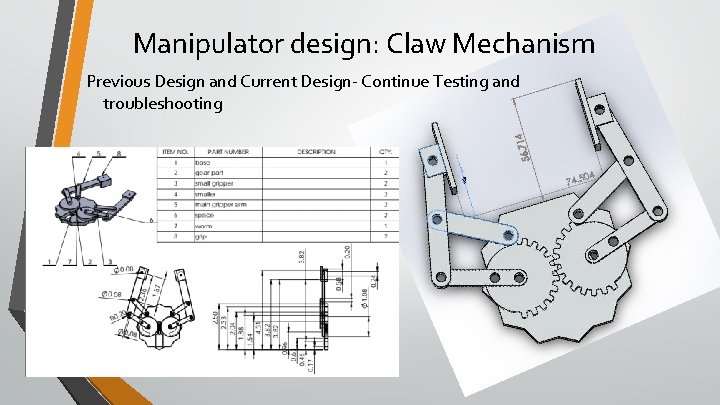
Manipulator design: Claw Mechanism Previous Design and Current Design- Continue Testing and troubleshooting
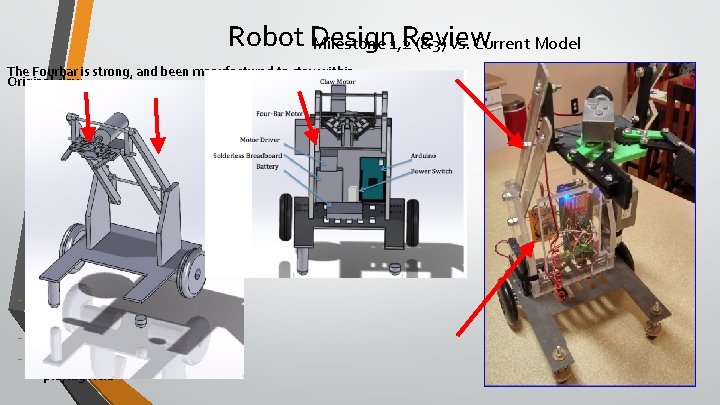
Robot Design Review Milestone 1, 2 (&3) vs. Current Model The Fourbar is strong, and been manufactured to stay within Original claw specifications - No changes from MS 3, except manufacturing is finished - New case to protect electronics We’ll continue testing with the playing field
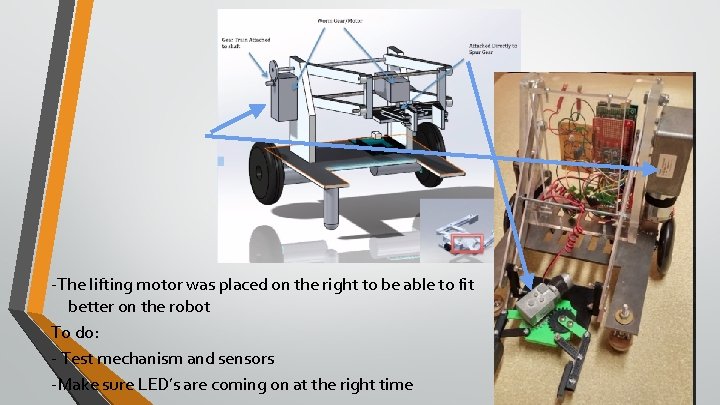
Robot Design -The lifting motor was placed on the right to be able to fit better on the robot To do: - Test mechanism and sensors -Make sure LED’s are coming on at the right time
More changes from the original design • • • Simplified Four-Bar Linkage by Adding Making Short Links Grounds. Consolidated parts (Motor + Gear to Motor/Gear Combo). Added Gripper Pad to Claw allowing for Higher Tolerances. Added Gear System to Raise and Lower Four-Bar. Moved Wheels Further Back on Base Plate
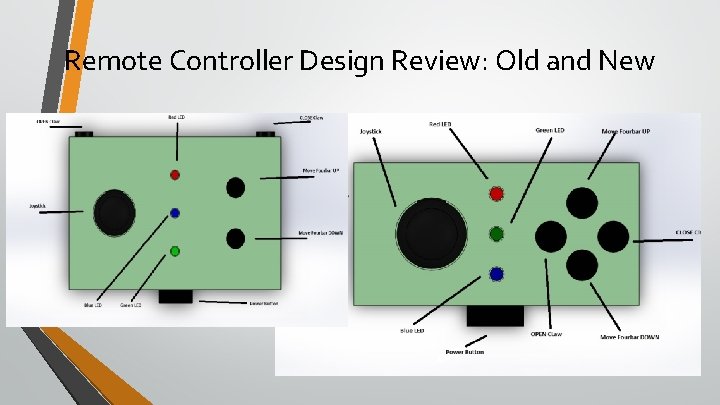
Remote Controller Design Review: Old and New
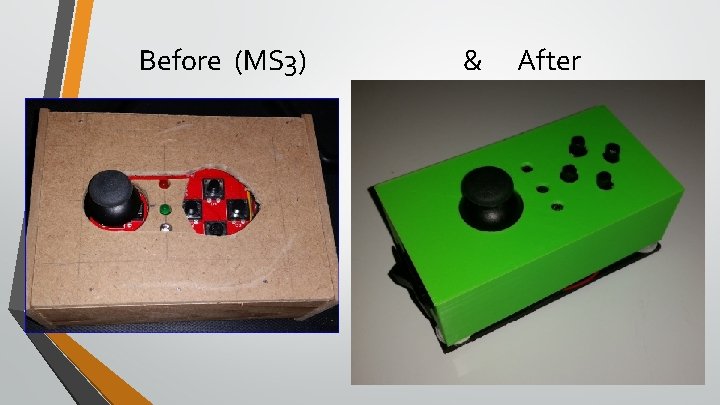
Before (MS 3) & After
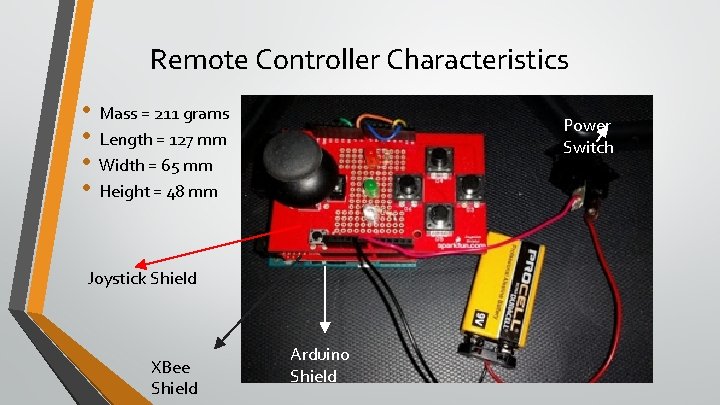
Remote Controller Characteristics • • Mass = 211 grams Length = 127 mm Width = 65 mm Height = 48 mm Power Switch Joystick Shield XBee Shield Arduino Shield
Remote Controller: Changes/Tuning • • • Insure a working 9 volt battery on day of Competition Make sure that the Base is secure Reorganize the wires/Trim wires to battery

What makes The BOTanist unique? Robot Characteristics - The robot is named to reference Matt Damon’s role in the movie “The Martian” - The BOTanist lifts well! The motor mounted for the lifter weighs 2 lbs! - It’s a lifting robot, designed and built to gather and build a block tower. The main assignment is to build the antenna on Mars. It theoretically has enough torque to push Minor’s peak. The latter will not be tested until design day if there is time remaining. - Multi-colored, the BOTanist has plastic and metal, designed for the best performance of each part. - The Remote Control is made from the same material as the Claw Mechanism
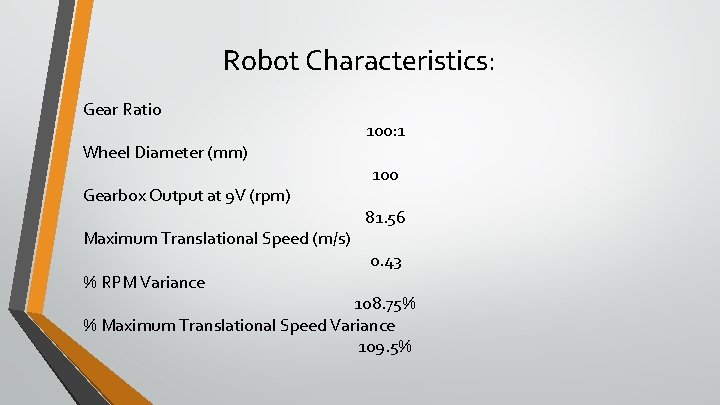
Robot Characteristics: Gear Ratio Wheel Diameter (mm) Gearbox Output at 9 V (rpm) Maximum Translational Speed (m/s) % RPM Variance 100: 1 100 81. 56 0. 43 108. 75% % Maximum Translational Speed Variance 109. 5%
Cost/Effort -We ordered $305. 64 worth of material through ME 3210 -We have purchased $156. 86 in addition to that -We are at a current total $305. 64 for expenses for the project -Effort has ranged from 2 -10 hours in any given week for each team member * -The team has put in around 120 hours total in the last 12 weeks, with an average of 3. 0 for each team member each week. * *These are values for outside of lab.
Hours and Accountability Jon-I’ve put in 3 hrs a week Amie- I would say I’ve put around 30 hours into the robot outside of lab. Damien- about 3 hours per week Cherry- I have put in an average of 3 hours a week outside of lab to work on the coding and building the remote controller.
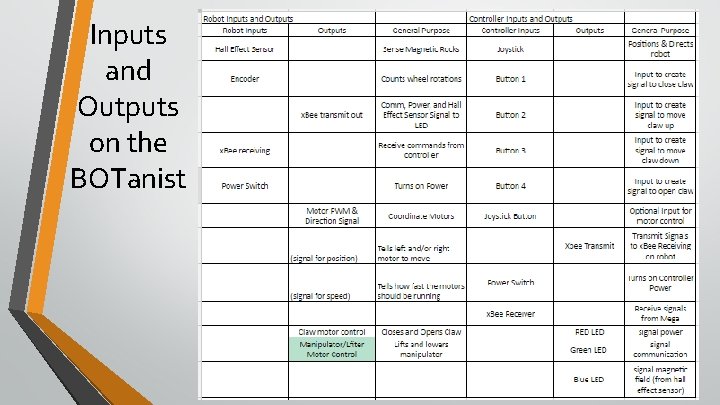
Inputs and Outputs on the BOTanist
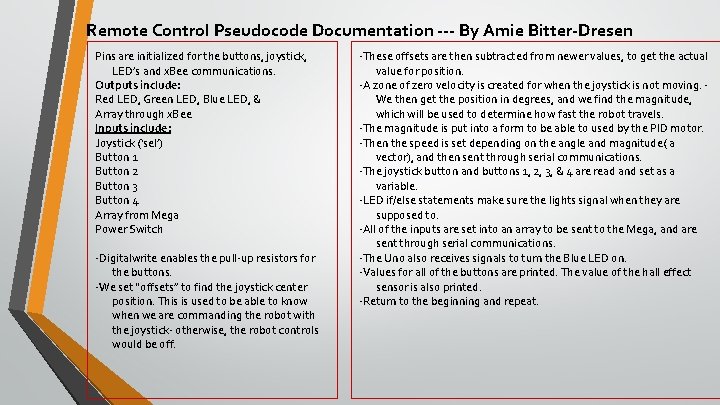
Remote Control Pseudocode Documentation --- By Amie Bitter-Dresen Pins are initialized for the buttons, joystick, LED’s and x. Bee communications. Outputs include: Red LED, Green LED, Blue LED, & Array through x. Bee Inputs include: Joystick (‘sel’) Button 1 Button 2 Button 3 Button 4 Array from Mega Power Switch -Digitalwrite enables the pull-up resistors for the buttons. -We set “offsets” to find the joystick center position. This is used to be able to know when we are commanding the robot with the joystick- otherwise, the robot controls would be off. -These offsets are then subtracted from newer values, to get the actual value for position. -A zone of zero velocity is created for when the joystick is not moving. We then get the position in degrees, and we find the magnitude, which will be used to determine how fast the robot travels. -The magnitude is put into a form to be able to used by the PID motor. -Then the speed is set depending on the angle and magnitude( a vector), and then sent through serial communications. -The joystick button and buttons 1, 2, 3, & 4 are read and set as a variable. -LED if/else statements make sure the lights signal when they are supposed to. -All of the inputs are set into an array to be sent to the Mega, and are sent through serial communications. -The Uno also receives signals to turn the Blue LED on. -Values for all of the buttons are printed. The value of the hall effect sensor is also printed. -Return to the beginning and repeat.
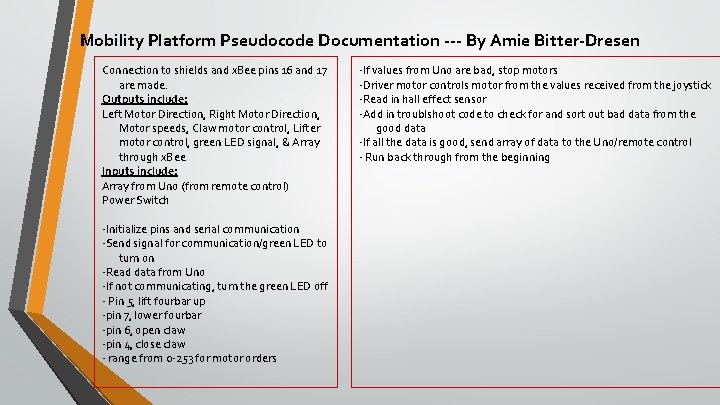
Mobility Platform Pseudocode Documentation --- By Amie Bitter-Dresen Connection to shields and x. Bee pins 16 and 17 are made. Outputs include: Left Motor Direction, Right Motor Direction, Motor speeds, Claw motor control, Lifter motor control, green LED signal, & Array through x. Bee Inputs include: Array from Uno (from remote control) Power Switch -Initialize pins and serial communication -Send signal for communication/green LED to turn on -Read data from Uno -If not communicating, turn the green LED off - Pin 5, lift fourbar up -pin 7, lower fourbar -pin 6, open claw -pin 4, close claw - range from 0 -253 for motor orders -If values from Uno are bad, stop motors -Driver motor controls motor from the values received from the joystick -Read in hall effect sensor -Add in troublshoot code to check for and sort out bad data from the good data -If all the data is good, send array of data to the Uno/remote control - Run back through from the beginning
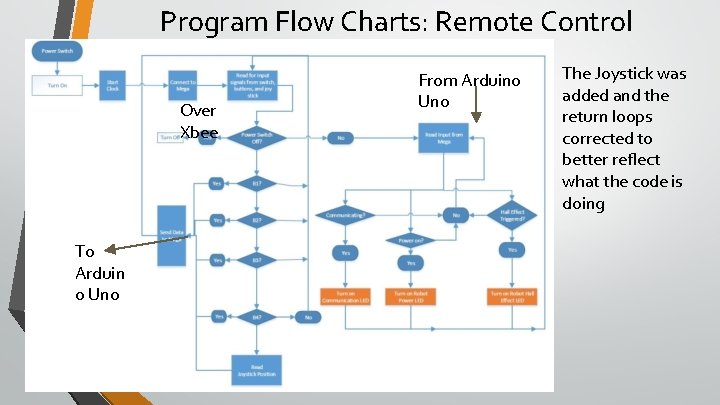
Program Flow Charts: Remote Control Over Xbee To Arduin o Uno From Arduino Uno The Joystick was added and the return loops corrected to better reflect what the code is doing
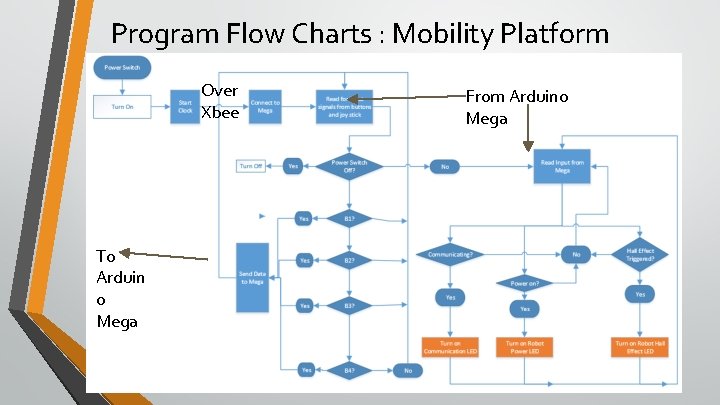
Program Flow Charts : Mobility Platform Over Xbee To Arduin o Mega From Arduino Mega
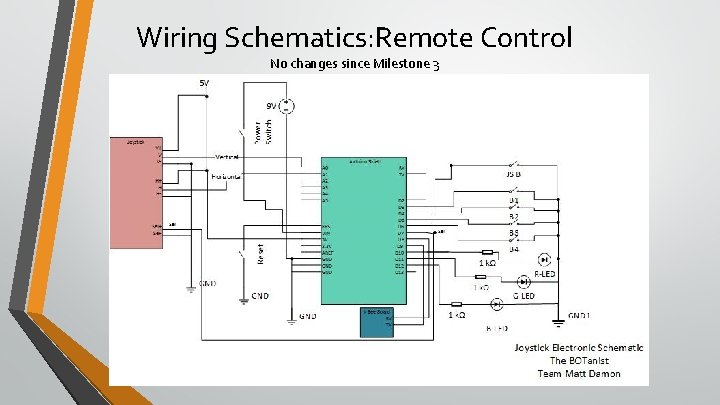
Wiring Schematics: Remote Control No changes since Milestone 3
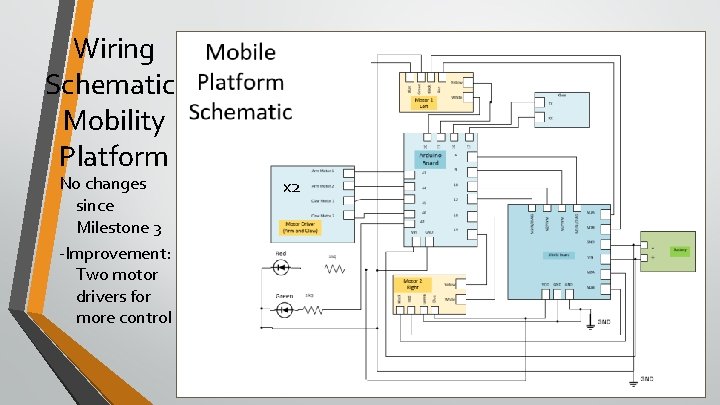
Wiring Schematic: Mobility Platform No changes since Milestone 3 -Improvement: Two motor drivers for more control x 2
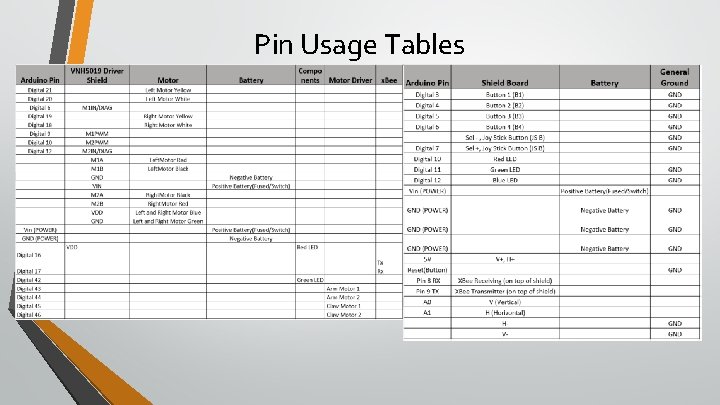
Pin Usage Tables
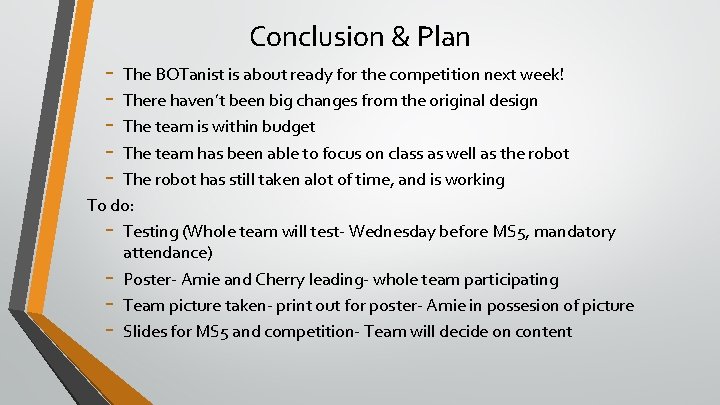
Conclusion & Plan - The BOTanist is about ready for the competition next week! There haven’t been big changes from the original design The team is within budget The team has been able to focus on class as well as the robot The robot has still taken alot of time, and is working To do: - Testing (Whole team will test- Wednesday before MS 5, mandatory attendance) - Poster- Amie and Cherry leading- whole team participating - Team picture taken- print out for poster- Amie in possesion of picture - Slides for MS 5 and competition- Team will decide on content
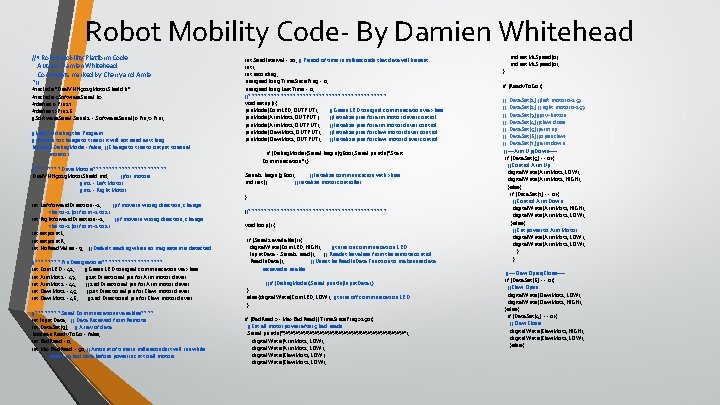
Robot Mobility Code- By Damien Whitehead //* Robot Mobility Platform Code Author: Damien Whitehead Comments marked by Cherry and Amie *// #include "Dual. VNH 5019 Motor. Shield. h" #include <Software. Serial. h> #define rx. Pin 17 #define tx. Pin 16 //Software. Serial 2 = Software. Serial(rx. Pin, tx. Pin); //Used to debug the Program // Be sure to change to true or it will not send anything boolean Debug. Mode = false; //Change to true to output to serial monitor //****Drive Motors************ Dual. VNH 5019 Motor. Shield md; //for motors //m 1 = Left Motor //m 2 = Right Motor int Leftforward. Direction=-1; //if move in wrong direction, change this to -1 (or from -1 to 1) int Rightforward. Direction=-1; //if move in wrong direction, change this to -1 (or from -1 to 1) int setpoint. L; int setpoint. R; int No. Read. Value = 9; //Default reading when no magnetism is detected //****Pin Designations********** int Com. LED = 42; //Green LED to signal communication via xbee int Arm. Mot 1 = 43; //1 st Directional pin for Arm motor driver int Arm. Mot 2 = 44; //2 nd Directional pin for Arm motor driver int Claw. Mot 1 = 45; //1 st Directional pin for Claw motor driver int Claw. Mot 2 = 46; //2 nd Directional pin for Claw motor driver //****Serial Communications variables**** int Input. Data; // Data Recieved from Remote int Data. Set[9]; // Array of data boolean Ready. To. Go = false; int Bad. Read = 0; int Max. Bad. Read = 50; //Amount of time in milliseconds it will run while receiving bad data before power is cut to all motors int Send. Interval = 10; // Period of time in milliseconds that data will be sent i; int recording; unsigned long Time. Since. Ping = 0; unsigned long Last. Time = 0; //********************** void setup() { pin. Mode(Com. LED, OUTPUT); //Green LED to signal communication via xbee pin. Mode(Arm. Mot 1, OUTPUT); //Initialize pins for arm motor driver control pin. Mode(Arm. Mot 2, OUTPUT); //Initialize pins for arm motor driver control pin. Mode(Claw. Mot 1, OUTPUT); //Initialize pins for claw motor driver control pin. Mode(Claw. Mot 2, OUTPUT); //Initialize pins for claw motor driver control if (Debug. Mode){Serial. begin(9600); Serial. println("Start Communication"); } Serial 2. begin(9600); //Initialize communication with xbee md. init(); //initialize motor controller } //********************** void loop() { if (Serial 2. available()){ digital. Write(Com. LED, HIGH); //turns on communication LED Input. Data = Serial 2. read(); / / Reads the values from the remote control Read. In. Data(); // Uses the Read. In. Data Function to make sure data recieved is usable. //if (Debug. Mode){Serial. println(Input. Data); } } else {digital. Write(Com. LED, LOW); //turns off communication LED } if (Bad. Read >= Max. Bad. Read || Time. Since. Ping>250){ //Cut all motor power after 5 bad reads Serial. println("%%%%%%%%%%%%%"); digital. Write(Arm. Mot 1, LOW); digital. Write(Arm. Mot 2, LOW); digital. Write(Claw. Mot 1, LOW); digital. Write(Claw. Mot 2, LOW); } md. set. M 1 Speed(0); md. set. M 2 Speed(0); if (Ready. To. Go){ // Data. Set[1] //left motor 0 -253 // Data. Set[2] //right motor 0 -253 // Data. Set[3] //joy-button // Data. Set[4] //claw close // Data. Set[5] //arm up // Data. Set[6] //open claw // Data. Set[7] //arm down //---Arm Up/Down---if (Data. Set[5] == 0){ //Control Arm Up digital. Write(Arm. Mot 1, LOW); digital. Write(Arm. Mot 2, HIGH); }else{ if (Data. Set[7] == 0){ //Control Arm Down digital. Write(Arm. Mot 1, HIGH); digital. Write(Arm. Mot 2, LOW); }else{ //Cut power to Arm Motor digital. Write(Arm. Mot 1, LOW); digital. Write(Arm. Mot 2, LOW); } } //---Claw Open/Close---if (Data. Set[6] == 0){ //Claw Open digital. Write(Claw. Mot 1, LOW); digital. Write(Claw. Mot 2, HIGH); }else{ if (Data. Set[4] == 0){ //Claw Close digital. Write(Claw. Mot 1, HIGH); digital. Write(Claw. Mot 2, LOW); }else{
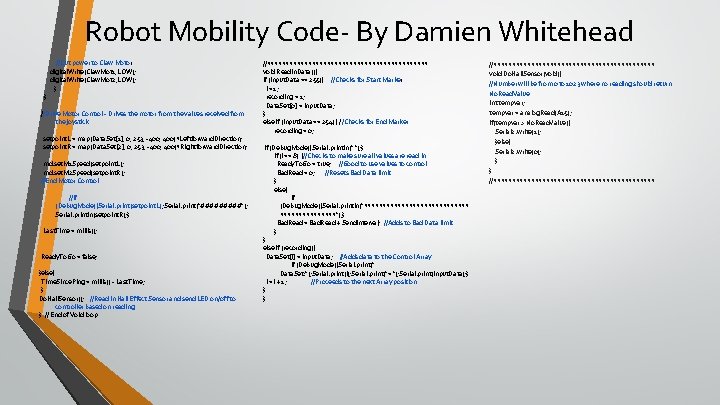
Robot Mobility Code- By Damien Whitehead } //Cut power to Claw Motor digital. Write(Claw. Mot 1, LOW); digital. Write(Claw. Mot 2, LOW); } //Drive Motor Control - Drives the motor from the values received from the joystick setpoint. L = map(Data. Set[1], 0, 253, -400, 400)*Leftforward. Direction; setpoint. R = map(Data. Set[2], 0, 253, -400, 400)*Rightforward. Direction; md. set. M 1 Speed(setpoint. L); md. set. M 2 Speed(setpoint. R); //End Motor Control //if (Debug. Mode){Serial. print(setpoint. L); Serial. print("#####"); Serial. println(setpoint. R); } Last. Time = millis(); Ready. To. Go = false; }else{ Time. Since. Ping = millis() - Last. Time; } Do. Hall. Sensor(); //Read in Hall Effect Sensor and send LED on/off to controller based on reading } // End of Void loop //********************** void Read. In. Data(){ if (Input. Data == 255){ //Checks for Start Marker i = 1; recording = 1; Data. Set[0] = Input. Data; } else if (Input. Data == 254){ //Checks for End Marker recording = 0; if (Debug. Mode){Serial. println(" "); } if (i == 8) {//Checks to make sure all values are read in Ready. To. Go = true; //Good to use values to control Bad. Read = 0; //Resets Bad Data limit } else{ if (Debug. Mode){Serial. println("**************"); } Bad. Read = Bad. Read + Send. Interval; //Adds to Bad Data limit } } else if (recording){ Data. Set[i] = Input. Data; //Adds data to the Control Array if (Debug. Mode){Serial. print(" Data. Set: "); Serial. print(i); Serial. print("= "); Serial. print(Input. Data); } i = i + 1; //Proceeds to the next Array position } } //********************** void Do. Hall. Sensor(void){ //Number will be from 0 to 1023 where no reading should return No. Read. Value int tempvar; tempvar = analog. Read(A 15); if(tempvar > No. Read. Value){ Serial 2. write(1); }else{ Serial 2. write(0); } } //**********************
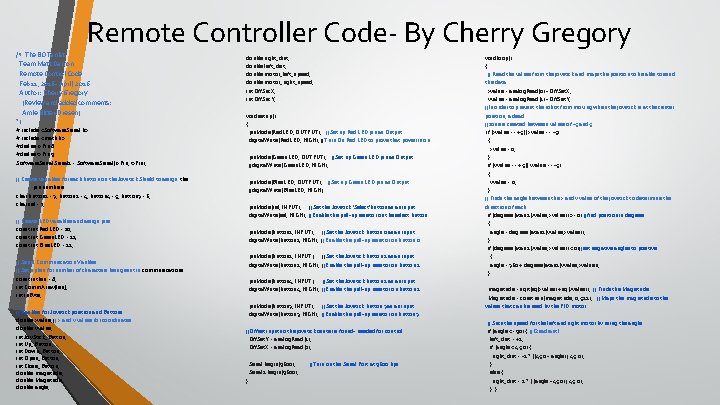
Remote Controller Code- By Cherry Gregory /* The BOTanist Team Matt Damon Remote Control Code Feb 11, 2016 - April, 2016 Author: Cherry Gregory (Review and added comments: Amie Bitter-Dresen) */ # include <Software. Serial. h> # include <math. h> #define rx. Pin 8 #define tx. Pin 9 Software. Serial 2 = Software. Serial(rx. Pin, tx. Pin); double right_dist; double left_dist; double motor_left_speed; double motor_right_speed; int Off. Set. X; int Off. Set. Y; void setup() { pin. Mode(Red. LED, OUTPUT); //Set up Red LED pin as Output digital. Write(Red. LED, HIGH); //Turn On Red LED to prove that power is on pin. Mode(Green. LED, OUTPUT); //Set up Green LED pin as Output //digital. Write(Green. LED, HIGH); // Create variables for each button on the Joystick Shield to assign the pin numbers char button 1 = 3, button 2 = 4, button 4 = 5, button 3 = 6; char sel = 7; pin. Mode(Blue. LED, OUTPUT); //Set up Green LED pin as Output //digital. Write(Blue. LED, HIGH); pin. Mode(sel, INPUT); //Set the Joystick 'Select'button as an input digital. Write(sel, HIGH); //Enable the pull-up resistor on the select button // Create LED variables and assign pins const int Red. LED = 10; const int Green. LED = 11; const int Blue. LED = 12; pin. Mode(button 1, INPUT); //Set the Joystick button 0 as an input digital. Write(button 1, HIGH); //Enable the pull-up resistor on button 0 pin. Mode(button 2, INPUT); //Set the Joystick button 1 as an input digital. Write(button 2, HIGH); //Enable the pull-up resistor on button 1 // Serial Communication Varibles // Set up len for number of characters being sent in communications. const int len = 8; int Comm. Array[len]; int in. Byte; // Varibles for Joystick position and Buttons double xvalue; // x and y values for coordinates double yvalue; int Joy. Stick_Button; int Up_Button; int Down_Button; int Open_Button; int Close_Button; double magnitude; double Magnitude; double angle; pin. Mode(button 4, INPUT); //Set the Joystick button 2 as an input digital. Write(button 4, HIGH); //Enable the pull-up resistor on button 2 pin. Mode(button 3, INPUT); //Set the Joystick button 3 as an input digital. Write(button 3, HIGH); //Enable the pull-up resistor on button 3 //Offset input so the joystick center is found- needed for control Off. Set. Y = analog. Read(1); Off. Set. X = analog. Read(0); Serial. begin(9600); Serial 2. begin(9600); } //Turn on the Serial Port at 9600 bps void loop() { // Read the values from the joystick and maps the position to be able to send the data xvalue = analog. Read(0) - Off. Set. X; yvalue = analog. Read(1) - Off. Set. Y; //In order to prevent the robot from moving when the joystick is at the center position, a dead //zone is created between values of -5 and 5 if (xvalue == +5 || xvalue == -5) { xvalue = 0; } if (yvalue == +5 || yvalue == -5) { yvalue = 0; } // Finds the angle between the x and y value of the joystick to determine the direction of each if (degrees(atan 2(yvalue, xvalue)) >= 0) //find position in degrees { angle = degrees(atan 2(yvalue, xvalue)); } if (degrees(atan 2(yvalue, xvalue)) < 0)//set negative angles to positive { angle = 360 + degrees(atan 2(yvalue, xvalue)); } magnitude = sqrt(sq(xvalue) + sq(yvalue)); // Finds the Magnitude = constrain(magnitude, 0, 512); // Maps the magnitude to the values that can be used by the PID motor // Sets the speed for the left and right motor by using the angle if (angle <= 90) { //Quadrant I left_dist = +1; if (angle < 45. 0) { right_dist = -1 * ((45. 0 - angle) / 45. 0); } else { right_dist = 1 * ( (angle - 45. 0) / 45. 0); } }
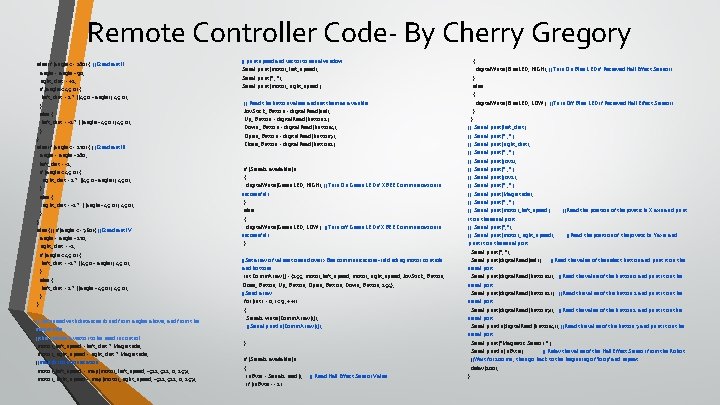
Remote Controller Code- By Cherry Gregory else if (angle <= 180) { //Quadrant II angle = angle - 90; right_dist = +1; if (angle < 45. 0) { left_dist = 1 * ((45. 0 - angle) / 45. 0); } else { left_dist = -1 * ( (angle - 45. 0) / 45. 0); } } else if (angle <= 270) { //Quadrant III angle = angle - 180; left_dist = -1; if (angle < 45. 0) { right_dist = 1 * ((45. 0 - angle) / 45. 0); } else { right_dist = -1 * ( (angle - 45. 0) / 45. 0); } } else { // if(angle <= 360){ //Quadrant IV angle = angle - 270; right_dist = -1; if (angle < 45. 0) { left_dist = -1 * ((45. 0 - angle) / 45. 0); } else { left_dist = 1 * ((angle - 45. 0) / 45. 0); } } // Set speed with distances found from angles above, and from the magnitude //this creates a vector to be used in control. motor_left_speed = left_dist * Magnitude; motor_right_speed = right_dist * Magnitude; //map for communication motor_left_speed = map(motor_left_speed, -512, 0, 253); motor_right_speed = map(motor_right_speed, -512, 0, 253); // print speed and vector to serial window Serial. print(motor_left_speed); Serial. print(" , "); Serial. print(motor_right_speed); // Read the button values and set them as a varible Joy. Stick_Button = digital. Read(sel); Up_Button = digital. Read(button 2); Down_Button = digital. Read(button 4); Open_Button = digital. Read(button 3); Close_Button = digital. Read(button 1); if (Serial 2. available()) { digital. Write(Green. LED, HIGH); //Turn On Green LED if XBEE Communication is successful) } else { digital. Write(Green. LED, LOW); //Turn off Green LED if XBEE Communication is successful) } //Set array of values to send over x. Bee communications- inlcluding motor controls and bottons. int Comm. Array[] = {255, motor_left_speed, motor_right_speed, Joy. Stick_Button, Close_Button, Up_Button, Open_Button, Down_Button, 254}; //Send array for (int i = 0; i < 9; ++i) { Serial 2. write(Comm. Array[i]); //Serial. println(Comm. Array[i]); } if (Serial 2. available()) { in. Byte = Serial 2. read(); if (in. Byte == 1) // Read Hall Effect Sensor Value { digital. Write(Blue. LED, HIGH); //Turn On Blue LED if Recieved Hall Effect Sensor) } else { digital. Write(Blue. LED, LOW); //Turn Off Blue LED if Recieved Hall Effect Sensor) } } // Serial. print(left_dist); // Serial. print(" , "); // Serial. print(right_dist); // Serial. print(" , "); // Serial. print(joy 1); // Serial. print(" , "); // Serial. print(joy 2); // Serial. print(" , "); // Serial. print(Magnitude); // Serial. print(" , "); // Serial. print(motor_left_speed); //Read the position of the joysticks X axis and print it on the serial port. // Serial. print(", "); // Serial. print(motor_right_speed); //Read the position of the joysticks Y axis and print it on the serial port. Serial. print(", "); Serial. print(digital. Read(sel)); //Read the value of the select button and print it on the serial port. Serial. print(digital. Read(button 1)); //Read the value of the button 0 and print it on the serial port. Serial. print(digital. Read(button 2)); //Read the value of the button 1 and print it on the serial port. Serial. print(digital. Read(button 3)); //Read the value of the button 2 and print it on the serial port. Serial. println(digital. Read(button 4)); //Read the value of the button 3 and print it on the serial port. Serial. print("Magnetic Sensor: "); Serial. println(in. Byte); // Relay the value of the Hall Effect Sensor from the Robot //Wait for 100 ms, then go back to the beginning of 'loop' and repeat. delay(100); }
- Slides: 34