
System Workflow tentative plan Step 1 Adjustments Samples
- Slides: 6
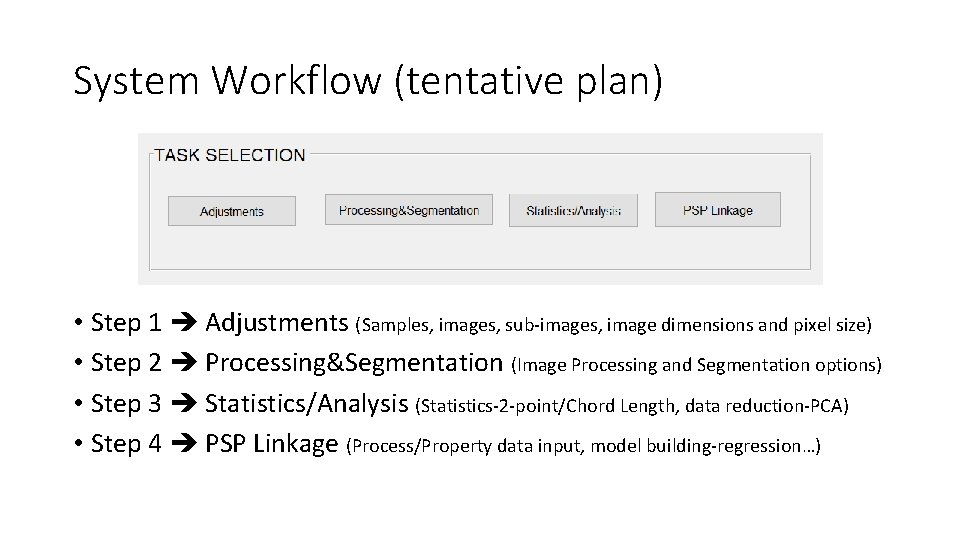
System Workflow (tentative plan) • Step 1 Adjustments (Samples, images, sub-images, image dimensions and pixel size) • Step 2 Processing&Segmentation (Image Processing and Segmentation options) • Step 3 Statistics/Analysis (Statistics-2 -point/Chord Length, data reduction-PCA) • Step 4 PSP Linkage (Process/Property data input, model building-regression…)
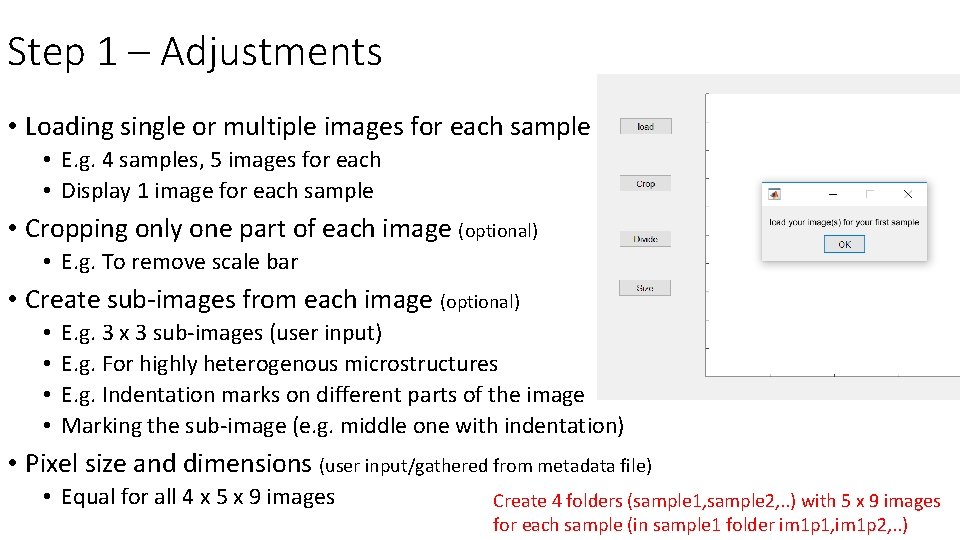
Step 1 – Adjustments • Loading single or multiple images for each sample • E. g. 4 samples, 5 images for each • Display 1 image for each sample • Cropping only one part of each image (optional) • E. g. To remove scale bar • Create sub-images from each image (optional) • • E. g. 3 x 3 sub-images (user input) E. g. For highly heterogenous microstructures E. g. Indentation marks on different parts of the image Marking the sub-image (e. g. middle one with indentation) • Pixel size and dimensions (user input/gathered from metadata file) • Equal for all 4 x 5 x 9 images Create 4 folders (sample 1, sample 2, . . ) with 5 x 9 images for each sample (in sample 1 folder im 1 p 1, im 1 p 2, . . )
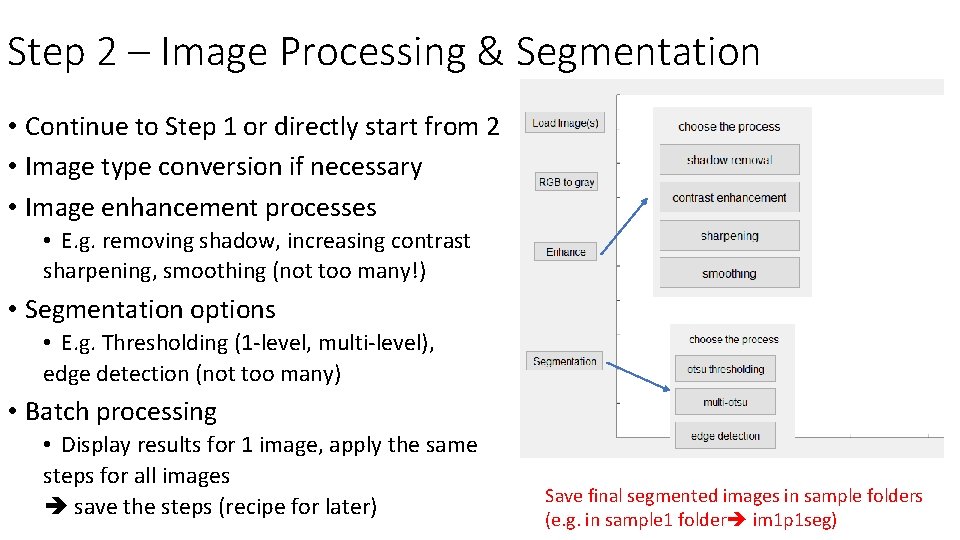
Step 2 – Image Processing & Segmentation • Continue to Step 1 or directly start from 2 • Image type conversion if necessary • Image enhancement processes • E. g. removing shadow, increasing contrast sharpening, smoothing (not too many!) • Segmentation options • E. g. Thresholding (1 -level, multi-level), edge detection (not too many) • Batch processing • Display results for 1 image, apply the same steps for all images save the steps (recipe for later) Save final segmented images in sample folders (e. g. in sample 1 folder im 1 p 1 seg)
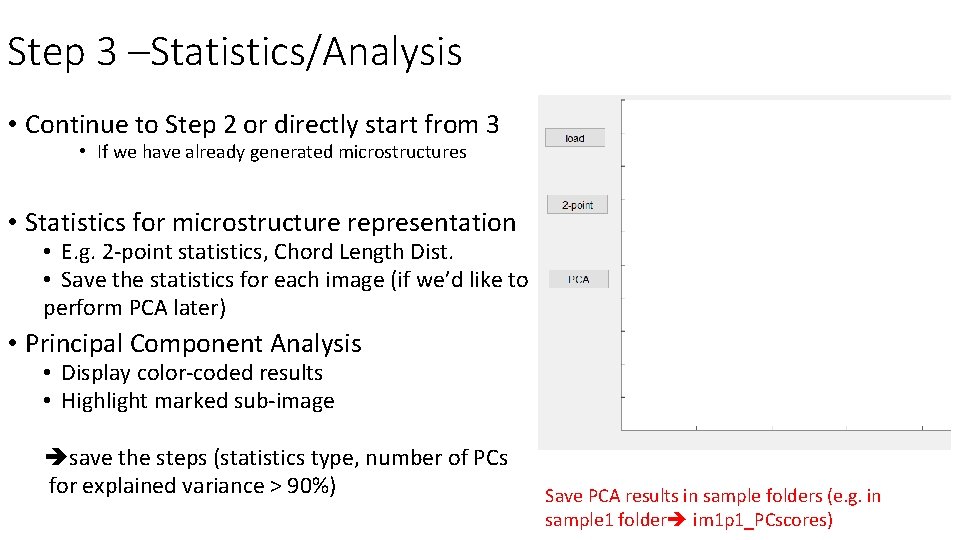
Step 3 –Statistics/Analysis • Continue to Step 2 or directly start from 3 • If we have already generated microstructures • Statistics for microstructure representation • E. g. 2 -point statistics, Chord Length Dist. • Save the statistics for each image (if we’d like to perform PCA later) • Principal Component Analysis • Display color-coded results • Highlight marked sub-image save the steps (statistics type, number of PCs for explained variance > 90%) Save PCA results in sample folders (e. g. in sample 1 folder im 1 p 1_PCscores)
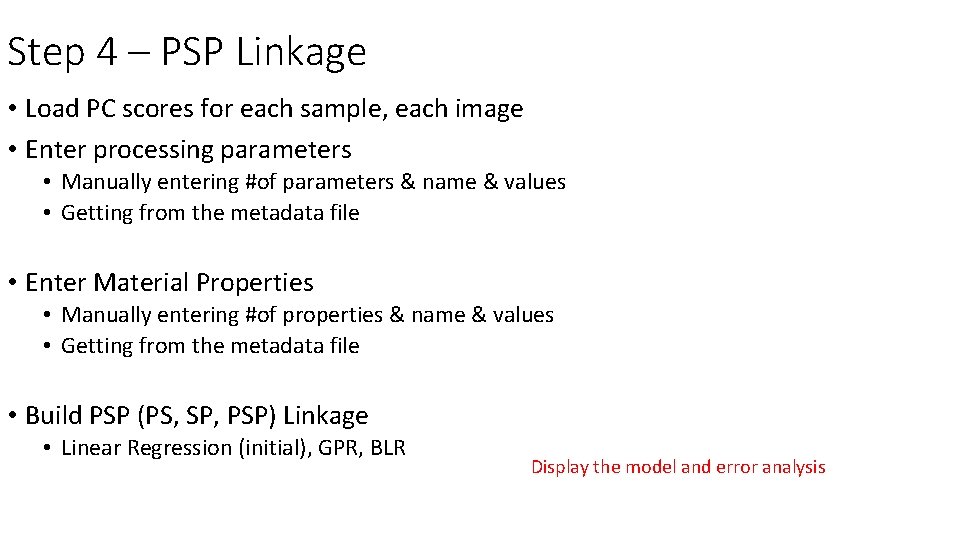
Step 4 – PSP Linkage • Load PC scores for each sample, each image • Enter processing parameters • Manually entering #of parameters & name & values • Getting from the metadata file • Enter Material Properties • Manually entering #of properties & name & values • Getting from the metadata file • Build PSP (PS, SP, PSP) Linkage • Linear Regression (initial), GPR, BLR Display the model and error analysis
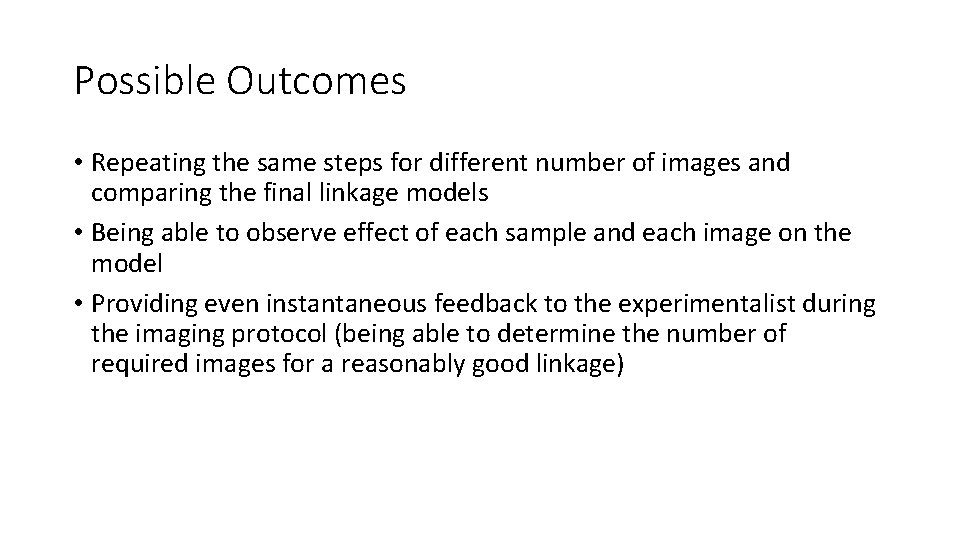
Possible Outcomes • Repeating the same steps for different number of images and comparing the final linkage models • Being able to observe effect of each sample and each image on the model • Providing even instantaneous feedback to the experimentalist during the imaging protocol (being able to determine the number of required images for a reasonably good linkage)