
System Connection insideoutside campus 1 Briefing 2 August
System Connection inside/outside campus 1 Briefing 2 August 2018
What is required ? 2 ü Network Account ( User. Name, Password ) ü Portal URL ( https: //portal. eduhk. hk ) ü vpn connection ( only for outside campus access )
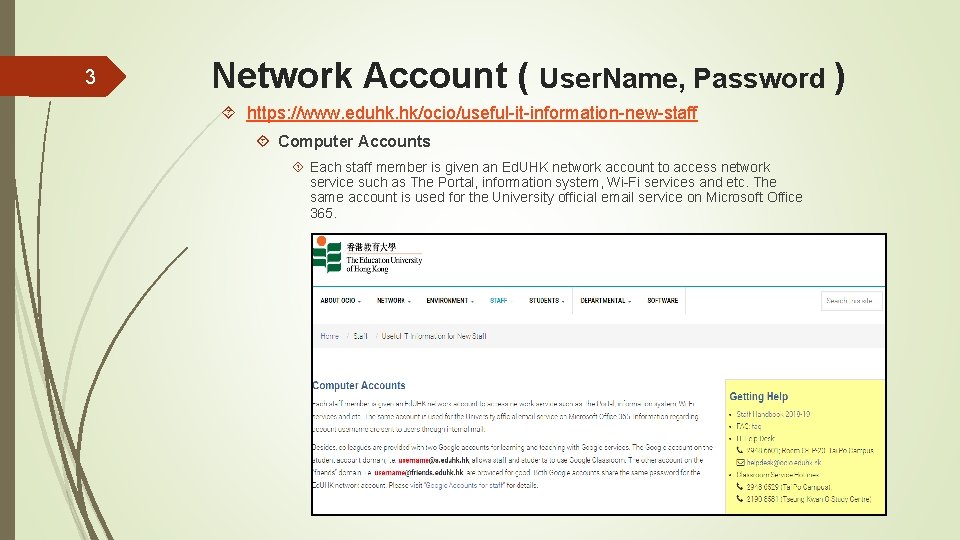
3 Network Account ( User. Name, Password ) https: //www. eduhk. hk/ocio/useful-it-information-new-staff Computer Accounts Each staff member is given an Ed. UHK network account to access network service such as The Portal, information system, Wi-Fi services and etc. The same account is used for the University official email service on Microsoft Office 365.
4 Connecting Your Computer to the Campus Network On Campus: Users can connect to the campus network through wireless connection. The Ed. UHK wireless network is now available almost everywhere in the Tai Po Campus and Tseung Kwan O Study Centre. At Home: If users have subscribed service from an Internet Service Provider (ISP), they can connect their mobile or home computers to the campus network through VPN. It enables users to use some IT services outside campus as secure as in the office. For information about our VPN service, please see https: //www. eduhk. hk/ocio/vpn-service. User can find step to step installation guide of the VPN software.

5 The Portal ( https: //portal. eduhk. hk )
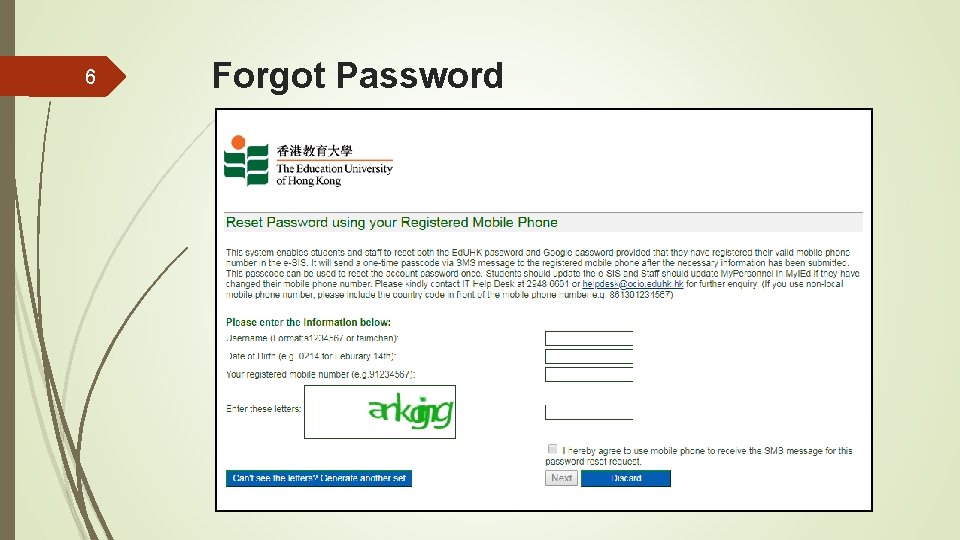
6 Forgot Password
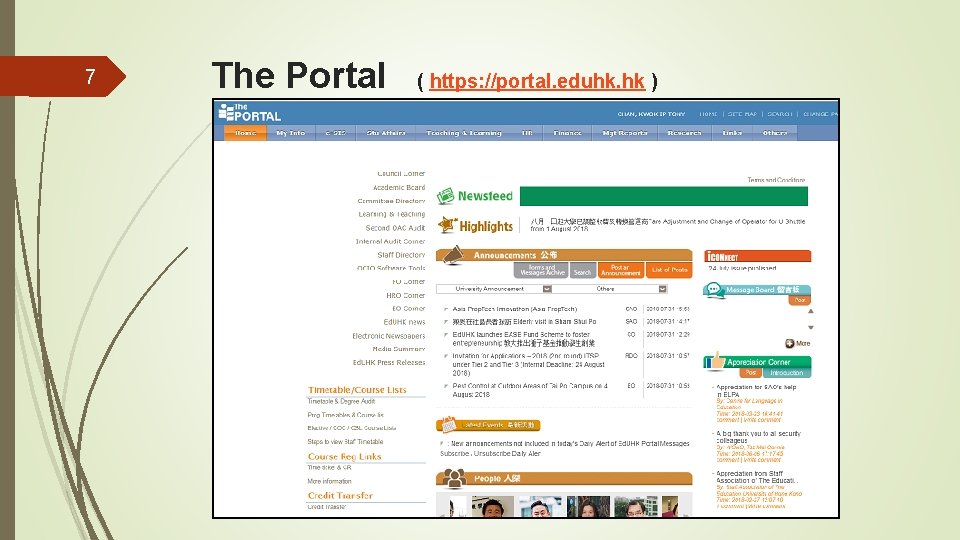
7 The Portal ( https: //portal. eduhk. hk )
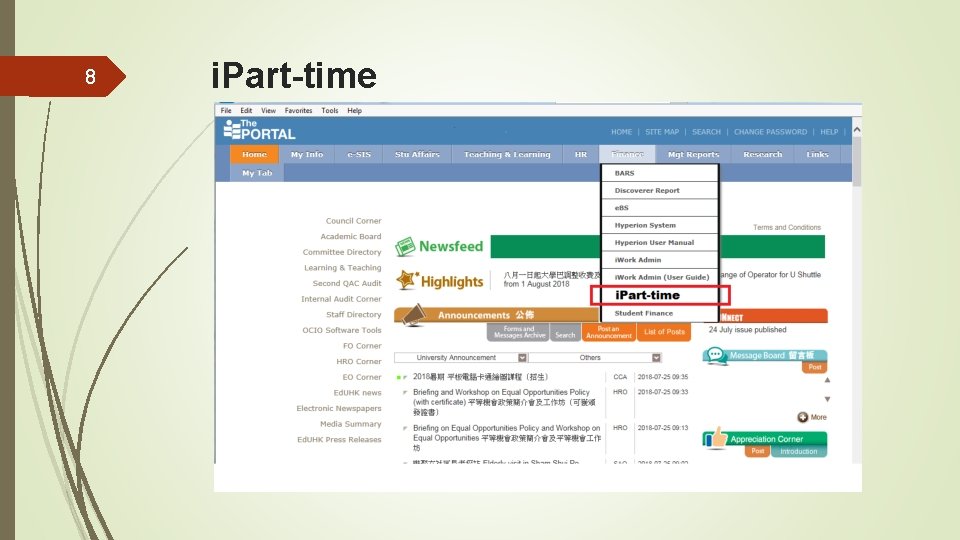
8 i. Part-time
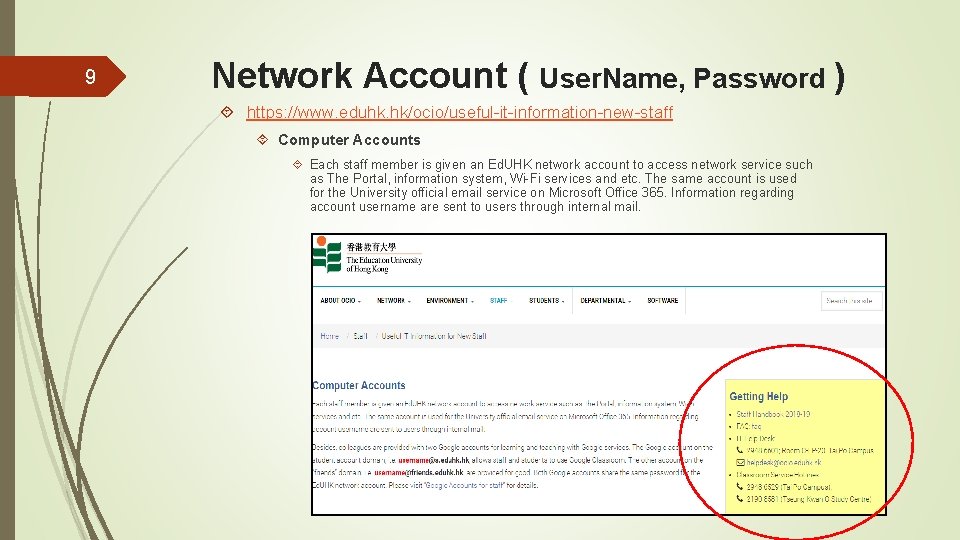
9 Network Account ( User. Name, Password ) https: //www. eduhk. hk/ocio/useful-it-information-new-staff Computer Accounts Each staff member is given an Ed. UHK network account to access network service such as The Portal, information system, Wi-Fi services and etc. The same account is used for the University official email service on Microsoft Office 365. Information regarding account username are sent to users through internal mail.
10 Network Account ( User. Name, Password ) https: //www. eduhk. hk/ocio/useful-it-information-new-staff Computer Accounts Each staff member is given an Ed. UHK network account to access network service such as The Portal, information system, Wi-Fi services and etc. The same account is used for the University official email service on Microsoft Office 365. Information regarding account username are sent to users through internal mail.
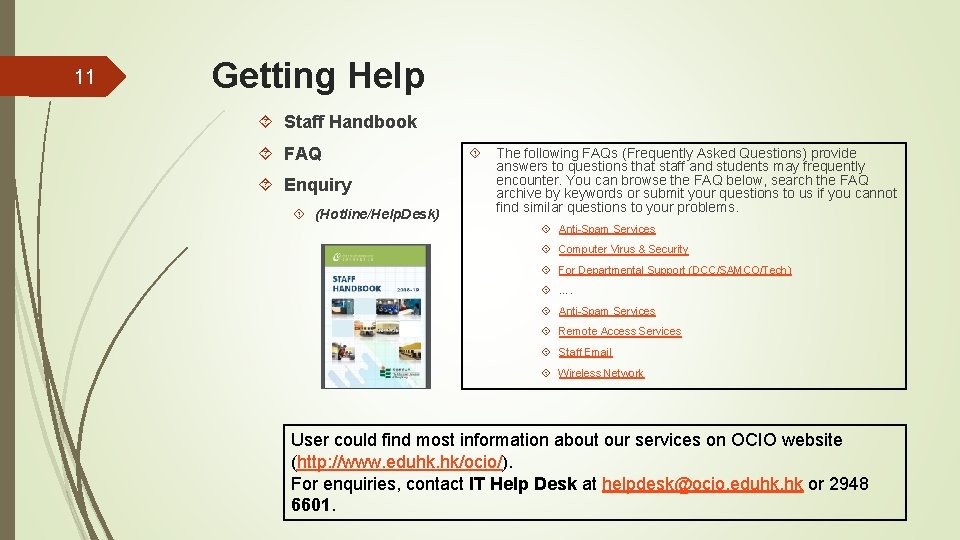
11 Getting Help Staff Handbook FAQ Enquiry (Hotline/Help. Desk) The following FAQs (Frequently Asked Questions) provide answers to questions that staff and students may frequently encounter. You can browse the FAQ below, search the FAQ archive by keywords or submit your questions to us if you cannot find similar questions to your problems. Anti-Spam Services Computer Virus & Security For Departmental Support (DCC/SAMCO/Tech) …. Anti-Spam Services Remote Access Services Staff Email Wireless Network User could find most information about our services on OCIO website (http: //www. eduhk. hk/ocio/). For enquiries, contact IT Help Desk at helpdesk@ocio. eduhk. hk or 2948 6601.
12 With Virtual Private Network (VPN), staff and students can make secure connection from their home computers or mobile devices to the campus network over the Internet. Data transmitted via VPN connection are encrypted. The Global. Protect VPN requires users to install the Global. Protect software on their device(s). It then establishes a virtual tunnel to the campus network with authentication using the user’s Ed. UHK network account and password. For security reasons, the Global. Protect VPN client software should NOT be used on public computers. Please install and use the software only on computers protected with up-to-date anti-virus software and firewall protection.
13 Connecting Your Computer to the Campus Network On Campus: Users can connect to the campus network through wireless connection. The Ed. UHK wireless network is now available almost everywhere in the Tai Po Campus and Tseung Kwan O Study Centre. At Home: If users have subscribed service from an Internet Service Provider (ISP), they can connect their mobile or home computers to the campus network through VPN. It enables users to use some IT services outside campus as secure as in the office. For information about our VPN service, please see https: //www. eduhk. hk/ocio/vpn-service. User can find step to step installation guide of the VPN software.
14 Using Global. Protect VPN 1. Client Software for Windows and Mac Desktop computer or notebook users please visit https: //vpn. eduhk. hk to download and install the “Global. Protect” client software. Supported systems: Microsoft Windows 7, 8. 1, and 10 (Download Windows 32 bit / Windows 64 bit Global. Protect agent) Apple Mac OS X 10. 6 and later (Download Mac 32/64 bit Global. Protect agent) Please refer to the following user guides for more information. User Guide for PC running on Windows. User Guide for computer running on Mac OS.
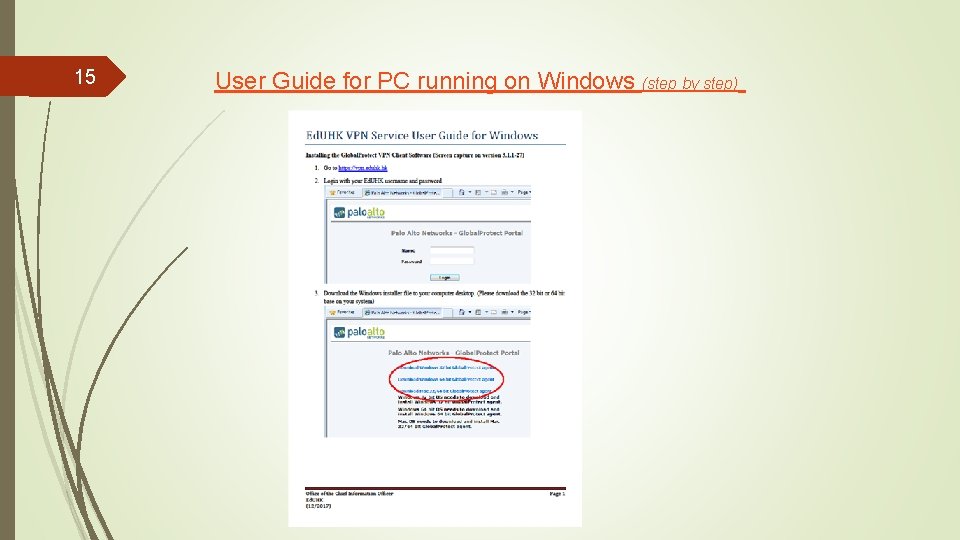
15 User Guide for PC running on Windows (step by step)
16 2. Native Apps for Mobile devices Mobile device users can install “Global. Protect” app available on Apple App Store (i. OS) or Google Play Store (Android). Supported systems: Android 4. 0. 3 and later Apple i. OS 6. 0 and later Get the App for your system Please refer to the following user guides for more information on making VPN connection using the respective mobile apps: User Guide for i. OS device. User Guide for Android device.
- Slides: 16