
SVPN User Manual Application of mobile authentication 2019
SVPN User Manual Application of mobile authentication 2019. 10. Copyright © 2019 Samsung SDS Co. , Ltd. All rights reserved | Confidential
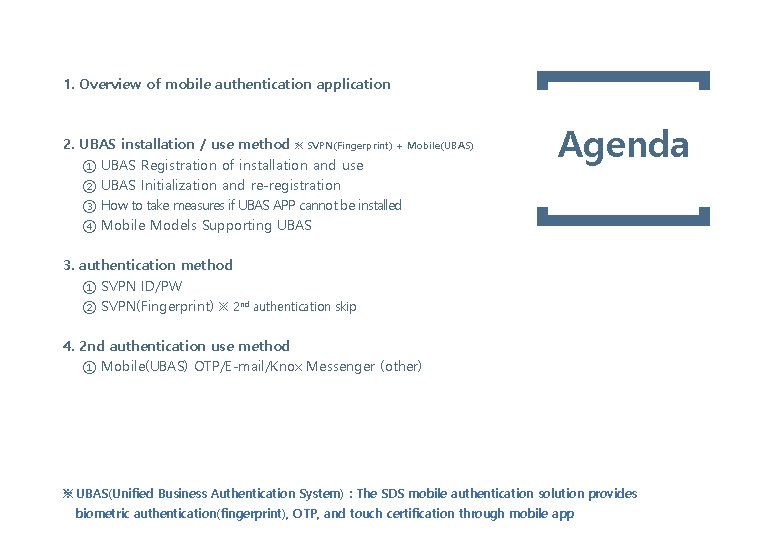
1. Overview of mobile authentication application 2. UBAS installation / use method ※ SVPN(Fingerprint) + Mobile(UBAS) ① UBAS Registration of installation and use ② UBAS Initialization and re-registration ③ How to take measures if UBAS APP cannot be installed ④ Mobile Models Supporting UBAS Agenda 3. authentication method ① SVPN ID/PW ② SVPN(Fingerprint) ※ 2 nd authentication skip 4. 2 nd authentication use method ① Mobile(UBAS) OTP/E-mail/Knox Messenger (other) ※ UBAS(Unified Business Authentication System) : The SDS mobile authentication solution provides biometric authentication(fingerprint), OTP, and touch certification through mobile app

1. Overview of mobile authentication application - Added fingerprint login methods to the 1 st authentication - Added mobile(UBAS) authentication method to 2 nd authentication ※ UBAS(Unified Business Authentication System) : The SDS mobile authentication solution provides biometric authentication (fingerprint), OTP, and touch certification through mobile app authentication Workflow 1 st authentication ※ Select one of the four methods 2 nd authentication Mobile(UBAS) SVPN (SVPN ID + SVPN Password) Knox Portal (Knox Portal ID + Knox Portalble Password) vaila a Un SVPN(Fingerprint) (SVPN ID) SMS external E-Mail OTP Knox Messenger OTP Mobile(UBAS) Fingerprint : Add function Copyright © 2019 Samsung SDS All rights reserved | Confidential 3 19
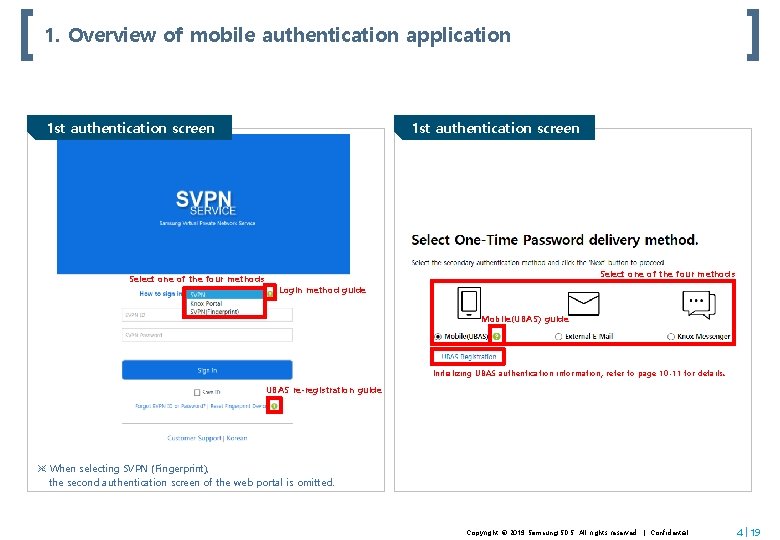
1. Overview of mobile authentication application 1 st authentication screen Select one of the four methods Login method guide Mobile(UBAS) guide Initializing UBAS authentication information, refer to page 10 -11 for details. UBAS re-registration guide ※ When selecting SVPN (Fingerprint), the second authentication screen of the web portal is omitted. Copyright © 2019 Samsung SDS All rights reserved | Confidential 4 19
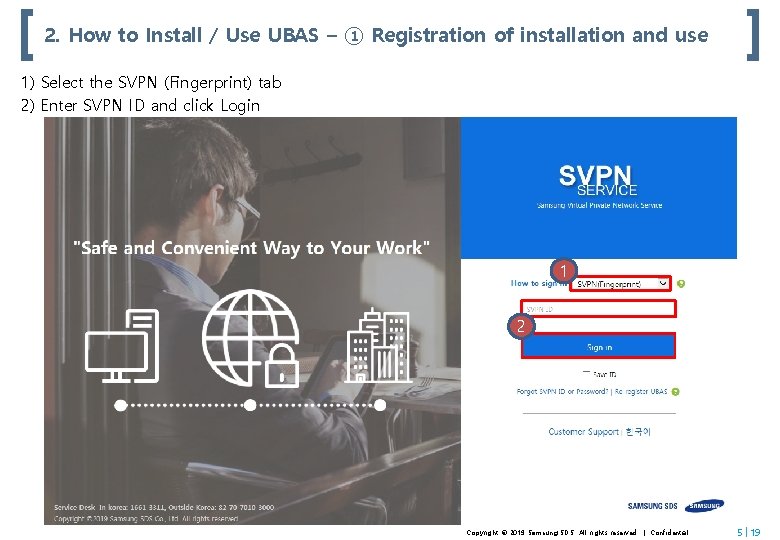
2. How to Install / Use UBAS – ① Registration of installation and use 1) Select the SVPN (Fingerprint) tab 2) Enter SVPN ID and click Login 1 2 Copyright © 2019 Samsung SDS All rights reserved | Confidential 5 19
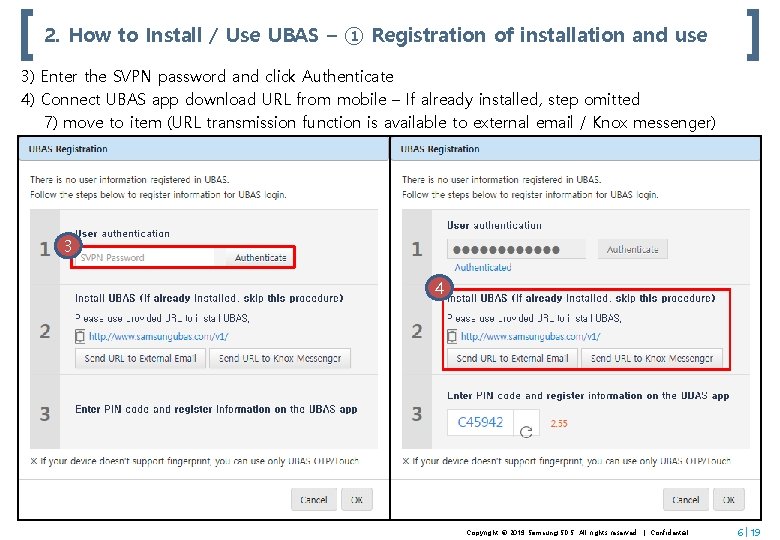
2. How to Install / Use UBAS – ① Registration of installation and use 3) Enter the SVPN password and click Authenticate 4) Connect UBAS app download URL from mobile – If already installed, step omitted 7) move to item (URL transmission function is available to external email / Knox messenger) 3 4 Copyright © 2019 Samsung SDS All rights reserved | Confidential 6 19
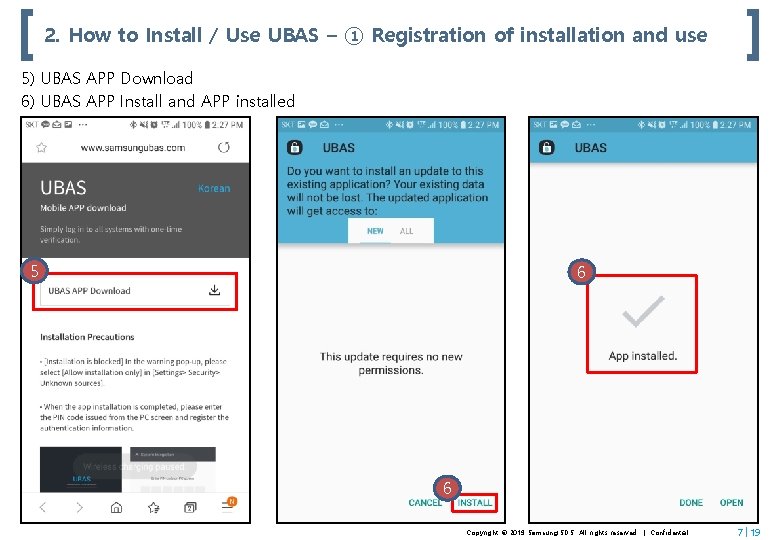
2. How to Install / Use UBAS – ① Registration of installation and use 5) UBAS APP Download 6) UBAS APP Install and APP installed 5 6 6 Copyright © 2019 Samsung SDS All rights reserved | Confidential 7 19
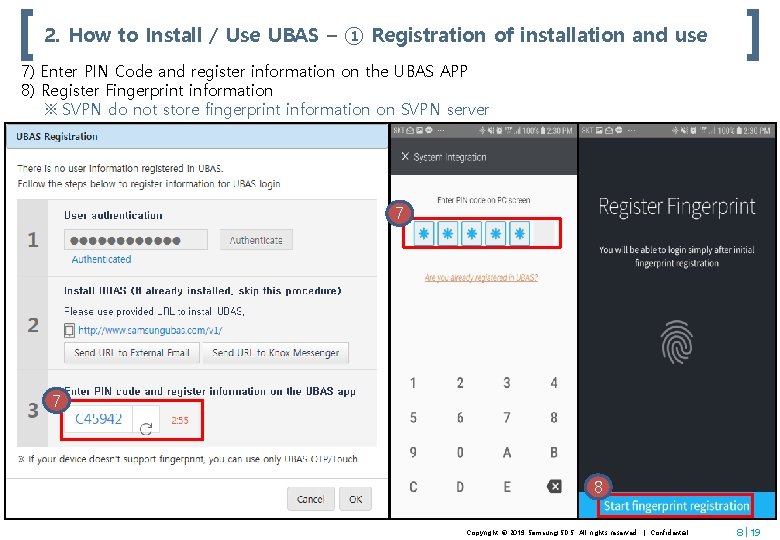
2. How to Install / Use UBAS – ① Registration of installation and use 7) Enter PIN Code and register information on the UBAS APP 8) Register Fingerprint information ※ SVPN do not store fingerprint information on SVPN server 7 7 8 Copyright © 2019 Samsung SDS All rights reserved | Confidential 8 19
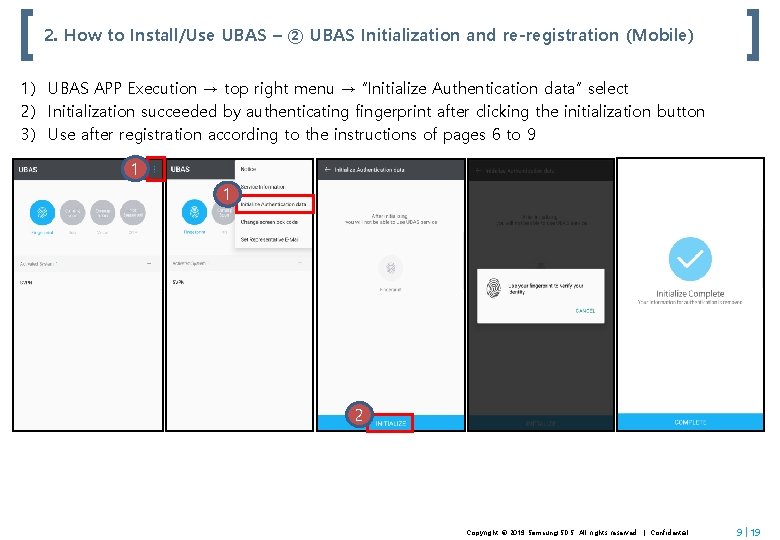
2. How to Install/Use UBAS – ② UBAS Initialization and re-registration (Mobile) 1) UBAS APP Execution → top right menu → “Initialize Authentication data” select 2) Initialization succeeded by authenticating fingerprint after clicking the initialization button 3) Use after registration according to the instructions of pages 6 to 9 1 1 2 Copyright © 2019 Samsung SDS All rights reserved | Confidential 9 19
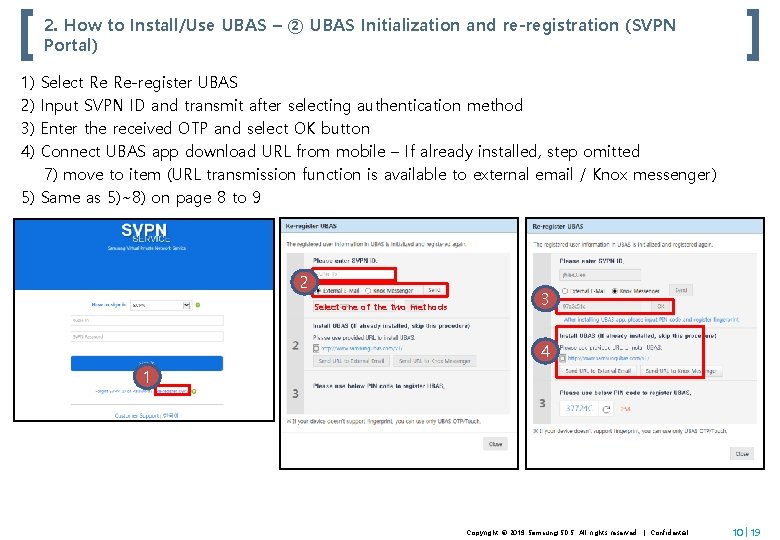
2. How to Install/Use UBAS – ② UBAS Initialization and re-registration (SVPN Portal) 1) 2) 3) 4) Select Re Re-register UBAS Input SVPN ID and transmit after selecting authentication method Enter the received OTP and select OK button Connect UBAS app download URL from mobile – If already installed, step omitted 7) move to item (URL transmission function is available to external email / Knox messenger) 5) Same as 5)~8) on page 8 to 9 2 Select one of the two methods 3 4 1 Copyright © 2019 Samsung SDS All rights reserved | Confidential 10 19
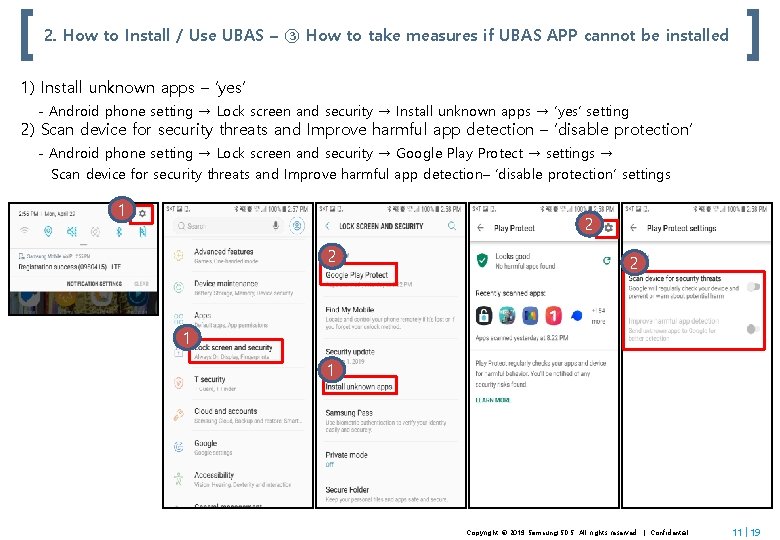
2. How to Install / Use UBAS – ③ How to take measures if UBAS APP cannot be installed 1) Install unknown apps – ‘yes‘ - Android phone setting → Lock screen and security → Install unknown apps → ‘yes‘ setting 2) Scan device for security threats and Improve harmful app detection – ‘disable protection’ - Android phone setting → Lock screen and security → Google Play Protect → settings → Scan device for security threats and Improve harmful app detection– ‘disable protection’ settings 1 2 2 2 1 1 Copyright © 2019 Samsung SDS All rights reserved | Confidential 11 19
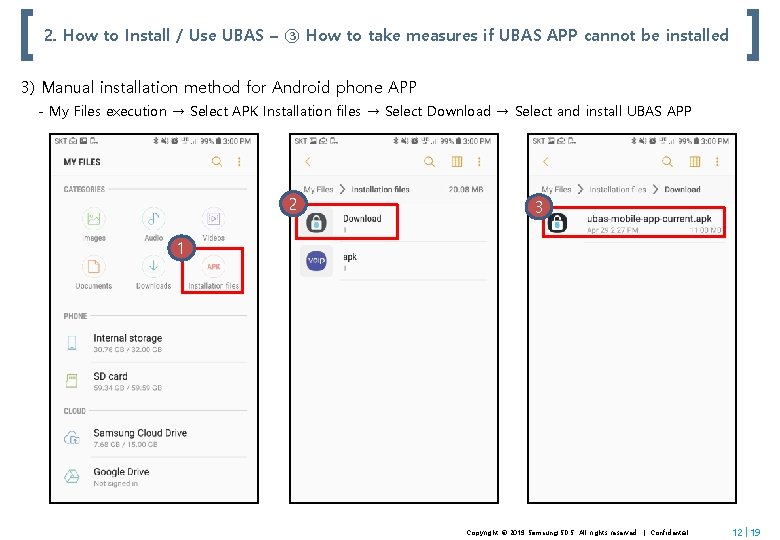
2. How to Install / Use UBAS – ③ How to take measures if UBAS APP cannot be installed 3) Manual installation method for Android phone APP - My Files execution → Select APK Installation files → Select Download → Select and install UBAS APP 2 3 1 Copyright © 2019 Samsung SDS All rights reserved | Confidential 12 19
2. How to Install / Use UBAS – ④ Mobile Models Supporting UBAS □ Mobile Models Supporting UBAS - Android : Galaxy 6, Galaxy Note 5 or higher - IOS : i. Phone 5 S or higher ※ Some model or OS versions may not be available. If you have any questions, please contact SVPN service. → SVPN Service Contact : svpn@samsung. com Copyright © 2019 Samsung SDS All rights reserved | Confidential 13 19
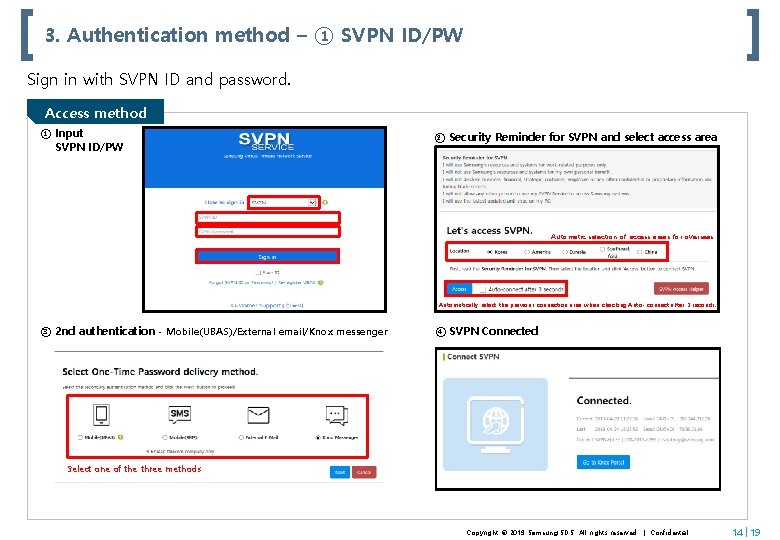
3. Authentication method – ① SVPN ID/PW Sign in with SVPN ID and password. Access method ① Input SVPN ID/PW ② Security Reminder for SVPN and select access area Automatic selection of access areas for overseas Automatically select the previous connection area when checking Auto- connect after 3 seconds. ③ 2 nd authentication - Mobile(UBAS)/External email/Knox messenger ④ SVPN Connected Select one of the three methods Copyright © 2019 Samsung SDS All rights reserved | Confidential 14 19
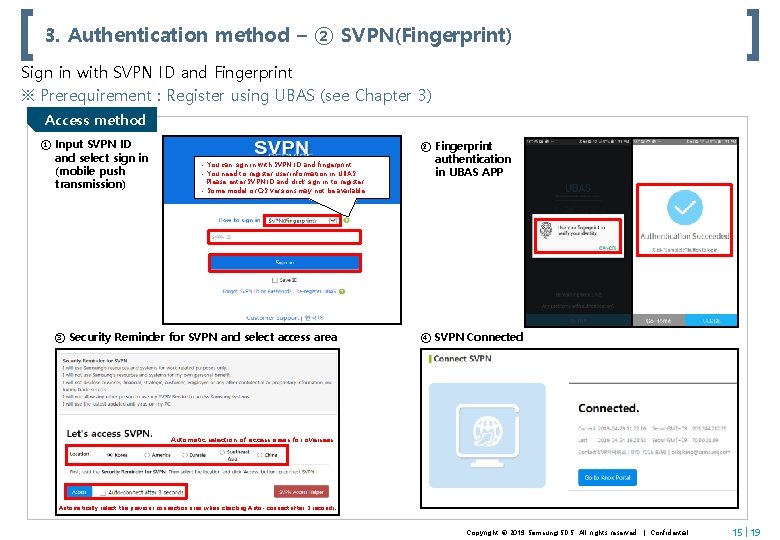
3. Authentication method – ② SVPN(Fingerprint) Sign in with SVPN ID and Fingerprint ※ Prerequirement : Register using UBAS (see Chapter 3) Access method ① Input SVPN ID and select sign in (mobile push transmission) - You can sign in with SVPN ID and fingerprint. - You need to register user information in UBAS. Please enter SVPN ID and click sign in to register. - Some model or OS versions may not be available. ③ Security Reminder for SVPN and select access area ② Fingerprint authentication in UBAS APP ④ SVPN Connected Automatic selection of access areas for overseas Automatically select the previous connection area when checking Auto- connect after 3 seconds. Copyright © 2019 Samsung SDS All rights reserved | Confidential 15 19
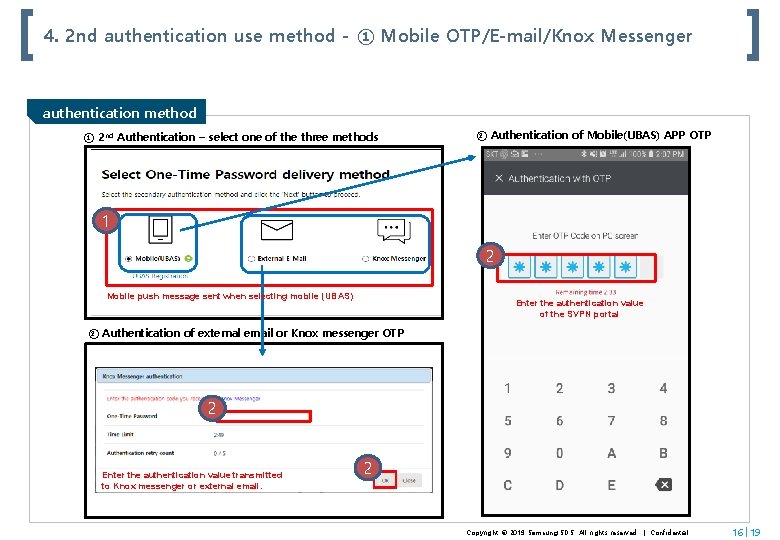
4. 2 nd authentication use method - ① Mobile OTP/E-mail/Knox Messenger authentication method ① 2 nd Authentication – select one of the three methods ② Authentication of Mobile(UBAS) APP OTP 1 2 Mobile push message sent when selecting mobile (UBAS) Enter the authentication value of the SVPN portal ② Authentication of external email or Knox messenger OTP 2 Enter the authentication value transmitted to Knox messenger or external email. 2 Copyright © 2019 Samsung SDS All rights reserved | Confidential 16 19
- Slides: 16