
SUSE Linux Enterprise Desktop Administration Chapter 15 Deploy
- Slides: 34
SUSE Linux Enterprise Desktop Administration Chapter 15 Deploy SUSE Linux Enterprise Desktop 10
Objectives • Objective 1—Installation Options and Deployment Strategies • Objective 2—Autoinstallation Basics • Objective 3—The Configuration File for Auto. Ya. ST • Objective 4—Installation Server: Setup and Use • Objective 5—Automated Installation SUSE Linux Enterprise Desktop Administration 2
Objective 1—Installation Options and Deployment Strategies • If you are installing a single machine, a manual installation using the installation DVD is the best option – However, alternatives are needed when the number of machines you plan to install increases SUSE Linux Enterprise Desktop Administration 3
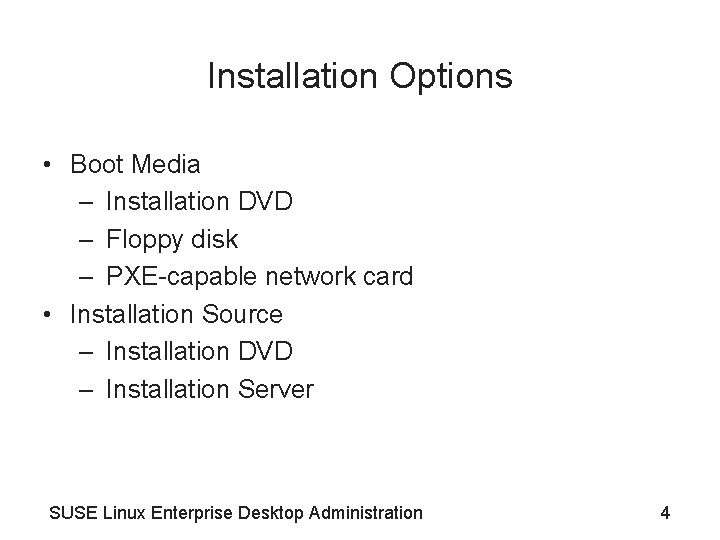
Installation Options • Boot Media – Installation DVD – Floppy disk – PXE-capable network card • Installation Source – Installation DVD – Installation Server SUSE Linux Enterprise Desktop Administration 4
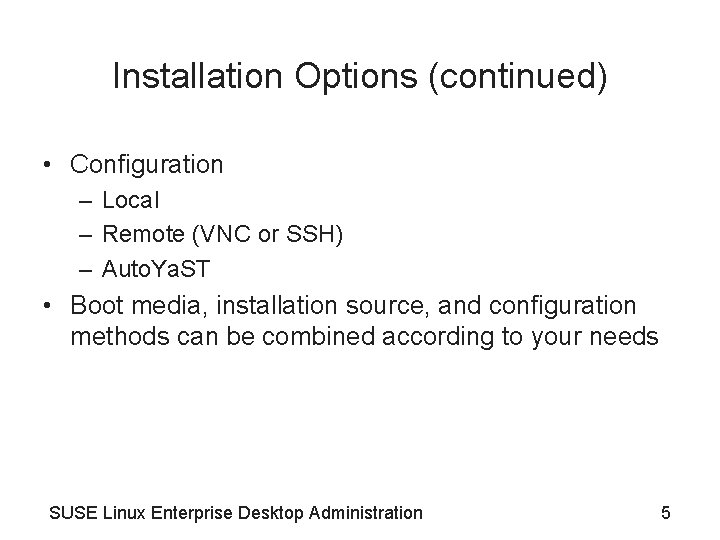
Installation Options (continued) • Configuration – Local – Remote (VNC or SSH) – Auto. Ya. ST • Boot media, installation source, and configuration methods can be combined according to your needs SUSE Linux Enterprise Desktop Administration 5
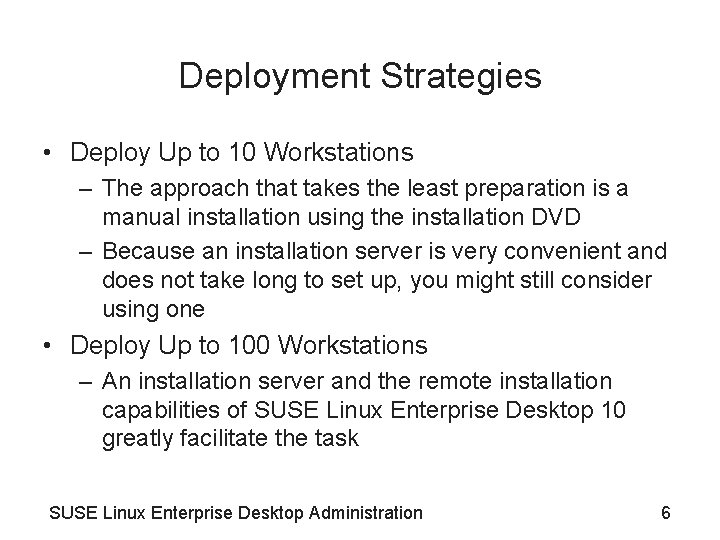
Deployment Strategies • Deploy Up to 10 Workstations – The approach that takes the least preparation is a manual installation using the installation DVD – Because an installation server is very convenient and does not take long to set up, you might still consider using one • Deploy Up to 100 Workstations – An installation server and the remote installation capabilities of SUSE Linux Enterprise Desktop 10 greatly facilitate the task SUSE Linux Enterprise Desktop Administration 6
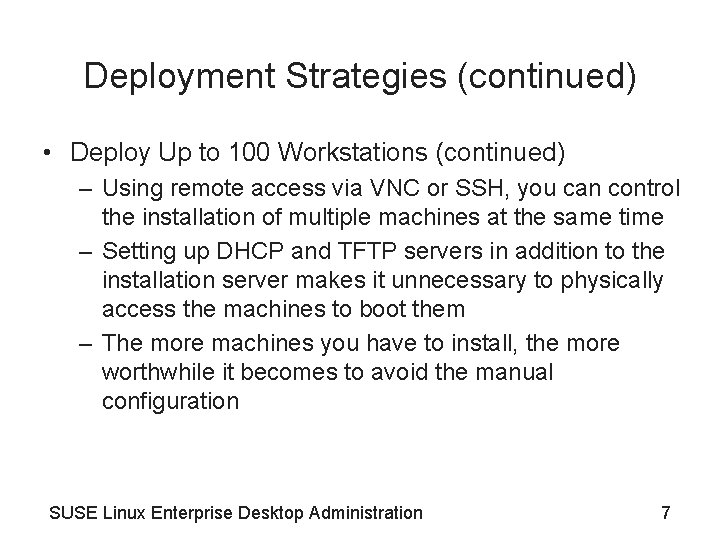
Deployment Strategies (continued) • Deploy Up to 100 Workstations (continued) – Using remote access via VNC or SSH, you can control the installation of multiple machines at the same time – Setting up DHCP and TFTP servers in addition to the installation server makes it unnecessary to physically access the machines to boot them – The more machines you have to install, the more worthwhile it becomes to avoid the manual configuration SUSE Linux Enterprise Desktop Administration 7
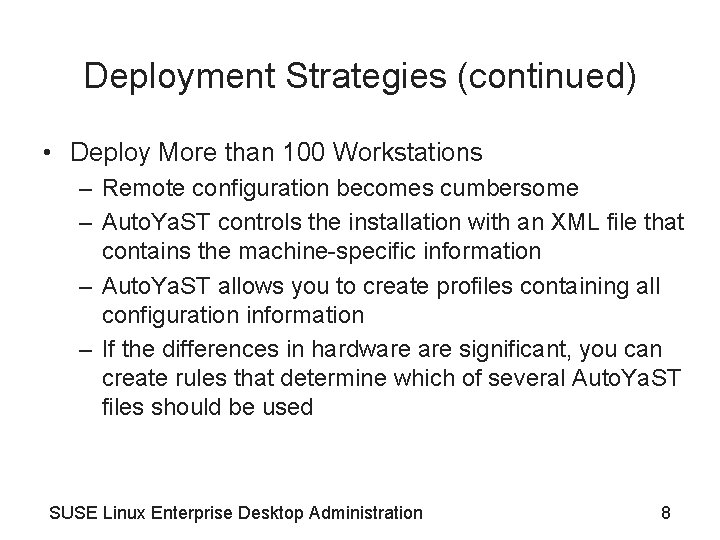
Deployment Strategies (continued) • Deploy More than 100 Workstations – Remote configuration becomes cumbersome – Auto. Ya. ST controls the installation with an XML file that contains the machine-specific information – Auto. Ya. ST allows you to create profiles containing all configuration information – If the differences in hardware significant, you can create rules that determine which of several Auto. Ya. ST files should be used SUSE Linux Enterprise Desktop Administration 8
Objective 2—Autoinstallation Basics • Auto. Ya. ST is used for automated installations on SUSE Linux Enterprise Desktop 10 • All information needed during installation is provided by a control file in XML format – No manual intervention is necessary during the installation process • If you have to install several systems with the same setup, you can save time by automating the installation – Or you can configure systems individually with specific control files SUSE Linux Enterprise Desktop Administration 9
Objective 2—Autoinstallation Basics (continued) • You should not confuse auto installation with cloning or imaging • Auto. Ya. ST is optimally used in conjunction with an installation server that is also providing a TFTP and a DHCP server • Advantages: – To start the installation, you only have to insert a suitable boot disk – The computer receives all information necessary for the installation via the network SUSE Linux Enterprise Desktop Administration 10
Objective 2—Autoinstallation Basics (continued) • Advantages: (continued) – Even on-site attendance of an administrator is unnecessary for the installation if the network card supports Wake on Lan • The installation server can be accessed via the NFS, HTTP, and FTP protocols • Auto. Ya. ST can also be used to copy additional files to the installed system – Can include scripts that are executed at the end of the installation SUSE Linux Enterprise Desktop Administration 11
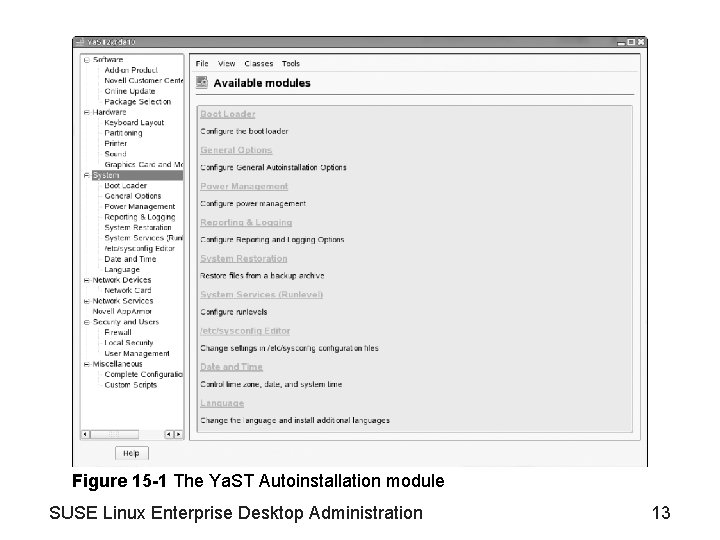
Objective 3—The Configuration File for Auto. Ya. ST • The easiest way to create a configuration file for Auto. Ya. ST is to use the Ya. ST Autoinstallation module – Select Computer > More Applications > yast 2 > Miscellaneous > Autoinstallation – Or log in as root and enter yast 2 autoyast in a terminal window – See Figure 15 -1 • The configuration information is written to the Auto. Ya. ST control file – Nothing is changed on the installation you work on SUSE Linux Enterprise Desktop Administration 12
Figure 15 -1 The Ya. ST Autoinstallation module SUSE Linux Enterprise Desktop Administration 13
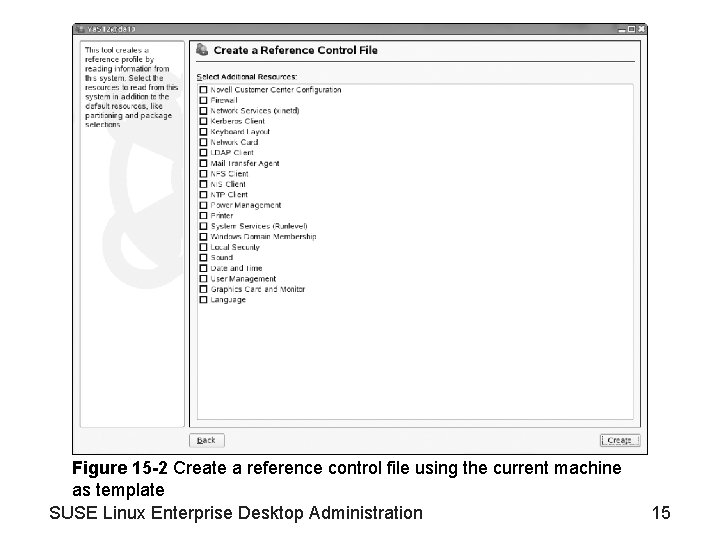
Objective 3—The Configuration File for Auto. Ya. ST (continued) • If you want to perform completely unattended installations – Uncheck Confirm Installation in System > General Options • After you have completed the configuration, select File > Save As • You can change the default directory for Auto. Ya. ST configuration files via the Preferences menu • To use the current machine as a template – Select Tools > Create Reference Profile SUSE Linux Enterprise Desktop Administration 14
Figure 15 -2 Create a reference control file using the current machine as template SUSE Linux Enterprise Desktop Administration 15
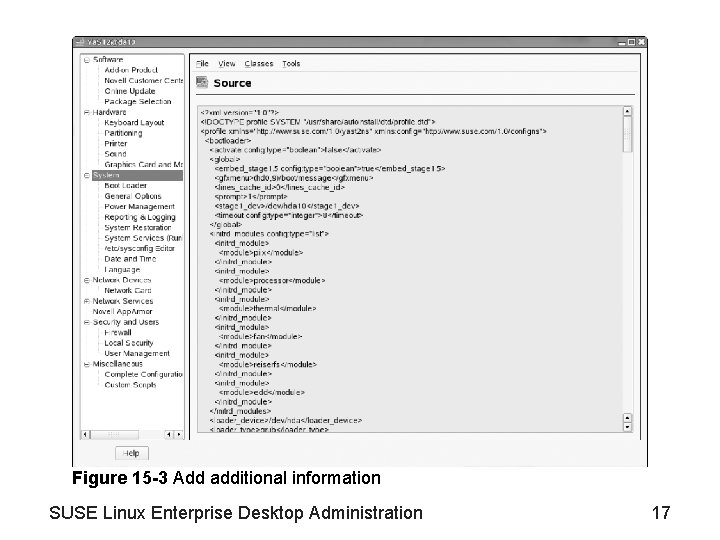
Objective 3—The Configuration File for Auto. Ya. ST (continued) • The reference profile is created by reading information from this system – By default, an exact copy of the configuration for all basic resources is created • To add other necessary information for your machine, use the check boxes in the main window – See Figure 15 -3 • To view the configuration created, select View > Source SUSE Linux Enterprise Desktop Administration 16
Figure 15 -3 Add additional information SUSE Linux Enterprise Desktop Administration 17
Exercise 15 -1: Create an Auto. Ya. ST Control File • In this exercise, you create an Auto. Ya. ST control file SUSE Linux Enterprise Desktop Administration 18
Objective 4—Installation Server: Setup and Use • An installation server offers the files needed for the installation of SUSE Linux Enterprise Desktop via the network • To provide such a server in your network, you need to understand how to: – Set Up an Installation Server – Use the Installation Server SUSE Linux Enterprise Desktop Administration 19
Set Up an Installation Server • Ya. ST Installation Server module – Creates the necessary directory structure, and prompts you to insert the CDs or DVD to copy their content to the proper directories • Sets up the server (NFS, HTTP, FTP) used to distribute the files • You can also use SUSE Linux Enterprise Desktop 10 as an installation server SUSE Linux Enterprise Desktop Administration 20
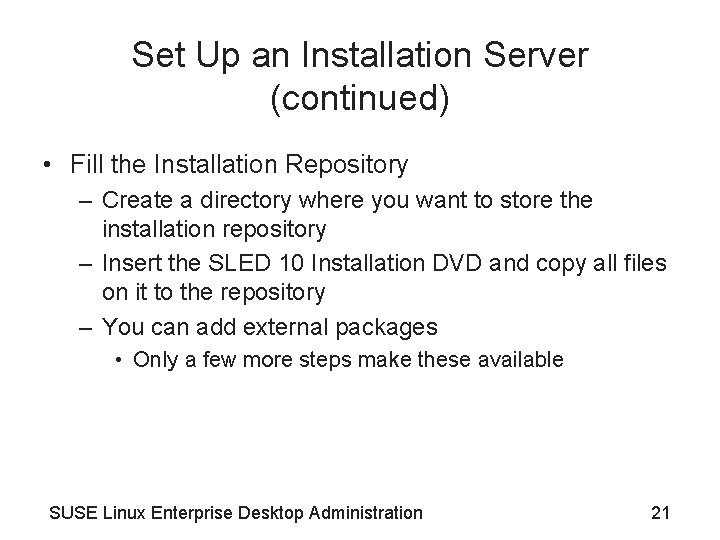
Set Up an Installation Server (continued) • Fill the Installation Repository – Create a directory where you want to store the installation repository – Insert the SLED 10 Installation DVD and copy all files on it to the repository – You can add external packages • Only a few more steps make these available SUSE Linux Enterprise Desktop Administration 21
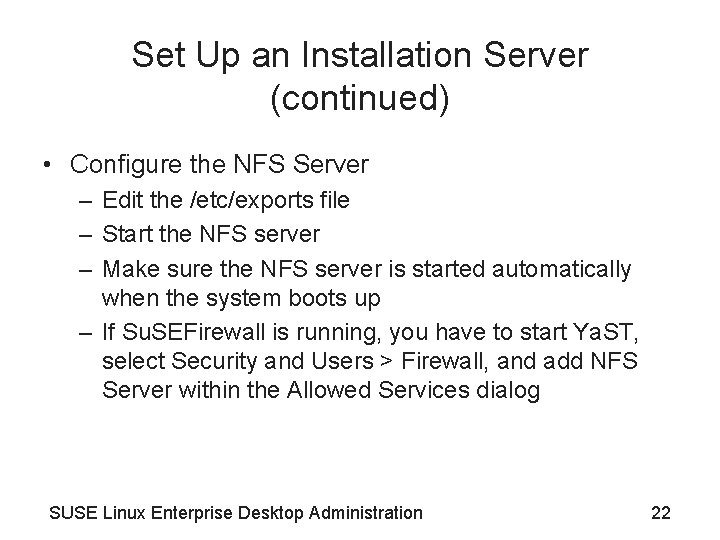
Set Up an Installation Server (continued) • Configure the NFS Server – Edit the /etc/exports file – Start the NFS server – Make sure the NFS server is started automatically when the system boots up – If Su. SEFirewall is running, you have to start Ya. ST, select Security and Users > Firewall, and add NFS Server within the Allowed Services dialog SUSE Linux Enterprise Desktop Administration 22
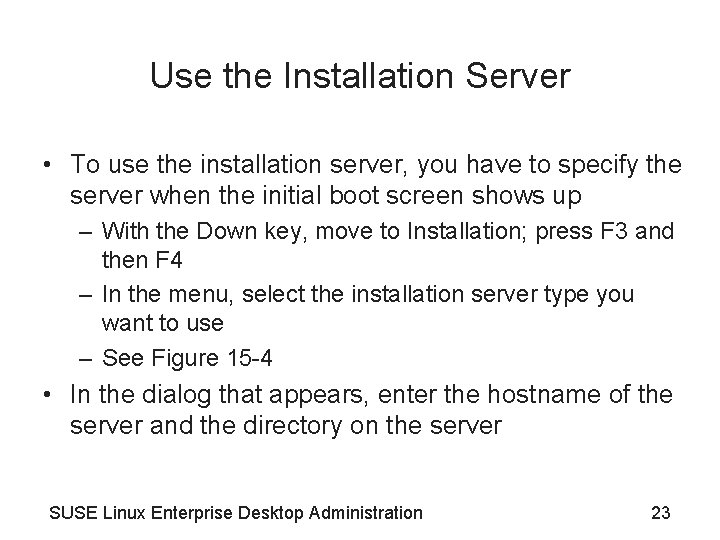
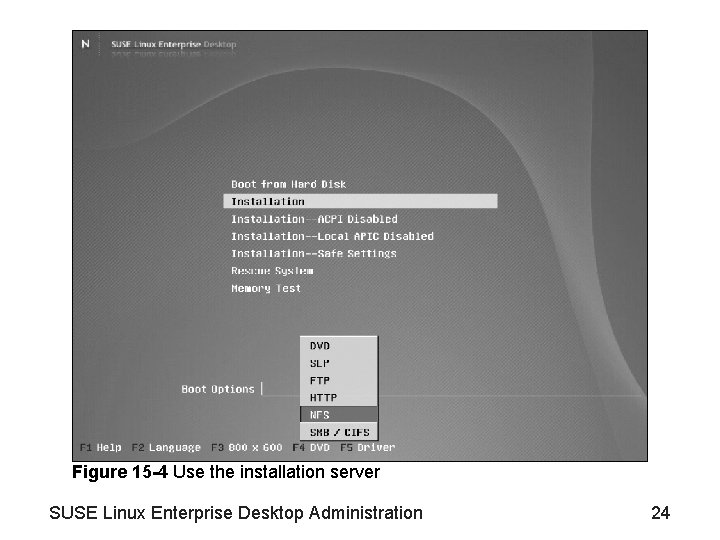
Use the Installation Server • To use the installation server, you have to specify the server when the initial boot screen shows up – With the Down key, move to Installation; press F 3 and then F 4 – In the menu, select the installation server type you want to use – See Figure 15 -4 • In the dialog that appears, enter the hostname of the server and the directory on the server SUSE Linux Enterprise Desktop Administration 23
Figure 15 -4 Use the installation server SUSE Linux Enterprise Desktop Administration 24
Exercise 15 -2: Set Up an Installation Server • In this exercise, you copy the files of the installation DVD to a directory and make this directory accessible over the network using NFS • Create the /export/sled 10 directory • Copy all files from the DVD to this directory • Edit /etc/exports and start the NFS server to make these files accessible over the network SUSE Linux Enterprise Desktop Administration 25
Objective 5—Automated Installation • To start the automated installation, make the Auto. Ya. ST control file available on the machine to be installed – Can be combined with any installation method • To perform automated installations, you need to: – Provide the control file – Boot and install the system SUSE Linux Enterprise Desktop Administration 26
Provide the Control File • Various ways exist to make the control file available – One way is to copy the file to a floppy disk containing a FAT file system format • If you name the file on the floppy disk autoinst. xml and insert the floppy, it will be automatically used – Another way to make the control file available is via the network SUSE Linux Enterprise Desktop Administration 27
Boot and Install the System • Boot and install from DVD – For larger deployments, this is not really efficient – While it saves the typing of configuration information, you still have to walk from computer to computer, insert the media, and start the installation manually • Boot from DVD and install from an installation server – An installation server has the advantage that you can remove the boot media as soon as the actual installation has started SUSE Linux Enterprise Desktop Administration 28
Boot and Install the System (continued) • Boot from DVD and install from an installation server (steps) – Insert the installation DVD into your machine and start the boot process – On the first boot screen, select Installation (be sure to do this within 10 seconds; otherwise, the system starts from hard disk) – Provide the information that you want used with Auto. Ya. ST SUSE Linux Enterprise Desktop Administration 29
Boot and Install the System (continued) • Boot via PXE and install from an installation server – Advantage • Do not have to bring a separate boot medium to the computer – With a suitable configuration, you can offer a menu to select what to install • In fact, if the network card supports Wake on LAN, you do not have to walk to the machine at all SUSE Linux Enterprise Desktop Administration 30
Exercise 15 -3: Perform an Automated Installation of SLED 10 • In this exercise, you perform an automated installation of SUSE Linux Enterprise Desktop 10 SUSE Linux Enterprise Desktop Administration 31
Summary • SUSE Linux Enterprise Desktop 10 can be installed locally using a DVD or from an installation server across a network • To start a SUSE Linux installation, you must boot from a DVD, floppy disk, or PXE-capable network card • Installation settings can be configured locally, remotely using VNC or SSH, as well as by using an Auto. Ya. ST configuration file SUSE Linux Enterprise Desktop Administration 32
Summary (continued) • Network-based installations are well suited for situations where you need to install more than 10 SUSE Linux computers • To create an installation server on SUSE Linux Enterprise Server 10, you can use the Installation Server module of Ya. ST • You can specify the location of installation source files at the boot prompt during a SUSE Linux installation SUSE Linux Enterprise Desktop Administration 33
Summary (continued) • You can create an Auto. Ya. ST configuration file at the end of a SUSE Linux installation, or by using the Ya. ST Autoinstallation module SUSE Linux Enterprise Desktop Administration 34