
Surround Web Interface SWI This training has audio
Surround Web Interface (SWI) This training has audio. 1
Surround Web Interface - Objectives Understand the following: • Log in / Log out • Navigate Between Fields and Sub-Windows • Create a Donor/Specimen Work Order • Modify a Donor/Specimen Work Order • Import File Layout Instructions • Upload a File • Submit a Work Order • View and Print Reports 2
Surround Web Interface - Navigation Navigating • • Cautions • Do not use the browser back arrow Click on words or phrases Click on selected buttons Mouse or Tab key ‘Add sample(s)’ and ‘Modify sample’ buttons save changes • Changes will be lost if not saved prior to navigating to another sample or window 3
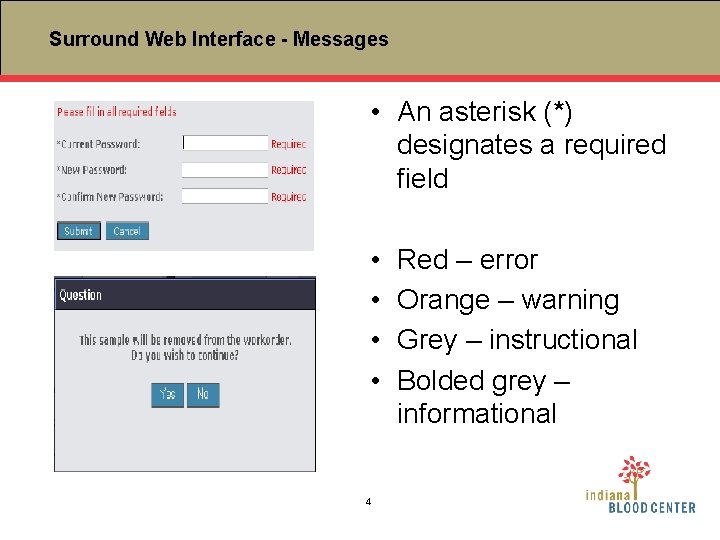
Surround Web Interface - Messages • An asterisk (*) designates a required field • • 4 Red – error Orange – warning Grey – instructional Bolded grey – informational
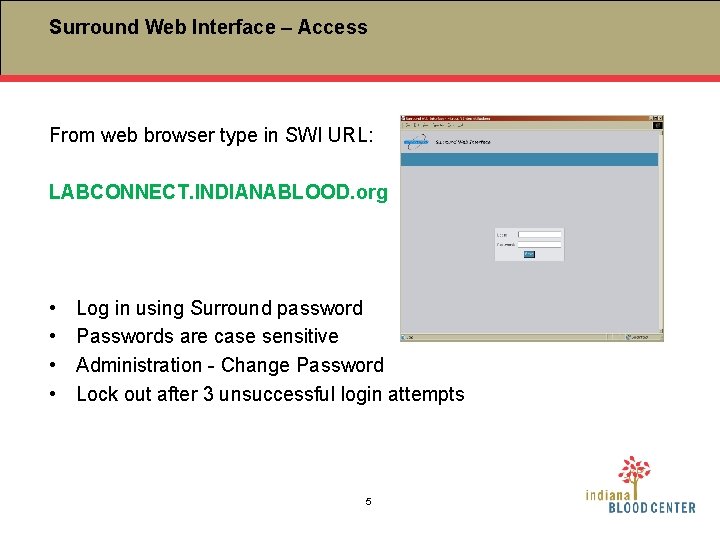
Surround Web Interface – Access From web browser type in SWI URL: LABCONNECT. INDIANABLOOD. org • • Log in using Surround password Passwords are case sensitive Administration - Change Password Lock out after 3 unsuccessful login attempts 5
Surround Web Interface - Security • CFR Part 11 compliant SWI will send an email notification to designated user(s) of unsuccessful log-in attempts, as this occurrence may indicate a possible ‘hack-in’ incident. The email includes the attempted login name(s), the date and time of the attempts, and the terminal where the attempts were made. 6
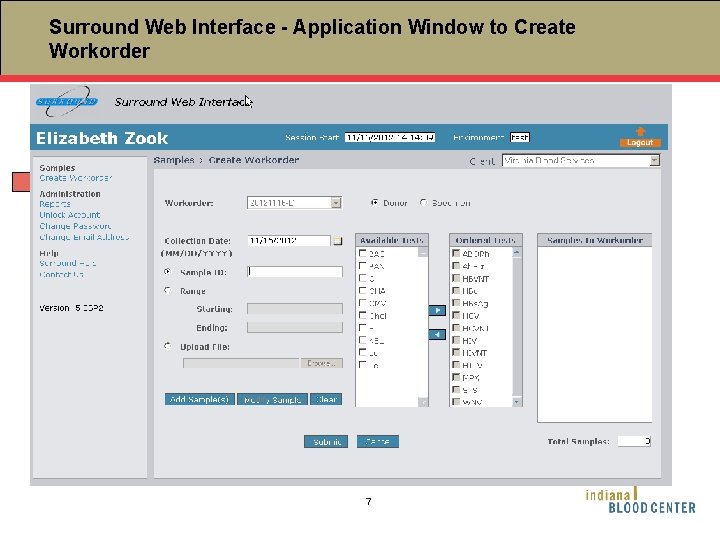
Surround Web Interface - Application Window to Create Workorder 7
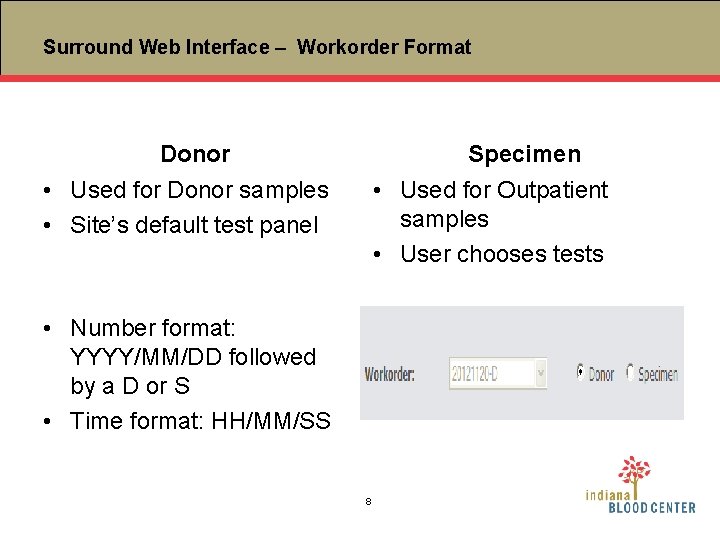
Surround Web Interface – Workorder Format Donor Specimen • Used for Donor samples • Site’s default test panel • Used for Outpatient samples • User chooses tests • Number format: YYYY/MM/DD followed by a D or S • Time format: HH/MM/SS 8
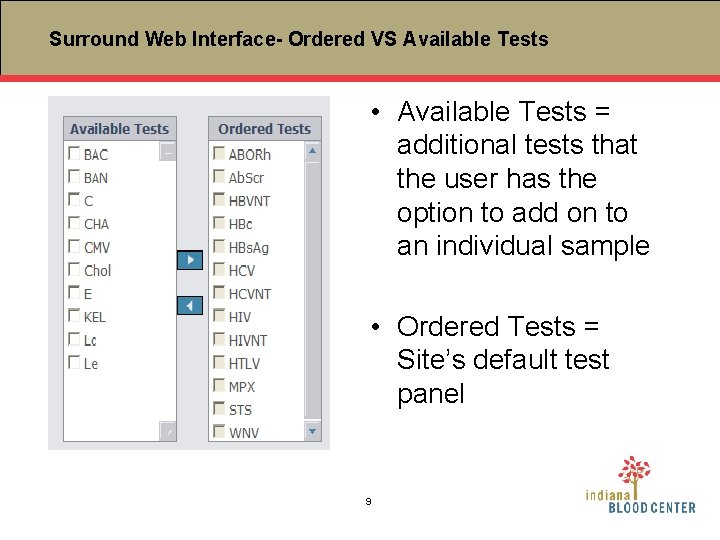
Surround Web Interface- Ordered VS Available Tests • Available Tests = additional tests that the user has the option to add on to an individual sample • Ordered Tests = Site’s default test panel 9
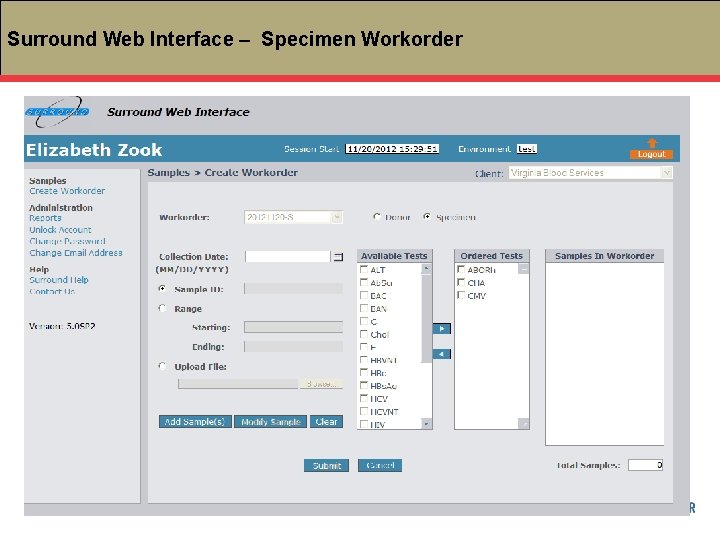
Surround Web Interface – Specimen Workorder 10
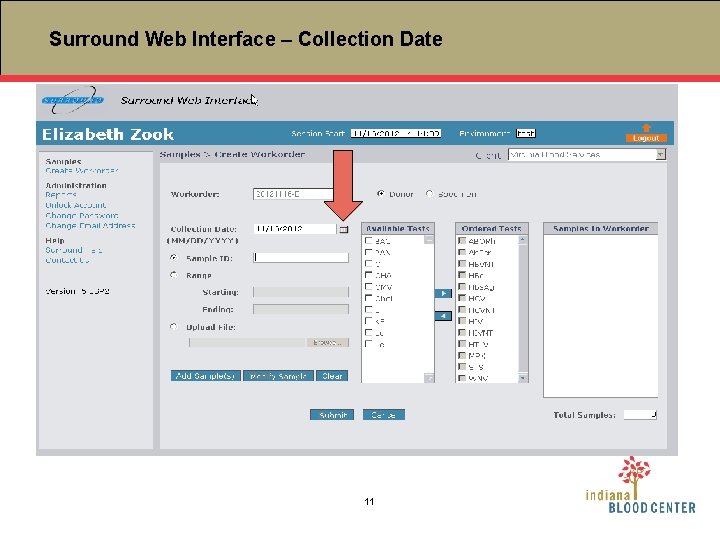
Surround Web Interface – Collection Date 11
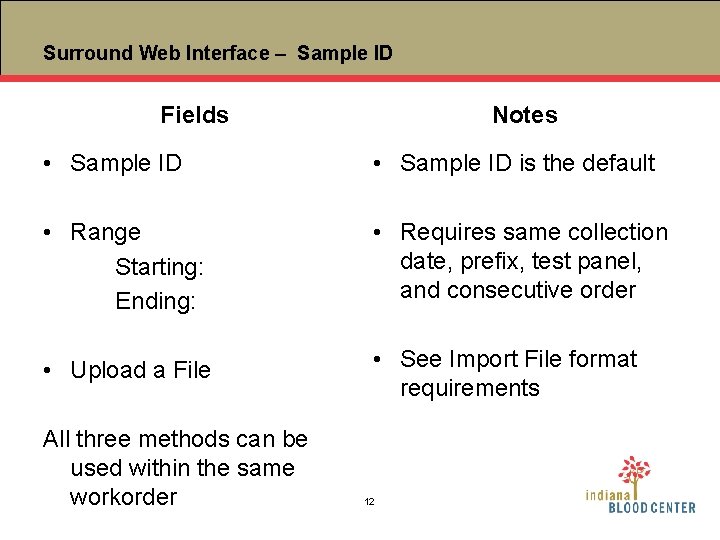
Surround Web Interface – Sample ID Fields Notes • Sample ID is the default • Range Starting: Ending: • Requires same collection date, prefix, test panel, and consecutive order • Upload a File • See Import File format requirements All three methods can be used within the same workorder 12
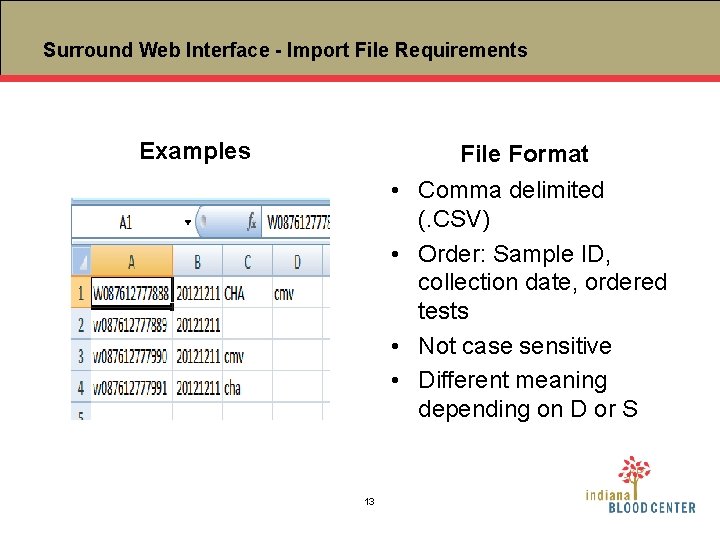
Surround Web Interface - Import File Requirements Examples File Format • Comma delimited (. CSV) • Order: Sample ID, collection date, ordered tests • Not case sensitive • Different meaning depending on D or S 13
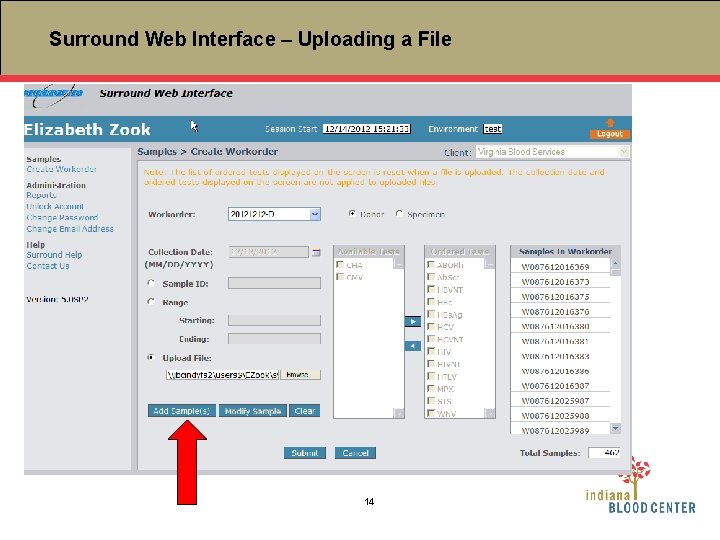
Surround Web Interface – Uploading a File 14
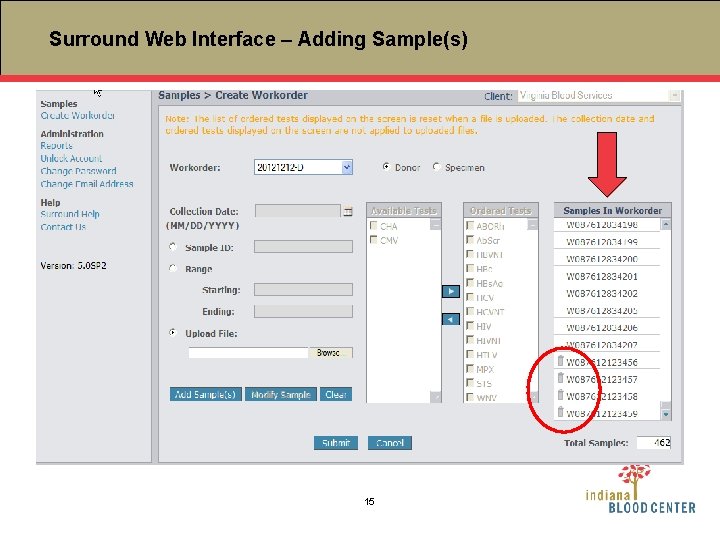
Surround Web Interface – Adding Sample(s) 15
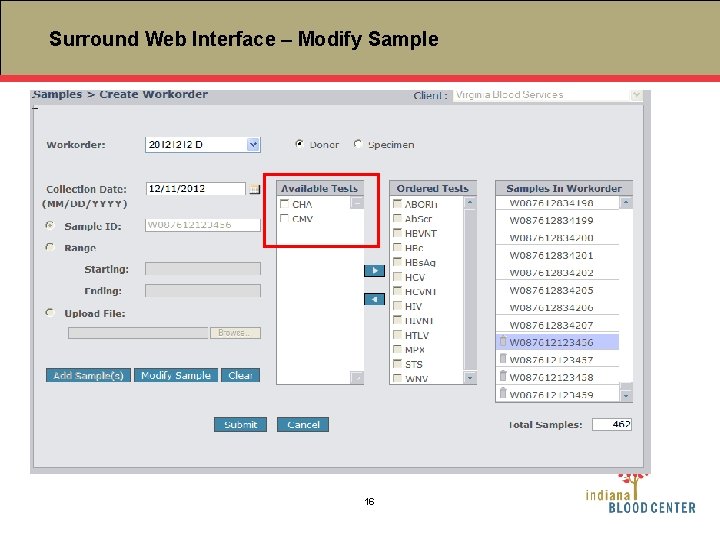
Surround Web Interface – Modify Sample 16
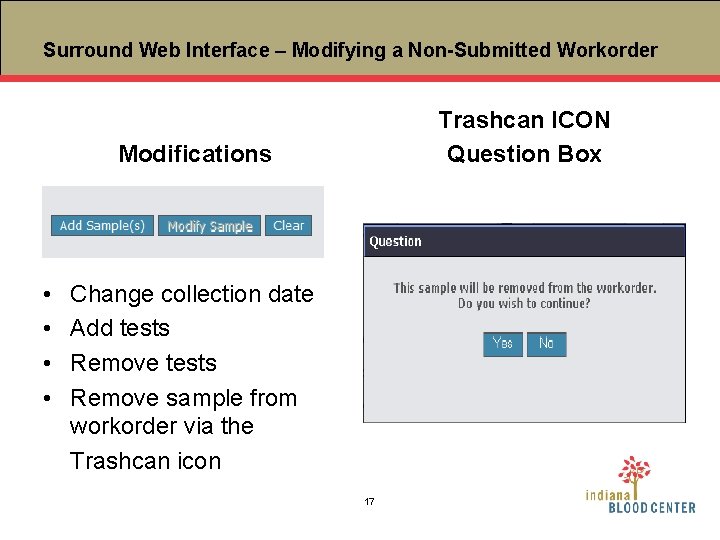
Surround Web Interface – Modifying a Non-Submitted Workorder Trashcan ICON Question Box Modifications • • Change collection date Add tests Remove sample from workorder via the Trashcan icon 17
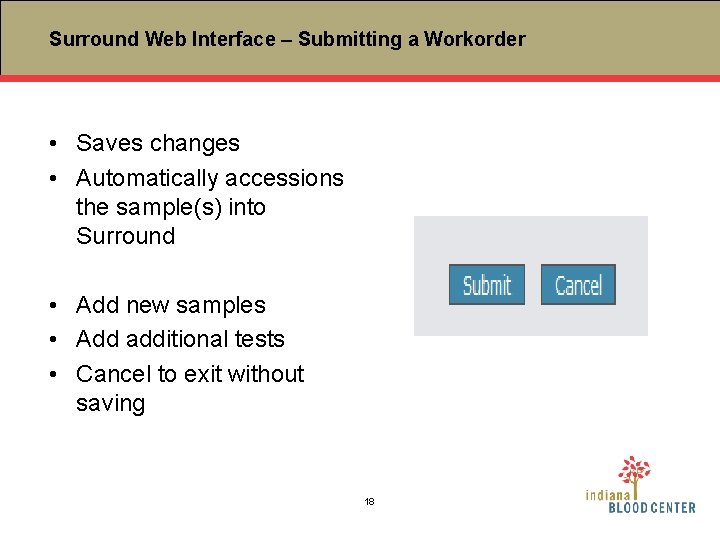
Surround Web Interface – Submitting a Workorder • Saves changes • Automatically accessions the sample(s) into Surround • Add new samples • Add additional tests • Cancel to exit without saving 18
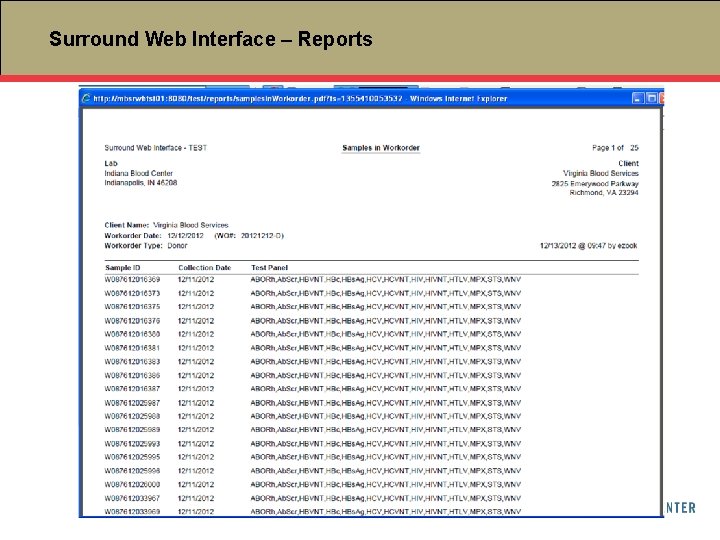
Surround Web Interface – Reports 19
Surround Web Interface – Report Types • Samples in Workorder • All samples in specified workorder • All tests ordered for each sample • Shows any sample with a collection date > 5 days (*) • Sample Results • Results by sample 20
Surround Web Interface – Report Types (continued) Test Results by Workorder • Sample results and status by workorder • Appears with *** if any test is positive • Appears CLR if all tests are negative • Appears INC if any test not final 21
Surround Web Interface – Report Types (continued) • Specimen Test • Used only for Results by Workorder Specimen Workorders • Sample Testing Summary • Batch information and result by sample • Quarantine Report by Workorder • Returns samples that qualify for quarantine* * Criteria configured per test 22
Surround Web Interface – Report Types (continued) • Samples Requiring Lookback Investigation • Returns all samples by workorder that qualify for a Lookback investigation* *Criteria configured per test Contact IBC if a client specific report is desired. 23
Surround Web Interface - Timing Only one Donor and one Specimen workorder can be created per client, per day – 24 hour clock based on the server time – IBC is on Eastern Time 24
Surround Web Interface - Review • • • Multiple collection dates within a workorder Multiple means of sample ID entry within a workorder Must be CSV file to upload to Surround Double blind manual entries Donor Workorder configured to each IBC client’s default test panel Specimen Workorder tests are variable Default tests cannot be removed Non-submitted samples can be modified Submitted samples cannot be deleted Submitted samples cannot have tests removed 25
Surround Web Interface - Questions 26
- Slides: 26